Microsoft Scout — Secure Configuration Guide
↗ the secure-config reference — every Microsoft Scout setting that matters, with default, recommended value, and why. Bookmark for re-use across pilot, rollout, audit.
On this page
The hub for this series — Microsoft Scout — The Complete Guide — covers what Scout is, how it differs from Copilot, what it costs, and the honest take. This spoke is the secure-config reference IT admins keep coming back to.
Framing principles before the table
A few things to know before you scroll down to the table:
- Microsoft’s defaults are sensible for the general enterprise. Most settings on this list are already in a reasonable place out of the box. The recommendations below are the additional adjustments worth considering — defense-in-depth for high-sensitivity tenants, regulated industries, public-sector deployments, or anyone with a low risk appetite around always-on agents.
- Not every setting is a UI toggle. Some live in Microsoft 365 admin policies, some in Scout’s in-app settings, some only as ADMX policies in microsoft/scout-resources. The “Where to change” column tells you which.
- Settings change between releases. Scout ships weekly in Frontier. I’ll keep the “Last verified” date at the top of this page current and update the table when settings move. Send feedback if you spot anything stale.
- You probably don’t need to change every row. Read the table, then jump to the “If you only do five things” summary at the bottom for the high-impact subset.
Three starter presets — pick one before scrolling the full table
If you’d rather pick a known-safe configuration than work through every row, start with one of these three presets. Each is a curated subset of the full table — the rows below cover everything; the presets cover the load-bearing settings for the role.
| Setting (row #) | Starter pilot | Regulated tenant | Developer / power user |
|---|---|---|---|
| Telemetry region (1) | Auto | Pinned to your region | Auto |
| Memory cloud sync (4) | On | Local-only | On |
| Third-party MCP servers (7) | Org allow-list | Deny by default · ADMX DisabledServers | User-managed |
| Heartbeat (21) | On, 60-min interval | Off via ADMX DisableHeartbeat | On, 15-min interval |
| Automations (22) | On | Off via ADMX DisableWorkflows | On |
| RestrictToWorkspace ADMX (23) | Enabled | Enabled (mandatory) | Not set (developer needs cross-workspace) |
| ForcePrompt ADMX (24) | Not set | Enabled (every action approved) | Not set |
| Auto-approve per capability (28) | Off | Off (enforced via row 24) | On for low-risk reads only |
| Default workspace location (30) | OneDrive-for-Business default | Locked-down org folder | Per-project local repo |
Quick read:
- Starter pilot is what most enterprises should run in their first 3-10-user deployment. Sensible defaults plus the most-needed ADMX policy (RestrictToWorkspace).
- Regulated tenant is for financial services, health, public sector, or anyone whose data classification rules out always-on AI without per-action human approval.
- Developer / power user is what I run at my own desk because I need shell access, cross-folder file paths, and 15-minute heartbeats for active work.
If your situation doesn’t match any of the three, the full table below is the long-form reference — but most readers will find one of the three presets close enough to copy-and-modify.
The secure-config table
| # | Setting | Where to change | Microsoft default | Sush’s recommendation | Why |
|---|---|---|---|---|---|
| 1 | Telemetry region | Scout argv --telemetry-region= OR auto-detect | Auto | Pin to your data-residency region (e.g. EU) | Some EU tenants prefer the strongest possible region pin even when auto-detect already lands them in the right place. |
| 2 | Usage telemetry | Scout Settings → Privacy → Enable collecting telemetry | On | Off in regulated tenants | The actual UI label is “Enable collecting telemetry” and Scout’s own description confirms “No conversation content is collected” — only session/feature usage events. Off makes sense only when your tenant’s data classification can’t tolerate any outbound product analytics. Changes take effect after restarting Scout. |
| 3 | Crash reporting | Scout Settings → Privacy | On | On in most cases; off only if your incident-response playbook requires it | Crash reports help Microsoft fix the bugs that hit you. Most tenants keep it on. Off is a regulated-tenant decision. |
| 4 | Memory cloud sync | Scout Settings → Memory | On | Keep on for most users; consider local-only for handlers of highly sensitive data | Cloud sync is what lets Scout build context across devices over time. The trade-off is that memory entries (which may include excerpts of your prompts) travel through Microsoft cloud services. Most users want the sync; a small minority of high-sensitivity users prefer the local-only mode. |
| 5 | Memory export | Scout Settings → Memory | Allowed | Disabled in tenants where users could exfiltrate sensitive memory content | Memory export is a useful feature for backing up your Scout history. In a high-trust tenant, leave it on. In a low-trust scenario (e.g. contractors), disable to remove an exfiltration path. |
| 6 | MCP catalog auto-install | Scout Settings → MCP servers | Manual approval already by default | Keep as-is | Microsoft already requires you to confirm any MCP catalog install. Reconfirm this is set to manual approval if you’ve previously changed it. |
| 7 | Third-party MCP servers | Scout Settings → MCP servers + ADMX DisabledServers | Allowed (user-added) | Maintain an org allow-list; deny everything not on it | MCP servers can introduce new tools and new outbound calls. An allow-list keeps the attack surface predictable. |
| 8 | OAuth per MCP server | Scout Settings → MCP servers (per-server) | Allowed | Require security review before approving OAuth for any new MCP server | Each OAuth grant gives Scout a token that can act in the connected service. Treat each one like a new app registration in your tenant. |
| 9 | openEnvFile IPC | ADMX policy in microsoft/scout-resources | Allowed | Disable in tenants where Scout users have secrets in .env files | Reduces the chance Scout will surface secrets if a user accidentally asks it to “open my env file.” |
| 10 | openFile IPC | ADMX policy in microsoft/scout-resources | Allowed | Constrain to specific paths if your users handle classified material | The general protection here is the workspace boundary; this row tightens further for tenants that need it. |
| 11 | Multi-tenant sign-in | Scout Settings → Account | Supported | Configure for single-tenant in enterprise installs | Multi-tenant sign-in is useful for consultants who work across multiple customers. In a single-tenant enterprise, lock it to your tenant ID to prevent accidental cross-tenant context bleeding. |
| 12 | Guest accounts | Scout Settings → Account | Possible | Disable for guest UPNs in your tenant | Guests in your Microsoft 365 tenant generally shouldn’t have Scout access; this row makes it explicit. |
| 13 | Background service autostart | %APPDATA%\Microsoft Scout\background-service.json runOnStartup | true | false if users don’t need automations / heartbeats | If you’re using Scout interactively only (no background work), there’s no reason for it to launch at login. |
| 14 | Spellcheck dictionaries | Chromium spellcheck (Scout inherits) | en-US | Keep minimal | Spellcheck dictionaries can occasionally surface words to spell-check services. Most users won’t change this; high-sensitivity tenants may want to shrink it. |
| 15 | Cookies / session storage | Scout Settings → Privacy → Clear data | Retained until cleared | Periodic clear via Settings (or via Intune script) | Same hygiene as a browser — periodic clears reduce session residue if a device is later compromised. |
| 16 | Local cache / code cache | %APPDATA%\Microsoft Scout\Cache and Code Cache | Retained until cleared | Periodic purge | Same logic as row 15. The cache folder grows over time; clearing it doesn’t break Scout. |
| 17 | Browser downloads | playwright-mcp-config.json downloads | Disabled by Microsoft | Keep disabled | Microsoft’s default is correct. Re-verify after any major upgrade in case a release flips it accidentally. |
| 18 | Playwright unrestricted file access | playwright-mcp-config.json allowUnrestrictedFileAccess | false | Keep false | Same as row 17 — Microsoft’s default is correct, the row exists so you re-verify after upgrades. |
| 19 | Browser egress allow-list | ADMX BrowserEgressBlockedOrigins | Empty (no blocks) | Populate with sensitive-domain blocks for regulated tenants | The egress block list prevents Scout’s browser from reaching specific external domains — useful for tenants that need to prove Scout can’t reach public file-sharing services. |
| 20 | Voice / microphone tools | Scout Settings → Permissions | Off until first request, then prompted | Leave off unless you actively use voice | Scout’s voice surface (voice-foundry.worker.js in the bundle) isn’t enabled until you ask for it. Most users leave it off. |
| 21 | Heartbeat | Scout Settings → Heartbeat (interval slider) OR ADMX DisableHeartbeat | Enabled, configurable 15-120 min | Configure the interval thoughtfully (slower for low-urgency users); use the ADMX DisableHeartbeat to turn it off entirely in regulated tenants | Heartbeats are what makes Scout an Autopilot. They’re also the rows on your audit logs that an inexperienced admin will ask about. Either configure thoughtfully or disable; don’t leave on the defaults if your tenant has compliance requirements around always-on AI. |
| 22 | Automations / workflows | Scout Settings → Automations OR ADMX DisableWorkflows | Enabled | Use DisableWorkflows ADMX in regulated tenants where background actions need pre-authorisation | Each automation is a stored prompt that fires without a per-run approval. Powerful for productivity; needs governance in regulated environments. |
| 23 | RestrictToWorkspace ADMX | ADMX in microsoft/scout-resources | Not set | Enable for non-developer users | This is the single most important ADMX policy for non-developer Scout deployments. It prevents Scout from touching files outside the configured workspace directory. |
| 24 | ForcePrompt ADMX | ADMX in microsoft/scout-resources | Not set | Enable in high-trust scenarios where every action must be human-approved | Removes Scout’s ability to auto-approve any action. Slows down the user experience considerably; the right trade-off for some tenants, the wrong one for others. |
| 25 | DisabledModels / DisabledProviders ADMX | ADMX in microsoft/scout-resources | None disabled | Pin to your approved model + provider list (e.g. OpenAI-only, or Anthropic-only) | If your tenant has approved a specific AI provider list, the ADMX policies let you enforce it at the Scout layer. |
| 26 | Beta updates toggle | Scout Settings → About → Beta updates | On in Frontier preview by default | Off in regulated tenants until they’ve been validated | Beta-channel builds haven’t yet been through the full Frontier validation pass. Off makes sense for tenants that want to opt into stable Frontier builds only. |
| 27 | Default model | Scout Settings → Default model | Currently Claude Opus 4.7 (1M context) | Pin to your tenant’s approved model class per workload | Different sensitivity classes may want different model providers. The dropdown shows current options; admin enforcement happens via the ADMX DisabledModels policy (row 25). |
| 28 | Auto-approve per capability | Scout Settings → Manage Permissions | Off by default — every action requires user confirmation; auto-approve must be explicitly enabled per capability | Leave Off in most enterprise deployments; turn On selectively for low-risk read paths in trusted user scenarios | Microsoft Learn (Get started with Microsoft Scout) confirms Auto-approve is OFF by default. Turning it on speeds the user experience but removes the human-in-the-loop. The ADMX ForcePrompt policy (row 24) is the enforced version of “keep Off.” |
| 29 | Data retention — auto-delete sessions | Scout Settings → Data Retention → Auto-delete sessions after | Never | Align to your retention policy (30 / 60 / 90 days are common picks) | Default keeps full conversation history forever; regulated tenants need this to match their existing data-retention rules. |
| 30 | Default workspace location | Scout Settings → Workspaces → Default file location | OneDrive-for-Business path under your account | Override per user if they handle classified data outside the default workspace | Workspace scope drives the file-access permissions — the right location is the difference between “Scout can only touch this folder” and “Scout can wander your whole disk.” Pair with row 23 RestrictToWorkspace ADMX for enforcement. |
What the most-asked-about UI rows actually look like
Two of the rows in the table above generate the most “what does this actually look like?” questions in IT-team Slack threads. Here they are, captured from a live install — these are the screenshots you’ll point at when a colleague needs to see the UI before they’re comfortable approving a setting.
Row 2 — Privacy & Data section (Enable collecting telemetry)
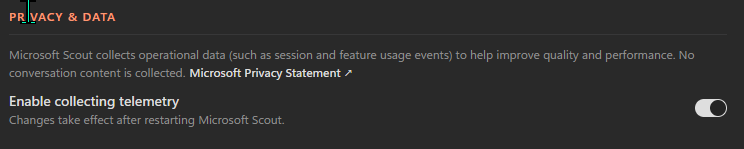
The Privacy & Data panel as it ships. Two facts worth quoting verbatim to a security reviewer: “No conversation content is collected” (only session/feature usage events) and “Changes take effect after restarting Microsoft Scout” (you need to restart the app for the toggle to actually apply, not just close-and-reopen the Settings pane).
Row 28 — the permission card non-workspace file writes hit
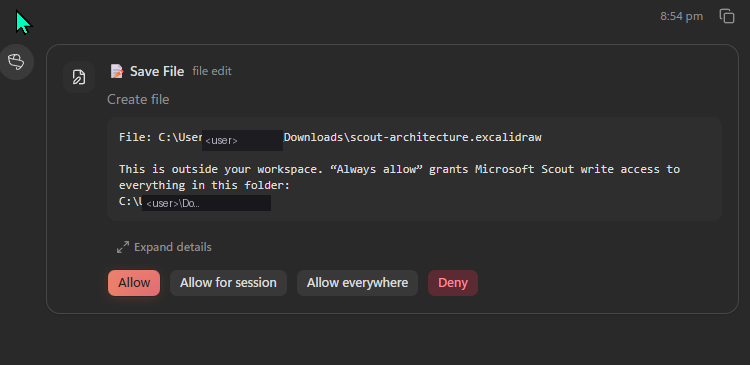
The card that surfaces every time Scout wants to touch a file outside the configured workspace. Four buttons: Allow (one-shot), Allow for session (until Scout restarts), Allow everywhere (permanent — Scout writes a new auto-approve rule), Deny (one-shot block). The combination of this card + ADMX RestrictToWorkspace (row 23) + ADMX ForcePrompt (row 24) is your three-layer file-system control surface. Username redacted in the screenshot — your install will show your actual path.
Reading the live Permissions metric
Scout’s Settings → Permissions panel surfaces a live metric line that looks something like this:
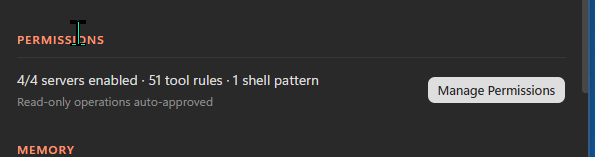
The Permissions section as it surfaces in Settings. The single metric line — 4/4 servers enabled · 51 tool rules · 1 shell pattern · Read-only operations auto-approved — is one of the cheapest audit signals in Scout. The Manage Permissions button drills into the per-MCP toggle panel shown in the MCP spoke walkthrough.
That single line is one of the most useful audit signals you’ll find anywhere in Scout. The four numbers it shows are:
- N/N servers enabled — how many MCP servers are currently active (numerator) vs how many are registered (denominator). If the denominator grows after a Scout release, a new MCP server has been added — worth investigating before it’s used.
- N tool rules — how many per-tool permission rules you’ve set (auto-approve / prompt / block). Track this over time; sudden jumps usually mean a release shipped a new tool set that picked up your defaults.
- N shell pattern(s) — how many shell-command allow-patterns are configured. Most non-developer users sit at 0 or 1. If this number grows on a device you didn’t expect, that’s a signal worth checking.
- Read-only operations auto-approved — this is the live state of my install. Microsoft Learn lists Auto-approve as OFF by default (every action requires confirmation; auto-approve must be explicitly enabled per capability per the Get started doc). I’ve turned it on for read-only paths because I work in a low-risk personal workspace. Row 28 of the table above covers the policy choice; whichever line you see here on a fresh install confirms what your tenant’s defaults landed at.
The cheapest scheduled audit for Scout: take a screenshot of this metric line once a week. If any number moves between weeks, dig in.
For the full Settings page in context — including how Default Model, Memory, Data Retention, Workspaces, and Window Behavior surface around the Permissions row — here’s the wider view:
![Microsoft Scout's Settings page in dark mode, showing eight stacked sections from top to bottom: About (Microsoft Scout v0.23.0 with a Check for updates button, a Beta updates toggle currently on, and a Microsoft Privacy Statement link), Default Model (Model for new chats dropdown showing Claude Opus 4.7 1M context), Permissions (4/4 servers enabled · 51 tool rules · 1 shell pattern with the line 'Read-only operations auto-approved' and a Manage Permissions button), Memory (6 memories stored with a View memories button), Data Retention (Auto-delete sessions after dropdown set to Never), Workspaces (Default file location field with the username portion of the path blurred and a [username redacted] label drawn above, and a Browse button), Appearance (Theme dropdown set to Dark), and the start of the Window Behavior section.](/images/blog/scout-complete-guide/40-scout-settings-overview.png)
The full Settings page — the surface where most of the table above is configured. The workspace path username has been blurred for this screenshot; on your own install it’ll show your actual user path.
Where the ADMX policies actually live
For the rows above that say “ADMX in microsoft/scout-resources”, the source of truth is the public GitHub repo at github.com/microsoft/scout-resources. It ships:
microsoft-scout.admx— the policy definitionsen-US/microsoft-scout.adml— the policy display strings- A README that lists every policy with its purpose and value range
Your Intune admin imports the ADMX, then targets the policies at the device groups that should receive them. Detail in the admin install spoke — Gate 2.1.
If you only do five things
The secure-config table is comprehensive on purpose, but most tenants don’t need to engage with every row on first deployment. If you’re rolling out Scout to your first pilot and want the highest-impact subset, do these five first:
- Row 23 —
RestrictToWorkspaceADMX. For any user who isn’t a developer, this is the most important policy in the entire table. It prevents Scout from touching files outside the configured workspace. One setting closes the biggest file-system risk. - Row 19 —
BrowserEgressBlockedOriginsADMX. Populate with a small list of categorically off-limits external domains (public file-sharing, personal cloud storage, anything your DLP already blocks). Scout’s browser respects the list at startup. - Row 11 — Multi-tenant sign-in. Configure for single-tenant in an enterprise install. Stops accidental cross-tenant context bleeding.
- Row 7 — Third-party MCP servers. Build an org allow-list. Every new MCP server should be reviewed before users can add it. Treat it like reviewing a new Azure AD app registration.
- Row 1 — Telemetry region. Pin to your region. Even if auto-detect would land in the right place, the explicit pin is a row in your audit log that says “we chose this.”
Five settings, ~30 minutes of admin work after the install. Closes off the bulk of the practical risk while leaving Scout’s productivity intact. The rest of the table is the long tail — engage with it as your appetite for Scout grows.
What to read next in this series
- Microsoft Scout — The Complete Guide (hub) — what Scout is, how it differs from Copilot, what it costs, the honest take
- Admin Install & Frontier Setup — the two-gate admin install walkthrough this spoke depends on
- All 7 Bundled Skills Explained — Word, Excel, PowerPoint, Loop, Web Artifacts, Excalidraw, Expense Report
- MCP Servers & Custom Skills — extending Scout with your own MCP servers and SKILL.md files
- Automations, Memory, Heartbeats — Scout’s always-on engine