Microsoft Scout — All 7 Bundled Skills Explained
↗ the 7 bundled skills Microsoft Scout ships with on day one — plain-English breakdown of what each one does, plus the MCP servers, browser, shell, M365 connections, heartbeats, and sub-agent layers around them.
On this page
The hub for this series — Microsoft Scout — The Complete Guide — covers what Scout is, how it differs from Copilot, what it costs, and the honest take. This spoke is the feature-tour reference.
The seven bundled skills
Skills in Scout are markdown files (one folder per skill, with a SKILL.md and supporting assets). The language model picks the right skill for each request based on the description in the SKILL.md frontmatter. Today’s Scout install ships seven bundled skills at C:\Program Files (x86)\Microsoft Scout\resources\bundled-skills\:
| # | Skill | What it does |
|---|---|---|
| 1 | docx | Create, read, edit, or manipulate Word documents — reports, memos, letters, templates, tables of contents, page numbers, tracked changes, image insertion. Trigger words include “Word doc”, “report”, “letter”, “template”. |
| 2 | xlsx | Open, read, edit, or fix spreadsheets — .xlsx, .xlsm, .csv, .tsv. Includes formulas, formatting, charting, cleaning malformed data, converting between tabular formats. |
| 3 | pptx | Create, edit, read, parse, or extract from PowerPoint presentations — slide decks, pitch decks, speaker notes, comments, even SharePoint-hosted or OneDrive-hosted .pptx URLs. |
| 4 | loop | Edit Microsoft Loop documents in the browser using Playwright automation. Loop has no public API, so Scout drives it through the browser — a clever workaround for a workload that otherwise wouldn’t be reachable. |
| 5 | web-artifacts-builder | Build interactive self-contained HTML artifacts — dashboards, visualisations, org charts, network maps, trackers, comparisons. Output is one HTML file, opens in any browser, no build step. |
| 6 | excalidraw | Generate Excalidraw diagrams from descriptions — architecture diagrams, flowcharts, data flow visualisations. Outputs .excalidraw JSON files that open in aka.ms/excalidraw or embed in documentation. |
| 7 | expense-report | Create and fill out Microsoft Dynamics 365 MyExpense expense reports from receipts using visible browser automation. Handles travel expenses, recurring monthly expenses, hotel itemisation, and corporate AMEX matching. Produces a complete review-ready draft; the user always submits themselves. |
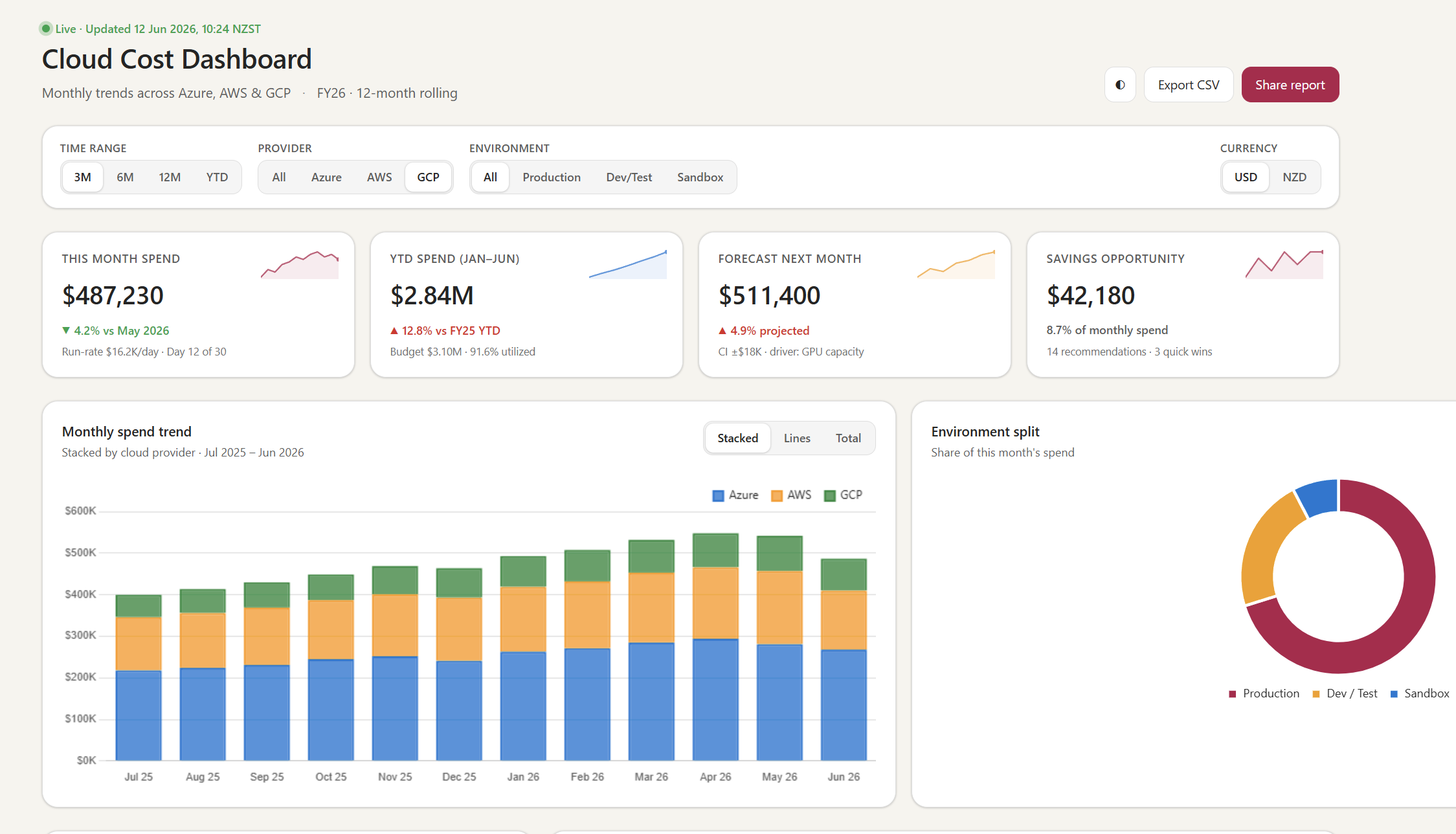
The interactive HTML dashboard Scout’s web-artifacts-builder skill produced from a one-line prompt (“Show me a sample interactive HTML dashboard for monthly cloud cost trends — use fake data”). All the numbers are demo data; the controls, KPI cards, and dual-chart layout are what the skill ships in a single self-contained HTML file. No build step, no SPA, opens in any browser.
Sidebar — Microsoft Learn currently documents five of these (Word, Excel, PowerPoint as one row, Loop, and Web Artifacts Builder). The install ships seven. Excalidraw and Expense Report are on disk and routable by the language model the moment you install Scout, but they aren’t called out in the public overview yet. Worth knowing because both are surprisingly capable. The Expense Report skill in particular hints at how Scout is being shaped for Microsoft enterprise workflows — it knows about AMEX matching and hotel itemisation.
You can also add your own custom skills by dropping a SKILL.md into your skills directory (Scout reads from ~/.copilot/skills/ — the same folder Copilot CLI uses, which is why some of my skills carry across from my Clawpilot days). More on authoring skills in the MCP & custom skills spoke.
Skills in action — see them work, copy the prompts
The seven bundled skills above aren’t theoretical — they fire when the language model picks them based on what you ask. Here’s six of them in action below (the seventh, web-artifacts-builder, was the cost dashboard at the top of this post — same pattern, different output type). Every prompt is copy-paste ready and uses fake numbers so you can re-run them safely in any tenant for customer demos or pilots.
docx — draft a Word memo from one prompt
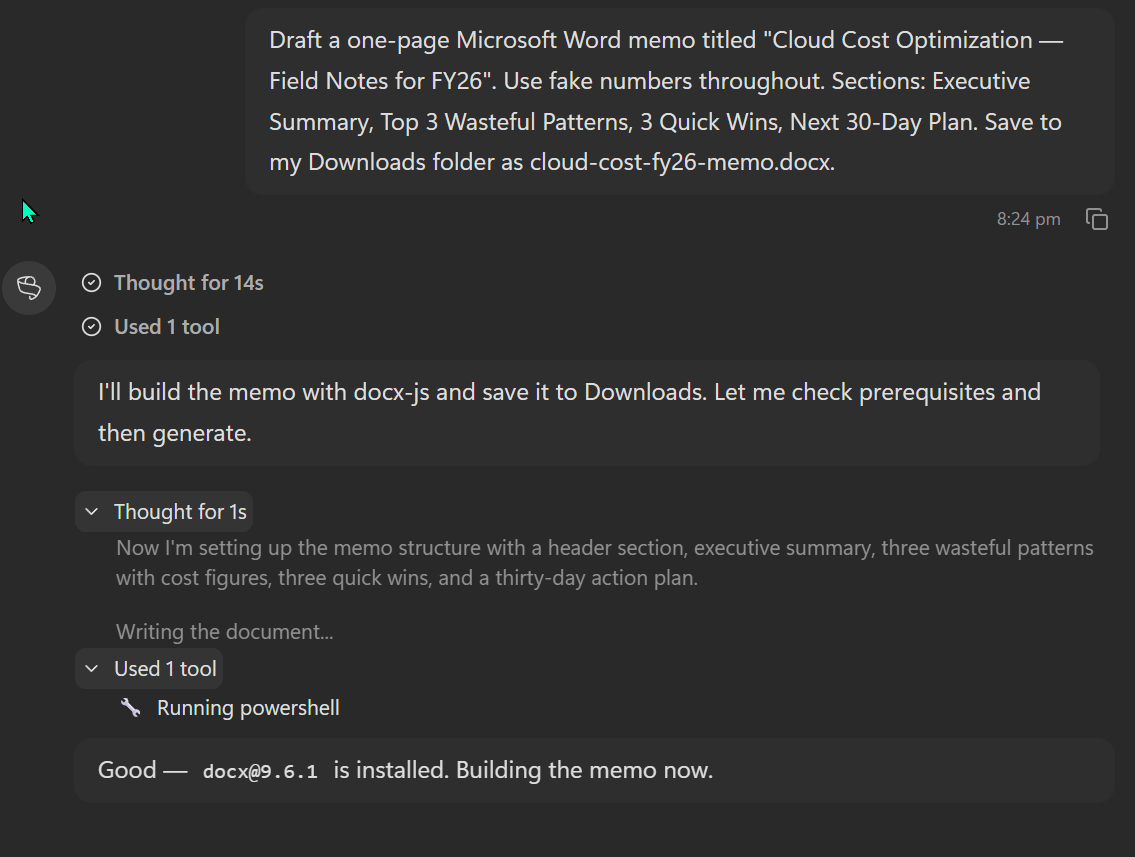
Scout names the docx skill and the underlying library (docx-js / docx@9.6.1) right inside its chain-of-thought. The model picks the skill from the SKILL.md description; you don’t call it by name.
Prompt to try it yourself (copy-paste — works in any Scout install):
Draft a one-page Microsoft Word memo titled "Cloud Cost Optimization — Field Notes for FY26".
Use fake numbers throughout. Sections: Executive Summary, Top 3 Wasteful Patterns, 3 Quick Wins, Next 30-Day Plan.
Save to my Downloads folder as cloud-cost-fy26-memo.docx.
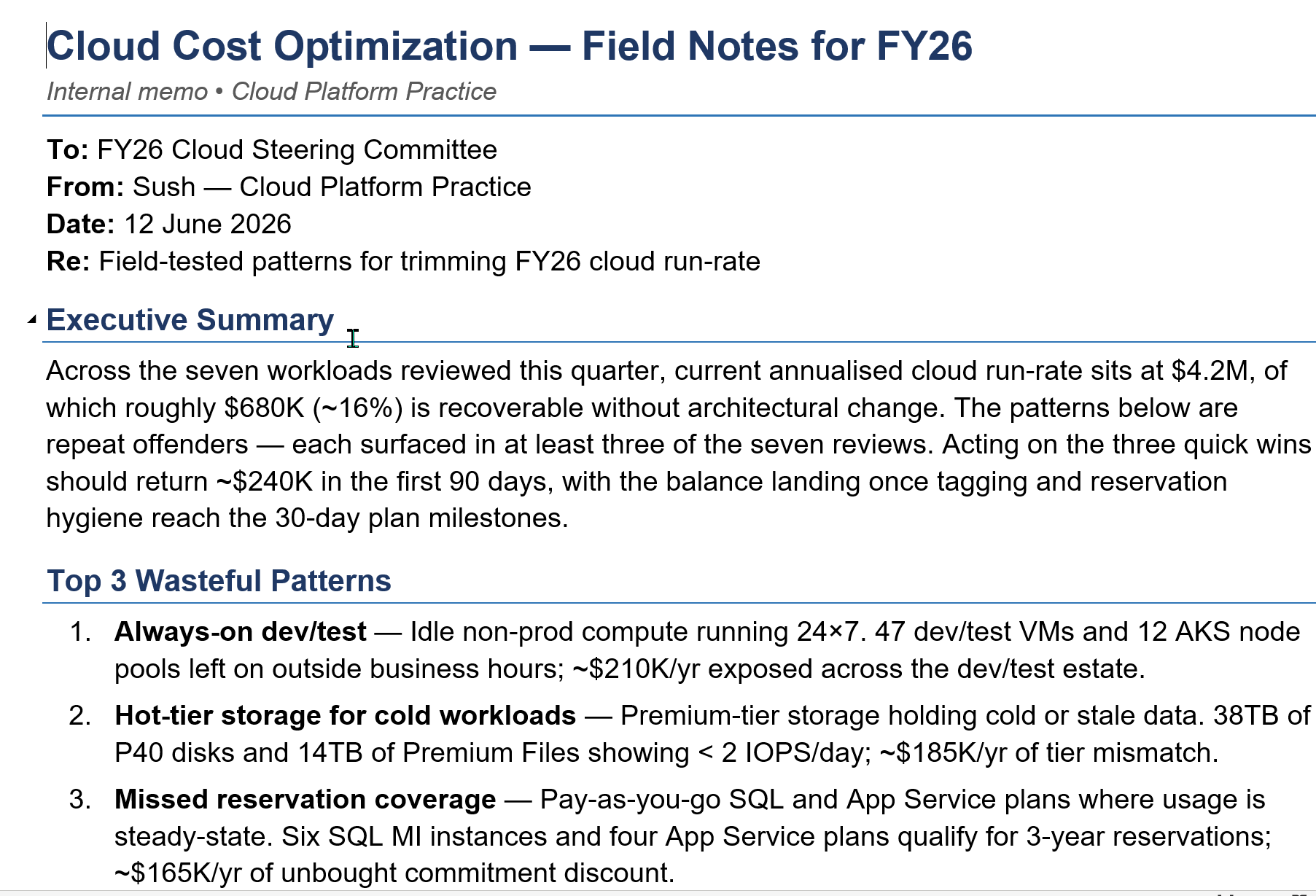
What Scout produced in one prompt — a real .docx with a proper header, section structure, and numbered lists. All figures are illustrative per the prompt instruction. Saved straight to your Downloads folder, ready to refine.
xlsx — build a real .xlsx with live formulas
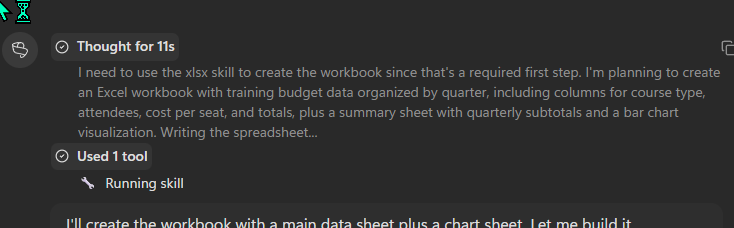
Scout names the skill explicitly — “I need to use the xlsx skill” — before doing anything. That’s the routing logic working out loud.
Prompt to try it yourself:
Create an Excel workbook called fy26-training-budget.xlsx in my Downloads folder.
Track team training spend across 4 quarters with these columns: Quarter, Course Type, Attendees, Cost per Seat, Total.
Use fake numbers. Add a SUM total row, a quarterly subtotal column with SUMIF, and a quarterly bar chart sheet.
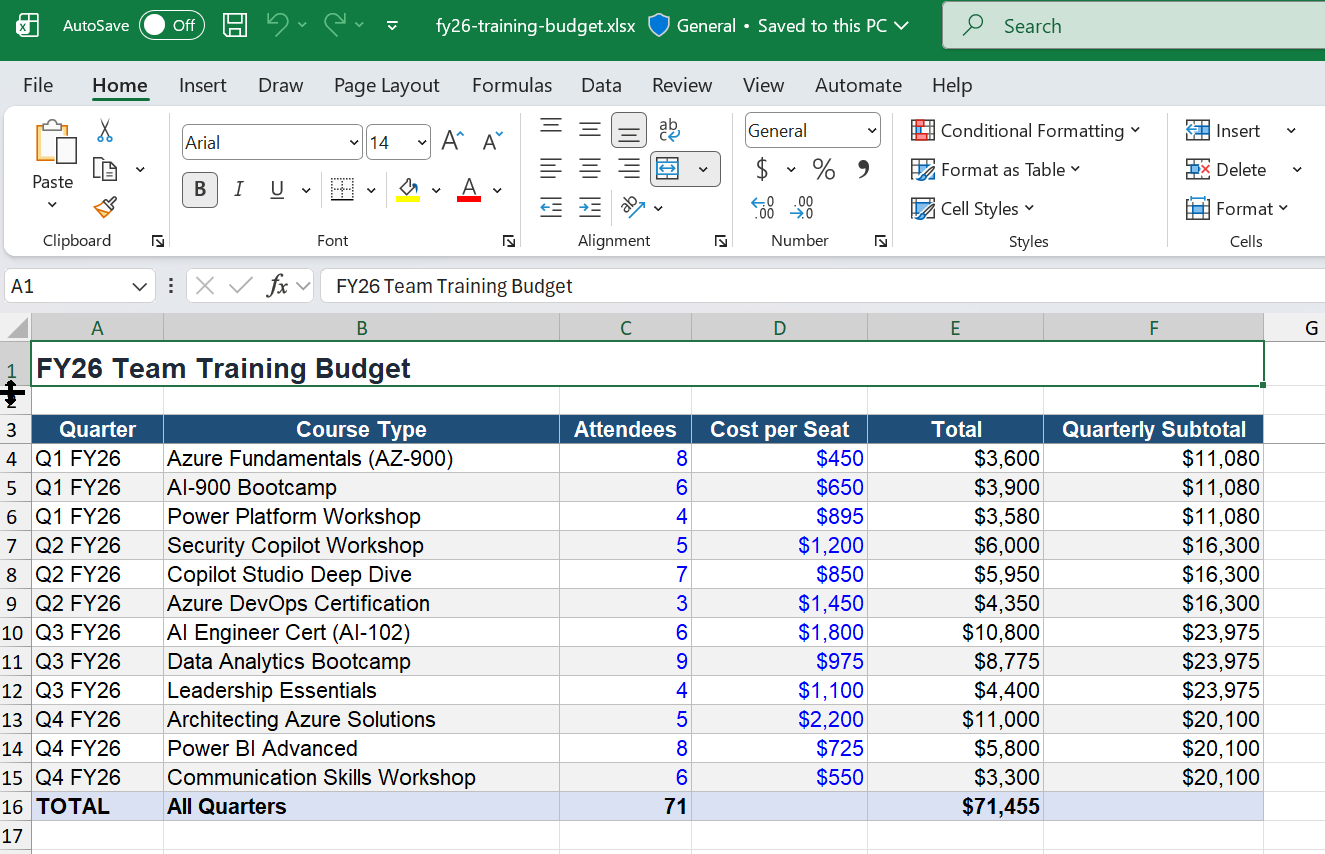
The workbook with live SUMIF formulas in the Quarterly Subtotal column, an additive SUM total of $71,455 across 12 fake training lines. Course names are public Microsoft titles; the numbers are made-up. Bar-chart sheet is a separate tab.
pptx — slide deck from one prompt
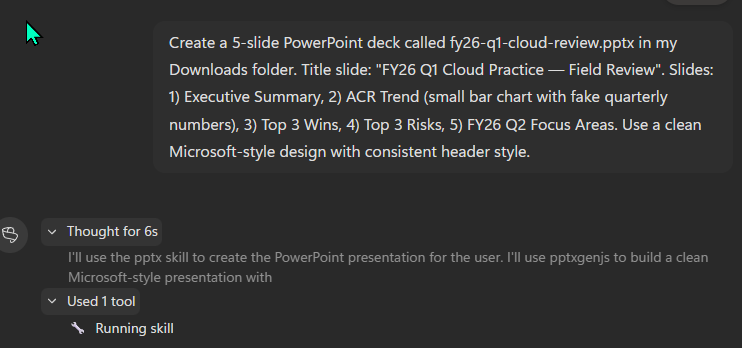
Scout names both the SKILL (pptx) and the underlying library (pptxgenjs). Same routing pattern as docx and xlsx.
Prompt to try it yourself:
Create a 5-slide PowerPoint deck called fy26-q1-cloud-review.pptx in my Downloads folder.
Title slide: "FY26 Q1 Cloud Practice — Field Review".
Slides: 1) Executive Summary, 2) ACR Trend (small bar chart with fake quarterly numbers),
3) Top 3 Wins, 4) Top 3 Risks, 5) FY26 Q2 Focus Areas.
Use a clean Microsoft-style design with consistent header style.
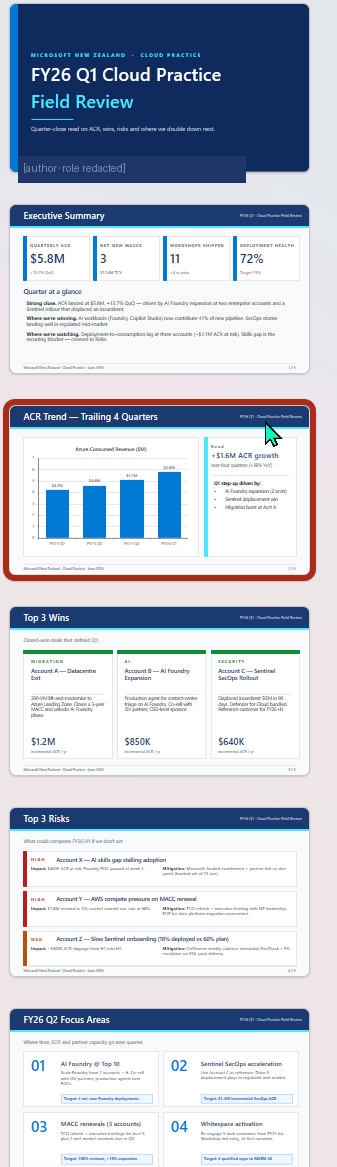
A full six-slide deck with proper Microsoft-style design, KPI tiles, a bar chart, multi-column layouts, and a risk grid — from one prompt. (The title-slide author footer is redacted because this preview run used my own name; you’d get your own.)
loop — careful keyboard, no API needed
The loop skill is fundamentally different from the file-manipulating skills above. Microsoft Loop has no public API, so the SKILL.md body is literally a Playwright recipe — Navigate to loop.microsoft.com, click “Create new” → “Page”, click the title area and type… The language model follows those steps as a careful keyboard.
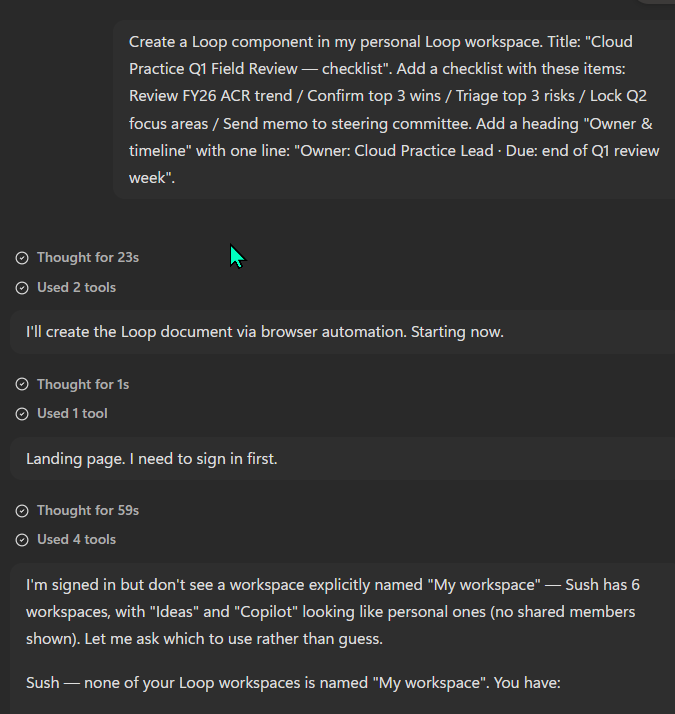
This is the “careful keyboard” pattern at work. Scout signs in, inspects the workspace tree, infers which spaces are personal vs shared, and asks before guessing. That’s not a bolt-on guardrail — it’s literally instructed in the SKILL.md body.
Prompt to try it yourself:
Create a Loop component in my personal Loop workspace.
Title: "Cloud Practice Q1 Field Review — checklist".
Add a checklist with these items: Review FY26 ACR trend / Confirm top 3 wins / Triage top 3 risks / Lock Q2 focus areas / Send memo to steering committee.
Add a heading "Owner & timeline" with one line: "Owner: Cloud Practice Lead · Due: end of Q1 review week".
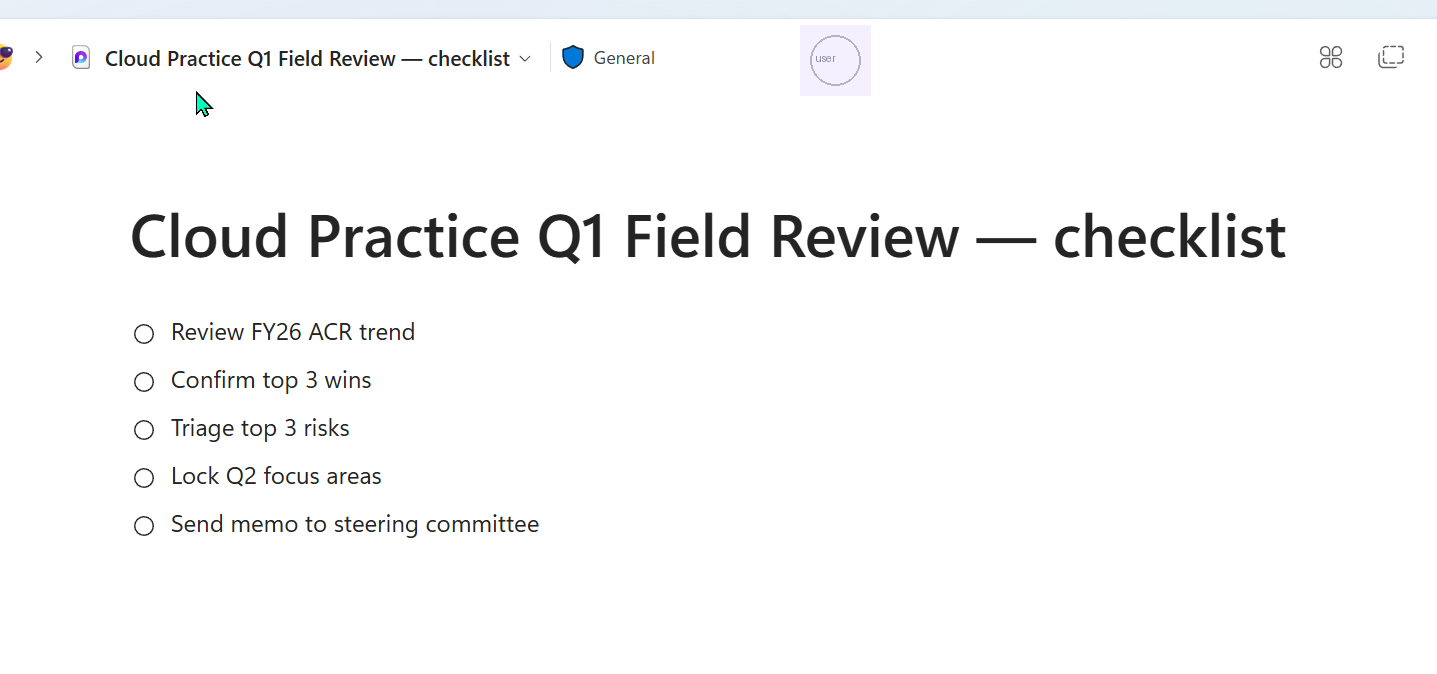
The Loop page Scout drove the browser to create, with the exact checklist you asked for. Behind that single image: open browser → wait for auth → navigate the workspace tree → click Create → type title → add checklist items one by one — every click is the language model following the SKILL.md recipe.
excalidraw — generate a diagram
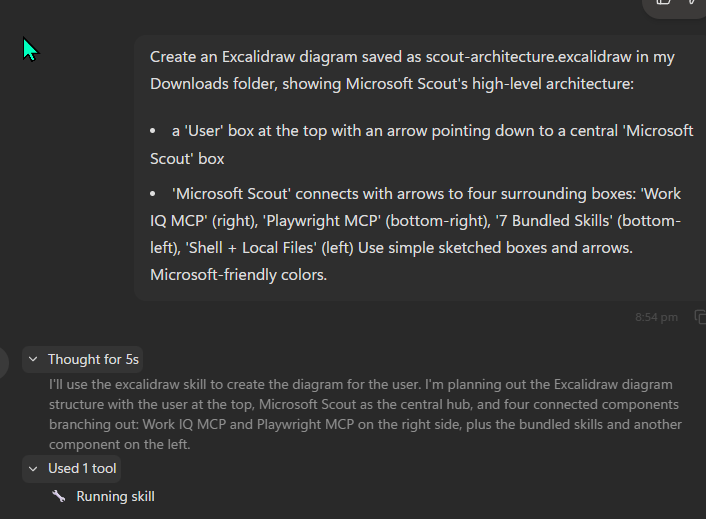
Scout reasons through the layout before generating, then fires the excalidraw skill to produce the .excalidraw JSON file.
Prompt to try it yourself:
Create an Excalidraw diagram saved as scout-architecture.excalidraw in my Downloads folder,
showing Microsoft Scout's high-level architecture:
- a 'User' box at the top with an arrow pointing down to a central 'Microsoft Scout' box
- 'Microsoft Scout' connects with arrows to four surrounding boxes:
  'Work IQ MCP' (right), 'Playwright MCP' (bottom-right), '7 Bundled Skills' (bottom-left), 'Shell + Local Files' (left)
Use simple sketched boxes and arrows. Microsoft-friendly colors.
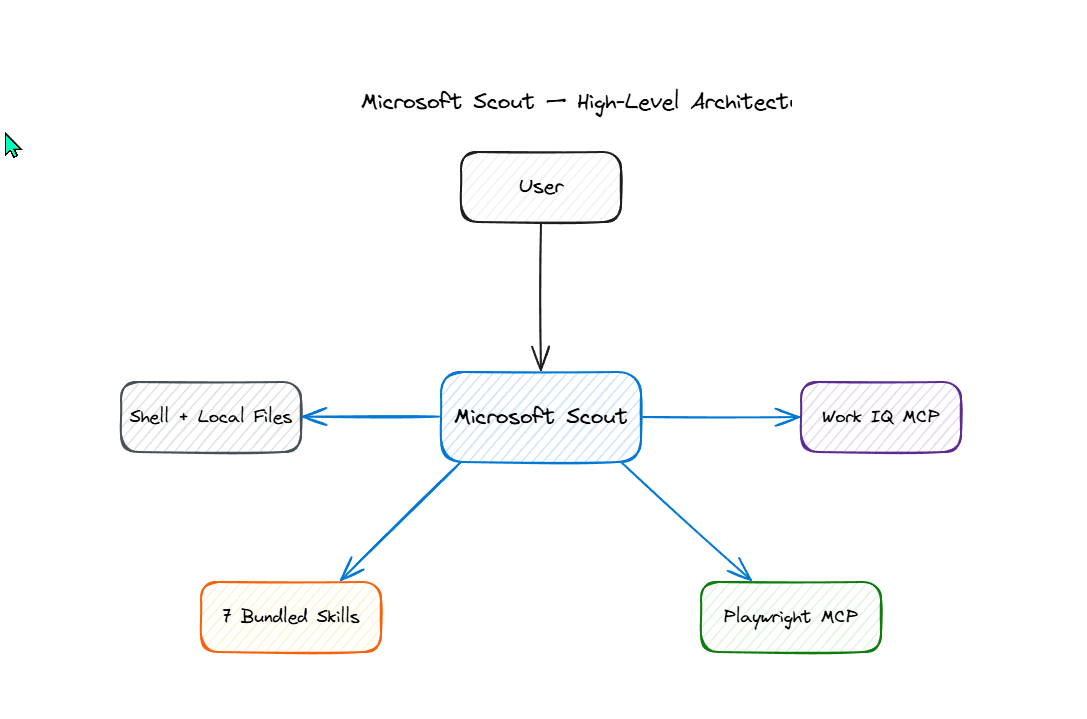
Open the saved .excalidraw file at aka.ms/excalidraw (Microsoft’s hosted Excalidraw) and the diagram renders in the hand-sketched style. From here you can re-arrange boxes, change colors, or export to PNG/SVG.
expense-report — sophisticated plan with safety rails
The expense-report skill is the most enterprise-shaped of the bundle — AMEX matching, hotel itemisation, the principle that the user always submits themselves. To safely show it off without firing into a real MyExpense tenant, ask Scout to describe the plan rather than execute it.
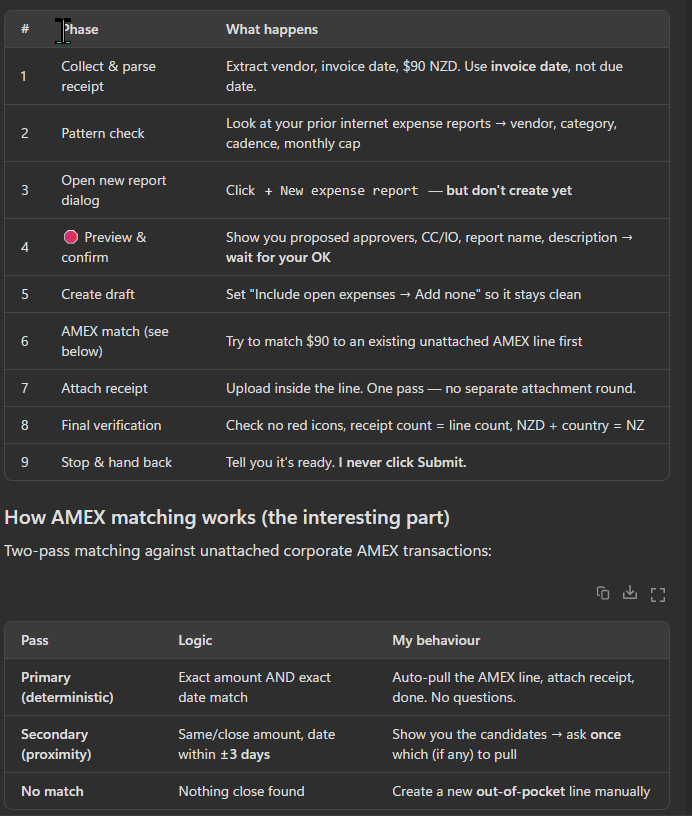
Nine phases. Two-pass AMEX matching logic. “I never click Submit.” That’s not bolt-on safety — it’s how the SKILL.md is engineered.
Prompt to try it yourself (safe for any tenant — Scout describes, doesn’t execute):
I have a home-office internet reimbursement for June 2026 ($90 NZD).
DON'T open MyExpense or submit anything — just describe the steps you'd take,
which skill you'd use, and how AMEX matching works. Show me your plan.
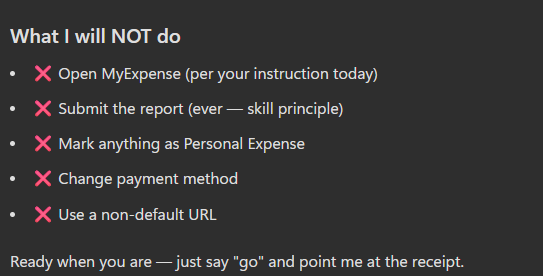
Scout’s own “what I will NOT do” list — five hard limits, in plain language. The Submit the report (ever — skill principle) line is the one to point at when a security reviewer asks how human-in-the-loop is enforced.
Skills compose — Scout chains them automatically
Skills don’t just fire in isolation. When a prompt spans multiple skills, Scout plans the chain and routes through each one in sequence — without you having to call them by name.
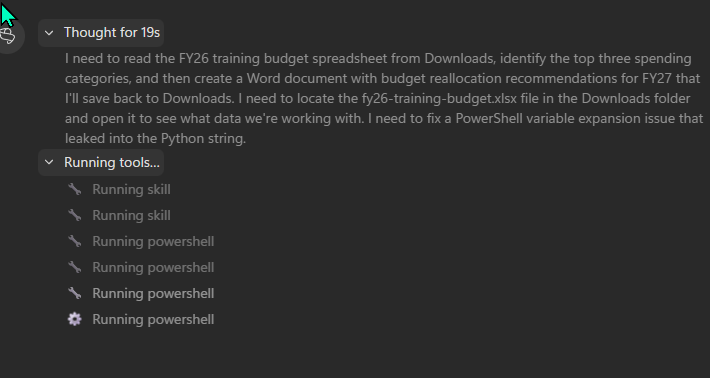
Six sequential tool fires queued in one chain — two skills (xlsx to read the budget, docx to write the memo) plus four powershell calls for the file plumbing in between. All from one prompt.
Prompt to try it yourself (re-uses the xlsx file from the earlier xlsx demo — make sure it’s still in Downloads):
Take fy26-training-budget.xlsx from my Downloads.
Summarize the top 3 spending categories, then write a one-page Word memo
called fy27-training-budget-recommendations.docx recommending budget reallocations
for FY27 based on what's expensive vs strategically important.
Save the memo to my Downloads.
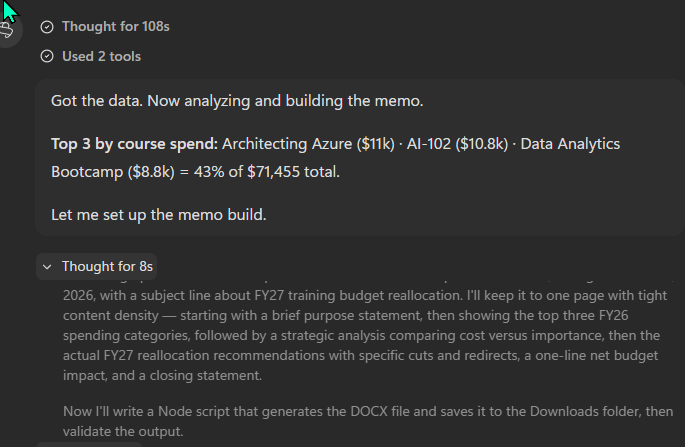
Mid-chain Scout has read the workbook, computed the top-3 spending categories ($30,575 = 43% of $71,455), and is about to compose the memo. The continuity is automatic — Scout knows the .xlsx lives in Downloads because the earlier step put it there.
That’s seven skills, one chain, one memo on the other side. The cost dashboard at the top of this post and the diagrams above all came out of this same routing pattern.
How I actually use these — lived examples
The table above is the inventory. Here’s how a few of them show up in my actual week.
web-artifacts-builderis the skill I reach for most. The cost-trend dashboard in the hub guide’s real-workflow section came out of one prompt — but the same skill is what I use to mock up a portfolio dashboard, a customer-status tracker, or a what-if pricing comparison. One prompt, one HTML file, no build step.expense-reportis the one that surprised me with how grown-up it is. Receipt photos in → expense lines out, including AMEX corporate-card matching and hotel itemisation. It produces a review-ready draft; I scan it, fix anything wrong, and submit myself. The skill’s own SKILL.md is explicit: “the user always submits themselves” — which is exactly the right default for anything that touches finance.pptxis the one I underuse — but when I reach for it, it’s usually for “update this 20-slide customer deck with our latest ACR numbers” type work. It edits in place rather than regenerating the whole deck.loopis the clever one. Loop has no public API, so Scout drives it through the browser via Playwright. The result feels like Loop has an API; really, Scout is just being a careful keyboard.
Skills route automatically based on the SKILL.md description, so you don’t have to call them by name. Ask Scout to “draft a Word memo summarising my last week,” and the docx skill fires. Ask for “a chart showing my weekly meeting load,” and web-artifacts-builder picks it up.
MCP servers in the box
Scout ships with two MCP (Model Context Protocol) servers bundled at install time, both in resources\app.asar.unpacked\node_modules:
@microsoft/workiq— the Work IQ MCP server, which is how Scout queries your Microsoft 365 data (email, calendar, Teams chats, OneDrive files, SharePoint pages, contacts). This is the same Work IQ API I covered in detail in the Work IQ Day 1 post. Worth re-reading that post if you want to understand what Scout actually does when it “looks at your inbox.”@playwright/mcp— the Playwright MCP server, which drives the browser. Used by the Loop skill, the Expense Report skill, and any web automation Scout needs to run.
You can add your own MCP servers through Scout’s settings — bring in third-party MCPs from the catalog, install local stdio MCPs, or wire up remote HTTP MCPs with OAuth. Covered in the MCP & custom skills spoke.
The MCP servers panel itself lives inside Scout’s Extensions menu and there’s a per-server permission controller deeper in Settings → Manage Permissions. The full walkthrough — with the Extensions UI screenshots and the per-MCP toggle pattern — is in the MCP servers spoke.
Browser automation — Playwright with safety rails
Scout drives a real browser through Playwright. That means Scout can navigate web pages, fill forms, click buttons, scrape content, and interact with any web app you can sign into. It’s the same engine the Loop skill and the Expense Report skill use under the hood.
Two safety rails ship enabled by default in the bundled playwright-mcp-config.json:
allowUnrestrictedFileAccess: false— Scout’s browser can’t read arbitrary files off your disk throughfile://URLs. The browser sandbox stays inside web content.- Downloads disabled — Scout’s browser doesn’t save downloaded files to your disk automatically. You stay in control of file ingress.
There’s a third file in the install, playwright-init-egress-block.js, that adds an outbound URL block list — your admin can configure (via the BrowserEgressBlockedOrigins ADMX policy) which domains Scout’s browser is allowed to talk to. Useful for regulated tenants that want Scout’s browser to be unable to talk to, say, public file-sharing sites.
Full coverage of the egress policy and the rest of the secure-config surface is in the secure-config spoke.
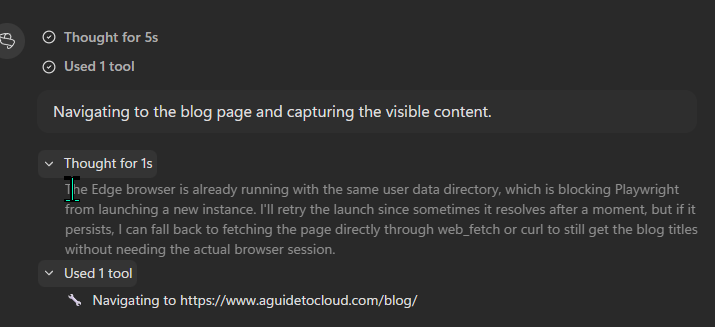
Scout hits a real-world Playwright conflict (Edge already running with the same user-data dir), and instead of dying, it reasons out a fallback — web_fetch or curl to still complete the task. That graceful-degradation pattern is wired into the Playwright skill’s instructions, not bolted on.
Prompt to try it yourself (targets a public URL — safe in any tenant):
Open https://www.aguidetocloud.com/blog/ in a browser using Playwright.
Capture the first 3 visible blog post titles from the top of the page.
Tell me which one was published most recently and what cluster it belongs to.
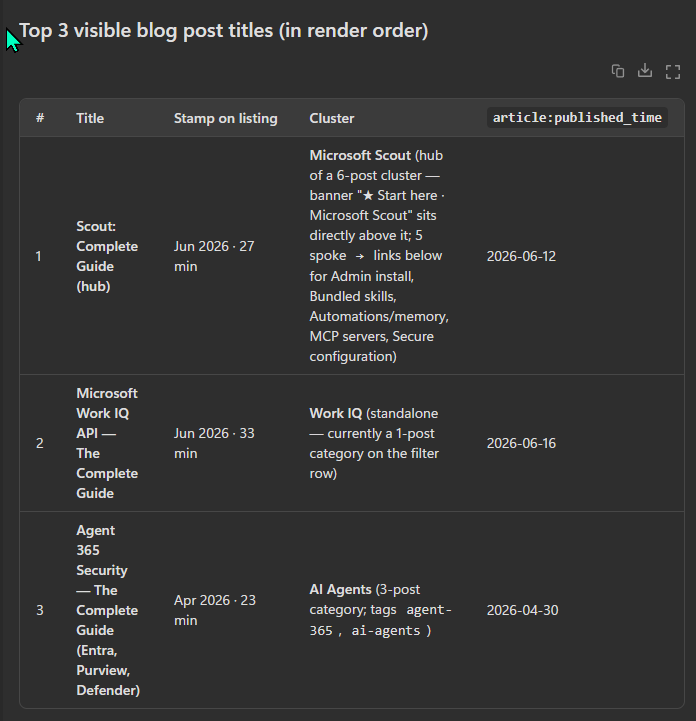
Scout navigated the page, scraped the visible posts, parsed the cluster mechanics (“hub of a 6-post cluster · banner ‘Start here · Microsoft Scout’”), and identified the most-recent post by article:published_time metadata. Meta-loop: Scout reading the blog about Scout 🦞.
The shell and file system
Scout can run shell commands on your local machine. This is the capability that makes Scout genuinely different from any other Microsoft AI surface — none of them touch the shell. It’s also the capability that needs the most careful permission setup.
Out of the box, Scout uses a tiered permission system:
- Auto-approve — commands you’ve told Scout it can run without asking each time (typically read-only commands you trust)
- Prompt — commands Scout runs only after you click an approval card in the UI (typically write commands)
- Block — commands Scout will never run, even with approval (typically destructive commands like
rm -rf /orFormat-Volume)
You can also mark sensitive directories that always require explicit approval before Scout touches anything inside them — for example, your secrets folder, your private keys, your customer data area.
File system access works the same way: Scout has a configured workspace, can read and write inside it freely (subject to the per-action approval rules), and needs explicit confirmation to step outside.
The single most important ADMX policy to enable for non-developer Scout users is RestrictToWorkspace — it prevents Scout from touching files outside the configured workspace directory. Detail in the secure-config spoke row 23.
Microsoft 365 connections
Through the bundled Work IQ MCP server, Scout reaches into your Microsoft 365 estate without needing a separate auth dance per workload:
- Outlook — read, draft, send email (drafting always saves to your Drafts; sending requires per-message approval)
- Teams — read 1:1 chats, group chats, channel messages, post replies
- Calendar — read your calendar, draft RSVPs, schedule meetings, find conflict-free time
- OneDrive — read, write, search files in your OneDrive
- SharePoint — read pages and documents from sites you have access to
- Contacts — look up people across your org and external partners
Every action runs in your signed-in user’s identity (the standing Work IQ constraint — no app-only auth), which means everything Scout does inside M365 is attributable to you in audit logs.
Heartbeats, automations, and sub-agents
The features that make Scout an Autopilot rather than a chat surface — heartbeats, automations, sub-agents, and the memory + personality system around them — all live in their own spoke.
See the Automations, Memory, Heartbeats spoke for:
- Heartbeats every 15-120 minutes — what they do, how to configure
- Named automations on a schedule or trigger
- Sub-agent delegation for parallel work
- The layered memory model (local profile + Microsoft 365 context grounded through Work IQ)
- Personality tuning
What to read next in this series
- Microsoft Scout — The Complete Guide (hub) — what Scout is, how it differs from Copilot, what it costs, the honest take
- Admin Install & Frontier Setup — the two-gate admin install walkthrough
- Secure Configuration Guide — the bookmark-worthy reference for IT admins
- MCP Servers & Custom Skills — extending Scout with your own MCP servers and SKILL.md files
- Automations, Memory, Heartbeats — Scout’s always-on engine