Microsoft Scout — Automations, Memory, Heartbeats
↗ Microsoft Scout's always-on engine — heartbeats every 15-120 minutes, named automations, the layered memory model (local + cloud + Work IQ), and the curated persona picker for tuning Scout's voice.
On this page
The hub for this series — Microsoft Scout — The Complete Guide — covers what Scout is, how it differs from Copilot, what it costs, and the honest take. This spoke is the always-on-engine reference.
The Autopilot delta — what separates Scout from chat — lives mostly in this spoke. Heartbeats and automations are how Scout keeps working when you’re not at the keyboard. Memory is how it remembers what you handed it last week. Personality is how it adapts to the way you actually want to be talked to.
Heartbeats — Scout’s pulse
When heartbeats are enabled, Scout wakes itself up on a configurable interval — anywhere from every 15 minutes to every 120 minutes. On each wake, it runs a prompt you’ve defined. The prompt can do almost anything: scan your inbox for urgent items, check a dashboard, run a status pull on a topic Scout has been watching for you, refresh a specific report, summarise overnight activity.
Three things to know about heartbeats in practice:
- They’re not a separate scheduling engine — they’re prompts on a schedule. Whatever you can write in a normal Scout prompt, you can ask the heartbeat to run.
- They surface results on your next interaction. If a heartbeat finds nothing worth flagging, it completes silently. If it finds something, you’ll see a notification or a Teams message when you next come back.
- They run under your identity. Same Work IQ delegated-auth constraint as everything else — heartbeats can’t run if you’ve signed out of Scout.
The heartbeat interval is the dial that matters most. 15 minutes for urgent work (e.g. on-call rota where Scout is watching for incident pages). 60-90 minutes for typical work (the rhythm most users settle into). 120 minutes for slower, less-urgent monitoring (e.g. a weekly status check).
Heartbeats can be turned off entirely via the DisableHeartbeat ADMX policy if your tenant has compliance requirements that don’t allow always-on AI. Detail in the secure-config spoke (row 21 of the secure-config table).
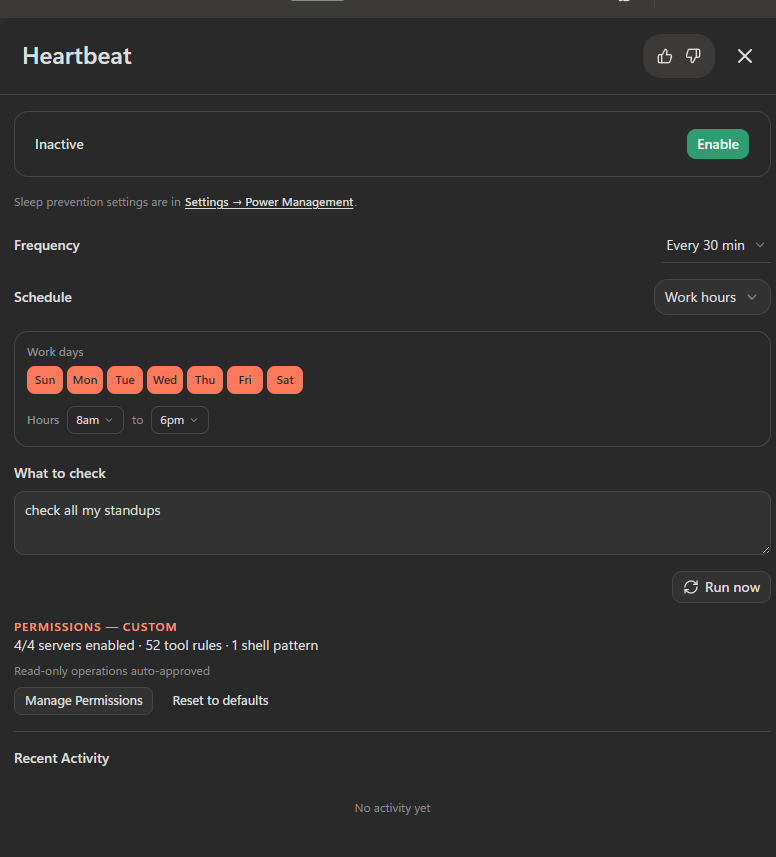
The Heartbeat configuration panel in my own install. Frequency (here every 30 min) is the cadence dial. Schedule picks the time window — “Work hours” preset opens a sub-card where you mark your weekdays and the start/end hours. What to check is the prompt Scout runs every time the heartbeat fires (mine: “check all my standups” — pulls overnight activity across my Teams stand-up channels and surfaces anything I need to action). Notice the inline PERMISSIONS counter at the bottom — 52 tool rules here, but 51 in the earlier secure-config screenshot taken a few hours before this one. That single delta is exactly the audit-drift signal the secure-config Permissions metric callout is built around: numbers move, dig in.
Sidebar — the panel also surfaces “Sleep prevention”. Heartbeats only fire while your device is awake. Scout flags this directly: if you want heartbeats to run while you’re away from the keyboard, you need to disable sleep at the OS level (the link in the panel jumps to Settings → Power Management). Worth confirming for any “always-on” use case.
Automations — named, repeatable workflows
Beyond the periodic heartbeat, Scout supports named automations — workflows you define once and run on a schedule or in response to an event.
The shape of an automation:
- A name (e.g. “morning brief”, “weekly customer status”, “VIP email watch”)
- A trigger (a cron-like schedule, or an event such as “new email from sender X”)
- A stored prompt (what Scout should do when the trigger fires)
- A run history (each fire is logged with timestamp + outcome + what was surfaced)
The Activity surface (ellipsis menu → Activity) is where you see what’s coming up, the history of what’s run, and the Teams-bot view:
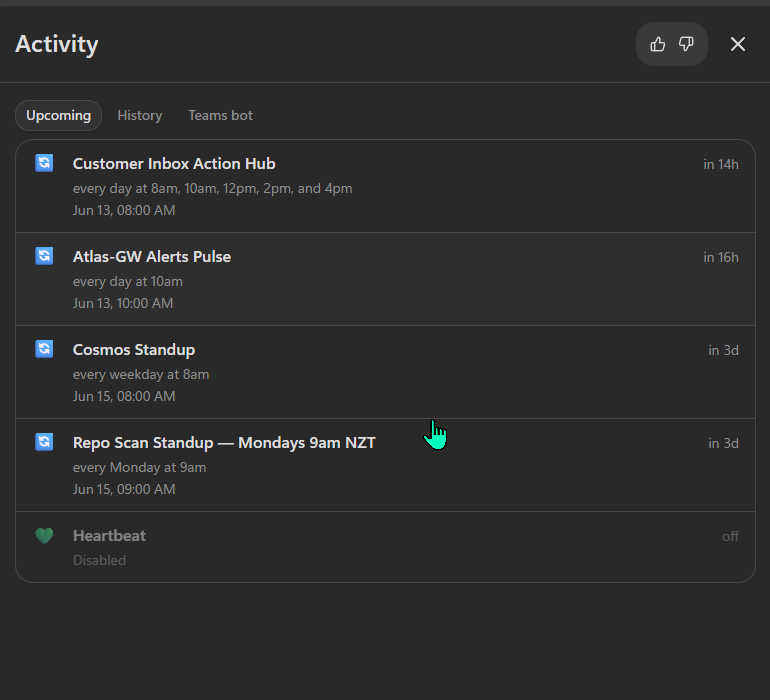
The Activity → Upcoming view in my install. Four named automations on different cadences (one every 2 hours during business hours, two daily, one weekly), plus the Heartbeat row at the bottom showing it’s currently Disabled (matches the Inactive state in the Heartbeat panel screenshot above). The countdown labels — “in 14h”, “in 16h”, “in 3d” — make it obvious at a glance what’s next on Scout’s plate. The History tab shows the rolling log of past runs (outcomes + what was surfaced). The Teams bot tab is where you’d configure how Scout surfaces in Teams — confirming the official Microsoft 365 Blog claim that “you interact with it in Teams.”
I see most users land on one or two automations and grow from there. The four in my Activity panel above are:
- Customer Inbox Action Hub — fires 5 times a day during business hours (8am, 10am, 12pm, 2pm, 4pm) to surface anything in my inbox that needs action; smaller windows = less time before a real urgency gets seen
- Atlas-GW Alerts Pulse — daily 10am check on my atlas-gateway alerts (the personal-infrastructure side of my work)
- Cosmos Standup — every weekday at 8am, scans recent activity across my cosmos-atlas project and prepares the morning briefing
- Repo Scan Standup — Monday 9am, a slower-cadence weekly look across all my repos for anything that drifted over the weekend
The shape that’s emerged: a fast-cadence inbox watcher, a daily ops pulse, a daily project briefing, and a weekly cross-cutting scan. Most enterprise users I’ve talked to settle into something similar — one urgent watcher, a few daily helpers, one weekly summariser.
Like heartbeats, automations can be globally disabled via the DisableWorkflows ADMX policy in tenants where every background action needs pre-authorisation. The trade-off is the obvious one — disable automations and you’ve turned Scout from an Autopilot back into a desktop assistant.
Memory — what Scout remembers about you
Memory is the layer that makes Scout get more useful over time. Without memory, you’d be re-explaining your context every conversation. With memory, Scout knows who your top customers are, what your weekly rhythm looks like, what tone you prefer in drafts, what you asked it to track last week.
Memory in Scout is layered:
- Local profile — your settings, your custom skills, your conversation history, your local prompt cache. Lives in
%APPDATA%\Microsoft Scout\on Windows. Survives uninstall. - Cloud sync — Scout’s memory can sync so it carries across devices and surfaces. This is what lets you start a thought on your desktop and finish it in Teams on your phone. Enabled by default; can be set to local-only for high-sensitivity users.
- Work IQ context — the layer that builds organisational context across all your M365 surfaces. Scout uses Work IQ both to answer questions and to learn the relationships in your work (who collaborates with whom, what “the Q3 deck” refers to in your tenant, what your usual patterns look like).
For cloud-sync-off and memory-export controls, see the secure-config spoke (rows 4 and 5 of the secure-config table).
You can interact with memory directly from Scout’s settings:
- View — see what Scout has stored
- Clear — wipe individual entries or all of memory
Additional memory controls (export, import, semantic retrieval) may surface in your build of Scout — they’re documented in Microsoft Learn as the feature rolls out.
Where memory lives in the UI
Scroll partway down Scout’s Settings page and you’ll find the Memory card:
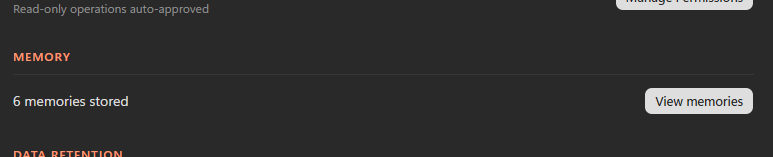
The card shows your current memory count (mine: 6 entries) and a View memories button. Click it to open the Memories panel where the real management happens:
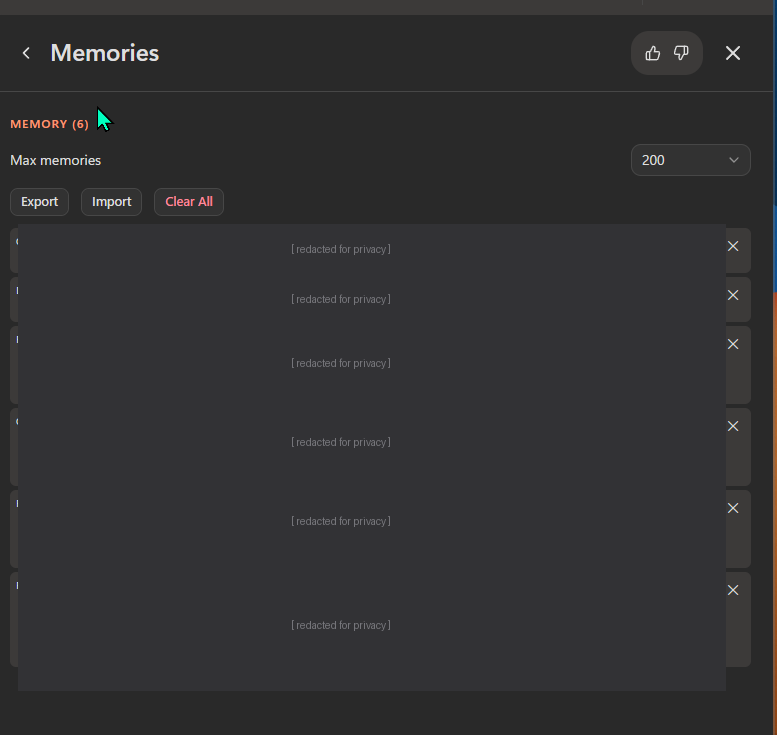
What the Memories panel gives you:
- Max memories dropdown — currently set to 200. Cap how many entries Scout retains before older ones age out
- Export — dump your full memory store to a file (portable; useful when you switch devices)
- Import — load a previously exported memory file (or seed Scout with team-curated context)
- Clear All — the nuclear option. Wipes everything in one click
- Per-entry delete (X) — surgical removal of one specific memory without touching the rest
- Categorised entries — each memory carries a category label (you’ll see things like “CONTEXT”, “FACT”, “DECISION”, “PREFERENCE” once you have your own list — they’re redacted in the screenshot above to keep my actual entries private)
The categorisation is useful both for your own scanning and for Scout’s own retrieval logic — it can pull “what does the user prefer for X?” without dragging in unrelated facts and decisions.
Why I redacted my own list: my memory entries contain customer references, internal project codenames, and personal preferences that aren’t safe to publish. The redaction is the right call for any screenshot of memory you share publicly — the UI structure (count, controls, category-tagged entries) is the documentation value; the actual entries belong to you.
Personality — tuning Scout’s voice
Scout has a built-in persona picker — a curated list of preset personalities that change how Scout writes to you. This is one of Scout’s more distinctive touches: most enterprise AI products give you a “tone” slider or expect you to write a system prompt; Scout gives you a list of characters.
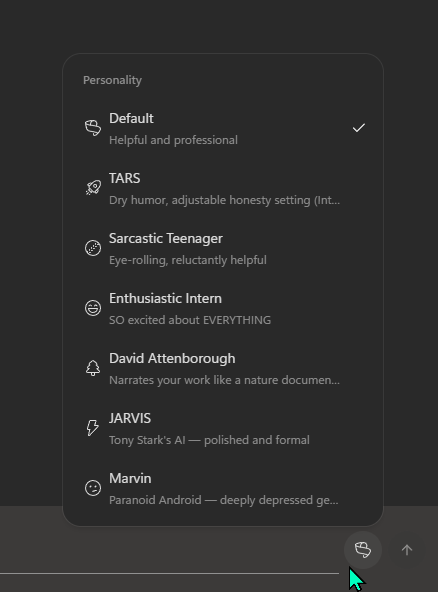
Where to find it: the persona picker is NOT in Settings (I looked there first too). It lives behind the Scout icon in the chat input area — the little face/avatar to the left of the send arrow. Click it and the persona menu pops up:
What’s in the picker:
- Default — Helpful and professional (the baseline; what you get on a fresh install)
- TARS — Dry humor, adjustable honesty setting (the Interstellar reference; honesty knob is part of the character)
- Sarcastic Teenager — Eye-rolling, reluctantly helpful
- Enthusiastic Intern — SO excited about EVERYTHING
- David Attenborough — Narrates your work like a nature documentary
- JARVIS — Tony Stark’s AI — polished and formal
- Marvin — Paranoid Android — deeply depressed (Hitchhiker’s Guide reference)
The list may extend below the visible fold and the cast may evolve build-to-build — Microsoft has clearly leaned into the fun side of Scout here rather than the corporate side.
Honest take. I run mine on Default — the “Helpful and professional” baseline is what I want for actual work, and switching to TARS or Marvin is the kind of thing that’s amusing for a session and tiring for a week. The personas are well-built (each one really does change Scout’s response style consistently across an entire chat), but the novelty fades fast in a tool you use ten hours a day. The real value is having the option there for moments when default feels too polished — a TARS pass on a draft can surface things “Helpful and professional” would smooth over.
Persistence. Once selected, the persona persists across all new chats in that workspace until you change it. There’s no per-chat override — if you want a Marvin chat for the laugh and then back to Default for real work, you have to switch twice.
Customisation. The picker is curated; there’s no UI to add your own custom personas in current builds. If you want a team voice (e.g., “respond like the Customer Success Manager voice we documented in our style guide”), that goes in a custom SKILL.md file or as a system-prompt block at the top of your conversation — see the MCP servers & custom skills spoke for how to wire that up.
How I use them daily — Sush’s actual setup
For what it’s worth, here’s the rough shape of my own Scout setup after months of running it:
- Heartbeat: configured at 30 minutes within a Work-hours window (8am-6pm Sun-Sat), currently Inactive — I toggle it on when I’m in an active sprint and want Scout watching the stand-up channels for me, off otherwise. The “check all my standups” prompt is the one captured in the panel screenshot above.
- Automations: four daily/weekly automations visible in the Activity panel above — a fast-cadence inbox watcher (Customer Inbox Action Hub, 5x daily), a daily ops pulse (Atlas-GW Alerts), a daily project briefing (Cosmos Standup), and a weekly repo cross-check (Repo Scan Standup, Mondays 9am NZT)
- Memory: cloud sync on, full retention; semantic retrieval is the feature I use most often (typically “what did I tell Scout about X last week?”)
- Personality: Default persona — the “Helpful and professional” baseline. Tried TARS for a session out of curiosity; switched back the same day because what I want from a daily tool is the polished baseline, not character — see the persona-picker screenshot above for the full cast
Not prescriptive — your usage will diverge as you settle in. Most people end up with more automations than they expected and longer heartbeat intervals than they started with.
What to read next in this series
- Microsoft Scout — The Complete Guide (hub) — what Scout is, how it differs from Copilot, what it costs, the honest take
- Admin Install & Frontier Setup — the two-gate admin install walkthrough
- All 7 Bundled Skills Explained — Word, Excel, PowerPoint, Loop, Web Artifacts, Excalidraw, Expense Report
- Secure Configuration Guide — the bookmark-worthy reference for IT admins (rows 21-22 cover heartbeats and automations)
- MCP Servers & Custom Skills — extending Scout with your own MCP servers and SKILL.md files