Microsoft Scout — Admin Install & Frontier Setup
↗ the IT admin's two-gate install walkthrough for Microsoft Scout — Frontier in the M365 admin centre, Intune policy, attestation form, and the GitHub Copilot license assignment that sign-in needs.
On this page
The hub for this series — Microsoft Scout — The Complete Guide — covers what Scout is, how it differs from Copilot, what it costs, and the honest take. This spoke is the install reference.
The two-gate access model in plain English
Microsoft’s own admin docs make this explicit: Microsoft Scout sits behind two separate admin gates, and both must be complete before any user can sign in. Gate 1 enables the Frontier surface for your tenant. Gate 2 enables Microsoft Scout specifically for the devices and users you choose.
Frontier is the umbrella programme; Scout is one of the products inside it. Same Frontier umbrella also gates other Microsoft preview agents (Opal Frontier, for example) — separate toggles, same enrollment.
The good news: you only do all of this once per tenant.
This is the part that takes longest the first time. The two gates also explain the most-asked support question — “I installed Scout and it won’t sign in.” Almost always, that means one of the gates isn’t complete yet. The hub guide’s FAQ section covers the most common cases.
Gate 1 — Turn on Frontier in the Microsoft 365 admin centre
You need to be signed in as an admin with one of these roles:
- AI Admin (preferred — the role designed for this)
- Security Admin
- Office Apps Admin
- Global Admin works too, but you should be using a least-privilege role wherever possible
Frontier users you assign access to also need a Microsoft 365 Copilot license — verify license assignment for your pilot users before they try to sign in to Scout.
Step 1 — Open the M365 admin centre
Sign in to admin.microsoft.com with your admin account.
You land on the M365 admin centre home page. Mine looks like this (CDX/Contoso demo tenant — yours will show your own org name, your real user counts, and your real Copilot activity):
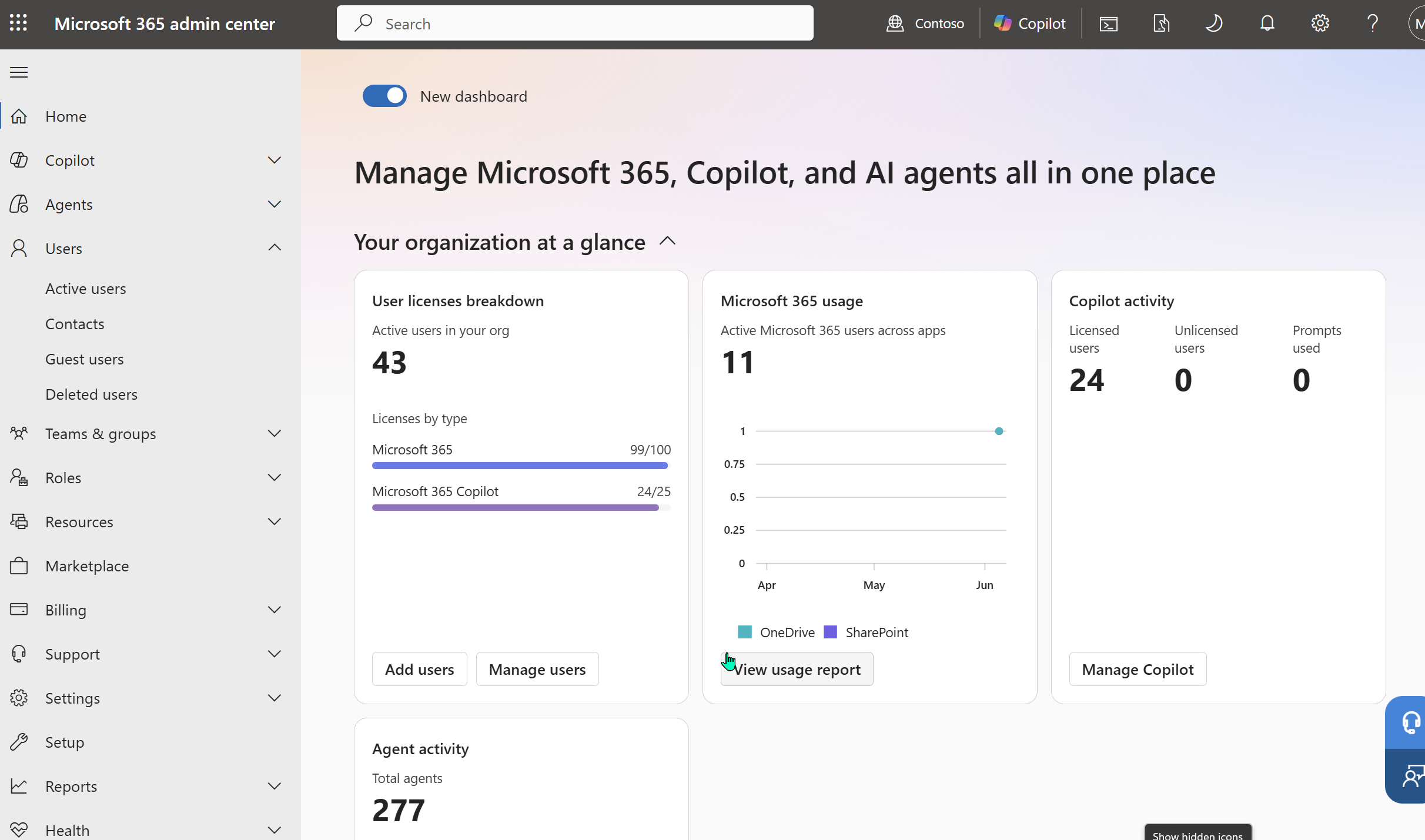
The Microsoft 365 admin centre home page in our CDX/Contoso demo tenant. The dashboard layout is the new “all in one place” view (toggle at the top). The Copilot and Agents entries in the left navigation are the two we care about for the rest of this walkthrough.
Step 2 — Navigate to Copilot Settings
Click Copilot in the left navigation, then Settings, then the View all tab at the top of the settings page.
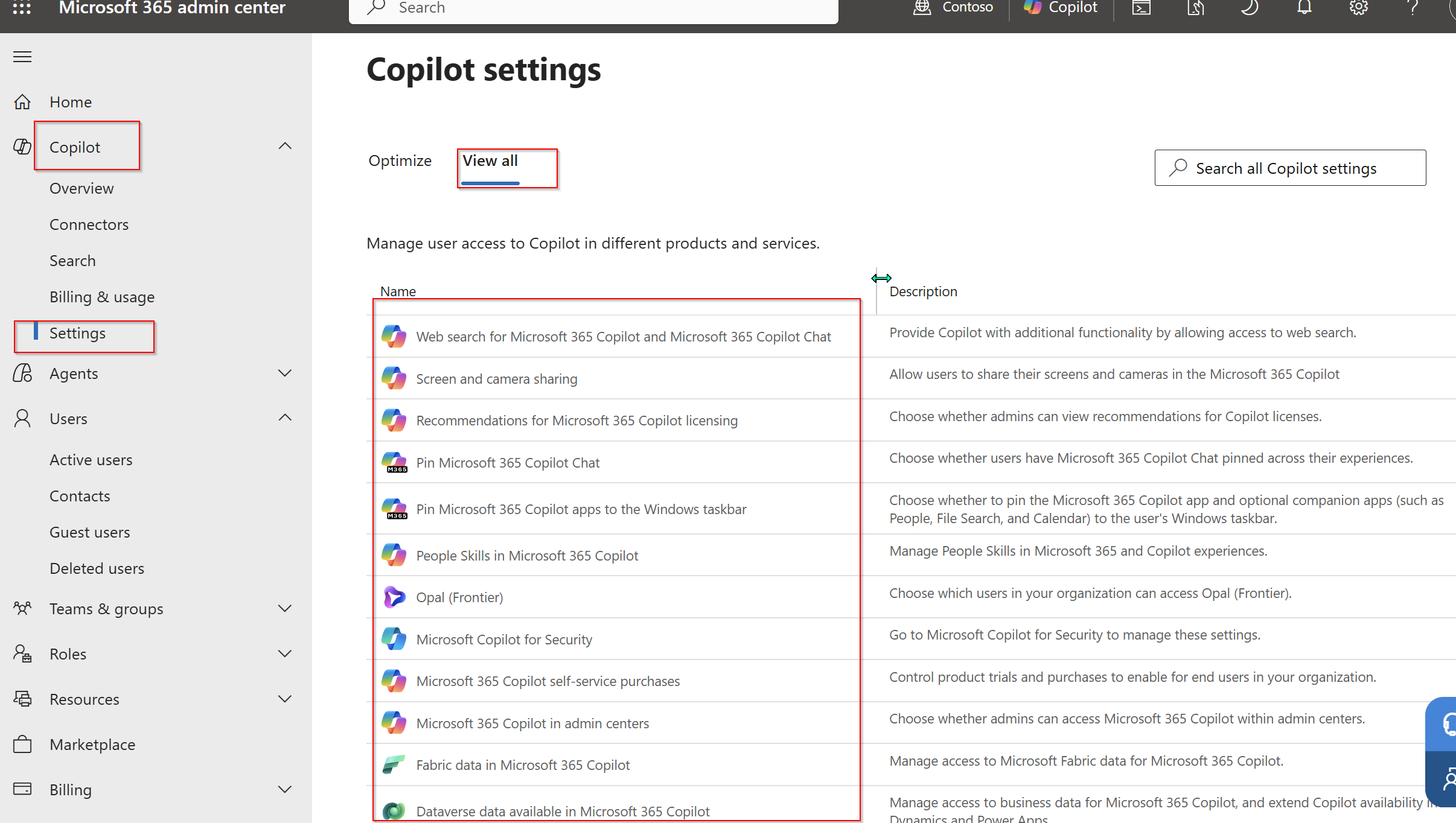
Copilot → Settings → View all. The full Copilot settings list is long — search is faster than scrolling.
Sidebar — Opal (Frontier) is a separate setting. You’ll notice Opal (Frontier) in the settings list too. That’s a different Microsoft Frontier-preview product (a workspace-design tool) — same Frontier umbrella, separate access toggle. Don’t confuse it with Copilot Frontier (the umbrella that gates Scout). I’ll cover Opal in its own post.
Step 3 — Search for Frontier
Top right of the settings view is a Search all Copilot settings box. Type frontier and Microsoft narrows the list to the Frontier-related settings:

Search results for “frontier” — two settings appear. The one to click for Scout access is the second row, Copilot Frontier (description: “Enable exclusive early access program in your organization”).
Step 4 — Open Copilot Frontier and pick who gets access
Click Copilot Frontier. The “Turn on Frontier features” flyout slides in:
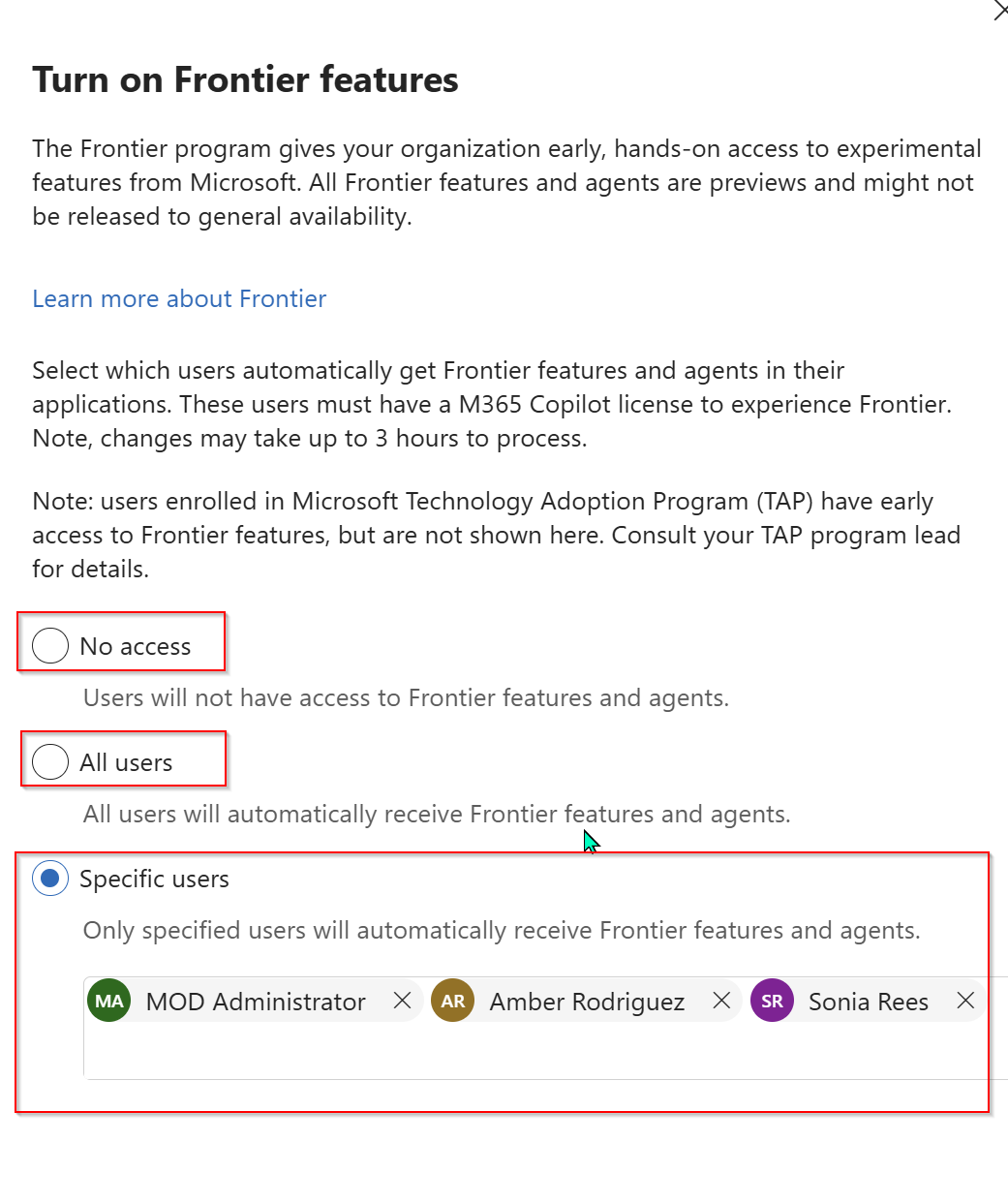
The Copilot Frontier flyout — three access options (No access, All users, Specific users), with Specific users selected here for our demo and three demo users assigned. Notice the TAP note at the top of the panel and the 3-hour propagation warning. Both matter.
You have three options:
- No access — default. Nobody in your tenant gets Frontier features. Pick this to disable Scout access cleanly.
- All users — every licensed Microsoft 365 Copilot user in your tenant gets Frontier features automatically. Pick this if you’ve decided Frontier is your default release channel for all your Copilot users. Most enterprises start more cautiously than this.
- Specific users — only the named users get Frontier features. Pick this for a controlled pilot — usually 3-10 users from across functions while you validate Scout against your org’s policies and risk posture.
Click Save. Then wait up to three hours for the change to propagate. Tell your pilot users not to attempt sign-in until the next business hour at the earliest.
Gate 1 done.
Gate 2 — Intune policy, attestation, GitHub Copilot license
Gate 2 has three required admin actions. All must be completed before users can sign in to Microsoft Scout.
Gate 2.1 — Enable access via an Intune policy
An IT admin must configure an Intune policy for Microsoft Scout that:
- Sets the required registry and device conditions
- Enables login capability for the app
Without this policy in place, users can’t sign in to Microsoft Scout even if they install the app successfully.
The Intune policy templates ship in the public GitHub repo at github.com/microsoft/scout-resources/tree/main/admins:
microsoft-scout.admx— policy definitionsen-US/microsoft-scout.adml— policy display strings- README with every policy explained
The key policy to enable here is AllowScoutFrontierAccess set to Enabled, targeted at the device groups whose users should be allowed to sign in.
For the full step-by-step inside Intune, see Microsoft’s Set up Microsoft Scout with Intune doc. It walks every screen.
Gate 2.2 — Complete the attestation and opt-in
Because Microsoft Scout can route data outside Microsoft 365 to third-party inference paths (specifically GitHub, since Scout uses your GitHub Copilot license for token billing), admins must explicitly attest and opt in for their organisation. This is an additional gating layer beyond Frontier enrollment, and it applies even if Gate 1 is already complete.
The attestation lives in a Microsoft Forms-based M365 Admin Frontier organisation sign-up form. Open it as a tenant admin and walk through the questions. Microsoft links to this form from the official admin-access overview.
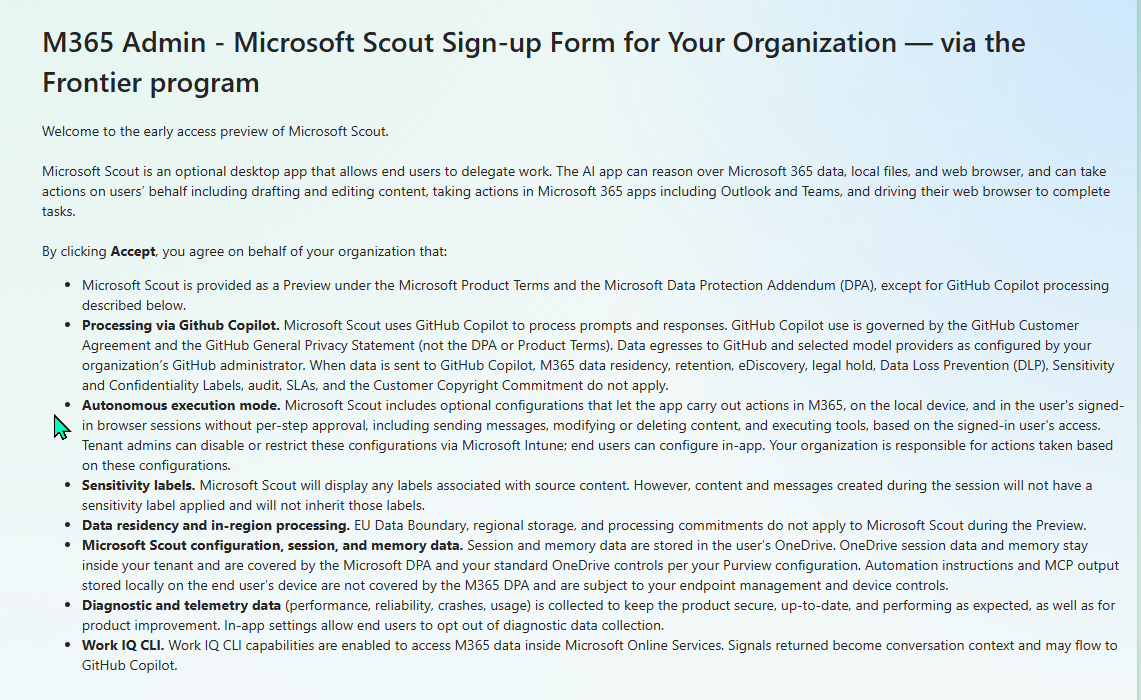
The attestation isn’t just a tick-box — it’s a 9-point organisational commitment that names every concession your tenant is making during the Preview. Worth reading carefully: EU Data Boundary doesn’t apply, sensitivity labels are read but not applied, GitHub Copilot processes Scout prompts under the GitHub Customer Agreement (not your M365 DPA), and automation configurations are your responsibility, not Microsoft’s. If any of those is a non-starter for your tenant, you’ve found your blocker before Scout is even installed.
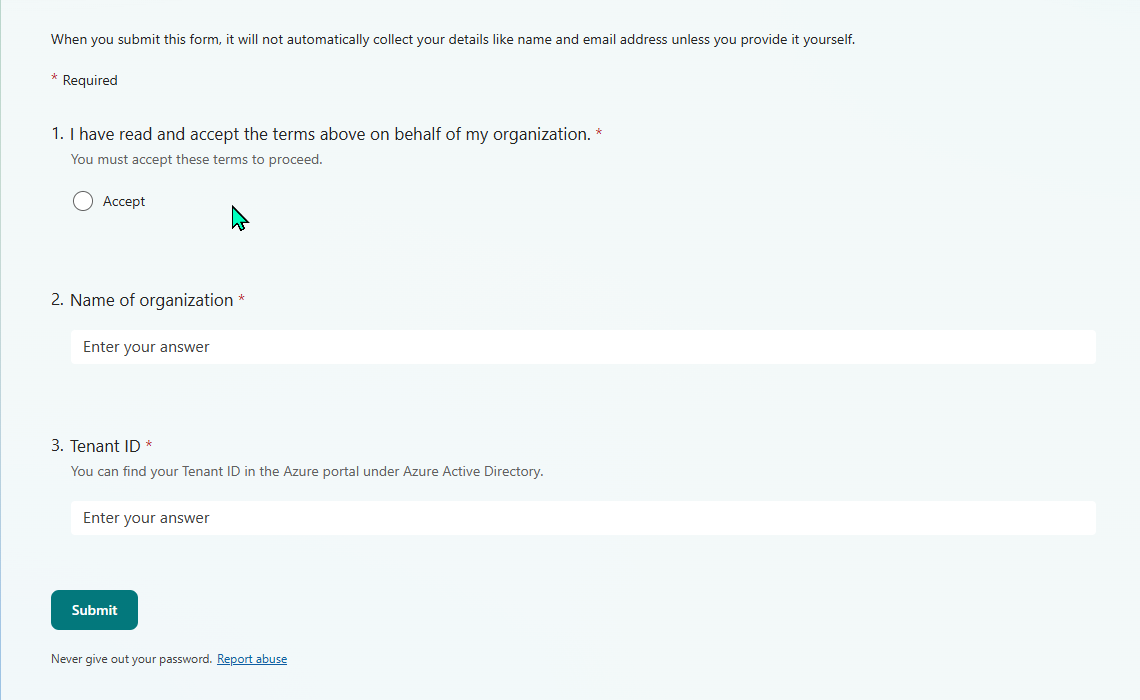
Three required fields after the terms: Accept radio, Name of organization, and Tenant ID. The Tenant ID hint tells you to look it up in the Azure portal under Azure Active Directory — that’s the GUID your tenant is identified by; it’ll be the same one your Intune policy targets. The form doesn’t collect your name or email unless you choose to add them.
Submitting the form is the step — there’s no approval email to wait on. Microsoft’s docs describe this gate as completing the form to record your organisation’s opt-in; they don’t mention any reply, approval workflow, or status that comes back to you. So if you’ve submitted it, don’t treat “no response yet” as your blocker — move on and check the other gates. (If sign-in still fails after all three Gate 2 actions are done and you’ve allowed propagation time, that’s a Frontier-feedback escalation, not a “still waiting on the form” situation.)
Gate 2.3 — Provision GitHub Copilot licenses
Admins must ensure that users who’ll use Scout have GitHub Copilot Business or Enterprise licenses assigned. This step is only required if users aren’t already licensed.
Does a trial count? Does it have to be the paid plan? The Scout docs require a GitHub Copilot Business or Enterprise license — so Business is enough; you don’t need Enterprise specifically. The individual plans — GitHub Copilot Free, Pro, and Pro+ — aren’t listed as qualifying. On trials: if your Business/Enterprise trial assigns that same Business/Enterprise entitlement to the GitHub account you sign in with, it should satisfy the prerequisite while the trial is active — verify the seat is actually assigned in your GitHub org’s Copilot settings, and remember you’ll need a paid Business/Enterprise seat once the trial ends. The seat has to be on the GitHub account you use at Scout’s “Sign in to GitHub” step — and because that step comes after the organisation gate, a GitHub-license problem shows up as a GitHub sign-in failure, not as the “hasn’t been set up for your organization” message.
For more information, see:
- Setting up GitHub Copilot for your organization
- Granting access to GitHub Copilot for members of your organization
What happens if any gate is incomplete
Installing the Microsoft Scout app always succeeds. The download isn’t heavily gated. Sign-in is where access is enforced.
If Frontier isn’t turned on for the user, or the Intune policy isn’t deployed, or the attestation form hasn’t been submitted, sign-in is blocked and the app doesn’t show a clear in-product indication of why. The fix lives on the admin side, not the client.
If users report sign-in problems, verify both gates first before investigating the client:
| Check | Where | What “green” looks like |
|---|---|---|
| Gate 1 | M365 admin centre → Copilot → Settings → Copilot Frontier | User’s UPN appears in Specific users (or All users is selected) |
| Gate 2.1 | Intune → Devices → Configuration → Scout policy | Policy assigned to user’s device, last sync recent |
| Gate 2.2 | Internal record from the Forms submission | Attestation submitted by a tenant admin |
| Gate 2.3 | GitHub.com org → Settings → Copilot → Access | User’s GitHub account has a GitHub Copilot Business or Enterprise seat |
Troubleshooting: “Ask your admin to enable Microsoft Scout”
The single most-reported Scout sign-in message is some version of this:
Ask your admin to enable Microsoft Scout. Microsoft Scout hasn’t been set up for your organization yet. Once your admin has enabled it, come back here to get started.
Two things to know before you start chasing it:
- This is the organisation-not-enabled gate. Scout signs in to Microsoft 365 before the “Sign in to GitHub” step — so this particular message most likely points to the Microsoft 365 / Frontier / Intune admin setup rather than your GitHub license. (A GitHub-license problem typically shows up later, as a GitHub sign-in failure.)
- The app can’t tell you which admin gate is missing. Microsoft’s own docs note it doesn’t show a clear in-product indication of why. So you work through the gates in order until one turns out to be incomplete.
Here’s the order I’d check — fastest-and-most-likely first:
- Did you wait? Admin changes — especially the Copilot Frontier save — take up to ~3 hours to propagate. If you changed anything recently, give it time, fully quit Scout, and relaunch.
- Is your own account in scope? If Gate 1 was set to Specific users, your own sign-in account (UPN) has to be in that list. While piloting, the simplest check is to confirm you’re listed — or switch to All users.
- Does your account have a Microsoft 365 Copilot license? Frontier needs one per user. Without it the Frontier toggle won’t even render for the admin, and your sign-in won’t pass.
- Did the Intune policy actually reach your device? “Configured in Intune” and “applied on this machine” are different things. On the device: Settings → Accounts → Access work or school → (your account) → Info → Sync, let it finish, then relaunch Scout.
- Is the attestation submitted? Yes/no only — and remember there’s no reply to wait for (see Gate 2.2 above). Submitting the form is the completion.
- Is your tenant actually Frontier-eligible? If the Copilot Frontier setting doesn’t even appear under M365 admin centre → Copilot → Settings, your tenant isn’t enrolled in the Frontier program yet — and that enrollment is the prerequisite for everything else here.
Cross-reference each step against the gate-verification table above to see what “green” looks like.
If you’re the admin and the user
A lot of people hitting this are a single person on their own tenant — they enrolled in Frontier themselves and are trying to set Scout up end-to-end, admin hat and user hat at once. If that’s you:
- You have to actually complete all of Gate 1 and Gate 2 yourself, in your own M365 admin centre and Intune — there’s no separate “admin” who does it for you. One person wearing both hats is fine; the steps still all have to be done.
- Walk this page top to bottom, in order. The most common miss for solo admins is #2 (your own UPN not in the Specific-users list) and #4 (Intune policy configured but never synced to the device).
- If the Copilot Frontier setting isn’t in your admin centre at all, that’s #6 — your tenant isn’t Frontier-enrolled, and that’s the first thing to fix.
“GitHub sign-in could not be completed”
Different failure, different fix. This one appears after your Microsoft 365 sign-in has already succeeded — Scout then asks you to sign in to GitHub (it uses your GitHub account for token billing) and comes back with:
GitHub sign-in could not be completed. You signed in as (your username), but Scout could not verify your GitHub sign-in state. Please retry GitHub sign-in.
So the org gates are green — the block is on the GitHub side. The tell-tale sign is that gh auth login in a terminal works fine, yet Scout still won’t verify. That almost always means Scout is reading a different GitHub identity, or an un-authorised token, rather than the seat you expect. Work through these in order:
- Same account everywhere. The GitHub account Scout signs into has to be the exact one that holds your Copilot seat and the one your terminal
ghuses. Signed into two different GitHub accounts (personal vs work)? That mismatch is the single most common cause. - Authorise the token for SSO. If your GitHub organisation enforces SAML single sign-on, a login can succeed while the token stays un-authorised for that org — which surfaces as “couldn’t verify.” Run
gh auth loginagain, thengh auth refresh -h github.com, and authorise your org when prompted. - Reset the GitHub CLI (the app’s own advice). In any terminal:
gh auth logout, thengh auth login— choose GitHub.com → HTTPS → login with a browser — then retry sign-in in Scout. - Clear stale Windows credentials. Open Credential Manager → Windows Credentials and remove any
github.com/git:https://github.comentries pointing at an old account, then re-run step 3. Cached credentials from a previous account silently override the one you just signed in with. - Confirm the Copilot seat is actually assigned. A GitHub Copilot Business seat has to be assigned to your specific GitHub login in the organisation’s Copilot settings — not merely available in the org. An unassigned or pending seat verifies as “not licensed.”
If all five are clean and it still fails, it’s server-side — raise it on the Microsoft Scout resources issue tracker (or the Frontier feedback channel), since that’s past anything the admin or client side can fix.
Still stuck after all three gates are green?
If Gate 1 and Gate 2.1, 2.2, and 2.3 are all genuinely complete, you’ve waited out the propagation window, and sign-in still fails — that’s the point to raise it through the Frontier feedback channel. You’ve done everything that lives on the admin and client side; anything past that is server-side enablement that Microsoft needs to look at.
End-user requirements (after both gates are complete)
Once you’ve completed both admin gates, end users still need to:
- Download and install the Microsoft Scout app
- Have a GitHub account — Microsoft Scout uses your GitHub account for token billing, so each user needs one before signing in
- Sign in with work credentials — sign-in only succeeds after both admin gates are complete
User-side walkthrough (download → install → sign-in → permissions setup) is in the hub guide Quick Start section.
Monday-morning admin checklist
If you’re an M365 admin reading this on a Sunday evening and want to act before standup tomorrow:
- This morning (5 min): Check whether your org is enrolled in the Frontier program. M365 admin centre → Copilot → Settings → search “Frontier” → Copilot Frontier. If it’s set to No access, you have a decision to make.
- This morning (5 min): Confirm your own admin account has a Microsoft 365 Copilot license assigned. Without it, the Frontier setting won’t render.
- This morning (5 min): Decide your pilot scope. 3-10 users from across functions is a sensible starting size for a Specific users enrollment. Pick people with low fear and high curiosity.
- This week (30 min): Walk through Gate 2 end-to-end for the pilot group. Intune policy + attestation form + GitHub Copilot license.
- This week (30 min): Install Scout on your own device, sign in, run one simple task end-to-end. Don’t try to break it on day one — feel the shape.
- This week (30 min): Walk through the five high-impact settings from the secure-config spoke. Closes the bulk of the practical risk.
What to read next in this series
- Microsoft Scout — The Complete Guide (hub) — what Scout is, how it differs from Copilot, what it costs, the honest take
- All 7 Bundled Skills Explained — Word, Excel, PowerPoint, Loop, Web Artifacts, Excalidraw, Expense Report — what each does
- Secure Configuration Guide — the bookmark-worthy reference for IT admins
- MCP Servers & Custom Skills — extending Scout with your own MCP servers and SKILL.md files
- Automations, Memory, Heartbeats — Scout’s always-on engine