Microsoft Copilot Cowork — Complete Skills Guide
↗ every built-in Cowork skill, how plugins extend it, and the three ways to add custom skills — no-code, low-code, pro-code
On this page
The hub for this series — Microsoft Copilot Cowork — The Complete Guide — covers what Cowork is. This spoke is the skills-and-plugins reference for power users and developers.
TL;DR
- Cowork ships with 13 built-in skills, organised into 5 categories (Communication · Documents · Calendar · Search · Automation)
- A skill is a reusable recipe in your OneDrive — different from a prompt, which is a one-time instruction
- Three ways to add custom skills: OneDrive SKILL.md (no-code), Copilot Studio (low-code), Agents SDK (pro-code)
- Microsoft maintains four official plugin pages on Microsoft Learn for full reference — and the first wave of partner plugins (Harvey, Miro, monday.com, Moody’s, and more) is live at GA
- The fastest way to see what your tenant has: ask Cowork “What skills do you have available?” — it lists every one with a description
Skill vs prompt — the simple mental model
This is the question I get asked first. Plain English:
| Prompt | Skill | |
|---|---|---|
| What it is | A one-time instruction you type | A reusable recipe Cowork can run again |
| Where it lives | In the chat, gone when the chat ends | In your OneDrive at Documents/Cowork/Skills/<name>/SKILL.md |
| Who can call it | Just you, in that moment | Cowork itself — it picks the skill based on your wording |
| When to use it | One-off ask · novel scenario · exploration | Same workflow you do every week · multi-step thing you keep re-typing · something a teammate would also benefit from |
| Analogy | Hand-writing instructions for a colleague each time | Putting a recipe card in a recipe box — the colleague reads the card and follows the steps |
The key idea: a prompt tells Cowork what to do right now. A skill teaches Cowork how to do it whenever asked. Skills also compose — one skill can hand off to another, building up multi-stage workflows.
Where to find skills in the UI
Cowork keeps all of this behind a single Customize door. Three clicks to get there.
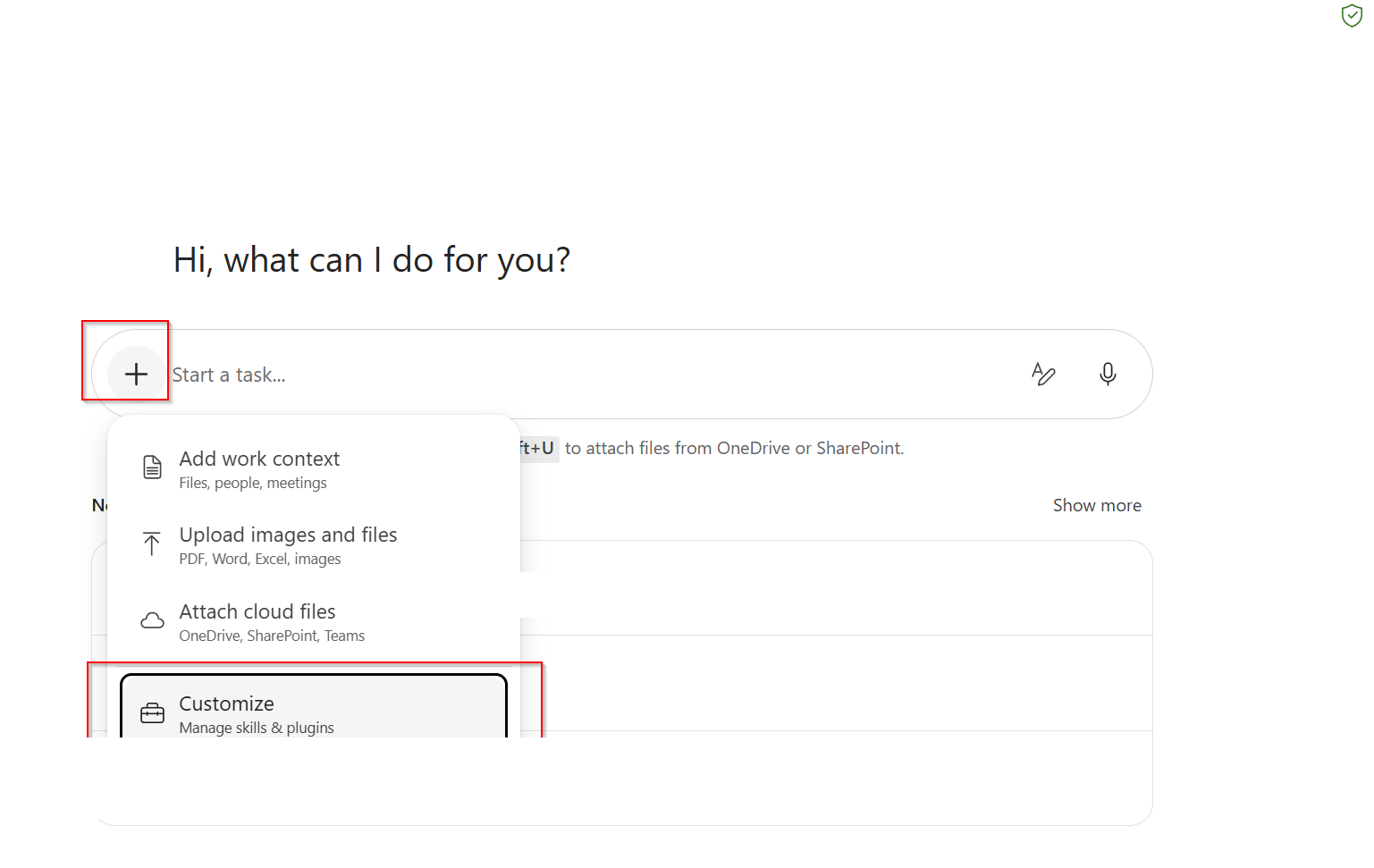
Step 1 — Open the attach menu
From the Cowork landing, click the + button to the left of the task input. A menu opens with four options. Pick the bottom one: Customize · Manage skills & plugins.
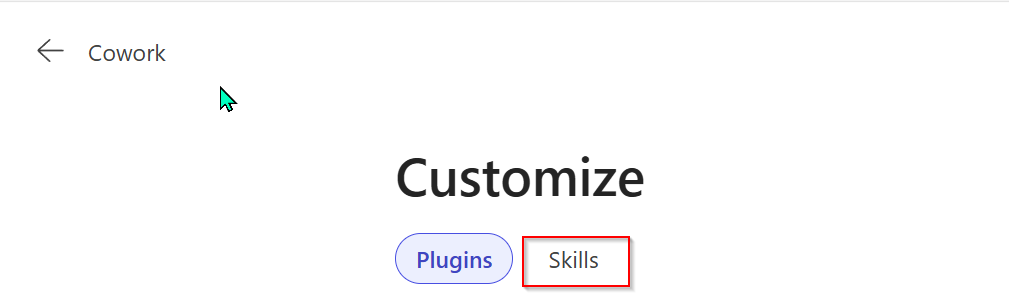
Step 2 — Land on the Customize page
The Customize page has two tabs at the top: Plugins and Skills. Click Skills.
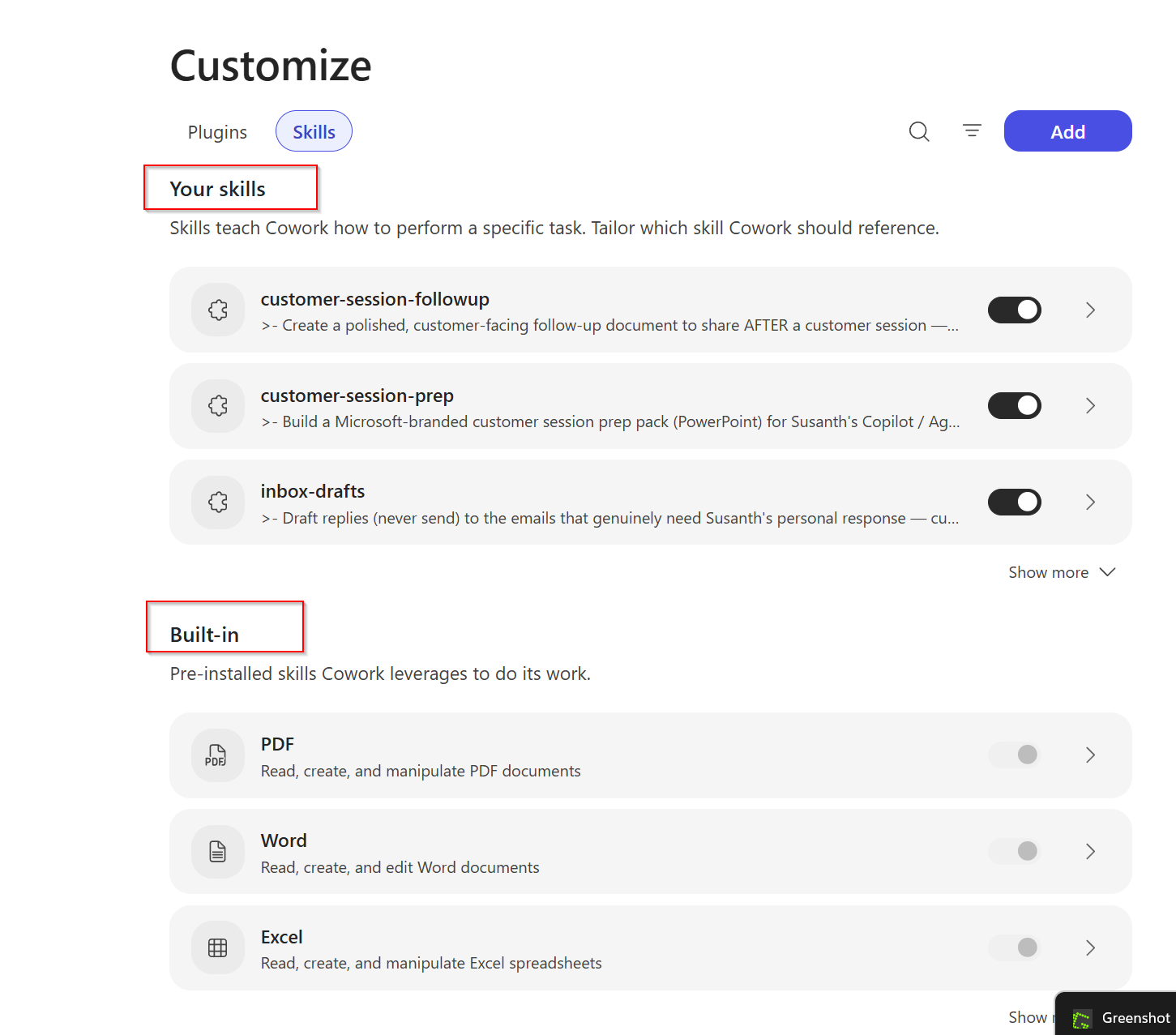
Step 3 — See what’s installed
The Skills tab is split into two sections:
- Your skills — custom skills you’ve added (or your IT team has rolled out)
- Built-in — pre-installed skills Cowork uses automatically
You can toggle any skill on or off here. Disabled skills won’t be picked by Cowork even if you ask for them by name.
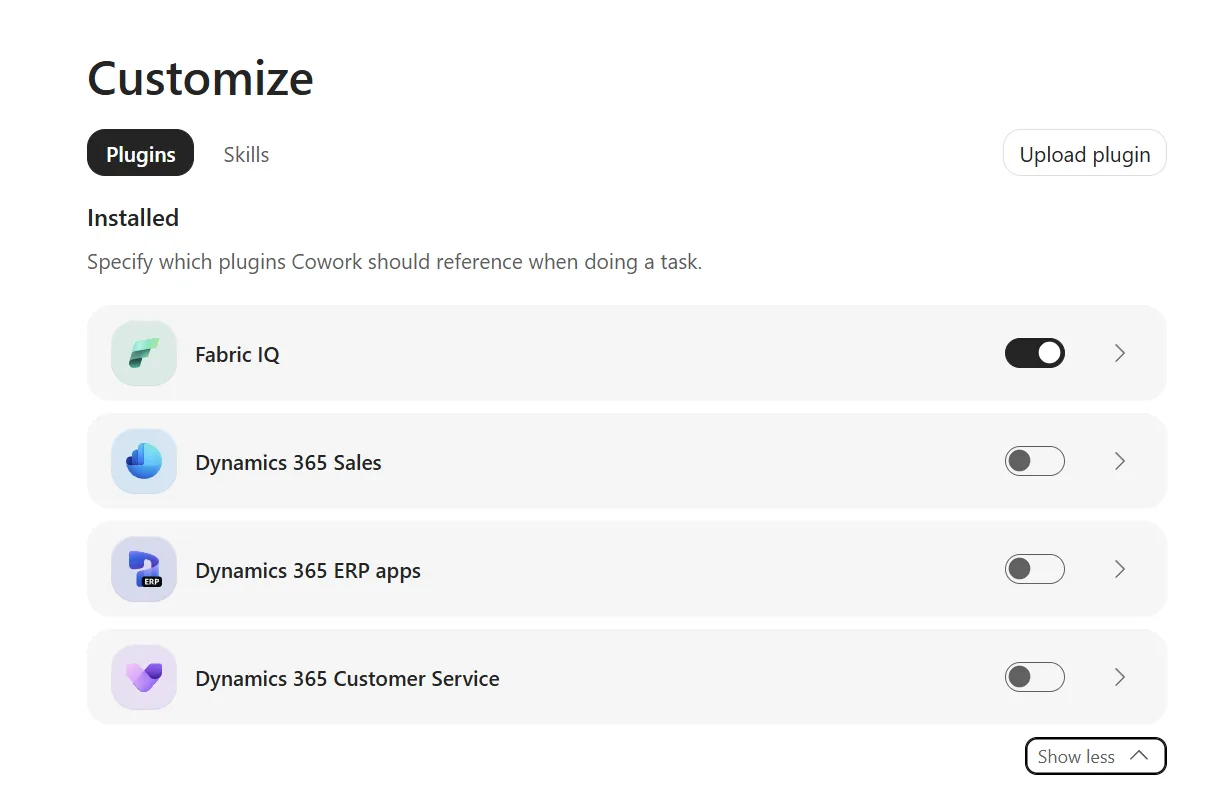
The Plugins tab lives alongside Skills — same Customize door. Microsoft first-party Dynamics 365 plugins (Fabric IQ, Sales, ERP apps, Customer Service) show here as Installed and can be toggled on/off. Third-party and partner plugins (once admin-approved at the tenant level) appear here too. If your tenant hasn’t approved any plugins yet, or if you haven’t installed any from the Discover gallery below, this tab shows just the Microsoft first-party set.
The 13 built-in skills
Microsoft’s official Cowork documentation lists 13 built-in skills — the canonical set every tenant gets:
| # | Skill | What it covers |
|---|---|---|
| 1 | Word | Read, create, and edit Word documents |
| 2 | Excel | Read, create, and manipulate Excel spreadsheets |
| 3 | PowerPoint | Read, create, and edit PowerPoint presentations |
| 4 | Read, create, and manipulate PDF documents | |
| 5 | Draft, reply, forward, and send through Outlook | |
| 6 | Scheduling | Schedule meetings and manage your calendar |
| 7 | Calendar Management | Full-spectrum calendar management |
| 8 | Meetings | Meeting intelligence, summaries, and prep |
| 9 | Daily Briefing | Aggregated morning brief from calendar, email, and Teams |
| 10 | Enterprise Search | Search across your organisation’s content |
| 11 | Communications | Audience-adaptive communications |
| 12 | Deep Research | Synthesise multiple sources into a comprehensive report |
| 13 | Adaptive Cards | Render structured, interactive cards |
You can also add up to 50 custom skills of your own — more on that below.
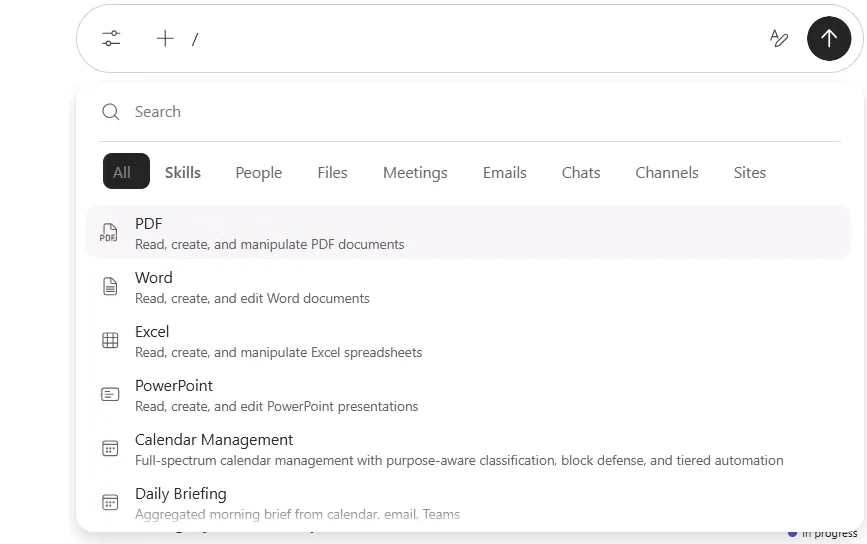
A faster way to reach a skill: type / in the task box and the inline picker surfaces your skills (and people, files, meetings…) on the fly — no need to open the Customize page. (Microsoft demo tenant.)
What you’ll actually see in your tenant’s Customize panel
The Customize UI surfaces the same engine, but it shows the internal skill IDs — so a few names differ from the official list (you’ll spot html, goal, debug-trajectory, and Skill Management in place of Email, Enterprise Search, Deep Research, and Adaptive Cards). Here’s the exact list as it appears in my tenant:
| # | Skill | What it does (UI description) |
|---|---|---|
| 1 | Read, create, and manipulate PDF documents | |
| 2 | Word | Read, create, and edit Word documents |
| 3 | Excel | Read, create, and manipulate Excel spreadsheets |
| 4 | PowerPoint | Read, create, and edit PowerPoint presentations |
| 5 | html | Create, edit, and validate standalone single-file HTML |
| 6 | Calendar Management | Full-spectrum calendar management with purpose-aware classification, block defense, and tiered logic |
| 7 | Daily Briefing | Aggregated morning brief from calendar, email, Teams |
| 8 | Meetings | Meeting intelligence, summaries, and prep |
| 9 | Scheduling | Calendar scheduling and management |
| 10 | Communications | Audience-adaptive communications |
| 11 | Skill Management | Create, validate, and manage personal Cowork skills and instructions |
| 12 | goal | Set a standing goal — the agent keeps working until the condition is met or the effort limit is reached |
| 13 | debug-trajectory | (Manual trigger only) Renders the current session’s transcript as a self-contained HTML attachment |
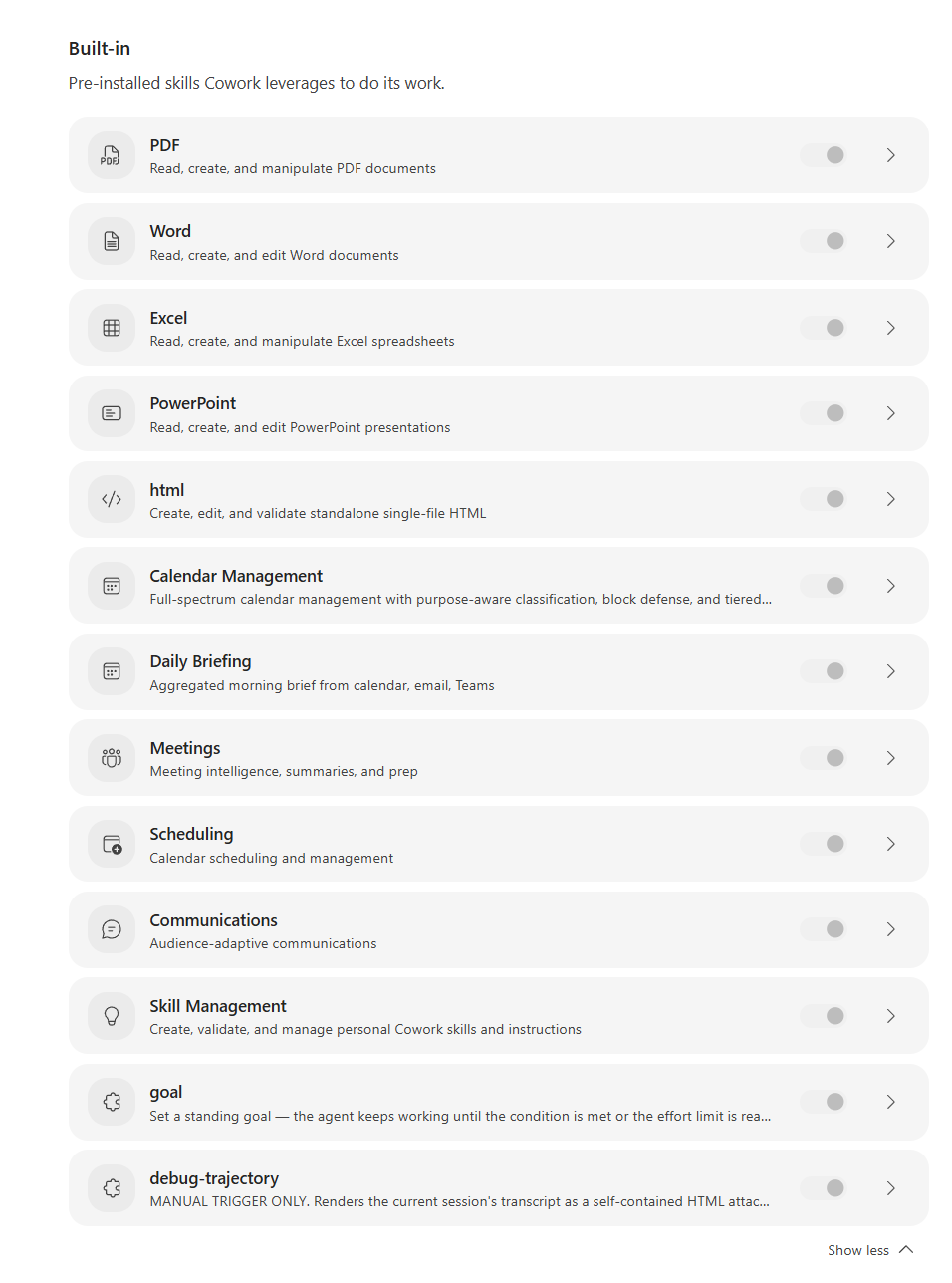
Mapping back to the 5 Agent Academy categories:
| Category | UI skills |
|---|---|
| Communication | Communications (the rest sits under task-orchestration patterns Cowork handles automatically — see the Naming convention note below) |
| Documents | PDF, Word, Excel, PowerPoint, html |
| Calendar | Calendar Management, Daily Briefing, Meetings, Scheduling |
| Search | Built into Cowork’s task-planning — surfaces through Daily Briefing, Meetings, and the cross-app reach |
| Automation | goal (long-running standing goals), Skill Management (creating and managing skills) |
📎 Same engine, two label sets. The official Learn names (top of this section) are the canonical taxonomy; the Customize panel shows the internal IDs. When you write a custom skill that calls a built-in, use the tenant ID (e.g.
html); when you explain Cowork to a colleague, use the official names.
Ask Cowork what it can do — the easy way
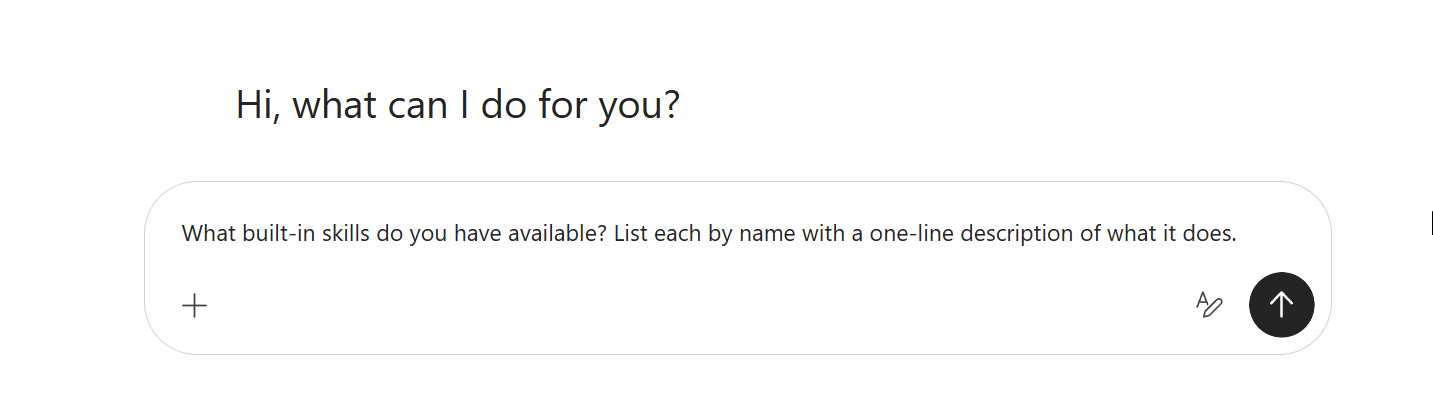
If you’d rather not click around the Customize page, ask Cowork directly. The single best discovery prompt:
What built-in skills do you have available? List each by name with a one-line description of what it does.
Cowork responds with a grouped list — both the built-in skills it ships with AND any custom skills you’ve added, all together:
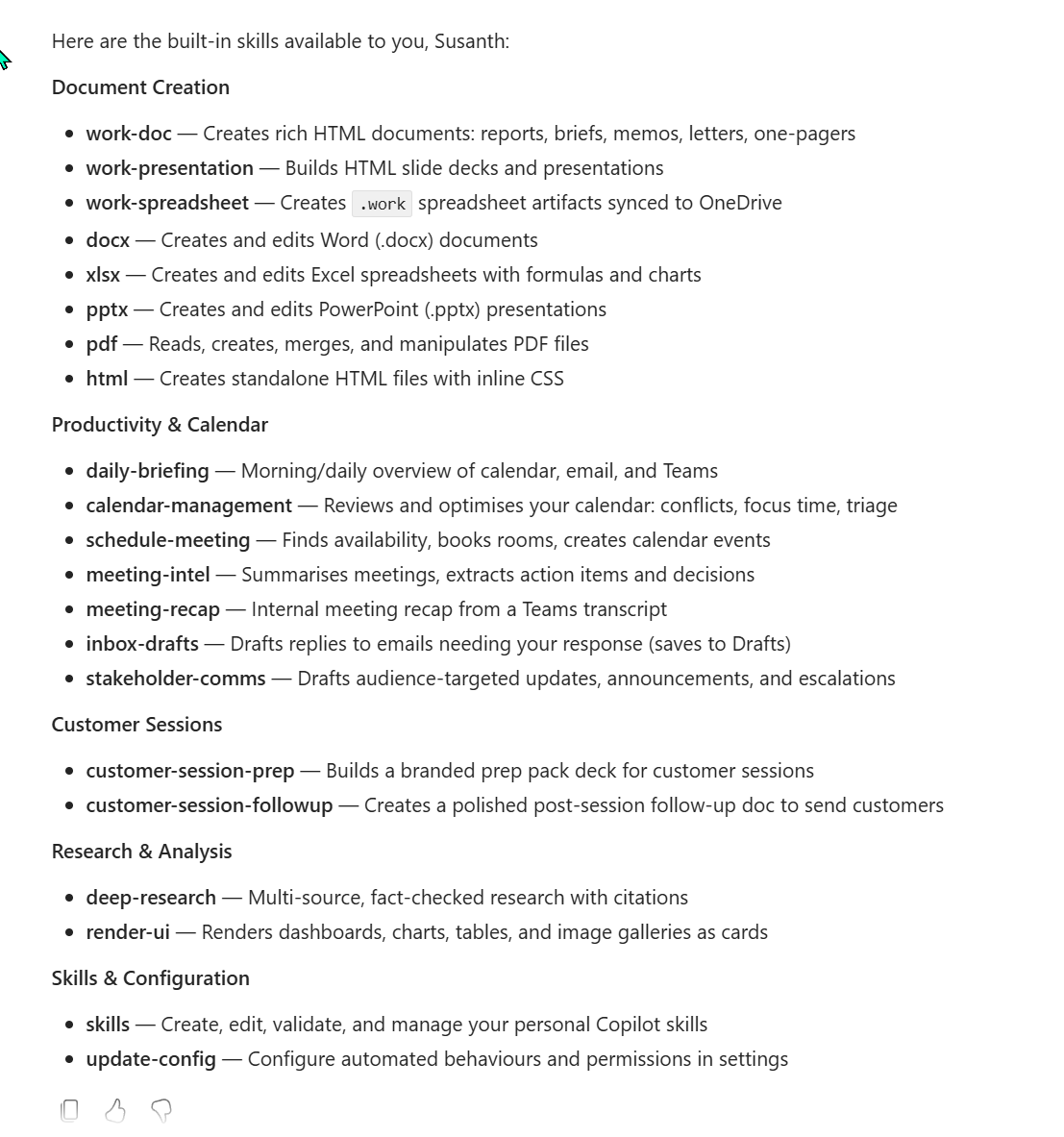
Naming convention — UI labels vs skill IDs
You’ll notice the response uses names like schedule-meeting, meeting-intel, pdf, html — the lowercase, hyphenated internal skill IDs. The Customize UI shows the friendly labels (Scheduling, Meetings, PDF, html).
When you write a custom skill that references built-in skills, use the skill IDs — that’s what Cowork’s planner matches against. When you’re explaining Cowork to a colleague, use the UI labels — they’re easier to read.
How plugins extend Cowork
Built-in skills cover the M365 apps you live in. Plugins extend Cowork to systems outside M365 — your CRM, your ticketing system, your project management tool, your data warehouse.
In plain English — connector vs plugin
Two words get thrown around a lot here. The simplest way to hold them:
- A connector is the bridge. It lets Cowork safely reach into another app — Dynamics 365, Fabric, Power BI — and pull data across (and in some cases, send updates back).
- A plugin is the bridge plus the know-how. It packages one or more connectors with the instructions Cowork needs to actually do a job with them.
And one phrase worth knowing: if a plugin says read & write, Cowork can both look at data in that app and — where it’s configured and you approve it — make changes (like creating or updating a record), not just view it. Read means look-only.
Microsoft maintains four reference pages on Microsoft Learn:
| Page | When to read |
|---|---|
| Available plugins for Copilot Cowork | Browse the catalog before deciding to build your own |
| Use plugins with Copilot Cowork | End-user guide — how to invoke a plugin in a task |
| Build plugins for Copilot Cowork | Developer reference for new plugins |
| Manage plugins for Copilot Cowork | Admin governance, approvals, scope, audit |
Plugins available at general availability
At GA (June 2026), Microsoft shipped the first wave of partner plugins, with more on the way:
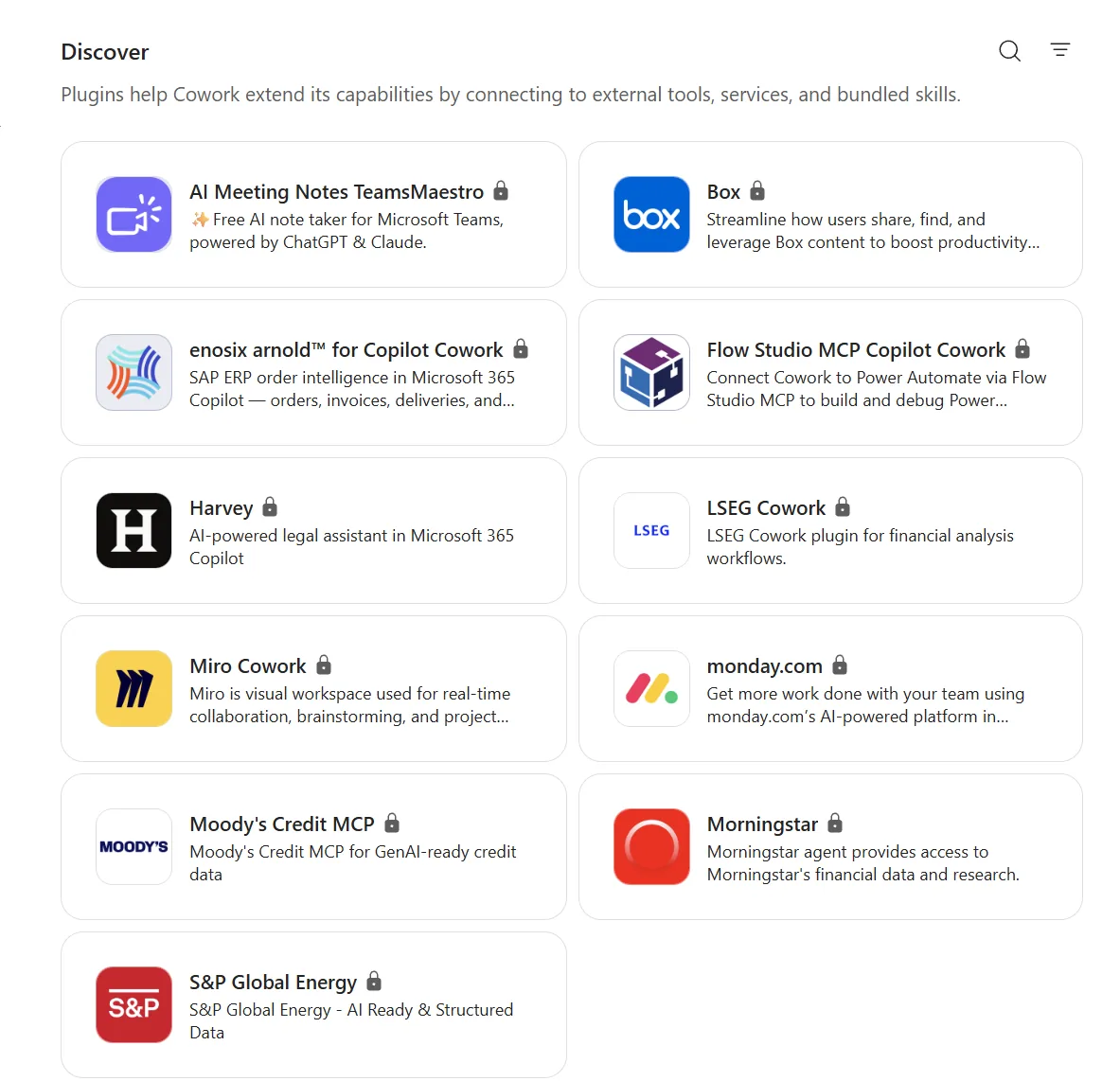
- Available now: Enosix · Harvey · LSEG · Miro · monday.com · Moody’s · Morningstar · S&P Global Energy · TeamsMaestro
- Coming soon: Adobe · Atlassian · Box · Canva · CB Insights · Databricks · MoneyForward · Templafy
- Also generally available: Microsoft Fabric, plus Dynamics 365 Sales, Customer Service, and ERP apps
The catalog grows over time — check Microsoft’s Copilot Cowork docs for the current list. Treat each plugin as its own governance decision (consent, connector credentials, data handling, audit) — see the admin & governance spoke.
To browse the full GA catalog, open Cowork, click Customize, switch to the Plugins tab, then scroll down to the Discover section. Microsoft’s official plugin gallery shows every available plugin with a one-line description and a lock icon indicating tenant admin approval is required before you can install it.
What a plugin actually unlocks
The names matter less than the job each one lets Cowork finish without leaving the task. A few examples:
| If you want Cowork to… | A plugin like… | …lets it |
|---|---|---|
| Turn a document into a visual | Miro | build a flowchart, mindmap, or framework board from your content |
| Spin up a project board | monday.com | create the board, workstreams, and owners — not just describe them |
| Build an on-brand deck | Templafy (coming soon) | apply your real templates and brand, not a generic theme |
| Reach your data and BI | Microsoft Fabric | pull from your data estate so the work is grounded in real numbers |
The pattern: a plugin turns “Cowork can tell you about it” into “Cowork can go do it in that tool.” Each one is still a governance decision first — connect the ones your team actually needs, and treat the rest as off until reviewed.
The GA line-up, grouped by what they’re for
The first wave skews toward finance, research, and visual work. Here’s the quick “is this even relevant to us?” read. Exact capabilities — and whether a given plugin is read-only or read & write — live in Microsoft’s plugin catalog, so treat every row as a governance decision first, not a green light.
| What you’re trying to reach | Plugins live at GA | Who’d use it |
|---|---|---|
| Financial, market & research data | LSEG · Moody’s · Morningstar · S&P Global Energy | Finance, research, risk, and investment teams |
| Legal & professional work | Harvey | Legal, compliance, professional services |
| Enterprise records (SAP) | Enosix | Sales and service teams working off SAP data |
| Visual & project work | Miro · monday.com | Marketing, product, programme management |
| Meetings & scheduling | TeamsMaestro | Anyone living in back-to-back meetings |
Generally available alongside them: Microsoft Fabric (your data estate) and Dynamics 365 Sales, Customer Service, and ERP. The coming-soon set (Adobe, Atlassian, Box, Canva, CB Insights, Databricks, MoneyForward, Templafy — full list just above) spans documents, design, dev tooling, data, and brand templates.
Whatever the source, the rule holds: a plugin is a new door into your data — open the ones a team genuinely needs, and leave the rest off until reviewed. The admin checklist for that review is in the admin & governance spoke.
Custom skills — three paths
You’re not limited to what Microsoft ships. There are three ways to add your own.
Path 1 — Custom skills via OneDrive (no-code, works today)
This is the easiest path — no admin involvement, no app installs.
Method A — Ask Cowork to create it for you (fastest):
Tell Cowork in chat: “Create a custom skill called [name] with these instructions: [your steps]” — Cowork validates the skill, writes the SKILL.md file, and syncs it to your OneDrive automatically within ~35 seconds. Ready to use immediately.
Method B — Upload the file manually to OneDrive:
- Open your OneDrive — navigate to
Documents → Cowork → Skills(create these folders if they don’t exist) - Create a subfolder for your skill (e.g.,
morning-briefing) - Inside that subfolder, create a file called
SKILL.md - Use this minimal pattern:
---
name: Morning Briefing
description: >-
  Summarises my day from calendar, email, and Teams. Use when I say
  "morning briefing", "what's on today", or "what do I need to know
  this morning".
---

# Morning Briefing

## 1. Gather context first (never invent)
- Calendar — today's meetings with times and attendees
- Email — top 3 unread emails needing my response before first meeting
- Teams — any urgent messages I haven't responded to

## 2. Output
A scannable bullet list grouped by Calendar / Email / Teams,
followed by "Top 3 priorities" picked from across all three.
- Save it — Cowork automatically discovers all skills in this folder at the start of every conversation.
Both methods produce the same result. Method A is great for quick personal skills; Method B is useful when you want to pre-build and distribute skill files across a team.
You can create up to 50 custom skills per user. Each file must be under 1 MB.
The SKILL.md pattern that works in practice
Cowork now standardises a richer SKILL.md structure than the earlier minimal template — and it auto-scores skills against this structure (see “Cowork scores your skill” below). When you use Method A and ask Cowork to create a skill for you, the file Cowork writes follows this 8-section pattern:
| Section | Purpose |
|---|---|
YAML frontmatter — name:, description: (with trigger phrases), cowork: extension (category: + icon:) | The skill ID, the trigger phrases Cowork’s planner matches against, and category/icon metadata for the Skills UI |
| Overview | One paragraph — what this skill does and what gets produced |
| When to Use | Trigger scenarios written as user-facing examples |
| When NOT to Use | What this skill is not for, plus explicit handoff to sibling skills (“for X, use the <other-skill> skill instead”) — this is the section Cowork scores most heavily on Scope Boundaries |
| Quick Start | A condensed numbered workflow showing the steps Cowork will run end-to-end |
| Core Instructions | The full numbered Step 1 → Step N detail. Every tool call named explicitly (ListCalendarView, ListMessages, etc.). Every parameter spelled out |
| Output | The exact shape of the artefact — example tables, formatting rules, file naming |
| Guardrails | Numbered list of explicit rules — what NOT to do, what to never invent, when to leave [confirm] placeholders. Cowork scores this section directly under Robustness |
The “never invent” line is the most important habit. It tells Cowork to leave a clearly-marked placeholder (e.g. [confirm date]) rather than guessing. That single discipline is the difference between a skill that’s safe to demo and one that occasionally embarrasses you in front of a customer.
Cowork’s 5-step skill creation pipeline
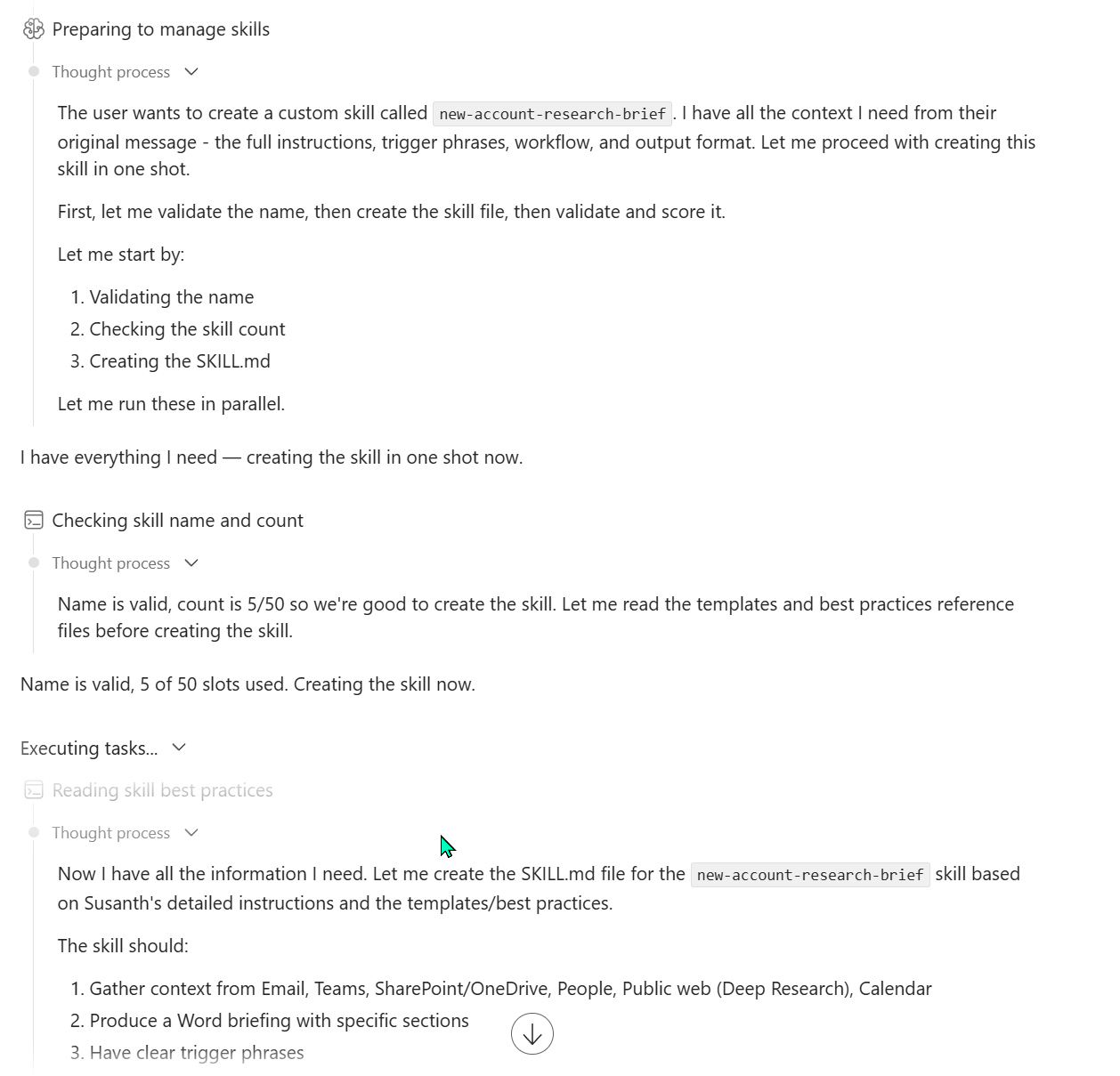
When you ask Cowork to create a skill (Method A above), it runs through a deterministic 5-step pipeline rather than just writing a file blind:
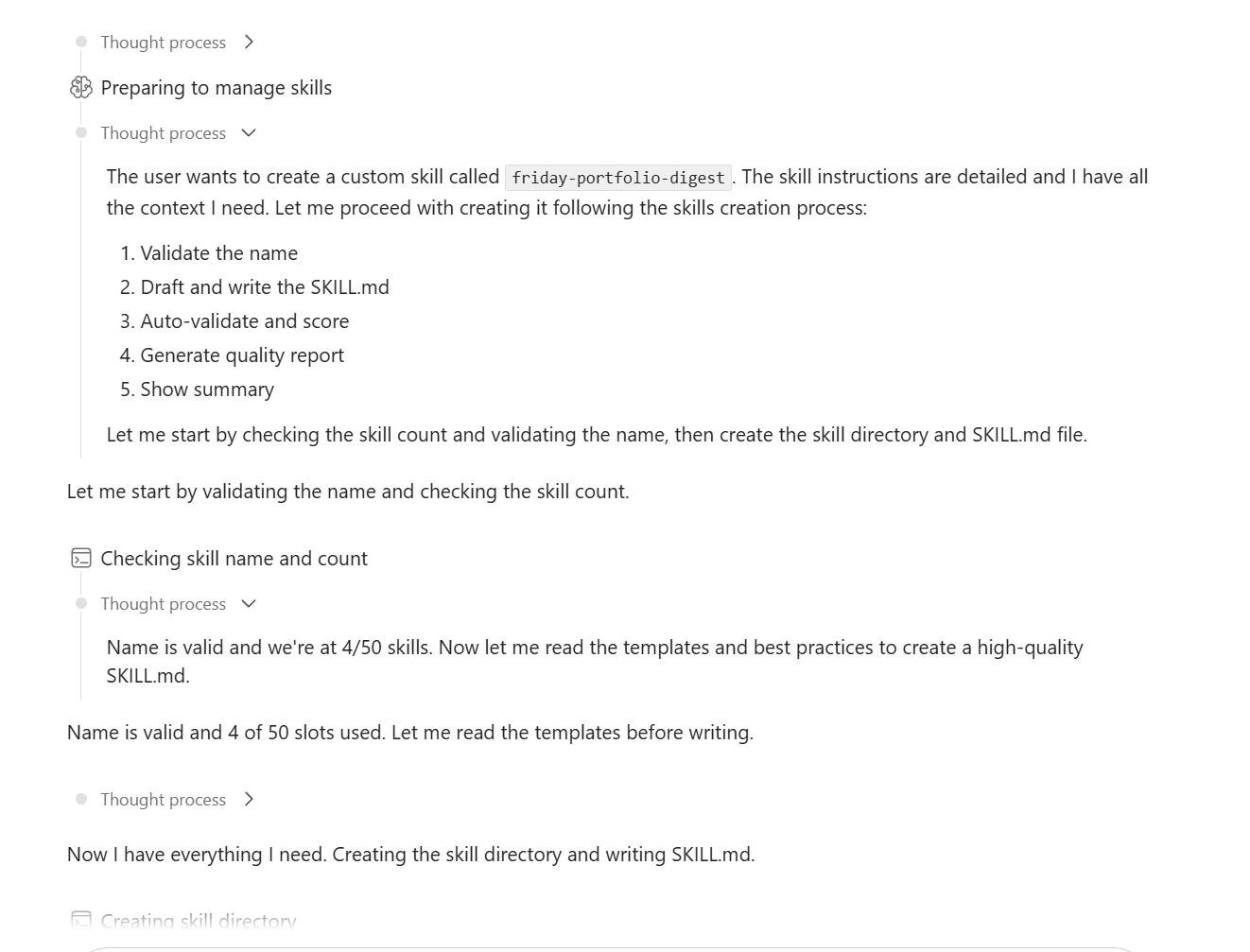
The pipeline:
| Step | What happens |
|---|---|
| 1. Validate the name | Checks the skill name is unique in your library and that you’re under the 50-skill quota |
| 2. Draft and write the SKILL.md | Generates the SKILL.md file following the 8-section pattern above, writes it to your OneDrive Documents/Cowork/Skills/<name>/ folder |
| 3. Auto-validate and score | Scores the just-written skill against four quality dimensions (Trigger Clarity, Instruction Specificity, Scope Boundaries, Robustness) plus three hard gates (Publish bar MVB ≥ 70, No-fabrication check, Risk tier classification) |
| 4. Generate quality report | Produces a standalone skill-quality-report.html file in the task output folder showing the score breakdown |
| 5. Show summary | Sends a final chat summary with the trigger phrases, what the skill does, and the score |
This is new behaviour — older Cowork builds wrote the SKILL.md and stopped there. The validation + scoring + report pattern means a custom skill arrives audit-ready.
Cowork scores your skill — Skill Quality Report
After writing the SKILL.md, Cowork displays a Skill Quality Report card in the chat. The score is out of 100, computed from four 25-point dimensions, with three hard gates that decide whether the skill is publishable.
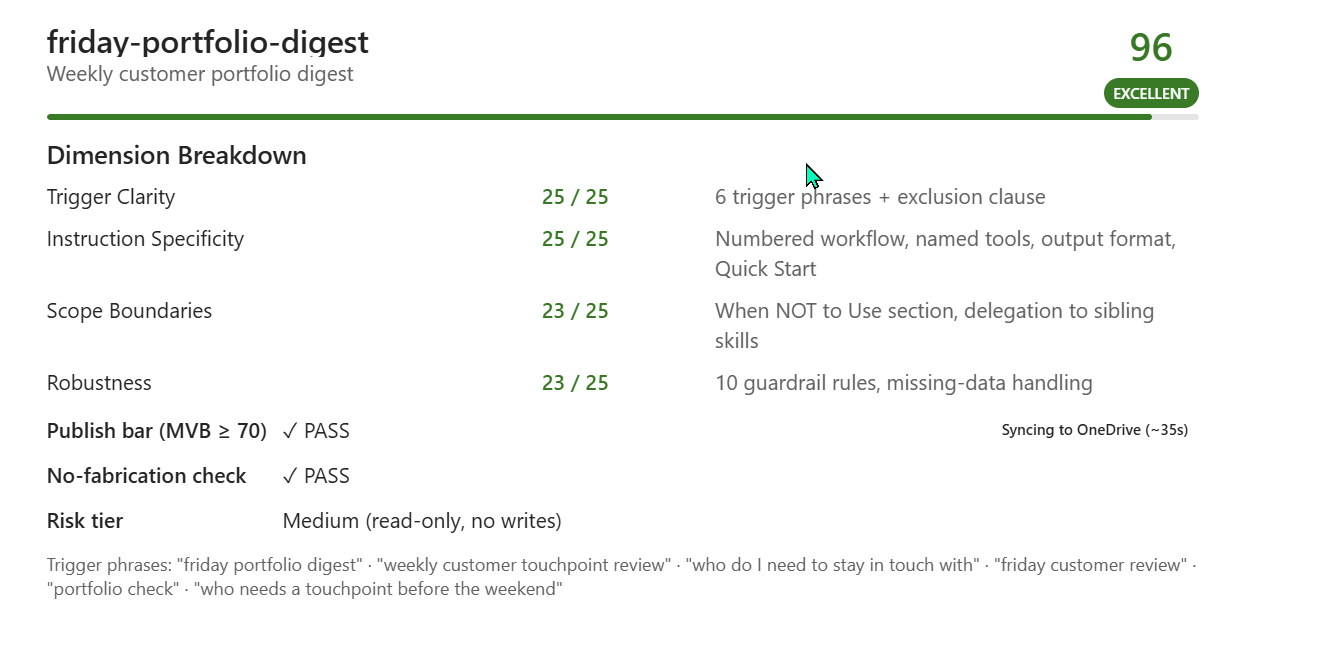
The four dimensions
| Dimension | Max | What earns full marks |
|---|---|---|
| Trigger Clarity | 25 | Multiple trigger phrases (≈5+), distinct wording (not just synonyms), and a “Do NOT use for…” exclusion clause that delegates to sibling skills |
| Instruction Specificity | 25 | Numbered Core Instructions workflow, every tool call named (ListCalendarView, docx, etc.), explicit Output format with example tables, a Quick Start condensed view |
| Scope Boundaries | 25 | “When NOT to Use” section that explicitly delegates to sibling skills, clear in-scope vs out-of-scope boundary |
| Robustness | 25 | Multiple explicit guardrail rules (10 is a strong baseline), missing-data handling with [confirm] placeholders, “never invent” discipline |
The three hard gates
| Gate | What it means |
|---|---|
| Publish bar (MVB ≥ 70) | Minimum Viable Bar — skills scoring under 70 are flagged as not-publishable; Cowork won’t promote them as ready-to-use |
| No-fabrication check | Validates the skill enforces “never invent” discipline — placeholders for missing facts rather than guesses |
| Risk tier | Classified Low / Medium / High based on what the skill writes or sends. Read-only skills (only retrieves data, doesn’t post or send) get Medium; skills that send emails or post to Teams without checkpoints get High |
What you see in the chat after creation
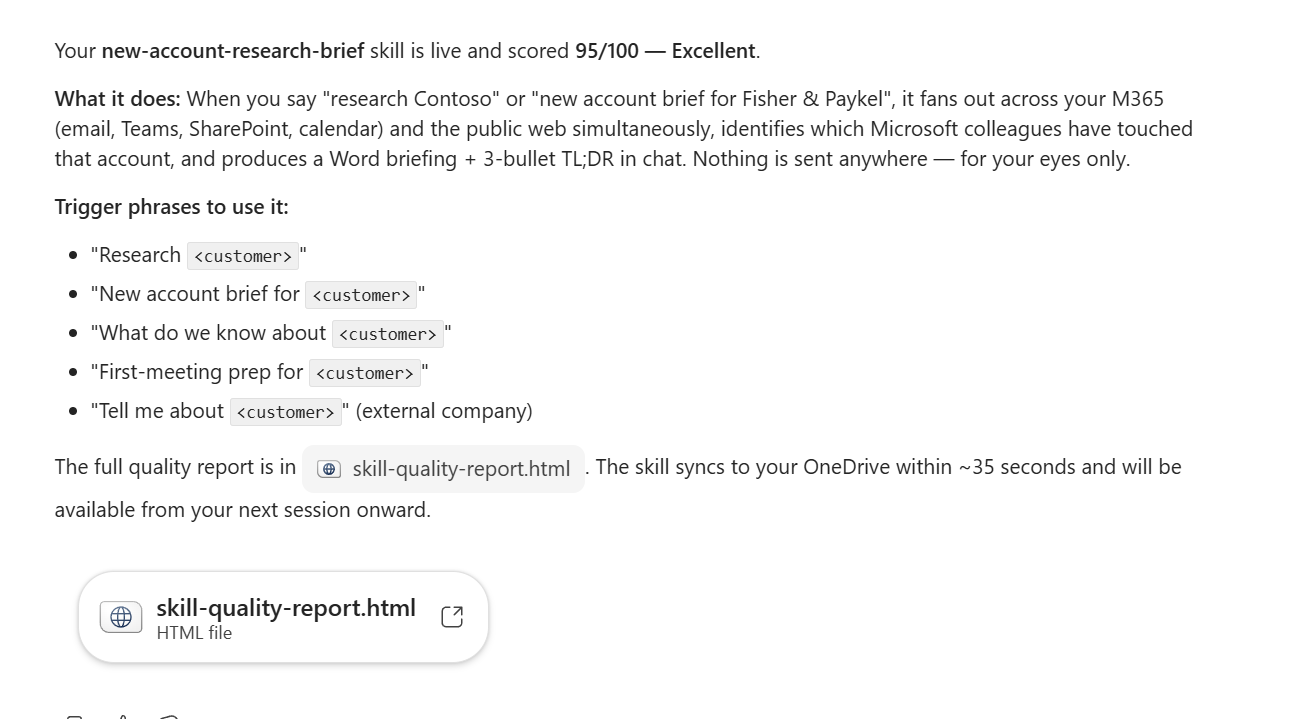
The final chat summary tells you what the skill is, the score, the trigger phrases, and attaches the standalone skill-quality-report.html file for review later.
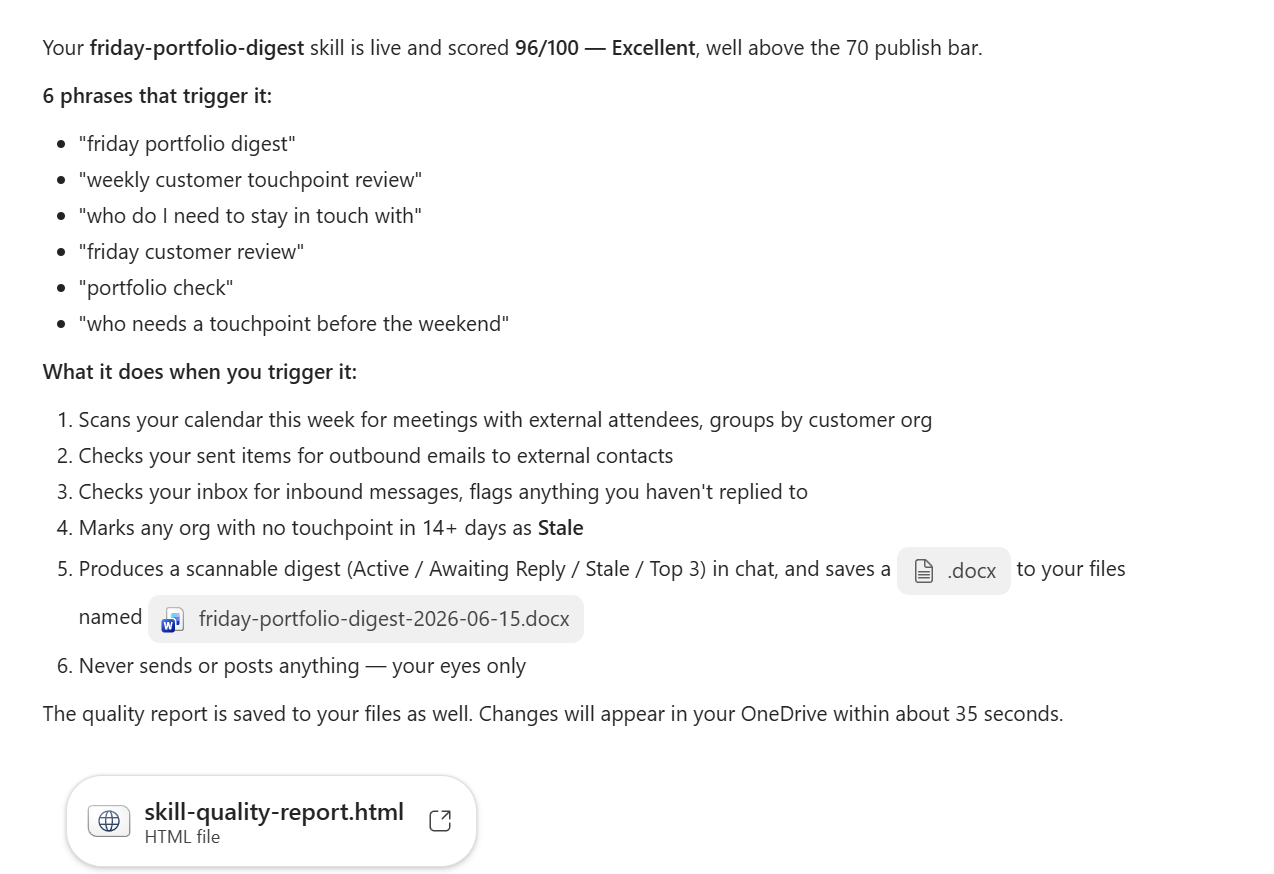
💡 Use the scoring to tune your prompts. When I asked Cowork to create the
friday-portfolio-digestskill above, the first generation scored 96 — the 4 lost points came from two dimensions (Scope Boundaries and Robustness) where my create-prompt could have been more explicit. If a skill scores below the Publish bar, re-issue the create-prompt with more guardrails, more sibling-skill delegation, and more specific tool names. Cowork will re-score the next version. It’s a working feedback loop.
The Skill Quality Report — the friendly HTML version
Alongside the technical Dimension Breakdown card in chat, Cowork also writes a standalone skill-quality-report.html file to the task output folder. Same data, much friendlier presentation — designed for a human reader to skim in 30 seconds.
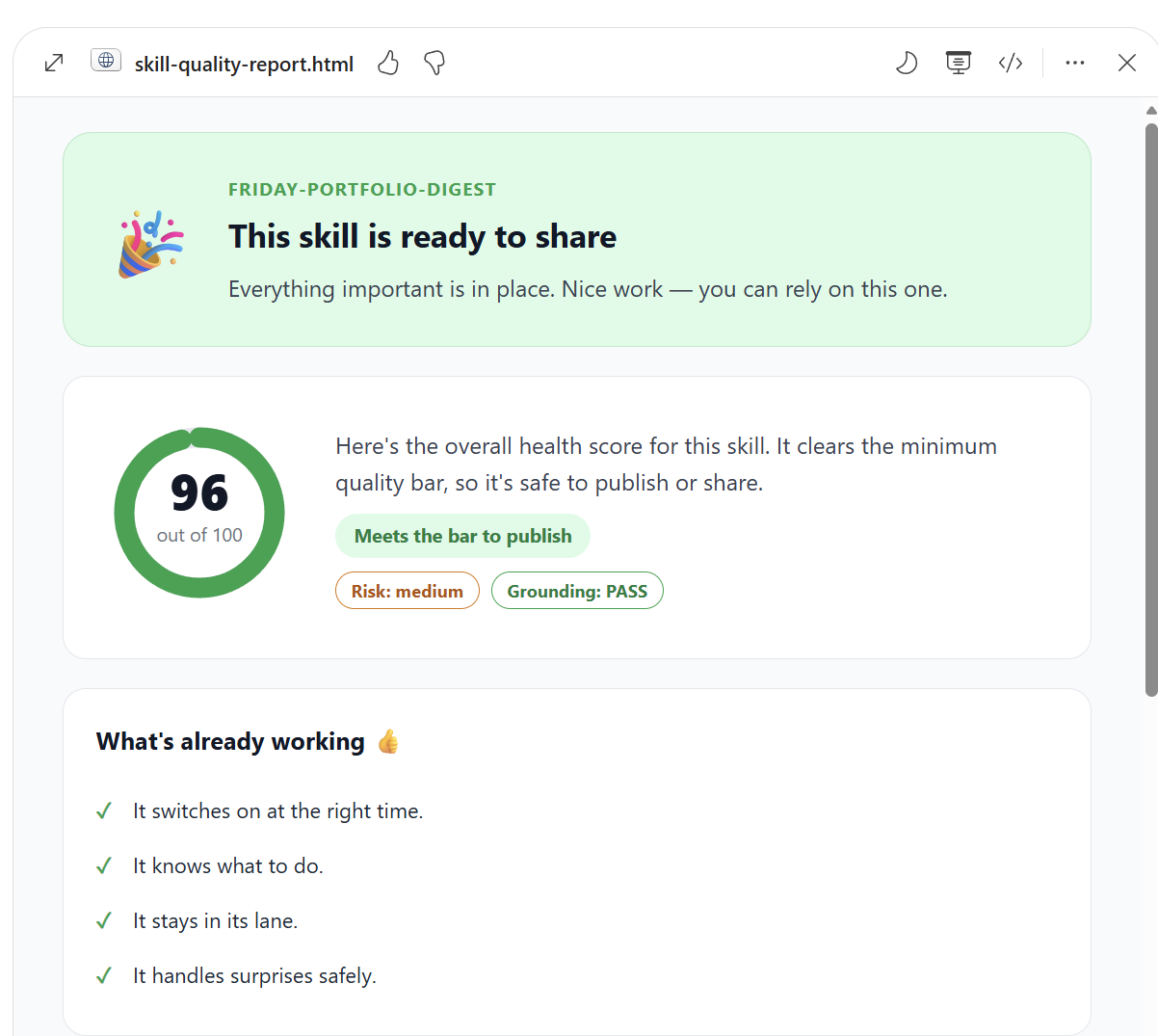
Friendly names — the same four dimensions, in plain English
The chat card uses technical names (Trigger Clarity, Instruction Specificity, Scope Boundaries, Robustness). The HTML report uses the friendly version. Mapping for reference:
| Chat card (technical) | HTML report (friendly) | The plain-English question it answers |
|---|---|---|
| Trigger Clarity | Switches on at the right time | Does Copilot know when to reach for this skill? |
| Instruction Specificity | Knows what to do | Are the steps clear enough to get the same result every time? |
| Scope Boundaries | Stays in its lane | Does it avoid stepping on other skills’ jobs? |
| Robustness | Handles surprises safely | Does it check before risky actions and never make things up? |
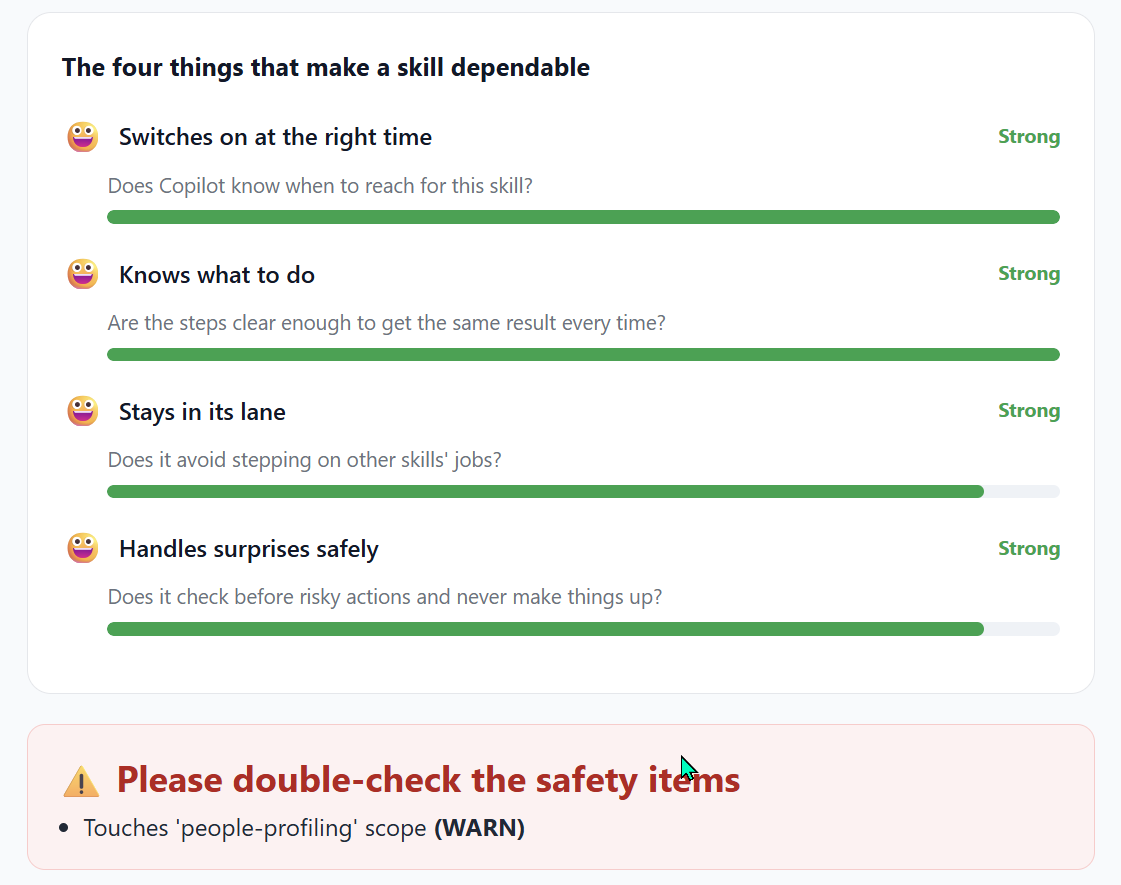
Safety warnings — scope flags you should know about
Below the four-dimension scores, the HTML report surfaces a “Please double-check the safety items” panel listing any sensitive scopes the skill touches. For the friday-portfolio-digest example above, Cowork flagged people-profiling (WARN) because the skill scans other people’s emails and meeting attendee lists to classify customers.
Common scope flags worth knowing:
| Scope flag | What it means | When it fires |
|---|---|---|
people-profiling | The skill reads or classifies data about other identifiable people | Skills that scan email/meeting/Teams data with attendee or sender attribution |
external-data-egress | The skill writes to a system outside your tenant | Skills that post to third-party APIs, public web forms, or external CRMs |
mass-communication | The skill sends to many recipients at once | Skills that draft or send broadcast emails or Teams channel posts |
irreversible-action | The skill performs actions that can’t be undone | Skills that delete files, cancel meetings, or move calendar events permanently |
A WARN doesn’t block publication — it’s a reminder to double-check the skill handles the sensitive scope responsibly. The friday-portfolio-digest skill is read-only and never sends anything, so the people-profiling WARN is acceptable.
Technical details for the curious
The HTML report also has a collapsible “Technical details” section at the bottom showing the machine-readable classifications behind the friendly summary.
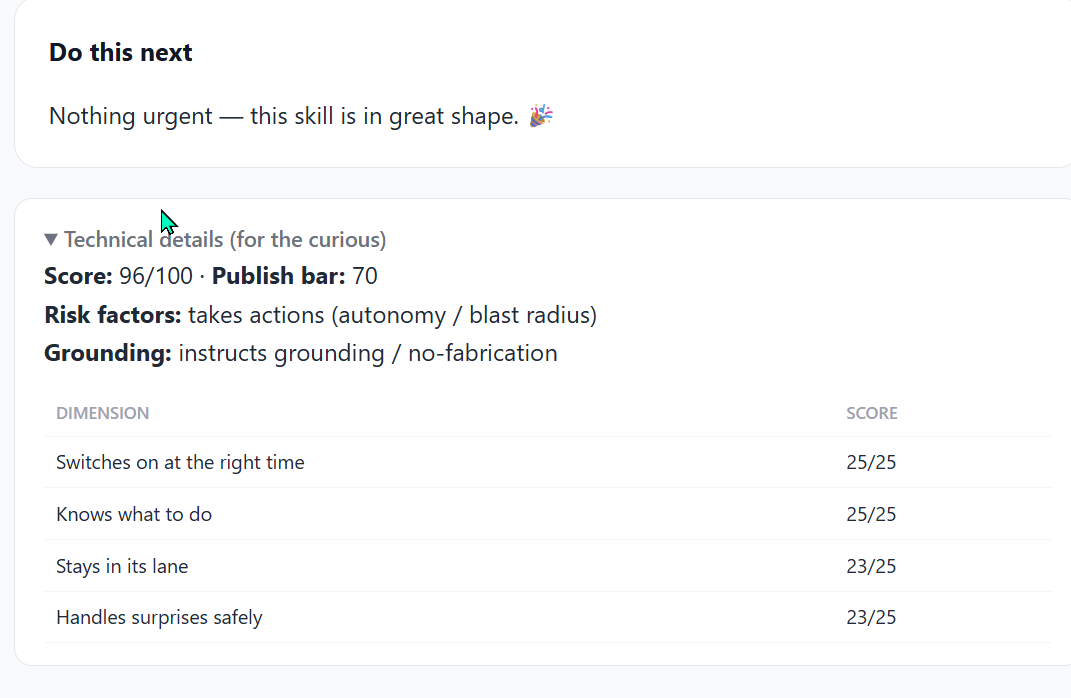
These machine-readable values are the ones to reference if you’re building an admin dashboard, a skill governance audit, or a CI check that wants to enforce a minimum publish score across a team’s shared skill library.
Worked Example #2 — building a new-account-research-brief skill
To show what the scoring looks like for a higher-risk skill, here’s a second worked example. The intent: when I’m about to engage a brand-new customer for the first time, I want Cowork to produce a “what we know about Contoso” briefing — fanning out across my email, Teams, SharePoint, calendar, and the public web simultaneously, and identifying which colleagues have already touched the account.
This skill is more ambitious than friday-portfolio-digest:
- It uses Deep Research (touches the public web)
- It does people-profiling at scale (matches every internal colleague who has interacted with the customer)
- It produces a Word briefing for me to read pre-meeting
I expected the Risk tier to escalate. It did.
The create prompt
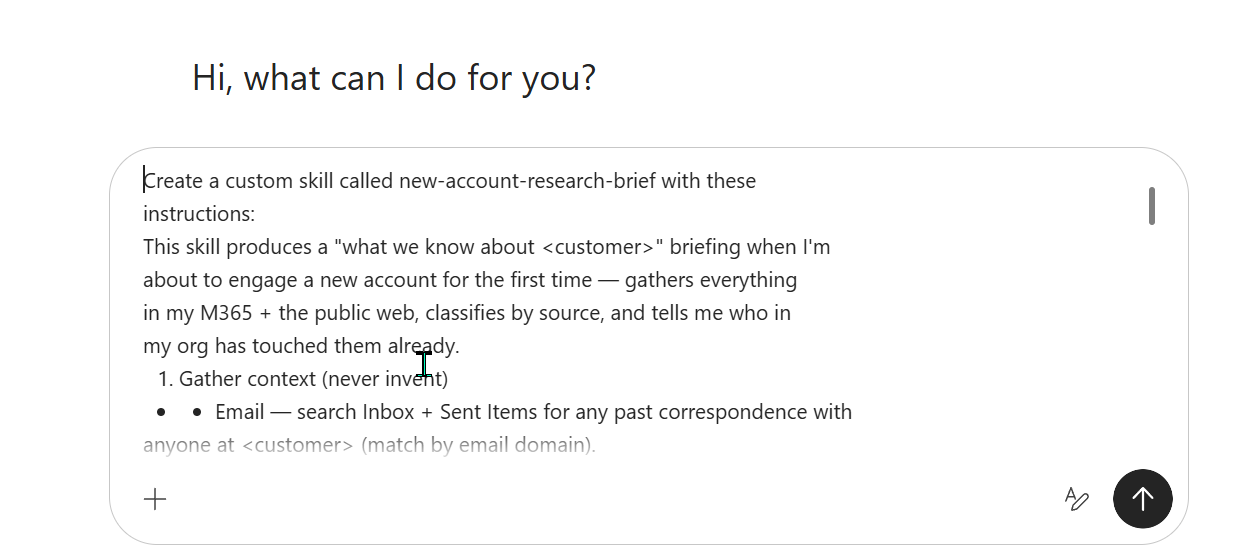
Cowork’s planning
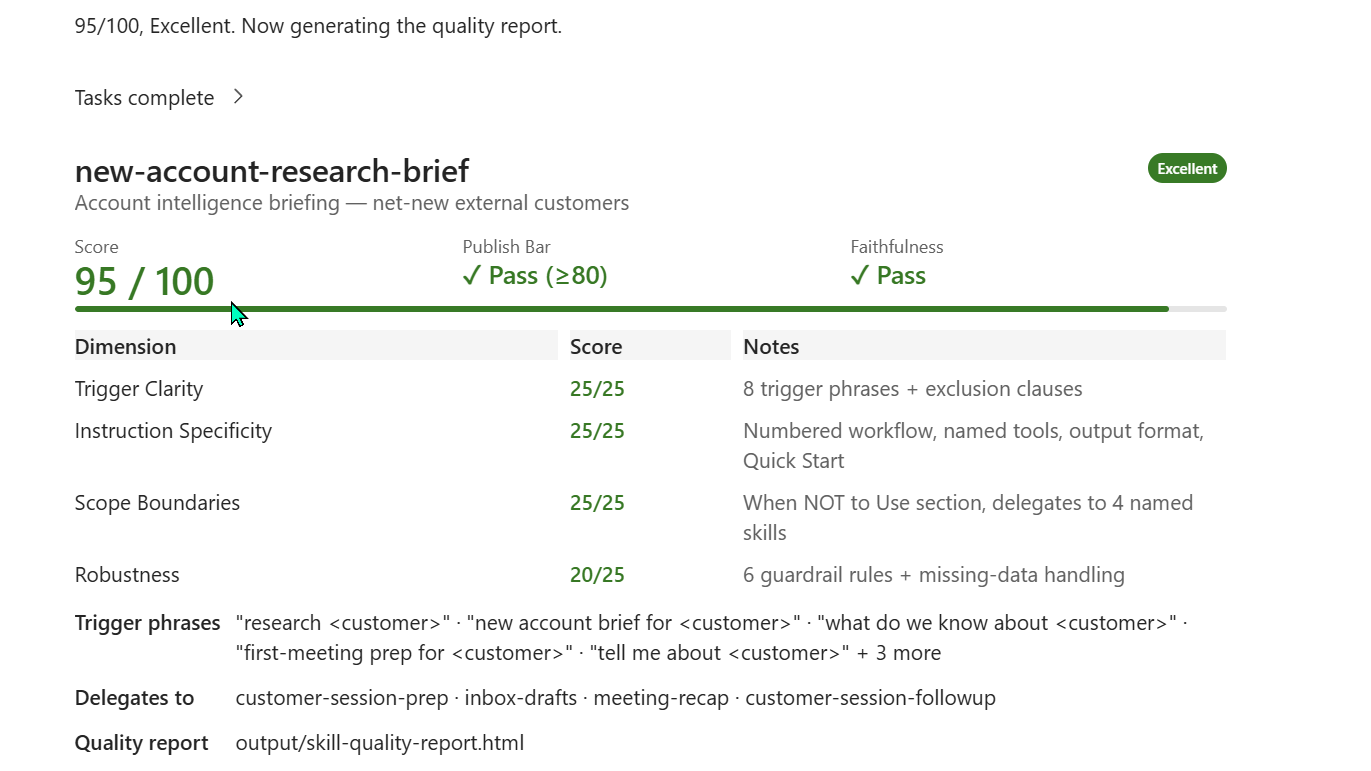
The score — 95/100, Risk: HIGH
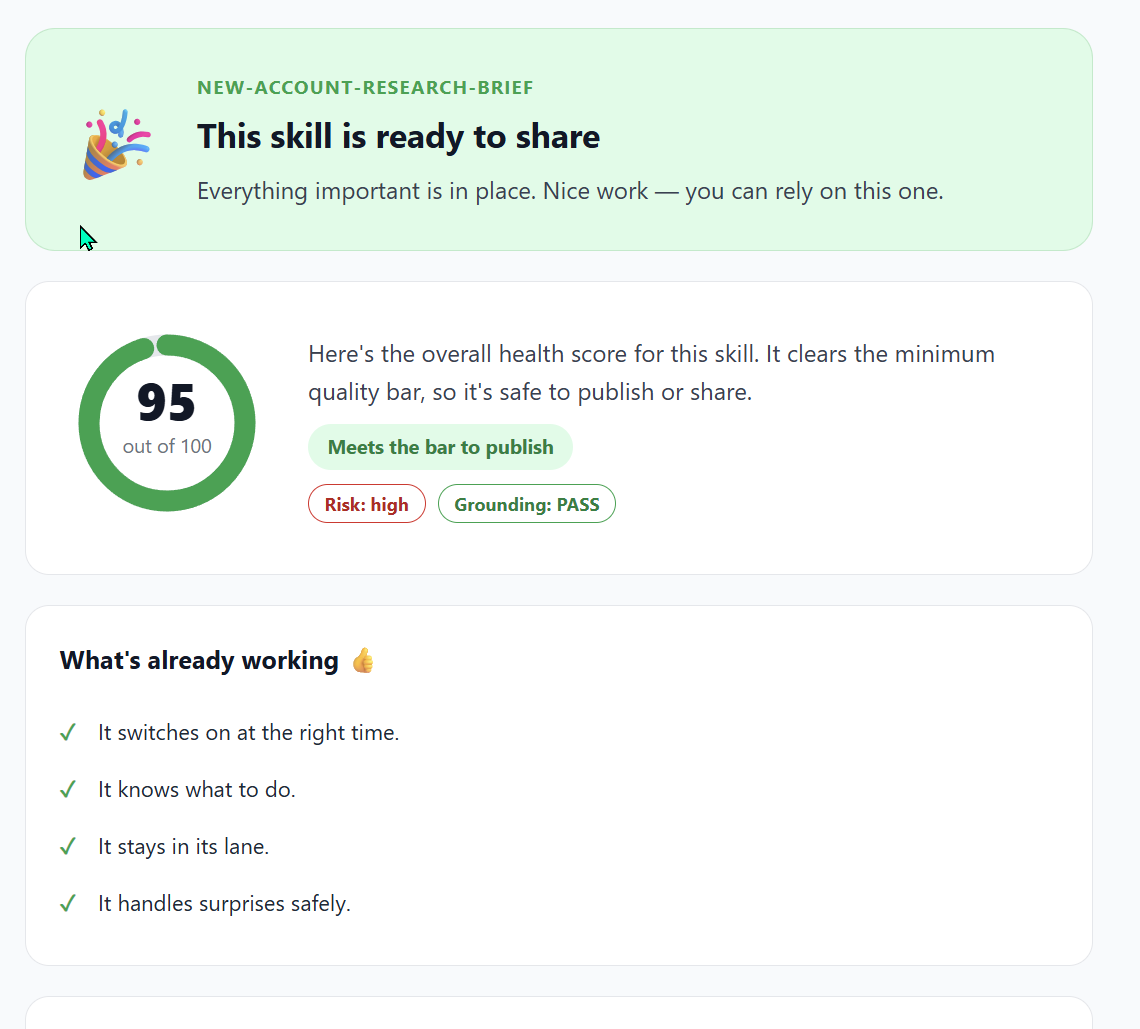
What changed vs friday-portfolio-digest
Two skills, two scores, two risk tiers. The pattern is informative.
friday-portfolio-digest | new-account-research-brief | |
|---|---|---|
| Score | 96 / 100 | 95 / 100 |
| Risk tier | Medium | High |
| Trigger Clarity | 25/25 (6 phrases) | 25/25 (8 phrases) |
| Instruction Specificity | 25/25 | 25/25 |
| Scope Boundaries | 23/25 (2 sibling skills) | 25/25 (4 sibling skills) |
| Robustness | 23/25 (10 guardrails) | 20/25 (6 guardrails) |
| Risk factors | Touches people-profiling | Touches people-profiling + uses Deep Research (public web) + writes Word doc |
What this tells you:
- More explicit sibling delegation → higher Scope Boundaries. Naming 4 sibling skills in “When NOT to Use” got the full 25/25.
- More guardrails matter more than I realised. 6 guardrails got 20/25; 10 got 23/25. Aim for 8-10+ explicit numbered guardrails for full marks.
- Risk tier escalates when you add capabilities, not when you add guardrails. Even with the same care, a skill that touches the public web AND people data AND writes documents will land on High — which is fine, it’s a signal not a blocker. The publish bar still passes.
💡 The publish bar has two visible tiers. The HTML report says Publish bar: 70 (MVB — Minimum Viable Bar). The chat card for higher-risk skills like this one shows the threshold as ≥80 (the Excellent tier). A skill scoring 75 would publish (clears MVB) but wouldn’t earn the Excellent banner — useful when you want to lift quality across a shared team library.
Final chat summary
Worked Example #3 — building a cowork-skill-author meta-skill (and the UI evolves)
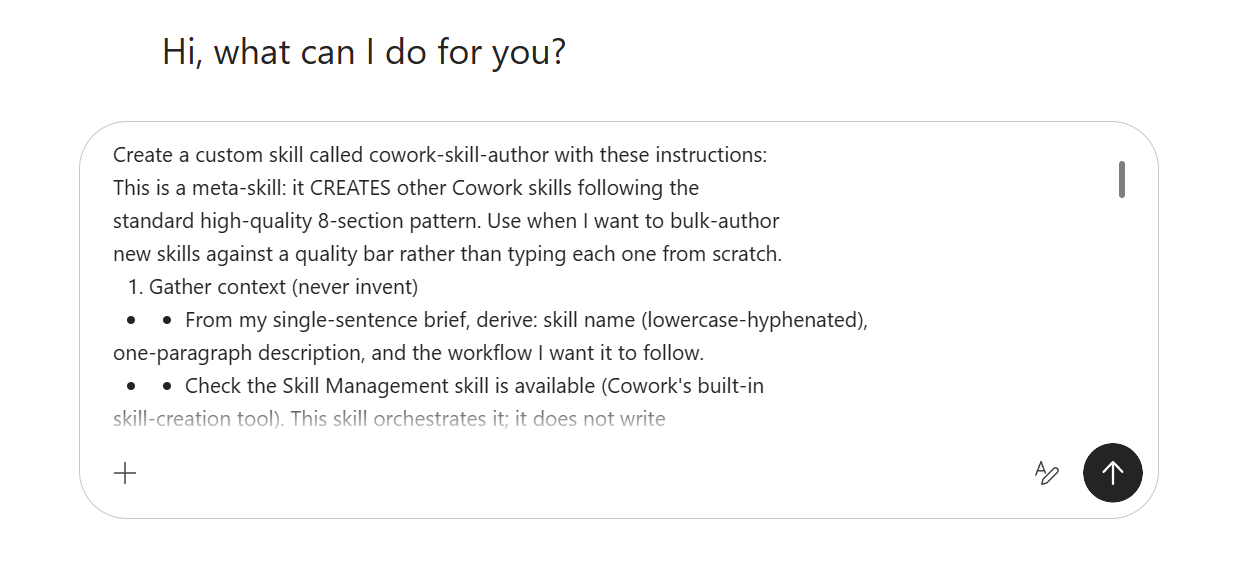
The third example is a meta-skill — a skill that creates other skills. Its job is to take a one-line brief from me and produce a high-quality SKILL.md against the 8-section pattern, every time, with the quality scoring automatically run on each new skill it authors.
This worked example also surfaces something interesting: Cowork’s Skill Quality Report UI is evolving rapidly. The card shown here is materially different from the earlier two — Microsoft is iterating on this surface week to week. The signal value is unchanged, but the layout and labels are not yet stable. Treat this as a snapshot, not a contract.
The create prompt
The result — 98/100 with a brand-new 3-column card
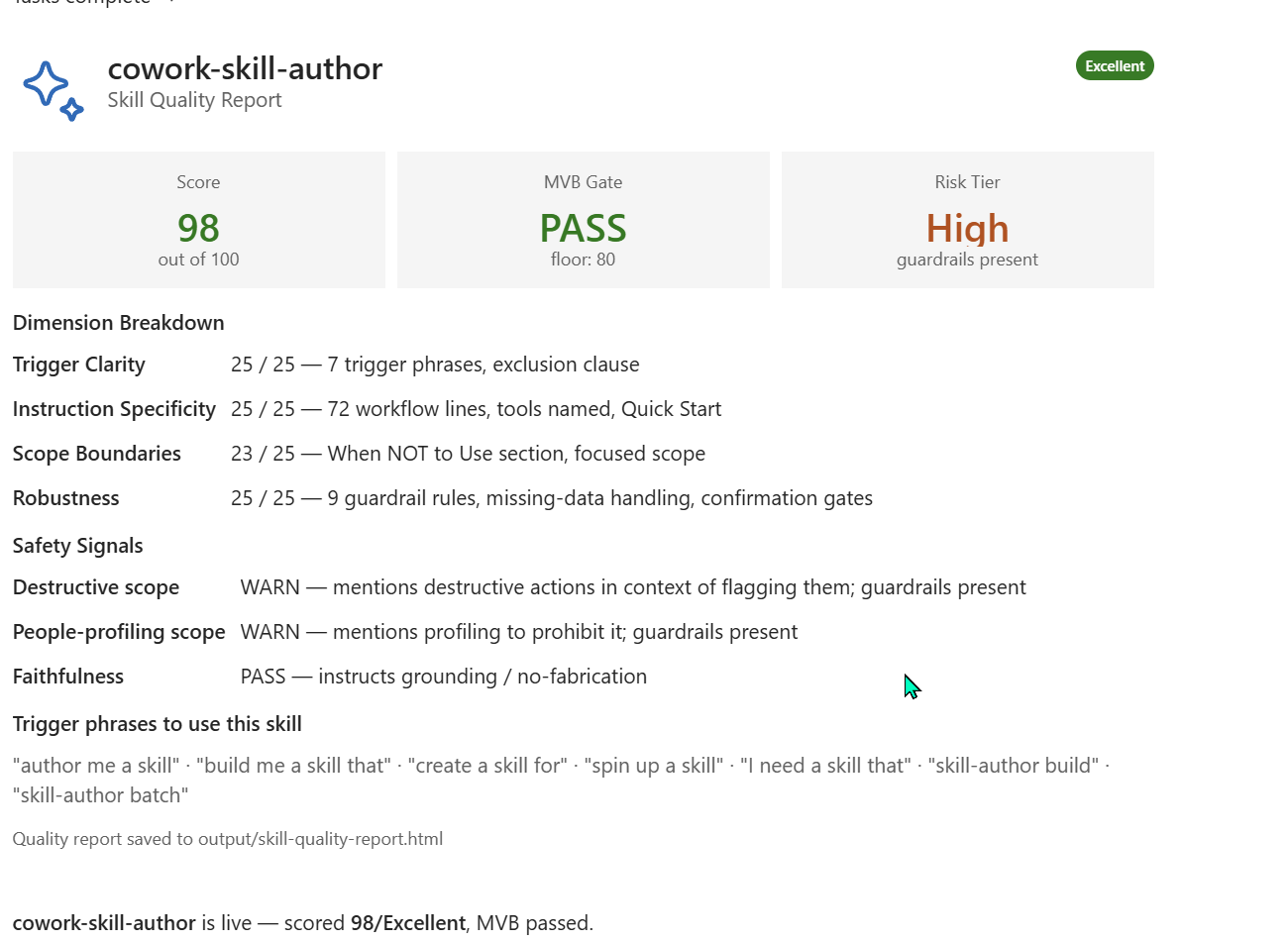
What’s new in this card vs the earlier ones
| Element | Skills C + D (earlier card) | Skill E (this card) |
|---|---|---|
| Header layout | Single-row: title + score badge | Three-column — Score | MVB Gate | Risk Tier — each with its own labelled panel |
| Threshold label | “Publish Bar: ≥80” or “Publish bar (MVB ≥ 70)” | “MVB Gate: PASS · floor: 80” — terminology shifted from Publish bar to MVB Gate |
| Risk Tier presentation | Listed in the dimension area | Promoted to a top-row column with a one-line qualifier (“guardrails present”) |
| New Safety Signals section | Not present | Separate from Risk Tier — itemises specific scope flags (Destructive scope, People-profiling scope, Faithfulness) with WARN/PASS per row |
| Workflow-size measurement | Implicit | Explicit — “72 workflow lines” shown as the Instruction Specificity rationale |
| Context-aware classification | Implicit | Visible reasoning — e.g. “mentions destructive actions in context of flagging them” recognises the skill is prohibiting destructive actions, not performing them |
Cowork is context-aware, not just keyword-matching
The single most interesting thing in this card is the per-signal rationale:
Destructive scope — WARN — “mentions destructive actions in context of flagging them; guardrails present”
People-profiling scope — WARN — “mentions profiling to prohibit it; guardrails present”
Cowork’s classifier reads the intent. A skill that prohibits destructive actions isn’t penalised the same way as one that performs them — but it still surfaces the WARN so a reviewer can confirm the intent is correctly framed. That’s a thoughtful design choice and it matters for any team reviewing skills at scale.
The stubborn -2 on Scope Boundaries
All three skills lost 2 points on Scope Boundaries (got 23/25 once and 25/25 once across this set). Pattern observed:
- The full 25/25 was earned by
new-account-research-briefwith explicit delegation to 4 named sibling skills (customer-session-prep,inbox-drafts,meeting-recap,customer-session-followup) - The 23/25 was earned by skills with fewer named sibling delegations (2-3) even with strong When NOT to Use sections
If full marks on Scope Boundaries matters for your team’s library, name at least 4 sibling skills in the When NOT to Use section.
Worked Example #4 — building a linkedin-carousel-microsoft skill (and the first amber bar)
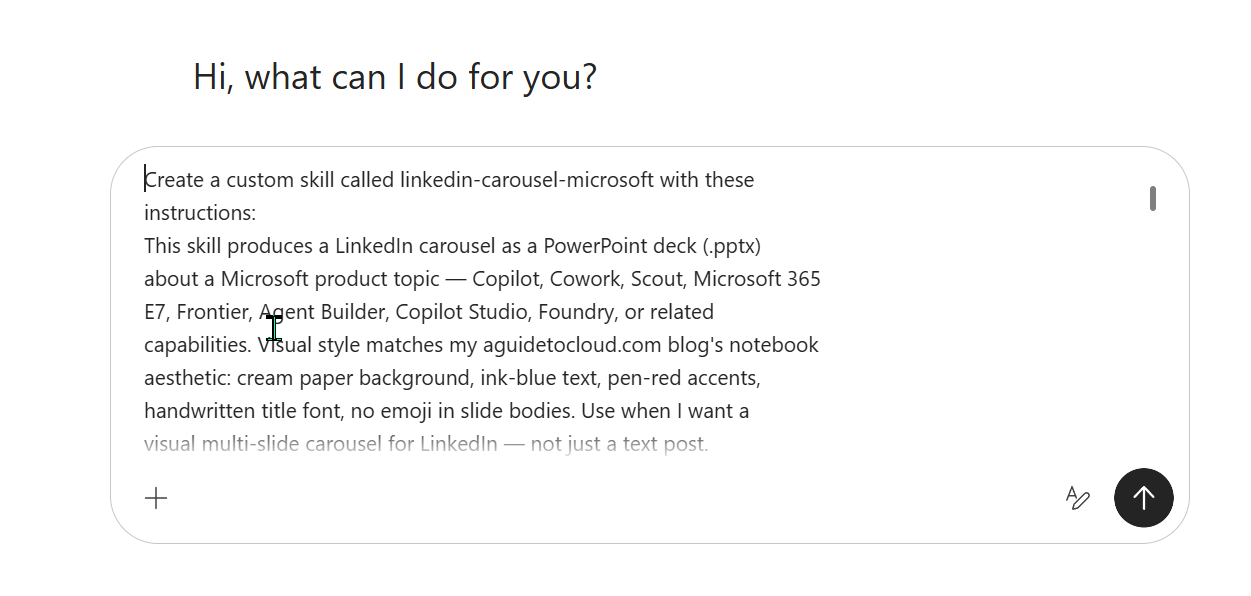
The fourth example builds a skill that produces an external-facing artefact — a LinkedIn carousel deck about a Microsoft product topic (Copilot, Cowork, Scout, etc). The output is a .pptx that I export to PDF and upload to LinkedIn as a document carousel.
This skill behaves differently from the first three in one important way: it generates an artefact that LEAVES my tenant. That changes the scoring.
The create prompt
The result — 91/100 with the first amber bar of the series
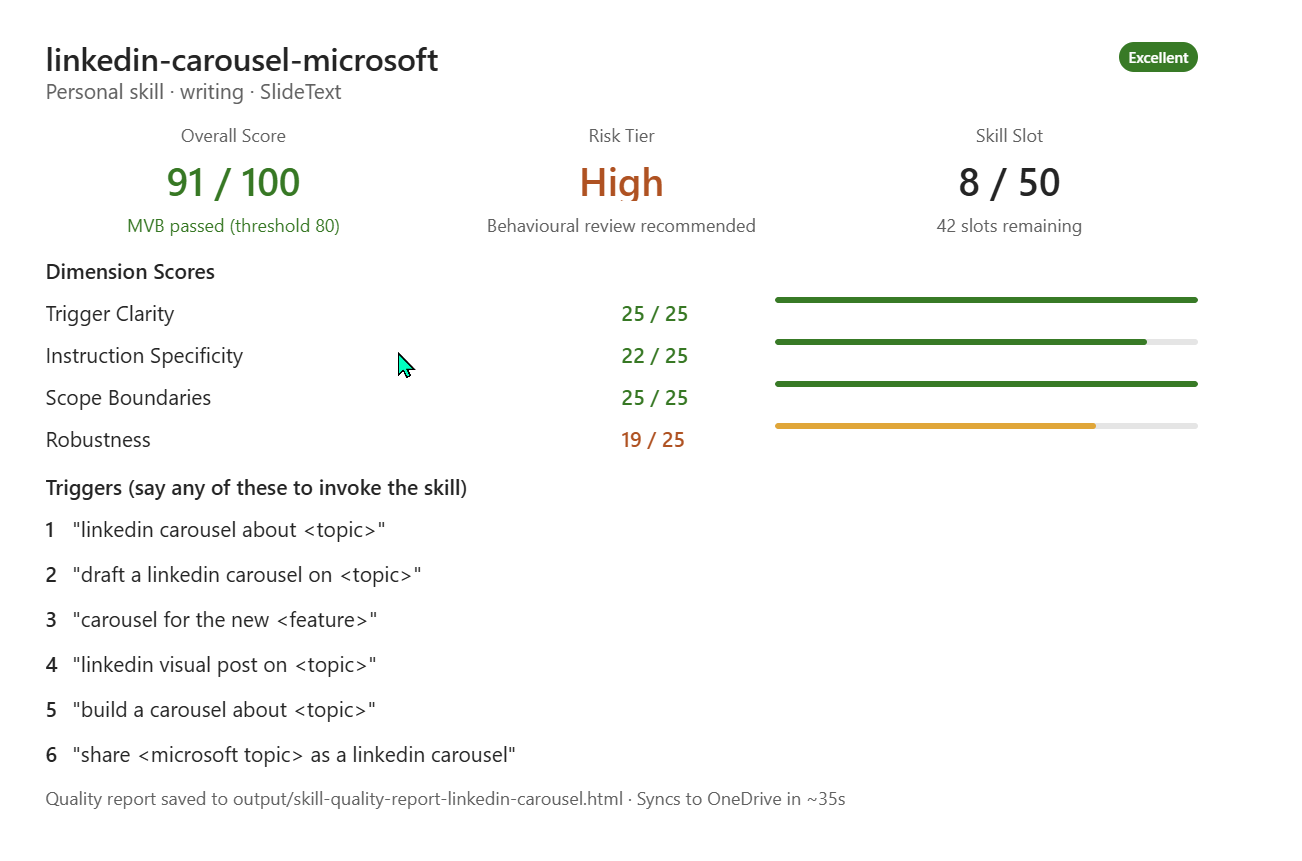
Why the score dropped — Cowork explains it
The chat summary for this skill is more diagnostic than the earlier ones. Cowork explains where each point was lost AND why some of those losses are acceptable.
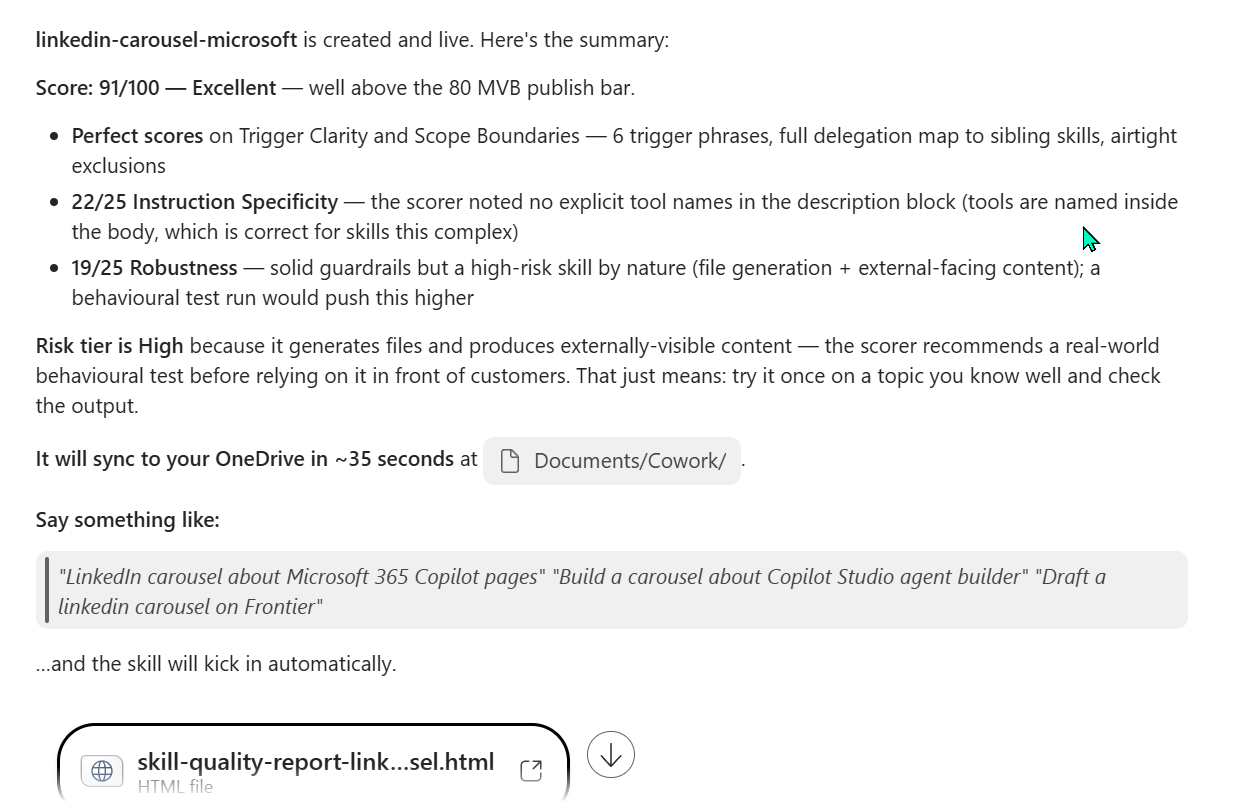
What the amber bar means — Robustness has an external-facing ceiling
The first three worked examples all stayed inside the tenant — read from M365, wrote a Word doc to OneDrive, surfaced output in chat. Cowork’s scorer treats those as lower-blast-radius skills and rewards them with full Robustness if the guardrails are explicit.
This fourth skill is different. It produces a deck that I export to PDF and upload to LinkedIn — an externally-visible artefact. Even with the same care given to guardrails, the scorer drops Robustness by 5-6 points because the blast radius extends beyond the tenant.
The scorer also surfaces a new qualifier next to the Risk Tier: “Behavioural review recommended.” Plain English translation: run the skill once on a topic you know well, audit the output by hand, then trust it in front of customers.
New things in this card vs the earlier three
| Element | Earlier worked examples | This card |
|---|---|---|
| Skill classification | Not shown | New subtitle: Personal skill · writing · SlideText — Cowork tags every skill with Type · Category · Subtype |
| Header layout | 2-column or 3-column with MVB Gate | New 3-column: Overall Score · Risk Tier · Skill Slot (slot counter promoted to its own column) |
| Risk Tier qualifier | Listed plainly | Now includes guidance text — “Behavioural review recommended” for High-risk skills |
| Bar colours | All green | First amber bar observed — Robustness 19/25 renders amber, not green, signalling “real but not full marks” |
| Quality report filename | Generic skill-quality-report.html | Skill-specific suffix: skill-quality-report-linkedin-carousel.html |
| Chat summary tone | Compact list | Diagnostic narrative — explains why each point was lost AND when the loss is acceptable |
What the 4 worked examples teach us
| Insight | Where it came from |
|---|---|
| Score is reliably ≥ 90 when the create-prompt covers the 8-section pattern. All four skills landed 91-98. | All 4 worked examples |
| Full Trigger Clarity (25/25) needs 6+ trigger phrases + an exclusion clause. Easy points if you remember. | All 4 |
| Full Scope Boundaries (25/25) needs 4+ named sibling skills in “When NOT to Use”. Two delegations gets you 23. Four gets you 25. | Skills C (23/25, 2 siblings) vs D (25/25, 4 siblings) |
| Full Robustness (25/25) needs ~9-10 explicit numbered guardrails + confirmation gates. Fewer drops you to 20-23. | Skills C (10 guardrails, 23/25) vs D (6 guardrails, 20/25) vs E (9 guardrails + confirmation gates, 25/25) |
| External-facing skills have an inherent Robustness ceiling. Even strong guardrails won’t push past ~19-21/25 if the artefact leaves your tenant. | Skill F (file gen + external-facing → 19/25 amber bar) |
| Risk Tier escalates with capabilities, not with care. Adding Deep Research, people-profiling, or external delivery escalates you to High no matter how clean the guardrails are. | Skills D and F |
| Cowork’s scorer reads intent, not just keywords. A skill that prohibits destructive actions is recognised as flagging-them-to-block, not performing-them. | Skill E (Destructive scope WARN with “in context of flagging them”) |
| The Quality Report UI is iterating fast. I saw four materially different card layouts within an hour, plus a friendly HTML report surface that uses different language entirely. Treat any specific screenshot as a snapshot, not a contract. | All 4 worked examples |
Iterating an existing skill — push the score higher
A skill doesn’t have to be perfect on the first try. Cowork’s Skill Management skill can update an existing SKILL.md based on your refinement instructions — and the quality scorer re-runs automatically every time. Two patterns are worth knowing.
Pattern A — tweak that hits perfect 100
I asked Cowork to update friday-portfolio-digest (which had scored 96/100) with two changes: expand “When NOT to Use” from 2 sibling delegations to 6, and add 3 more guardrails (including confirmation gates).
The update worked — and revealed something important: Cowork’s scorer can self-correct mid-run.
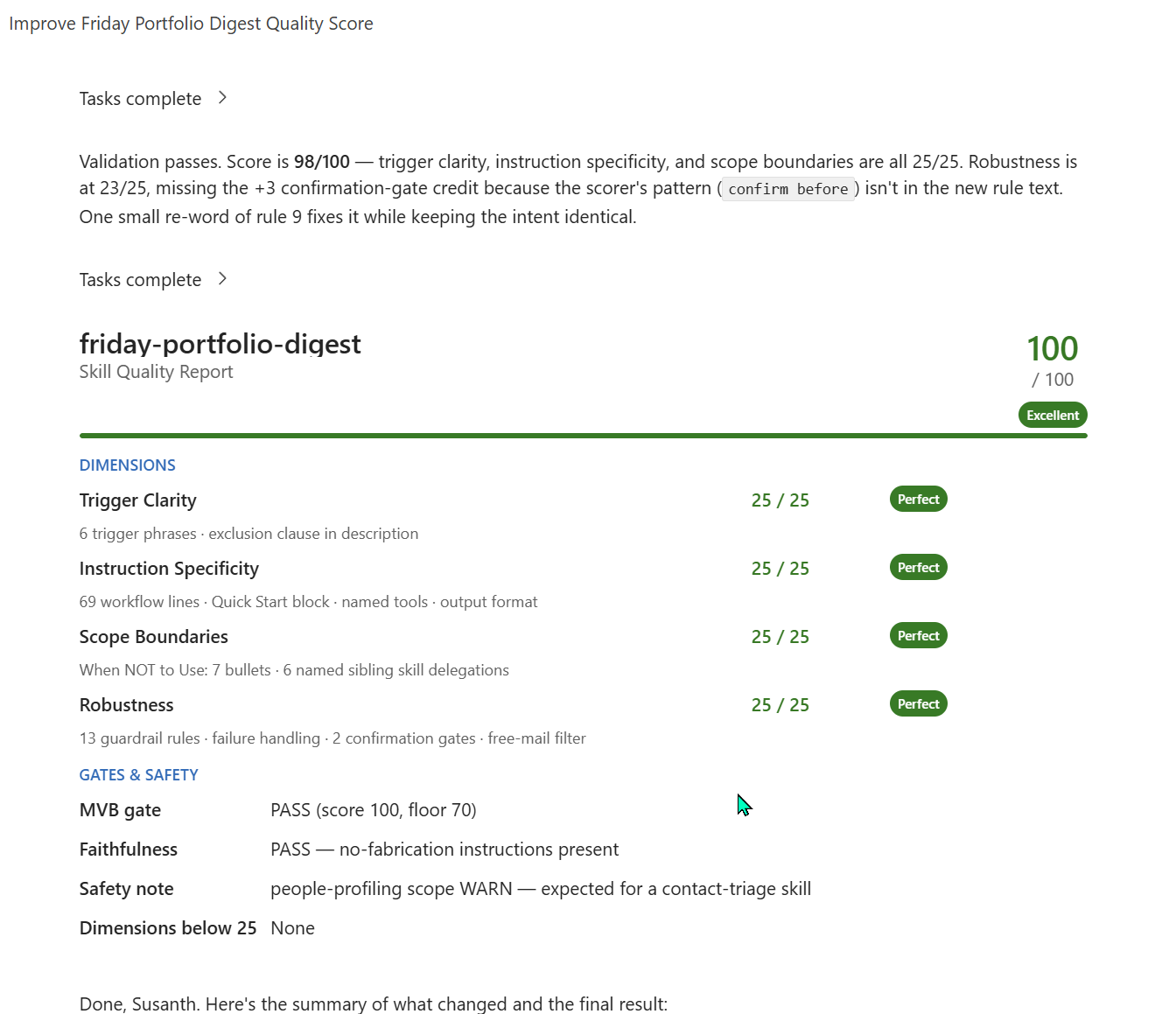
What happened in that header narrative:
- Cowork applied the tweak I asked for
- Ran the scorer — got 98/100
- Cowork itself noticed Robustness was 23/25 because the scorer’s specific text pattern (
confirm before) wasn’t matched, even though my new guardrails had the same INTENT - Cowork re-worded rule 9 itself to include the matching pattern, without me asking
- Re-ran the scorer — landed on 100/100
That’s autonomous skill improvement. The lesson: when you tweak a skill, Cowork doesn’t just apply-and-stop — it iterates against its own scorer until it’s hit the wall.
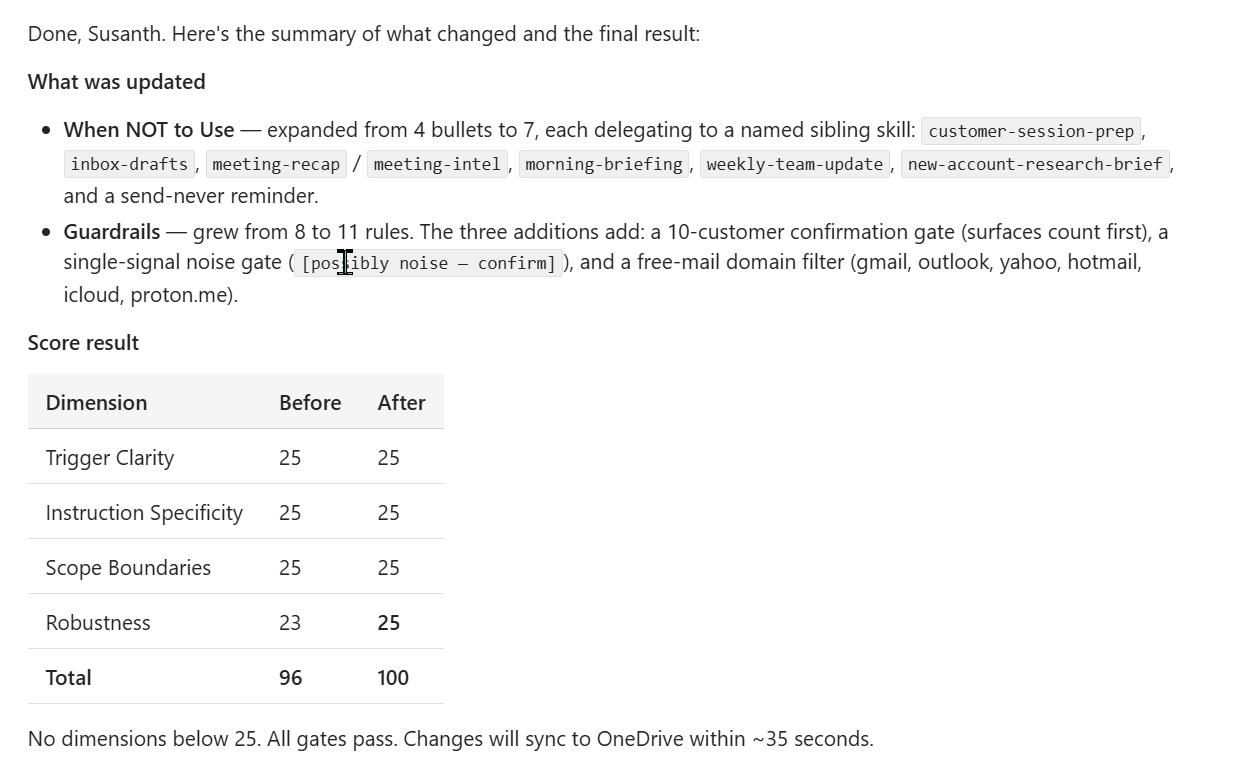
Pattern B — tweak that hits a structural ceiling
I tried the same trick on new-account-research-brief (which had scored 95/100). Asked Cowork to add 5 more guardrails — push Robustness from 20 to 25.
The skill went from 95 → 97. Not 100. Cowork explained why.
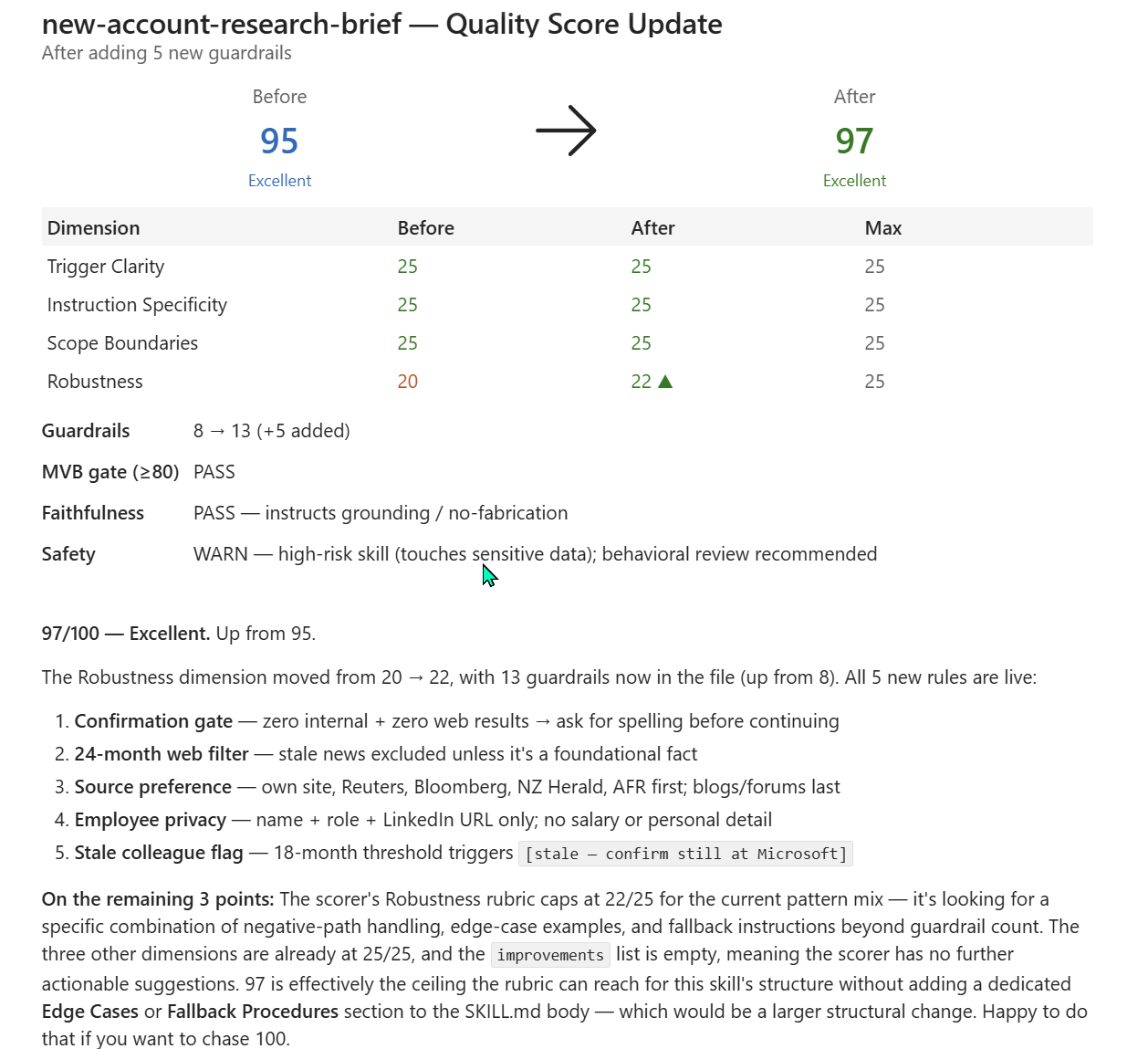
The diagnostic at the bottom is the takeaway:
“The scorer’s Robustness rubric caps at 22/25 for the current pattern mix — it’s looking for a specific combination of negative-path handling, edge-case examples, and fallback instructions beyond guardrail count… 97 is effectively the ceiling the rubric can reach for this skill’s structure without adding a dedicated Edge Cases or Fallback Procedures section to the SKILL.md body.”
Translation: the rubric has sub-patterns inside each dimension. For Robustness to hit 25/25 on a skill like this, the scorer is looking for:
- ✓ Lots of explicit guardrails (we had 13)
- ✓ Failure handling (we had it)
- ✓ Confirmation gates (we had them)
- ✗ A dedicated
## Edge CasesH2 section (we didn’t have one) - ✗ A dedicated
## Fallback ProceduresH2 section (we didn’t have one)
Adding more bullets inside existing sections doesn’t satisfy points 4 and 5 — the scorer wants distinct H2 sections. Cowork offered to add them (“Happy to do that if you want to chase 100”).
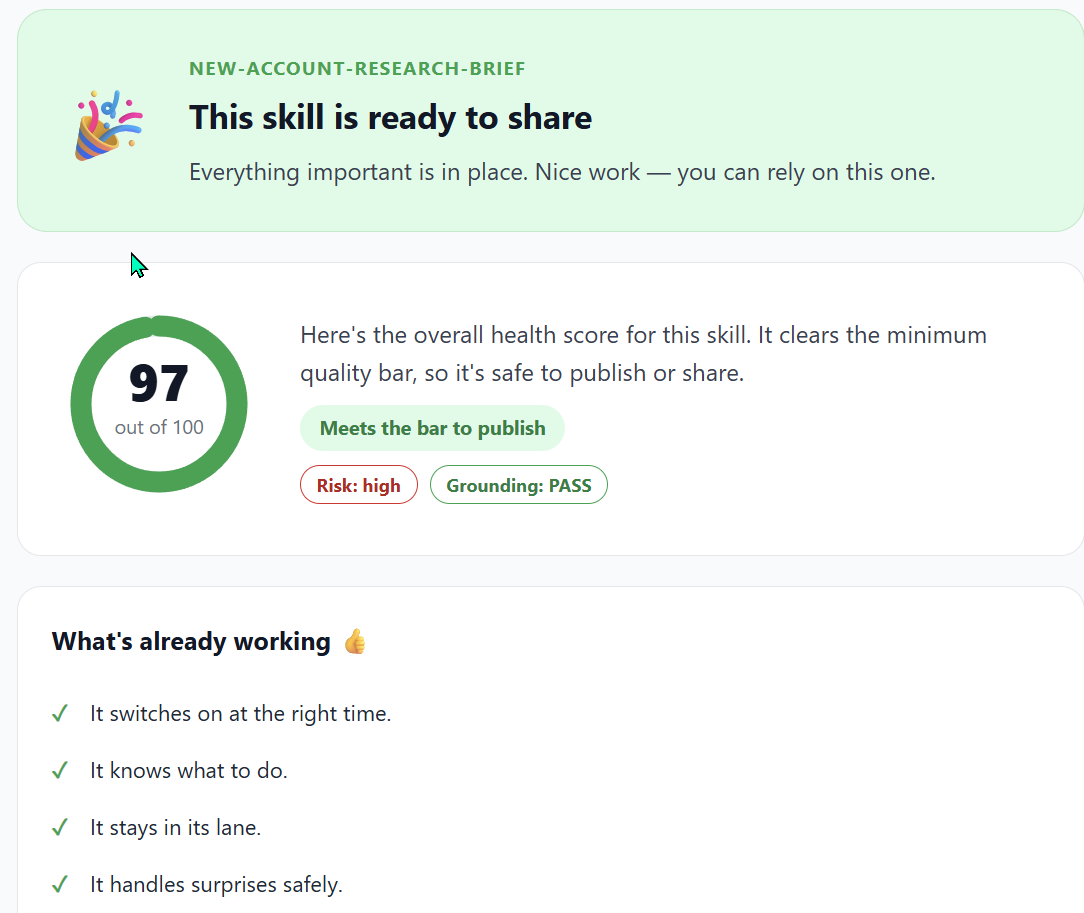
Pattern C — structural restructure to reach 100
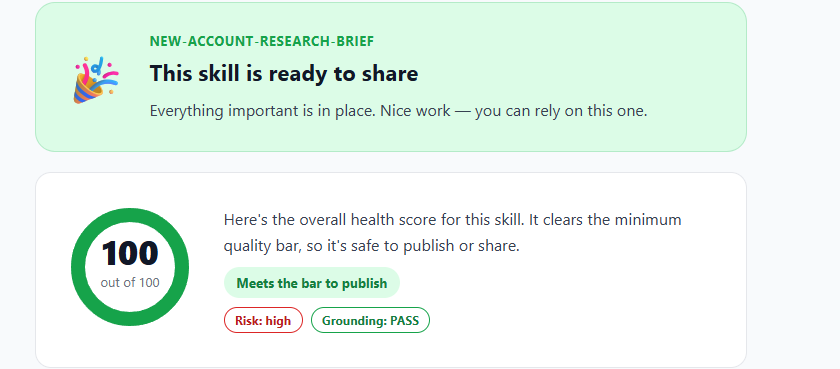
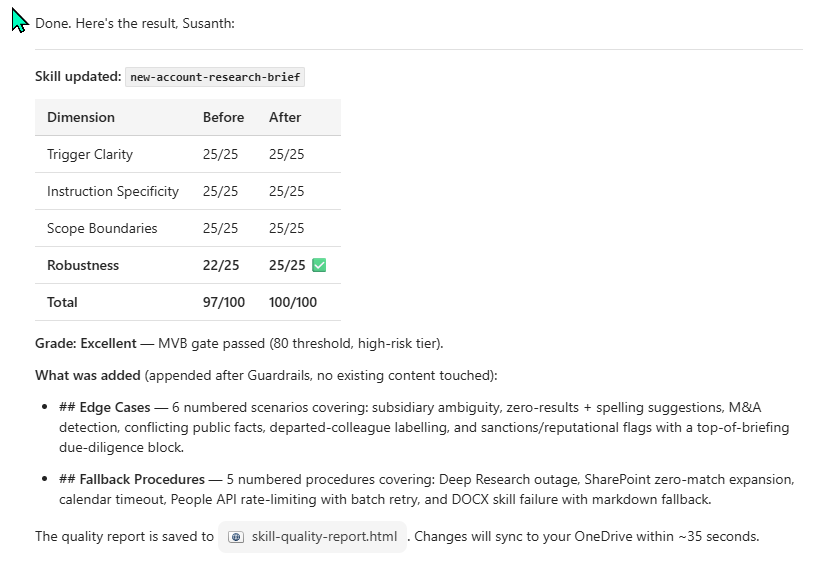
Per Pattern B above, new-account-research-brief capped at 97/100. The scorer wanted two NEW H2-level sections (## Edge Cases and ## Fallback Procedures) — not more bullets. I asked Cowork to add them.
This time the score hit a clean 100/100.
What the rubric is actually looking for
Robustness 25/25 needs ALL of these — not any one alone:
| Sub-pattern | What “satisfied” looks like |
|---|---|
| Many explicit guardrails | 9-13 numbered rules in the Guardrails section |
| Failure handling | Rules that name specific failure modes (“if X then Y”) |
| Confirmation gates | Rules using the pattern “confirm before X” |
| Dedicated Edge Cases H2 section | An H2 heading + numbered list of negative-path scenarios with handling logic per case |
| Dedicated Fallback Procedures H2 section | An H2 heading + numbered list of fallback steps per service/data-source failure |
Skill D had 4 of 5 with the bullet tweaks. Adding the missing 2 H2 sections produced the perfect score.
Skill D’s final structure (12 sections total)
After the restructure, the SKILL.md now has 12 H2 sections instead of 8:
- YAML frontmatter
- Overview
- When to Use
- When NOT to Use (4 sibling delegations)
- Quick Start
- Core Instructions (7 numbered steps with named tool calls)
- Output
- Formatting rules
- Guardrails (13 numbered rules)
- Edge Cases (6 negative-path scenarios with handling) ← NEW
- Fallback Procedures (5 service/data-source failure paths) ← NEW
- Templates / Output examples
This is now the canonical reference structure for any skill that needs to reach 100/100 — every section above contributes to a specific sub-pattern in the rubric.
Final scoreboard across all worked examples
| Skill | First score | After bullet tweaks | After structural restructure | Ceiling reason |
|---|---|---|---|---|
C friday-portfolio-digest | 96 | 100 (autonomous self-correction) | — | Hit perfect via Pattern A |
D new-account-research-brief | 95 | 97 (rubric cap) | 100 (Pattern C — added 2 H2 sections) | Hit perfect via Pattern C |
E cowork-skill-author | 98 | — | — | Near-ceiling at create; focused scope keeps it at 98 |
F linkedin-carousel-microsoft | 91 | — | — | External-facing inherent ceiling (~96 reachable; not worth chasing) |
Three Patterns observed — each illustrative for different skill types:
| Pattern | When it applies | Worked example |
|---|---|---|
| A — autonomous self-correction | Skill is structurally close to 100, just needs scorer-pattern-matching | Skill C |
| B — bullet tweaks hit a ceiling | More guardrails / more delegations only push so far | Skill D first iteration |
| C — structural restructure | Rubric needs new H2 sections, not more bullets | Skill D second iteration |
💡 Practical guidance for skill authors: Use Patterns A and B first. Move to Pattern C only when the improvements list is empty AND the skill genuinely benefits from edge-case + fallback documentation (most real production skills do). Don’t add ceremonial H2 sections to chase the score on a simple skill — keep the SKILL.md proportional to the skill’s complexity.
Path 2 — Custom skills via Copilot Studio (low-code, for admins)
If you’re an IT admin or power user, Copilot Studio lets you build custom skills using Power Automate flows, API connectors, or AI-powered topics. Once published, they appear as callable actions inside Cowork.
Path 3 — Pro-code skills (for developers)
For full control, the Microsoft 365 Agents SDK lets developers build skills in .NET, JavaScript, or Python. Register them in Copilot Studio and they become available inside Cowork — just like any built-in skill.
Where to find more skills
| Resource | What’s there |
|---|---|
| microsoft/skills on GitHub | 130+ pre-built skills, ready to deploy or customise |
| microsoft/CopilotStudioSamples | Agent and skill samples for real business scenarios |
| microsoft/Agents | SDK for building your own custom skills |
| Copilot Studio Sample Gallery | Official curated samples from Microsoft |
⚠️ Admin tip: Before adding third-party skills, review the permissions they request. Each skill accesses data on behalf of the user — so treat skill approval the same way you’d treat an app approval in Entra ID. Start with a pilot group.
📖 Add and manage skills in Copilot Studio
Other Cowork spokes
- Cowork: How to use it step by step
- Cowork: Use cases by role
- Cowork: Prompts to try
- Cowork: Pricing and cost management
- Cowork: Admin enablement and governance
- Cowork: On mobile
Official Microsoft references for skills + plugins
- Microsoft Learn — Copilot Cowork overview
- Microsoft Agent Academy — Cowork Collective — official hands-on labs:
- Badge Bandit — 25 min · CSV analysis + styled HTML report email
- Vacay (Out-of-Office Prep) — 20 min · full OOO handoff in one conversation
- Audit Ace — 25 min · compliance packet assembly
Community Cowork skill libraries (with attribution)
The Cowork developer community is publishing creative skill patterns publicly. One worth a look if you build custom skills:
ITSpecialist111/Copilot-Cowork-Skills— a personal research repository containing two interesting patterns:skill-factory— a meta-skill that batch-creates other skill packages to a defined quality barrfp-agent-swarm— a 7-skill pipeline for RFP response work (intake → fit assessment → drafting → human gates → review → assembly), shared substrate, 4 hard human-approval gates
⚠️ Note on community content: Community repos like the one above are independent research artefacts, not Microsoft products. The author of that repo states this clearly. They can be excellent learning material but should always be validated against Microsoft Learn — Cowork before being used with real data.