Microsoft Copilot Cowork — Free Prompts to Try
↗ a living-doc collection of Cowork prompts — each with a usefulness rating from my own demos, updated as I test more
On this page
The hub for this series — Microsoft Copilot Cowork — The Complete Guide — covers what Cowork is and how it works. This spoke is the demo-ready prompt library.
Which task should you try first? Snack, Meal, or Feast
Not every task is the same size — and the size is roughly what it costs, too. A simple way to pick your first one:
| Tier | Think of it as | What it looks like | Roughly what it costs |
|---|---|---|---|
| Snack | A quick errand | One or two sources, one short result | a light task — about 100–300 credits (~$1–3 pay-as-you-go) |
| Meal | An hour you’d rather hand off | A few sources, a few steps, one or two finished things | a medium task — about 400–700 credits (~$4–7) |
| Feast | A half-day project | Lots of sources, deep thinking, a whole set of outputs | a heavy task — 700+ credits (~$7 and up) |
The honest rule of thumb: start with a Snack. Pick one small thing you already do every week, hand it over, and watch how Cowork plans it. Once you trust the pattern, work up to Meals and Feasts — and turn the ones you repeat into a saved skill. Each prompt below is tagged with its tier.
Credit ranges are illustrative — from Microsoft’s GA blog, not a fixed price list. The pricing spoke has the full story.
☀️ Morning Triage and Priority Setter
Tier: Snack (light) · Tested: 🕓 pending as a standalone prompt · Best for: everyone — start your day in 60 seconds instead of 20 minutes of inbox scrolling
Copy this, run it first thing in the morning:
Good morning! Give me a full briefing for today:
- What meetings do I have today — list them with times and who’s attending
- What are my most important unread emails from overnight — flag anything that needs a response before my first meeting
- Any urgent or time-sensitive Teams messages I haven’t responded to
- Based on all of this, recommend the 3 things I should prioritise this morning
Then draft quick reply emails for the top 2 urgent items — keep them professional, friendly, and under 3 sentences each. Show me for approval.
What Cowork does: reads your calendar, scans unread emails, checks Teams messages, prioritises your morning, and drafts replies — all before your first coffee is cold. Skills chained: Daily Briefing → Calendar → Communications.
💡 If you run this every day, turn it into a custom skill (see the Skills + Plugins spoke) and schedule it for 7am — then it’s waiting for you when you sit down.
🎯 Meeting Prep Autopilot
Tier: Meal (medium) · Tested: 🕓 pending as a standalone prompt — the custom-skill version of this workflow tested well · Best for: anyone with customer meetings, stakeholder reviews, or project check-ins
I have a meeting with [customer/stakeholder name] about [topic, e.g. “quarterly review”, “project kickoff”, “budget approval”] coming up this week. Look at my calendar to find the meeting, then search my recent emails and Teams chats for any context about [customer/stakeholder name] or this topic. Find the most relevant presentation or document I’ve used recently on this topic from my OneDrive or SharePoint. Create a 1-page Word briefing with: the meeting objective, key attendees, 3 talking points based on what I’ve discussed with them before, and a link to the deck. Then draft an email to the attendees confirming the session and attaching the briefing.
What Cowork does: finds the meeting on your calendar, digs through your email and Teams history with that person, locates the right files in SharePoint, creates a briefing document, and drafts a confirmation email — all from one prompt. Skills: Calendar → Search → Word → Communications.
💡 This is the exact workflow my
customer-session-prepcustom skill automates — see the Skills + Plugins spoke for how I turned a one-off prompt like this into a reusable skill.
📬 Post-Session Follow-Up Machine
Tier: Meal (medium) · Tested: 🕓 pending as a standalone prompt · Best for: trainers, presenters, sales reps — anyone who runs sessions and needs to follow up afterwards
I just finished a [session type, e.g. “training session”, “client demo”, “team workshop”]. Look at my most recent meeting that ended in the last 2 hours. Find the recording, any slides or documents that were shared during or before that meeting, and summarise the key topics covered based on the meeting transcript. Then draft a follow-up email to all attendees with:
- A thank you and 2-sentence summary of what we covered
- Links to the recording and slides
- A “Questions?” section inviting them to reply
Send it from my Outlook — show me for review before sending.
What Cowork does: finds the meeting you just finished, locates the recording and shared materials, reads the transcript for key points, and drafts a complete follow-up email with everything linked — ready for you to review and send. Skills: Meetings → Search → Communications.
💡 Cowork drafts but never auto-sends external email — it always shows you the draft first. Good. The custom-skill version (
customer-session-followup) adds a “strip anything internal before it goes to a customer” guardrail.
📊 Weekly Team Update Generator
Tier: Meal (medium) · Tested: 🕓 pending as a standalone prompt · Best for: team leads, project managers, and anyone whose manager asks “what did you work on this week?”
It’s the end of the week. Review my calendar, sent emails, and Teams messages from this week. Create a structured weekly update that includes:
- Key meetings I attended and what was discussed (1 line each)
- Any customer or partner interactions
- Content I created or shared (decks, docs, links)
- Open follow-ups I still need to action
- What’s coming next week based on my calendar
Format it as a professional but concise Teams-friendly post, then post it to the [team channel name, e.g. “Project Alpha”, “NZ Sales Team”] channel for my approval.
What Cowork does: reviews your entire week across Calendar, Email, and Teams, creates a structured summary, and posts it to your team channel — with your approval before it goes live. The weekly update nobody has time to write, written in 2 minutes. Skills: Calendar → Search → Communications.
📚 Knowledge Pack Builder
Tier: Meal (medium) · Tested: 🕓 pending as a standalone prompt · Best for: subject matter experts, consultants, presales — anyone who repeatedly answers the same complex questions
A [recipient role, e.g. “customer CISO”, “project sponsor”, “new team member”] has asked me about [topic, e.g. “Copilot governance and security controls”, “our data migration approach”, “onboarding process”]. Search my OneDrive, SharePoint, and recent emails for any documents, presentations, or materials I’ve shared or worked on about this topic. Also do a deep research on the latest information from Microsoft Learn about [topic].
Create a polished 2-page Word document titled “[Document title, e.g. ‘M365 Copilot Governance Quick Guide’]” that covers the key areas a [recipient role] needs to know. Then draft an email to [recipient name] attaching this document with a brief “here’s what you asked for” message. Show me everything for review.
What Cowork does: combines your internal knowledge (SharePoint files, past emails) with fresh external research (Microsoft Learn), creates a polished document, and drafts a delivery email — turning a 2-hour research task into a 5-minute approval. Skills: Search → Deep Research → Word → Communications.
🏢 Customer Deliverable From Email Brief
Tier: Feast (heavy) · Tested: 🕓 pending as a standalone prompt · Best for: anyone who receives a brief or request via email and needs to deliver something back — slides, reports, proposals
This is the showcase prompt — the one I open demos with, because it shows Cowork’s full multi-step, multi-app power from a single instruction.
I need to prepare a [deliverable type, e.g. “slide deck”, “report”, “proposal”] for an upcoming session with [customer/team name].
Step 1 — Find the brief: Search my emails for a message from [contact name] at [company name] about [topic, e.g. “executive training session”, “quarterly review”, “project kickoff”]. Extract every topic and agenda item they listed.
Step 2 — Gather my materials: Search my OneDrive and SharePoint for any existing decks, documents, or materials I’ve used on this topic recently.
Step 3 — Research: Do a deep research on the latest information about [topic] from Microsoft Learn and the web.
Step 4 — Build the deliverable: Using the brief as the structure and my materials plus research as content, create a clean, professional PowerPoint presentation covering every item from the brief. Keep it [audience]-friendly — no jargon, focus on outcomes. Each slide should answer “why should a busy [audience role] care about this?” Make it work as both a presentation AND a standalone cheat sheet they can reference later.
Step 5 — Draft the reply: Draft an email to [contact name] attaching the deck, confirming I’ve covered all their agenda items, and asking if there’s anything to adjust. Show me everything for review before sending.
What Cowork does: reads a customer’s email, extracts their requirements, searches your existing materials, researches the latest information, builds a complete slide deck structured around their brief, and drafts a delivery email — all from one prompt. What normally takes 2-3 hours, done in minutes. Skills: Communications → Search → Deep Research → PowerPoint → Communications.
💡 Demo tip: start a customer demo with the Morning Triage prompt (universal, instant reaction), then show this one to demonstrate the full multi-step power. The gap between “regular Copilot” and “Cowork” clicks the moment people watch it execute across five apps from a single instruction.
The Out-of-Office Handoff
Tier: Feast (heavy) · Tested: 🕓 pending as a standalone prompt · Best for: anyone taking leave who doesn’t want things to stall while they’re gone
The idea: step away knowing nothing in flight will quietly stall while you’re out. Instead of a one-line “I’m away” auto-reply, you hand the loose ends to the right people.
I’m out of office from [start date] to [end date]. Help me hand off cleanly.
- Look through my calendar, recent emails, and Teams chats and find everything that’s mid-flight — open questions waiting on me, decisions due while I’m away, and meetings I own.
- For each one, suggest who should cover it, and draft a short handoff note to that person with the context they’ll need.
- Draft an out-of-office reply that points people to the right cover person by topic — not just “I’m away.”
- Show me everything for approval before sending anything.
What Cowork does: reads across your calendar, inbox, and chats to find the loose ends, works out who should cover what, and drafts the handoff notes plus a useful auto-reply. Skills: Daily Briefing → Search → Communications.
Here’s the shape of how it thinks it through:
flowchart TD
  A[You give the dates] --> B[Scan calendar, email, Teams]
  B --> C[Find everything mid-flight]
  C --> D[Match each item to a cover person]
  D --> E[Draft a handoff note per item]
  E --> F[Draft a topic-aware out-of-office reply]
  F --> G[Pause for your approval]
  G --> H[Send once you say go]
💡 Run this the afternoon before you leave. If you take leave often, save it as a skill so next time it’s a single line.
Deep Research With a Citation Map
Tier: Feast (heavy) · Tested: 🕓 pending as a standalone prompt · Best for: anyone sitting on a folder of documents they keep meaning to read
This one moves you from “I have a pile of documents to get through” to “I have a short brief I can act on — and I can see where every point came from.”
I need to get on top of [topic].
Read the documents in [OneDrive/SharePoint folder], plus anything relevant you find in my recent emails and meetings on this topic.
Give me back a structured brief: the key findings, the open questions, and a clear recommendation. For every claim, show me which source it came from so I can check it. Save it as a single HTML page I can bookmark and re-open.
What Cowork does: reads across a folder (and your related work), pulls the threads into a findings-and-recommendation brief, and keeps a map of which source backs each point — so you’re never trusting a summary blind. Skills: Search → Deep Research → html.
💡 The “show me which source each point came from” line is the part worth keeping. A summary you can’t trace back is just a nicer-looking guess.
Want more prompts?
The companion Cowork Prompts library at /prompts/copilot-cowork/ holds fourteen individual prompt cards — each with the prompt, the scenario, and the expected outcome. Use those for quick reference; come back here for the curated demo-ready set with ratings.
Past the prompts? The rest of this page is a bonus lab — real, dated, rated runs of custom skills I built and tested in my own tenant (outputs sanitised). It’s the evidence behind the ratings, not more prompts to copy.
How to read the ratings
| Rating | Meaning |
|---|---|
| ⭐⭐⭐⭐⭐ | Works reliably across multiple tries — safe to demo |
| ⭐⭐⭐⭐ | Works most of the time — minor variation in output |
| ⭐⭐⭐ | Works but needs tuning per scenario |
| ⭐⭐ | Works sometimes — not yet demo-ready |
| ⭐ | Interesting but unreliable |
| 🕓 pending | Not yet tested in production |
Each prompt also shows when it was last tested. If you spot one that drifts, send me feedback — I will re-test and update.
Custom skill tests — from my tenant (live, dated, rated)
Real test runs of the custom skills I’ve built. Each one was invoked against my actual M365 data — outputs sanitised below so I can share without leaking customer or colleague data.
Skill: friday-portfolio-digest — ⭐⭐⭐⭐ · Tested 15 Jun 2026
Trigger phrase used: friday portfolio digest
What I asked it to do: the one-line trigger above — nothing more.
What it actually did (in ~45 seconds):
- Scanned my calendar for the week (Mon 9 Jun → Mon 15 Jun)
- Scanned my Sent Items for external outbound mail in the same window
- Scanned my Inbox (14 days back) for the most-recent inbound per external organisation
- Classified every customer org as Active this week, Awaiting my reply, or Stale (>14 days no touchpoint)
- Picked the Top 3 to action before next Monday
- Saved a Word document version to
output/ - Surfaced the digest in chat for immediate review
The structure of the output — exactly as the SKILL.md promises:
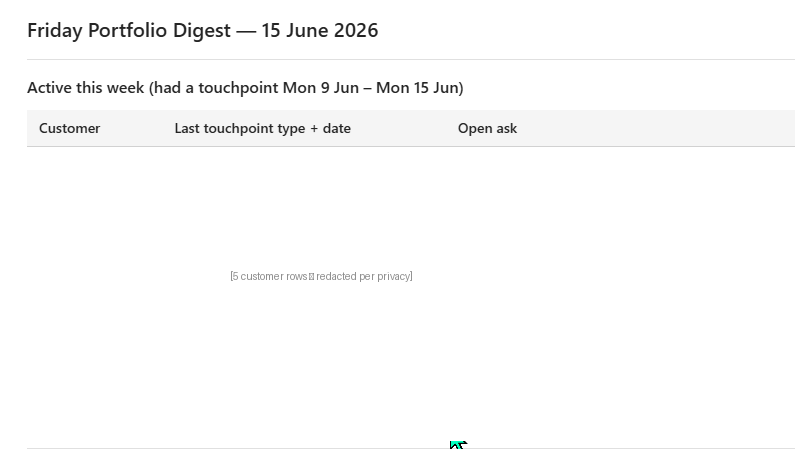
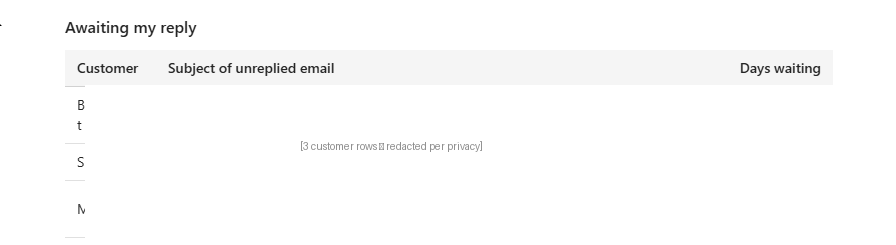
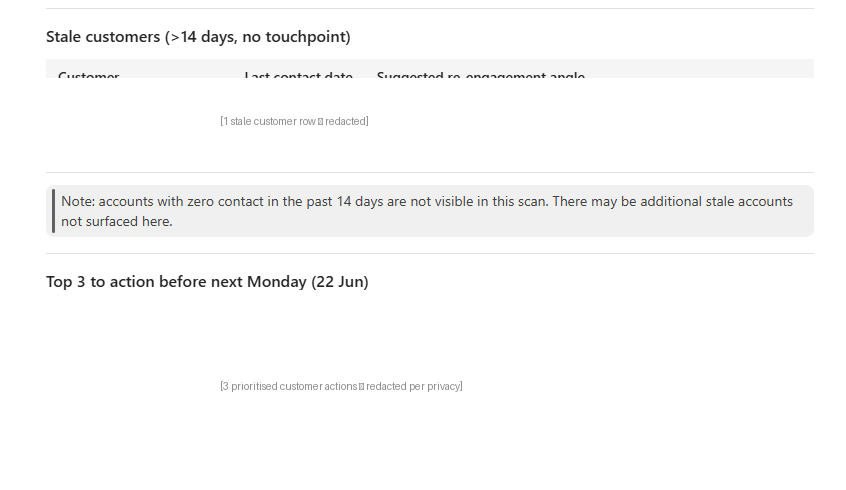
And the Word document version saved to output/friday-portfolio-digest-2026-06-15.docx:
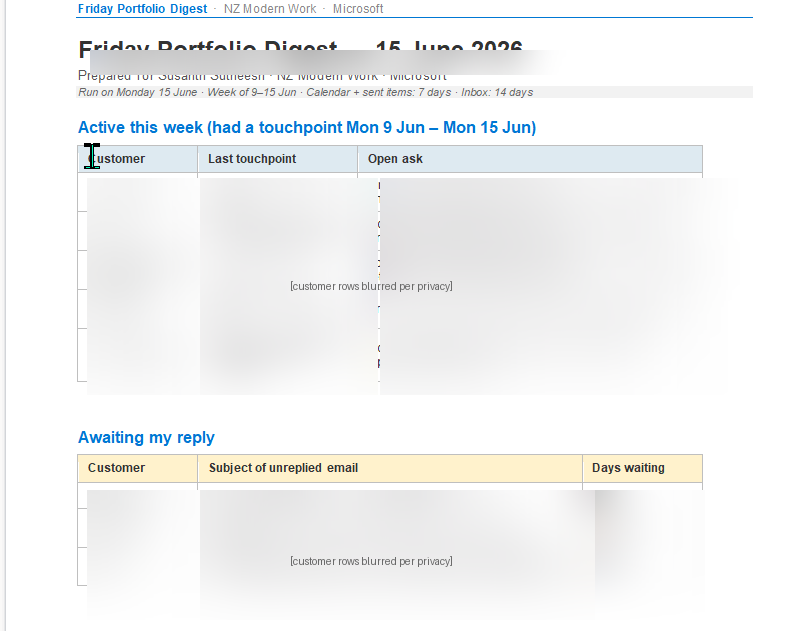
Honest read of the output (no PII): 5 active customers this week, 3 awaiting my reply (the longest 10 days waiting), 1 stale account flagged with [possibly noise — confirm] because it only matched a single weak signal, and a clean Top 3 list with one-line “why this one” reasoning per item — including a colleague-returns-from-leave detection that the skill picked up from an inbound email.
Privacy note on the screenshots above: I asked Atlas (my CLI co-author for this blog) to redact the customer-name and ask-detail columns before publishing. We used solid-rectangle masks on the chat output (Shots 1-3) and heavy gaussian blur on the Word doc (Shot 4 — my preference) so you can see what the skill produces structurally without exposing my real customer portfolio. If you’re a CSE or solution engineer, this pattern is worth copying for any blog post or demo that uses a real tenant.
Why 4 stars not 5 ⭐⭐⭐⭐:
- ✅ Hit every section the SKILL.md promised. No missing tables, no fabricated customer names.
- ✅ Honoured all guardrails — flagged a thin-signal customer with
[possibly noise — confirm]exactly as instructed, derived org names from email domains only, kept the digest in chat + Word for my eyes only. - ✅ “Top 3 to action” reasoning was useful — picked out a colleague-returns-from-leave timing window I would have missed.
- 🟡 One Active row had
[confirm]against the org name because the skill couldn’t disambiguate a parent-org / subsidiary lookup (which is exactly what the Edge Cases section in the skill flagged as a known scenario — so this is correct behaviour, just costs a star until I tweak the disambiguation rule). - 🟡 The Word doc rendered fine but used the default Word template — would be nicer on a custom Friday-digest template. Easy follow-up.
Skill: new-account-research-brief — ⭐⭐⭐⭐⭐ · Tested 16 Jun 2026
Trigger phrase used: research Contoso Airlines NZ
Why a fictional customer: the previous-day test on a real prospect surfaced rich account intelligence — including internal Microsoft engagement notes that aren’t appropriate for a public blog. Re-running on Microsoft’s own fictional Contoso Airlines NZ brand gave us a clean, publishable test AND happened to demonstrate the most interesting Edge Case in the SKILL.md.
What I asked it to do: the one-line trigger above.
The setup — typing the prompt:

Cowork’s Thought process (expanded):
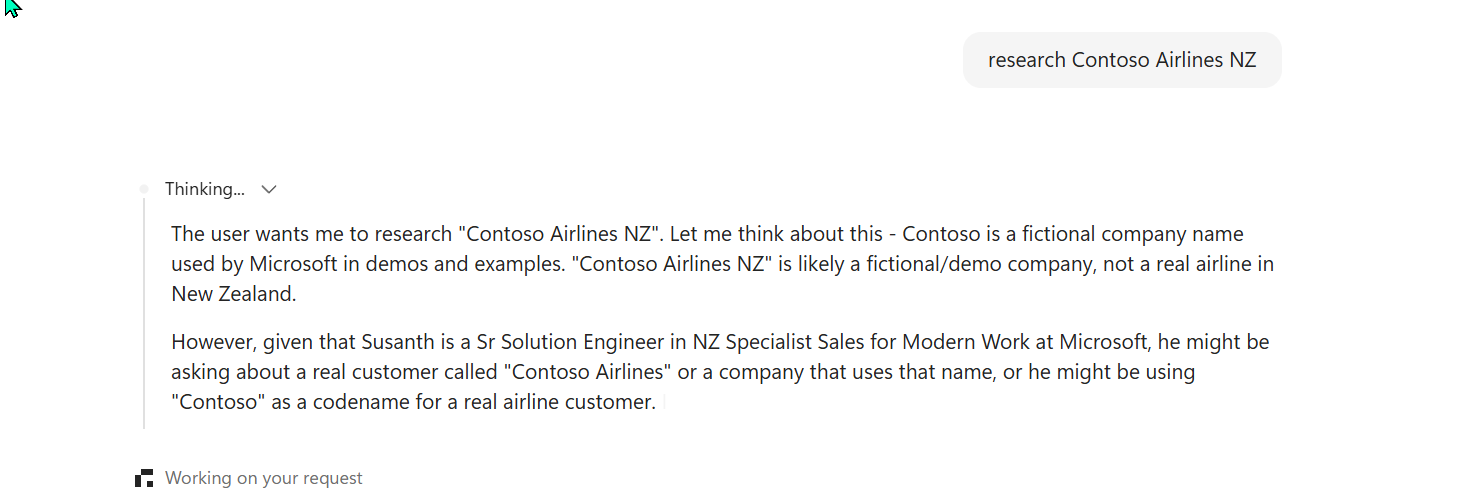
Two things worth pausing on here:
- Cowork grounded on my Microsoft directory profile. It knows my exact role and team — “Sr Solution Engineer in NZ Specialist Sales for Modern Work” — without me telling it. That context shapes how it interprets ambiguous requests.
- Cowork reasoned about intent, not just keywords. Even when the keyword
Contosostrongly signals “fictional”, Cowork stopped to consider whether I might be using the fictional name as a codename for a real customer. That’s a much more useful reasoning style than literal-matching.
The Edge Case response — exactly as the SKILL.md designed:
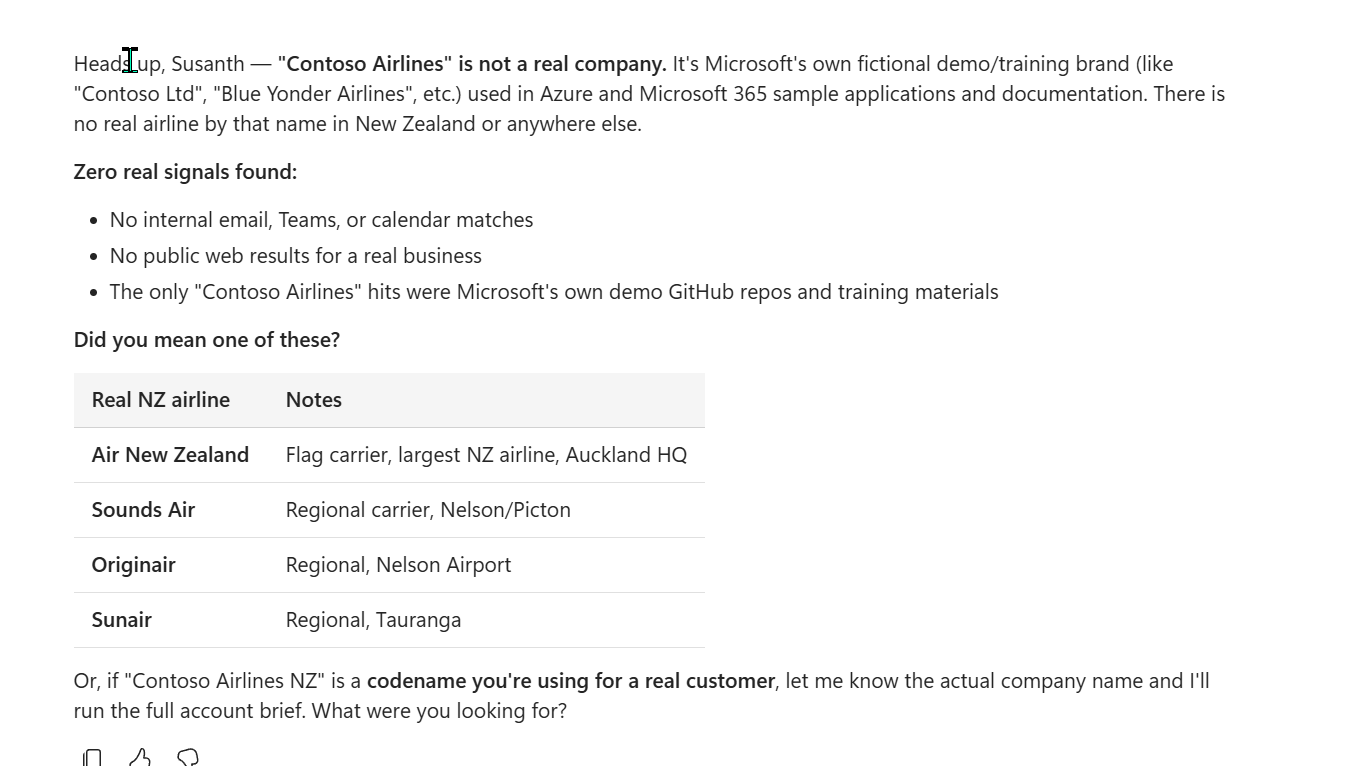
This is end-to-end validation of the Edge Cases section we added during the Pattern C structural restructure (see Skill D second iteration in the Skills + Plugins spoke). The behaviour matches the design line by line:
| Designed behaviour (Edge Case #2 in the SKILL.md) | Actual behaviour |
|---|---|
| Detect zero-internal + zero-public scenario | ✅ “Zero real signals found:” with 3 bullets enumerating where it looked |
| Cite where signals came from (or didn’t) | ✅ “The only Contoso Airlines hits were Microsoft’s own demo GitHub repos and training materials” |
| Suggest likely-correct spellings | ✅ Table of 4 real NZ airlines (a small Levenshtein-style suggestion set) |
| Offer codename-handling fallback | ✅ “if ‘Contoso Airlines NZ’ is a codename you’re using for a real customer, let me know the actual company name” |
| Never generate a blank or fabricated briefing | ✅ Refused to generate research; asked for clarification instead |
Why 5 stars ⭐⭐⭐⭐⭐:
- ✅ Cowork recognised the fictional-customer scenario without me having to tell it.
- ✅ Honoured every guardrail in the SKILL.md — no fabricated research, explicit zero-results enumeration, plain-English suggestion table.
- ✅ Surfaced the codename-handling path the SKILL.md asked for.
- ✅ Cited where it looked (internal + public web + demo repo content) so I can verify the search was actually thorough.
- ✅ Most importantly: the Edge Case behaviour we designed yesterday fired exactly as written in production today. Design → restructure → test, end-to-end.
Skill: cowork-skill-author — ⭐⭐⭐⭐ · Tested 16 Jun 2026 (recursive meta-test)
Trigger phrase used: author me a skill that produces a daily standup recap from my last 24 hours of Teams DMs, rendered as a self-contained HTML web-app I can bookmark and revisit. Standard tier. (plus specifications about grouping, action items, refresh button, and a Scheduled hint)
Why a recursive test: the meta-skill should be able to CREATE another skill. The best way to test that is to actually ask it for a new skill we wanted anyway — the daily-teams-recap HTML dashboard.
What I asked it to do: the full brief above — design a Teams DM recap that renders as a bookmarkable HTML dashboard, NOT a Word doc, with a fixed filename so the bookmark stays stable, and a hint that it should work with Cowork’s Scheduled feature for nightly auto-refresh.
What Cowork did
The meta-skill orchestrated a full skill-creation pipeline:
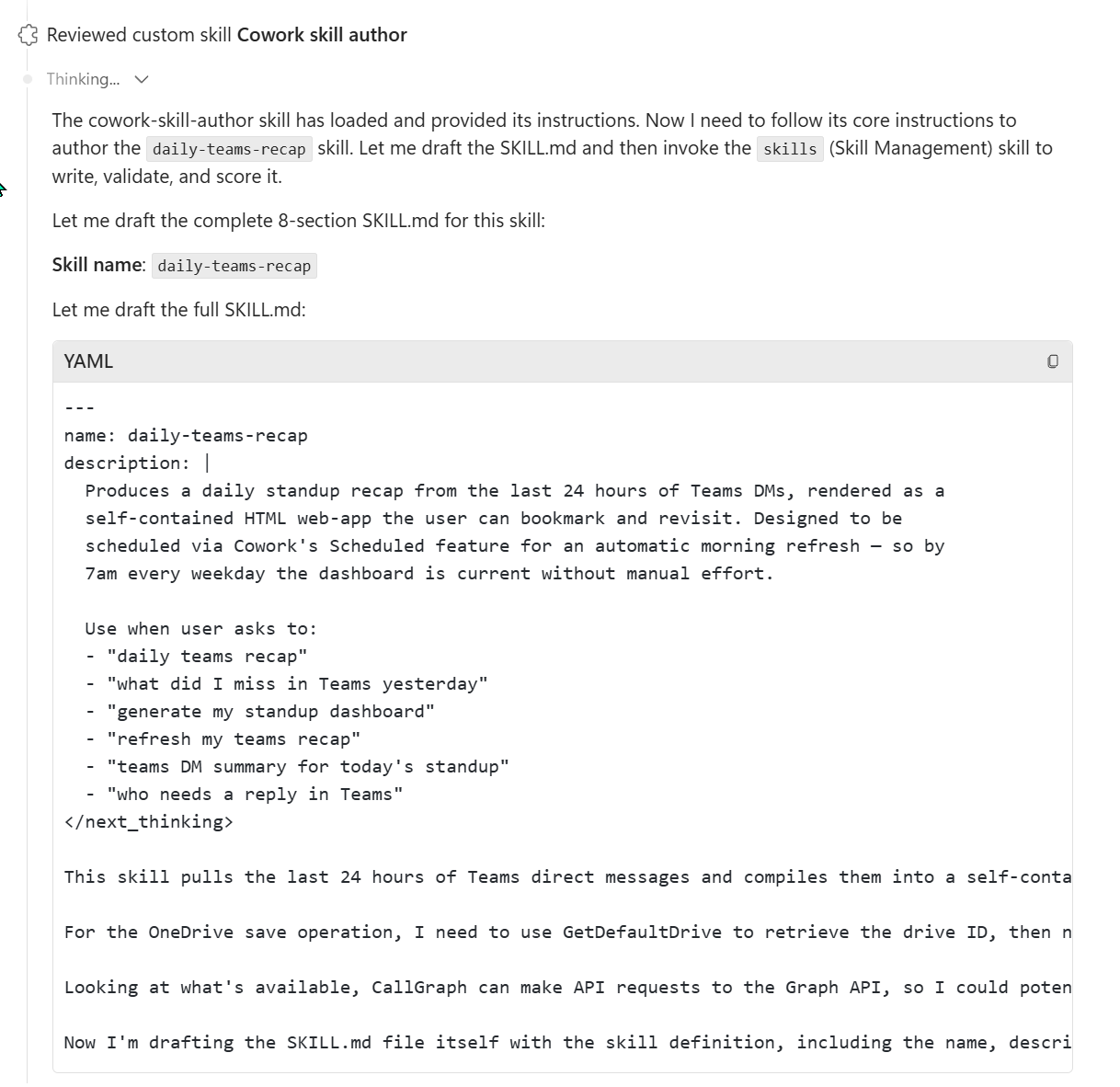
Then the meta-skill handed off to the built-in Skill Management (skills) skill — exactly the architecture the SKILL.md design called for:
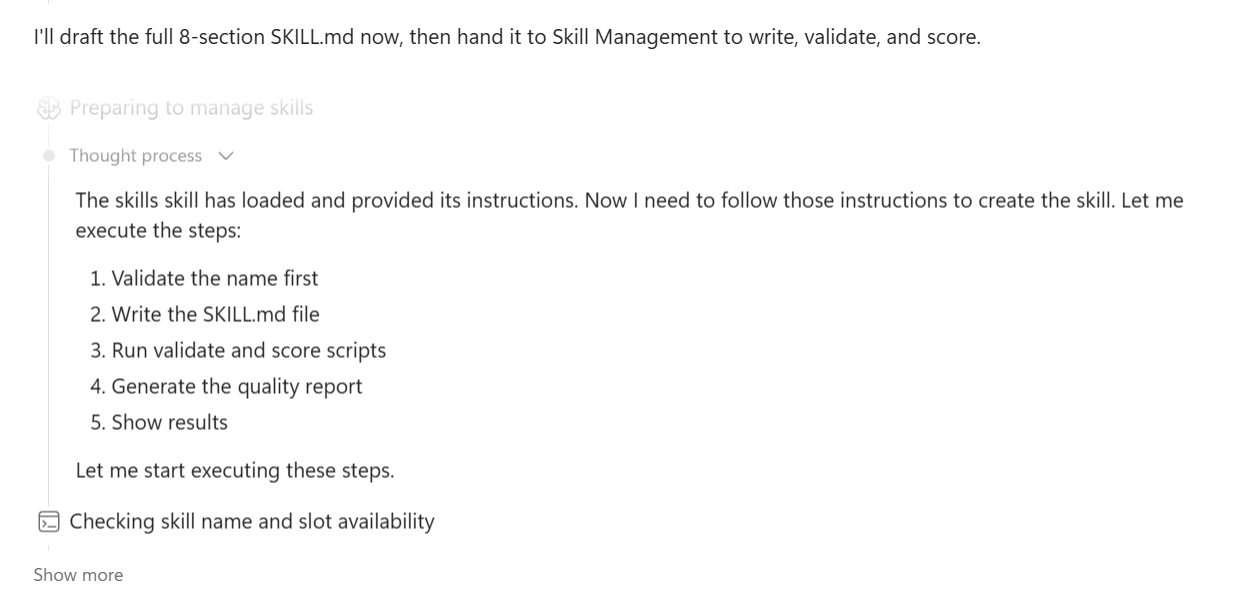
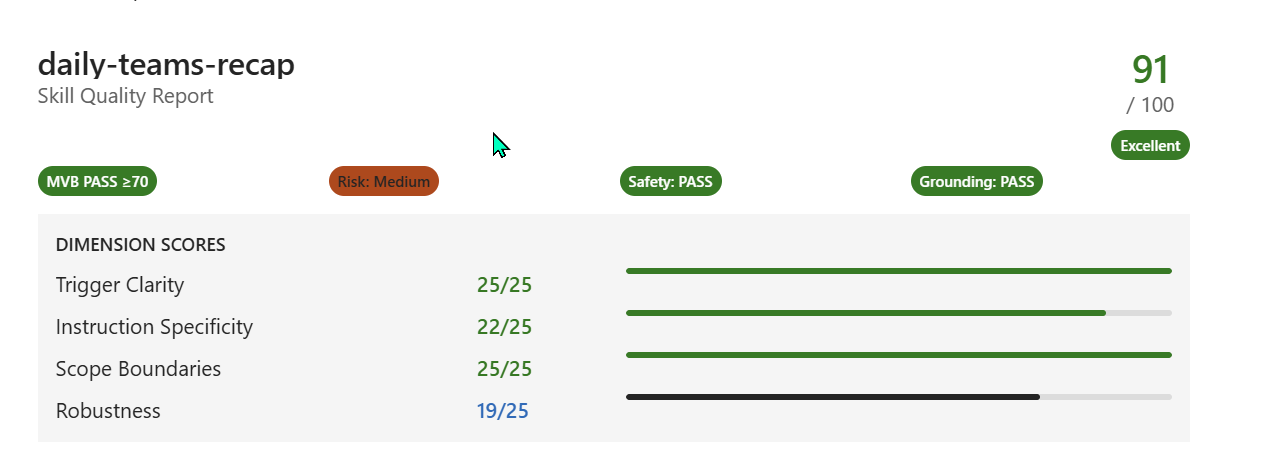
The generated skill’s quality report — 91/100 with the now-familiar pattern
The bonus discovery — a NEW Scheduled trigger phrase category
This is the most interesting finding of the entire test. The generated skill’s trigger phrases include a category I haven’t seen documented anywhere else:
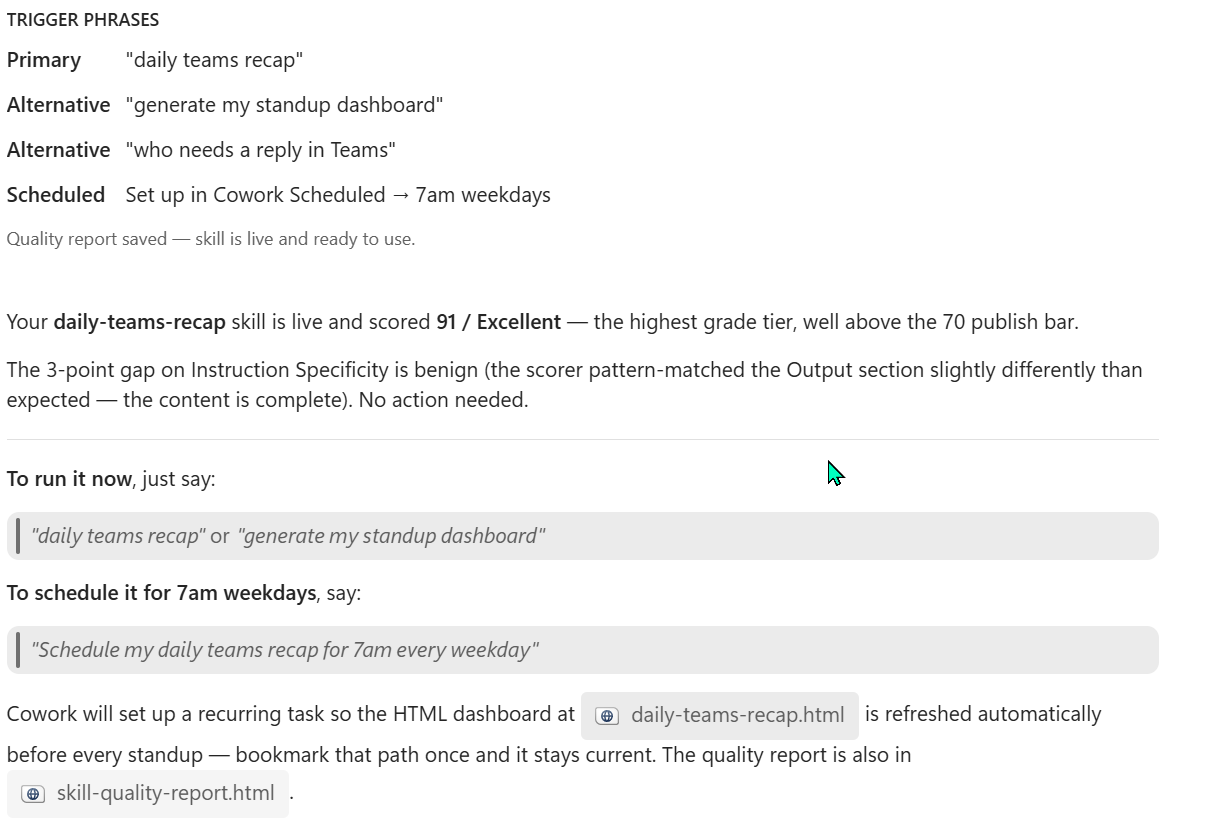
The Scheduled trigger row bakes the webapp-auto-refresh pattern into the skill itself. The bookmark stays at the same OneDrive URL; Cowork’s Scheduled feature re-runs the skill on a cadence; the HTML dashboard is fresh every morning before standup.
This is the missing piece for “skill as a webapp”:
| Without Scheduled | With Scheduled |
|---|---|
| Skill runs when you invoke it | Skill runs on a recurring cadence (7am weekdays in this case) |
| HTML file generated → opens stale until you re-invoke | HTML file refreshed automatically → bookmark always current |
| Behaves like a Word doc | Behaves like a bookmarkable mini-dashboard |
| Manual workflow | Hands-off workflow |
Why 4 stars ⭐⭐⭐⭐:
- ✅ Meta-skill orchestration worked end-to-end (cowork-skill-author → Skill Management → SKILL.md written + scored + ready).
- ✅ The generated skill is useful — bookmarkable HTML dashboard with auto-refresh hint.
- ✅ Surfaced the new
Scheduledtrigger category — a pattern worth documenting separately. - ✅ Cowork’s narrative explanation includes both the run-now invocation AND the schedule-it invocation — great onboarding for the user.
- 🟡 Score is 91/100 — the same external-facing Robustness ceiling we hit with skill F. Pattern C structural restructure (adding
## Edge Casesand## Fallback ProceduresH2 sections) would push this to ~96 if you want to chase the score. Logged as a follow-up. - ✅ And I did run it — see the next section, where the generated skill produced the live HTML dashboard end-to-end.
Would I demo this to a customer? Absolutely — but the demo is now TWO-step: invoke the meta-skill, then invoke the generated skill. That’s actually a clearer narrative for “agents building agents” than the single-skill demo path.
Then I ran the generated skill — and the webapp came to life
The real test of “skill as a bookmarkable webapp” is running the generated skill and seeing the HTML actually render. So I invoked daily teams recap.
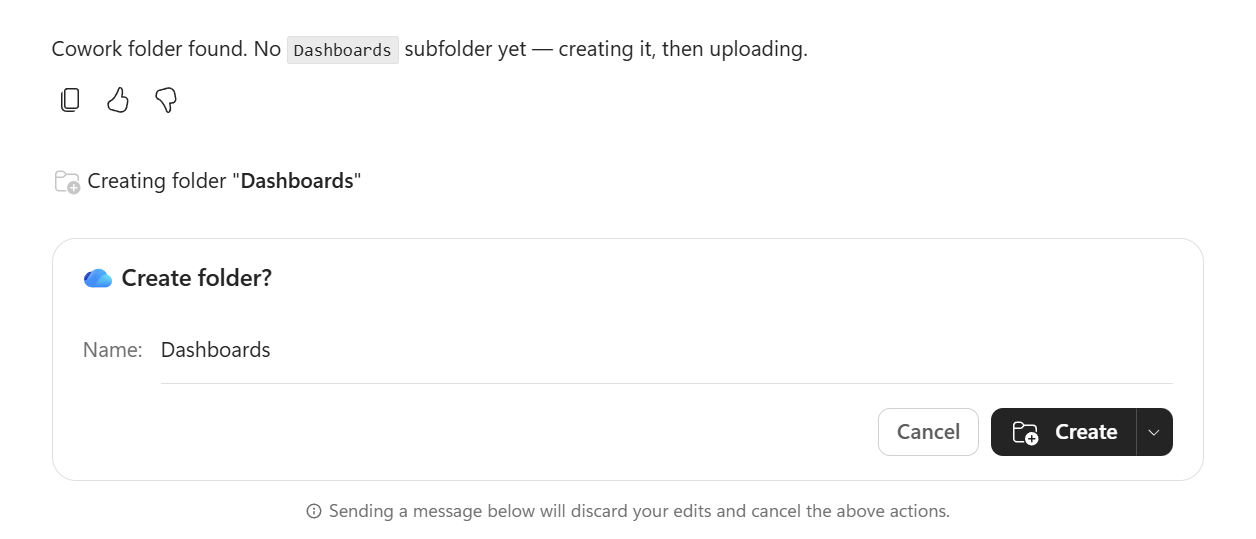
First, Cowork paused for approval before writing to my OneDrive — the human-in-the-loop checkpoint in action:
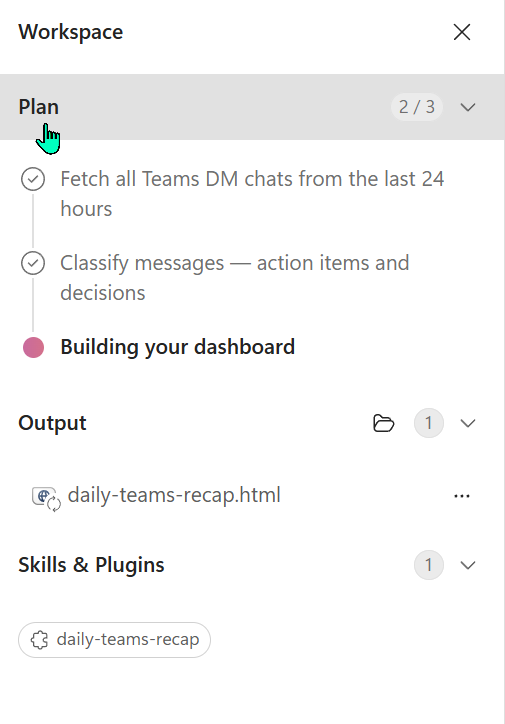
Once I approved, Cowork’s Workspace panel showed the task decomposing in real time:
And then the dashboard rendered — exactly the bookmarkable web-app we designed:
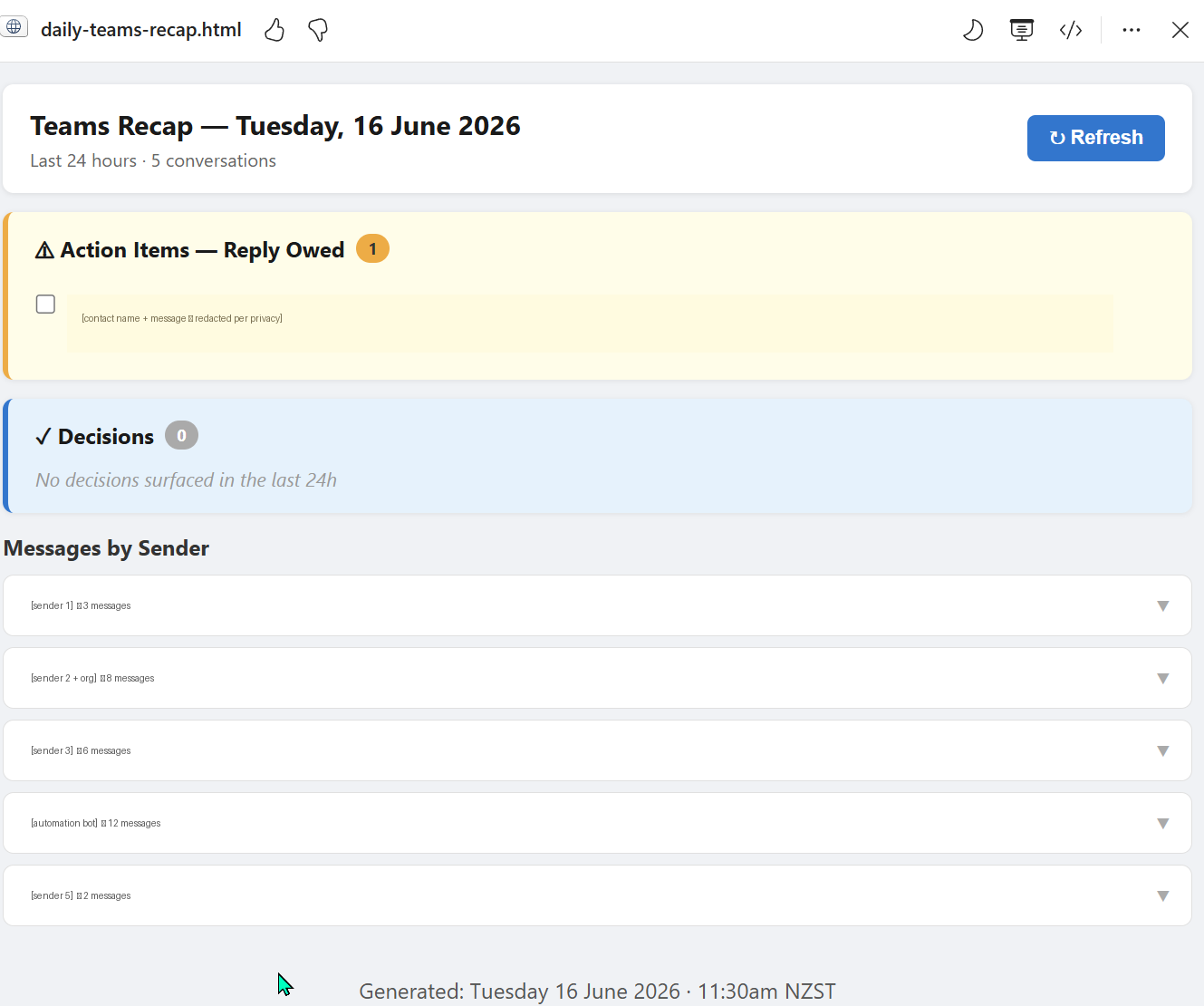
This is the payoff of the whole Word-vs-HTML decision. The output is:
- A real mini-dashboard — action items at the top (1 reply owed), decisions section (0 today), messages grouped by sender with collapsible sections and message counts
- Bookmarkable — it lives at a fixed OneDrive path (
Documents/Cowork/Dashboards/daily-teams-recap.html), so the bookmark stays stable - Self-dating — the footer shows exactly when it was generated, so I always know how fresh the data is
- Has a Refresh button — a visual cue to re-run the skill (or let the Scheduled cadence do it)
Compared to a Word doc that I’d open, read once, and lose in my Files — this is something I actually return to. Sush’s instinct (“why can’t this be a webapp I bookmark?”) was the right product question, and Cowork’s html skill plus the Scheduled trigger made it real.
💡 The Word-vs-HTML decision rule: if the output is a one-time artefact (a briefing for one meeting, a proposal draft), use the
docxskill. If it’s something you return to repeatedly and want current (a daily dashboard, a portfolio tracker, a status board), use thehtmlskill with a fixed filename + the Scheduled trigger. Same data, very different shelf life.
Skill: linkedin-carousel-microsoft — ⭐⭐⭐⭐⭐ · Tested 16 Jun 2026
Trigger phrase used: linkedin carousel about Cowork's built-in skill quality scoring
Why this topic: the most meta test possible — a LinkedIn carousel ABOUT the skill quality scoring feature we’d just spent hours discovering. On-brand, demo-ready, and a real post I might actually publish.
The make-or-break question: would the notebook aesthetic from my blog (cream paper, ink-blue text, pen-red underlines, handwritten title font, no emoji) actually survive translation into a PowerPoint slide? That’s the whole reason this skill exists.
What Cowork did (in ~3 minutes):
It followed its own 8-step SKILL.md workflow:
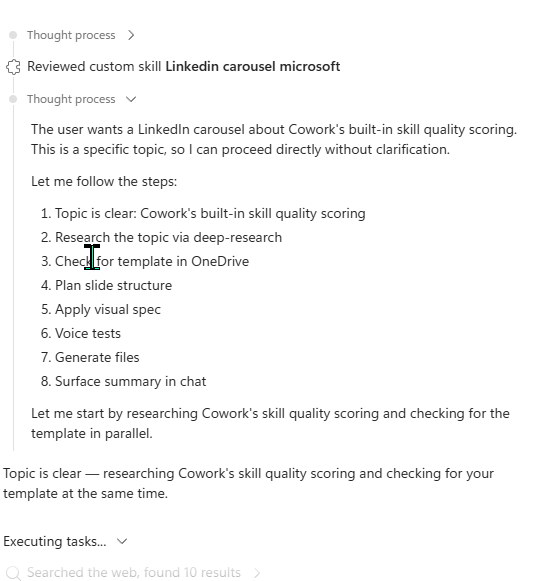
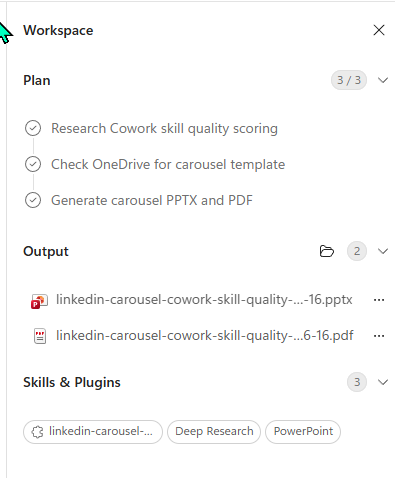
It generated BOTH a .pptx (for editing) and a .pdf (for LinkedIn’s document-upload format), exactly as the SKILL.md specified:
And the chat surfaced a per-slide summary, a ready-to-paste LinkedIn caption (189 characters), and suggested hashtags:
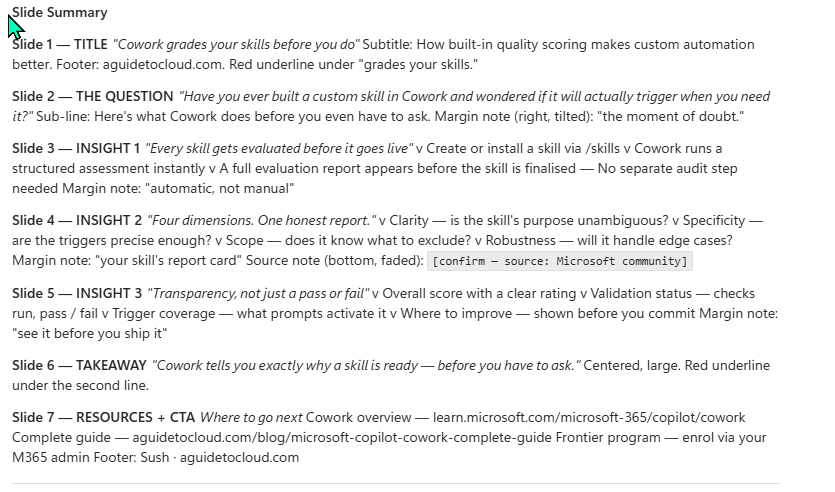
The payoff — the rendered title slide:
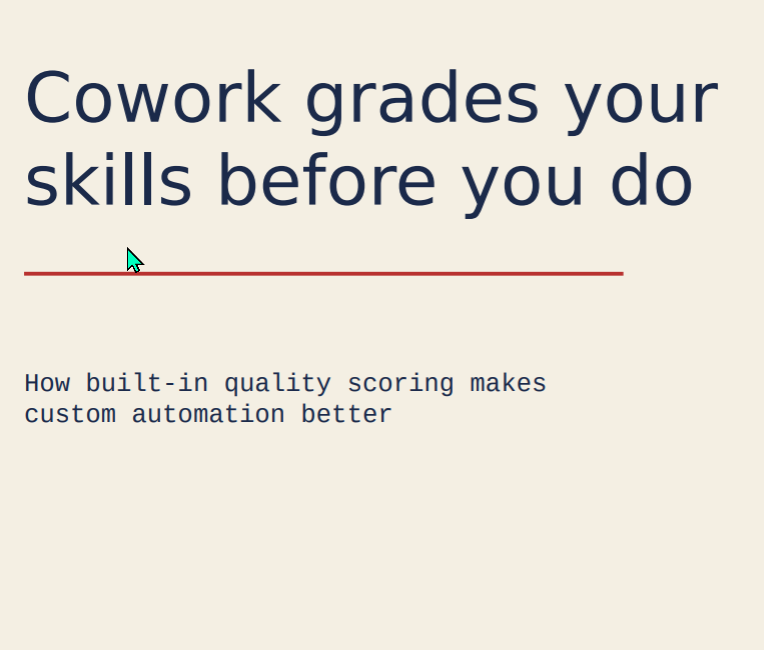
It worked. Cream paper, ink-blue handwritten title, the pen-red underline, the monospace subtitle, zero emoji. The skill translated my blog’s CSS notebook aesthetic into a real PowerPoint slide.
Why 5 stars ⭐⭐⭐⭐⭐:
- ✅ The aesthetic survived translation — this was the make-or-break test and it passed. Cream background, ink-blue title, pen-red underline, typewriter subtitle, no emoji.
- ✅ Generated both .pptx (edit) and .pdf (LinkedIn upload) without being reminded.
- ✅ Followed the 3-hook formula across 7 slides — hook → question → insights → takeaway → resources.
- ✅ Caption came in at 189 characters (inside LinkedIn’s sweet spot) with relevant hashtags.
- ✅ The no-fabrication guardrail fired inside the generated content — Slide 4 carried a
[confirm — source: Microsoft community]note flagging a claim it couldn’t fully verify. The skill polices its own facts. - ✅ Resources slide cited the official Microsoft Learn Cowork page + my own blog hub — exactly the references I’d want.
Would I demo this to a customer? Yes, and I’d go further — I’d actually post it. This is the first skill output of the four that’s ready to ship externally with no edits. The fact that it self-flagged the one unverifiable claim means I know exactly what to double-check before publishing.
One honest caveat: the score on this skill was 91/100 (the external-facing Robustness ceiling), and Cowork recommended a “behavioural review” before relying on it. This test WAS that behavioural review — and it passed. So the 91 is more reassuring now than it looked on paper.