Microsoft Copilot Cowork on Mobile — Delegate on the Go
↗ delegate to Cowork from your phone — kick off a task on the go, pick it up on your desktop, and keep the approval gate in your pocket
On this page
The hub for this series — Microsoft Copilot Cowork — The Complete Guide — covers what Cowork is and how it works. This spoke is about using it from your phone.
TL;DR
- Cowork works in the Microsoft 365 Copilot mobile app, not just the browser and desktop — so you can hand off a task from your phone.
- The task lives in the cloud, not on the device. Start it on mobile, pick it up on your desktop — same conversation, same context, always synced.
- Mobile is for delegating and checking in; the desktop is still where you’ll review long outputs and edit files.
- The approval gate comes with you. When Cowork wants to do something sensitive — like posting to a Teams channel — it still pauses for your OK, on the phone too.
Can you actually use Cowork on a phone?
Yes. Cowork is part of Microsoft 365 Copilot, so it shows up in the Microsoft 365 Copilot mobile app (iOS and Android) the same way it appears in the browser at m365.cloud.microsoft — once your admin has turned it on for you. There’s no separate “Cowork app” to install: if you have the Microsoft 365 Copilot app and a licence, and your admin has enabled Cowork for your account, it’s there.
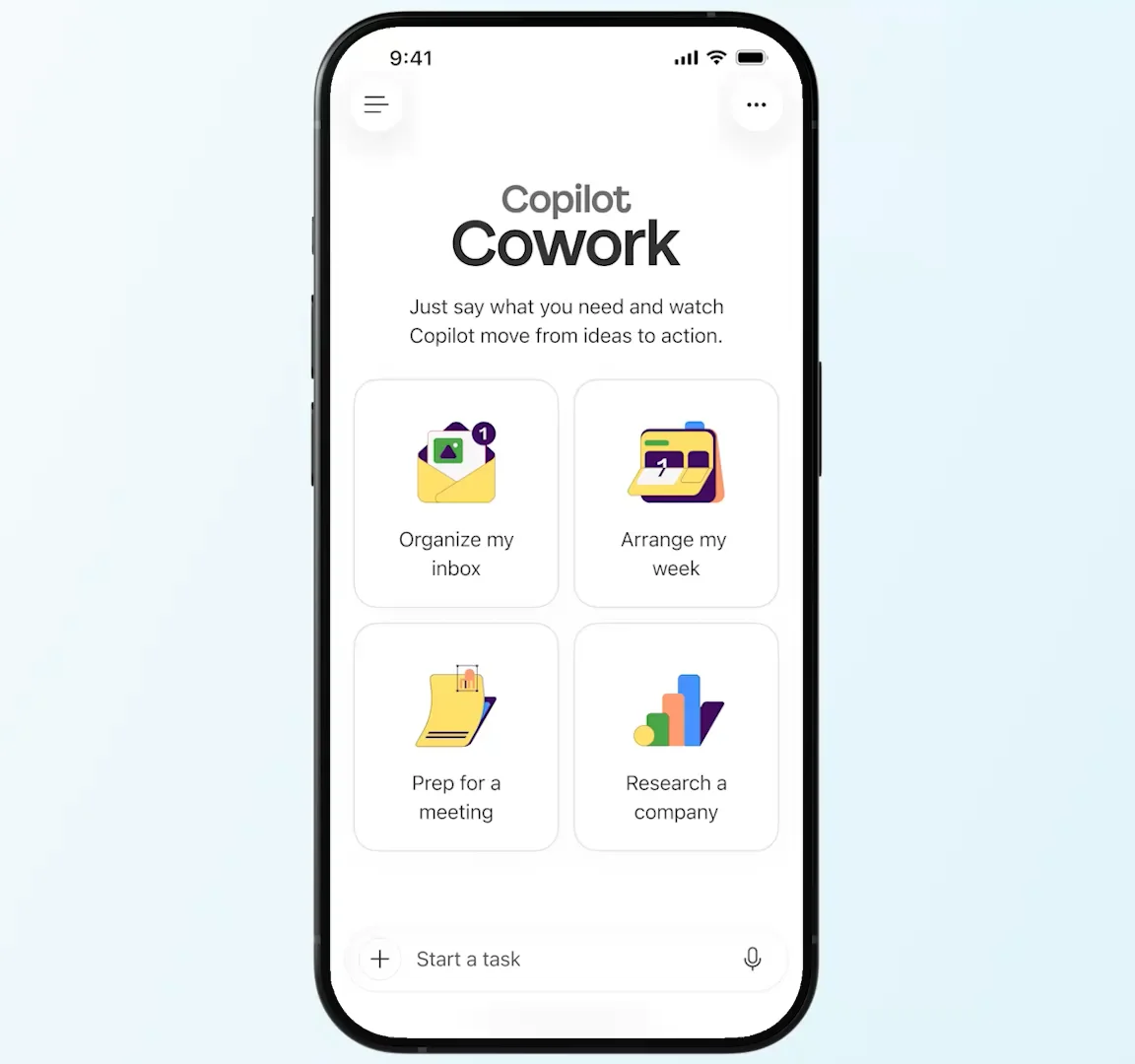
The mobile home is the same idea as the desktop: a “Start a task” box and a few quick-start tiles — Organize my inbox, Arrange my week, Prep for a meeting, Research a company — so you can kick something off in one tap.
🧭 New to Cowork entirely? Start with the how-to spoke for the desktop walkthrough, then come back here for the on-the-go version.
What mobile is good for
Mobile Cowork shines when you want to delegate a job and walk away — not babysit it. The sweet spot is the moment you think of something between meetings and want it moving before you forget:
- “Triage my inbox and flag anything that needs me today.”
- “Pull the key points from this morning’s project chat into a spreadsheet.”
- “Prep me a one-pager for my 2pm with the Fabrikam account.”
You describe the outcome, tap send, and Cowork starts planning and working — the same outcome-first prompting that works on the desktop (full pattern in the how-to spoke).
Start on your phone, finish on your desktop
This is the part that matters most, and it’s easy to miss: the task isn’t tied to the phone.
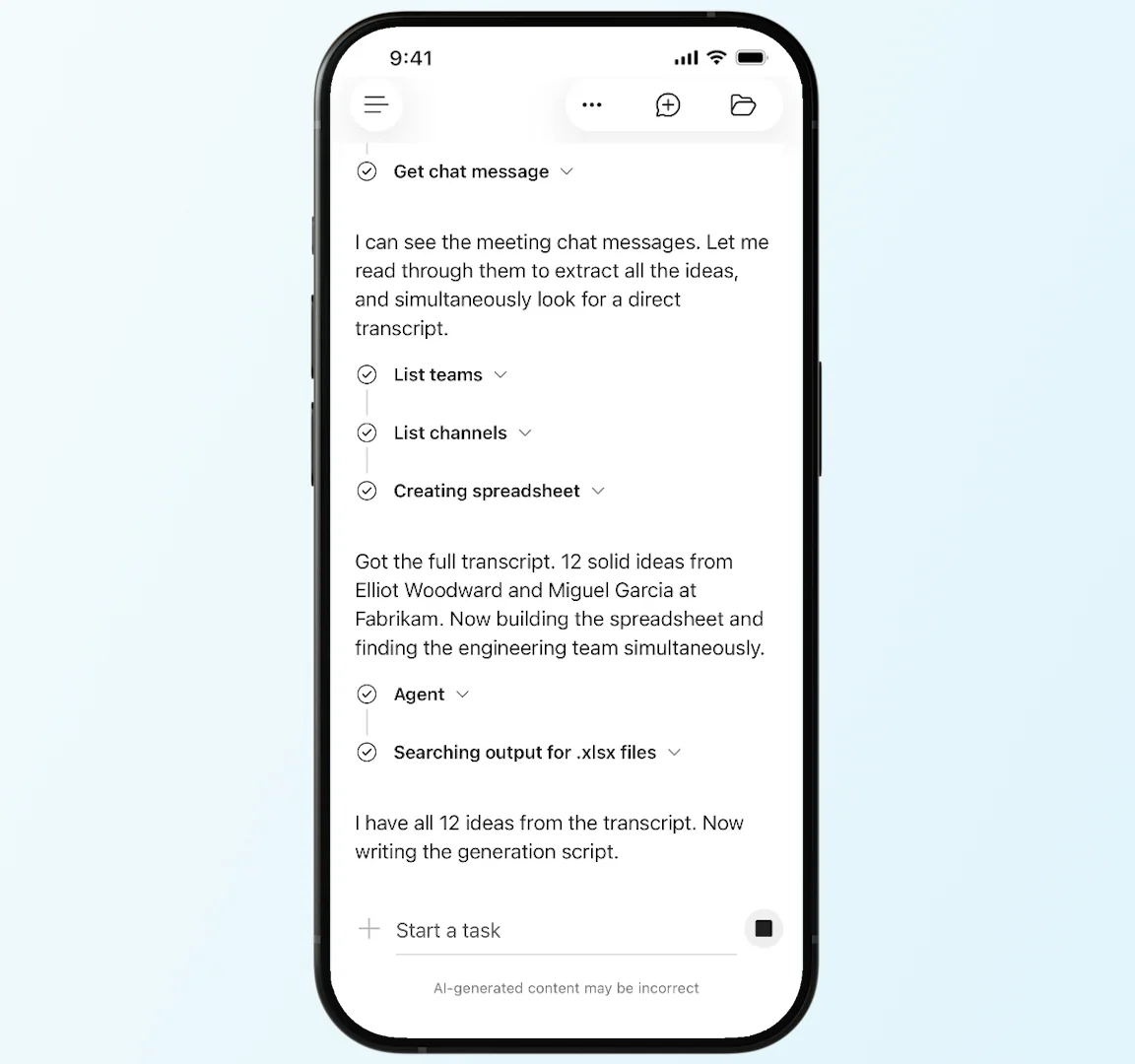
You can watch Cowork work the steps in real time on the phone — reading a meeting chat, listing teams and channels, building a spreadsheet — and then just put your phone away. Your laptop can be closed on your desk; the task keeps running in the cloud. When you sit back down, it’s the same conversation and the same context, picked up exactly where you left it.
That’s the mental shift: mobile isn’t a cut-down Cowork, it’s the same Cowork with a second front door. Kick off in the taxi queue, review the finished deck at your desk.
Mobile vs desktop — what to do where
Both surfaces drive the same task, but they’re not equally suited to every job. A rough guide:
| Do it on mobile | Leave it for desktop |
|---|---|
| Kick off a task the moment you think of it | Reviewing a long report or multi-tab spreadsheet |
| Inbox triage and quick “what needs me?” checks | Editing the file Cowork produced |
| Approving (or declining) a step Cowork pauses on | Side-by-side work across several outputs |
| Checking progress between meetings | Fine-tuning a prompt over several iterations |
| Prep tasks for a meeting you’re walking into | Anything you’d rather do on a big screen |
The point isn’t that mobile is limited — it’s that delegation and approvals travel well to a phone, deep review doesn’t. Use each for what it’s best at; the task bridges both.
Approvals still apply on your phone
Cowork’s safety model doesn’t loosen just because you’re on mobile. When it’s about to do something that affects other people or systems — the demo shows it posting to a Teams channel — it still pauses and asks for your approval first, on the phone exactly as it would on the desktop. You stay the one who says yes.
That matters for governance: the same human-in-the-loop checkpoint your admin is counting on is in your pocket, not bypassed by the smaller screen. The full picture of what Cowork can and can’t reach, and how admins govern it, is in the admin & governance spoke.
⚠️ Approve with the same care you would at your desk. A checkpoint on a phone is easy to tap through on autopilot. If Cowork is about to send, post, or share something, read it like you would on the big screen.
How to get Cowork on mobile
Three things have to line up — the same three as the desktop, so if Cowork already works for you on the web, mobile should just appear:
- The Microsoft 365 Copilot mobile app, signed in with your work account (iOS or Android).
- A Microsoft 365 Copilot licence on your account — Cowork is part of Copilot, so the seat is the entry point.
- Your admin has enabled Cowork for you and set up usage billing — it’s off until they turn it on.
If all three are in place and you still don’t see it, give it a few minutes after enablement and reopen the app. The admin-side checklist lives in the admin & governance spoke; how it’s licensed and costed is in the pricing spoke.