Microsoft Copilot Cowork — Step-by-Step How-To Guide
↗ the practical walkthrough — find Cowork in your tenant, write a good prompt, review the plan, approve checkpoints, troubleshoot when it goes sideways
On this page
The hub for this series — Microsoft Copilot Cowork — The Complete Guide — covers what Cowork is and the agentic harness. This spoke is the step-by-step how-to reference.
TL;DR
- Where to find Cowork — at m365.cloud.microsoft (browser), the Microsoft 365 Copilot desktop/mobile app, or in Outlook and Teams — select Cowork from the toggle next to Chat. Some app versions show it in the left navigation rail instead, or under All agents
- How to start a task — describe an outcome, not a process
- What to expect — Cowork works through the steps in front of you, pausing for your approval at sensitive actions
- How to stay in control — pause, redirect, or stop at any time
Before you start — three things you need
Cowork won’t appear for everyone on day one. Three boxes have to be ticked first — if it’s missing, this is almost always why:
- A Microsoft 365 Copilot licence ($30/user/month) — Cowork is part of Microsoft 365 Copilot, so the seat is the entry point.
- Your admin has turned Cowork on — it’s off by default. An admin enables it, and chooses who gets access, from the Microsoft 365 admin centre.
- Usage billing is set up — Cowork tasks are billed on usage (Copilot Credits), so an admin sets up pay-as-you-go or prepaid, plus a spending limit, before it runs.
If all three are in place and you still can’t see it, give it a few minutes after enablement, then refresh. The full admin-side checklist is in the Admin & governance spoke.
Step 1 — Open Cowork
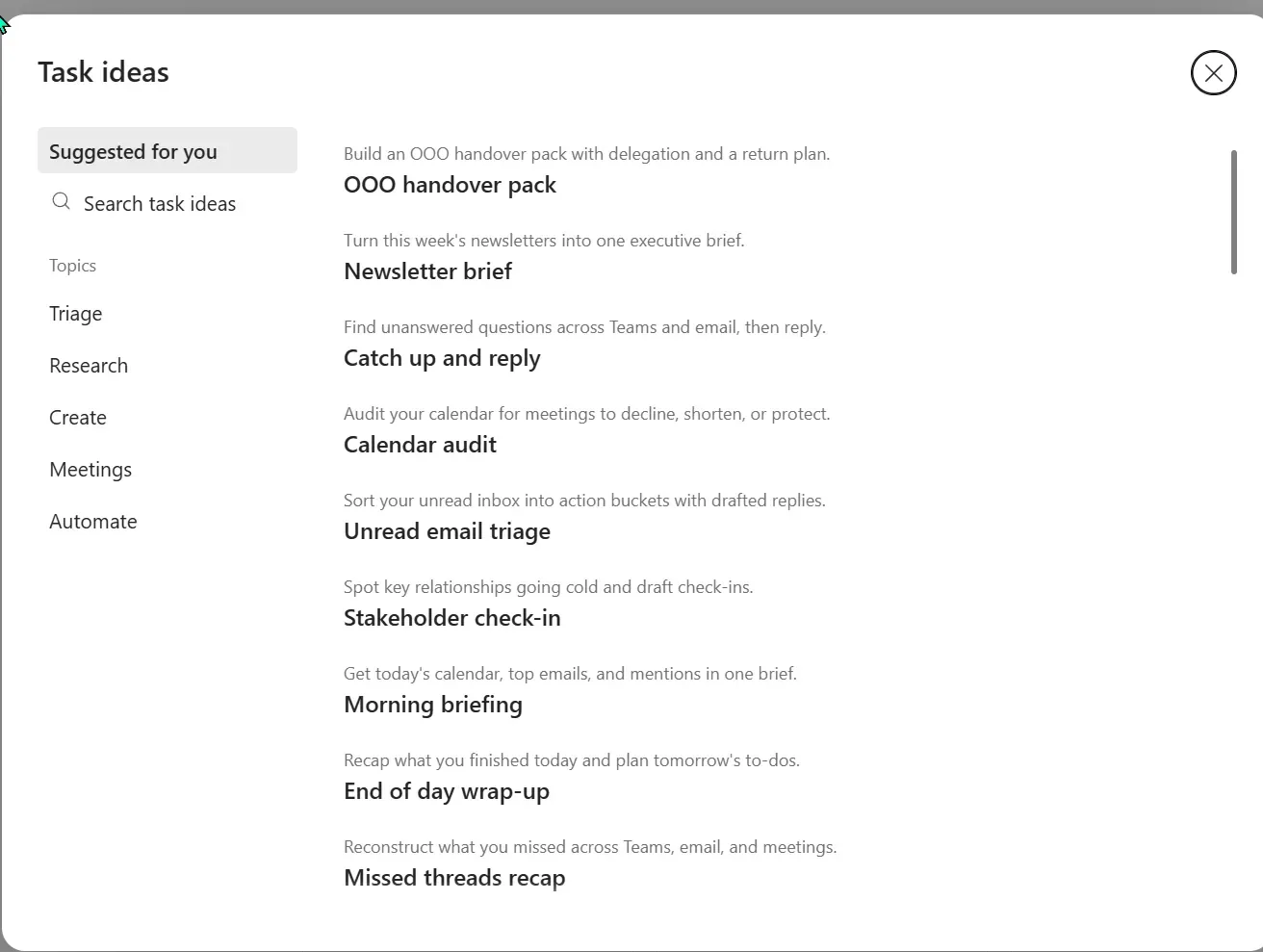
Cowork lives inside Microsoft 365 Copilot — open m365.cloud.microsoft in your browser (or use the Microsoft 365 Copilot desktop or mobile app, or find it in Outlook and Teams) and switch from Chat to Cowork using the toggle next to the chat box. Heads-up: the Microsoft 365 app is rolling out a new layout, so on some tenants Cowork shows in the left navigation rail rather than the top toggle — if you don’t see the toggle, check the left rail, or look under All agents. It opens into its own full task workspace, not just a chat box.
The landing page is built around two things: an input box that says “Start a task…” (not “Send a message”) and a left side rail with your task history. The core controls in the rail are New task, Search, Scheduled, and Customize.
Before you type anything, two helper sections sit on the landing page:
- Needs your attention — Cowork tasks already in flight that want your input (an approval, a clarification, a decision)
- Try these next — suggested workflows like Organize my inbox, Arrange my week, Prep for a meeting — good for first-time exploration
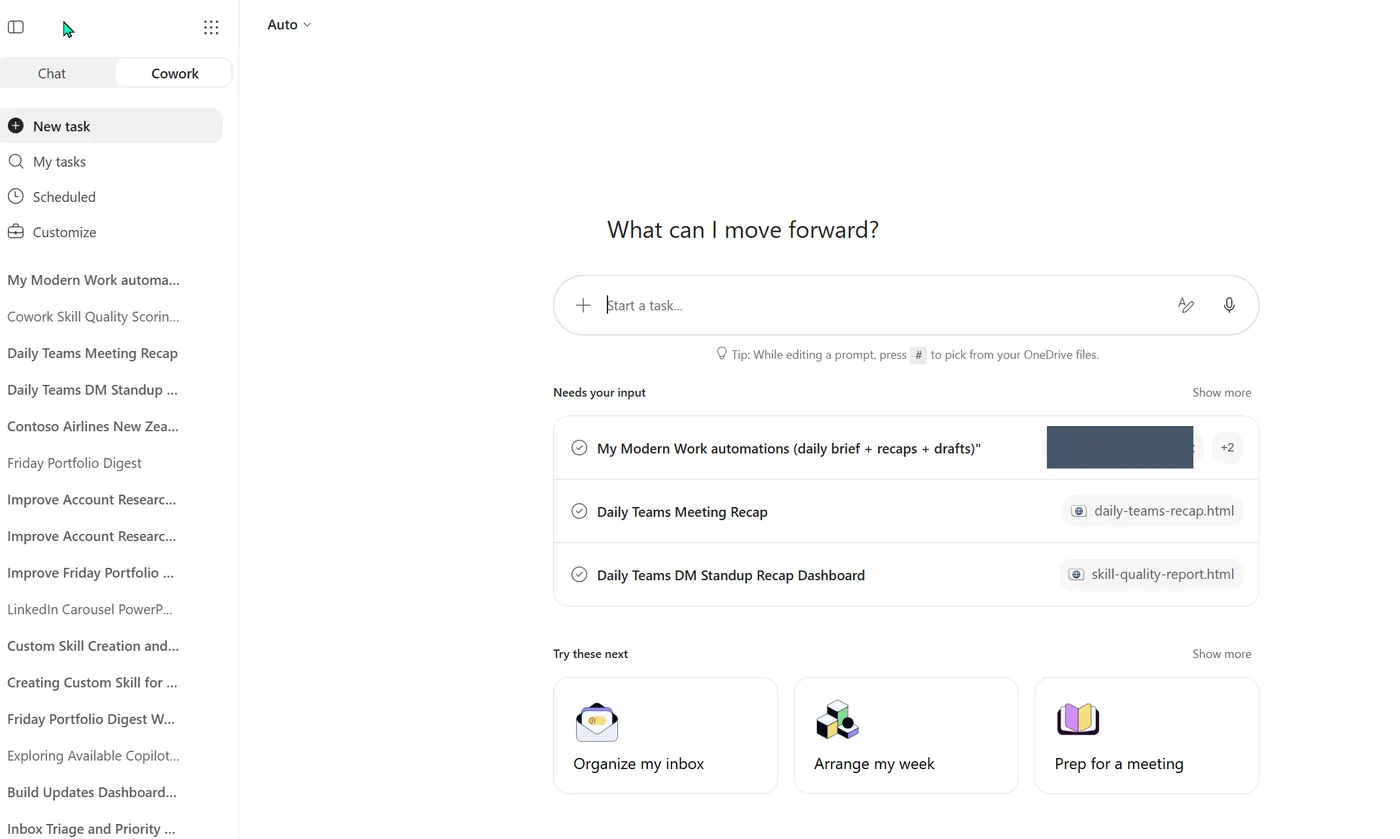
The Cowork home — note it says Start a task, not “send a message”, plus the Try these next cards and the Auto model picker. (Demo capture; one internal file name is blocked.)
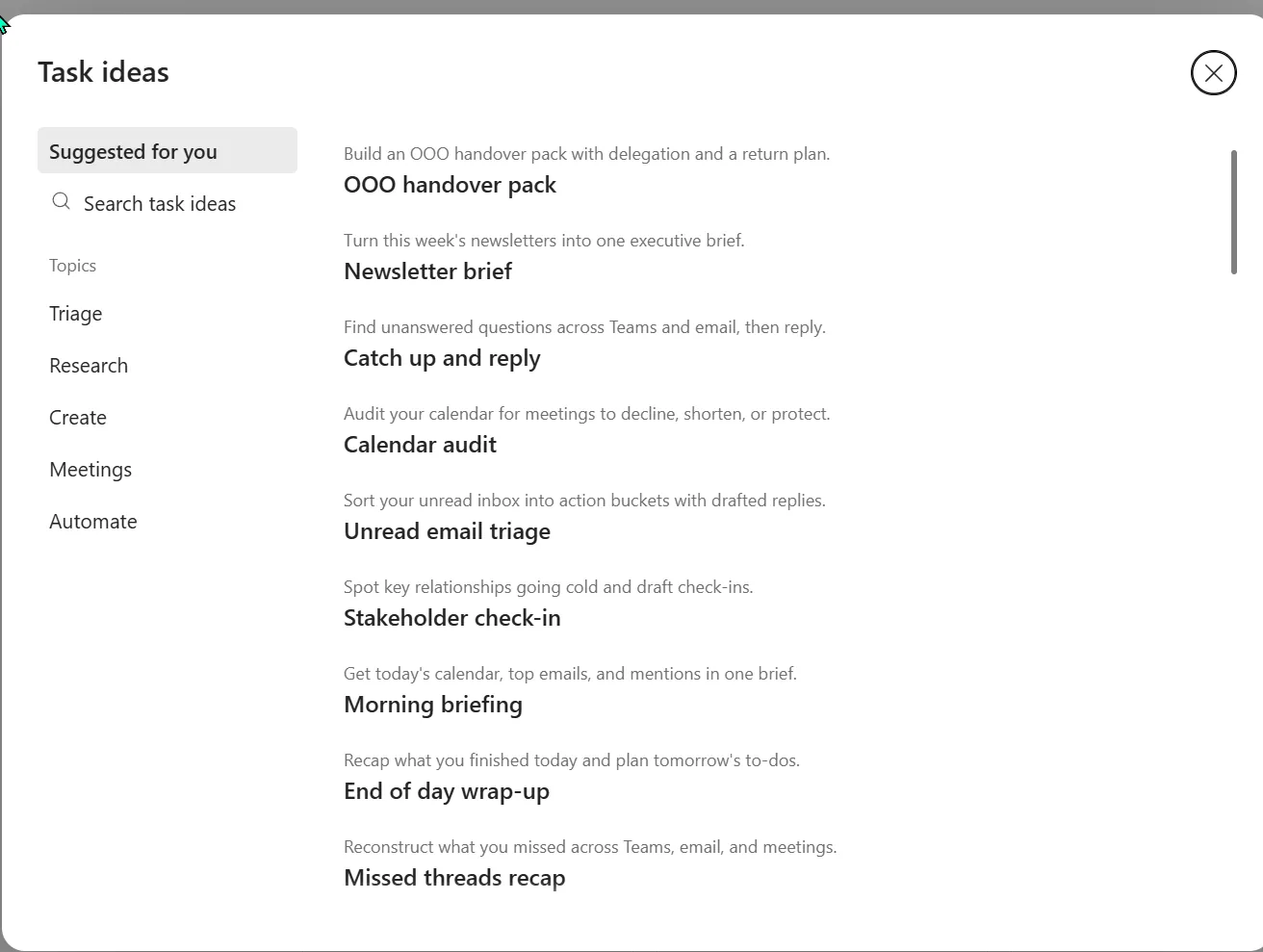
The built-in Task ideas gallery — a quick way to see the kinds of work Cowork is built for, grouped by topic.
💡 Mental model shift: Cowork’s input says “Start a task…” on purpose. Where Copilot Chat is a conversation, Cowork is a delegation. You’re handing off work, not chatting through it.
Step 2 — Write a good prompt (outcome-first, not process-first)
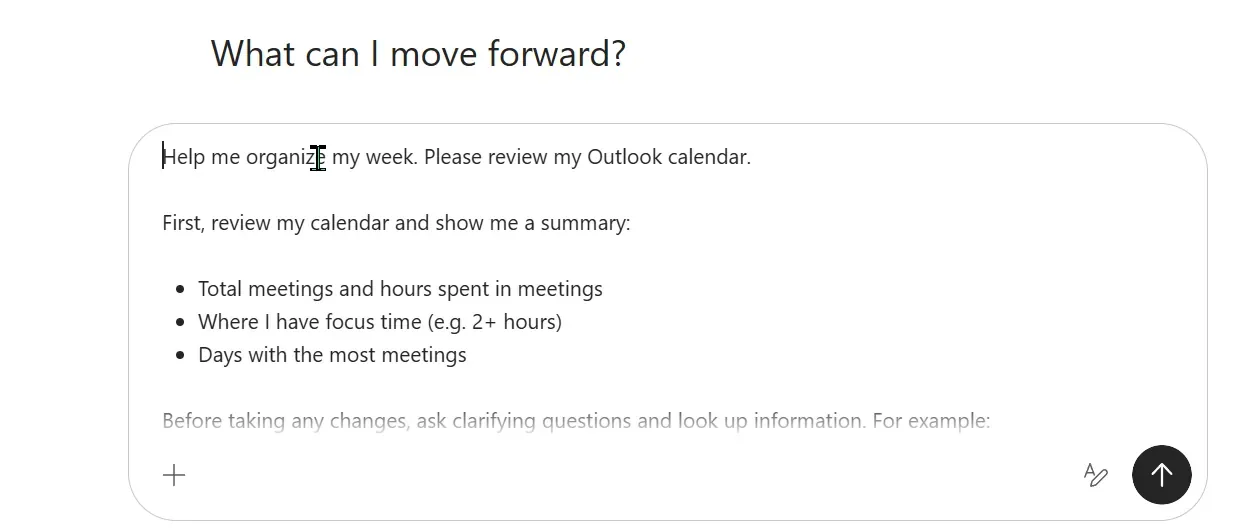
This is the single biggest mindset shift. Most people start by listing steps. Cowork works best when you describe what you want done.
Process prompt (works less well):
“Open my inbox, find emails from the Contoso team, copy the budget numbers into a spreadsheet, then make a chart.”
Outcome prompt (works much better):
“Prep me for tomorrow’s Contoso quarterly review.”
Why? Cowork’s planner is good at decomposing outcomes into steps. Pre-decomposed prompts skip the part Cowork is designed to do.
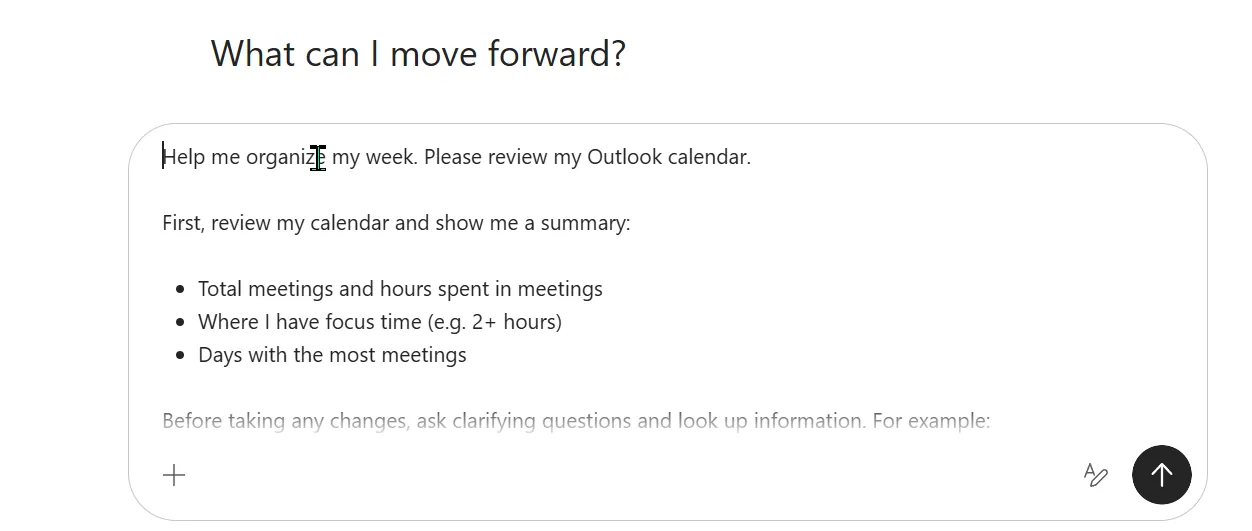
An outcome-first prompt in the Start a task box — describe the result you want, not the steps.
Step 3 — Follow along as Cowork works through the steps
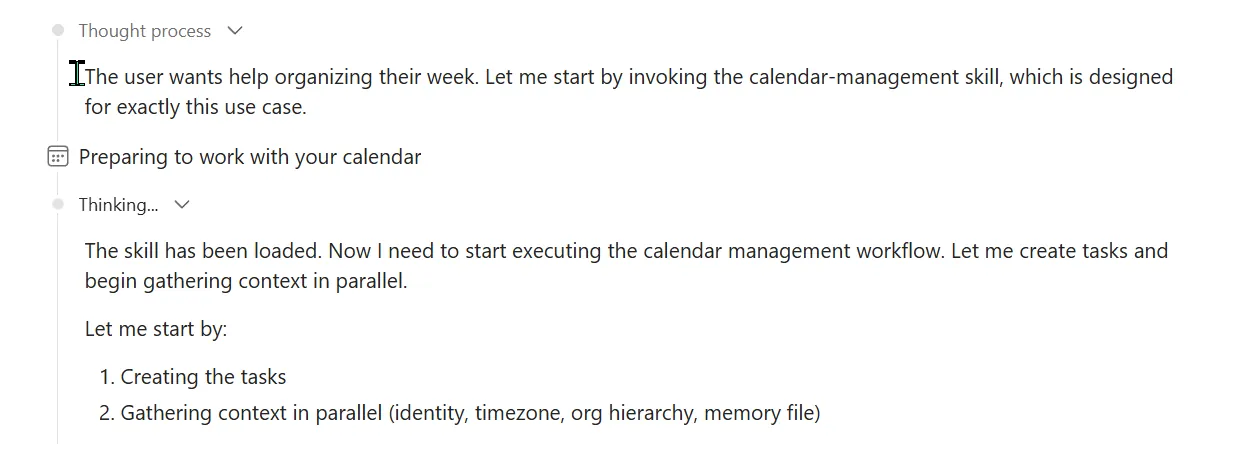
Cowork’s thought process — it reads the outcome, picks the right skill (here, Calendar Management), and gathers context before it acts.
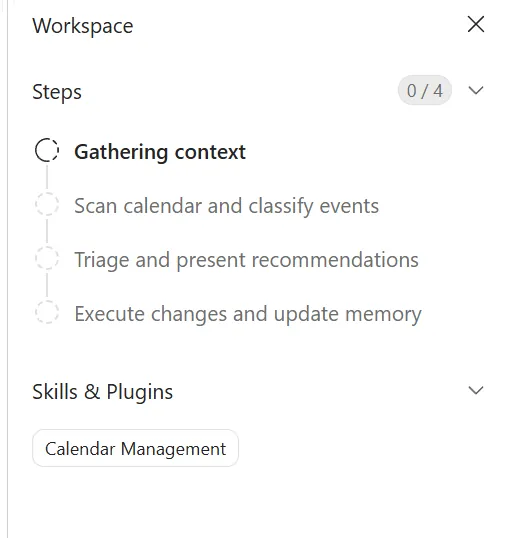
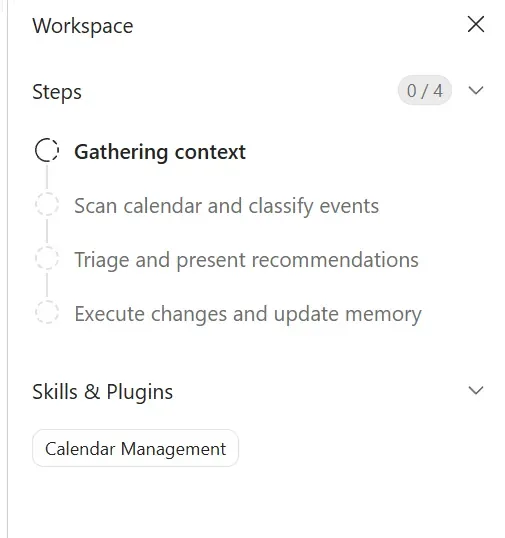
The Steps panel — Cowork’s plan, laid out so you can follow along (and stop it if it heads the wrong way).
Cowork doesn’t disappear and hand back a finished result. It breaks your request into steps and works through them one by one, showing each step in the conversation (and in the side panel) as it goes — so you can follow along and see exactly how it interpreted your outcome.
This is the part most people skim, and it’s the one that keeps you in control:
- Watch the early steps. They tell you how Cowork understood the request — if it’s heading the wrong way, you’ll spot it immediately.
- Interrupt to steer. At any point you can jump in with extra context or a correction (“use the latest proposal, not the March one”) and Cowork adjusts.
- Sensitive actions wait for you. Cowork runs the low-risk steps on its own but pauses for approval before anything that sends or changes something — that’s the next step.
It’s far less work — and fewer credits — to redirect early, while Cowork is still gathering and drafting, than to unpick the output afterwards.
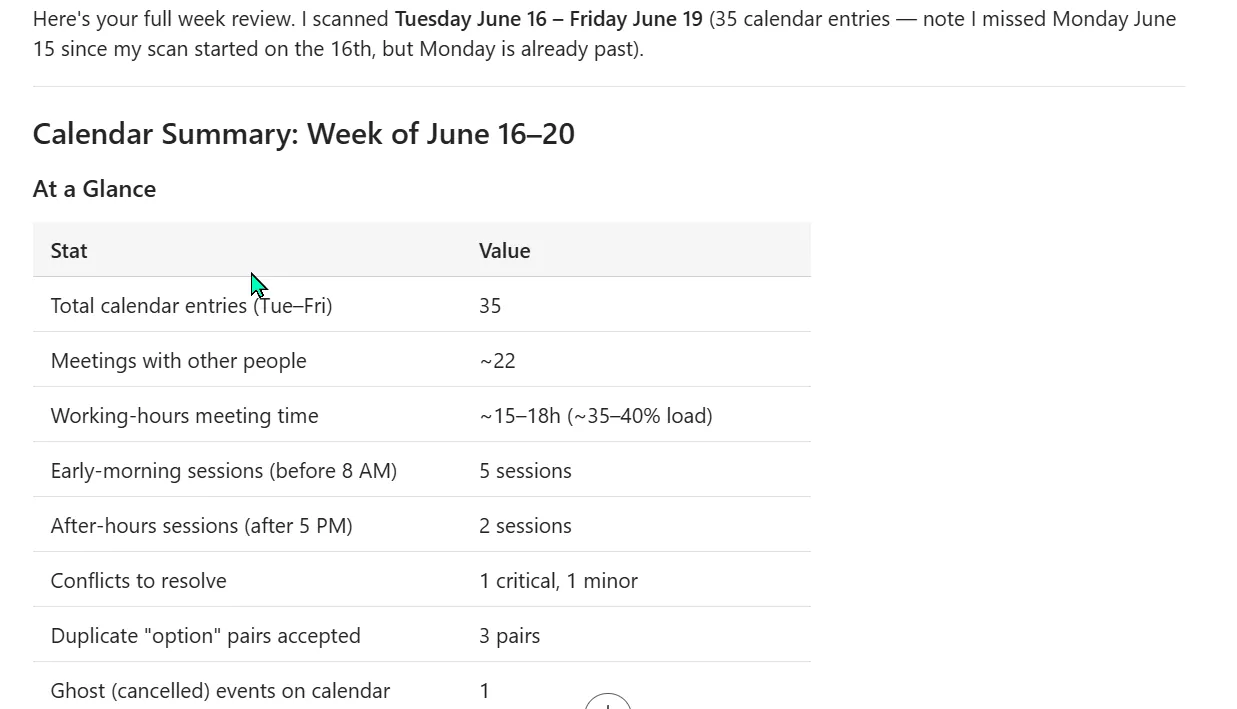
And the result — a clean weekly calendar summary from that run. (Real outputs run longer; this is the top of it.)
That was one complete task, start to finish: you typed an outcome — “help me organise my week” — Cowork picked the Calendar Management skill, gathered context, and planned four steps; you watched it scan and classify your calendar; and it handed back a clean weekly summary, pausing for your approval before changing anything. A few minutes, one prompt, and you stayed in control the whole way. That’s the shape of almost every Cowork task — the rest of this guide is just the details that make each part go smoothly.
Step 4 — Approval checkpoints
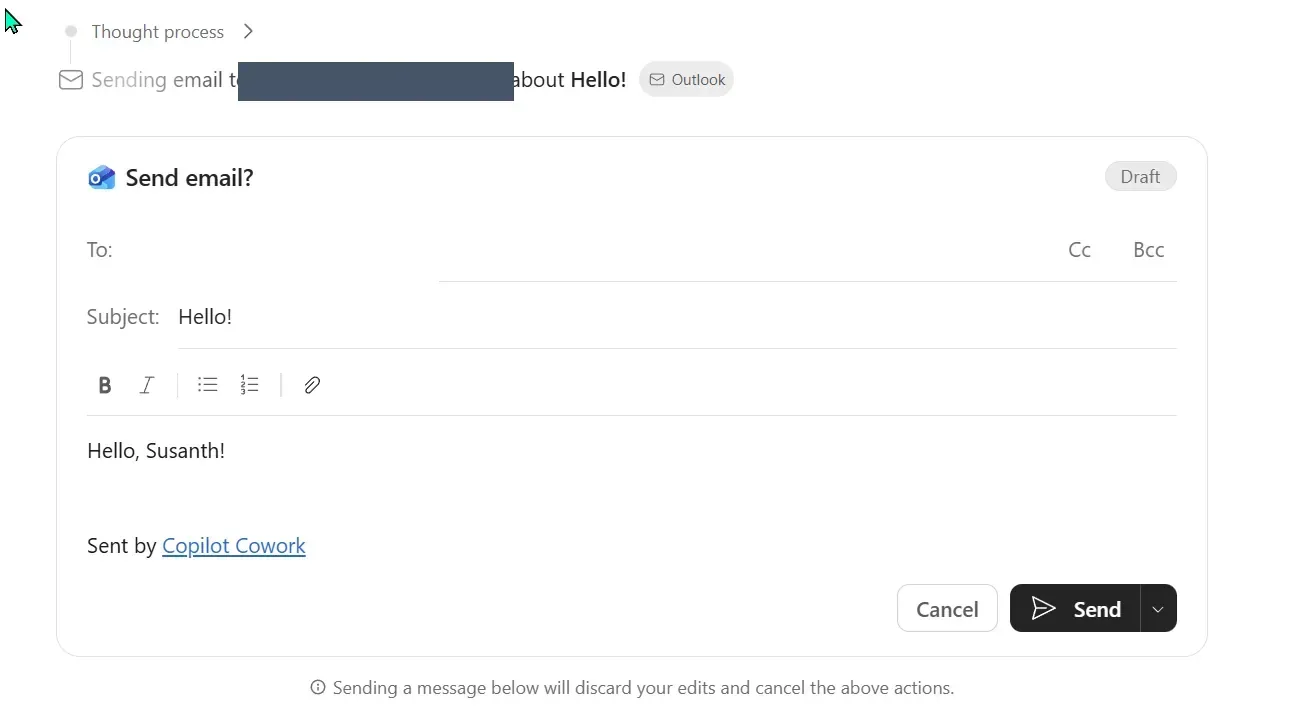
Cowork runs on its own for the low-risk steps, but it pauses before any action that sends or changes something to ask permission first. This is the safety rail that makes delegating comfortable.
What triggers a checkpoint — the actions that send or change something:
- Send an email (draft, reply, or forward)
- Post a message to a Teams channel or chat
- Create or change a meeting on your calendar
- Create a document or a SharePoint/OneDrive folder
Cowork tags medium- and high-risk actions with a risk indicator, and the approval button matches the action.
What it looks like: Cowork stops, shows you exactly what it’s about to do (the draft email, the meeting), and waits. Sometimes it asks a clarifying question first — “I found an NDA in the shared folder — include contract details?”
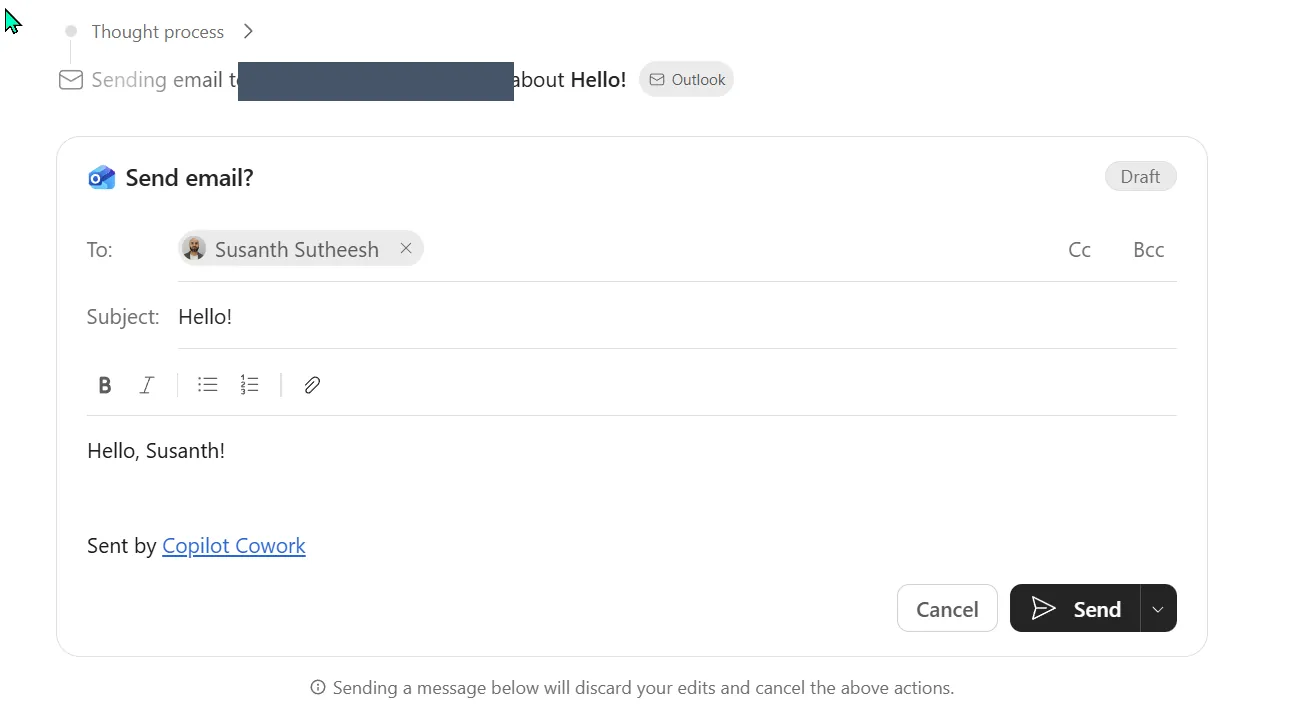
The approval card — Cowork shows the exact email and waits. Nothing leaves until you click Send. (Recipient address redacted; it was a test to myself.)
Your moves at a checkpoint:
- Approve — the button matches the action (Send, Post, Create).
- Cancel — stop the action; Cowork moves on or asks what you’d prefer.
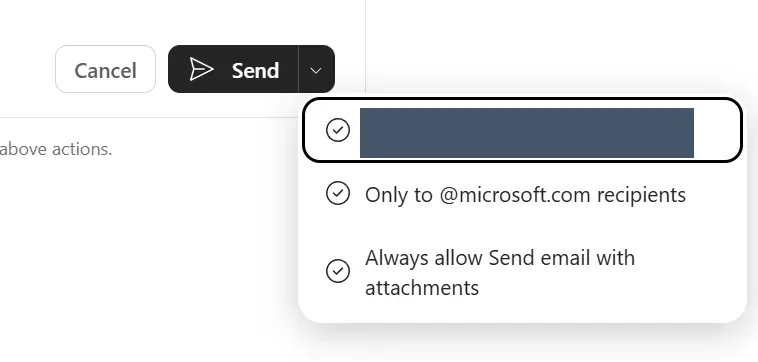
- Skip future prompts — a dropdown lets you stop being asked for similar actions. The narrow options (a single address, or recipients in your own domain) are reasonable; the widest one — “always allow Send email with attachments” — is a blanket permission to send files without asking again, so avoid it unless you really mean it, and scope to your own domain at most.
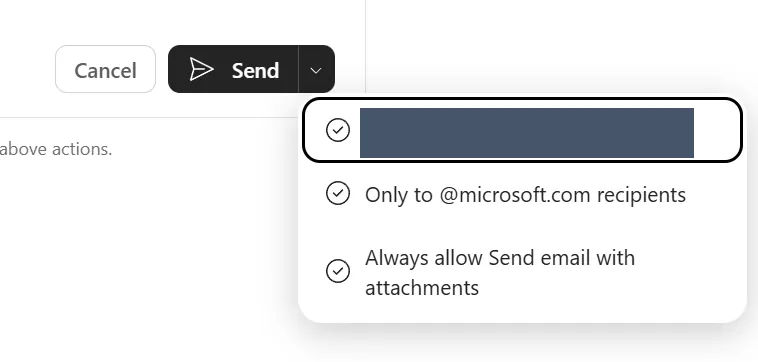
The Don’t ask again dropdown, under the Send button — scope it to a single address or your own domain. The broadest option (always allow sends with attachments) is the one to avoid unless you genuinely need it.
💡 Treat each checkpoint as a real review, not a reflex click — especially for anything that leaves your tenant. (For how admins use checkpoints as a governance control, see the Admin & governance spoke.)
Step 5 — Stop or redirect mid-task
The “I can stop it at any time” promise is real, and it’s worth knowing how — it’s what lets you hand off work without feeling like you’ve lost the wheel.
- Pause / stop — hit stop and Cowork halts immediately. Nothing that needed a checkpoint will have gone out, so a stop is always safe.
- Redirect — you don’t have to start over. Just tell it what changed: “Actually, focus on the financial data, not the customer emails,” and it adjusts the rest of the run.
- Abandon — end the task entirely. Any drafts or partial work it already produced stay behind for you to keep or bin — nothing is forced through.
You’re never locked into a runaway task. If a plan looked right but the execution drifts, stop it, tweak your wording, and run again — that loop is the normal way to work with Cowork, not a sign of failure.
Step 6 — Troubleshooting
The most common first-run snags, and how to recover:
- Cowork doesn’t show up → almost always a licence or tenant-config issue, not a bug. Check you have a Microsoft 365 Copilot licence and that your admin has enabled Cowork (it’s off by default) with usage billing set up. Full checklist in the Admin & governance spoke.
- A step fails partway through → Cowork usually tells you which step and why (a file it couldn’t reach, a permission it doesn’t have). Re-run just that step, or adjust the prompt to point it at something it can access.
- It runs longer than expected → big, vague outcomes spawn long plans. If it feels like it’s going in circles, stop it and narrow the ask (“just the email, not the deck too”).
- It accesses the wrong file → usually two files with similar names, or messy SharePoint permissions surfacing something unexpected. Redirect it to the right file by name, and flag the permissions issue to your admin.
- The output isn’t quite right → remember Step 3. Nine times out of ten a weak result traces back to an outcome that was too vague — sharpen the prompt and the plan improves.
Step 7 — Tips from real use
- Start small. Pick a low-stakes outcome for your first task.
- Trust the plan. Don’t over-edit Cowork’s plan on first run — see what it does.
- Use checkpoints aggressively. Approve each step the first few times. Loosen later.
- Build a prompt library. Save the prompts that work — my Cowork prompts collection is one starting point.