Microsoft Copilot Cowork — Plain-English Guide
↗ everything you need to know about Microsoft 365 Copilot Cowork in plain English — the agent that takes action across your M365 apps
On this page
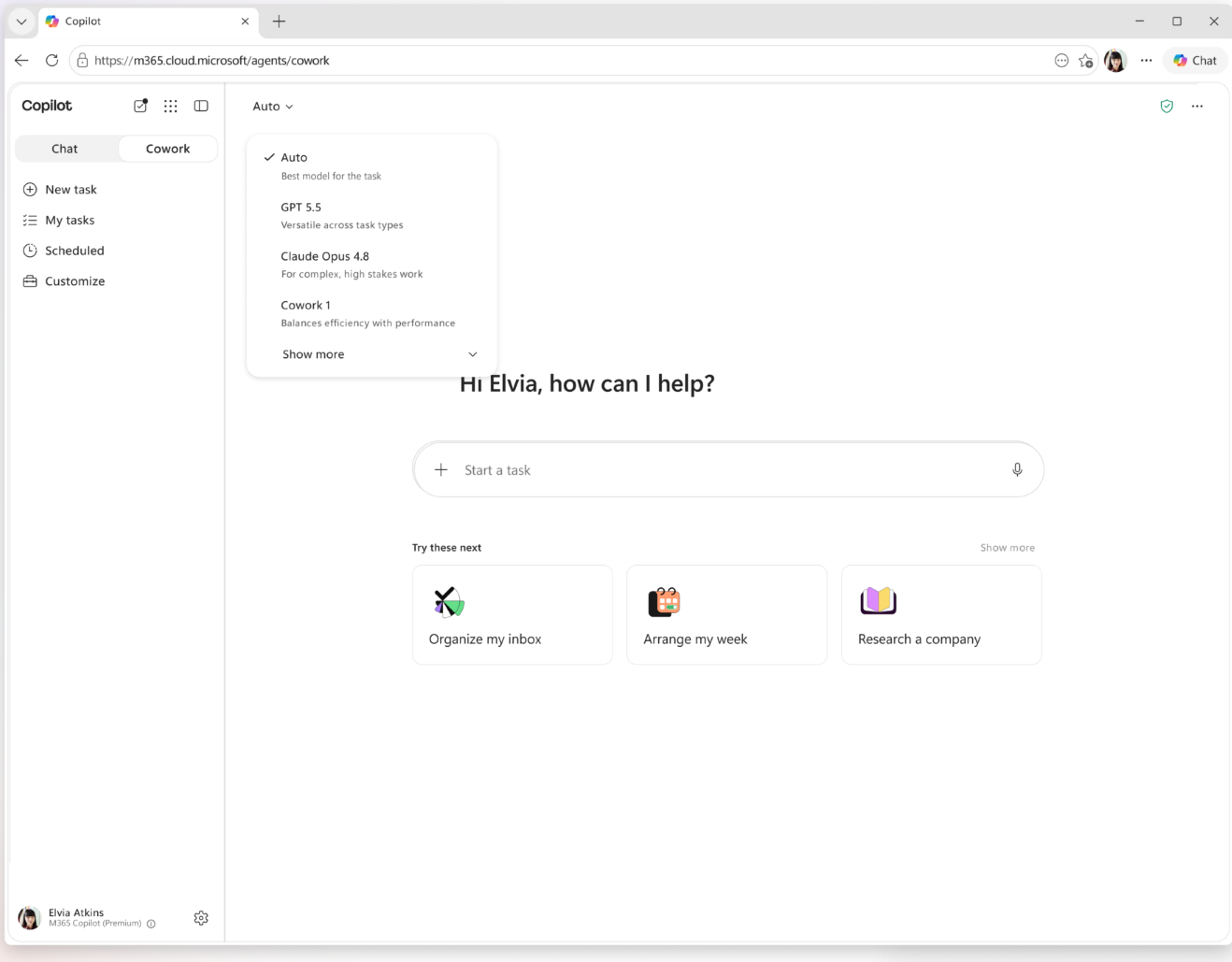
The Copilot Cowork experience — the new Chat ⇄ Cowork toggle and the model picker. This is a Frontier-preview capture, so the picker shows GPT 5.5 (Frontier) and the coming-soon Cowork 1; at general availability the models are Anthropic Opus 4.8 and Sonnet 4.6. Source: Microsoft 365 Blog — Copilot Cowork is now generally available
Remember when Copilot first launched back in 2023? You could ask it to summarise an email, draft a paragraph in Word, or make a chart in Excel. It was impressive. But every time you wanted to do something across multiple apps — like “prep me for a meeting using info from my emails, Teams chats, and SharePoint files” — you had to prompt each app separately, copy-paste between them, and stitch it all together yourself.
Copilot Cowork changes that. Completely.
Instead of being an assistant that waits for your instructions, Cowork is more like a colleague who takes ownership of a task . You describe what you need. It figures out the steps, works across all your M365 apps, and checks in with you before doing anything risky.
This guide explains everything — in plain language, with real scenarios, and honest opinions on what’s great and what’s not quite there yet.
Quick links: 📍 Pick your path (all 7 spokes) · 🚀 6 Prompts to Try Today · What is Cowork? · Regular Copilot vs Cowork · Scenarios by role · What’s an Agentic Harness? · Skills & Extending Cowork · How to get it · Cowork vs Claude Cowork · FAQ
TL;DR
- Copilot Cowork = AI that doesn’t just answer questions — it does the work across your entire M365 suite
- Three waves of Copilot: Assistant (2023) → Agent Builder (2025) → Cowork (2026)
- How it works: Describe an outcome → Cowork builds a plan → executes across apps → checks in with you
- Enterprise-safe: Entra ID permissions, sensitivity labels, Communication Compliance, full human-in-the-loop control
- Generally available worldwide since 16 June 2026 to Microsoft 365 Copilot customers — no Frontier enrolment needed
- Requires: a Microsoft 365 Copilot licence, plus usage-based Copilot Credits for the work Cowork runs (admins turn it on — it’s off by default)
- Not the same as Claude Cowork — Copilot Cowork runs in your tenant (cloud), Claude runs on your desktop (local)
What’s new at general availability (16 June 2026)
Copilot Cowork went generally available worldwide on 16 June 2026. After three months in the Frontier preview — where more than half of the Fortune 500 tried it — here’s what landed at GA:
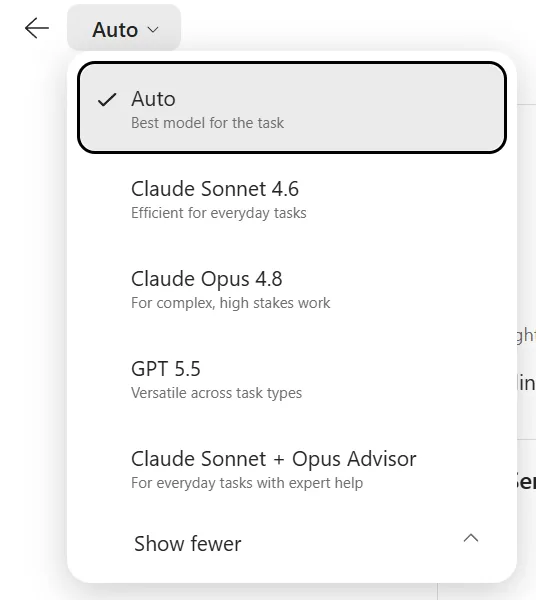
- Model choice — pick the model per task: Anthropic Opus 4.8 and Sonnet 4.6 at GA, GPT 5.5 in Frontier, and the fine-tuned Cowork 1 coming soon for everyday tasks at lower cost.
- Usage-based pricing — a Microsoft 365 Copilot seat plus Copilot Credits for the work Cowork runs, with a Cost Management dashboard for spending limits, alerts, and reporting. (Pricing spoke →)
- Plugins — nine partner plugins available now (Enosix, Harvey, LSEG, Miro, monday.com, Moody’s, Morningstar, S&P Global Energy, TeamsMaestro), more on the way, plus Microsoft Fabric and Dynamics 365 (Sales, Customer Service, ERP). (Skills & plugins spoke →)
- Enterprise security at GA — Cowork runs inside your Microsoft 365 trust boundary, acting as the user with their permissions, plus an approval gate on sensitive actions. Sensitivity labels, encryption handling, and Communication Compliance are supported today; several other Purview controls (audit, eDiscovery, DSPM, Insider Risk, DLP, and more) aren’t enabled for Cowork yet. (Admin & governance spoke →)
- Lower cost than the alternative — in Microsoft’s own testing, Copilot Cowork ran 30–40% cheaper than Claude Cowork through its Microsoft 365 connector on the same model.
🌐 One to watch: browser use via Edge — letting Cowork browse the web through a local Edge browser under your enterprise policies — is available in the Frontier early-access program, not yet GA.
Why Cowork is different — the five things that set it apart
Microsoft frames Cowork’s edge as five things. They’re worth knowing because they’re also the honest reasons it fits enterprises better than a desktop agent:
| Why it matters | |
|---|---|
| Cloud-hosted | Files aren’t stored on your laptop, security is enforced centrally, and your tasks keep running even when your laptop is off |
| Native Work IQ | Every task is grounded in the systems your business actually runs on, so the work reflects real context — not a generic answer |
| Enterprise security & compliance | Cowork operates inside your Microsoft 365 trust boundary, aligned to your existing policies and controls |
| Multi-model | You run the model a task needs (Opus 4.8, Sonnet 4.6, GPT 5.5 in Frontier, Cowork 1 soon), so capability scales with the work |
| Lower cost | An efficient runtime, model-to-task matching, and pay-for-what-you-use billing — Microsoft measured it 30–40% cheaper than the Claude Cowork alternative |
Pick your path — the Cowork series
This guide is the hub of an 8-part Cowork series. Read it end-to-end for the full picture, or jump straight to the spoke that matches what you need — each one is its own bookmarkable deep-dive.
Start here · learn to use Cowork
- How to use it, step by step — find Cowork in your tenant, write outcome-first prompts, review the plan, approve checkpoints, and troubleshoot the first-run snags.
- Prompts to try — copy-paste prompts with honest usefulness ratings, tested on a real tenant. (See also the Cowork prompts collection.)
- Use cases by role — what IT, Sales, HR, Finance, Marketing, Executive, and customer-facing teams actually do with it.
- On mobile — delegate a task from your phone, start on mobile and finish on desktop, and keep the approval gate in your pocket.
Run Cowork in your org
- Admin enablement & governance — turning it on, the built-in governance controls, the SharePoint oversharing check, and a pilot rollout playbook.
- Pricing & cost management — how Cowork is licensed, and how to keep an eye on what it costs.
Extend Cowork
- Skills & plugins — the built-in skills, plus authoring your own custom skills, with four worked examples end-to-end.
What is Copilot Cowork?
Let me give you the simplest possible explanation.
Think about how you work with a really good colleague. You don’t say “open my inbox, find emails from Sarah about the budget, copy the numbers, open Excel, paste them in, make a chart, then open PowerPoint and insert it.” You just say: “Hey, can you put together the budget slides for Friday’s meeting?”
That’s Copilot Cowork. You describe the outcome. It figures out the steps.
Here’s a real example:
“Prep me for tomorrow’s quarterly review with Contoso.”
Cowork responds:
- Searches your emails and Teams chats with Contoso contacts
- Pulls the latest proposal from SharePoint
- Finds the meeting recording from last quarter’s review
- Drafts a briefing document in Word with key talking points
- Checks in: “I found an NDA in the shared folder — should I include contract details in the briefing?”
- After your approval, sends the briefing to your team
One prompt. Multiple apps. Real work done. And it asked before doing anything sensitive.
What Does Cowork Actually Look Like?
Cowork lives inside Microsoft 365 Copilot — open m365.cloud.microsoft in your browser (or the Microsoft 365 Copilot desktop or mobile app) and switch from Chat to Cowork using the toggle next to the chat box; if you don’t see it yet, look under All agents. It opens into its own task workspace — the input simply says “Start a task…”, and that phrasing is the whole mental shift: this is a task-handler, not a chat box.
The left side rail keeps the history of every task you’ve handed off — persistent, searchable, with a Scheduled view for recurring work. New task, Search, Scheduled, and Customize are the core controls.
The landing page also surfaces two helper sections: “Needs your attention” (tasks already in flight that want your input) and “Try these next” (suggested workflows like Organize my inbox, Arrange my week, Prep for a meeting).
When you do start a task, instead of an instant reply Cowork shows you a plan — the list of steps it’s going to take. You can review the plan, adjust it, or let it run. As it works you’ll see progress updates, and it’ll pause at checkpoints to ask for your input.
It feels less like chatting with a bot and more like delegating to a very organised team member who keeps you in the loop.
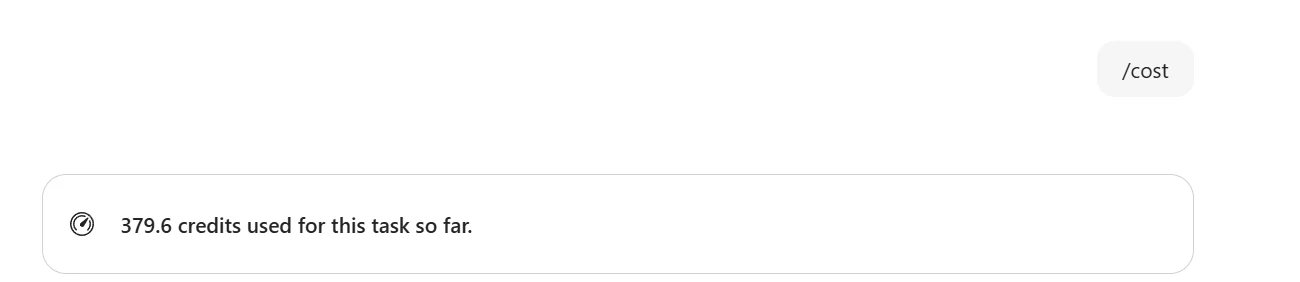
One small but useful detail: Cowork can tell you what a task cost. Type /cost in the task window and it shows the exact credits used so far — handy for working out the real price of the tasks you run most, or for making the case for your own seat. Drop that number into our free Cowork Cost Calculator to see it in dollars (or your currency).
📖 Official announcement: Copilot Cowork — A new way of getting work done
6 High-Impact Cowork Prompts You Can Use Today
Now that you know what Cowork is, here’s the fun part — trying it yourself. These prompts are based on real workflows that people actually do every week. Copy them, swap the [placeholders] for your own details, and watch Cowork do the work. Each one is designed to show Cowork’s multi-step, cross-app power — the thing that makes it fundamentally different from regular Copilot.
💡 Pro tip: The best Cowork prompts describe an outcome, not a process. Tell it what you need, not how to get there.
1. ☀️ Morning Triage & Priority Setter
Best for: Everyone. Start your day in 60 seconds instead of 20 minutes of inbox scrolling.
Good morning! Give me a full briefing for today:
- What meetings do I have today — list them with times and who’s attending
- What are my most important unread emails from overnight — flag anything that needs a response before my first meeting
- Any urgent or time-sensitive Teams messages I haven’t responded to
- Based on all of this, recommend the 3 things I should prioritise this morning
Then draft quick reply emails for the top 2 urgent items — keep them professional, friendly, and under 3 sentences each. Show me for approval.
What Cowork does: Reads your calendar, scans unread emails, checks Teams messages, prioritises your morning, and drafts replies — all before your first coffee is cold. Five skills working together: Daily Briefing → Calendar → Email → Teams → Communications.
2. 🎯 Meeting Prep Autopilot
Best for: Anyone with customer meetings, stakeholder reviews, or project check-ins.
I have a meeting with [customer/stakeholder name] about [topic, e.g. “quarterly review”, “project kickoff”, “budget approval”] coming up this week. Look at my calendar to find the meeting, then search my recent emails and Teams chats for any context about [customer/stakeholder name] or this topic. Find the most relevant presentation or document I’ve used recently on this topic from my OneDrive or SharePoint. Create a 1-page Word briefing with: the meeting objective, key attendees, 3 talking points based on what I’ve discussed with them before, and a link to the deck. Then draft an email to the attendees confirming the session and attaching the briefing.
What Cowork does: Finds the meeting on your calendar, digs through your email and Teams history with that person, locates the right files in SharePoint, creates a briefing document, and drafts a confirmation email — all from one prompt. Skills: Calendar → Enterprise Search → Word → Email.
3. 📬 Post-Session Follow-Up Machine
Best for: Trainers, presenters, sales reps — anyone who runs sessions and needs to follow up afterwards.
I just finished a [session type, e.g. “training session”, “client demo”, “team workshop”]. Look at my most recent meeting that ended in the last 2 hours. Find the recording, any slides or documents that were shared during or before that meeting, and summarise the key topics covered based on the meeting transcript. Then draft a follow-up email to all attendees with:
- A thank you and 2-sentence summary of what we covered
- Links to the recording and slides
- A “Questions?” section inviting them to reply
Send it from my Outlook — show me for review before sending.
What Cowork does: Finds the meeting you just finished, locates the recording and shared materials, reads the transcript for key points, and drafts a complete follow-up email with everything linked — ready for you to review and send. Skills: Meetings → Enterprise Search → Email.
4. 📊 Weekly Team Update Generator
Best for: Team leads, project managers, and anyone whose manager asks “what did you work on this week?”
It’s the end of the week. Review my calendar, sent emails, and Teams messages from this week. Create a structured weekly update that includes:
- Key meetings I attended and what was discussed (1 line each)
- Any customer or partner interactions
- Content I created or shared (decks, docs, links)
- Open follow-ups I still need to action
- What’s coming next week based on my calendar
Format it as a professional but concise Teams-friendly post, then post it to the [team channel name, e.g. “Project Alpha”, “NZ Sales Team”] channel for my approval.
What Cowork does: Reviews your entire week across Calendar, Email, and Teams, creates a structured summary, and posts it to your team channel — with your approval before it goes live. The weekly update that nobody has time to write, written in 2 minutes. Skills: Calendar → Email → Enterprise Search → Communications.
5. 📚 Knowledge Pack Builder
Best for: Subject matter experts, consultants, presales — anyone who repeatedly answers the same complex questions.
A [recipient role, e.g. “customer CISO”, “project sponsor”, “new team member”] has asked me about [topic, e.g. “Copilot governance and security controls”, “our data migration approach”, “onboarding process”]. Search my OneDrive, SharePoint, and recent emails for any documents, presentations, or materials I’ve shared or worked on about this topic. Also do a deep research on the latest information from Microsoft Learn about [topic].
Create a polished 2-page Word document titled “[Document title, e.g. ‘M365 Copilot Governance Quick Guide’]” that covers the key areas a [recipient role] needs to know. Then draft an email to [recipient name] attaching this document with a brief “here’s what you asked for” message. Show me everything for review.
What Cowork does: Combines your internal knowledge (SharePoint files, past emails) with fresh external research (Microsoft Learn), creates a polished document, and drafts a delivery email — turning a 2-hour research task into a 5-minute approval. Skills: Enterprise Search → Deep Research → Word → Email.
6. 🏢 Customer Deliverable From Email Brief
Best for: Anyone who receives a brief or request via email and needs to deliver something back — slides, reports, proposals.
I need to prepare a [deliverable type, e.g. “slide deck”, “report”, “proposal”] for an upcoming session with [customer/team name].
Step 1 — Find the brief: Search my emails for a message from [contact name] at [company name] about [topic, e.g. “executive training session”, “quarterly review”, “project kickoff”]. Extract every topic and agenda item they listed.
Step 2 — Gather my materials: Search my OneDrive and SharePoint for any existing decks, documents, or materials I’ve used on this topic recently.
Step 3 — Research: Do a deep research on the latest information about [topic] from Microsoft Learn and the web.
Step 4 — Build the deliverable: Using the brief as the structure and my materials plus research as content, create a clean, professional PowerPoint presentation covering every item from the brief. Keep it [audience]-friendly — no jargon, focus on outcomes. Each slide should answer “why should a busy [audience role] care about this?” Make it work as both a presentation AND a standalone cheat sheet they can reference later.
Step 5 — Draft the reply: Draft an email to [contact name] attaching the deck, confirming I’ve covered all their agenda items, and asking if there’s anything to adjust. Show me everything for review before sending.
What Cowork does: This is the ultimate showcase. Cowork reads a customer’s email, extracts their requirements, searches your existing materials, researches the latest information, builds a complete slide deck structured around their brief, and drafts a delivery email — all from one prompt. What normally takes 2-3 hours, done in minutes. Skills: Email → Enterprise Search → Deep Research → PowerPoint → Email.
💡 Want that deck on-brand? Cowork can build it straight into your organisation’s PowerPoint template — attach a
.potx, use one from your OneDrive root, or pick an org template published to SharePoint — and it keeps your slide master, named layouts, fonts, and logos (not just an approximation of your colours). See Method 4 in the Brand Kit guide and Microsoft’s Use brand templates with Copilot Cowork.
🎤 If you’re demoing Cowork to others, start with Prompt 1 (Morning Triage) — it’s universal and gets instant reactions. Then show Prompt 6 (Customer Deliverable) to demonstrate the full multi-step power. The gap between “regular Copilot” and “Cowork” clicks immediately when people see it execute across 5 apps from a single instruction.
→ Want more? The full rated prompt library — tested on a real tenant, with usefulness scores — lives in Cowork: Prompts to try.
How is This Different from Regular Copilot?
This is the question everyone asks, and it’s a great one. Here’s the honest comparison: (For the layer-by-layer architecture that both share, see How Microsoft 365 Copilot Works.)
| Regular M365 Copilot | Copilot Cowork | |
|---|---|---|
| How you use it | You prompt, it responds | You describe an outcome, it executes |
| Scope | One app at a time | Across ALL your M365 apps |
| Behaviour | Reactive — waits for you | Proactive — plans and acts |
| Duration | Instant response | Can run for minutes, hours, even days |
| Background work | ❌ No | ✅ Yes — works while you do other things |
| Multi-step | One question, one answer | Plans → executes → checks in → delivers |
| Example | “Summarise this email” | “Prep me for the board meeting on Friday” |
The Café Analogy ☕
Think of regular Copilot like a self-service café. You walk up to the counter, order a coffee, and it’s made for you. One order at a time. You want a sandwich too? Walk back to the counter, place another order.
Copilot Cowork is like hiring a café manager. You say “set up the morning catering for 50 people” and they handle everything — ordering supplies, coordinating staff, setting up tables, and checking with you before changing the menu. Same café, completely different experience.
📖 Powering Frontier transformation with Copilot and agents
What to use when — M365 Copilot vs Cowork vs Scout
By 2026 Microsoft has three distinct shapes of AI help, and the question I get asked most is “which one do I reach for?” Here’s the honest breakdown. They’re not competing products — they’re different tools for different shapes of work.
| M365 Copilot (Chat) | Copilot Cowork | Microsoft Scout | |
|---|---|---|---|
| Category | Assistant | Agentic task-doer | Autopilot |
| Shape of help | You ask, it answers — in the moment | You describe an outcome, it executes across your M365 apps | It works continuously in the background, on its own identity |
| Where it runs | Inside your M365 apps (Word, Teams, Outlook, web) | Its own surface inside M365 (cloud) | A desktop app (Windows + macOS) |
| How long | Instant response | Minutes to hours per task | Always-on — heartbeats, schedules, sub-agents |
| You steer it | Constantly — every prompt | At checkpoints — it plans, you approve | Rarely — you hand off work and it holds the line |
| Best for | Quick drafting, summarising, Q&A in the flow of work | Multi-step, cross-app work you’d normally stitch together by hand | Long-running autonomous work while your attention is elsewhere |
| Reach | The app you’re in | All your M365 data (email, Teams, files, calendar) | Local machine + browser + M365 + shell + MCP |
| Example | “Summarise this thread” | “Prep me for Friday’s board meeting” | “Watch this folder and re-run the report whenever the data changes” |
Same task, different tool — the right one for the job
Here’s the part people find most useful. A lot of these jobs work in more than one tool — the real question is which one is built for it. Read the columns left → right as a spectrum: simpler and faster on the left, more autonomous on the right.
| The job to be done | M365 Copilot (Chat) | Cowork | Scout |
|---|---|---|---|
| Brainstorm an idea or find an answer fast | ★ | ✓ | ✓ |
| Catch up on email and meetings | ★ | ✓ | ✓ |
| Draft or edit one artifact — doc, deck, email, sheet | ★ | ✓ | ✓ |
| Deep research and analysis on a topic | ★ | ✓ | ✓ |
| Produce several artifacts in a single job | — | ★ | ✓ |
| Run a multi-step business process across systems | — | ★ | ✓ |
| Always-on — manage and coordinate my day | — | — | ★ |
★ = the tool built for this job · ✓ = can also do it · — = not what it’s for
💡 The pattern: the simpler, in-the-moment jobs at the top are Copilot Chat’s home turf — and Cowork and Scout can do them too. The multi-step, multi-artifact jobs in the middle are where Cowork earns its place. The never-stops, runs-without-me job at the bottom is Scout’s alone.
From my own week
Three real examples of how I split work across the three:
- “Summarise where this email thread landed” → Chat. I’ll read it and move on — no need to delegate.
- “Prep me for Thursday’s customer session and draft the follow-up after” → Cowork. That’s four apps and the better part of an hour I’d rather hand off — and I want a checkpoint before anything goes near the customer.
- “Keep the account tracker current as new emails land” → Scout. It should just keep happening without me asking.
My honest rule of thumb: if I’ll read the answer and move on → Chat. If I’d have to open four apps to get it done → Cowork. If it should keep happening while I’m asleep → Scout.
The one-line way to remember it
- Chat is what you actively steer — the assistant in the moment.
- Cowork is what you delegate a task to — the colleague who plans, executes across your apps, and checks in.
- Scout is what holds the line while you do something else — the autopilot working in the background.
Most people who use one end up using all three. They don’t replace each other — they cover different shapes of work. (For the deep dive on the autopilot category, see the Microsoft Scout — Complete Guide.)
The Three Waves of Copilot
To understand where Cowork fits, it helps to see the bigger picture. Copilot hasn’t stood still since 2023 — it’s been evolving in waves:
| Wave | Year | What Copilot Does |
|---|---|---|
| Wave 1 | 2023 | Assistant — You ask, it answers. One app at a time. “Summarise this email.” |
| Wave 2 | 2025 | Agent Builder — You build custom agents in Copilot Studio. They follow scripts you define. |
| Wave 3 | 2026 | Cowork — You describe an outcome. Copilot plans, executes across all apps, and checks in with you. |
Each wave didn’t replace the previous one — it added a new layer. You can still use Wave 1 Copilot (and you should for quick tasks). Cowork is for the bigger, multi-step stuff. (Wave 2 — the no-code Agent Builder bridge — is covered in the M365 Agent Builder field guide.)
Real Scenarios — What Can Cowork Actually Do?
Here’s what Cowork actually does for different roles — not hypotheticals, but the kind of work it handles at general availability. This is the quick tour; the deep guide is one click away.
New to Cowork? Start with a “Snack.” The quickest wins are small, one-or-two-source tasks — tidy your week, write your status, prep one meeting. Once you trust the pattern, work up to bigger “Meal” and “Feast” tasks. The prompts spoke lays out the full Snack → Meal → Feast ladder with copy-paste prompts and a rough cost for each.
The same shape of work shows up in every role — Cowork handles the cross-app coordination that wraps around the real job. Here’s the one-line version for seven common roles; the use-cases spoke has the full prompt, the steps Cowork runs, realistic time saved, and the watch-out for each.
| Role | Something you’d hand Cowork |
|---|---|
| IT Admin | “Check if our MFA adoption is on track and draft a status update for the security team.” — pulls the numbers, checks Teams, drafts the email, waits for your yes. |
| Sales | “I have a call with Northwave in 2 hours. Get me up to speed.” — recent emails, the last proposal, and support history into a one-page brief. |
| HR | “A new hire starts Monday. Make sure everything’s ready.” — checklist, equipment, a welcome email and folder, all in one pass. |
| Finance | “Pull together the Q2 budget variance report.” — approved budget against actuals, the variances worth a comment flagged, a draft written. |
| Marketing | “Draft the social posts for next week’s launch.” — brief and brand guide in, five on-brand drafts out. |
| Executive | “Clear my afternoon for deep work.” — triages the calendar, drafts the reschedules, blocks the focus time. |
| Customer-facing | “Get me ready for Thursday’s customer session.” — history, the last deck, likely questions, a one-page brief. |
→ Full depth on all seven roles — the prompts, the steps Cowork runs, realistic time saved, and the watch-outs — is in Cowork: Use cases by role.
What is an Agentic Harness — and Why Does Copilot Cowork Need One?
If you saw Satya Nadella’s keynote recently, you might have heard the term “agentic harness.” It sounds complicated, but it’s actually a really simple concept.
Here’s the easy version:
An agentic harness is the thing that makes Cowork safe and useful instead of chaotic and dangerous.
Think about it this way. If you gave an AI full access to your email, calendar, files, and Teams — with no rules — that would be terrifying. It could send emails to your CEO, delete files, or reschedule your entire week without asking.
The agentic harness is everything that prevents that:
| Component | What It Does | Why You Care |
|---|---|---|
| Orchestration | Breaks your goal into steps and delegates to specialist agents | One AI doesn’t do everything — specialists handle what they’re best at |
| Context (Work IQ) | Shared memory across all agents — your emails, files, calendar, org chart | Agents understand YOUR work, not just generic knowledge |
| Governance | Entra ID identity, sensitivity labels, Microsoft Purview controls (more rolling out) | Agents follow the same rules as your employees |
| Human checkpoints | Pauses and asks before sensitive actions | You always stay in control |
| Multi-model | Can use different models (Claude, GPT, and more) | Best model for each task, not one-size-fits-all |
That’s it. The “agentic harness” is just the framework that keeps AI agents productive, safe, and accountable. It’s the difference between giving someone a set of power tools with safety goggles, instruction manuals, and supervision versus just handing them a chainsaw and walking away.
📖 Manage Cowork for your organisation
Extend Cowork with Skills
When Cowork executes a task, it calls on individual Skills — modular capabilities that each handle one specific job. When I wrote “Skills: Calendar → Email → Teams → Communications” in the scenario boxes earlier, I was showing which skills Cowork uses at each step of the task. Think of skills like specialist team members: your email person, your spreadsheet person, your meeting coordinator. Cowork decides which ones to call and in what order.
This is also the part that makes Cowork genuinely extensible — you’re not limited to what Microsoft ships out of the box. (If you want to build a custom no-code agent for similar reuse outside of Cowork, see the M365 Agent Builder field guide.)
Built-in Cowork Skills
Cowork ships with 13 built-in skills, organised into 5 categories. They cover the M365 apps you live in — no setup, no configuration. Counts and skill names are based on Microsoft’s official Cowork labs.
| Category | What Cowork can do out of the box |
|---|---|
| Communication | Draft and send emails, post to Teams channels and chats, manage your inbox (sort, delete, reply inline) |
| Documents | Create Word documents, Excel spreadsheets, PowerPoint presentations, and PDFs |
| Calendar | Schedule meetings using natural language, manage calendar conflicts, get daily briefings |
| Search | Find information and people across your organisation, perform deep research |
| Automation | Run prompts on a schedule for recurring tasks |
13 individual skills inside those 5 categories already covers most cross-app workflows. But here’s where it gets interesting — you can add more.
Adding More Skills
You can extend Cowork with additional skills — from Microsoft, from partners, or built by your own IT team. This is how you connect Cowork to systems outside of M365 like Dynamics 365, ServiceNow, Jira, SAP, or your own internal tools.
Option 1 — Custom skills via OneDrive (no-code, works today)
This is the easiest way — no admin involvement, no app installs. Two methods that both work:
Method A — Ask Cowork to create it for you (fastest):
Just tell Cowork in chat: “Create a custom skill called [name] with these instructions: [your steps]” — Cowork validates the skill, writes the SKILL.md file, and syncs it to your OneDrive automatically within ~35 seconds. Ready to use immediately.
Method B — Upload the file manually to OneDrive:
- Open your OneDrive — go to
Documents → Cowork → Skills(create these folders if they don’t exist) - Create a subfolder for your skill (e.g.,
morning-briefing) - Inside that subfolder, create a file called
SKILL.md - Write your skill using this format:
---
name: Morning Briefing
description: Summarises my day from calendar, email, and Teams.
---

1. Check my calendar for today's meetings and list them with times.
2. Find my top 3 urgent unread emails.
3. Check Teams for urgent messages.
4. Recommend my 3 morning priorities.
- Save it — Cowork automatically discovers all skills in this folder at the start of every conversation.
Both methods produce the same result. Method A is great for quick personal skills; Method B is useful when you want to pre-build and distribute skill files across a team.
You can create up to 50 custom skills per user. Each file must be under 1 MB.
Option 2 — Via Copilot Studio (low-code, for admins)
If you’re an IT admin or power user, Copilot Studio lets you build custom skills using Power Automate flows, API connectors, or AI-powered topics. Once published, they appear as callable actions inside Cowork.
Option 3 — Pro-code skills (for developers)
For full control, the Microsoft 365 Agents SDK lets developers build skills in .NET, JavaScript, or Python. Register them in Copilot Studio and they become available inside Cowork — just like any built-in skill.
Where to Find Skills
| Resource | What’s There |
|---|---|
| microsoft/skills on GitHub | 130+ pre-built skills, ready to deploy or customise |
| microsoft/CopilotStudioSamples | Agent and skill samples for real business scenarios |
| microsoft/Agents | SDK for building your own custom skills |
| Copilot Studio Sample Gallery | Official curated samples from Microsoft |
⚠️ Admin tip: Before adding third-party skills, review the permissions they request. Each skill accesses data on behalf of the user — so treat skill approval the same way you’d treat an app approval in Entra ID. Start with a pilot group.
📖 Add and manage skills in Copilot Studio
→ Go deeper: the full built-in skill list, the SKILL.md authoring pattern, the skill quality-scoring system, and four worked custom-skill examples are in Cowork: Skills & plugins.
How to Get Microsoft Copilot Cowork
Yes, you can get it now — but with a few caveats.
Copilot Cowork is generally available to Microsoft 365 Copilot customers worldwide as of 16 June 2026 — you no longer need the Frontier early-access program to use it. Each user needs a Microsoft 365 Copilot licence, an admin turns Cowork on (it’s off by default) and sets up usage-based billing, and then it’s there.
Why Can’t I See Cowork?
If you open Copilot and don’t see Cowork, it’s one of these reasons:
- Your admin hasn’t turned Cowork on — it’s off by default, so an admin has to enable it in the Microsoft 365 admin center
- Usage-based billing isn’t set up yet — Cowork’s task work is billed in Copilot Credits, so an admin needs to enable billing (pay-as-you-go or prepaid)
- You don’t have a Copilot licence — you need the paid M365 Copilot seat ($30/user/month)
- Your admin may have restricted access to specific groups
- Tenant changes are still propagating — newly enabled access can take a little time to roll through before Cowork appears
How to Get Access (Admin Steps)
If you’re an IT admin, here’s how to turn it on:
- Turn Cowork on: Go to the M365 Admin Center → Copilot → enable Cowork (it’s off by default) and choose who gets access — start with a pilot group
- Set up usage-based billing: In the Cost Management dashboard, enable billing (pay-as-you-go or prepaid), set spending limits, and add usage alerts before anyone starts running tasks
- Check model availability: Cowork runs on Anthropic models through Microsoft’s multi-model system — if your tenant manages AI model providers, confirm Cowork’s models are allowed
- Cowork becomes available: Licensed, enabled users open Cowork from m365.cloud.microsoft (or the Microsoft 365 Copilot app) — switching from Chat to Cowork — no separate deployment needed
- Communicate: Let your users know it’s available and what to expect
⚠️ Before you enable it broadly: Review your SharePoint permissions and information governance. Cowork can access anything the user can access — so if your permissions are messy, Cowork will surface that mess. Start with a pilot group. (For the full remediation playbook, see SharePoint oversharing controls for Copilot.)
Licensing
Cowork has a two-part cost: a per-user Microsoft 365 Copilot seat, plus usage-based Copilot Credits for the work it runs. The full breakdown is in the pricing spoke — here’s the short version:
| Route | Price | What You Get |
|---|---|---|
| M365 Copilot seat (on E3 or E5) + Copilot Credits | $30/user/month + usage | Cowork at GA — the seat is the entry point, tasks billed in credits ($0.01/credit PayGo, or prepaid) |
| Microsoft 365 E7 (Frontier Suite) | $99/user/month | Bundles the Copilot seat with Agent 365, Entra Suite, and everything in E5 (Cowork usage still billed in credits) |
💸 Budget it before you switch it on. Our free Cowork Cost Calculator shows what Cowork adds on top of your seats each month — pick your team size and a usage level, and watch the seat-vs-meter split, the all-in total, and the per-user range update live (in your currency).
📝 Good to know: Cowork runs on browser, desktop, and mobile (iOS + Android via the Microsoft 365 Copilot app), and it’s generally available worldwide.
📖 Copilot Cowork is now generally available
→ For admins: the full enablement steps, governance controls, SharePoint oversharing check, and pilot rollout playbook are in Cowork: Admin enablement & governance — and how Cowork is licensed and costed in Cowork: Pricing & cost management.
Copilot Cowork vs Claude Cowork
OK, I know you’re going to ask this one — so let’s get into it.
Anthropic (the company behind Claude) also launched their own “Cowork” product. And here’s where it gets confusing: Copilot Cowork actually uses Claude’s AI model under the hood, through Microsoft’s partnership with Anthropic. So they share the same brain, but everything else is different. Let me untangle it.
The Key Difference: Where It Runs
| Copilot Cowork | Claude Cowork | |
|---|---|---|
| Runs where | ☁️ Cloud — inside your M365 tenant | 💻 Desktop-first — on your local machine |
| Managed by | Your IT admin (Entra ID, policies) | Individual user (Team/Enterprise admin controls also available) |
| Accesses | All your M365 data (email, Teams, SharePoint, etc.) | Local files + growing library of third-party MCP connectors |
| Governance | Identity-bound (Entra ID), approval gate, sensitivity labels + Communication Compliance; more Purview controls rolling out | Local sandbox, RBAC, with enterprise governance on higher tiers |
| Best for | Enterprise teams working inside Microsoft 365 | Individual power users, mixed-tool environments |
| AI Model | Multi-model (including Anthropic Claude) | Claude only |
| Price | $30/mo Copilot seat + usage-based Copilot Credits | $20/mo (Pro), $100/mo (Max), Enterprise custom |
The Honest Take
📊 On cost: In Microsoft’s own June 2026 testing (125 runs across light, medium, and heavy prompts on Opus 4.8), Copilot Cowork came out 30–40% cheaper than running Claude Cowork through its Microsoft 365 connector on the same model. Your mileage will vary with usage and configuration — but the cloud-runtime efficiency is a real cost lever. (Microsoft’s methodology.)
If your organisation is all-in on Microsoft 365 — Copilot Cowork is the clear choice. It understands your organisational context (who reports to whom, which projects are active, what meetings happened), operates within your compliance framework, and your IT team can govern it.
If you’re an individual who works across many tools (Google Workspace, Notion, Slack, Salesforce) — Claude Cowork might serve you better because it connects to more non-Microsoft apps through MCP connectors.
If you’re wondering why Microsoft uses Anthropic’s model — it’s a partnership. Microsoft provides the enterprise platform and data governance; Anthropic provides the agentic AI reasoning. Copilot uses Microsoft’s multi-model approach, which includes Anthropic models in supported experiences. Think of it like a car: Anthropic builds the engine, Microsoft builds the cockpit, safety systems, and the road.
📖 Microsoft + Anthropic partnership
What if Cowork Gets It Wrong?
This is the question people are afraid to ask but absolutely should. No AI is perfect, and Cowork will sometimes misunderstand what you want.
Here’s what happens:
- You can stop it at any time. If you see the plan going sideways, hit pause. Cowork stops immediately.
- You can redirect mid-task. Say “actually, focus on the financial data, not the customer emails” and it adjusts.
- Nothing critical happens without your approval. Sending emails, scheduling meetings, sharing files — all require a checkpoint. If Cowork drafts a terrible email, you just don’t approve it.
- It learns from your feedback. If you redirect or reject something, Cowork adjusts its approach for the rest of the task.
The honest truth? Cowork is brilliant at 80% of coordination work and occasionally off-target on the other 20%. But because of the checkpoint system, the worst case is usually “it wasted a few minutes on the wrong approach” — not “it sent an embarrassing email to the CEO.”
What Cowork Can’t Do (Yet)
Let’s keep it real:
- ⚠️ External systems need Skills — Cowork doesn’t connect to Salesforce, Jira, or SAP out of the box, but partner Skills available in the Agent Store can bridge this gap. See the Skills section above.
- ⚠️ Language support varies by region — Cowork is generally available worldwide; confirm full coverage for your users
- ❌ No offline mode — it’s cloud-based, needs internet
- ❌ Won’t replace deep expertise — it’s great at coordination tasks, not strategic thinking
- ❌ Permissions amplifier — if your SharePoint permissions are messy, Cowork will surface that mess to users who shouldn’t see it
These are solvable problems, and Microsoft is actively working on all of them. But it’s worth knowing before you promise the world to your leadership.
Frequently Asked Questions
What is Microsoft Copilot Cowork?
Copilot Cowork is a new AI agent inside Microsoft 365 that doesn’t just answer your questions — it actually does the work. You describe an outcome (like “prep me for tomorrow’s client meeting”), and Cowork autonomously plans the steps, executes them across Outlook, Teams, Word, Excel, and SharePoint, and checks in with you before doing anything sensitive.
📖 Official Copilot Cowork overview
How is Copilot Cowork different from regular Microsoft 365 Copilot?
Regular Copilot is reactive — you ask, it answers, one app at a time. Cowork is proactive and cross-app — you describe a goal, it builds a plan, executes across multiple apps simultaneously, runs in the background for minutes or hours, and checks in at decision points. Think assistant vs colleague.
When should I use Cowork instead of regular Copilot Chat?
Quick rule: if you’ll read the answer and move on, that’s Chat. If you’d have to open three or four apps and spend half an hour stitching it together, that’s Cowork. Chat is the assistant in the moment; Cowork is the colleague you hand a whole task to — it plans the steps, works across your apps for minutes or hours, and checks in before anything sensitive.
Does Cowork work on my phone?
Yes. Cowork runs in the browser at m365.cloud.microsoft, in the Microsoft 365 Copilot desktop app (Windows and Mac), and in the Microsoft 365 Copilot mobile app on iOS and Android. Because it runs in the cloud, a task you kick off keeps going even after you close your laptop.
What is an agentic harness?
An agentic harness is the orchestration framework that makes Cowork possible. It coordinates multiple specialist AI agents, provides shared context (via Work IQ), enforces enterprise governance (Entra ID, audit trails, sensitivity labels), and ensures human-in-the-loop checkpoints for sensitive actions.
How do I get Copilot Cowork?
Cowork is generally available worldwide as of 16 June 2026. Each user needs a Microsoft 365 Copilot licence; an admin enables Cowork in the Microsoft 365 admin center (it’s off by default), sets up usage-based billing, and confirms the tenant’s model settings allow Cowork’s models. Licensed, enabled users then open Cowork at m365.cloud.microsoft (or the Microsoft 365 Copilot app) by switching from Chat to Cowork.
📖 Copilot Cowork is now generally available
Is Copilot Cowork free?
No. You need a Microsoft 365 Copilot licence (the $30/user/month seat) as the entry point, and Cowork’s actual task work is billed on usage in Copilot Credits — $0.01 per credit pay-as-you-go, or prepaid for a discount. Admins can cap spending, and Cowork is off until they turn it on. (Full detail in the pricing spoke.)
Can Copilot Cowork send emails without my permission?
No. Cowork requires your explicit approval before taking sensitive actions like sending emails, posting to Teams, or scheduling meetings. It always checks in at critical decision points — you stay in control.
How is Copilot Cowork different from Claude Cowork?
Copilot Cowork runs in the cloud inside your M365 tenant with enterprise governance — it acts as the user under Entra ID, with sensitivity labels and Microsoft Purview controls (more rolling out for Cowork). Claude Cowork runs locally on your desktop with sandboxed file access and connects to third-party tools via MCP connectors. Copilot Cowork is built for managed enterprise environments; Claude Cowork is built for individual power users.
What AI model does Copilot Cowork use?
Copilot Cowork uses Microsoft’s multi-model approach. At general availability it runs on Anthropic Opus 4.8 and Sonnet 4.6; in Frontier you can also pick GPT 5.5, and Microsoft’s own fine-tuned Cowork 1 model is coming soon. You choose per task with the model picker, and your admin controls which providers are enabled.
Does Copilot Cowork work with my existing data permissions?
Yes. Cowork operates within your existing Microsoft 365 permissions. It can only access data that you already have access to — it doesn’t bypass SharePoint permissions or Conditional Access policies. This is why cleaning up permissions BEFORE enabling Cowork is so important.
Can I add extra capabilities to Cowork?
Yes — through Skills. Cowork ships with 13 built-in skills: Word, Excel, PowerPoint, PDF, Email, Scheduling, Calendar Management, Meetings, Daily Briefing, Enterprise Search, Communications, Deep Research, and Adaptive Cards. You can add custom skills by creating SKILL.md files in your OneDrive at Documents/Cowork/Skills/ — no code or admin needed. For more advanced scenarios, you can also build skills in Copilot Studio (low-code) or using the Microsoft 365 Agents SDK (pro-code).
Will Copilot Cowork replace my job?
No. Cowork is brilliant at coordination, preparation, and routine multi-step tasks. It’s terrible at strategy, relationship building, creative thinking, and judgment calls. It’s a colleague that handles the busywork so you can focus on the work that actually needs a human brain.
Related Articles
- Microsoft 365 E7 (Frontier Suite) — Everything You Need to Know
- Microsoft 365 Copilot Chat April 2026 Changes — What Every IT Admin Needs to Know
- 20 Microsoft 365 Copilot Features You Should Be Using Right Now
- Agent Builder vs Copilot Studio vs Foundry — Which One Should You Use?
- Copilot vs Agents vs Copilot Studio: What to Use When — the plain-English decision guide: just ask Copilot, switch on a built-in agent, or build your own?
- Microsoft 365 Copilot March 2026 Updates
Official Microsoft references
- Microsoft Learn — Copilot Cowork overview — the authoritative product docs
- Microsoft Agent Academy — Cowork Collective — Microsoft’s official hands-on labs (Badge Bandit, Vacay, Audit Ace)
- Microsoft 365 Frontier program — preview enrollment
Continue the Cowork series
This guide is the hub. Each spoke is a bookmarkable deep-dive:
- How to use it, step by step — the practical walkthrough
- Prompts to try — copy-paste prompts with usefulness ratings
- Use cases by role — what seven roles actually do with it
- On mobile — delegate from your phone, start on mobile and finish on desktop
- Skills & plugins — built-in skills + authoring your own
- Admin enablement & governance — turn it on, lock it down, roll it out
- Pricing & cost management — how it’s licensed and costed
Disclaimer: The views and opinions expressed in this article are my own and do not represent the official positions of Microsoft. All pricing mentioned is in USD and was sourced from official Microsoft pricing pages at the time of writing — pricing, features, and availability are subject to change. Copilot Cowork reached general availability on 16 June 2026; some capabilities (such as the GPT 5.5 model choice and browser use via Edge) remain in the Frontier early-access program. Always refer to official Microsoft documentation for the most up-to-date information.