The Researcher Agent in Microsoft 365 Copilot
← the deep-research agent in Microsoft 365 Copilot — what it does, how it differs from a quick Copilot chat, and how to get a source-cited report out of it
On this page
The hub for this series — Microsoft 365’s Built-in Agents — maps every agent Microsoft ships. This spoke is the detailed walkthrough of Researcher; its sibling is the Analyst agent.
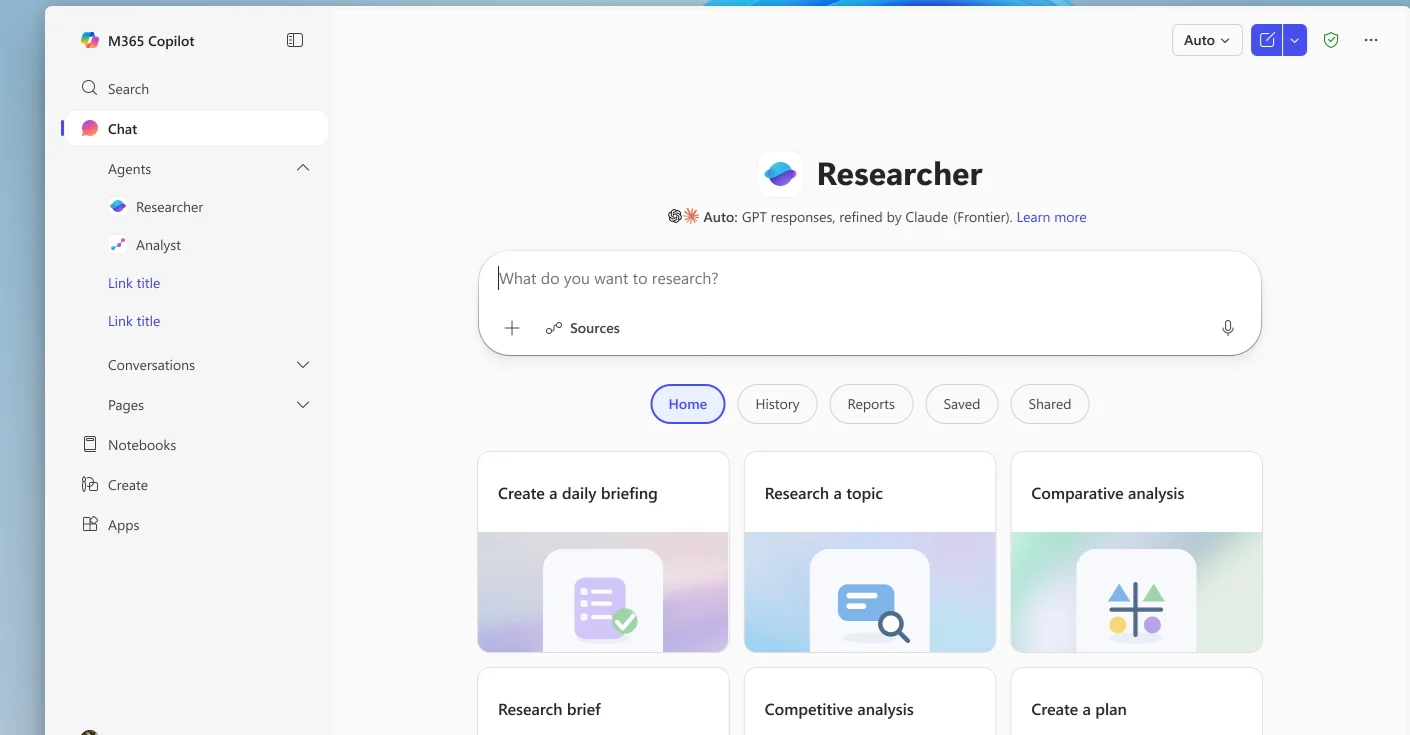
Researcher in the Microsoft 365 Copilot app — find it under Agents, next to Analyst. Note the Auto model selector and the Sources button: two of the things that make it more than a search box.
TL;DR
- Researcher is a built-in agent in the Microsoft 365 Copilot app for deep, multi-step research — it returns a structured, source-cited report, not a quick chat reply.
- It works across the web and your work content (files, emails, meetings, chats) — but only what you can already see. A Sources button lets you scope it.
- It takes longer by design — it reasons through many sources, then writes the report. It may ask clarifying questions first.
- It runs multiple models: an Auto mode blends OpenAI’s GPT and Anthropic’s Claude, and Critique & Council have models check each other for accuracy.
- A Frontier feature, Researcher with Computer Use, can act in a secure virtual computer — open gated sites, click through interfaces, run code.
- On-switch: a Microsoft 365 Copilot licence, or a Microsoft 365 Premium or Pro subscription. Not in government clouds yet.
🧭 Jump to: What it is · Researcher vs Copilot Chat · How to use it · Sources & work content · It reasons, then reports · Auto, Critique & Council · Computer Use · Prompt tips · Licensing · Limits · Sources
What Researcher actually is
Researcher is a reasoning agent built for the kind of work you’d normally block out an afternoon for: “pull together everything we know about X, from our files and the web, and give me something I can act on.” In Microsoft’s words, it’s “built to tackle complex, multistep research and deliver a structured, source-cited report” — combining OpenAI’s deep research model with Microsoft 365 Copilot’s orchestration and deep search.
The key idea: it doesn’t just answer, it researches. It gathers from multiple sources, reasons across them, and composes a structured, source-cited report — organised into sections, and (where the experience generates them) with visuals — then you edit it, share it, or use it to kick off a document or deck.
Researcher vs a normal Copilot chat
This is the distinction people most need, so here it is plainly:
| Use Copilot Chat when you want… | Use Researcher when you want… |
|---|---|
| A quick answer or short summary | In-depth research across many sources |
| To brainstorm or draft a short reply | A structured, source-cited report |
| Speed — seconds | Depth — it takes longer, on purpose |
| A back-and-forth on simple tasks | Something cited you can trust and share |
The longer wait isn’t a flaw — it’s Researcher taking the time to reason so the output is something you can stand behind.
How to use it
- Open the Microsoft 365 Copilot app and select Researcher under Agents.
- Ask a question — type a topic, or use a prompt-starter like Market Analysis or Customer Brief.
- Answer any clarifying questions. Researcher often asks a couple to focus the work — answer them, or just say “Go ahead.”
- Let it work. It finds and reasons across your chosen sources.
- Get your report — a structured summary with insights, citations and next steps.
- Take action — edit it, share it, or turn it into a document or presentation.
Sources & work content
Researcher is good on the open web alone, but it gets sharper when you point it at your own material. Two ways to do that:
- The Sources button under the prompt lets you scope what it draws on — your work content, the web, or both.
- Attach specifics — type a
/to add a file, or attach an email thread or document — and it focuses the analysis around exactly what you give it.
At work, “your content” means the files, emails, meetings and chats you already have access to — Researcher only ever sees what you could already open, and it respects the same policies and compliance as the rest of Microsoft 365.
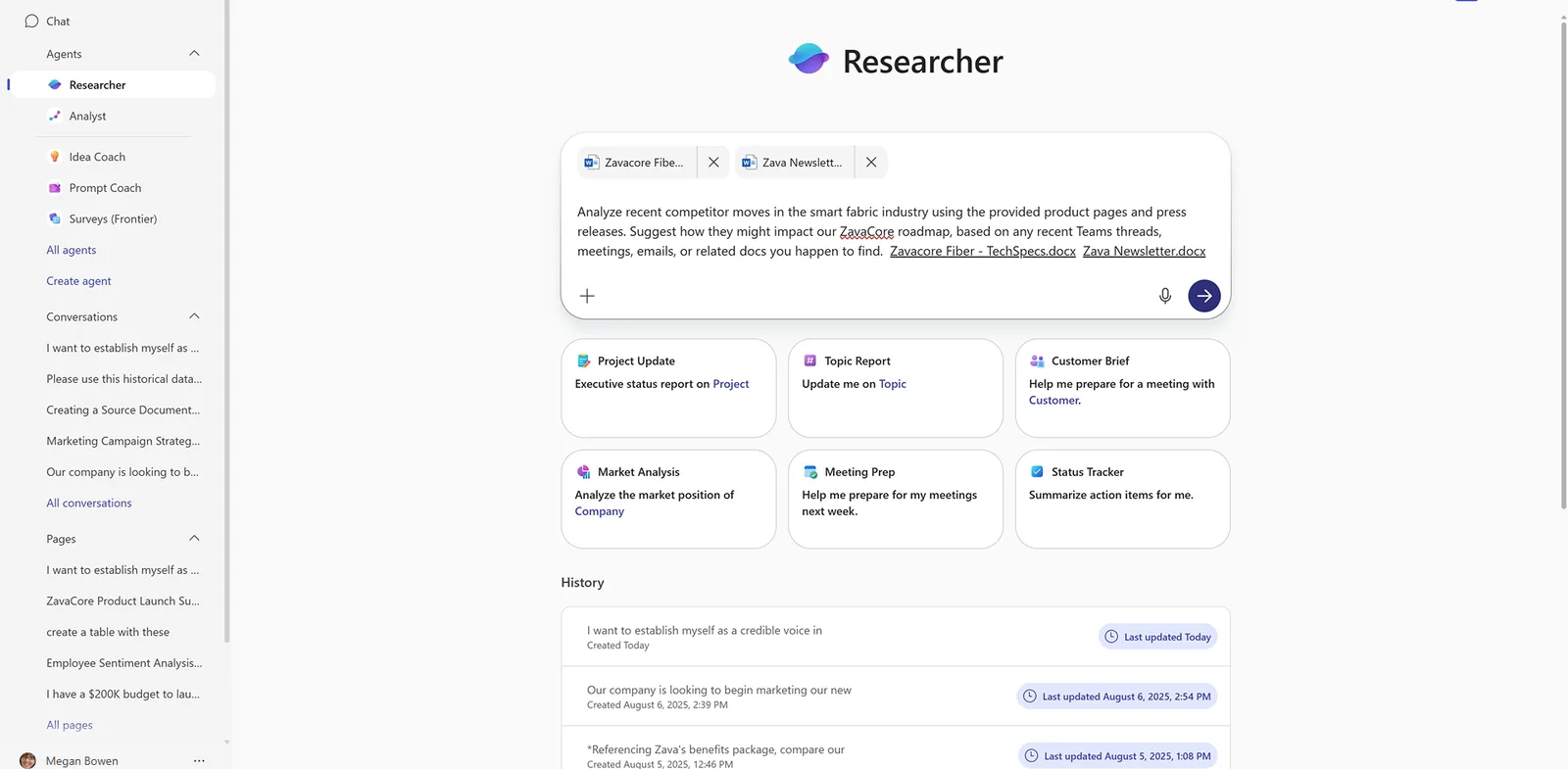
Attaching your own documents to a Researcher prompt. Adding sources is optional — it just helps Researcher focus on what’s relevant to you.
Deciding the scope up front — work, web, or both — is the single biggest lever on how targeted the report comes back.
It reasons, then reports
Here’s the part that makes Researcher different from a search box: it works through the problem in steps — comparing sources, organising findings, checking the angle — and you can watch it work through the task before it writes.
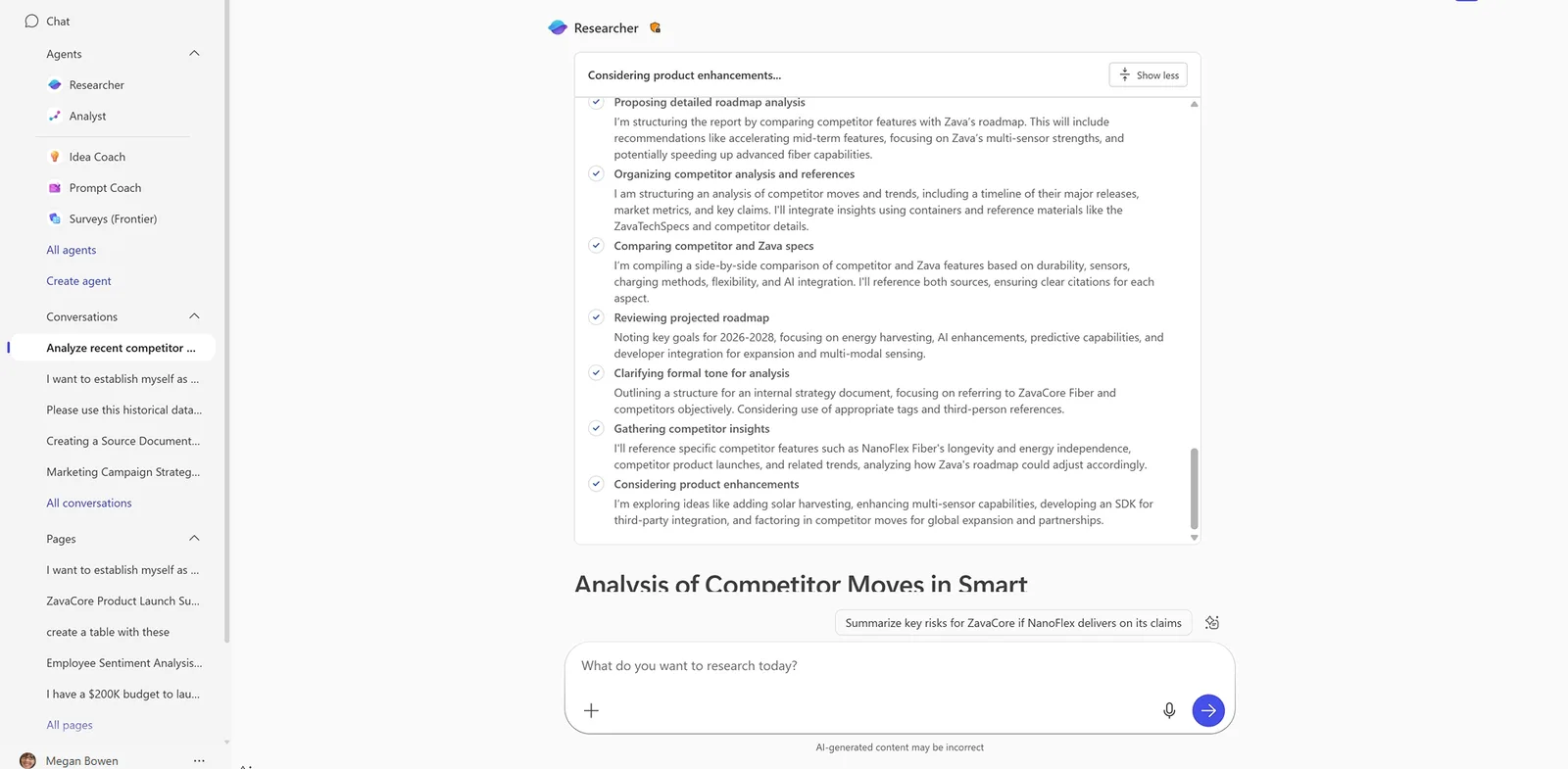
Researcher working through the task — the steps it took — above the structured, cited report it produced. You can follow its progress, then verify the sources.
The finished report is yours to refine. And because the report includes cited sources, you can check the claims that matter before you send it on.
One agent, many models — Auto, Critique & Council
Most chatbots run on one model. Researcher can use several, with an Auto default — and that’s part of what quietly makes its reports better.
By default the model selector sits on Auto. As the home screen spells out, Auto means “GPT responses, refined by Claude” — it uses OpenAI’s GPT to do the work and Anthropic’s Claude to refine it. The selector is right there in the UI, so if your tenant exposes other model options you may be able to choose one yourself.
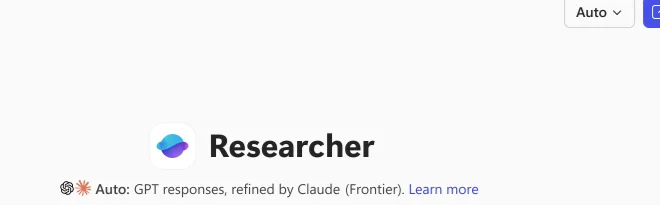
The Auto model selector — Researcher’s default blends OpenAI’s GPT with Anthropic’s Claude. The selector is in the UI if you’d rather pick a model yourself.
On top of that, Microsoft added multi-model intelligence to Researcher — Microsoft describes Critique and Council as two capabilities that raise the accuracy, depth and confidence of its reports. The way they’ve been described:
- Critique — a second model reviews and refines the first model’s work before you see the answer (the “GPT, refined by Claude” pattern the UI shows). A second opinion, built in.
- Council — for harder questions, several models weigh in together, like a panel comparing notes, so the report reflects more than one perspective.
📎 Why it matters: for the high-stakes research you’d actually put in front of a customer or a leadership team, having models check each other is the difference between a confident-sounding answer and one you can trust. Most of this is built in — though some of it (like allowing Anthropic’s Claude) depends on your admin’s settings.
Researcher with Computer Use
This is the most advanced version, available through the Frontier program (early access for Copilot-licensed users, switched on by an admin). Standard Researcher reads; Researcher with Computer Use can act — inside a secure, cloud-hosted virtual computer that’s isolated from your device and your network.
What that unlocks, in Microsoft’s words:
- Access gated content — open sites behind a login or paywall, when you approve the credentials.
- Navigate real interfaces — click, type and work through websites or apps, while you stay in control.
- Run code or scripts — use a secure command line to crunch data as part of the research.
It’s built for richer reports grounded in the real web and your work content — the research tasks a read-only agent simply can’t finish. The virtual machine runs on Windows 365 for Agents, the sandbox is ephemeral (it doesn’t persist), no credentials are stored, and admins get granular controls — enable/disable it, scope it to a pilot group, and set allow/block lists of sites.
⚠️ Frontier, not GA: Computer Use is a Frontier-program feature and admin-gated, so it won’t be on in every tenant. Treat it as the powerful, opt-in tier of Researcher rather than the default.
Prompt tips for better reports
Microsoft’s own guidance, in plain terms:
- Be specific. “Write a report on my business impact on the Contoso project for my performance review” beats “write my performance review.”
- Say where to look. Tell it web, your work content, or both — it narrows the research.
- Use the clarifying questions. They’re not friction — they’re how you steer the output. Answer them rather than skipping.
Licensing
- Licence: a Microsoft 365 Copilot add-on, or a Microsoft 365 Premium or Pro subscription. Researcher debuted in April 2025 through the Frontier program and reached general availability on 2 June 2025.
- Query allowance: included with the licence rather than sold per query — at general availability (June 2025) a Microsoft 365 Copilot licence included 25 combined Researcher + Analyst queries a month. That figure may change, so confirm the current number in Microsoft’s docs.
- Models & Computer Use: the multi-model behaviour (Auto, Critique, Council) is built in; Researcher with Computer Use is a separate Frontier tier an admin enables (see above).
Limits and good-to-knows
- It’s slower than chat — on purpose. If you need an instant answer, use Copilot Chat instead.
- It only sees what you can. Researcher respects your existing permissions; it won’t surface work content you couldn’t already open.
- Review before you rely. Like all generative output, it’s labelled as possibly incorrect — the citations are there so you can check.
- Languages: Researcher supported 37 languages at general availability, with more added since.
- Government clouds: not available in GCC, GCC High or DoD yet.
Official Microsoft sources
- Get started with Researcher in Microsoft 365 Copilot
- Introducing multi-model intelligence in Researcher — Critique & Council (Microsoft 365 Copilot blog)
- Get started using Researcher with Computer Use (Frontier)
- Researcher with Computer Use — FAQ (Microsoft Learn)
- Researcher and Analyst are now generally available (Microsoft 365 blog)
- Microsoft 365 Copilot service description (government-cloud availability)