The Planner Agent (formerly Project Manager Agent)
← the agent inside Microsoft Planner that turns a goal into a task plan, works the tasks you hand it, and writes the status report — what it does and how to use it
On this page
The hub for this series — Microsoft 365’s Built-in Agents — maps every agent Microsoft ships. This spoke is the detailed walkthrough of the Planner Agent.
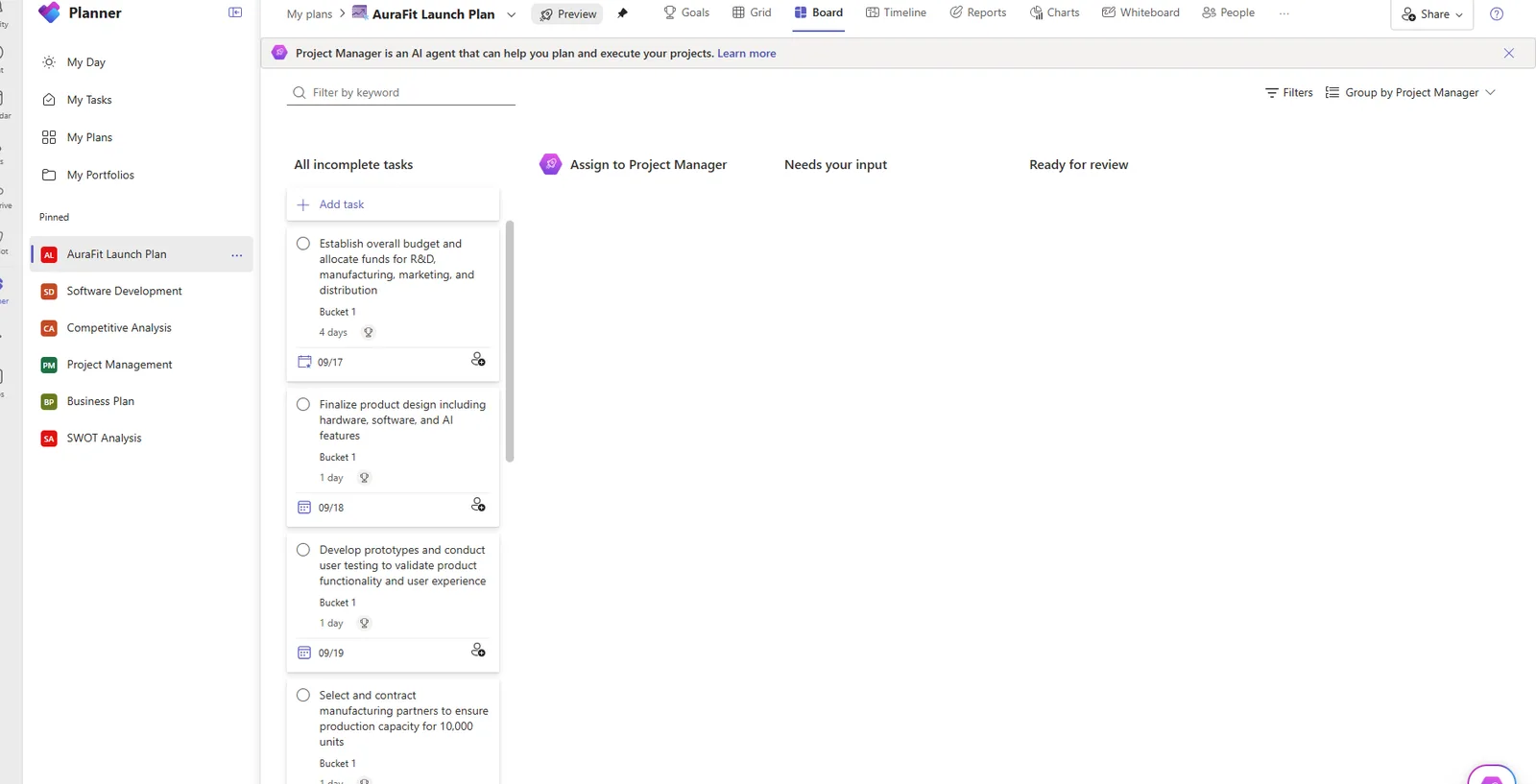
The Planner Agent built into a plan. You hand it work by moving a task to the agent’s column. (This demo shows the older “Project Manager” labelling; current Planner uses “Planner Agent”, and some column names may differ from what’s shown here.)
TL;DR
- The Planner Agent — Microsoft’s new name for the Project Manager agent — lives inside Microsoft Planner and is generally available.
- It does three things: build a task plan from a goal (premium plans), work tasks you assign it and return the result in the task, and write status reports. You can also chat with it.
- On-switch: a Microsoft 365 Copilot licence. Generating a plan from a goal additionally needs a premium Planner plan (Plan 1 / Project Plan 3 or 5).
- It’s enabled by default in shared plans; find it via the floating button and assign a task to it to put it to work.
- It can use files you add to the plan as grounding, and it cites what it used.
- Not in government clouds; supports the Copilot languages except Hebrew and Arabic.
🧭 Jump to: What it is & the rename · How to access it · A plan from a goal · Ground it in your files · Chat & assign work · Status reports · Licensing · Troubleshooting · Limits · Sources
What it is — and the name change
The Planner Agent is a teammate that lives inside a Planner plan. In Microsoft’s own words, it “works alongside your team to help you get work done faster — it can execute tasks, act on feedback, and write status reports.”
First, the name. You’ll see this called both “Project Manager agent” and “Planner Agent” — Microsoft renamed it to the Planner Agent, and that’s the current name, but the product still shows “Project Manager” in a few spots (like the board column above) and some older help pages haven’t caught up. Same agent, two names.
You work with it the way you’d work with a person: there’s an Assign to Project Manager lane on the board, and moving a task there hands the agent the job.
How to access it, step by step
Good news: there’s almost nothing to “install.” The Planner Agent is on by default in shared plans for anyone with a Microsoft 365 Copilot licence. Here’s how you actually reach it.
In a basic plan (shared with a Microsoft 365 Group):
- Create or open a basic plan shared with a group.
- Open the agent from the floating button in the bottom-right of the plan. From there you can upload files as context under Knowledge sources.
- Assign a task to “Planner Agent” to put it to work — you’re added to the task too, so you can follow its progress.
- Once the plan has at least 10 tasks, open the Reports tab to generate a status report.
In a premium plan: it’s enabled by default — open any shared premium plan and assign a task, or use the Goals view to turn a goal into a plan (premium only).
📎 Three places it shows up: inside a Planner plan (the floating button), in the Planner app in Teams, and as the Planner Agent in Microsoft 365 Copilot Chat — a separate chat experience where you can ask about your tasks and plans across all your Planner work.
Building a plan from a goal
This is the feature people come for. On the Goals view (a premium Planner feature), you write a high-level goal and select Generate tasks, and the agent breaks it into a worked task list.
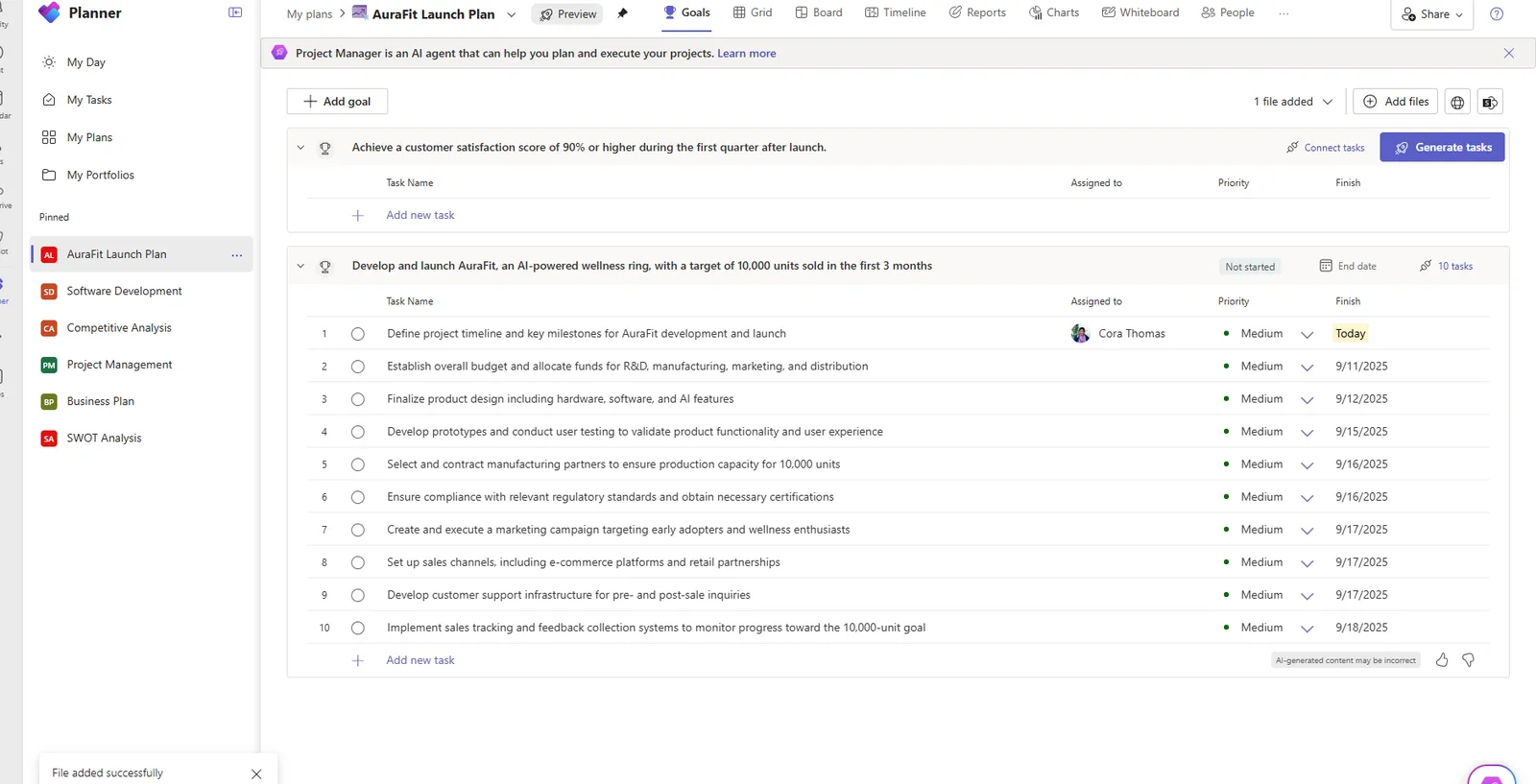
Write a goal, select Generate tasks, and the agent proposes the task breakdown.
What you get back is a real, dated task list under the goal — owners, priorities and finish dates included — that you can then edit like any other Planner tasks.
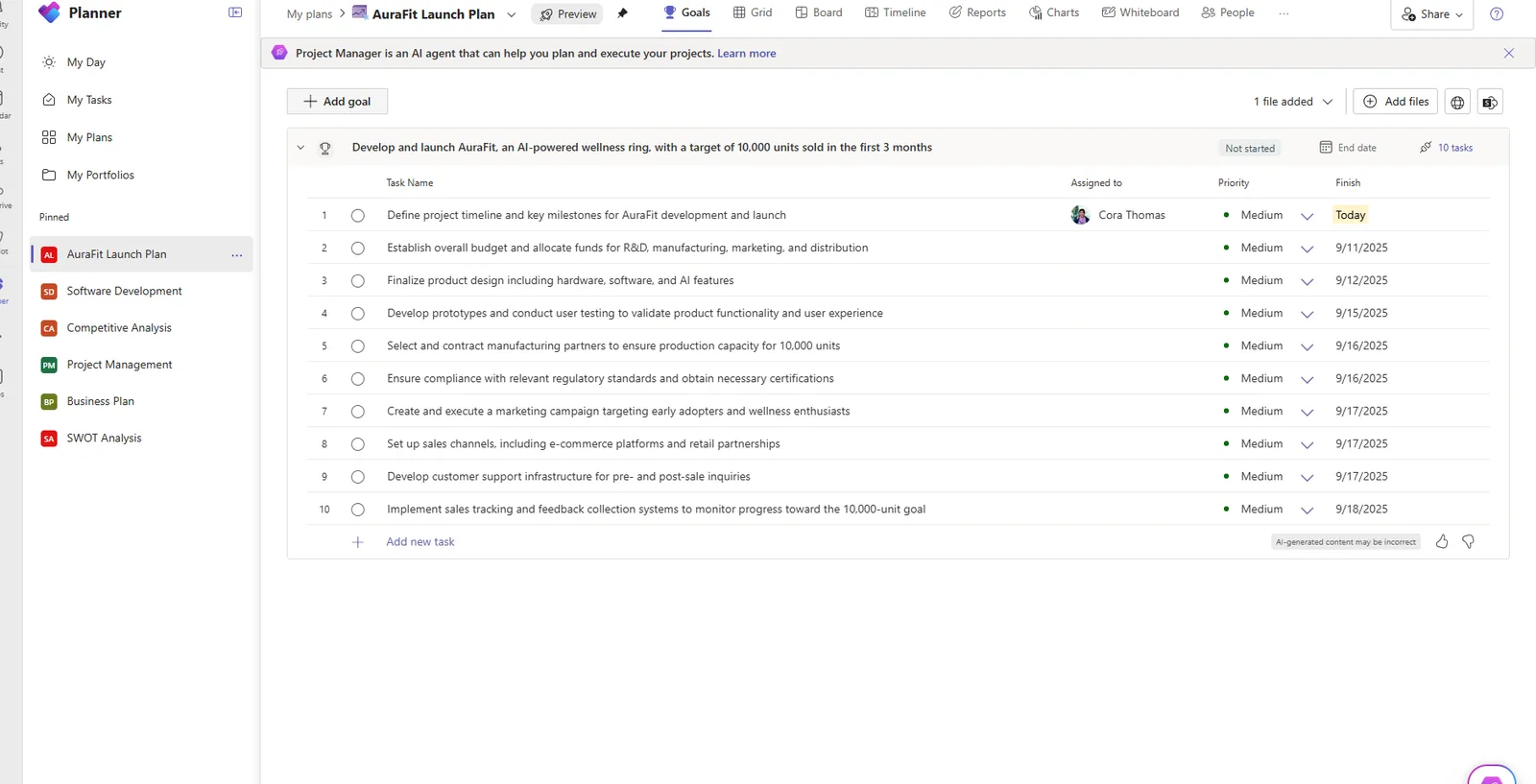
The generated plan — ten tasks with owners, priorities and dates. It’s a starting point you refine, and Planner flags it as AI-generated.
📎 Note: task generation from a goal is a premium capability — you need a Planner Plan 1 or higher on top of your Copilot licence. The chat, task execution and status-report features work with just the Copilot licence.
Grounding it in your files
The agent is more useful when it knows your context. Add files to the plan as knowledge sources, and it uses them when it generates tasks or works a job.
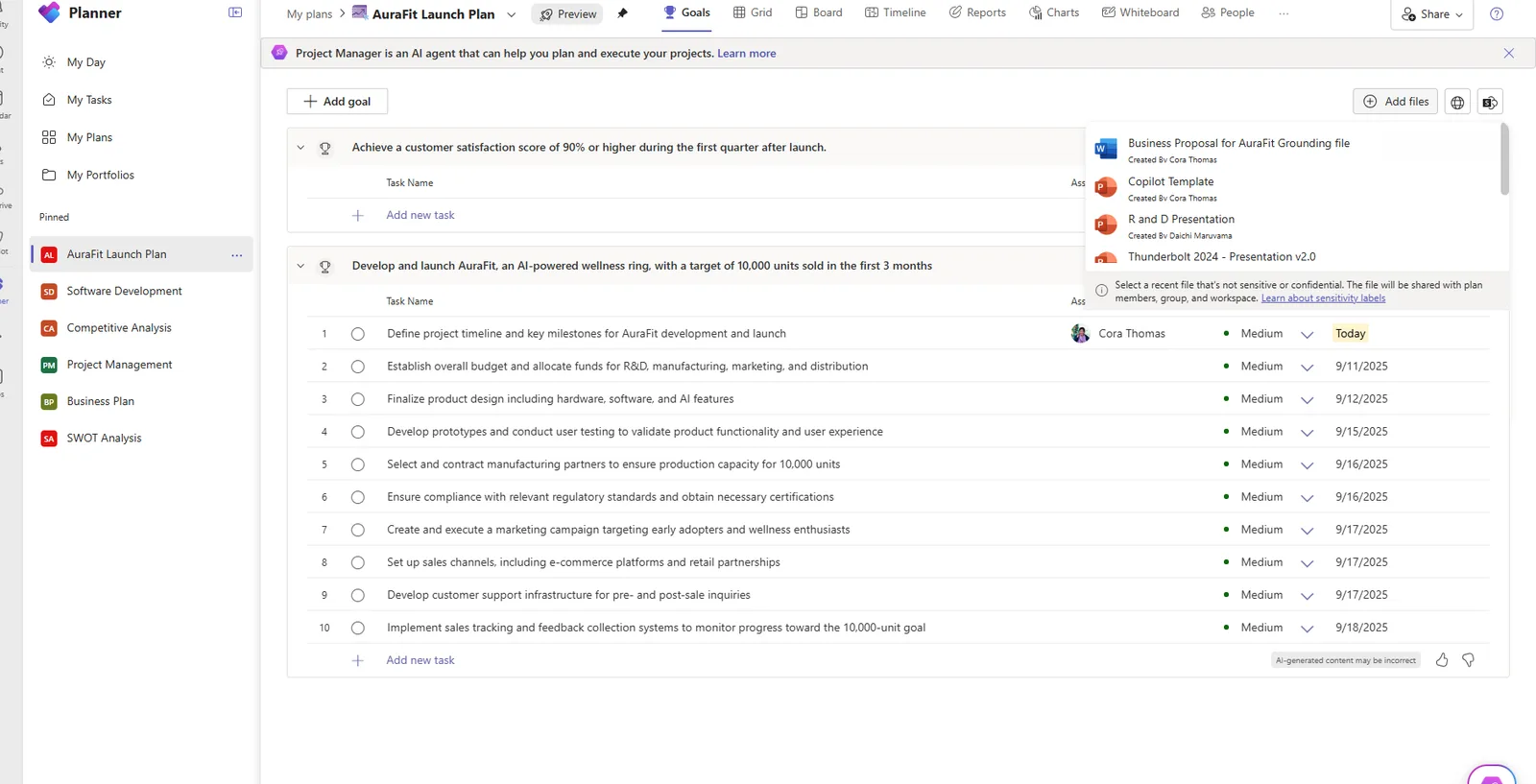
Adding files as grounding. The note is worth heeding: the file is shared with plan members, so don’t attach anything confidential.
When it produces a longer output, it shows the sources it drew on — so the result is checkable, not a black box.
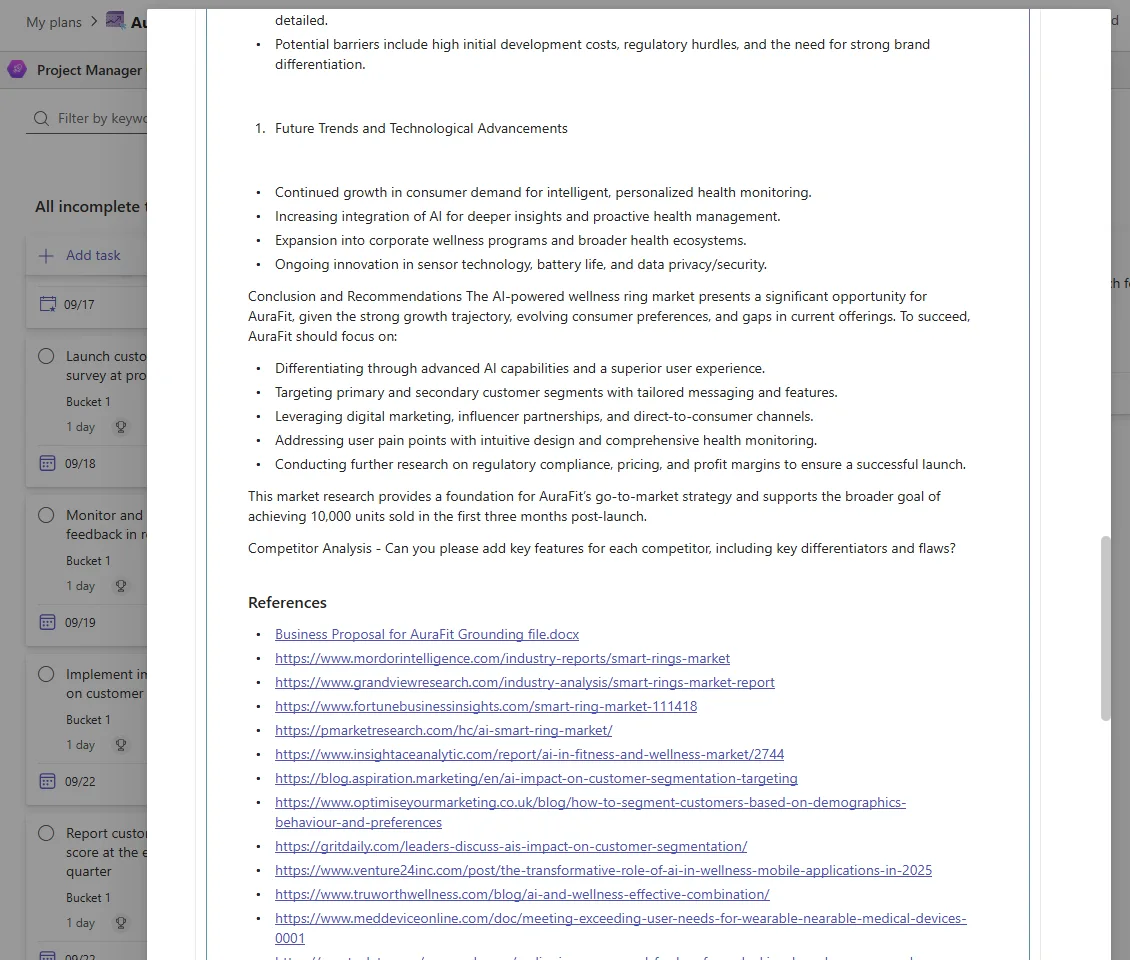
A grounded output with a References list — the agent shows its working.
Chatting with it and assigning work
Open the agent from the floating button and you get a chat panel with prompt starters — create, understand, edit, ask — for spinning up tasks, asking about progress, or adding subtasks.
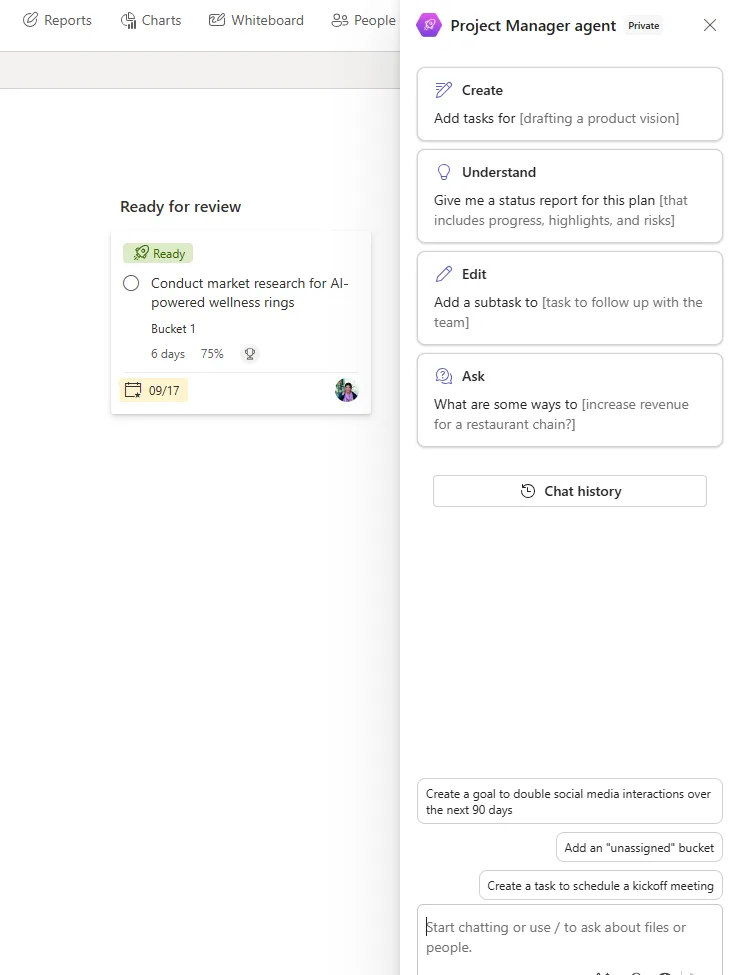
The agent’s chat panel. The prompt starters are a quick way in if you’re not sure what to ask.
To put it to work on a specific task, assign that task to “Planner Agent.” It reads the task in the context of the whole plan, does the job, and returns the result inside the task — and you’re added as a watcher so you see when it’s done.
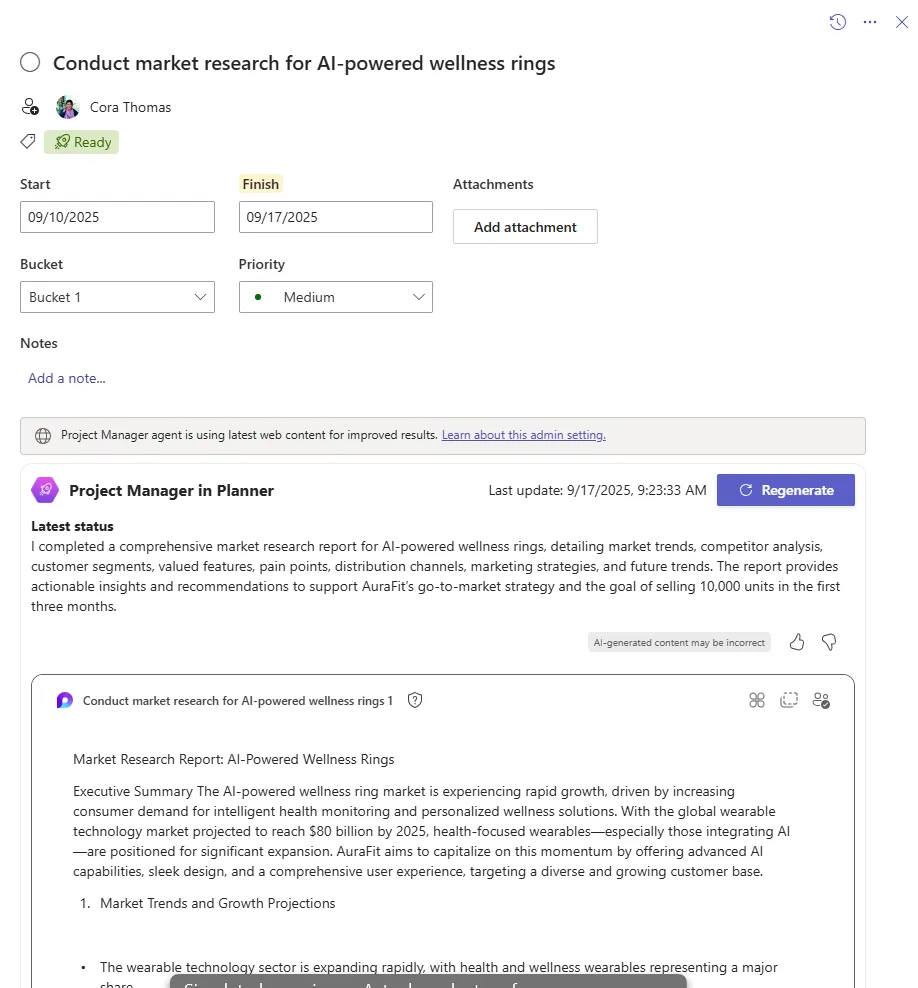
What you get back lands inside the task as a Loop page, with a Regenerate button — so you can give feedback and have it try again without ever leaving the task. (The banner notes the agent is using the latest web content, governed by an admin setting.)
Status reports
Writing a status update is the chore the agent quietly removes. In the Reports tab you set a period and what it should cover, and it drafts the report for you.
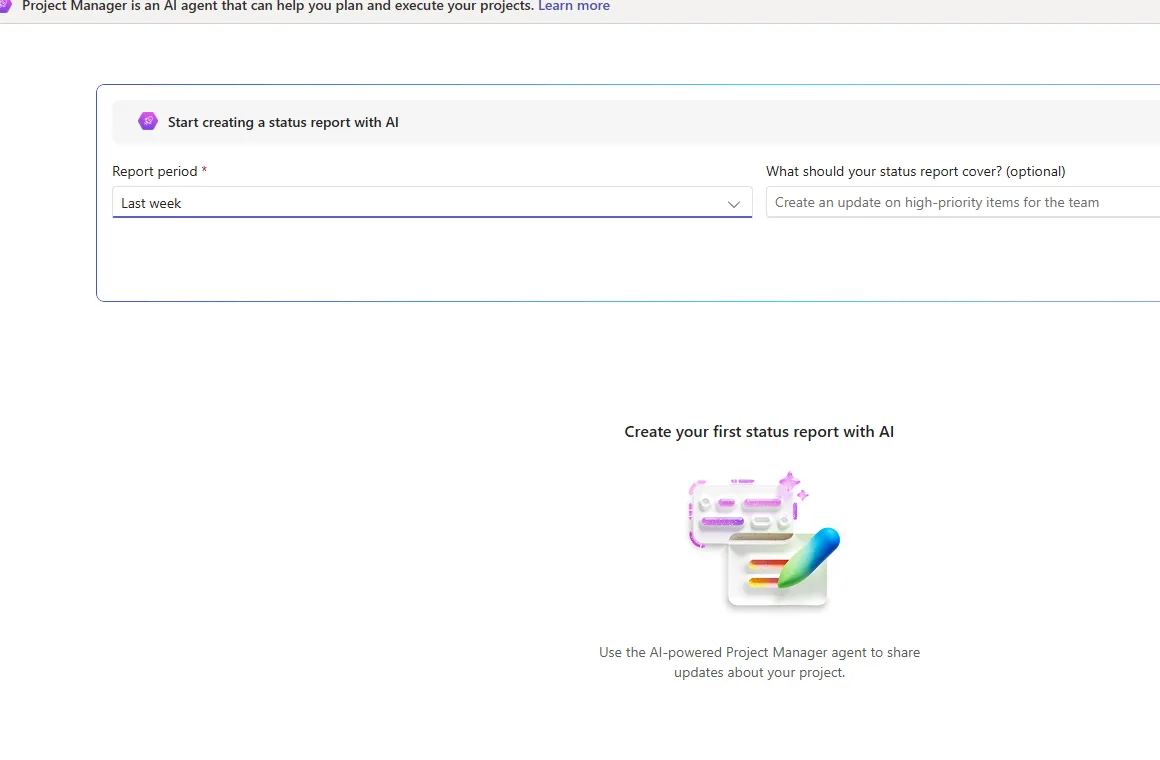
Setting up a status report — pick the period and, optionally, what to focus on.
The result is a proper report — reporting period, an executive summary with an at-a-glance status, and a task-completion chart — that you can share, including as a SharePoint newsletter.
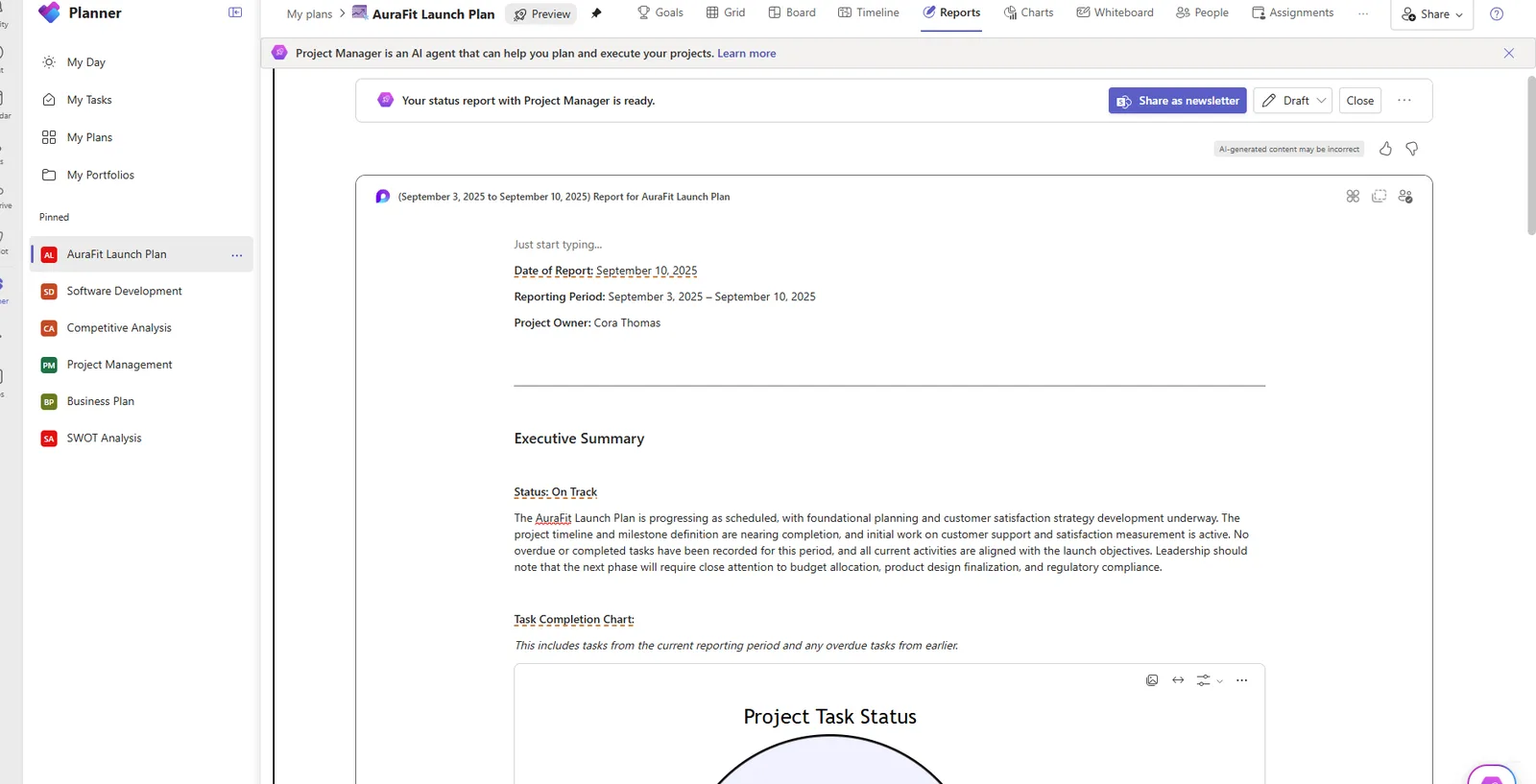
The finished status report — summary, status and a completion chart, ready to share. (Status reports need at least ten tasks in the plan.)
Licensing, in one place
| What you want to do | What you need |
|---|---|
| Chat with the agent, assign it tasks, get status reports | Microsoft 365 Copilot licence |
| Generate a full plan from a goal | Copilot licence + a premium Planner plan (Plan 1 / Project Plan 3 or 5) |
| Just collaborate on the plan (no agent) | A standard Planner / Microsoft 365 licence — but you can’t interact with the agent |
There’s no separate per-message charge in Microsoft’s public docs — the agent is included with the Copilot seat. Not sure which Planner plan you’re on? Your Microsoft 365 admin can check.
Troubleshooting — common questions
The questions that come up most, with plain answers:
| Question | Answer |
|---|---|
| “Why can’t I access or use the agent?” | You need a Microsoft 365 Copilot licence. Without it you can still collaborate on the plan — you just can’t interact with the agent. |
| “Others can see the plan but can’t use the agent — why?” | Same reason: only people with a Copilot licence can assign tasks to it or chat with it. |
| “It gave me instructions instead of doing the work.” | That’s by design. For anything it can’t carry out itself (a physical task, or work outside Planner), it hands you a plan of action rather than pretending to finish it. |
| “Why aren’t tasks generating from my goal?” | Turning a goal into a task list is a premium feature — it needs a Planner Plan 1 (or Project Plan 3/5) on top of your Copilot licence. |
| “Where does it actually live?” | Three places: a Planner plan (floating button), the Planner app in Teams, and Copilot Chat — see How to access it. |
| “Do I have to check its work?” | Yes — it’s built with a human in the loop. Planner flags AI output as possibly incorrect, so review before you share. |
Limits and good-to-knows
- Status reports need ≥10 tasks in the plan before the agent will write one.
- Languages: the Copilot language set except Hebrew and Arabic.
- Government clouds: not available in GCC, GCC High or DoD.
- Stale docs warning: the main Planner FAQ still says “public preview” in places — the agent is GA; trust the agent-specific FAQ.
- AI output is a draft. Planner labels generated content as possibly incorrect — review before you rely on it.
Official Microsoft sources
- Access the Planner Agent (licensing, basic vs premium, board, reports, goals)
- Planner Agent FAQ (GA status, capabilities, languages)
- What is the Planner Agent in Copilot? (the Copilot Chat surface)
- Microsoft Planner plans and pricing
- Microsoft 365 Copilot service description (government-cloud availability)