The SharePoint Knowledge Agent, Explained
← the SharePoint agent that tidies a document library for you — auto-filled metadata, rules and curated views — and how it differs from the Q&A SharePoint agents
On this page
The hub for this series — Microsoft 365’s Built-in Agents — maps every agent Microsoft ships. This spoke is the detailed walkthrough of the SharePoint Knowledge Agent.
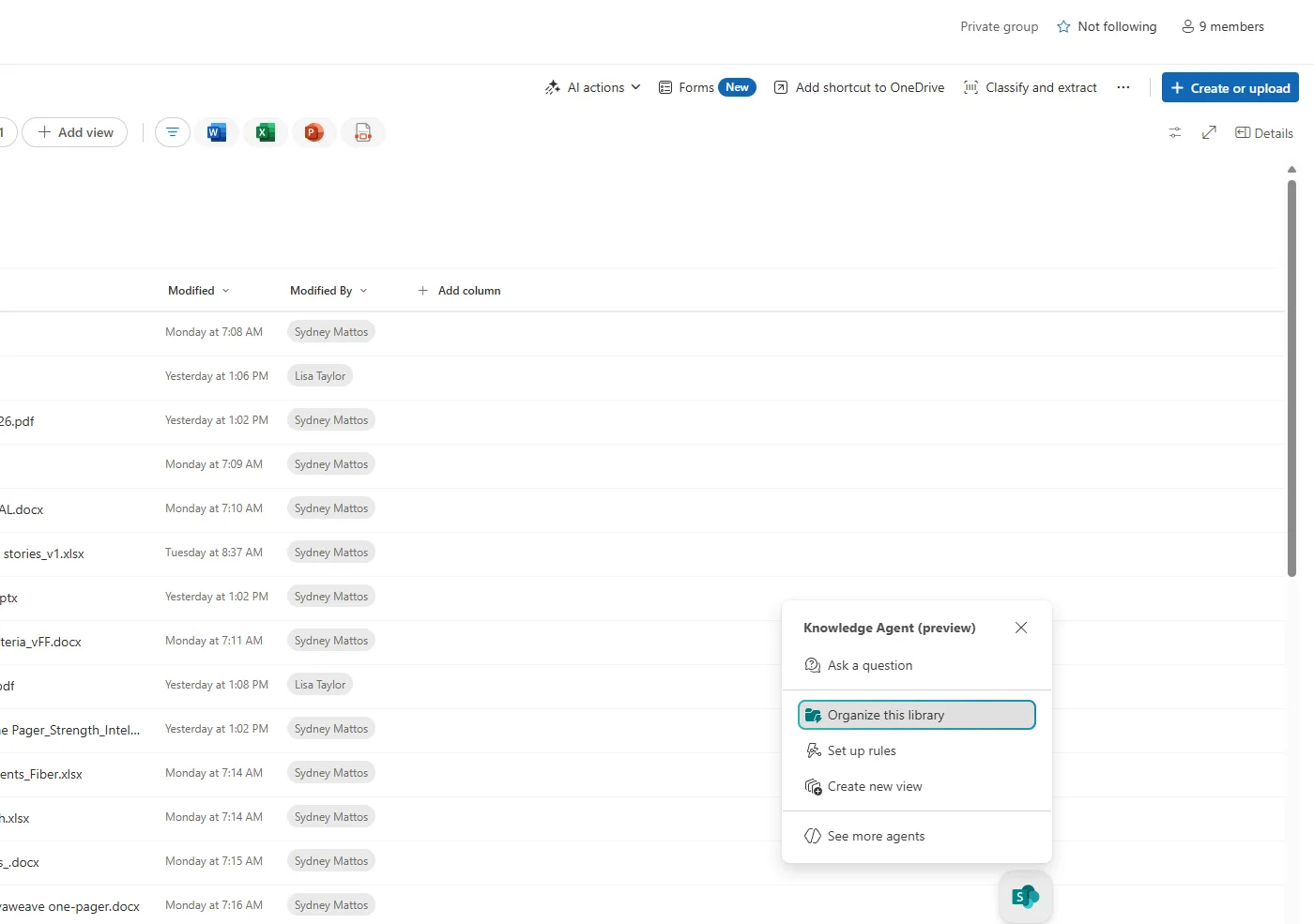
The Knowledge Agent menu in a SharePoint document library — Organize this library, Set up rules, Create new view. This is the agent that tidies the library, not the one that answers questions about it.
TL;DR
- The Knowledge Agent organises a SharePoint document library — it suggests and auto-fills metadata columns, sets up rules, and builds curated views.
- It’s not the same as the question-answering agents in SharePoint. One tidies the shelves; the other is the librarian you ask.
- It doesn’t move, rename or delete files — only adds structure. Existing permissions still apply.
- On-switch: a Microsoft 365 Copilot licence and your site/tenant opted in to the AI in SharePoint (a.k.a. Copilot in SharePoint) public preview.
- It’s in preview — Microsoft has shuffled the name (Knowledge Agent → AI in SharePoint → Copilot in SharePoint), so expect change.
🧭 Jump to: What it is · Auto-fill metadata · Set up rules · Curated views · It won’t touch your files · The other SharePoint agents · Turn it on · Admin & security · Common questions · Sources
What it is — and the name to watch
The Knowledge Agent is an AI assistant built into SharePoint that keeps a document library organised — well-tagged, rule-driven and easy to browse. You open it from a floating button in a document library and pick what you want it to do: organise the library, set up rules, or create a view.
One heads-up on naming, because it’s confusing: Microsoft now documents this under “Copilot in SharePoint” (which the docs say was “previously referred to as AI in SharePoint”), while the agent itself is still labelled “Knowledge Agent (preview)” in the product. Same capability — the brand is just settling.
And the bigger distinction, which the next sections build on: this agent works on the library’s structure. The other SharePoint agent — covered below — works on its content.
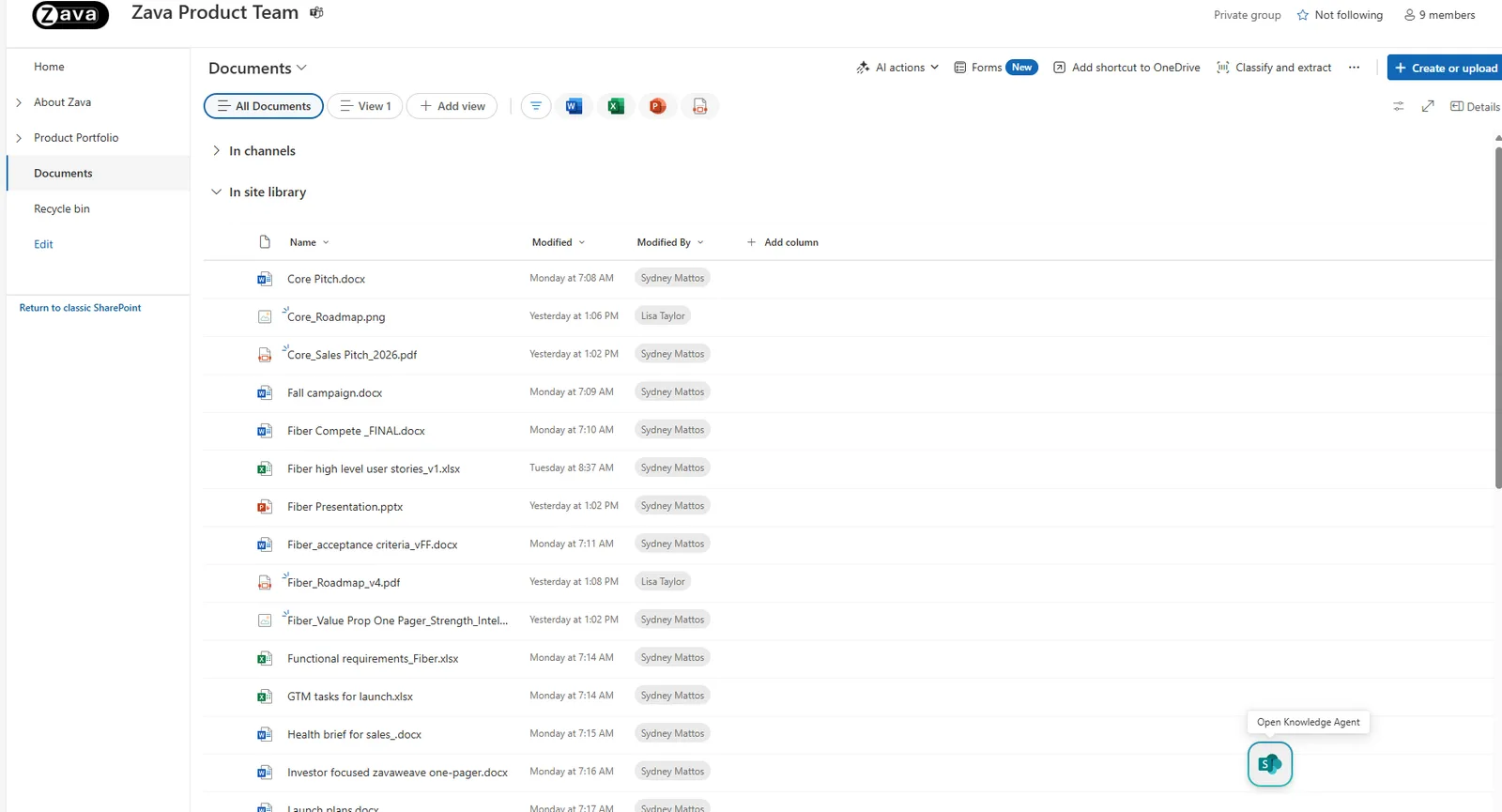
The starting point: a library with no consistent tags. You open the agent from the Open Knowledge Agent button in the bottom-right, and it goes to work on the mess.
Auto-filling metadata columns
This is the headline trick. The agent reads the files in a library and suggests metadata columns — and then fills them in. In Microsoft’s words, “Create autofill columns analyses files in the library and suggests metadata columns and extraction prompts; these columns automatically populate metadata from file content.”
A scope note worth knowing: the first suggestions are drawn from a sample of the library — Microsoft’s docs say up to the first 20 files — and you can ask it for more columns. New files added later are tagged automatically; for existing files beyond that sample, you pick the ones you want the agent to fill in (it doesn’t silently backfill the whole library), and you can watch the processing status as it works.
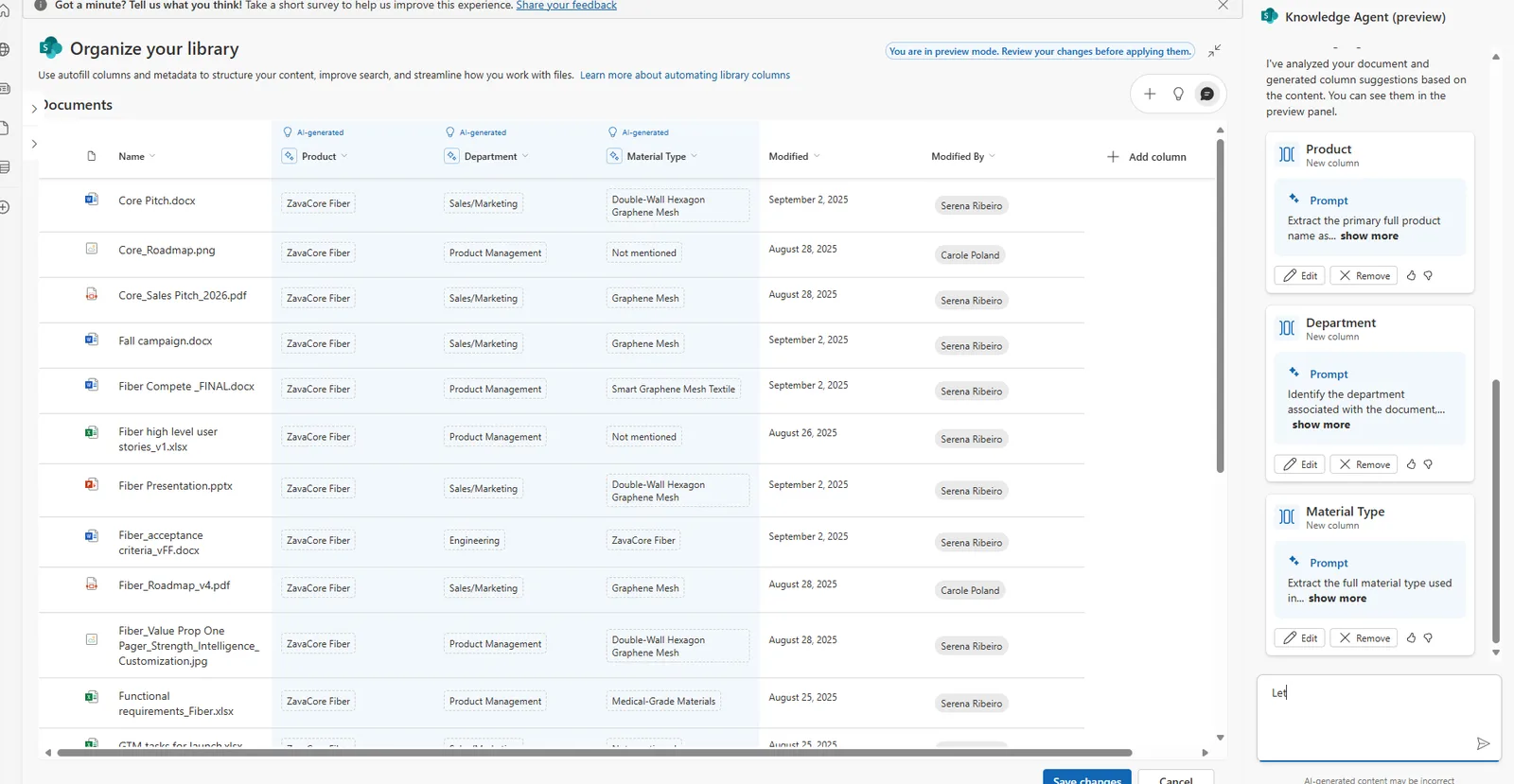
The agent has proposed three columns — Product, Department, Material Type — and filled them in from the file contents. You can edit or remove each suggested column before applying.
For a library where nobody ever set up consistent metadata, this is the difference between an unsearchable pile and a filterable, sortable set of documents — without anyone tagging files by hand.
Setting up rules
Once a library has good columns, you can ask the agent to set up a rule that runs when a file is added — a plain-language “when this, do that.”
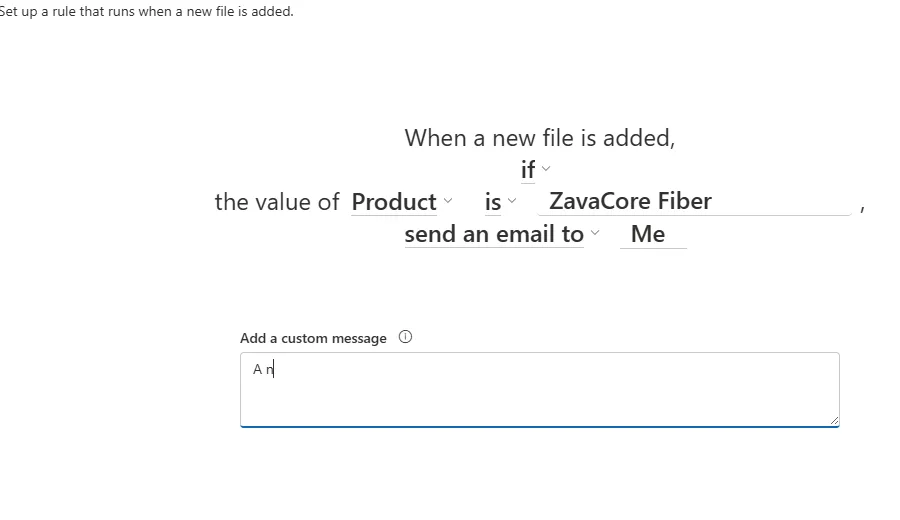
A rule in plain language: when a new file is tagged with a certain Product, email someone. The metadata the agent generated is what makes rules like this possible.
Building curated views
The third move: turn those columns into grouped, curated views so the library organises itself. Ask for “files for ZavaCore Fiber grouped by department” and the agent builds it.
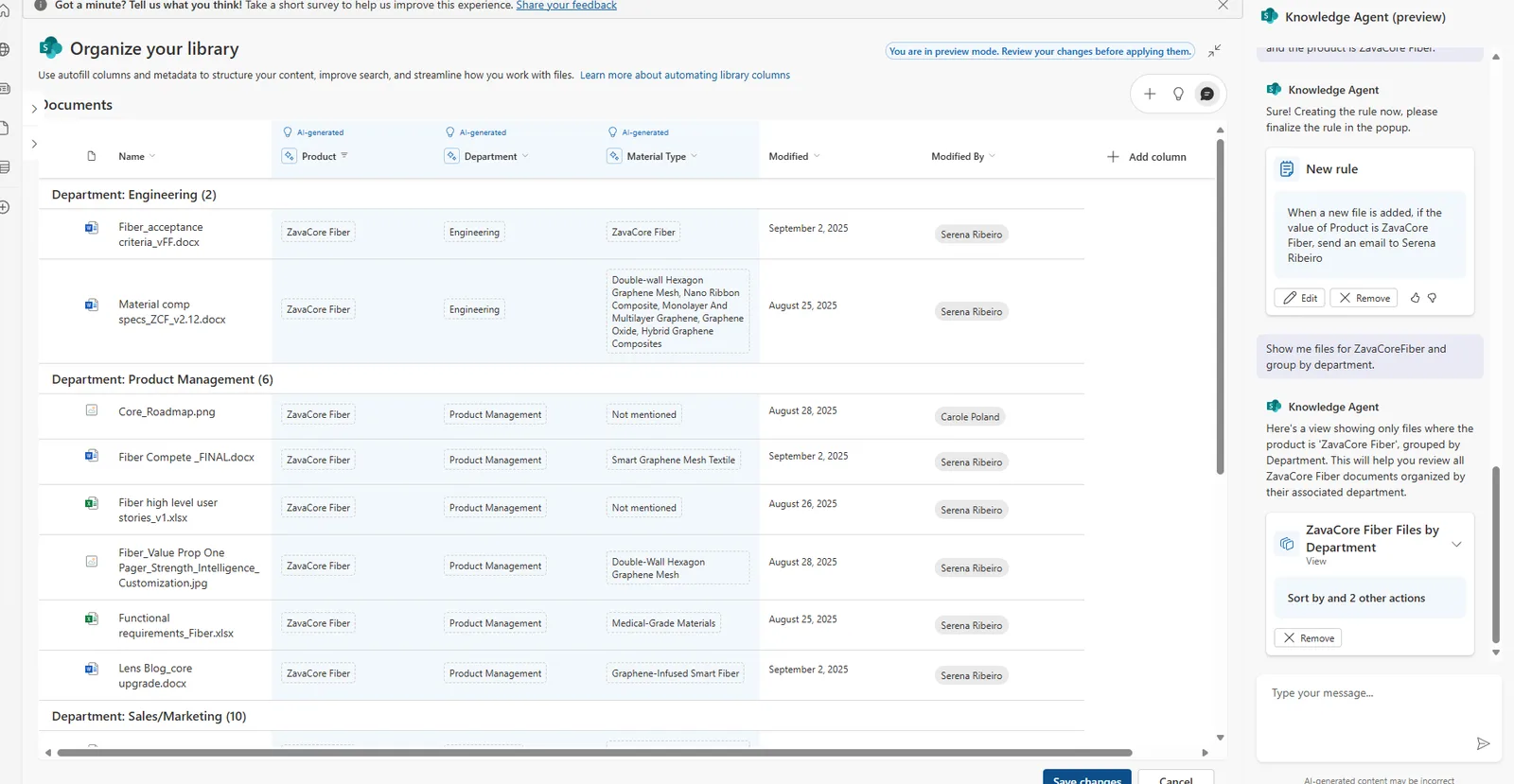
A grouped view the agent built on request — the library now organises itself by Department.
When you’re happy, you save it — either over the current view or as a new one, so the rest of the team gets the tidy version too.
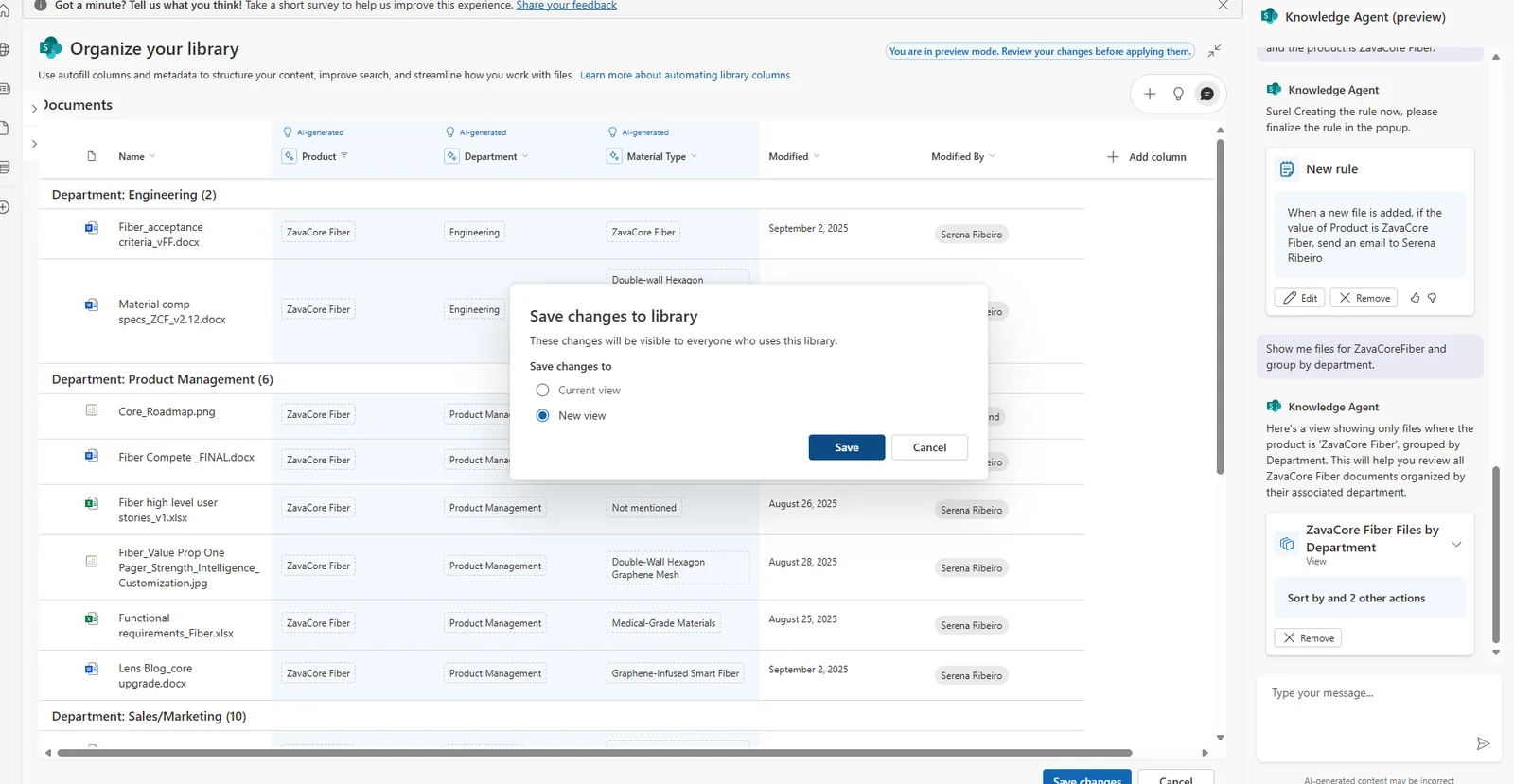
Saving the curated view. Note the warning — these changes are visible to everyone who uses the library, so it’s a shared improvement, not a private one.
It won’t touch your files
Worth saying plainly, because “an AI that reorganises my library” makes people nervous: the Knowledge Agent does not move, rename or delete files. It only adds columns, metadata, rules and views. And existing permissions and access controls still apply — nobody sees a file through a new view that they couldn’t already open. The agent may need a little time to process a library after you apply changes, and you can watch the processing status while it works.
The other SharePoint agents — answering questions
This is the agent people usually mean when they say “the SharePoint agent,” and it’s a different thing from the Knowledge Agent.
Every SharePoint site ships with a ready-made agent that answers questions grounded in that site’s pages and documents — and it only answers based on what you personally have permission to see. People with edit rights can also build custom agents scoped to particular files or libraries, and share them into Teams chats and meetings.
| Knowledge Agent | Agents in SharePoint | |
|---|---|---|
| Job | Organises the library | Answers questions about the files |
| You get | Columns, rules, views | Cited answers, per your permissions |
| Status | Preview | Generally available |
| Unlocked by | M365 Copilot + preview opt-in | M365 Copilot or pay-as-you-go |
These question-answering agents are generally available, and they have a second licensing path: an admin can set up pay-as-you-go billing so unlicensed users can use them too (billed per query; Copilot-licensed users aren’t charged).
Turning it on
For the Knowledge Agent (the library organiser, in preview):
- A Microsoft 365 Copilot licence.
- Your site or tenant opted in to the AI in SharePoint public preview. Sites that aren’t opted in don’t get these features — this is the step people miss (an admin opts a site, or the whole tenant, in).
- Then open it from the floating button in the bottom-right of a document library.
For the question-answering agents in SharePoint (GA): no activation needed — they appear automatically once a user has a Copilot licence (or the tenant has pay-as-you-go set up) on sites where they have permissions. Admins manage access, and can remove the ready-made agent from specific sites, from the SharePoint admin center.
⚠️ Preview caveat: the Knowledge Agent is in active preview and Microsoft has renamed it more than once. Treat the exact menus and names as a moving target, and check the docs below for the current state before you roll it out widely.
Admin, access & security
Two questions come up the moment anyone serious looks at this: who can use it, and can it leak data?
- It’s security-trimmed. Agents in SharePoint answer the same way Copilot in other Microsoft 365 apps does: based on what that user is already allowed to see. So the agent won’t surface a file to someone who couldn’t already open it.
- Who gets access. Two paths — a Microsoft 365 Copilot licence, or, for unlicensed users, the pay-as-you-go billing an admin sets up (scoped by security group).
- Fine-grained control. Under the Copilot licence, an admin can turn the “Microsoft 365 Copilot for SharePoint” service plan on or off per user — but note it also controls Copilot in OneDrive and SharePoint page authoring for that person, so it isn’t a SharePoint-agents-only switch.
- Removing the ready-made agent. Admins can take the ready-made agent off specific sites using a restricted content discovery policy, from the SharePoint admin center.
Common questions about the answering agents
The questions people ask once a question-answering SharePoint agent is live:
| Question | Answer |
|---|---|
| “Why can’t it see all our company knowledge?” | An agent is only grounded in the specific SharePoint sources (sites and files) it’s scoped to — not everything in the tenant. Widen the sources if it’s missing things. |
| “Can I connect Confluence or other tools?” | Microsoft’s docs describe a SharePoint agent’s sources as SharePoint sites, pages, files and libraries. Non-SharePoint systems like Confluence aren’t sources you add — check current docs if that changes. |
| “Why are the answers vague or incomplete?” | Check the agent’s scope and your permissions — answers depend on the SharePoint sources it’s pointed at and what you can access. Narrowing it to a tighter, well-organised set of documents (what the Knowledge Agent above does) usually sharpens them. |
| “It’s missing content I know is there.” | Check what the agent is scoped to — a ready-made agent only sees its own site; a custom agent only sees the sites, pages and files you explicitly add. If the content lives elsewhere, add that source, or use a custom agent with wider scope. |
| “Why does it answer differently from Copilot Chat?” | Because it’s scoped to your SharePoint content, not the open web. That narrower focus is the point — more relevant answers from your site — but it means it won’t reach everywhere Copilot Chat can. |
| “Why can’t I create or edit an agent?” | You need edit permissions on the SharePoint site or library where the agent lives. |
Official Microsoft sources
- Organize files in a library with Knowledge Agent (support)
- Create autofill columns in a library (Microsoft Learn)
- Knowledge Agent file processing status (Microsoft Learn)
- Introducing Knowledge Agent in SharePoint (Microsoft Community Hub)
- Get started with agents in SharePoint — admin (the Q&A agents)
- Get started with agents in SharePoint — end user
- Manage access to agents in SharePoint (admin — licensing, security trimming)
- Pay-as-you-go billing for SharePoint agents