The Microsoft 365 Facilitator Agent in Teams
← the meeting agent that takes shared notes, runs the agenda, answers questions and writes the recap — what it does, how to switch it on, and where it stops
On this page
The hub for this series — Microsoft 365’s Built-in Agents — maps every agent Microsoft ships. This spoke is the detailed walkthrough of Facilitator.
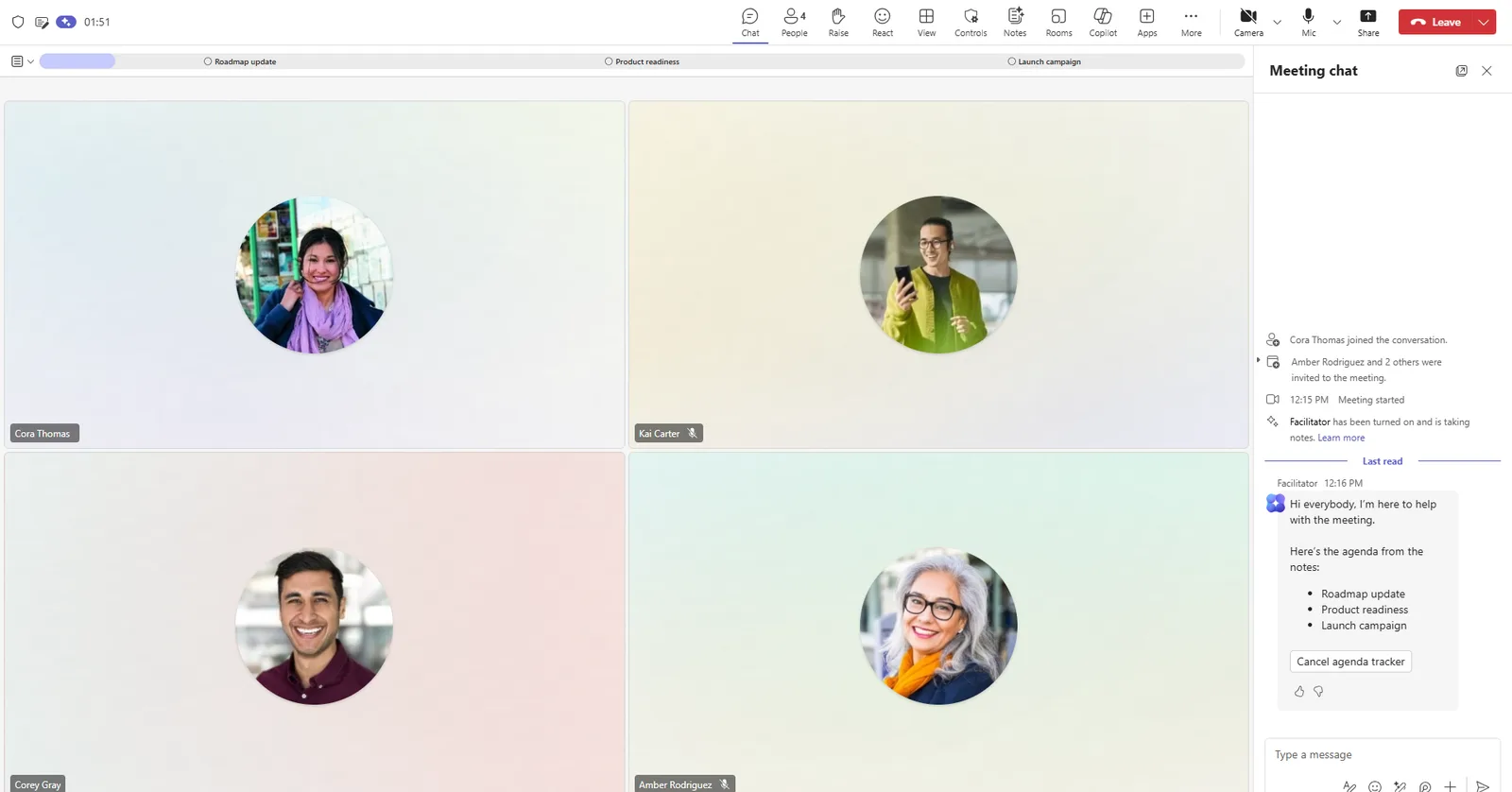
Facilitator, switched on in a Teams meeting. It introduces itself in the meeting chat and posts the agenda it found — visible to everyone, not just one person.
TL;DR
- Facilitator is a built-in agent that joins a scheduled Teams meeting as a visible teammate — its notes and answers are seen by everyone.
- Its capabilities include shared real-time notes, agenda + timer, in-meeting Q&A, Word document drafting, task tracking in Planner (preview), and a recap at the end.
- Meetings only — not 1:1 chats, group chats, channel meetings, “Meet now”, or calls.
- On-switch: a Microsoft 365 Copilot licence to prompt it (reading is free), plus Loop experiences turned on. Allowed by default; an organiser can toggle it per meeting.
- Notes are saved as a
.loopfile in the OneDrive of whoever turned Facilitator on. Nearly 40 languages, one per meeting. - Not in government clouds (GCC, GCC High, DoD) yet.
🧭 Jump to: What it is · Where it works · Turn it on · The agenda & timer · Ask it questions · Track tasks · Draft a document · Teams Rooms · The recap · Troubleshooting · Limits · Sources
What Facilitator actually is
Most AI in a meeting is yours — you ask Copilot something privately and only you see the answer. Facilitator is the opposite: it belongs to the whole room. Everyone sees what it’s asked and what it replies, because its job isn’t to assist one person — it’s to run the meeting on behalf of all of you.
That single design choice is what makes it useful. The notes are co-owned. The agenda is shared. When someone asks “what did we land on?”, the answer lands in front of everyone, not in one private side-panel.
It interacts through @Facilitator mentions in the meeting chat — you can tell it to add a topic, start a timer, create a task, and so on.
Where it works — and where it doesn’t
This is the limit people trip over most, so it’s worth being blunt:
| Works in | Does not work in |
|---|---|
| Scheduled Teams meetings (desktop, web, mobile) | 1:1 chats |
| Teams Rooms | Group chats |
| Channel meetings | |
| Instant “Meet now” meetings | |
| Teams calls | |
| External / federated meetings |
If Facilitator isn’t showing up, the first question is almost always: was this a scheduled meeting? If it was a quick “Meet now”, that’s why.
How to turn it on
For an organiser, the steps are short:
- Have a Microsoft 365 Copilot licence. That’s what lets you prompt Facilitator. (Unlicensed attendees can read its output but can’t instruct it.)
- Make sure Loop experiences are on. Facilitator’s notes are built on Loop (Microsoft’s live-document feature), so the tenant needs Loop experiences in Teams switched on — an admin setting in the Teams admin center.
- Allow it in the meeting. When scheduling, under Options → Copilot and other AI, make sure Copilot/Facilitator is allowed. You can also flip it on or off during the meeting from More actions → Turn on/off Facilitator (organiser or presenter, desktop/web).
On the admin side, Facilitator is allowed by default. Admins manage it in the Teams admin center → Teams apps → Manage apps → search “Facilitator” → Allow/Block, with app permission policies for finer control.
✅ Good default: leave it allowed, make sure Loop is on, and let organisers decide per meeting. There’s nothing to configure in the agent itself — Facilitator can’t be customised, only allowed or blocked.
The agenda and the timer
Facilitator reads the agenda from the meeting invite or the notes Loop component and posts it so everyone’s on the same page. From there you can shape it in plain language — add a topic, set a time, and it redistributes the remaining minutes so the timings still add up to the meeting length.
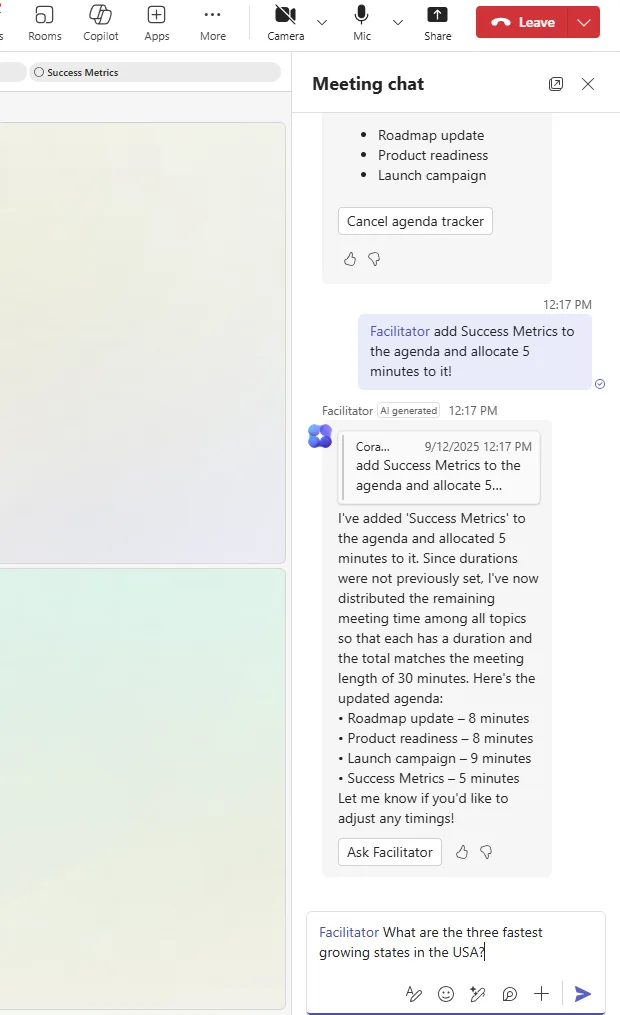
Ask it to add a topic and allocate time, and Facilitator re-balances the whole agenda so the minutes still add up to the meeting length.
During the meeting it shows a countdown for each topic and nudges everyone at the midpoint and the wrap-up, so the conversation stays on time without anyone having to play timekeeper.
Asking it questions mid-meeting
Anyone licensed can ask Facilitator an open question in the chat, and it answers from meeting and web content — with citations you can check.
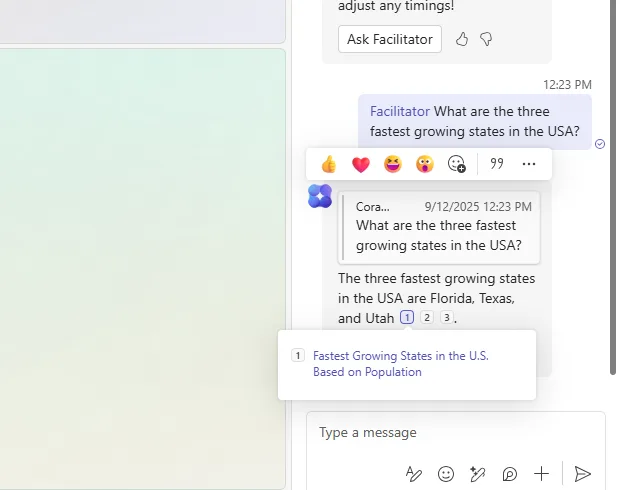
An in-meeting question answered in the chat, with numbered citations — so the answer is checkable, not just asserted.
Because the answer appears in the shared chat, the whole meeting benefits from it — useful for the “can someone quickly look that up?” moments that usually derail a discussion.
Tracking tasks — into Planner
This is in public preview (it needs Teams Public preview turned on), and it’s where Facilitator stops being just a note-taker. Tell it to create a task and it makes one in Microsoft Planner, ready to assign and date.
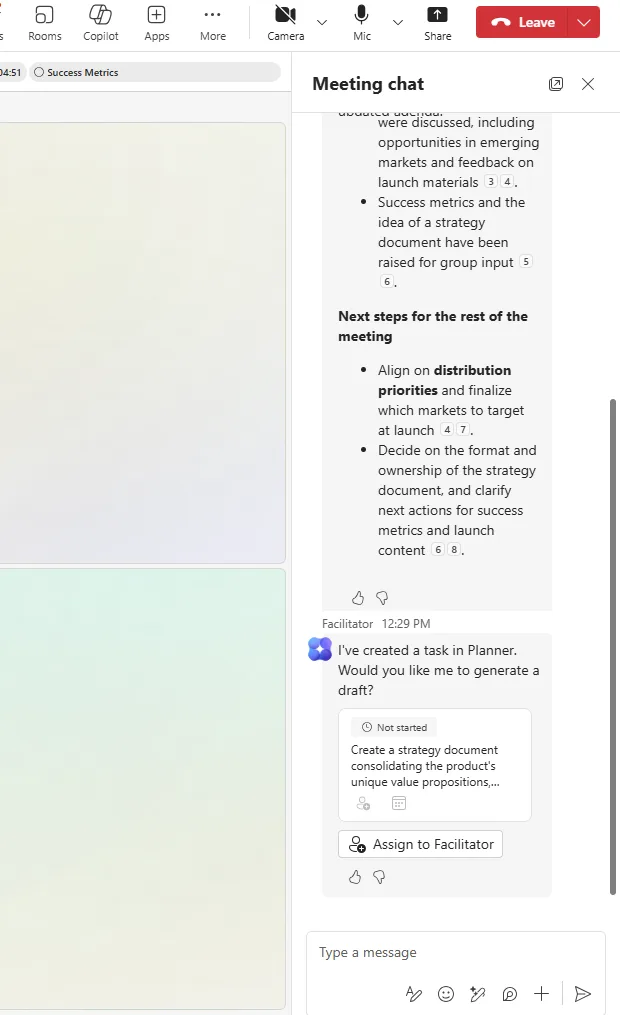
Facilitator creating a Planner task straight from the discussion. The task lands in Planner, where the Planner Agent can take it further.
That hand-off is the quietly clever bit: a decision made out loud in a meeting becomes a tracked task in Planner without anyone switching apps.
Drafting a document
Now generally available: ask Facilitator to draft something and it produces a real document — a launch plan, a brief — using Word. (Microsoft is retiring the older Loop-file generation as it enhances the Word output, so expect a Word document.)
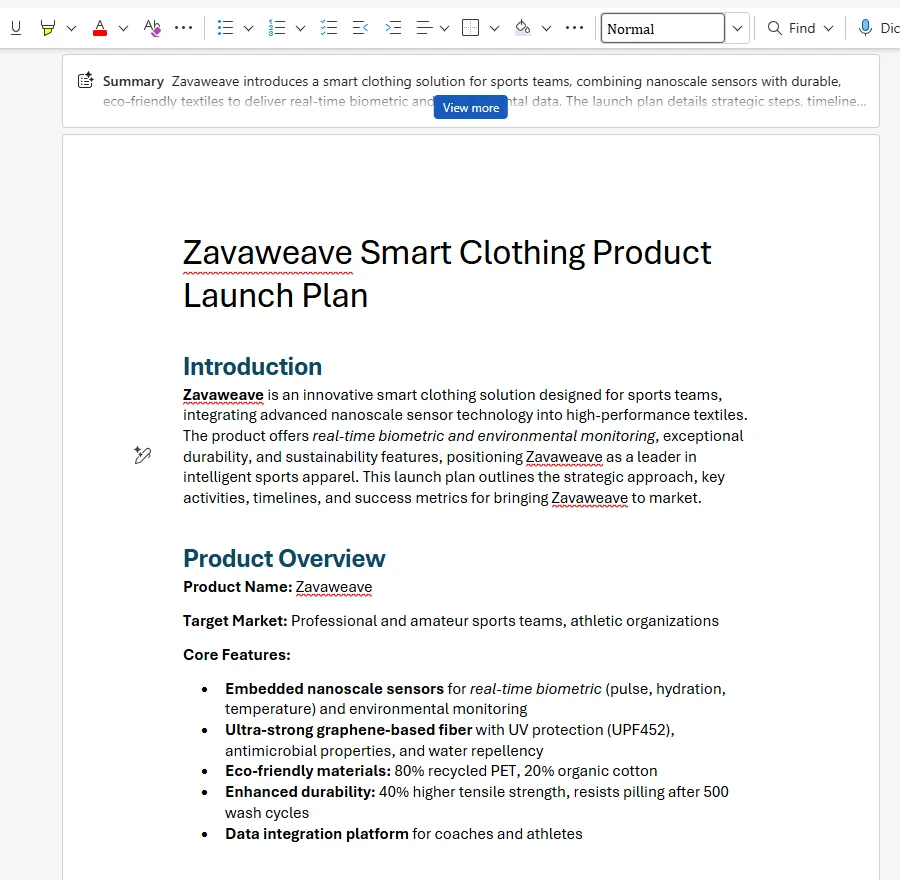
A document drafted from the meeting — a starting point you can edit, not a finished artefact, but a real head start.
In a Teams Room
Facilitator isn’t just for people dialling in from laptops. In a Teams Room, it shows up on the room display and console too, so the people physically in the room get the same shared notes, agenda and timers.
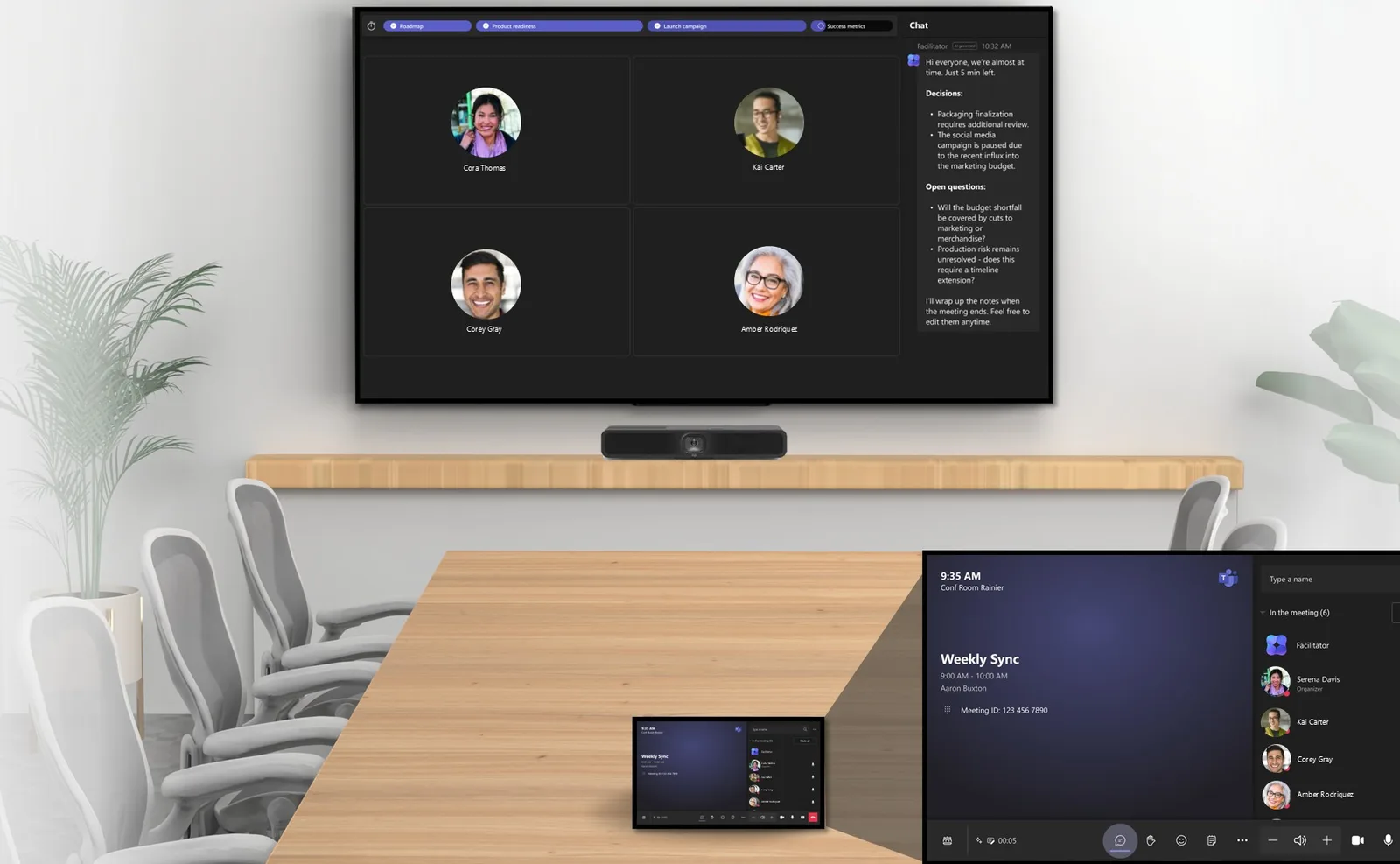
Facilitator in a Teams Room — it appears for the people in the room on the display and the console, not just for remote participants.
The recap
When the meeting ends, Facilitator posts a clean rundown — decisions, open questions, the agenda as it actually ran — and the AI notes live on in the meeting’s Recap / Notes tab for anyone who missed it.
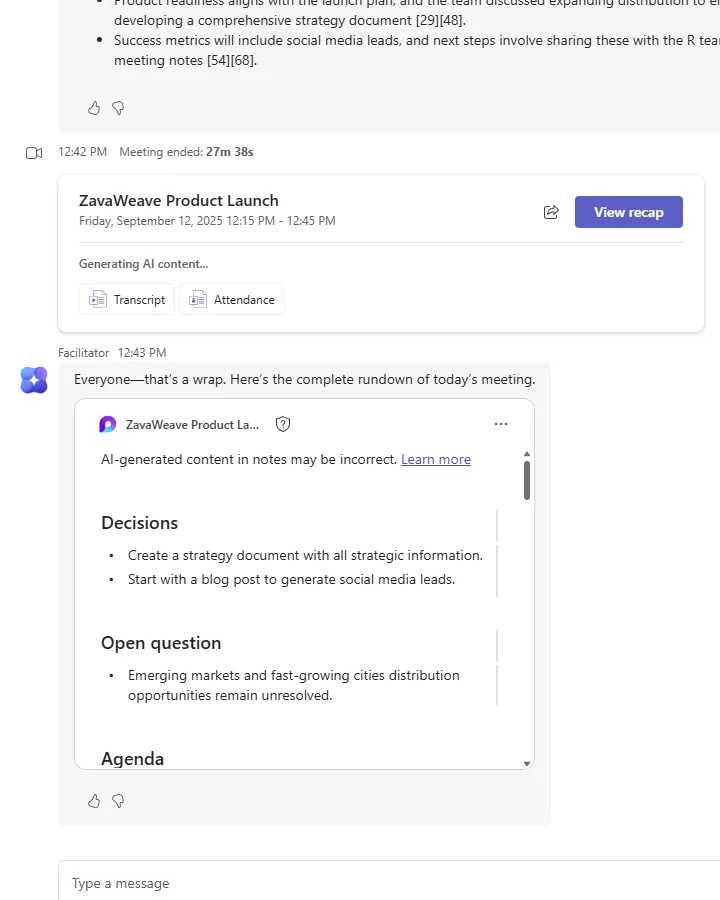
The end-of-meeting recap — decisions and open questions, captured without anyone scribing.
Troubleshooting — why isn’t Facilitator working?
The most common “it’s not doing anything” moments, and what’s usually behind them:
| What you’re seeing | The usual cause — and the fix |
|---|---|
| Facilitator isn’t there / I can’t turn it on | It only runs in scheduled meetings — not “Meet now”, calls, or channel meetings. You also need a Microsoft 365 Copilot licence, Loop experiences turned on, and your admin to have it allowed (it is by default). Check those four and it comes back. |
| It’s on, but nothing’s happening | Facilitator needs a recent, substantive amount of discussion before it writes anything — Microsoft notes it may even show an error if there isn’t enough yet. Give it a few minutes of real conversation. |
| The notes are empty, or some people can’t see them | The notes live in a Loop file in OneDrive, so this is usually a Loop sharing/permission issue — and external participants can’t access the notes at all. |
| The notes are credited to a person, not Facilitator | That’s expected — Microsoft attributes the generated notes to a participant, not to the agent. |
| Speakers aren’t named correctly in a Teams Room | Turn on voice recognition for the room. Without it, anything said in the room is attributed to the room, not the individual speakers. |
| It captured an action but you still own the follow-up | Facilitator captures decisions and actions, but you stay in control of who owns what — review them, assign owners yourself (or ask it to create the task in Planner), and acknowledge completed items in the meeting chat so its list stays current. |
📎 The one-line mental model: Facilitator works from the scheduled meeting — it tracks progress from the Teams chat and transcript, and answers from the meeting’s notes and the web. Give it a real meeting with a Copilot licence and Loop turned on and it works; ask it about anything outside that meeting, and it can’t help.
Limits and good-to-knows
A few honest edges to keep in mind:
- Scheduled meetings only — covered above, but it’s the big one.
- Meeting chat isn’t its source. You prompt Facilitator in the meeting chat, but per Microsoft’s FAQ the chat messages themselves aren’t used as grounding for its answers — it works from the meeting’s notes and web content.
- It can’t be customised. Admins allow or block it; there’s no tuning its behaviour.
- Encrypted / labelled meetings: a meeting with a sensitivity label that encrypts content can stop Facilitator from reading the agenda.
- Notes storage: a
.loopfile in a “Meetings” folder in the OneDrive of whoever turned Facilitator on (the initiator — who may be a presenter, not the organiser); sensitivity labels aren’t inherited automatically (apply them by hand in OneDrive or Loop if you need them), and the notes aren’t currently collected as cloud attachments in Purview eDiscovery. - Languages: nearly 40, but one per meeting — multilingual meetings only capture the selected language.
- Government clouds: not available in GCC, GCC High or DoD yet.
Official Microsoft sources
- Facilitator in Microsoft Teams (admin setup, GA vs preview, limits)
- Automate note-taking in Microsoft Teams meetings (end-user guide)
- Teams agents FAQ — Facilitator languages and limitations
- AI tools and agents in Microsoft Teams (overview)
- Microsoft 365 Copilot service description (government-cloud availability)