Microsoft 365 Copilot Security: Top Questions Answered
↗ for the security team that's been handed Copilot and asked is this safe
On this page
If you’re the person who got handed Microsoft 365 Copilot and asked “is this actually safe?” — this one’s for you.
I sit in a lot of customer security reviews, and the same questions come up every single time. Web grounding. What reaches the public web. Whether you can stop Copilot reading mailboxes. How you audit it. How long the data lives. How you keep up when Microsoft ships a new AI feature every other week.
So here are the answers — in plain English, with the official Microsoft documentation linked next to each one, and the honest caveats included. A good security team finds the caveats anyway, so I’d rather hand them to you up front.
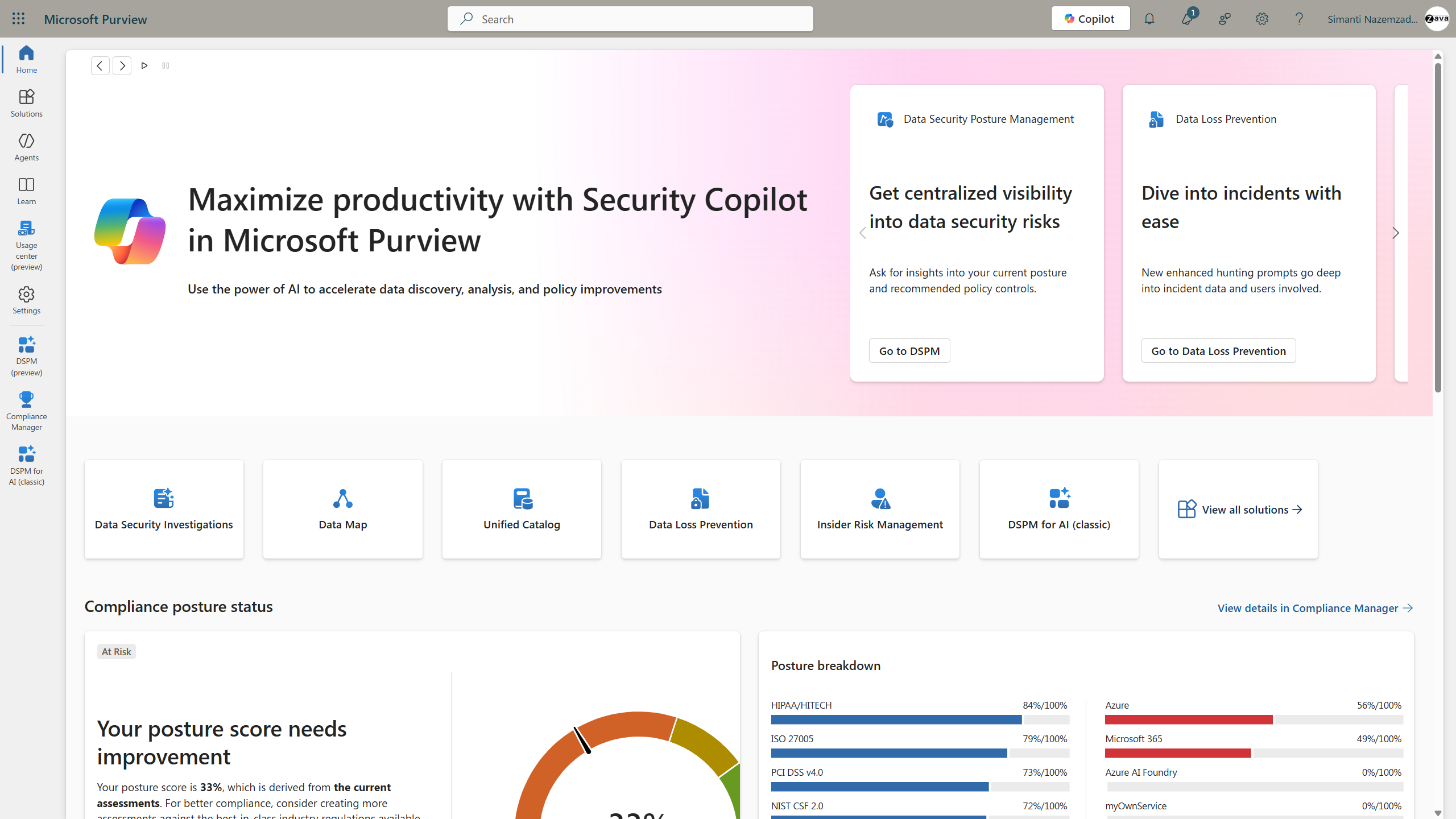
Microsoft Purview brings Copilot data security into one place — DSPM, DLP and compliance posture. (Microsoft demo environment.)
Quick links:
- The 30-second answer
- First: which Copilot are we talking about?
- Signed in vs signed out: the Copilot Chat boundary
- Web grounding: defaults and controls
- What actually gets sent to the web?
- Can we restrict Copilot access to Outlook?
- SharePoint & oversharing controls
- Copilot in Teams meetings
- Who can use Copilot: Conditional Access
- Auditing and investigating Copilot activity
- What can you do at each licence level? (E3 vs E5/Purview)
- Retention and records
- Governing new AI features as they ship
- Compliance certifications: the RFP answer
- The other questions security teams always ask
- Common misconceptions (the gotchas)
- Your first week: a security checklist
- FAQ
Government cloud note: This guide focuses on commercial tenants. The current web-search documentation specifies off-by-default behaviour for GCC and DoD. Other sovereign-cloud availability and release controls need a cloud-specific check.
The 30-second answer
If your CISO leans over and asks “give me the short version” — here it is.
| The question | The short answer |
|---|---|
| Is our data used to train the models? | No. Prompts, responses, Graph data — and even the web queries — are not used to train the foundation models. |
| Does Copilot see things people shouldn’t? | Core user-scoped retrieval respects permissions, which may already be too broad. Agent tools and embedded sources require separate checks. |
| Can we control web grounding? | Yes: Allow web search in Copilot has tenant/group policy choices; scoped DLP controls are separate. |
| Can we audit it? | Supported audit metadata is in Purview Audit. Full conversation content is retrieved separately, including through eDiscovery. |
| How long is it kept? | Copilot audit defaults to 180 days even on E5. Conversation content follows separate retention and holds. |
| Can we keep up with new AI features? | DSPM, Message center and scoped release controls help; none guarantees notice or a hold for every change. |
The longer answers — with the exact settings and the official links — are below.
The five caveats security teams should know upfront
Good security teams find the edges anyway, so here they are in one place — each is explained in full further down:
- Web grounding crosses a boundary. For the few-word web query, Microsoft acts as an independent data controller (not your processor), and the DPA / EU Data Boundary don’t apply to it. Turn web search off if that matters.
- There’s no single “turn Outlook off for Copilot” switch. You restrict mailbox access with layered controls (licence, DLP, label encryption), not one toggle.
- Audit content isn’t “full text in the audit log.” The audit event is discoverable proof an interaction happened; the actual prompt/response text is retrieved via eDiscovery from the mailbox.
- Copilot audit records default to 180 days, even on E5, unless a matching custom policy and eligible user licence apply.
- Some models have separate retention terms. Standard Anthropic models use Microsoft’s terms. Models labelled “Anthropic models with Data Retention” have separate terms and require explicit enablement.
First: which Copilot are we talking about?
This trips up almost every security review, so let’s clear it up before anything else. There are two products with similar names, and a few answers differ between them.
| Microsoft 365 Copilot Chat | Microsoft 365 Copilot | |
|---|---|---|
| Cost | Included / free | Licensed (about $30 per user/month) |
| Grounds on | The web — and, when you add files, agents or configured work-data integrations, your work content too | The web plus Microsoft Graph (your mail, files, chats) and built into Word, Excel, Outlook, Teams |
| Protected by | Enterprise Data Protection | Enterprise Data Protection |
The one line worth memorising: both run under the same enterprise terms — the Microsoft Products and Services Data Protection Addendum and the Product Terms, with Microsoft acting as your data processor. Both honour your identity model and permissions, and — when they’re working over your Microsoft 365 content — your sensitivity labels, retention and audit apply. (Exactly how labels and retention behave depends on whether Copilot is touching Graph content, an uploaded file, chat history, an agent, or the open web — I’ll call out the differences as we go.)
Source: Enterprise data protection in Microsoft 365 Copilot and Copilot Chat.
Signed in vs signed out: the Copilot Chat boundary
This is one of the most important — and most missed — questions a security team can ask: does the protection depend on how a user signs in? Yes, and it’s worth getting exactly right.
When staff use Copilot Chat with their work or school (Microsoft Entra) account, Enterprise Data Protection applies without a paid Copilot add-on. The green shield indicates that enterprise protection. Prompts and responses aren’t used to train foundation models. Audit, content investigation and DLP have the supported-experience, configuration, role and licensing requirements described below; the shield does not certify every policy or connected data flow.
Consumer Copilot is a separate experience. Personal-account or signed-out use is not covered by your tenant’s enterprise terms. That does not mean every organisational control stops at sign-out: supported endpoint, browser and network controls can still govern consumer AI use.
The two questions customers actually ask, answered plainly:
- “If someone uses the free version without a Copilot licence, is their data used to train the model?” → No — provided they’re signed in with their work account (look for the green shield). EDP covers the free Copilot Chat too.
- “What happens without work-account sign-in?” They are not in the tenant’s enterprise Copilot experience. Assess consumer use and device/browser controls separately.
What to do about it: direct staff to the approved work-account experience and protect work resources with Conditional Access. A work sign-in policy does not itself prevent personal-account AI use. For that, review supported endpoint, browser, network and app controls, plus staff guidance.
Sources: Privacy and protections in Copilot Chat · Microsoft Copilot overview.
Web grounding: defaults and controls
The questions: Is web grounding on by default? Can we turn it off? What breaks if we do?
Is it on by default? In commercial tenants, web search is available unless policy or optional-connected-experience settings disable it. The current page documents off-by-default behaviour for GCC and DoD; check other sovereign clouds separately.
Can admins control it? Yes — with one clean lever:
- Policy name: “Allow web search in Copilot”
- Where it lives: the Cloud Policy service for Microsoft 365 (inside the Microsoft 365 Apps admin center at config.office.com) — not the main Microsoft 365 admin center
- Scope: the whole tenant, or specific user groups
- It governs both products (Copilot and Copilot Chat)
When you enable the policy you get three choices:
| Option | What it means |
|---|---|
| Enabled in both | Web grounding on for Copilot and Copilot Chat |
| Disabled in both | Web grounding off everywhere |
| Work mode off, Web mode + Chat on | Disables web grounding in Copilot work chat, keeps it in web mode and Copilot Chat |
A user-level web-search toggle is available for both Copilot and Copilot Chat where supported, if the admin permits it. If policy disables web search, users cannot turn it back on. Current guidance says preferences persist across supported clients and sessions; the older screenshots below show one interface.
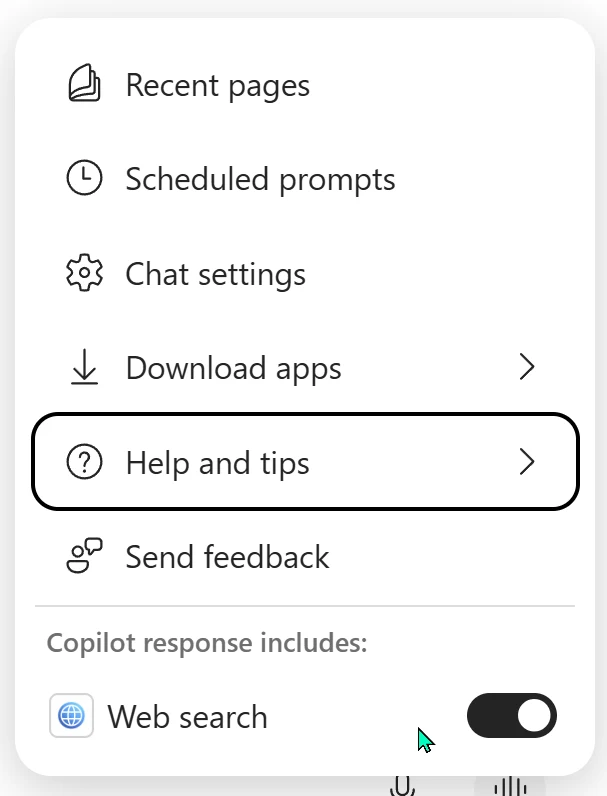
The user-level web search toggle in Copilot Chat — when the admin allows web search, users can still turn it off for their own session.

With web search off, Copilot tells the user plainly — responses stay grounded in work data, with no web lookups.
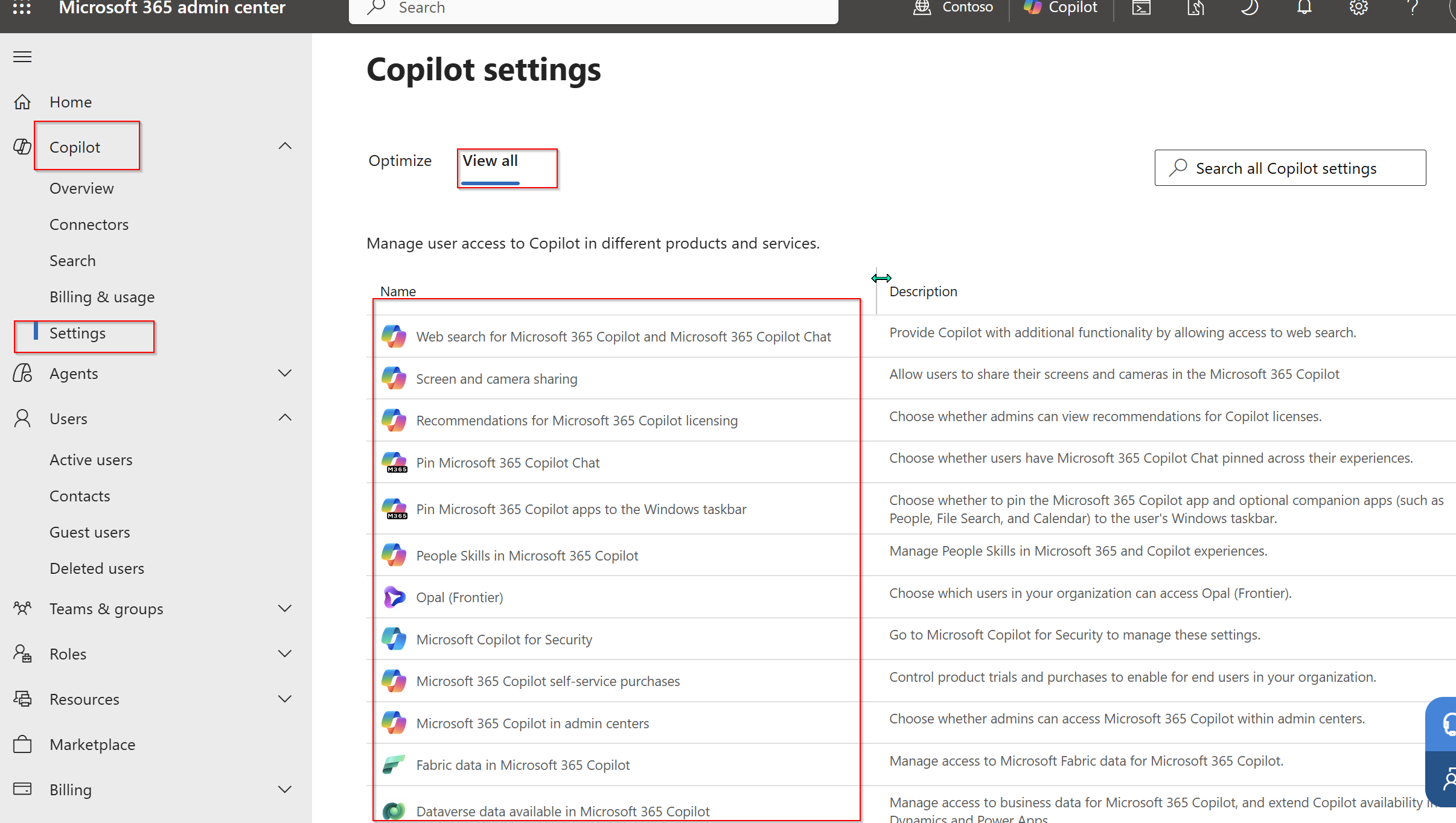
And the admin-side view: the Copilot controls in the Microsoft 365 admin center — web search sits at the top. The tenant on/off policy itself lives in the Microsoft 365 Apps Cloud Policy service. (Microsoft demo environment.)
What changes if you disable it? Answers no longer use that web-search grounding. The current policy documentation says the “Work mode off” option also disables web search in Researcher and Cowork. These agents do not require web search to operate, although their answers may be less current. This policy is not a general switch for every agent’s external tools.
When should it be off? Decide with your privacy and security teams based on the information involved, applicable obligations and the separate Bing terms. There is no safe universal answer for every regulator, contract or organisation.
Source: Manage web search for Microsoft 365 Copilot and Copilot Chat.
What actually gets sent to the web?
This is the question every privacy-minded reviewer asks, and the answer is reassuring — with one honest nuance.
What is sent: a generated search query of a few words, derived from your prompt.
What is NOT sent:
- Your full prompt (the exception is a very short prompt like “local weather”)
- Entire files, emails or uploaded files; derived terms from them can still inform the query
- Entire pages or PDFs summarised in the documented Edge Copilot Chat scenario
- Any identifying information from your Microsoft Entra ID — username, domain, or tenant ID
The query goes to the Bing search service with user and tenant identifiers removed, over a secure connection.
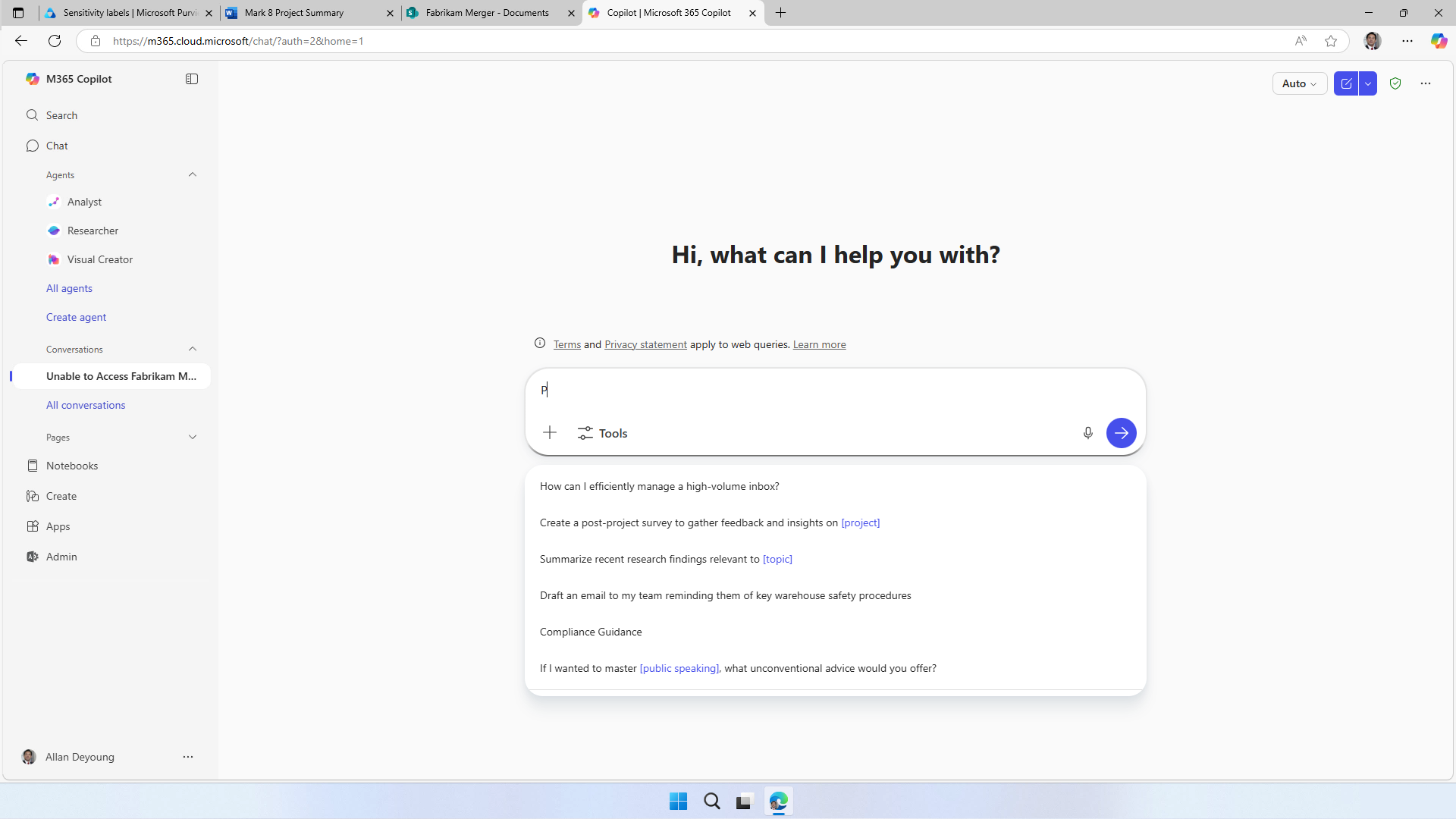
Copilot Chat is explicit with users that web queries carry their own terms and privacy statement. (Microsoft demo environment.)
Check query citations where available. Microsoft documents them in Copilot Chat for 24 hours, not in the Copilot pane inside Word or PowerPoint. They are useful evidence, not a promise that every client always exposes the query.
Is any of it used for training or ads? No. Per the Product Terms, the generated queries are not used to train foundation models, not used to improve Bing, not used to build advertising profiles or track behaviour, and not shared with advertisers. They’re treated as customer confidential information.
The honest nuance — say it before they find it. The Bing search service operates separately from Microsoft 365. For these web queries, Microsoft acts as an independent data controller under the Microsoft Services Agreement and Privacy Statement, with extra commitments in the Product Terms (which win in any conflict). That means:
- The Data Protection Addendum does not apply to the generated web queries
- The EU Data Boundary and HIPAA do not apply to web queries
- Your prompts and responses themselves are still covered by the DPA, with Microsoft as processor
In other words, the processor-to-controller line moves at the Bing boundary. For a regulated organisation that’s a real distinction — and the clean control is simply to disable web grounding (above) or block sensitive information types in prompts with Purview DLP (below).
Do not equate identifier removal with anonymisation. A derived query can contain a person’s name, project name or sensitive term. Disable web search where that risk is unacceptable. DLP reduces risk within its documented scope; it is not an unconditional guarantee against every disclosure path.
Where to review web use. Audit metadata can identify a web plugin, but AISystemPlugin is not the query text. Microsoft’s web-search guidance points to supported eDiscovery and DSPM activity views for the generated terms alongside conversation content. Use authorised content retrieval and check the actual record, rather than assuming every raw audit event contains the keywords.
DLP scope matters. Label-based file/email processing exclusions are distinct from prompt sensitive-information-type controls. Prompt blocking is documented as preview and rolling out, scans typed text rather than uploaded-file contents, and changes can take up to four hours. A separate Performing Web Searches action can block web grounding while allowing an internal response. Prompt DLP is listed for all Copilot/Chat users; file/email restrictions require eligible E5/Purview entitlements.
Sources: How Microsoft handles generated search queries · Enterprise data protection — web queries.
Can we restrict Copilot access to Outlook?
The starting point: core user-scoped mail retrieval respects the user’s permissions. Licensing, app privacy settings, DLP and encryption can restrict different features or content, but none should be treated as a universal mailbox switch for every Copilot or agent path.
Here are the real levers:
| Lever | What it does to mail | The catch |
|---|---|---|
| Review paid-feature licensing | Removes features that require the paid Copilot entitlement | Not a universal block on Copilot Chat or all in-app assistance |
| Purview DLP — block by sensitivity label | Copilot won’t summarise or use emails carrying chosen labels | Applies to emails sent on/after 1 Jan 2025; calendar invites unsupported |
| Purview DLP — block external email (preview) | Excludes external mail from grounding and summaries (good anti-prompt-injection move) | Preview; judges by sender domain only |
| Sensitivity-label encryption and usage rights | Supported encrypted content needs VIEW and EXTRACT for summarisation; a link may remain | The Rights Management owner and recipients granted the encryption usage right Full control (OWNER) have EXTRACT. SharePoint ownership or SharePoint Full Control does not establish those rights. Check the item and application exceptions |
| Disable connected experiences that analyse content | Removes Copilot features in the documented current Outlook apps on Windows, Mac, iOS and Android | Also affects Word, Excel, PowerPoint and OneNote on those platforms; not a universal web-client or agent block |
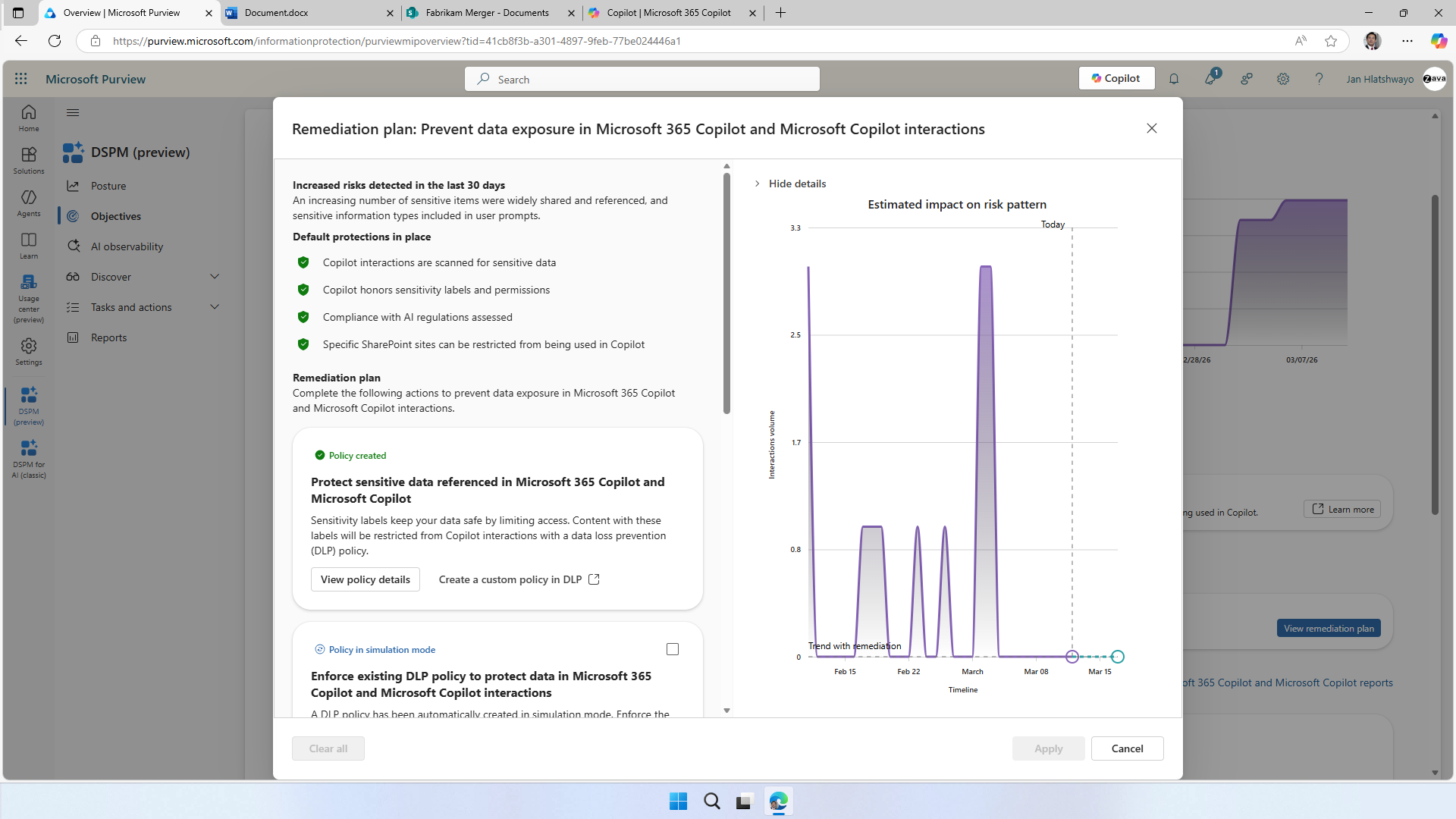
A Purview remediation plan for Copilot: default protections plus a DLP policy that keeps labelled content out of Copilot interactions — the same lever that restricts mail by label. (Microsoft demo environment.)
One thing to pre-empt: SharePoint’s Restricted Content Discovery does not cover mailboxes or OneDrive — it’s SharePoint-site-only. Don’t let anyone assume it walls off Outlook.
What you lose when you restrict mail access: inbox summarisation (“what did I miss?”), draft-and-reply inside Outlook, and meeting prep or catch-up that pulls email context — all degraded or gone, depending on which lever you pull.
Sources: Data Loss Prevention for Microsoft 365 Copilot · Encryption usage rights · App privacy controls.
Stopping Copilot surfacing the wrong file: SharePoint & oversharing controls
Existing oversharing is an important risk: core Copilot retrieval respects user permissions, which may already be too broad. Review EEEU grants and sharing links. The existence of an anonymous link alone does not mean Copilot indexes the file for everyone.
SharePoint’s controls have different purposes:
| Control | What it does |
|---|---|
| SAM + Data Access Governance | Assessment and remediation features. Copilot inclusion requires an eligible base subscription and at least one assigned qualifying Copilot licence; not every SAM feature is included |
| RSS | Retiring; new enablement blocked since 31 July 2026. Existing allow-lists have exceptions. The current public Microsoft Learn overview does not specify a full-removal date |
| RCD | Reduces discovery without changing permissions. Current docs conflict on owned/recently used content; direct access and already-open-file summarisation remain |
| RAC | Requires existing permission and allowed-group membership. Current SharePoint search/Copilot honour it after indexing; external shared-channel participants are an exception |
This is a deep topic in its own right, so rather than repeat it all here: → SharePoint Oversharing Controls for Microsoft 365 Copilot walks through each control, when to use it, and the rollout sequence that works. The one-line takeaway: fix oversharing before you scale Copilot, not after.
Sources: RSS retirement, RCD, RAC and SAM inclusion.
Copilot in Teams meetings: transcripts and recaps
Meeting content is one of the most sensitive surfaces Copilot touches — HR, legal, procurement, investigations. A few things a security team should know:
- No saved transcript does not mean no meeting Copilot. The “Only during the meeting” mode can use temporary speech-to-text data without saving a transcript. During-and-after use depends on a saved transcript. Review both the organiser’s policy and the meeting option.
- Review artefact access separately. Attendance, access to a recording/transcript and access to recap features are not interchangeable. Check sharing for the actual meeting artefacts.
- Meeting labels can enforce supported Teams settings, but that does not mean Copilot recognises meeting/chat labels for every summary or inherits them into every output. Saved transcripts, recordings and Copilot interactions have distinct compliance handling.
Decide which meetings may use Copilot and which may save transcripts or recordings. A policy that changes a default is not necessarily an enforced prohibition. See Copilot and transcription policies and label considerations.
Controlling who can use Copilot: Conditional Access & Zero Trust
Copilot inherits the user’s access — so the strength of that access is part of your Copilot security posture. A compromised account on an unmanaged device can ask Copilot to surface data quickly. The standard Zero Trust controls all apply:
- Microsoft Entra Conditional Access — require MFA, compliant or managed devices, or trusted locations before users reach Copilot and Copilot Chat; block legacy authentication.
- Phishing-resistant MFA for admins — the accounts that configure your Copilot governance are the ones most worth protecting.
- Device and session controls — compliant-device requirements and Defender for Cloud Apps session policies limit risky access paths.
None of this is Copilot-specific — but a security reviewer will ask “what stops a compromised account from using Copilot?”, and the honest answer is: your existing Conditional Access and Zero Trust posture.
Auditing and investigating Copilot activity
The questions: What can we audit? Can we search everyone at once instead of trawling individual histories? Does it support discovery and legal hold?
What’s captured: supported Copilot interactions generate CopilotInteraction metadata when auditing is enabled. This can include the user, app, time, message IDs and resource references, but not full prompt/response text or a guaranteed record of every downstream tool call. Copilot Chat is included in Audit Standard too. Do not filter only BizChat: Microsoft’s schema lists Bing, app-specific and other hosts, with overlapping client descriptions. Use the current schema and investigate the actual records. Content is retrieved separately.
Searching at scale — without per-user trawling:
| Tool | What it gives you |
|---|---|
| eDiscovery (Standard/Premium) | Searches captured content across selected mailboxes with the Copilot activity condition; coverage depends on collection, item classes and case scope |
| DSPM Activity explorer | Collected AI activity with available content and classification details, subject to content-viewer permissions |
| Purview Audit search | The familiar audit-log search, plus a programmatic pull via the Office 365 Management Activity API. |
| Communication Compliance | The “Detect Microsoft Copilot interactions” policy template flags risky prompts and responses. |
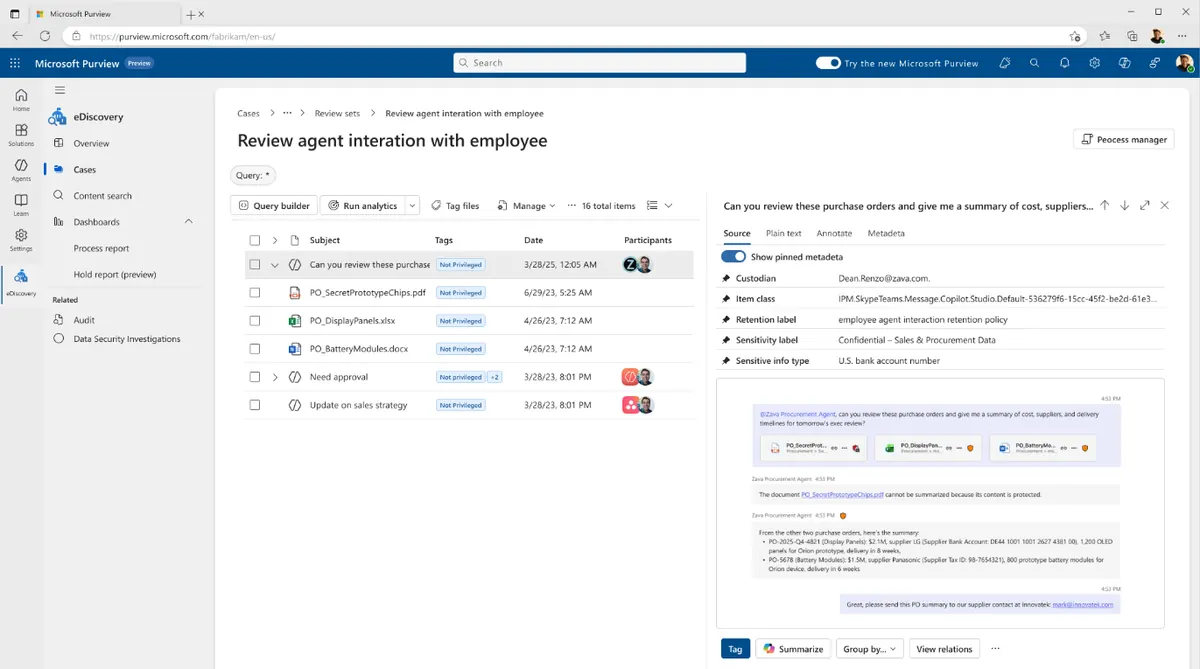
An eDiscovery review set showing one captured Copilot interaction and its metadata. A sample result is not proof of complete collection. (Microsoft demo environment.)
Separate licences from roles. Audit search needs Audit Logs or View-Only Audit Logs. eDiscovery needs the appropriate roles and case access. Reading DSPM prompt content additionally requires Content Explorer Content Viewer or Microsoft Purview Data Security AI Content Viewer; a broad admin role alone is not enough. Prompt and response items may need reconstruction outside richer review views, but do not treat that UI difference as the full E3/E5 licensing rule.
Purview is not the only authorised content-access route. The interaction export API supports applications with AiEnterpriseInteraction.Read.All. It requires a valid Microsoft 365 Copilot licence with the Microsoft Copilot with Graph-grounded chat service plan. Coverage depends on which experiences write to the history service and excludes agents created by Copilot Studio. Being a manager alone grants neither Purview content access nor this application authorisation.
How to actually run a Copilot audit (the short runbook a GRC team can follow):
- Agree scope and preservation first. Confirm roles, legal authority and any hold needed before content expires.
- Find metadata. Search
CopilotInteractionby relevant users, dates and hosts, allowing for ingestion latency. - Retrieve supported content. Search the relevant mailboxes with Copilot activity conditions; check whether memories, agents or other stores need separate searches.
- Review and export as authorised. Use the tools licensed for the investigators and data subjects, and record any coverage gaps. This documentation update did not run this workflow.
Discovery, hold and access requests (the part records and legal teams care about):
- Legal hold / preservation: applicable Litigation Hold, eDiscovery hold or retention requirements can suspend permanent deletion. A delete-only policy is not a preservation hold.
- Departed staff — retained Copilot data moves to an inactive mailbox and is still discoverable, so an information request doesn’t fall through the cracks when someone leaves.
- Targeted retrieval for an individual’s access request — an eDiscovery search scoped to that user’s mailbox, then export.
- Spillage cleanup: authorised targeted deletion after evidence and preservation requirements are reviewed. The Copilot guide says 10 items per mailbox, while the Graph purge reference says 100 per location. Confirm the applicable limit; this review did not test a purge.
⚠️ Licensing reality check: Audit Premium (custom retention beyond 180 days), Premium eDiscovery and Communication Compliance need E5 or the Microsoft Purview suite — and note that E5 Security is not the same as E5 Compliance/Purview. The capability exists in the product; whether it’s active in your tenant depends on your licensing. The next section breaks this down.
Sources: Purview for Microsoft 365 Copilot · Audit logs for Copilot activities · Search and delete Copilot data in eDiscovery.
What can you actually do at each licence level? (E3 vs E5 / Purview)
The question I get more than any other: “What can we do with the licences we already have, versus what needs a Purview upgrade?” Here’s the honest breakdown.
First, two things that catch people out:
- No paid Copilot add-on does not mean no Copilot activity. Included work-account Copilot Chat can generate audit metadata and compliance content.
- E5 Security ≠ E5 Compliance. A tenant with “E3 + E5 Security” has Defender and the security stack, but not the Purview compliance features (Premium eDiscovery, Endpoint DLP, Records Management, custom audit retention). Those live in E5 Compliance / the Microsoft Purview suite. This is the single most common licensing mix-up in Copilot security reviews.
| Requirement | What to check in the current service description |
|---|---|
| Copilot audit metadata | Audit Standard supports listed Copilot and Copilot Chat experiences when auditing is enabled |
| Content search, hold and export | E3 + Copilot is listed for basic Copilot interaction discovery; match the exact workload and licence combination |
| Premium eDiscovery | Eligible E5/Purview entitlements for both the user whose data is analysed and the investigator |
| Copilot audit beyond 180 days | Matching custom audit policy and eligible licences on users generating events; extra retention add-ons for longer periods |
| Prompt DLP | Listed for all Copilot and Copilot Chat users; prompt blocking remains preview/rollout |
| Label-based file/email DLP | Eligible E5/Purview entitlements, plus supported content and policy scope |
| Endpoint DLP, Communication Compliance and records features | Separate feature-specific entitlements and setup; not implied by a security-only bundle |
The practical summary: establish the data source and required workflow first, then check licensing and roles. A generic E3/E5 tick table cannot establish every retention, records or agent capability.
⚠️ The 180-day catch (don’t miss this one): Copilot audit records default to 180 days at every licence tier — including E5. The one-year default in Audit Premium only covers Exchange, SharePoint, OneDrive and Entra records, and Copilot is its own workload. To keep Copilot audit records longer, you need a custom audit retention policy (an Audit Premium / E5 feature). Note this is separate from content retention (the prompts/responses in the mailbox), which you govern with the retention policy in the next section.
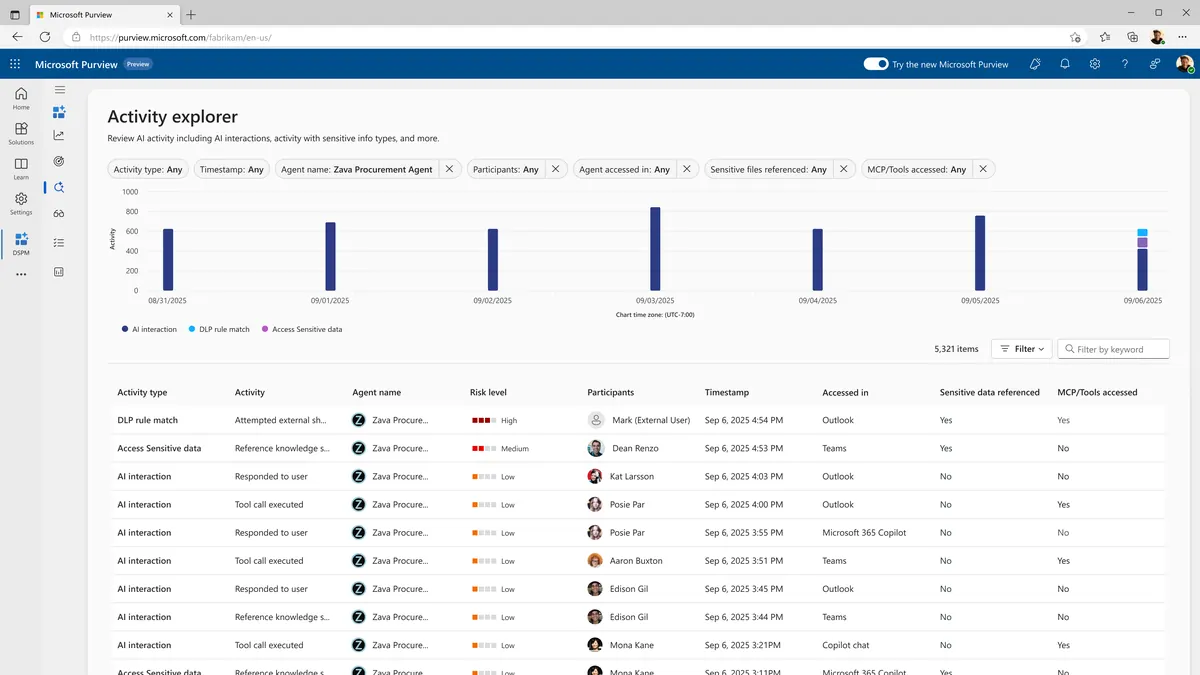
DSPM Activity explorer can present captured interaction content to an appropriately licensed and authorised reviewer. Content-viewer permissions are separate from basic audit access. (Microsoft demo environment.)
Sources: Microsoft Purview service description (licensing) · Audit logs for Copilot · Audit log retention policies · Search & reconstruct Copilot data in eDiscovery.
Retention and records
The questions: What are the default retention periods? How does this work with Purview retention? What do you recommend for records-heavy organisations?
The defaults:
- Prompts and responses are not auto-deleted. They sit in a hidden folder in the user’s Exchange Online mailbox until the user deletes the chat, deletes their history, or a retention policy acts. There’s no fixed default expiry.
- Copilot audit records default to 180 days — at every licence tier, including E5. The one-year default in Audit Premium only covers Exchange, SharePoint, OneDrive and Entra records; Copilot is its own workload. To keep Copilot audit records longer, you set a custom audit retention policy (Audit Premium / E5), up to ten years with the add-on. (This is separate from the content retention below.)
Governing it with Purview:
- The Microsoft Copilot experiences retention location covers supported captured AI content, separately from Teams chats. It is not a policy for every Copilot Studio store: Dataverse transcripts, temporary storage and external logs have separate handling.
- You can retain only, retain and then delete, or delete only.
- The compliance content copy lives in Exchange. Deletion is asynchronous and can involve multiple timer jobs; applicable retention and holds suspend permanent deletion. Retain-only policy expiry does not itself delete every remaining item.
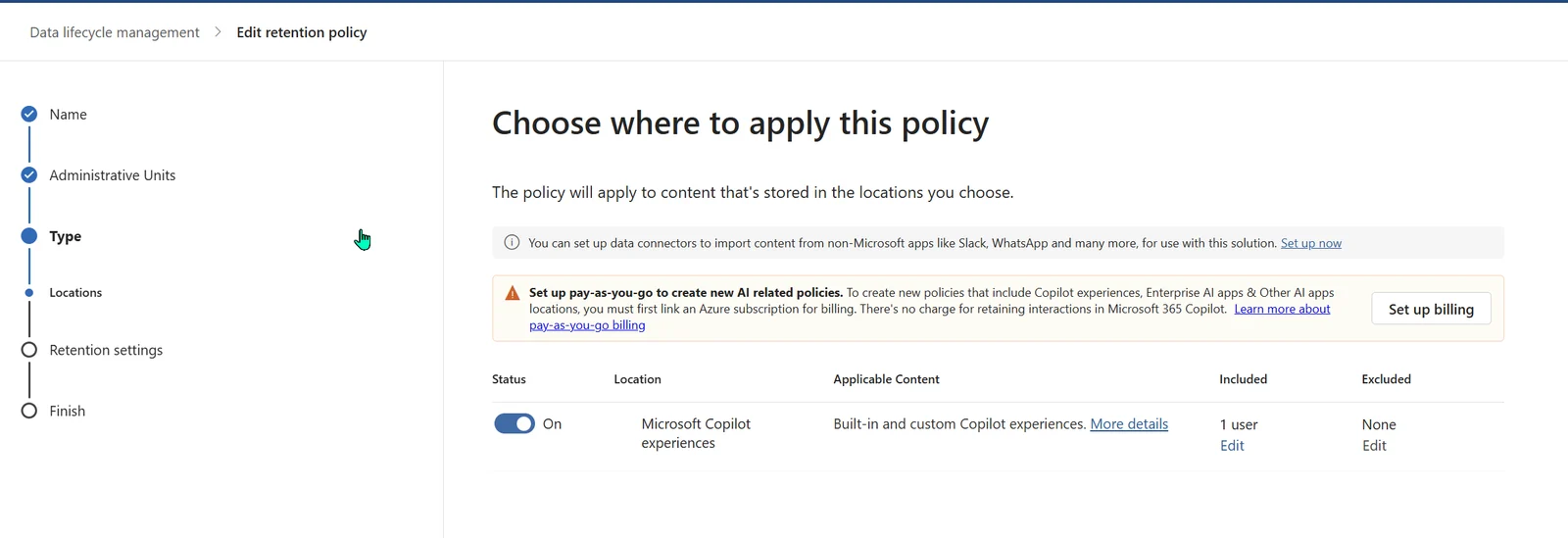
Creating a Purview retention policy on the “Microsoft Copilot experiences” location — this is where you set retain and/or delete for Copilot prompts and responses. (Note the pay-as-you-go billing prompt for AI policies; there’s no charge for retaining Microsoft 365 Copilot interactions themselves.)
⚠️ The one retention line that matters most — what’s visible in the Copilot app is not a reliable indicator of what’s actually retained or deleted. Verify through eDiscovery, never the Copilot UI.
What I’d recommend for a records-conscious organisation:
- Apply a Data Lifecycle Management retention policy on the “Microsoft Copilot experiences” location, set to your records schedule.
- Decide whether referenced source files and versions also need preservation. Retaining a conversation or citation is not proof that the underlying file version has been preserved.
- Treat eDiscovery as your system of record for verification.
- Map the controls to your obligations with Compliance Manager’s AI assessment templates.
Map the documented retention behaviour to your own records and disposal obligations with the appropriate specialists. A configured policy is not, by itself, proof of legal compliance.
Sources: Retention for Copilot & AI apps · Audit log retention policies.
Governing new AI features as they ship
The questions: AI features keep appearing — how do we monitor that? Are there notifications and controls?
Three things working together:
Watch collected usage in DSPM. The current AI observability page reports apps and agents with collected activity in the last 30 days. Coverage depends on configuration and integration. The older Apps and agents page has different scope and excludes Agent 365.
Get notice — the Message center. The Microsoft 365 Message center is where upcoming changes land. The “Major update” tag gives you at least 30 days’ notice when something needs action, it explicitly covers “a new service or app deployed with default settings turned on,” and you can get a weekly digest.
Use release controls within their scope. Frontier, Standard and Deferred serve different audiences. Deferred delays only Copilot major updates explicitly marked deferred-capable in Message center, for 30 days after Standard rollout begins. It is not a hold on every feature. Existing Targeted Release for other services is not a universal delay either.
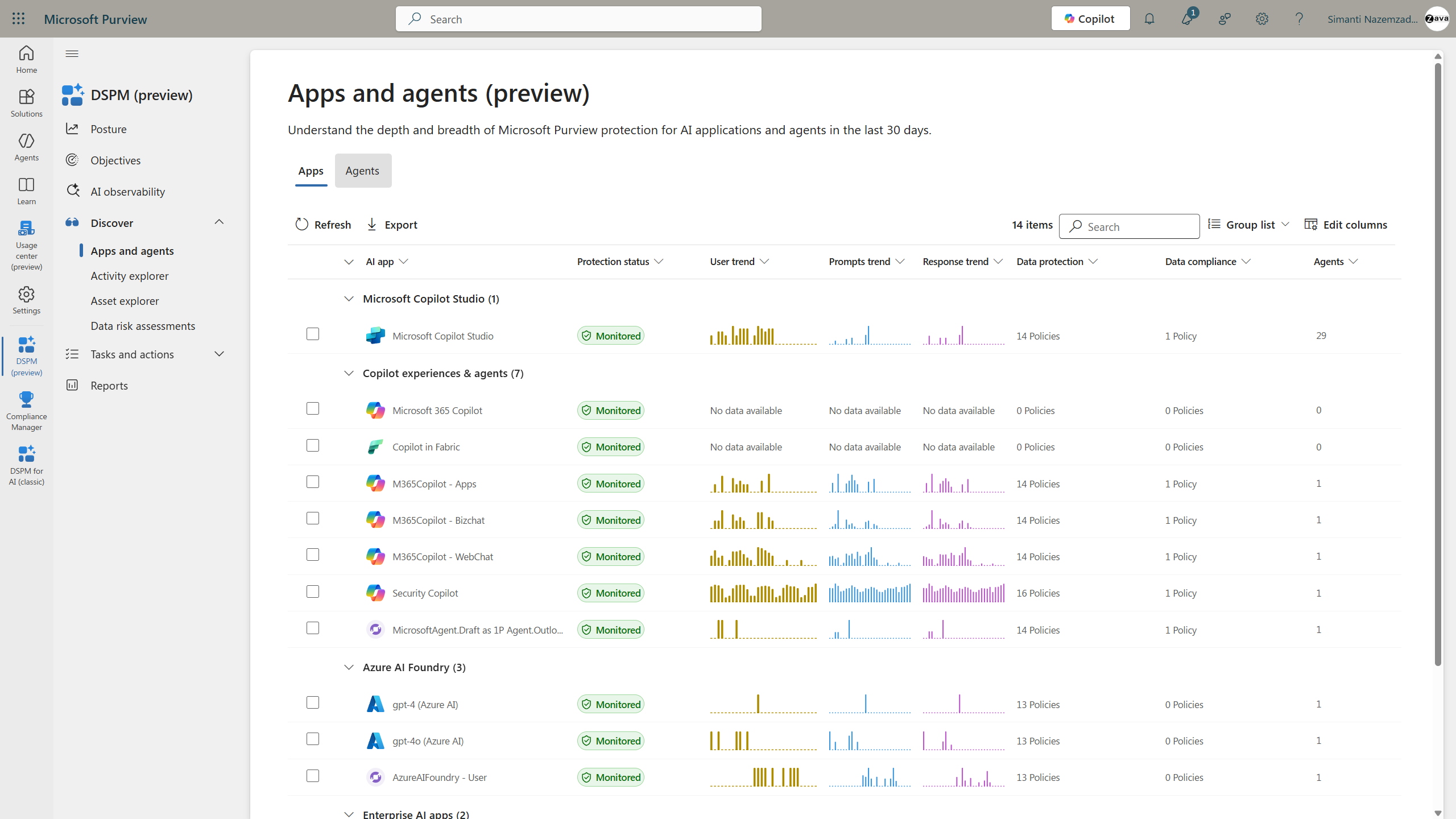
This demo shows the Apps and agents page, not a complete inventory guarantee. Use current AI observability for documented Agent 365 visibility, and verify collection coverage separately.
For agents, reconcile the available controls with each source. Review publication, sharing, tool credentials, connectors, environments and existing access. The approval path differs for Microsoft, third-party, Studio, SharePoint and custom agents. Registry visibility is not proof that every agent was reviewed, and restricting future sharing does not revoke old shares or source permissions. See the agent governance review for those boundaries.
Sources: DSPM for AI · Message center · Configure Copilot release options.
Compliance certifications: the RFP answer
For an RFP, distinguish certifications, assurance reports, regulatory obligations and assessments. Obtain current evidence for the specific service and cloud rather than treating the whole Microsoft 365 portfolio as one certificate:
| Standard | Covers |
|---|---|
| ISO/IEC 42001 | AI management systems — the AI-specific standard, and the headline one to lead with |
| ISO/IEC 27001 | Information security management |
| ISO/IEC 27018 | Protection of personal data in the cloud |
| SOC 1 / 2 / 3 | Service-organisation controls (via the Microsoft 365 platform) |
| HIPAA | US healthcare obligations and applicable contractual coverage, not a blanket certification; web queries are excluded |
| GDPR | Legal obligations for the deployment, not a product certification or automatic customer compliance |
| IRAP | Australian security assessment evidence; not automatic Australian or New Zealand authority to operate |
The RFP answer should state scope and date. Cite the applicable certificate, report or contractual commitment from the Service Trust Portal, then explain your configuration and responsibilities. ISO 42001 concerns AI management systems; it does not certify each output as correct. Web queries and connected services can have separate exclusions. No service certification makes a customer automatically GDPR- or HIPAA-compliant.
Sources: Data, privacy & security for M365 Copilot — regulatory compliance · Microsoft Service Trust Portal.
The other questions security teams always ask
The six above are the deep ones. Here are the rapid-fire questions that come up just as often — with the short, honest answer and where to go deeper.
“Does Copilot respect our existing permissions?” Core user-scoped retrieval respects existing access, so broad SharePoint and OneDrive permissions deserve review before rollout. Agent tools can use maker-provided credentials, and embedded sources have separate rules. Review those alongside SharePoint oversharing controls.
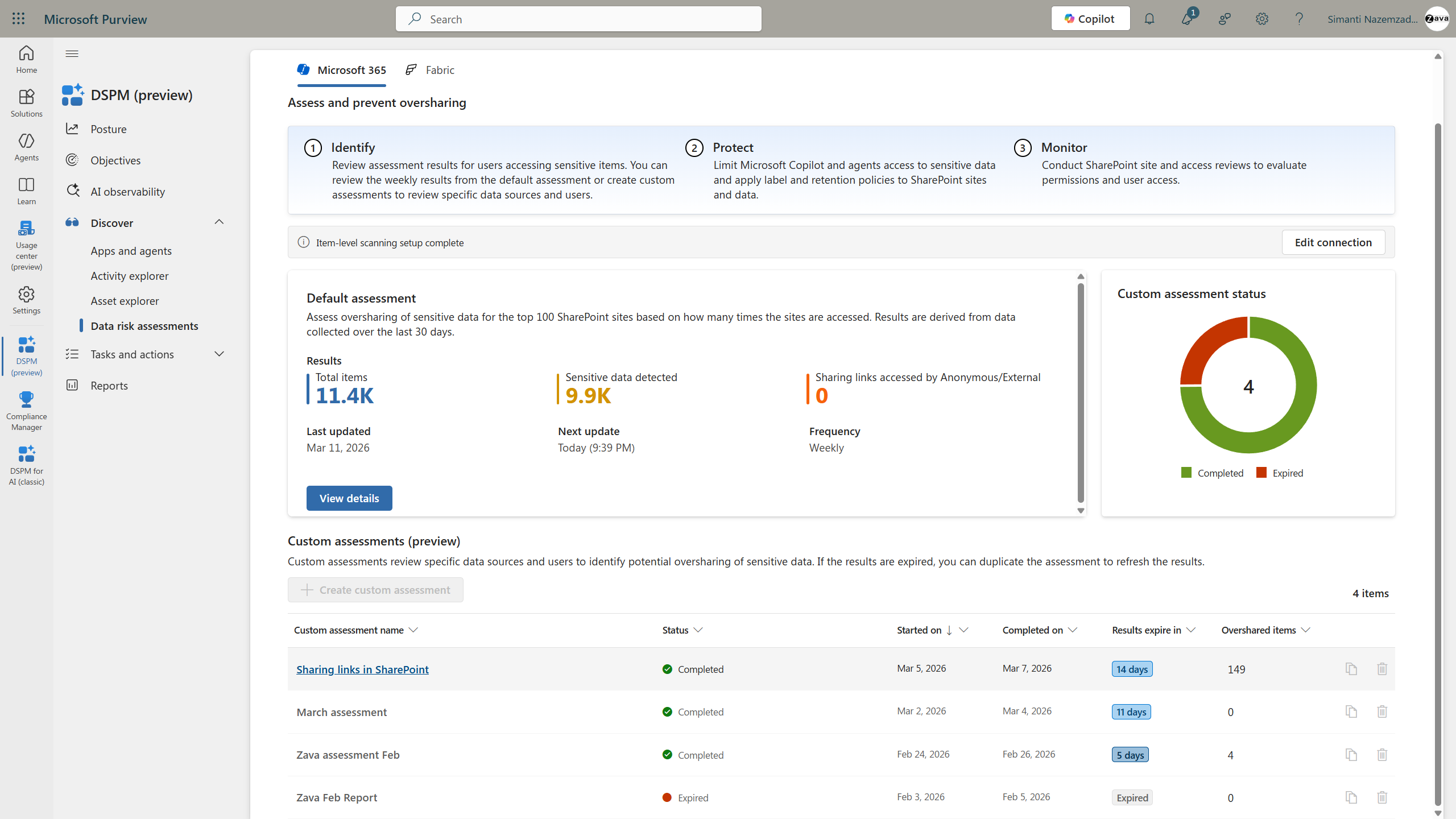
DSPM data risk assessments put a number on oversharing before you scale Copilot — here, 11.4K items assessed with zero anonymous/external sharing. (Microsoft demo environment.)
“Can we audit prompts staff type into ChatGPT, Claude or other AI tools?”
Purview Audit supports configured third-party AI scenarios through AIAppInteraction and ConnectedAIAppInteraction. Non-Microsoft AI auditing uses pay-as-you-go billing and 180-day retention. Connector, browser or network collection requirements depend on the scenario; a website visit is not proof that its prompt text was captured. Endpoint DLP separately supports warnings or blocks for certain browser activities. See the audit guide.
“Can we tell when a third-party app quietly adds AI?” Usage discovery, OAuth-app monitoring and configured DSPM collection help, but they do not guarantee detection of every vendor change. A vendor may reuse permissions and destinations it already has. Include AI processing, subprocessors and change notification in vendor reviews and contracts. See Defender for Cloud Apps and DSPM for the signals each actually collects.
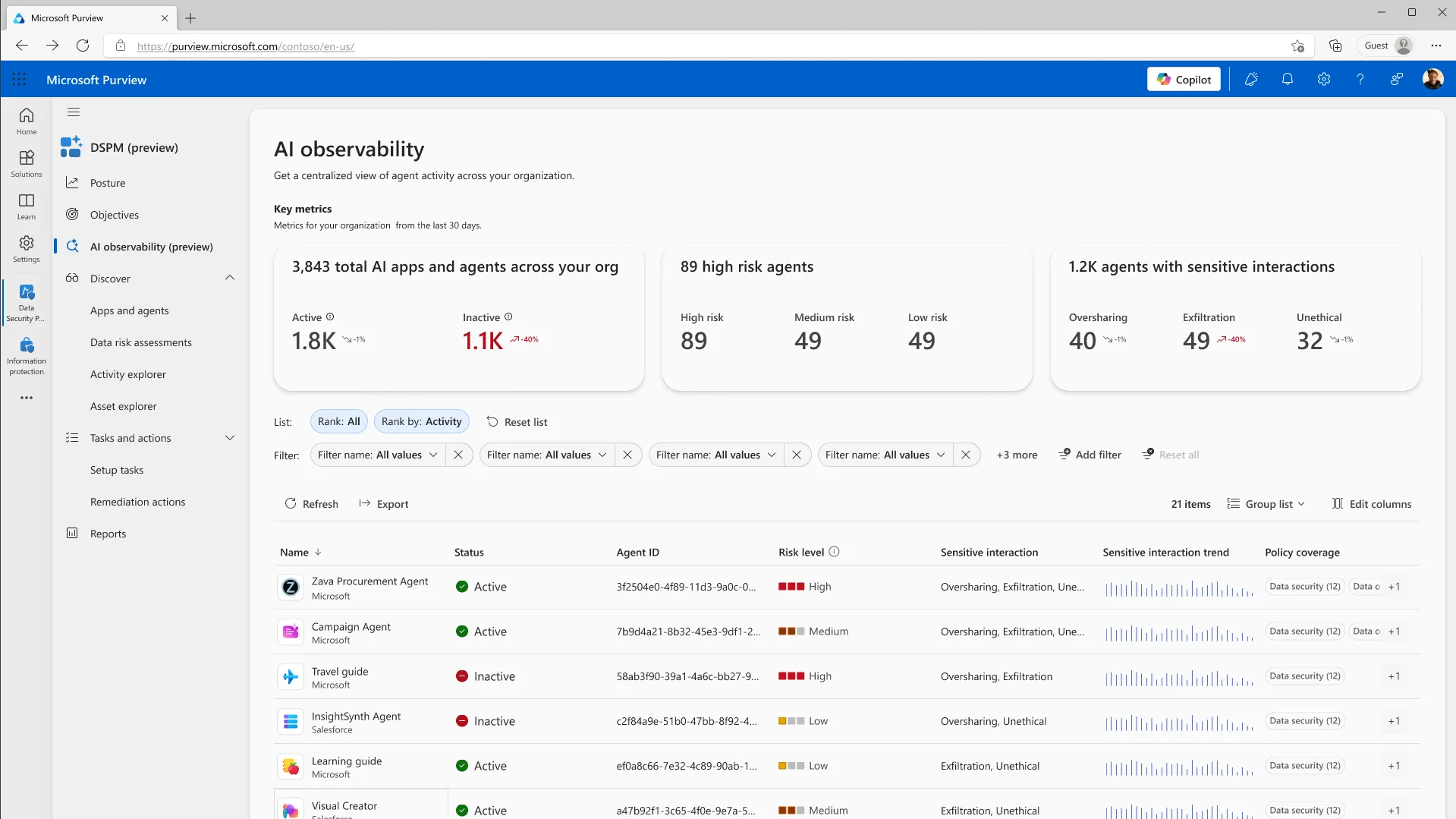
Current DSPM AI observability showing collected Microsoft and third-party agent activity. Inventory and content coverage depend on integration and collection. (Microsoft demo environment.)
“Where does our data live?” Check Microsoft’s core service commitments and your tenant’s residency eligibility, then review web queries, model-provider exceptions, agent runtimes and external tools separately. Data-centre location does not grant another customer logical access, but still matters for processing, residency and jurisdiction. At-rest location is not the same as a guarantee of in-country processing. See the residency guide and the agent data-flow review.
“Is it isolated from other Microsoft customers?” Yes — logical tenant isolation through Microsoft Entra authorisation and role-based access control, with encryption at rest and in transit.
“What about prompt injection and harmful content?” Microsoft documents layered safeguards, but the current privacy guidance says coverage varies by scenario and model. Protected-material detection and jailbreak classifiers are not available in every scenario. Check the specific experience rather than assuming one always-on protection stack covers every model, agent and tool.
“Who owns the content Copilot creates, and are we protected on copyright?” Microsoft does not claim ownership of the output, but does not guarantee that it is copyright-protected or exclusive to you. The Customer Copyright Commitment is subject to its terms, including use of required guardrails and filters. It is not unconditional indemnity for every use. See the privacy and output guidance.
“You use Anthropic models now — is our data safe with them?” For standard Anthropic models, Anthropic acts as a Microsoft subprocessor under Microsoft’s Product Terms and DPA, with the documented no-training and no-retention commitments. The Customer Copyright Commitment remains subject to its terms. Check these distinctions:
- Default availability varies. Most commercial tenants have standard models enabled; EU/EFTA and UK tenants are default-off. Current guidance also documents an opt-in for non-federal GCC customers. Check other government and sovereign-cloud exclusions rather than assuming one rule covers them all.
- “Anthropic models with Data Retention” is a separate category. These models require explicit enablement and use separate Anthropic terms, including retention. Do not apply standard-model assurances to them.
- Anthropic models are out of scope for the EU Data Boundary.
Check the current subprocessor guidance for the exact model, retention category and cloud. It also excludes Anthropic models from applicable in-country processing commitments. Do not generalise a standard-model assurance to an optional model with separate terms.
“How do we handle a Privacy Act / GDPR data subject request that involves Copilot data?” Use authorised eDiscovery searches for supported mailbox-backed content, with appropriate export and case permissions. The individual’s mailbox is a starting point, not necessarily the whole request: consider other custodians, memories, uploaded files, agent stores and downstream copies. Privacy/legal staff should decide relevance, disclosure and preservation obligations.
“Does Copilot honour Information Barriers?” For live user-scoped retrieval, an effective source-access restriction still matters. Do not extend that to all agent knowledge: Agent Builder explicitly says Information Barriers are not supported on embedded files. Review the embedded-content rules, agent access and tool credentials separately.
“What about Microsoft support access — Customer Lockbox?” Customer Lockbox lets you approve or reject the rare cases where a Microsoft support engineer needs access to content to resolve a ticket. It’s an E5 capability and is opt-in — off by default, so turn it on (admin centre → Org settings → Security & privacy) if you want that approval gate.
“What do we do if someone pastes secrets or regulated data into Copilot?” Treat it as an incident: contain access, rotate exposed secrets promptly, preserve required evidence and identify the interaction and downstream copies. Involve security, privacy and legal staff before targeted deletion. Purge requires separate authority and roles, may be constrained by holds, and is not proof that every copy is gone. Review DLP within its supported scope; prompt scanning does not inspect uploaded-file contents.
“How do we govern this at the platform level?” That’s the Copilot Control System — the built-in framework for managing how people use Copilot. → The Copilot Control System explained. For agents at scale, that’s Agent 365. → Agent 365 security guide.
Common misconceptions (the gotchas that catch teams out)
A few things that surprise even experienced admins — worth knowing before they bite:
- A site or Team label does not automatically label or encrypt its files. Its configured workspace access and sharing protections still apply; item-level classification and encryption require item-level protection. See the container-label guidance.
- “Deleted from the Copilot app” ≠ deleted. What a user sees in the UI isn’t the source of truth for retention — verify through eDiscovery.
- RSS is retiring, not a new-rollout step. New enablement has been blocked since 31 July 2026. Existing configurations have discovery exceptions and do not change permissions.
- Mailbox support is feature-specific. Verify the current Outlook feature and mailbox type; do not assume one statement covers primary, shared, delegated and archive scenarios.
- Teams meeting-chat labels aren’t recognised by Copilot (yet) — meeting invites and calendar events are, but meeting and channel chat summaries don’t carry the label.
- User-defined encryption has exceptions. Current guidance permits some directly referenced or SharePoint-permission-linked files when the user has EXTRACT, as well as documented open-file scenarios. Do not use the older blanket “unopened files always blocked” rule.
- Auditing non-Microsoft AI is not automatic. It uses pay-as-you-go billing and scenario-specific collection, separate from included Microsoft application audit.
Sources: Copilot data-protection considerations · Restricted SharePoint Search.
Your first week: a security checklist
If you do nothing else, do these — in roughly this order:
- Audit SharePoint and OneDrive permissions for oversharing. This is the number-one real risk, and it’s yours to fix, not Microsoft’s.
- Deploy sensitivity labels (even a basic set) so Copilot honours classification and encryption.
- Decide your web grounding posture and set the “Allow web search in Copilot” policy to match.
- Set a retention policy on the “Microsoft Copilot experiences” location to match your records schedule.
- Confirm your audit and eDiscovery readiness — check your licensing actually activates the retention and discovery depth you need.
- Configure DSPM collection and review Message center, while keeping a separate change-review process for features those signals do not cover.
- Set agent governance — approve only the agents you want, and review what each one can access.
Frequently asked questions
Is web grounding enabled by default? On commercial tenants, it is available unless policy or optional-connected-experience settings disable it. Current guidance documents off-by-default behaviour for GCC and DoD; check other sovereign clouds separately.
What does Copilot send to the web? Usually a short derived query, not an entire file or email. A very short prompt can be sent in full. Entra-derived identifiers are excluded, but names or sensitive terms can still appear.
Is our data used to train the models? No — not your prompts, responses, Graph data, or the web queries.
Can we stop Copilot reading Outlook? Review paid-feature licensing, app privacy controls, label-based email DLP and encryption rights separately. Withholding the paid add-on is not a universal Copilot Chat block. Policy scope and Rights Management usage rights matter; do not infer them from SharePoint ownership.
Can we audit Copilot across all users at once? eDiscovery can search captured content across selected mailboxes. Purview Audit contains metadata and IDs, not full conversation text. Coverage, roles, licences and case scope determine what is found.
Can we access prompts with our existing E3 licence? The service description lists E3 + Copilot for basic interaction search, hold and export, with eligible E5/Purview combinations for premium search. Check the exact workload and roles. Included Copilot Chat can also generate activity without the paid add-on.
Can we audit prompts in ChatGPT or other AI tools? Purview supports configured third-party AI auditing with pay-as-you-go billing and 180-day retention. Collection prerequisites vary by scenario. Endpoint DLP is a separate control for supported browser activities.
How long is Copilot data kept by default? Mailbox-backed content follows user deletion, retention and holds. Copilot audit defaults to 180 days, including on E5. Longer audit retention needs an eligible custom policy and user licences; it is separate from content retention.
Is the free Copilot Chat as governable as the paid one? Supported Copilot Chat activity is audited and has discoverable compliance content. Do not filter only BizChat. Premium features need appropriate licences and roles; Copilot audit still defaults to 180 days without an eligible custom policy.
How do we keep up with new AI features? Monitor collected activity, review Message center and use scoped release controls. Thirty-day notice is not universal, and Deferred release covers only major Copilot updates explicitly marked deferred-capable.
Is our data at risk if staff use the free Copilot Chat without a licence? Work-account Copilot Chat has Enterprise Data Protection without a paid add-on, but no service is risk-free. Conditional Access protects work resources; it does not itself prevent consumer AI sign-in. Review endpoint, browser and network controls separately.
What compliance certifications does Copilot have? Check current ISO certificates, SOC reports and scoped regulatory commitments in the Service Trust Portal. GDPR and HIPAA are not blanket product certifications. IRAP is Australian assessment evidence, not automatic Australian or New Zealand authorisation.
How do we handle a Privacy Act or GDPR data subject request involving Copilot? Start with authorised eDiscovery searches for supported mailbox content, then assess other custodians, memories, files and agent stores. Privacy/legal staff should review scope, disclosure and preservation obligations.
Where is our Copilot data stored? Check core service residency eligibility and settings, then web search, model-provider exceptions, agent runtimes and external tools separately. At-rest location, processing location and legal jurisdiction are different questions.
Related guides
- Microsoft 365 Copilot Deployment — The Complete Guide (the IT-admin checklist that anchors this cluster)
- Copilot Data Residency & Sovereignty (ANZ & Government) (where your data lives, plus IRAP and sovereignty — the deep dive)
- Copilot Certifications & Compliance for RFPs (what it’s certified against, and how to prove it)
- Copilot Agents & Studio — Data-Flow Governance (where agent data goes, and how to govern it)
- The Copilot Control System Explained
- Copilot Content Safety Controls for Admins
- SharePoint Oversharing Controls for Copilot
- Agent 365 Security — Entra, Purview, Defender
Everything here is grounded in Microsoft’s official documentation, linked inline. Microsoft Learn changes often — if you’re putting an answer in a formal response, re-check the live page on the day, and confirm anything tenant-specific (your cloud environment, your licensing) with your Microsoft account team.