Microsoft 365 Copilot Prompting — What's New 2026
↗ what's changed since the original Copilot prompt engineering guide. The fundamentals still apply — these features sit on top.
On this page
The four-block framework still works. The Copilot it runs on has changed a lot. This brief is the 2026 layer — Copilot Notebooks, the Researcher and Analyst agents, Work IQ, model choice, Memory, multimodal — that sits on top of the fundamentals.
If you haven’t read the Prompt Engineering Field Guide yet, read that first. Everything below assumes you already know what Goal · Context · Expectations · Source means and that iteration is a habit you already have. This brief is for people who prompt Copilot daily and want to know what’s worth learning next.
📚 Three posts on M365 Copilot prompting — pick where you are:
- 🌱 Field Guide — start here if you’re new. Four-block framework, per-app prompts, the mistakes everyone makes.
- 🧑💼 Persona Playbook — your role’s worked prompts. Recruiter · Ops · Finance · IT · Sales.
- 🆕 2026 Upgrade Brief (you’re reading this) — Notebooks · Researcher · Analyst · Memory · model choice. For daily prompters who want what’s new.
🏃 TL;DR for skimmers
Seven changes since the early Copilot days that are worth learning next:
- Copilot Notebooks — pin references once, prompt across them forever
- Researcher agent — delegate multi-step research tasks
- Analyst agent — real numerical reasoning via Python
- Work IQ — what Copilot grounds in automatically across your work
- Model choice — GPT-5.5 Thinking · Instant · Claude
- Memory — where enabled, Copilot can carry selected preferences and context across sessions
- Multimodal & Pages — paste images, speak prompts, generate visuals, collaborate on a shared canvas
Pick one. Try it this week. Don’t try all seven at once.
Quick navigation:
- The shift since 2024
- Copilot Notebooks — the multi-source workspace
- Researcher agent — task delegation, not single-turn
- Analyst agent — Python under the hood
- Work IQ — the new grounding label
- Model choice — Thinking vs Instant vs Claude
- Memory — what changes when Copilot remembers
- Multimodal & Pages — image, voice, generation, canvas
- The honest take — what’s still rough
- Where to start this week
The shift since 2024
Mid-2024 Copilot mostly felt like a one-chat-at-a-time assistant. You’d open a chat, type a prompt, get an answer, maybe iterate once or twice, then close the tab. Slash-commands existed but were mostly for one-shot file grounding. The four-block framework — Goal · Context · Expectations · Source — was the whole game.
Mid-2026 Copilot is several different things at once. A Notebook is a persistent workspace. An agent is a delegate. Memory is a backstory you don’t have to retype. Work IQ is the context layer Copilot uses to understand your work graph before you manually attach a source. Model choice puts a dial in your hand. Multimodal lets you talk to Copilot with images and voice. Pages lets you and Copilot share a canvas with other humans.
Three things to hold on to as the surface keeps moving:
- The four blocks haven’t moved. Goal · Context · Expectations · Source is the spine. Every new surface is a different way to plug those four in. If you can write a clear brief, you can use any of this.
- Iterate is still the habit. Even with multi-step agents, the first run is a draft. The second is closer. The third is usually the keeper.
- You stay in the loop. Notebooks summarise; you decide. Researcher proposes; you publish. Analyst calculates; you sense-check. Memory remembers; you can clear it. Copilot does more typing. You do more reading and judging.
The rest of this brief is what each new thing actually does and how to prompt it.
Copilot Notebooks — the multi-source workspace
The biggest single change since 2024. Notebooks let you pin multiple references — files, Copilot Pages, OneNote pages, and other content your tenant exposes in the picker — into a shared workspace, then prompt across the whole notebook. The references stay attached across sessions. You don’t re-explain them every time.
Why this matters
Before Notebooks, every time you wanted to ask “compare these three vendor proposals against our internal requirements doc”, you had to attach four files, write the prompt, get the answer, then start over tomorrow if you had a follow-up. Now: pin the four references once, prompt across them today, prompt across them tomorrow, share the notebook with a colleague who can pick up where you left off.
It’s the difference between prompting a chat tab and prompting a project workspace.
When to use a Notebook
- A project has several relevant sources (3 or more) you’ll come back to across multiple sessions.
- You need to cross-reference several files at once — “where does the discussion in /Steering meeting diverge from what /Project plan says?”
- You want to share a research context with a teammate without rewriting every prompt.
- You’re building a body of work over weeks — research, planning, ongoing analysis — and want a single home for it.
Stay in regular Copilot Chat when the question is one-shot and doesn’t need multi-source grounding. Notebooks are workspace, not chat replacement.
What it looks like — finding, creating, and using a Notebook
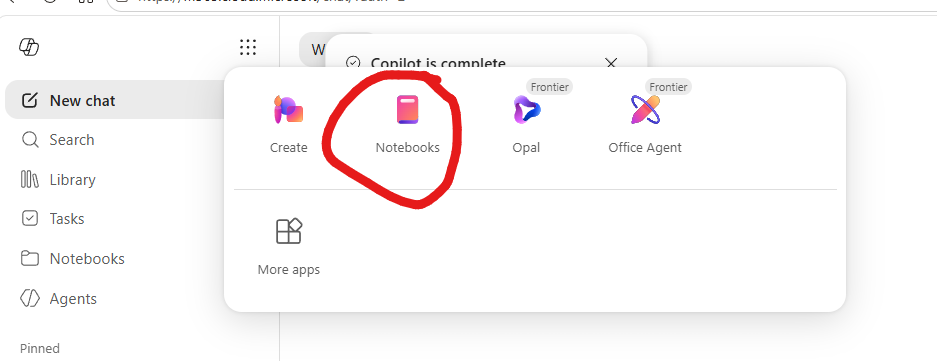
Notebooks is a little hidden if you’ve never opened it before. The five screenshots below are the whole journey — from “where is this even located” to “all my files attached and the first prompt typed”.
1. Where to find it — under the waffle. Open the Microsoft 365 Copilot app, then click the app launcher (the 3×3 grid waffle icon at the top-right of the canvas). Notebooks sits there alongside Create, Opal and Office Agent. You can also pin Notebooks to the left rail once you’ve used it once — saves the waffle hunt next time.
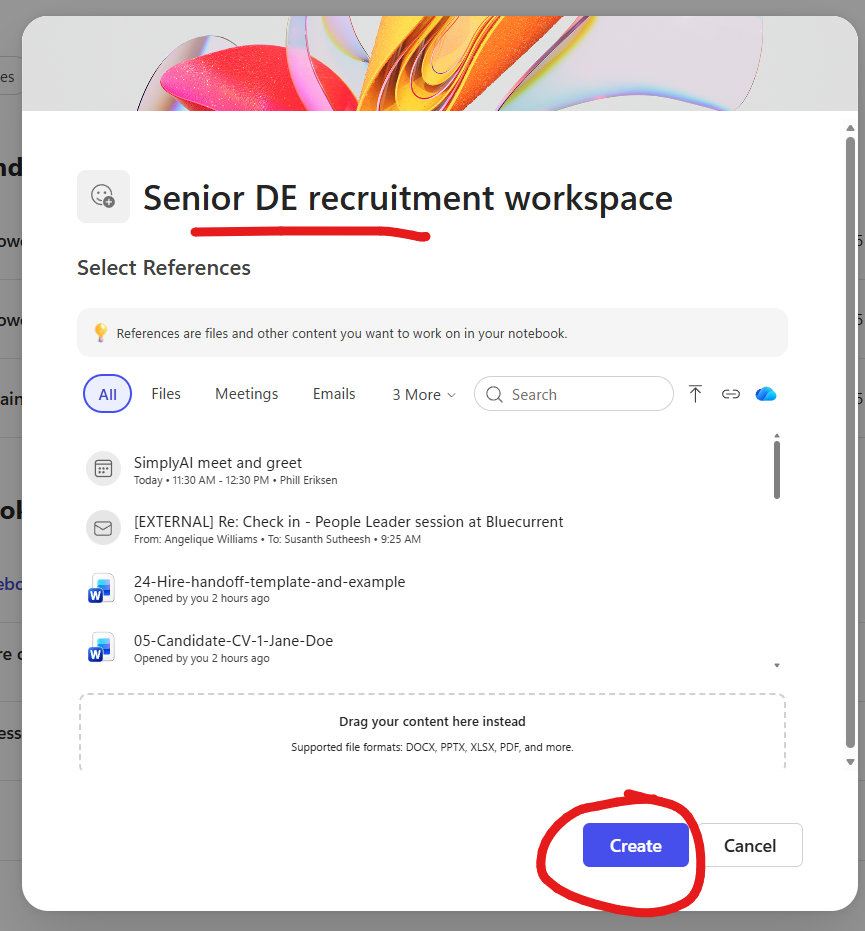
2. Name it, then create. Give the Notebook a name that says what the project actually is — Senior DE recruitment workspace, not Notebook 1. The Select References panel that opens with the create dialog lets you pre-attach files, meetings, emails, even web pages. Pick a couple to get started; you can add more after. Then click Create.
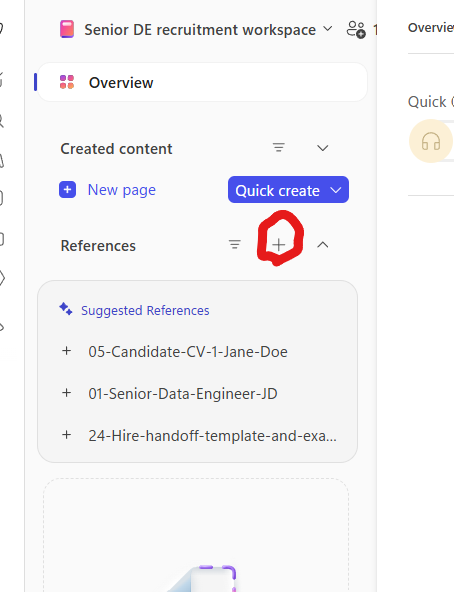
3. Add the rest of your references. Inside the Notebook, look for the small + icon next to the References header on the left rail. That opens the same picker you saw in step 2 — add the remaining files, web URLs, meeting recaps and emails one at a time, or drag a folder of files in all at once.
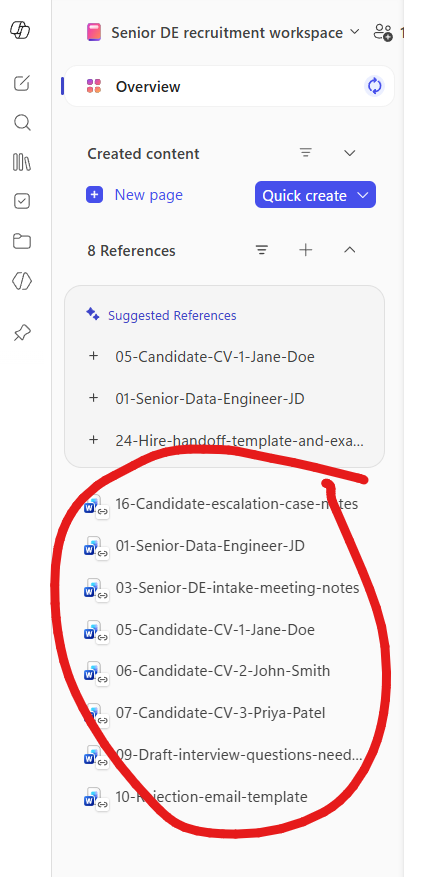
4. All references attached — proof the workspace exists. With every relevant file pinned, the References panel shows the full list. The Notebook can ground answers in this curated set whenever your question needs them — no more re-uploading the same files in every chat.
5. The full Notebook workspace — the bit most people miss the first time. With references attached, Copilot automatically generates an Overview in the middle of the canvas — a summary of what the notebook contains plus key insights it has already extracted across the references. You haven’t even prompted yet, and you already have a synthesis. The right-rail Ask about your content chat is where your prompts go (this one is mid-typing). The Quick Create chips above offer one-click outputs — Audio overview, Study guide — generated from the same references. Three suggested follow-ups appear below the input box.
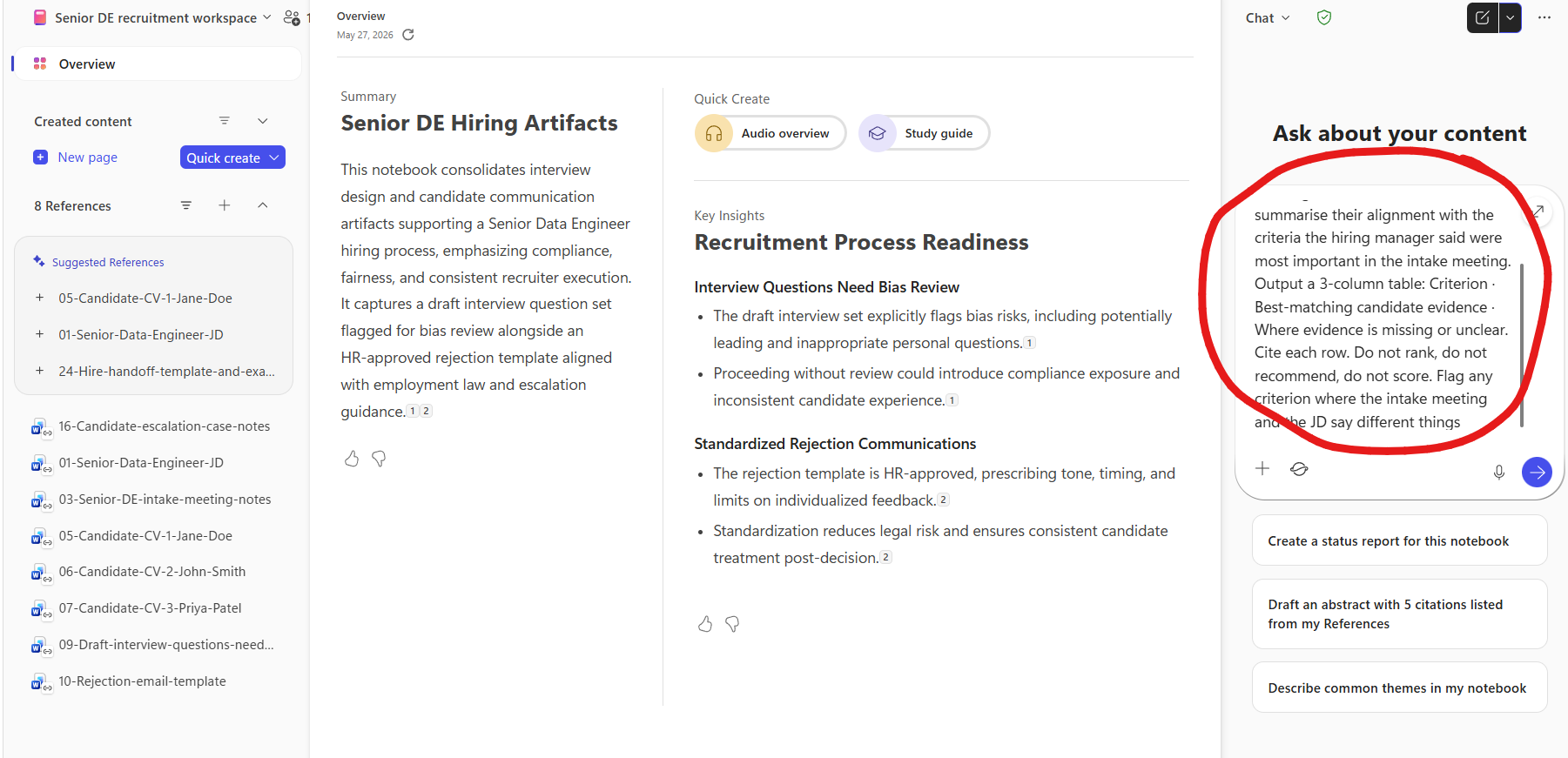
📎 The “free Overview” is the underrated unlock. Most demo videos jump straight to typing a prompt. Worth pausing on the auto-generated Overview and Key Insights — Copilot has already synthesised across all 8 references just because they’re pinned. That’s a free first draft of “what’s in this body of work” before you’ve asked anything.
How a Notebook prompt is shaped
Notebook prompts have the same four blocks underneath but lean heavily on cross-source comparison patterns. A few that work consistently:
“Compare /Vendor A proposal · /Vendor B proposal · /Vendor C proposal against /Internal requirements. For each requirement, output a row showing how each vendor addresses it (with a citation). Flag any requirement where no vendor has a clear answer.”
“Pull the notes from /Last Thursday’s product strategy meeting and compare against /Project status summary page. Where did the discussion diverge from what’s written down, and what got decided that hasn’t been captured yet?”
“What key dates were agreed in /Project email thread, and how does that compare to the dates in /Timeline page in this notebook? Flag any mismatch.”
“Across everything pinned to this notebook, what are the three biggest disconnects between what /Board deck says our priorities are and what the project team is actually doing? Cite each disconnect from a specific source.”
Notice the pattern: gap analysis, mismatch detection, cross-source synthesis. That’s what Notebooks unlock that single-chat prompts struggle with.
Here’s what that first prompt actually returns — the alignment table for Jane Doe (Copilot works through each of the three candidates in turn, one structured section per CV):
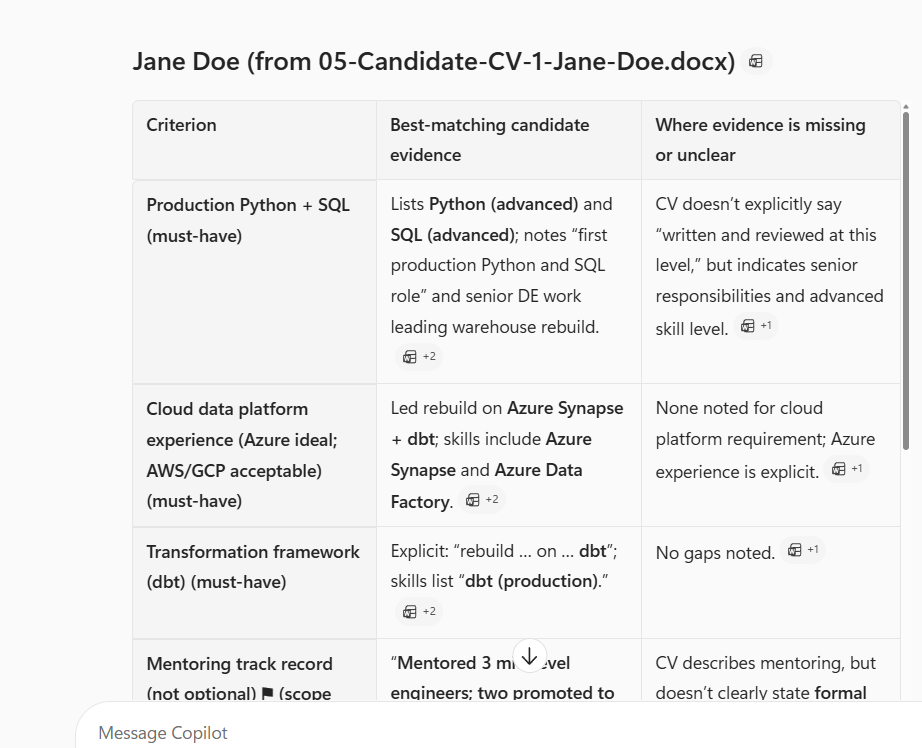
Three things to notice in this output that come straight from the four-block prompt:
- Citation chips on every cell. Each fact has a paperclip icon linking back to the source paragraph in the CV or JD — auditable, not hand-wavy. The
+2chip means Copilot is grounding that claim in 2 source paragraphs across the references. - Honest “Missing or unclear” column. Where the CV doesn’t say something the JD asks for, Copilot calls it out instead of inventing. That’s the signal a recruiter takes into the screen call.
- No ranking, no recommendation, no score. The guardrails in the prompt (“Do not rank, do not recommend, do not score”) hold. The judgment about who to interview next stays with the recruiter — Copilot just made the reading 10× faster.
Outputs from a Notebook
A Notebook isn’t just an input surface — it generates outputs too. The current support docs call out that Notebook outputs are evolving (no full image generation or data visualisation inside Notebooks yet, and grounding is limited to references you’ve added), but in practice you can produce:
- A Word document for a formal write-up
- A PowerPoint deck outline for a meeting
- Structured summaries, tables, and reports grounded only in your pinned references
- An audio overview — a short narrated summary of the notebook’s contents (useful for catching up on the commute)
- A study guide — Q&A format for revising the material
Some tenants surface richer “Quick create” options (mind maps, infographics) as the experience rolls out. Treat anything beyond text-first outputs as evolving — and validate against Microsoft Support’s current Notebooks page before promising it to a customer.
The Notebook gotcha worth knowing
A reference is only as good as its indexing. If you pin a file you just saved to SharePoint, wait a few minutes — fresh files can take time to be indexed. If a prompt returns “no relevant information found” but you know the answer is in a pinned source, the indexer probably hasn’t caught up yet. Try again in a few minutes, or attach the file directly to the prompt instead.
Researcher agent — task delegation, not single-turn
Researcher is a first-party Copilot agent built for multi-step research. You give it a task brief — a scope and an outcome — and it plans the steps itself, runs them across your work data and the public web, synthesises, and produces a structured deliverable.
How Researcher’s prompts differ
A regular Copilot Chat prompt is single-turn: ask, answer, iterate. A Researcher prompt is a task brief: scope, sources, what good looks like. Researcher then does the steps itself — you don’t iterate every one.
Compare:
❌ Regular Copilot prompt: “Summarise the cloud migration market.”
You get a one-paragraph generic answer.
✅ Researcher task brief: “Research the current competitive landscape for our cloud migration product. Use /Internal battle cards, /Our product overview, and the public web. Produce a 3-page briefing — sections: Top 5 competitors with their positioning · Where we win and where we don’t · Three customer-asks we’ve heard repeatedly that we don’t currently address · Recommended angles for our next campaign. Cite every claim. Flag anything you can’t verify.”
Researcher plans the steps, runs them, and returns the structured briefing — with citations.
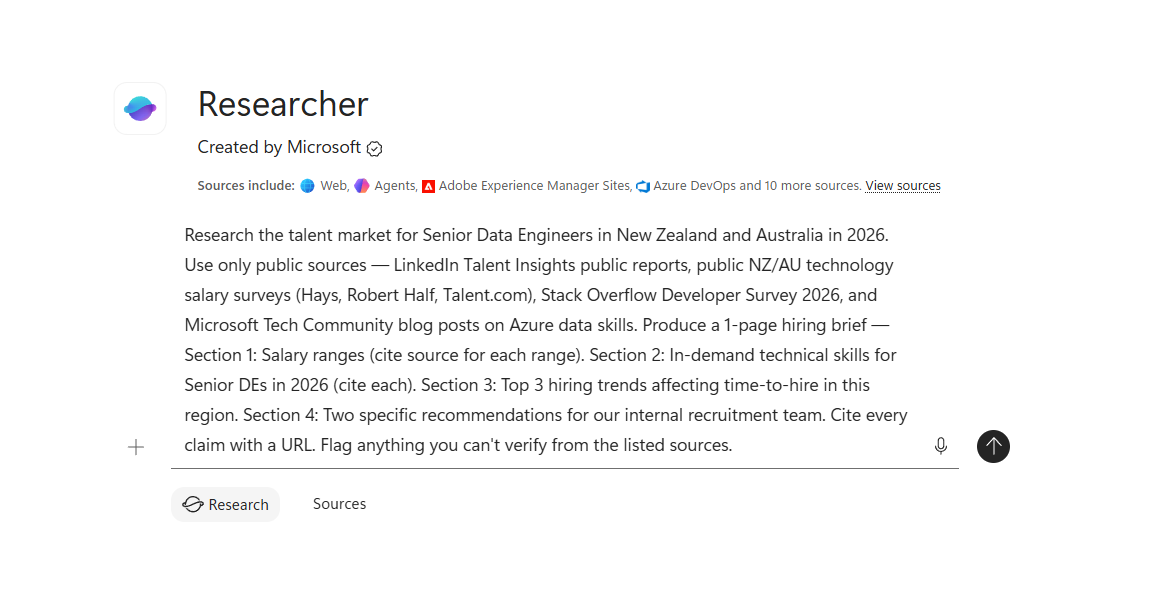
Here’s what the Researcher agent actually looks like inside Microsoft 365 Copilot — note the “Sources include” chip strip just under the agent name: Web, Agents, Adobe Experience Manager Sites, Azure DevOps, and 10 more sources. The agent has access to a broader source set than regular Chat. The same task brief from above sits in the composer, ready for the Research button (not the usual Send arrow — Researcher uses its own action button).
When to use Researcher
- The question is multi-step — you can imagine breaking it into 4-8 sub-tasks yourself.
- The answer needs a structured deliverable — a briefing, a deck outline, a competitive analysis, an exec summary — not a one-paragraph reply.
- The sources span work + web — you want internal context grounded by external signal.
- You’d happily wait a few minutes for a thorough answer rather than 30 seconds for a surface one.
Skip Researcher for quick one-liners. You’re paying complexity tax you don’t need.
A worked Researcher brief
“Research what our top 5 enterprise customers have publicly said about AI adoption in the last 12 months. Use /Our customer list and the public web (their blogs, press releases, public talks, LinkedIn posts from their executives). Output a structured briefing — one section per customer, each section covering: stated AI priorities · public investments announced · any AI partnerships disclosed · the named exec talking publicly · two questions our account team could ask next quarter to deepen the conversation. Cite every claim. Flag where the source signal is thin.”
The brief is doing the work the prompt frame used to do — but at a higher altitude. Goal, Context, Expectations, Source are all there. The scope is bigger.
The moment Researcher is genuinely different from regular Chat: as soon as you submit the brief, Researcher plans its own steps before doing any of them. Below is what that looks like for the talent-market brief above. Seven planned steps. Step one (Collecting salary range data) is active; the rest are queued. The status line at the bottom (Clarifying data sources…) is what Researcher is currently working on — a sub-step inside step one. This is what “task delegation, not single-turn” looks like in practice — you don’t iterate every move; Researcher iterates its own moves and reports back.
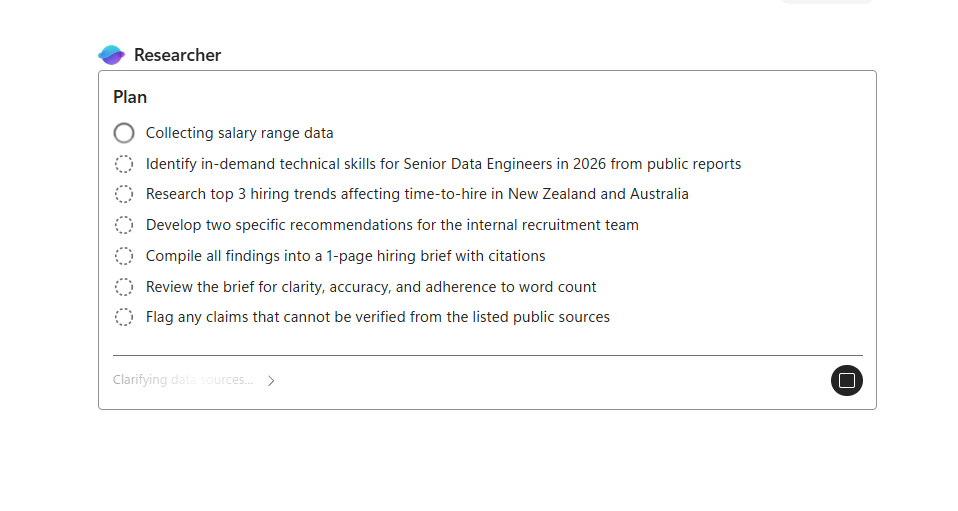
📎 Catch this moment in a customer demo. “I gave it one brief. It planned seven steps for itself. I can leave it running while I do something else — then come back and inspect the brief and the sources it used.” That single sentence resets the audience’s mental model from “AI chatbot” to “AI delegate”.
What the final output looks like — once Researcher completes the 7 steps, you get a structured report: headings per section (Salary ranges · In-demand skills · Hiring trends · Recommendations), cited claims with clickable source URLs, and any items Researcher couldn’t verify clearly flagged. (Final-output screenshot coming once I’ve captured a clean one — the prompt pattern above is the part to copy today.)
Researcher gotchas
- Don’t ask Researcher to decide. Same rule as everywhere else. It produces a briefing. You decide what to do with it.
- Cite-everything is non-optional. A Researcher output without citations is unverifiable. Always include “Cite every claim. Flag anything you can’t verify.” in the brief.
- Scope it tight. Vague scopes (“research AI”) produce vague briefings. Specific scopes (“research what our top 5 enterprise customers have said about AI in the last 12 months”) produce useful briefings.
Analyst agent — Python under the hood
Analyst is the data-analysis specialist agent. It runs Python under the hood to do real numerical reasoning — calculations, trend detection, statistical comparisons, anomaly spotting — across data you attach. The math is actually executed in Python, not approximated by a language model.
Why this changes the prompting
A language-model-only answer to “what’s the total of column C in this CSV?” is a guess. A good guess, maybe — but a guess. Analyst runs the SUM in Python and returns the actual number. That single shift — from approximated math to executed math — is the entire point.
When to use Analyst
- The question is genuinely numerical — sums, averages, percentages, distributions, trends.
- The data isn’t already in a clean Excel sheet — it’s a CSV export, a folder of monthly reports, a BI dataset export, a JSON file.
- You want the agent to show its work — Analyst typically explains what it did, which is exactly what you want when validating.
- You need repeatable answers — re-run the same prompt, get the same number, not a fresh hallucination.
Use Excel Copilot instead when you’re already inside a workbook and want quick formulas, chart suggestions, or Plan-mode previewed changes. Use Analyst for the data that hasn’t found its way into Excel yet.
A worked Analyst brief
“Using /Q1 sales export CSV and /Q2 sales export CSV, calculate (1) total revenue per region per quarter, (2) percentage growth Q1→Q2 per region, (3) the top 5 customers by revenue across both quarters combined. Output as three tables. For each calculation, briefly explain the method so I can verify. Flag any data quality issues you find — missing values, duplicates, inconsistent formatting — before doing the math.”
Notice the “flag data quality issues before doing the math” line. That’s the difference between a calculated number you trust and one you don’t.
Here’s what that looks like in Microsoft 365 Copilot — Analyst as the active agent, both xlsx files attached (the funnel data and the boomerang export), and the full task brief typed and ready to go. Note the three quick-action chips below the composer (Analyze data · Get insights · Visualize) — Analyst is positioned as a data specialist, not a general chat.
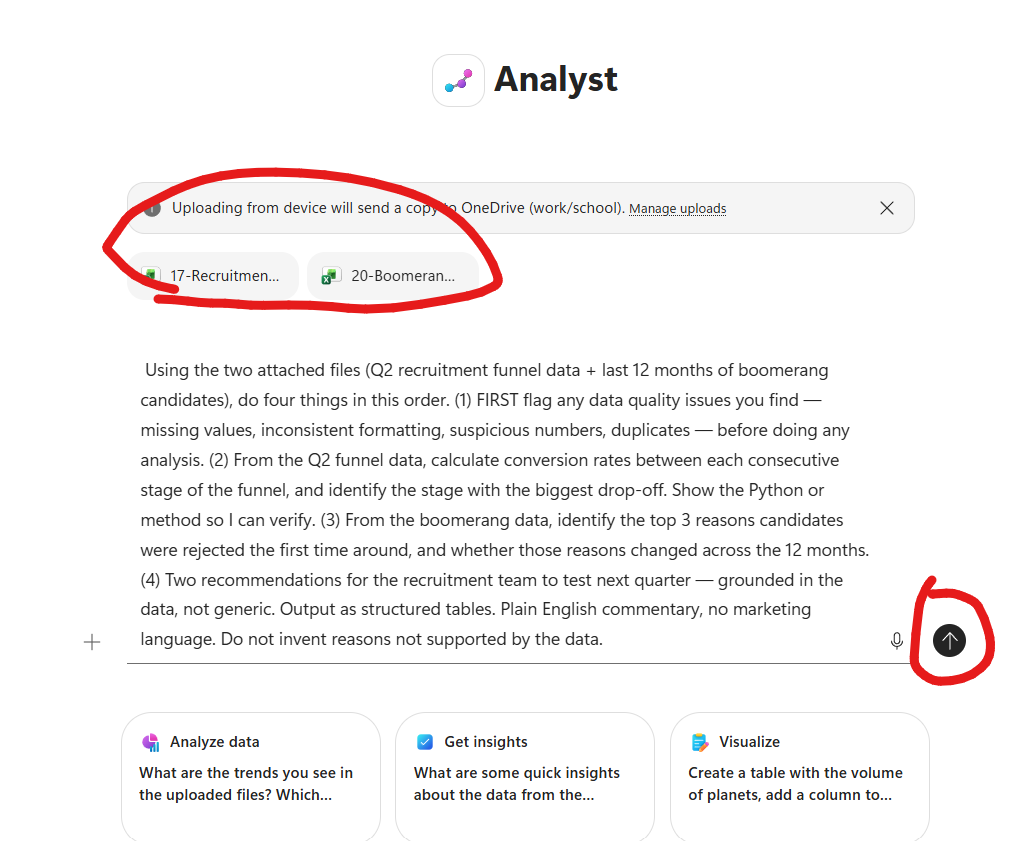
And the moment that proves Analyst is fundamentally different from a chat: as soon as you send the brief, you see “Coding and executing” — Analyst is running real Python on your data, and showing you the code. Not approximated math. Not language-model guessing. Actual pandas.read_excel, actual code you can read and verify. The numbers are more trustworthy because the calculation is executed, not guessed — but you still need to check the file, the columns, the filters and the assumptions before you trust the answer.
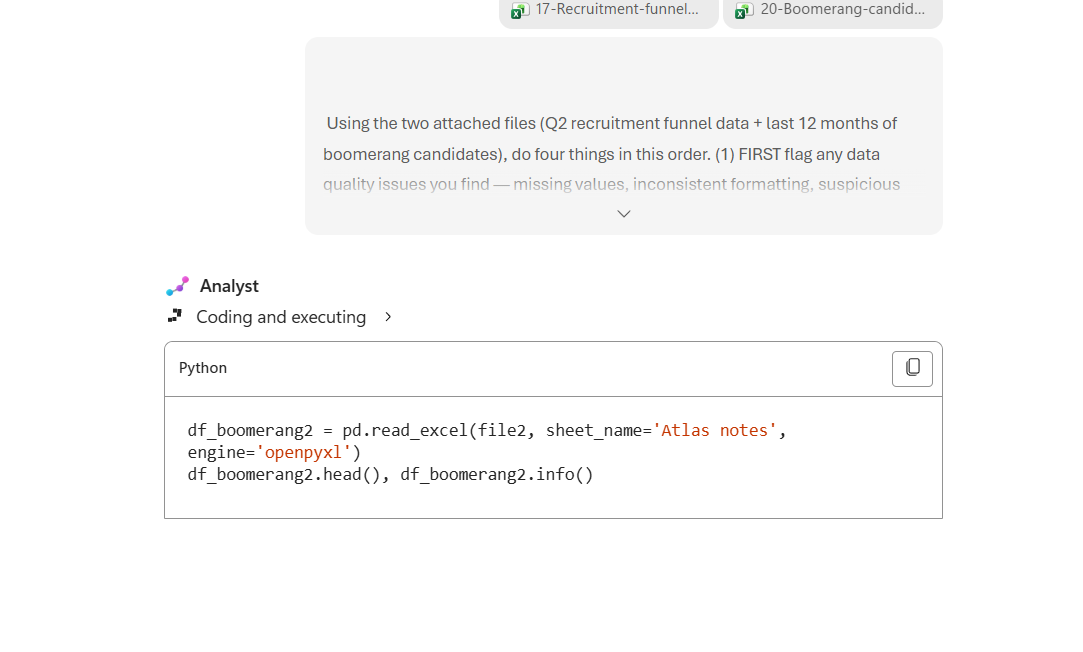
📎 Demo moment. “Watch the ‘Coding and executing’ line. That’s not Copilot making up numbers — that’s actual Python running on your data. If the recruiter wants to verify any number in the final output, click the code block, read the line that produced it, re-run it yourself.” That single beat is the trust shift — from “AI said so” to “here’s the code path that produced the number — now we can inspect it.”
What the final tables look like — once Analyst finishes the four-step brief, you get: a data-quality summary (issues found or “no major issues”), a funnel conversion table per stage with the biggest drop-off identified, a boomerang-reasons table showing the top 3 reasons + how they changed across the 12 months, and a short recommendations block grounded in the data. Every number traces back to a visible Python step. (Final-tables screenshot coming once I’ve captured a clean one — the prompt pattern + method-shown discipline above is the part to copy today.)
Analyst gotchas
- Always ask for the method. “Briefly explain the method so I can verify” is the line that turns Analyst from black box to auditable.
- Flag data quality first. Always. Bad data makes pretty numbers; pretty numbers make bad decisions.
- Re-run on real data, not samples. A 10-row sample may behave differently from the full 10,000-row file. If the answer matters, run against the full data.
Work IQ — the new grounding label
Work IQ is Microsoft’s umbrella term for the way Copilot grounds responses in your enterprise data — emails, chats, meetings, files, your org structure — without you having to slash-command every single source manually. Behind the scenes it draws on Microsoft Graph and your tenant’s index.
What this changes about how you prompt
Before Work IQ was named as a thing, the framing was simpler — “Copilot reads what you can read”. The framing now is more useful: Work IQ is a context layer that’s already running. When you open Copilot Chat and ask “what did Sarah say about the Q3 plan last week?”, Work IQ already knows who Sarah is (org chart), already knows which chats and emails to scan (recency + permissions), already knows your Q3 plan files exist (file metadata).
You don’t have to be explicit about all that. Your prompt can be shorter.
📎 Old prompt vs better 2026 prompt. ❌ “Summarise what Sarah said about Q3.” ✅ “What did Sarah say about the Q3 plan last week across email, Teams, and meetings? Quote the source and link me back.”
Work IQ helps find the haystack. You still tell it which needle matters and ask for the citation.
The trade-off worth knowing
Work IQ output quality depends on your tenant’s data hygiene. Specifically:
- Meeting transcripts on or off — if your org doesn’t enable transcripts, Copilot can’t reason across meetings, period.
- File naming and metadata — Copilot’s index uses titles, metadata, owners. “Final FINAL v3 copy.docx” with no description is hard for Work IQ to surface usefully.
- SharePoint permissions — if everyone has access to everything (over-sharing), Work IQ returns noisier results because the haystack is bigger.
- Old / stale content — Work IQ doesn’t know that a 2019 strategy doc is obsolete unless someone marks it so.
📎 The practical move: the highest-leverage thing IT and Ops admins can do for Copilot quality is tenant hygiene — not a new prompt or training session. Less oversharing, better file names, accurate org structure, meeting transcripts enabled. That’s the Work IQ amplifier.
Slash-command grounding is still there
Work IQ is the default grounding layer. Slash commands (/file, /person, /meeting) are the explicit layer on top. You still use slash commands when you want to be precise — “use /this specific file, not whatever Copilot guesses”. You skip slash commands when the question is broad enough that Work IQ’s automatic grounding is enough.
The rule: if the answer needs a specific source, slash it in. If the question is “what’s going on with X?” — Work IQ will probably find what you need.
Model choice — Thinking vs Instant vs Claude
In supported tenants and surfaces, Copilot is starting to expose model choice rather than hiding everything behind one default. The exact dropdown varies by app, license, region, and admin settings. The three you’ll see most often:
| Model | What it’s good at | When to pick it |
|---|---|---|
| GPT-5.5 Instant | Speed, drafting, editing, summarising | Default — fast, good enough for most prompts |
| GPT-5.5 Thinking | Deeper reasoning, complex analysis, multi-step problem solving | When Instant gives you a surface answer and you want depth |
| Claude | Long-form writing, nuanced tone, structured argumentation | Where enabled by your admin — especially in Researcher and selected writing surfaces |
The decision rule
- Start on Instant. It’s the fastest, and 80% of the time it’s enough.
- Switch to Thinking the moment the answer feels too shallow — “analyse the trade-offs between X and Y”, “why did this metric move?”, “what are the risks I’m not seeing?”. Thinking takes longer because it reasons longer. That’s the trade.
- Claude in Word is worth a try when drafting something long-form and the GPT voice feels generic.
Image models (PowerPoint)
PowerPoint Copilot now lets you pick the image model when generating visuals — GPT-Image, Flux, or Auto (let Copilot choose). Most of the time Auto is fine. When the generated image looks off-brand or generic, try the other models — they have different style defaults.
Python mode (Excel + Analyst)
Not a “model” exactly, but the same dial: Excel Copilot now has a Python mode that routes calculations through real Python execution rather than language-model approximation. Use it for anything numerical that matters. Plan mode shows you the steps before running them, so you can catch errors before they touch the workbook.
💡 Tip: explicitly say “use Python for this” in an Excel Copilot prompt for any calculation you don’t want approximated. The Plan mode preview will then show you exactly what’s about to run.
Memory — what changes when Copilot remembers
Where enabled by your tenant, Copilot Memory lets Copilot retain selected context across sessions — your preferences, your team, your project, your style — rather than starting from scratch every chat. Memory rollout is tenant-controlled and currently in preview in most environments, so availability depends on your IT setup. When it’s enabled in your tenant, the prompting workflow shifts.
The before / after
Before Memory: every chat starts blank. You retype context every time. “I’m Sush, I lead pre-sales for M365 Copilot in NZ, my regular customers are X, Y, Z…” — for every prompt that needs the context.
With Memory: Copilot remembers you said that yesterday. New chat opens with the context already there. Your prompts get shorter because the Context block in the four-block framework carries forward.
“Continue working on the migration brief for Customer A. Same tone as the last one. Pull in the latest from /Customer A account chat.”
That prompt is one line because Memory already knows who Customer A is, what tone “the last one” had, and which account chat to look at.
The discipline Memory requires
- Tell Copilot what to remember. “Remember that I always send drafts to my manager first before customers.” — that’s a Memory write. Then it just happens.
- Tell Copilot what to forget. “Forget what I told you about Project X — it’s been cancelled.” — keeps Memory current. Stale memory is worse than no memory.
- Audit periodically. Microsoft typically exposes a Memory management surface in the Copilot app — review what’s been captured, clear what’s wrong. Your tenant’s admin may also have settings.
📎 Privacy note: Memory respects the same data boundary as the rest of Microsoft 365 Copilot — your tenant. Memory is not training data. But it IS a stored representation of preferences and context, so treat it the way you’d treat any work-context store: review it, clear what doesn’t belong.
📎 Admin / detail worth knowing. Microsoft currently documents Copilot personalisation and memory as preview. Memories are stored in the user’s Exchange mailbox (a hidden folder), Enhanced personalisation is on by default unless your admin turns it off, retention labels do not apply to memory, and saved memories are kept until the user deletes them. So don’t treat Memory as magic short-term chat context — treat it as managed work context that lives where your other Exchange data lives, with admin and user controls over it.
Memory gotchas
- Memory doesn’t mean Copilot has read your entire history. It captures what it’s told to or what’s been raised as significant. It’s a context store, not an omniscient log.
- Don’t assume cross-session continuity until you’ve verified Memory is on for you. If it’s not enabled in your tenant, your prompts still start blank. The four-block framework saves you here — type the Context block explicitly.
Multimodal & Pages — image, voice, generation, canvas
Several smaller features that compound when used together.
Paste an image, ask a question
Copilot now accepts pasted images as part of a prompt across most surfaces. Highest-leverage examples:
- A chart screenshot → “What’s the headline trend here, and what’s the question I should be asking my team about it?”
- A whiteboard photo → “Turn this into structured meeting notes — decisions, action items, open questions.”
- A UI mockup → “Critique this from a usability perspective — what’s confusing, what’s missing, what’s good?”
- A handwritten page → “Transcribe this and structure it as a project plan.”
- A photo of a printed document → “Extract the key terms and summarise.”
The pattern is the same as text prompts: Goal · Context · Expectations · Source — the image is the source.
Speak a prompt
Voice input is rolling out across Copilot surfaces — already in the mobile app, in Teams meetings, and increasingly on desktop. Use cases that pay off:
- Mobile + ground-while-walking — “Copilot, using last week’s leadership recap, draft me an update for the board.”
- In a meeting — capture a thought into Copilot without typing.
- When typing is slow — voice into a draft, then iterate in text.
Voice is most useful when combined with grounding. Pure voice without a source is fine for brainstorming; voice + a grounded file is where the actual work gets done.
Generate an image
PowerPoint Copilot now generates images directly into your deck. Image generation is also appearing in Copilot Chat experiences, depending on your tenant and rollout. The prompting pattern:
“Generate a simple illustration for a slide titled ‘Migration journey’. Style — minimalist, flat, brand colours navy and amber, no people, no text in the image.”
The “no text in the image” line is useful — image models still struggle to render text reliably. Tell them not to try.
Copilot Pages
Pages is a collaborative AI canvas. Workflow:
- Get a good Copilot Chat answer.
- Click “Edit in Pages”.
- The content opens in a shared real-time document.
- Invite teammates. Continue iterating with Copilot inside the Page.
Use Pages when the work is collaborative-in-progress — not yet a formal Word doc, more than a chat answer. The killer pattern: a Copilot Chat answer becomes a Page → exec previews it → comments inline → Copilot drafts revisions → final version exports to Word for distribution. Less email back-and-forth, more shared canvas.
The admin / power-user layer I’m not covering here
Three things deliberately scoped out of this brief because they each deserve their own post — but worth naming so you know they exist:
- Copilot Control System — the tenant-level admin layer that governs Memory, connectors, agents, model choice, image generation, and Prompt Gallery pinning. If your tenant is doing Copilot seriously, this is the surface IT and security own.
- Agent Builder · Copilot Studio · declarative agents — the step after prompting. Once you have a prompt pattern that works, it becomes a reusable agent your team triggers without re-writing the prompt every time. The M365 Agent Builder field guide on this site covers the no-code path.
- Connectors and plugins — Copilot now reads from LSEG, HubSpot, ServiceNow, Confluence, Salesforce, Notion-style data sources via federated connectors and the Model Context Protocol. Work IQ is extensible through these — it’s not just M365 data any more.
These belong on your roadmap once the seven shapes in this brief feel comfortable. They’re how Copilot stops being a personal productivity tool and starts being a tenant-wide capability.
The honest take — what’s still rough
Worth saying because the marketing won’t.
- Notebooks indexing lag is real. A reference pinned 5 minutes ago may not be fully searchable. Patience.
- Researcher and Analyst can be slow. Multi-step tasks aren’t 30 seconds. Brief them well and walk away — don’t refresh every 10 seconds.
- Work IQ depends on tenant hygiene. In an over-shared, under-curated tenant, Work IQ surfaces noise. That’s a tenant problem, not a prompting problem.
- Model choice can be flaky. Sometimes Thinking is no deeper than Instant on a particular prompt. Try both. Pick the one whose answer you actually use.
- Memory rollout varies. If your tenant doesn’t have Memory enabled, the “new prompts will be shorter” promise doesn’t apply yet. Type the Context block explicitly.
- Image generation still struggles with text inside images, hands, faces, and brand-specific style. Use for placeholder visuals; commission real artwork for anything customer-facing.
- Voice prompting can mis-transcribe. Always glance at what was transcribed before you hit Send. Especially in noisy environments.
- The feature names will change again. Notebooks may become Workspaces. Researcher may rebrand. Work IQ may absorb other names. The shapes are durable; the labels are not.
None of these mean the features aren’t worth using. They mean stay sceptical, validate outputs, treat first drafts as drafts, the same way you’d treat any junior colleague’s first attempt.
Where to start this week
Pick one of these. Try it on a real work task. Iterate. Notice the difference. Add another next week.
| Try this week | If you… |
|---|---|
| Spin up your first Notebook — pin 3 references and ask one cross-source question | Frequently re-attach the same files to different chats |
| Brief Researcher with one structured research task | Have a research-prep ritual that eats 2+ hours every week |
| Hand Analyst a CSV and ask for a specific calculation with method shown | Do recurring numerical analysis outside Excel |
| Pick Thinking for the next analysis-style prompt that goes shallow on Instant | Notice your prompts often need iteration because Copilot answers too quickly |
| If Memory is enabled — tell Copilot one durable preference about how you work | Find yourself re-explaining the same context every chat |
| Paste an image into Copilot Chat and ask for a headline read | Work with a lot of charts, screenshots, or whiteboards |
| Open a Page from your next good Chat answer | Often turn chat answers into shared docs anyway |
Don’t try all seven at once. The four-block framework took most people a week to internalise — adding new features at the same speed is the right pace.
💡 Track what compounds. Same advice as the Field Guide: a one-line journal note at the end of each day in week one. “Today I used X — it saved me Y minutes / I’d never have noticed Z without it / it didn’t really help, I’ll skip it next time.” By week three you’ll know which 2-3 of these seven are actually compounding in your workflow. The rest you can park.
Where to go next
This brief is the 2026 layer. The fundamentals are in the hub:
- 🌱 Prompt Engineering for Microsoft 365 Copilot — A Plain-English Field Guide — the four-block framework, per-app tips, the mistakes everyone makes. Read this first if you haven’t.
- 🧑💼 Microsoft 365 Copilot — A Playbook for 5 Personas — role-specific worked prompts. Recruiter · Ops · Finance · IT · Sales.
Also on this site:
- 📚 The Prompt Engineering Guide — 8 deeper techniques, hands-on practice for each.
- 🧪 The Advanced Prompt Lab — 12 expert techniques (Chain of Thought, Tree of Thought, ReAct, Meta-Prompting, etc.) for when the four blocks aren’t enough.
- 📋 The Prompt Library — 500+ tested prompts. Filter by app and persona.
- 🎯 The Prompt Polisher — paste your prompt, get a score and a better version.
- 🧪 The Prompt Tester — A/B compare two prompts.
Microsoft references:
- Microsoft 365 Copilot Prompt Gallery — Microsoft’s curated public prompt library.
- Microsoft Learn — Microsoft 365 Copilot overview
- Microsoft Tech Community — Microsoft 365 Copilot blog — monthly What’s New posts. The single best place to track feature rollouts.
Related guides on this site:
- Copilot Pro vs Microsoft 365 Copilot — Which Do You Need?
- How Microsoft 365 Copilot Works, Layer by Layer
- M365 Agent Builder — Plain-English Field Guide
✎ One more thought. The feature list above will look dated in twelve months. The pattern won’t. Microsoft is moving Copilot from a single-turn chat into a stack of collaborative AI surfaces — workspaces, agents, memory, multimodal canvases. Each one is just another way to plug in the same four blocks.
The skill that compounds isn’t memorising the features. It’s getting fluent at writing a clear brief — and recognising which surface that brief belongs on. Hub for the brief. This page for the surface. Persona Playbook for the worked role-specific examples.
Try one thing this week. See what changes. Come back when something new lands.
— Sush
Frequently asked questions
The questions I hear most about the 2026 Copilot prompting layer.