What's New in Microsoft 365 Copilot: May 2026
← what changed this month, in plain English
On this page
The short version — what’s new in Microsoft 365 Copilot for May 2026: 53 updates, and three matter most. Federated MCP connectors pull live third-party data (Canva, HubSpot, Linear, LSEG, Moody’s, Notion) into Copilot at prompt time. GPT-5.5 Instant lands in Copilot Chat. Plan mode in Excel shows you Copilot’s steps before it touches your workbook.
The rest — Copilot Notebooks generating PowerPoint, Word and Excel, a chat-first mobile redesign, Teams call delegation, voice chat, and DLP-aware prompt redirects in Edge — is below, each explained in plain English with what it actually means for you.
📅 2026 monthly recaps: January · February · March · April · May (you are here)
If you only have 2 minutes — May’s 3 picks
If 40 changes feels like too much, these are the three I’d start with:
- Federated MCP Connectors — Microsoft’s new federated connectors let Copilot query external systems (Canva, HubSpot, Linear, LSEG, Moody’s, Notion) live at prompt time, instead of working off a pre-indexed snapshot. Most strategic change this month.
- Plan Mode in Excel — Copilot shows you what it’s about to do before it touches your workbook. The kind of guardrail serious analysts have wanted for a long time.
- Copilot Call Delegation in Teams — Copilot answers your incoming Teams calls, gathers context from callers, and offers to book a follow-up. One of the clearest assistant-style features this month.
Admin Checklist — May 2026
Five admin checks worth doing this month, in priority order:
Stage federated connectors before users discover them. Microsoft’s new MCP-based federated connectors (Canva, HubSpot, Linear, LSEG, Moody’s, Notion, plus Google Calendar/Contacts) are enabled by default in your tenant. Action: Microsoft 365 admin centre → Copilot → Connectors → Your connections → review available connectors, then stage rollout to specific Microsoft Entra ID groups before broad availability. Use PowerShell to bulk-disable and selectively re-enable if governance requires it.
Brief security on the new Edge DLP redirect. Edge v.148 now offers a “send to M365 Copilot instead” prompt when Purview DLP blocks a sensitive query to an external AI site. Action: Confirm your Purview DLP policies for generative AI are tuned correctly — the redirect only works if DLP is actually catching things.
Pilot Plan mode in Excel with one analyst before broad comms. Decide whether to recommend it as the default workflow for multi-step changes. Then update your Copilot training materials.
Update your AI usage policy for Call Delegation. Decide which staff should enable Copilot to answer Teams calls on their behalf. My governance note: review carefully if your team handles regulated calls (legal, advisory, medical, financial) — your industry rules, not Microsoft’s, should set the boundary.
Sign up for Frontier if you want earliest access to the Notebooks preview. Generation of PowerPoint, Word and Excel from notebooks, plus Mind maps and Teams meetings as references, ships first via the Frontier program. Check your roadmap and admin centre for the GA rollout timing — most items have a May GA target in the Microsoft 365 roadmap.
1. Federated Copilot Connectors (with MCP)
For: All users (admin configures connectors) · Generally available in admin center, user experience rolling out
This is the headline of the month. Federated Copilot connectors are a new class of connector built on the Model Context Protocol (MCP) — instead of indexing data into your tenant ahead of time, they query the source system live, at the moment of the prompt. (MCP governance guide →) Responses reflect the latest data, every result includes a citation back to the source record, and access is securely governed via OAuth 2.0 using each user’s own identity and permissions.
The first wave of out-of-the-box federated connectors built by Microsoft in partnership with leading SaaS and data providers:
| Partner | What you can ask |
|---|---|
| Canva | “Show me 2024’s top-performing holiday designs from Canva, along with the formats that delivered the highest engagement.” |
| Google (Calendar & Contacts) | “List all my calendar events for next week, then determine which ones are overlapping.” |
| HubSpot | “From HubSpot, show me my open deals with a value over $10K where there’s no logged activity in the past 7 days.” |
| Intercom | Surface support conversations and customer health signals. |
| Linear | Project tracking and issue data for engineering and product teams. |
| LSEG (London Stock Exchange Group) | Real-time and end-of-day pricing for equities, fixed income, FX, and commodities. |
| Moody’s | Entity profiles, ownership structures, credit ratings, and Moody’s research documents. |
| Notion | Query Notion pages, databases, and workspace content directly in Copilot. |
💡 Why it matters: The old Copilot Connectors indexed data into Microsoft Graph — useful, but always one crawl behind. Federated connectors flip the model: Copilot asks the source system at query time, so when a treasury analyst asks for today's interest rate curve, or a sales manager checks an open pipeline, the answer reflects what the source system shows right now. And because it uses OAuth with your own identity, you only see what you're already permitted to see — perfect for sensitive scenarios in finance, healthcare and legal.
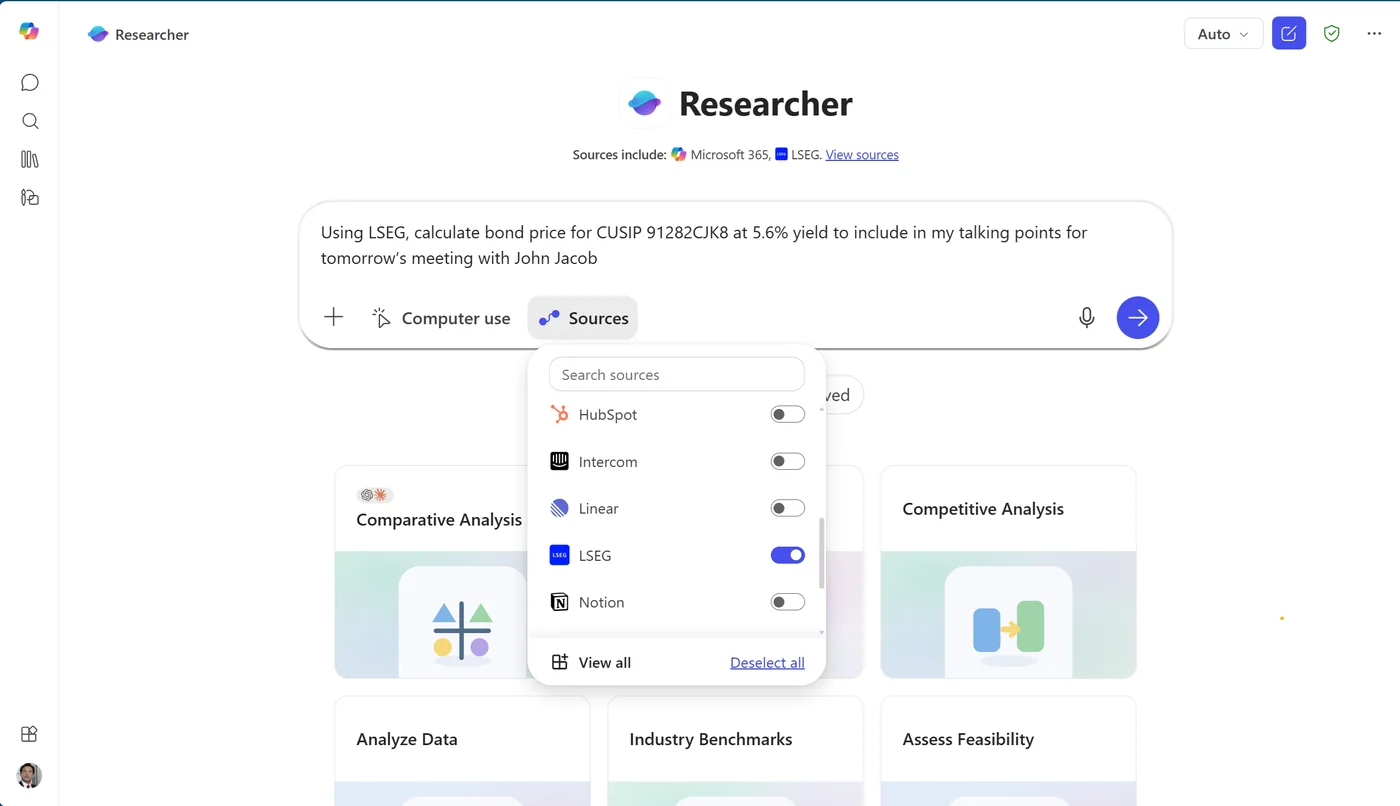
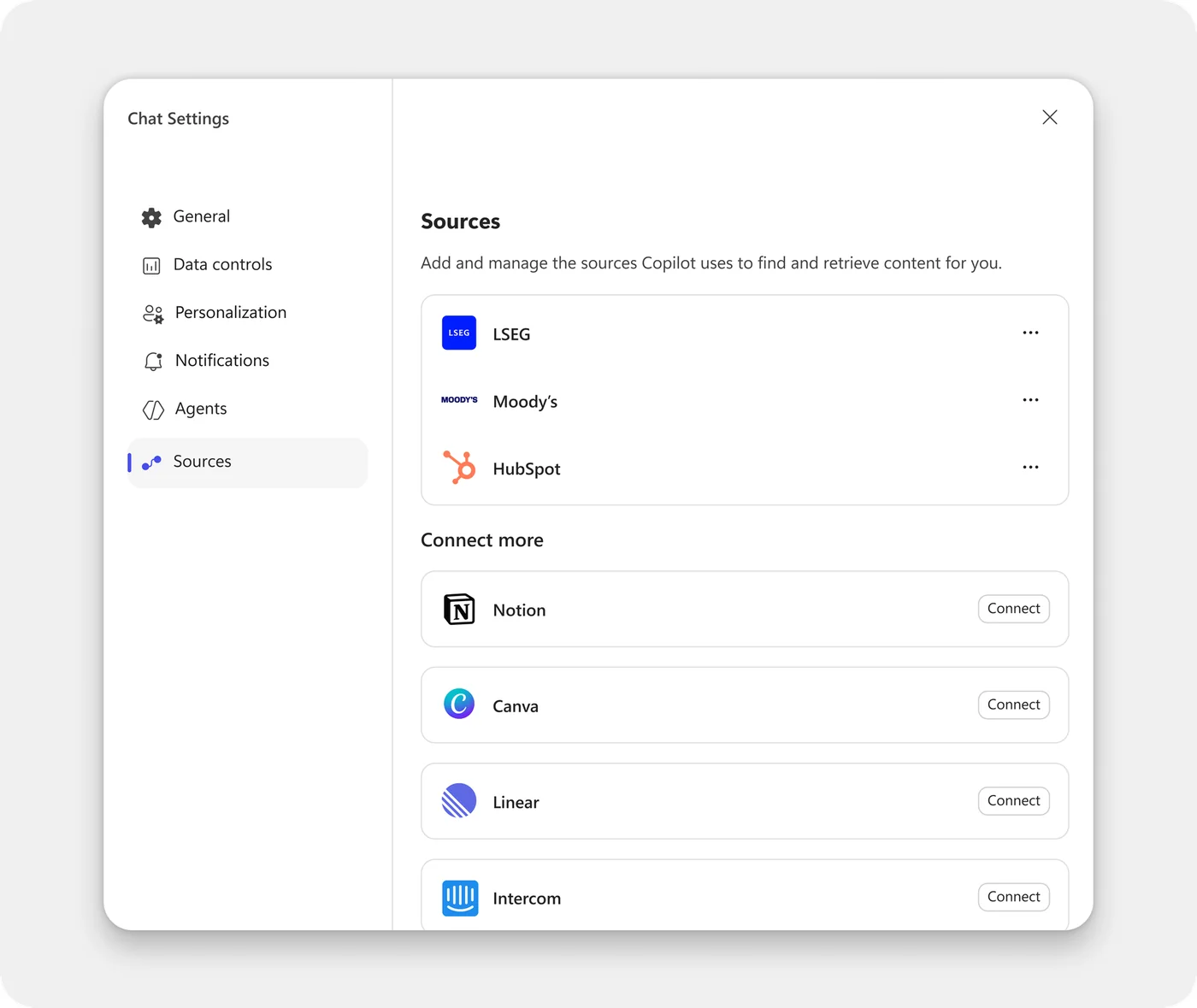
How to find it: In Microsoft 365 Copilot Chat, open Sources below the prompt box or in chat settings, browse the available connectors, and authenticate with your own credentials. Once connected, the source appears as Connected and you can query it immediately. Also available from the Sources menu inside the Researcher agent.
Admin controls: Manage them in Microsoft 365 admin center → Copilot → Connectors → Your connections. Admins can enable/disable per tenant, stage rollout to specific Microsoft Entra ID groups, and use PowerShell to disable all default federated connectors and selectively re-enable them.
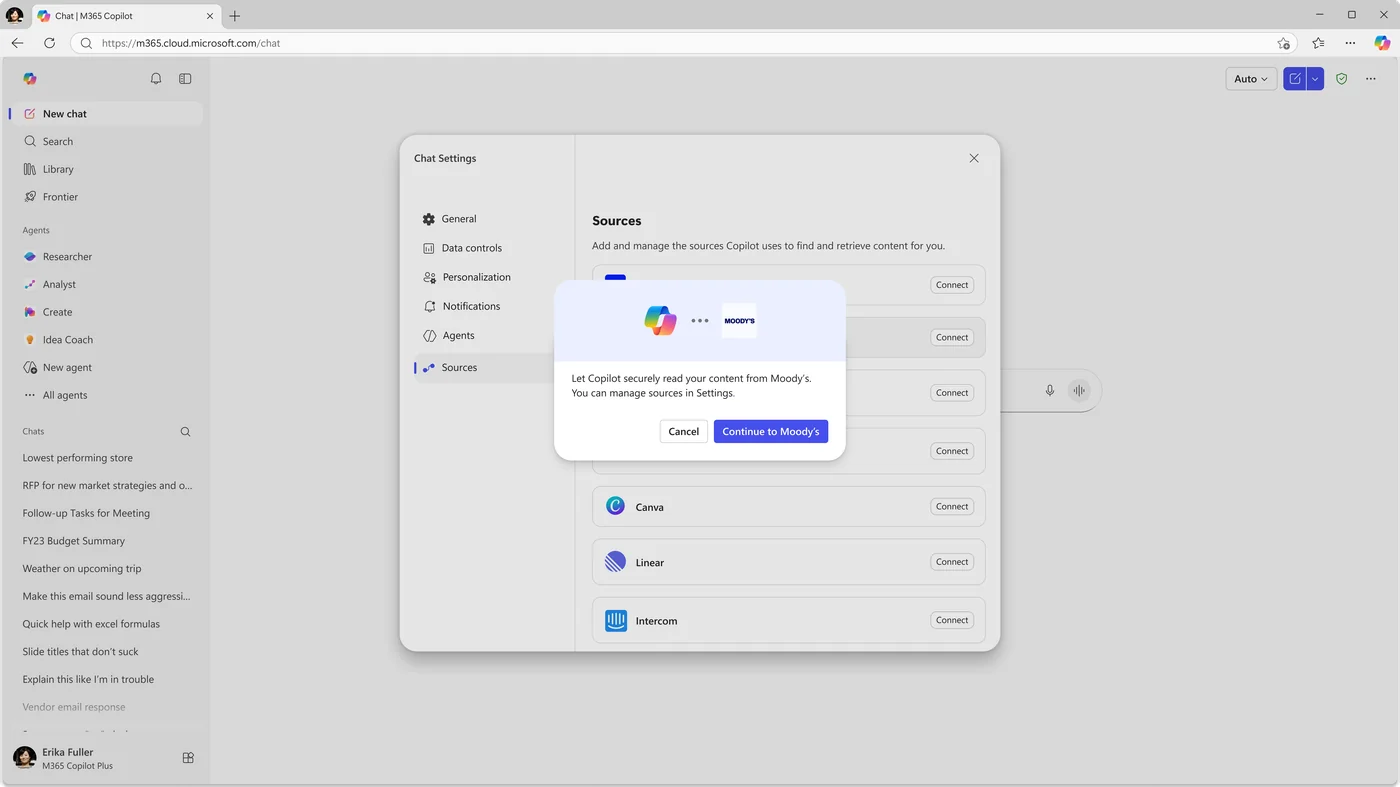
You can also build your own. Custom federated connectors for internal and line-of-business systems can be built using the same MCP standard and deployed by admins.
📖 Official announcement — Federated Copilot connectors
ⓘ Heads-up for finance teams: Federated connectors to LSEG and Moody’s in Excel are noted as coming soon — today the connectors are available in Microsoft 365 Copilot Chat and the Researcher agent on web and desktop.
2. GPT-5.5 Instant in Microsoft 365 Copilot
For: All Copilot Chat users · Available now (rolling out)
OpenAI’s GPT-5.5 Instant is now available in Microsoft 365 Copilot and Microsoft Copilot Studio. Building on GPT-5.3 Instant, it improves the quality of everyday work tasks, with better image analysis, better STEM reasoning, less verbosity, and fewer unnecessary follow-up questions. (Model choice brief →)
💡 Why it matters: Most Copilot use is "everyday work" — summarise this email, fix this paragraph, explain this chart. GPT-5.5 Instant is tuned exactly for that flow — fewer "did you mean…" loops, more useful answers on the first try. Microsoft 365 Copilot licensed users get priority access, while users on free Copilot Chat get standard access. The same model is available to agent makers in Copilot Studio.
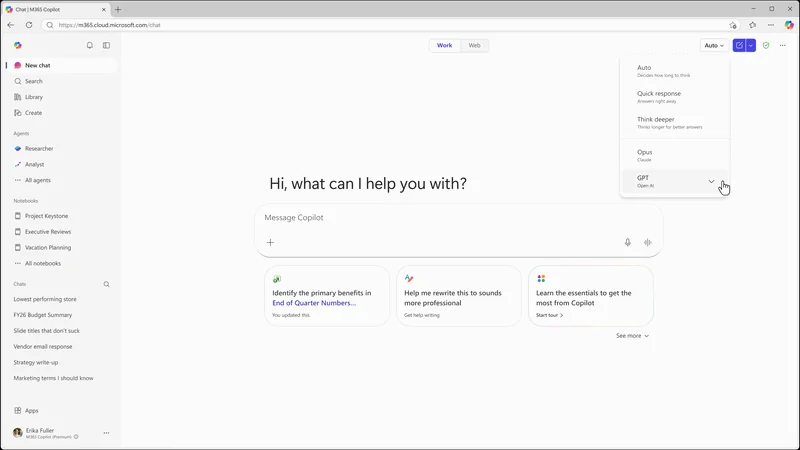
How to find it: In Copilot Chat, open the model selector — GPT-5.5 Instant appears as “GPT-5.5 Quick response” under GPT. In Copilot Studio, it appears as “GPT-5.5 Chat” in early-release-cycle environments.
📖 Official announcement — GPT-5.5 Instant in M365 Copilot
3. Microsoft 365 Copilot Mobile App — Chat-First Redesign
For: All users · Rolling out in May
The Microsoft 365 Copilot mobile app gets a refreshed, chat-first design with cleaner navigation, support for text formatting in prompts, and a new layout that makes chat responses easier to view, copy, reopen and reference through citations. The app picks up a liquid glass styling and a new visualisation for voice conversations.
💡 Why it matters: Most mobile Copilot use is one-handed and quick — between meetings, in transit, at the kitchen bench. A redesign that puts chat at the centre, makes citations easier to tap, and adds a proper voice visual changes the feel from "scaled-down desktop app" to "made for thumbs". It is the version of the mobile app that finally matches how people actually use it.
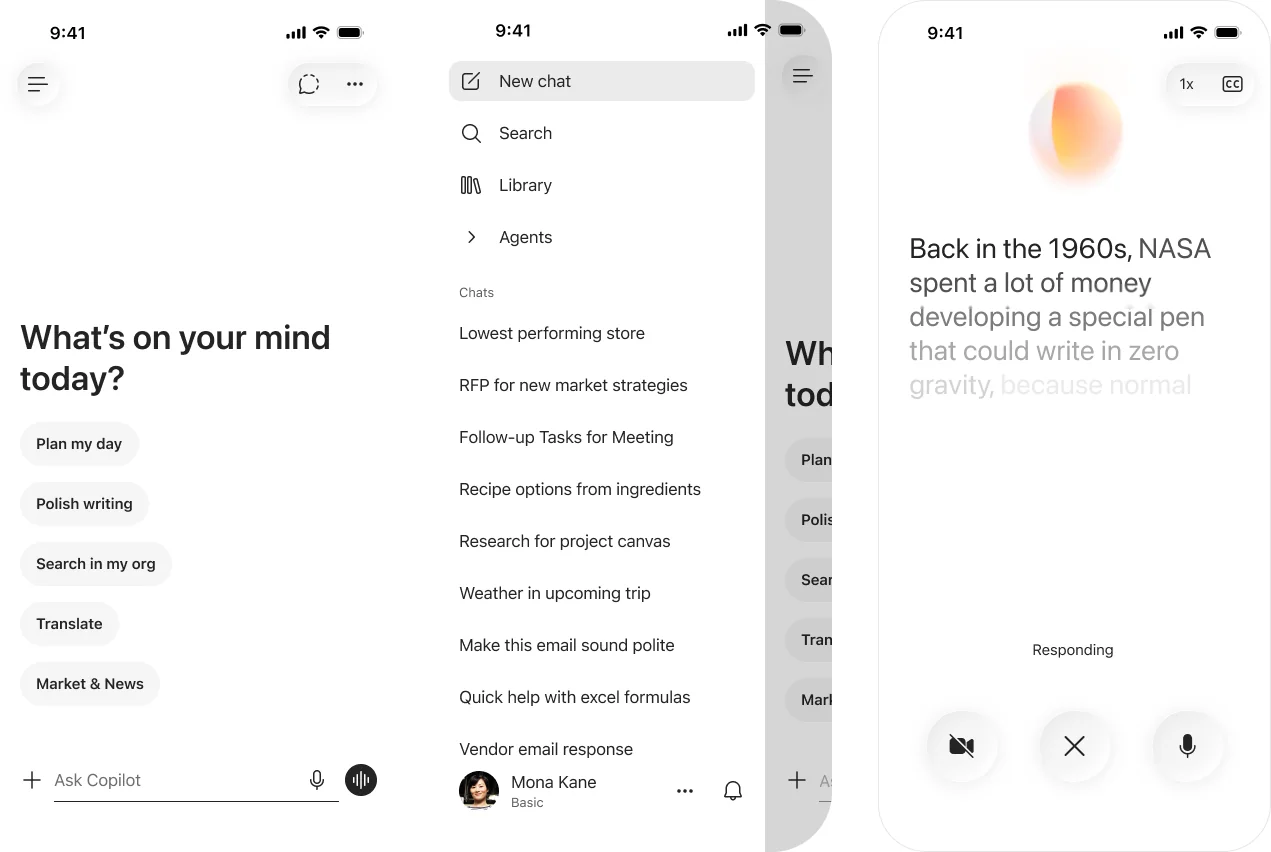
How to find it: Open the Microsoft 365 Copilot app on iOS or Android — the new design rolls out in May.
4. Branded Footer in the Microsoft 365 Copilot App
For: IT admins · Rolling out in May
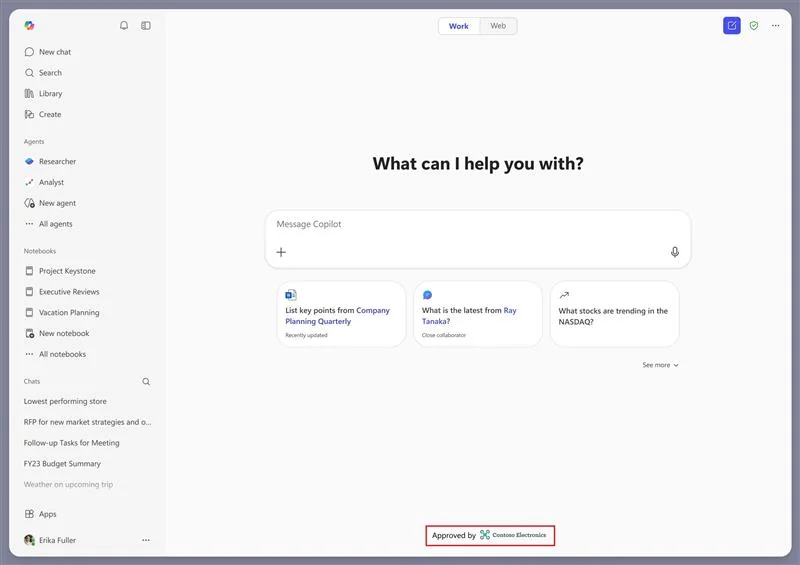
Admins can now display their organisation-approved logo in the Microsoft 365 Copilot Chat footer, with a fixed “Approved by” label. The logo is the one already set in Microsoft 365 admin centre theming.
💡 Why it matters for admins: Users have been asking "is this the official, sanctioned version of Copilot?" since rollout began — particularly in environments where multiple AI tools are floating around. A visible, admin-approved branding cue inside Copilot Chat is a small detail that reassures users they're in the right tool, without needing another email or pop-up.
5. Create PowerPoint Presentations from Copilot Notebooks
For: Frontier program preview users · Rolling out in May
Copilot Notebooks can now generate PowerPoint presentations directly from the content and references stored in a notebook. (Notebook generation guide →) Choose the primary focus, level of detail, slide deck length, and design theme from example templates, and the PowerPoint agent produces a structured, editable deck preloaded with visuals — ready to refine in PowerPoint.
💡 Why it matters: The interesting part is the workflow, not the slides. You gather sources into a notebook — meeting content, SharePoint docs, web links — and then ask Copilot to turn that grounded knowledge into a deck. No copy-paste, no "let me find that document again". The notebook becomes the research workspace; the deck is the output. Same model applies to Word and Excel below.
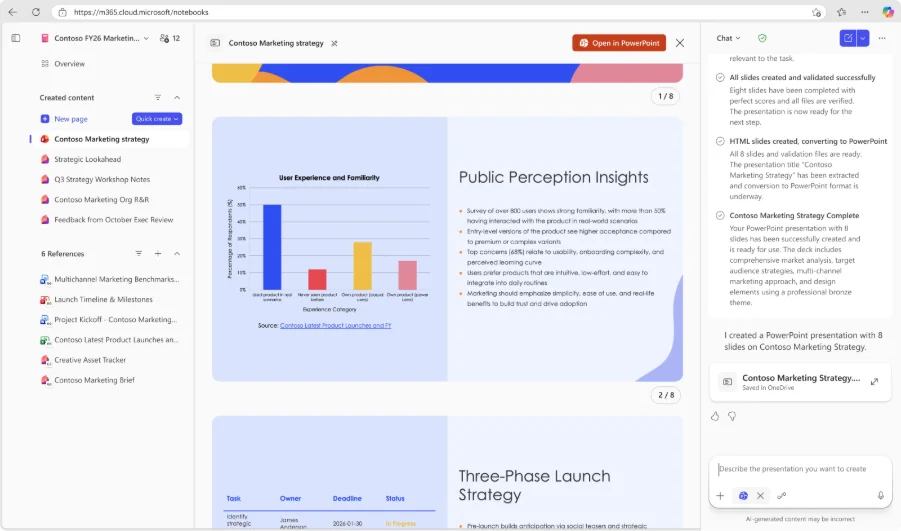
How to find it: Open a Copilot Notebook (Frontier preview) → ask Copilot to create a PowerPoint presentation → pick template, length, and focus.
6. Create Word Documents from Copilot Notebooks
For: Frontier program preview users · Rolling out in May
In Copilot Notebooks, generate Word documents — reports, summaries, proposals — directly from the content and references gathered in the notebook. Specify the document type, main topic, audience and themes, and Copilot drafts a first version you can open and edit in Word.
💡 Why it matters: Reports usually start with the painful first draft. Notebooks-to-Word skips that by drafting from material you have already curated — the references you trust, the notes you have taken — instead of from a cold prompt. The Word document arrives already grounded in your sources.
How to find it: Inside a Copilot Notebook, ask Copilot to create a Word document and customise type, topic, audience and theme.
7. Create Excel Spreadsheets from Copilot Notebooks
For: Frontier program preview users · Rolling out in May
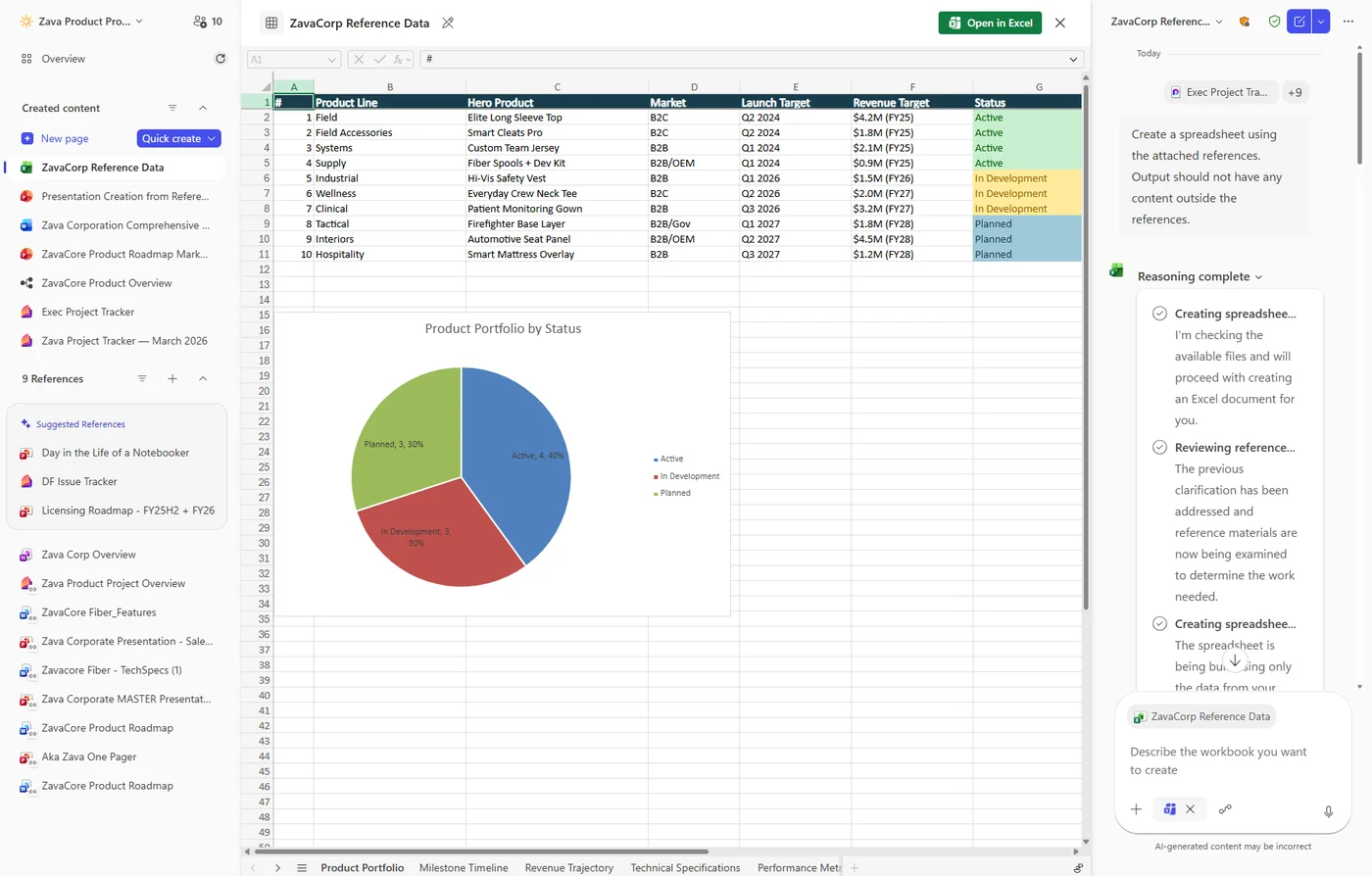
Same pattern — but for Excel. Copilot Notebooks can now generate Excel spreadsheets from notebook content, so structured data buried in your references gets turned into a workbook you can analyse.
💡 Why it matters: A lot of useful data lives in tables inside PDFs, web pages and meeting notes — but only as text. Notebooks-to-Excel pulls that structure out into a real workbook. Less "rebuild this table manually", more "open it in Excel and analyse".
8. Mind Maps in Copilot Notebooks
For: Frontier program preview users · Rolling out in May
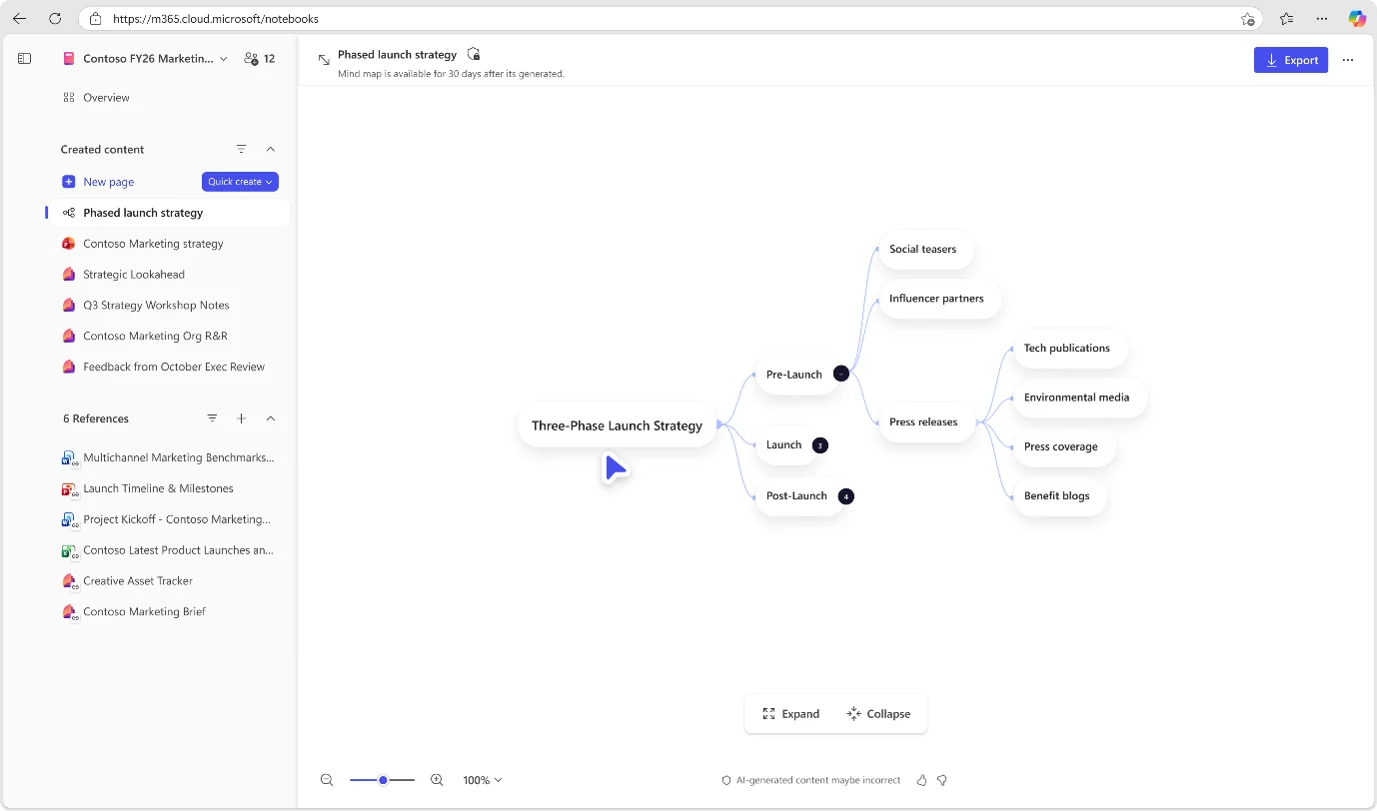
Mind maps in Copilot Notebooks provide an interactive, grounded view of key topics and the relationships across a notebook’s content. (Notebook prompt guide →) Explore nodes, open summaries for specific areas, and use Copilot to drill deeper into what you see on the map.
💡 Why it matters: When a notebook starts holding 10 or 20 sources, the "what's actually in here?" question gets harder. Mind maps give you a visual scaffold of the territory — what the major themes are, how they connect, where to dig further. It is the way humans actually navigate knowledge.
9. Web Link as a Reference in Copilot Notebooks
For: Frontier program preview users · Rolling out in May
Paste a URL as a reference in Copilot Notebooks and Copilot uses that web link’s content to inform notebook chat and outputs — expanding sources beyond internal content.
💡 Why it matters: Until now, notebooks lived inside the walls of your tenant. Adding external web pages as first-class references closes the gap between internal context (the strategy doc) and external context (the regulator's announcement, the competitor's press release, the standards body's page). Both inform the same workspace.
How to find it: Add a reference to a notebook → paste a URL as the source.
10. Edit Copilot Pages with Chat in Notebooks
For: Frontier program preview users · Rolling out in May
Copilot Notebooks now supports creating and editing Copilot Pages through chat — describe the change in natural language and Copilot updates the page in place.
💡 Why it matters for admins: The learning curve on Copilot Pages was real — users could read them but found editing intimidating. Chat-driven editing removes that — say what you want changed, and the page updates. Lower curve, more adoption, less "I'll just put it in a Word doc instead".
📖 Official April announcement — Copilot Notebooks wave
11. Teams Meetings in Copilot Notebooks
For: Frontier program preview users · Rolling out in May
Add Microsoft Teams meetings as references in a Copilot Notebook — connect transcripts, notes, chats, and shared content from past meetings so Copilot can reason over them alongside your other sources.
💡 Why it matters: A huge amount of an organisation's "real" knowledge is locked inside meeting transcripts and notes nobody re-reads. Making meetings citable references inside a notebook unlocks that — "what did we agree about Q3 pricing in that call last Tuesday?" is suddenly an answerable question.
12. Multimodal Capture in Copilot Notebooks (OneNote iPhone)
For: Frontier program preview users on iPhone · Rolling out in May
Multimodal capture in Copilot Notebooks in the OneNote mobile app on iOS lets you capture audio transcription, images, and typed notes in a single session — ideal for offline moments like in-person meetings or whiteboard discussions. Copilot then turns the capture into a structured Copilot Page saved into a selected notebook.
💡 Why it matters: The classroom-style "scribble + whiteboard photo + voice memo" workflow has been a pain point for years on mobile — usually scattered across three apps. Capturing all three in one OneNote session, then having Copilot turn them into a clean page, is the most natural mobile-Copilot use case yet.
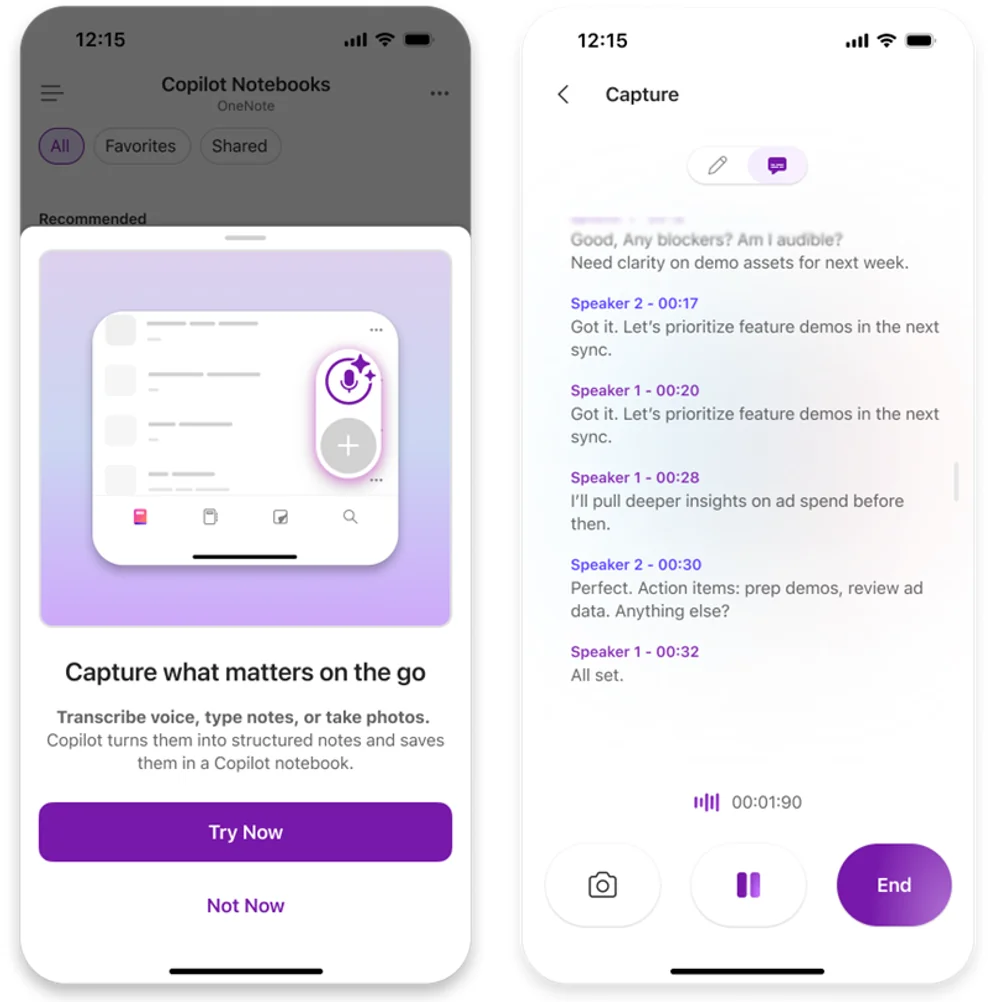
How to find it: Open OneNote on iPhone → start a multimodal capture session inside a Copilot Notebook.
13. Plan Mode for Copilot in Excel
For: All Copilot Excel users · Rolling out in May
Plan mode for Copilot in Excel outlines a clear, step-by-step approach before anything in the workbook is updated. (Excel guardrails brief →) Review which data Copilot will touch, which capabilities it intends to use, and adjust the plan as needed — so edits stay intentional, transparent, and aligned with your goals.
💡 Why it matters: Excel changes are notoriously irreversible — formulas chain, references break, a wrong "fix" can ripple through dependents. Plan mode is essentially "show me the plan before you apply it". You see what is about to change, what data is involved, and you can stop or adjust before any damage. This is what serious analysts have wanted since day one.
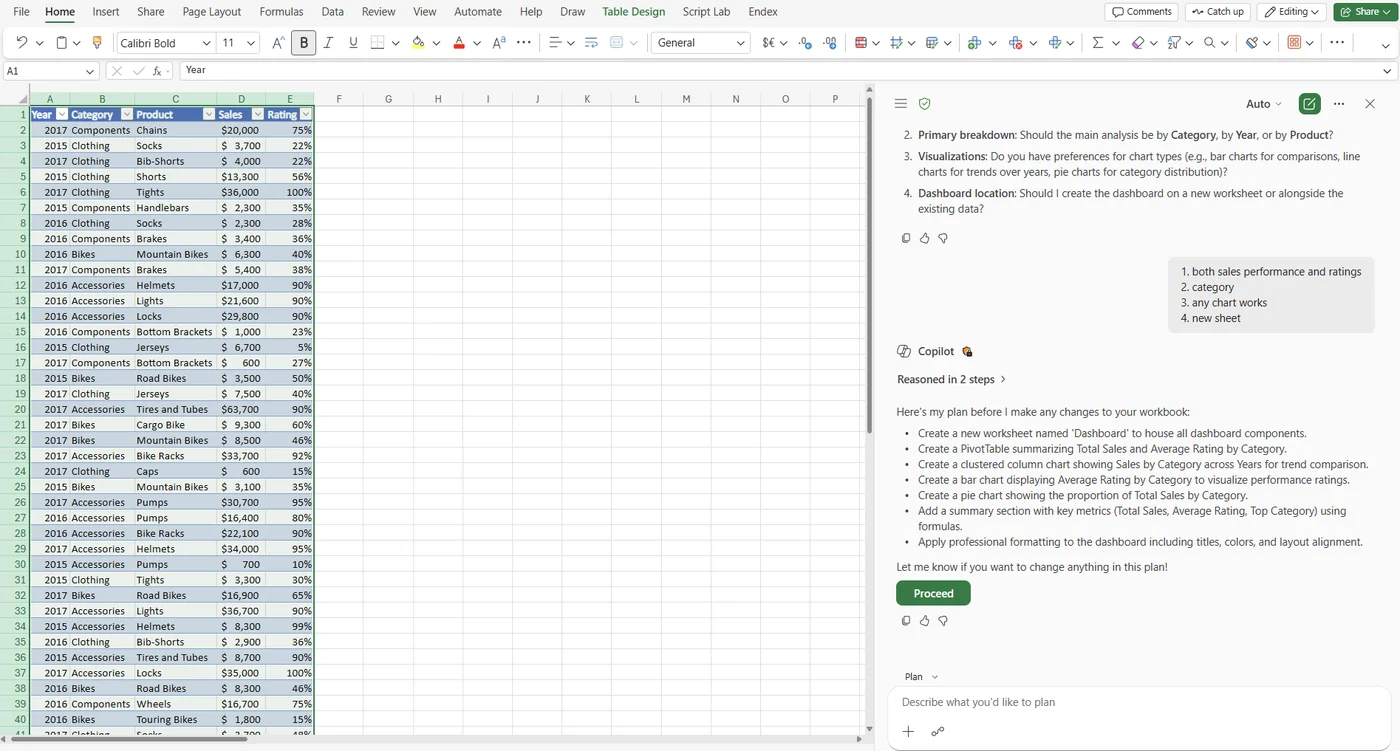
How to find it: In Excel with Copilot open, select Plan from the menu above the prompt box.
14. Python When Editing with Copilot in Excel
For: All Copilot Excel users · Rolling out in May
You can now use Python when editing with Copilot in Excel to take on more advanced data analysis without leaving the workbook. Copilot can apply Python-powered techniques as it edits — transforming data, generating visualisations, and completing multi-step tasks. Ask Copilot to use Python in your prompt, or Copilot invokes it automatically when needed.
💡 Why it matters: Excel's native formula language has limits — once you need real data transformation, pivot logic, statistical analysis or charting that goes beyond the built-ins, you used to leave Excel. Python in Copilot keeps you inside the workbook while picking up pandas-class capability for the heavy lifting. It is the biggest analyst-productivity upgrade Excel has shipped this year.
How to find it: Inside Excel, ask Copilot to use Python in your prompt — or let Copilot invoke it when the task warrants it.
📖 Official April announcement — Plan mode + Python in Copilot for Excel
15. Create and Edit Images with the Model of Your Choice in PowerPoint
For: PowerPoint users · Rolled out in April, expanding in May
In Copilot for PowerPoint you can now choose which image model to use when creating or editing images. The current roadmap lists OpenAI’s GPT Image, Black Forest Labs’ Flux, Microsoft’s MAI-Image, and more — with an Auto option that picks the best fit for your request.
💡 Why it matters: Different models have different strengths — some are sharper at photo-real, some better at illustration, some better at minimal vector-style work. Letting users pick puts decisions back where they belong: with the person who knows the brand and the audience. Combined with admin controls, this also means image generation can be aligned to internal style and governance expectations.
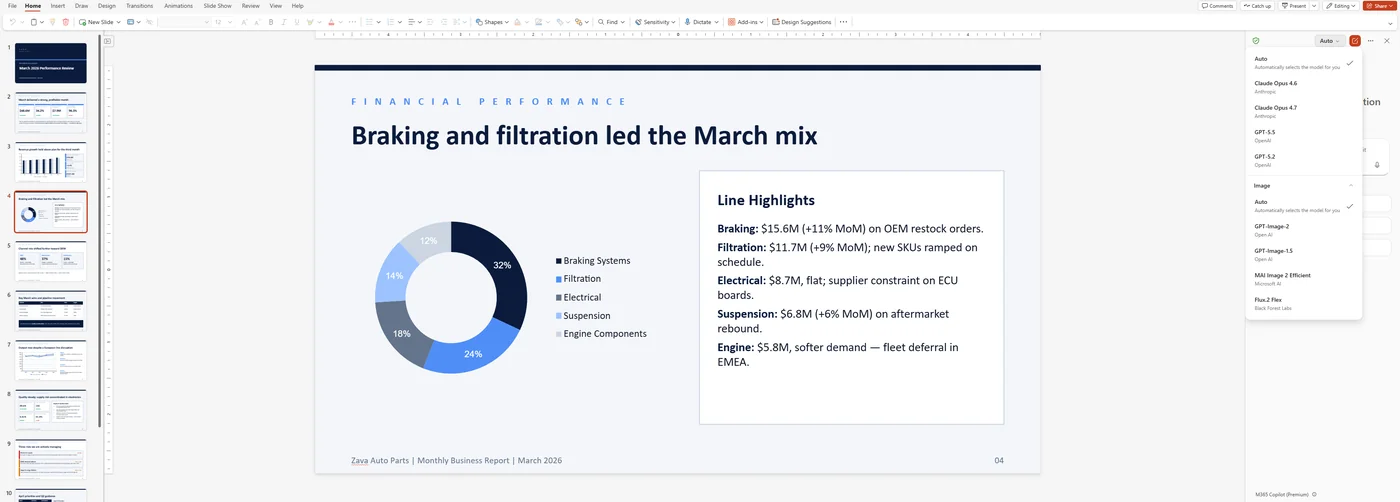
How to find it: In PowerPoint when Copilot generates or edits an image, choose the image model from the options.
16. Copilot Chat — Smarter Visual Understanding (Embedded Images)
For: All Copilot Chat users · Rolling out in May
Copilot Chat can now leverage embedded images in documents (Word, PowerPoint, PDFs, OneNote and more) to give richer, more accurate answers — so a question about a diagram, screenshot, or chart inside a file is grounded in the actual visual, not just the surrounding text.
💡 Why it matters: A surprising amount of real work knowledge lives inside images — architecture diagrams in slides, screenshots in support docs, charts pasted into PDFs. Until now, Copilot would mostly skip past those. Reading embedded visuals as part of grounding closes one of the biggest "but it missed the obvious thing" gaps users have raised.
17. Public Website Grounding for Copilot in PowerPoint
For: PowerPoint users · Rolled out in April, expanding in May
Copilot in PowerPoint can now use public webpages as source material when building a deck. Add a web reference, and Copilot pulls in the relevant context, generates an initial outline, and produces slides you can refine.
💡 Why it matters: Decks that need an external context — a regulator's announcement, a competitor's product page, a standards body's update — usually start with copy-paste. Public web grounding skips that step. The slide gets the real context, and your deck stays up-to-date with the cited source.
📖 Official April announcement — Public website grounding in PowerPoint
18. Claude Model for Copilot in Word
For: Word users · Microsoft says rolled out in April; roadmap shows GA May
Copilot in Word now includes a Claude (Anthropic) model option for drafting and editing. Pick Claude alongside the OpenAI options where your organisation allows it. Microsoft’s April recap says this rolled out in April, while Roadmap 558440 still shows In development with a May GA — expect a staggered rollout across rings.
💡 Why it matters: Different LLMs have noticeably different writing styles — Claude tends to produce longer-form, more deliberate prose; GPT models are tighter and more directive. For legal, policy and long-form work where voice matters, model choice is finally a real lever inside Word, not just inside Copilot Chat.
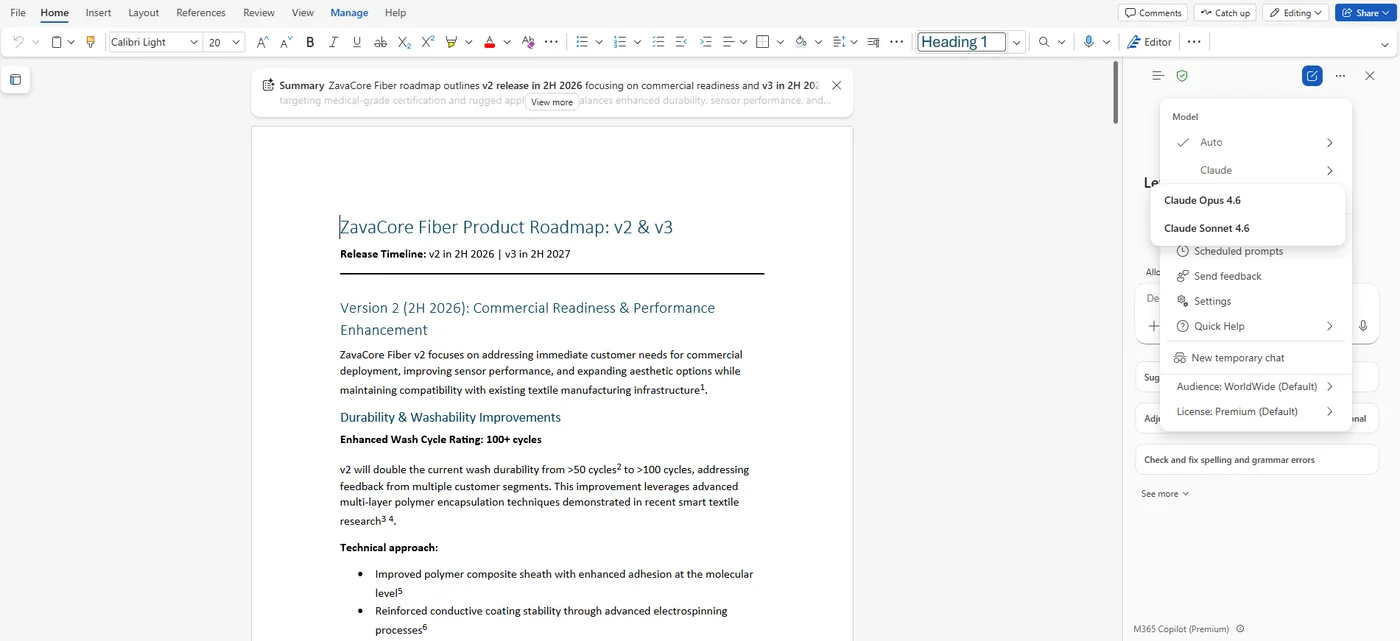
How to find it: In Word when drafting or editing with Copilot, select Claude in the model dropdown (where enabled by your admin).
19. Draft Coaching Feedback in Outlook
For: Outlook users · Rolling out in May
Copilot in Outlook can now provide coaching feedback in chat as you draft, edit and format emails — pointing out clarity, tone and structure issues before you hit send.
💡 Why it matters: Most email mistakes are not factual — they are tonal. The thanks-as-passive-aggression, the buried ask, the over-long opener. Coaching in the moment, before send, is what a senior colleague used to do over your shoulder. Now it happens in chat alongside the draft.
20. Draft, Edit and Format Emails Conversationally
For: Outlook users · Rolling out in May
In Outlook, draft, edit and format emails conversationally with Copilot — describe the change, and Copilot updates the message in place. Iteration replaces regeneration.
💡 Why it matters: The old pattern was "generate, copy out, paste in, edit by hand". The new pattern is "say what to change, watch it change". Faster on small edits, much less destructive on long emails where regenerating would lose work you wanted to keep.
21. First Draft in the Canvas for Copilot in Outlook
For: Outlook users · Available now (rolled out to new Outlook)
Copilot in Outlook now writes a first draft directly in the canvas and can then iterate with the user to keep improving it — asking clarifying questions about goal, audience and tone as you go.
💡 Why it matters: One-shot generation is good for speed, bad for nuance. First-draft-in-canvas turns email drafting into a short conversation — Copilot writes, asks a clarifying question, adjusts in place. Every change stays visible in Outlook, no copy-paste or formatting surprises.
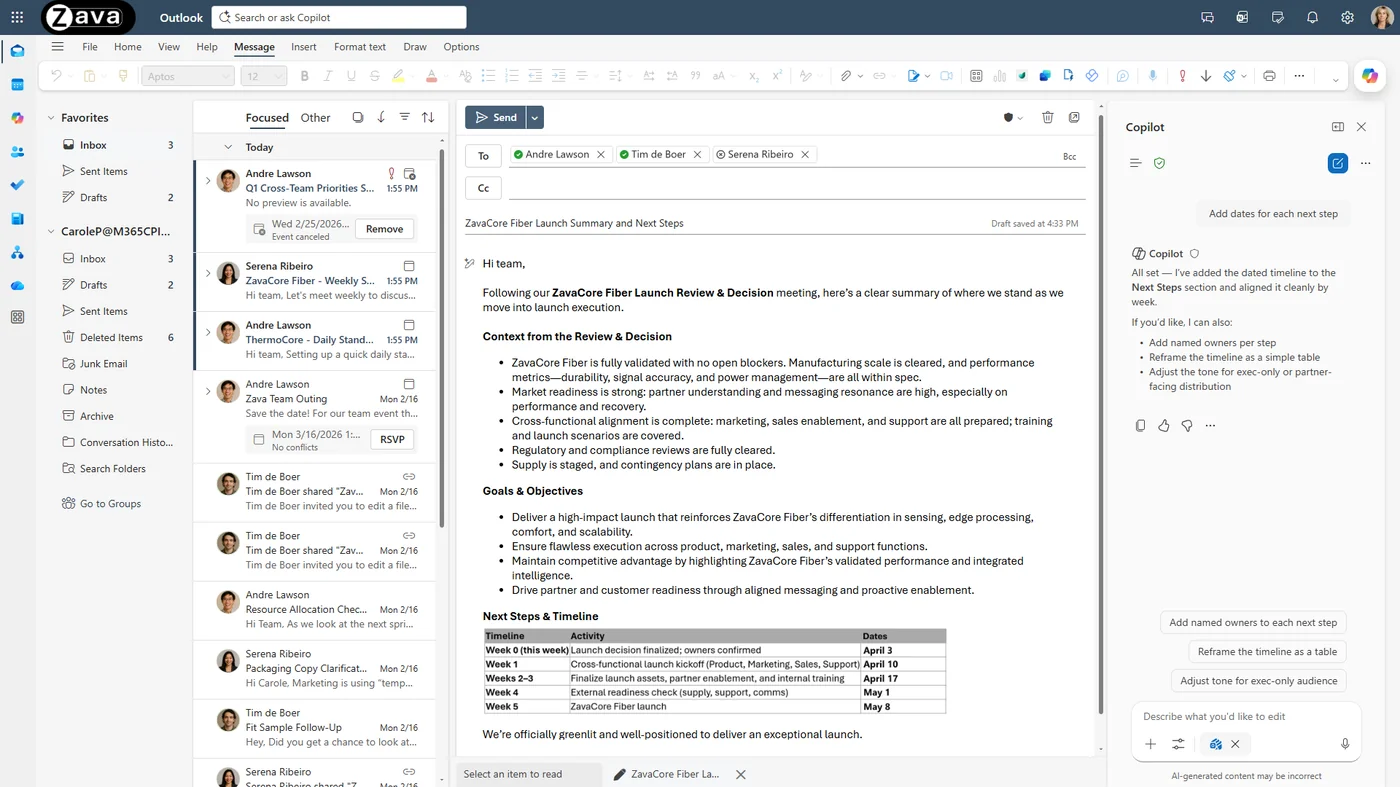
How to find it: Start a new email in new Outlook → use Copilot to draft — the draft appears directly in the canvas with iteration prompts.
📖 Official April announcement — First draft in canvas in Outlook
22. Account Selector in the Outlook Copilot Side Pane
For: New Outlook Calendar users with multiple Copilot-enabled accounts · Rolling out in May
The Copilot side pane in Outlook Calendar (new Outlook) gets an account dropdown for users with more than one Copilot-enabled account — switch which mailbox Copilot is working against without leaving the side pane.
💡 Why it matters: Plenty of users have a primary mailbox plus a shared inbox, or a primary plus a secondary tenant. Until now, getting Copilot to look at the right one in Calendar meant opening a different Outlook window. The selector turns that into a single click.
23. Copilot Call Delegation in Microsoft Teams
For: Teams users · Rolling out in May
Copilot call delegation lets Copilot handle incoming Microsoft Teams calls on your behalf. Once enabled in Teams Calls settings, Copilot answers, gathers context from callers, helps you decide whether to pick up, and can set up follow-up appointments via Microsoft Bookings.
💡 Why it matters: A surprising amount of work-day friction is interruption from calls you would not have answered if you knew who they were. Call delegation turns "phone rings during deep work" into "Copilot tells you who is calling, what they want, and offers to book a follow-up". For sales, customer success and execs, this is the most concrete way Copilot starts feeling like a real assistant.
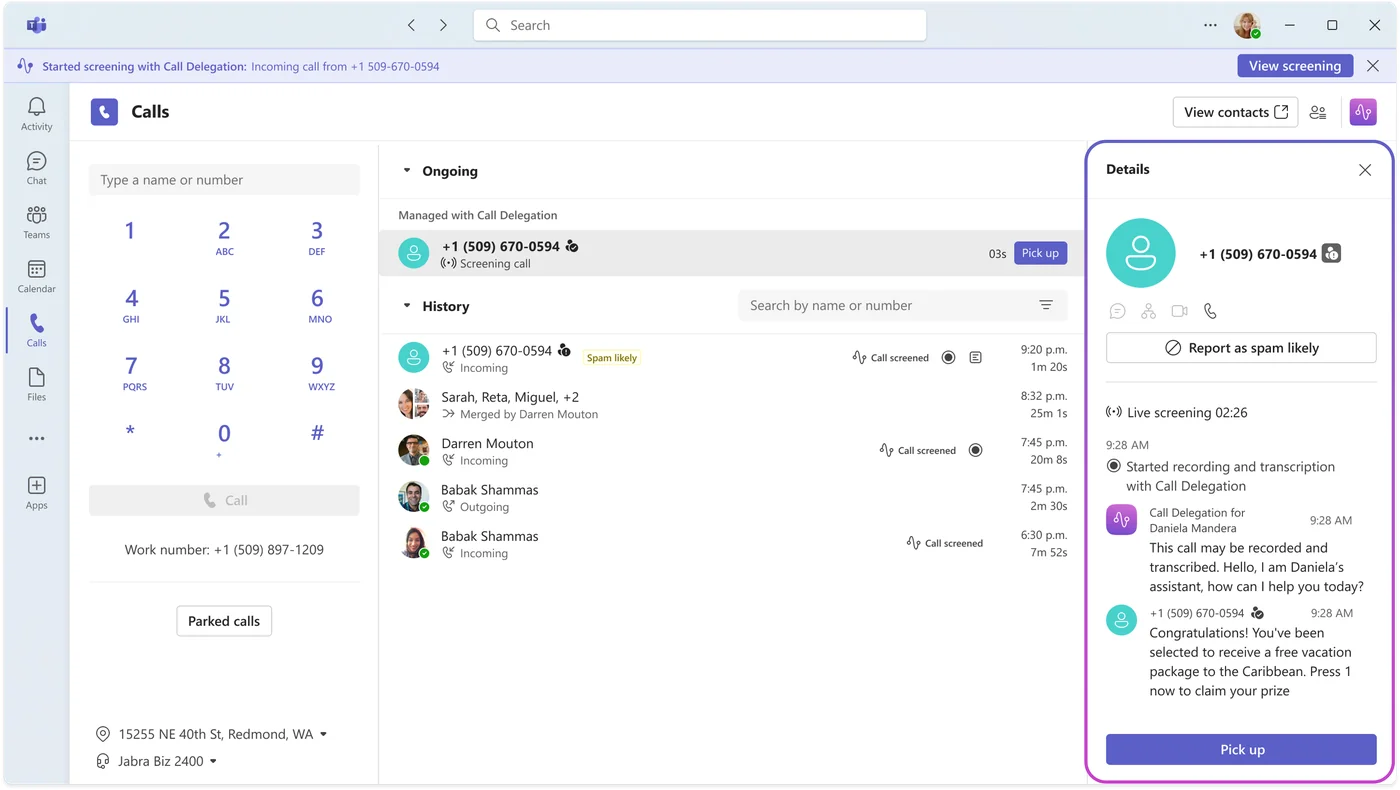
How to enable: Open Microsoft Teams → Settings → Calls and turn on Copilot call delegation.
📖 Official April announcement — Call delegation and consecutive interpretation
24. Consecutive Interpretation in Teams Interpreter
For: Teams meeting attendees · Rolled out to Public Preview in April, expanding in May
Consecutive interpretation is a new mode in Microsoft Teams Interpreter — translation begins after each speaker finishes, creating a turn-based flow that more closely matches how people naturally communicate in two-language meetings. Interpreter also appears on the meeting stage for everyone to see and hear.
💡 Why it matters: Real-time simultaneous translation works well in one-to-many scenarios — a keynote with translation in your ear. But two-way back-and-forth meetings work better with turn-based interpretation, the way human interpreters actually do it. This is Teams catching up to the way bilingual meetings should feel.
25. Share Recap Access in Microsoft Teams
For: Teams meeting organisers · Rolling out in May
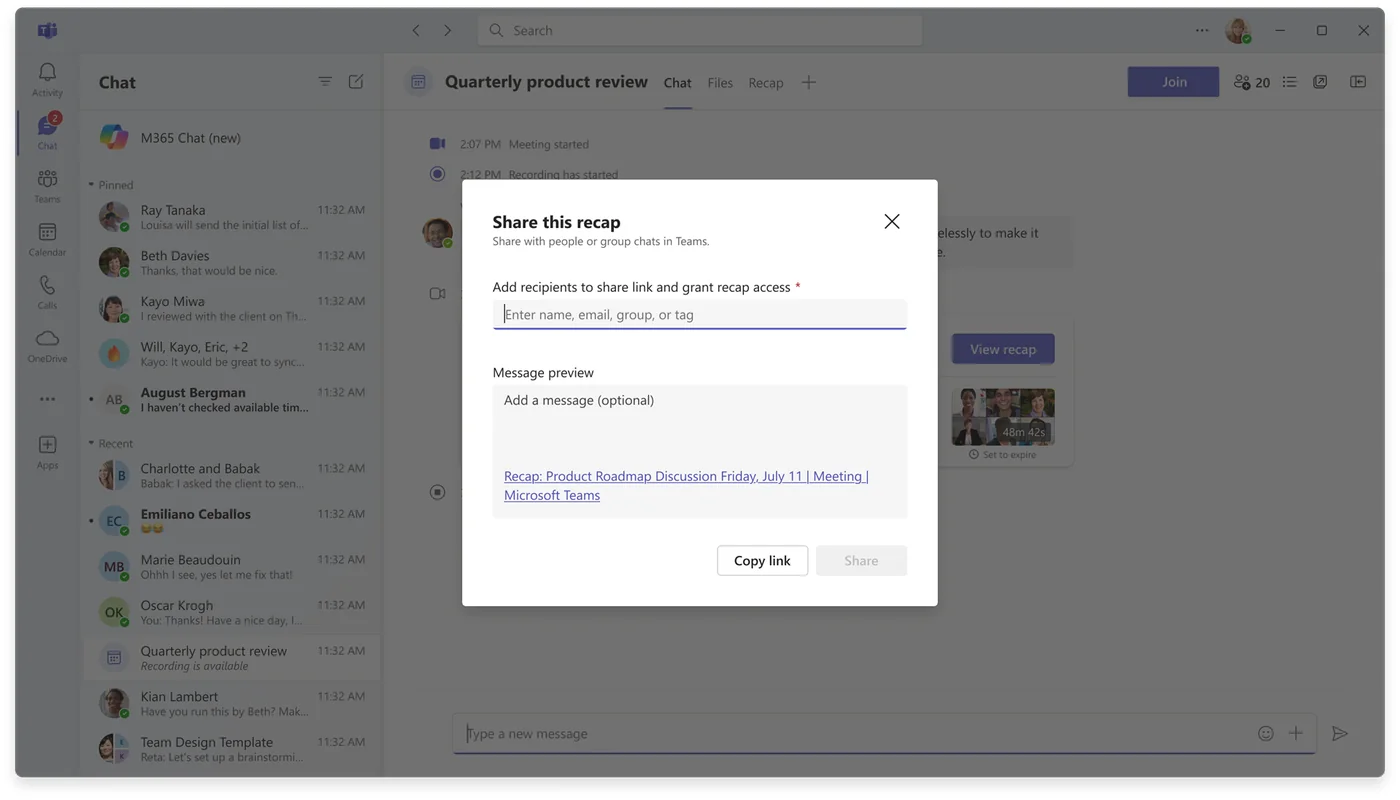
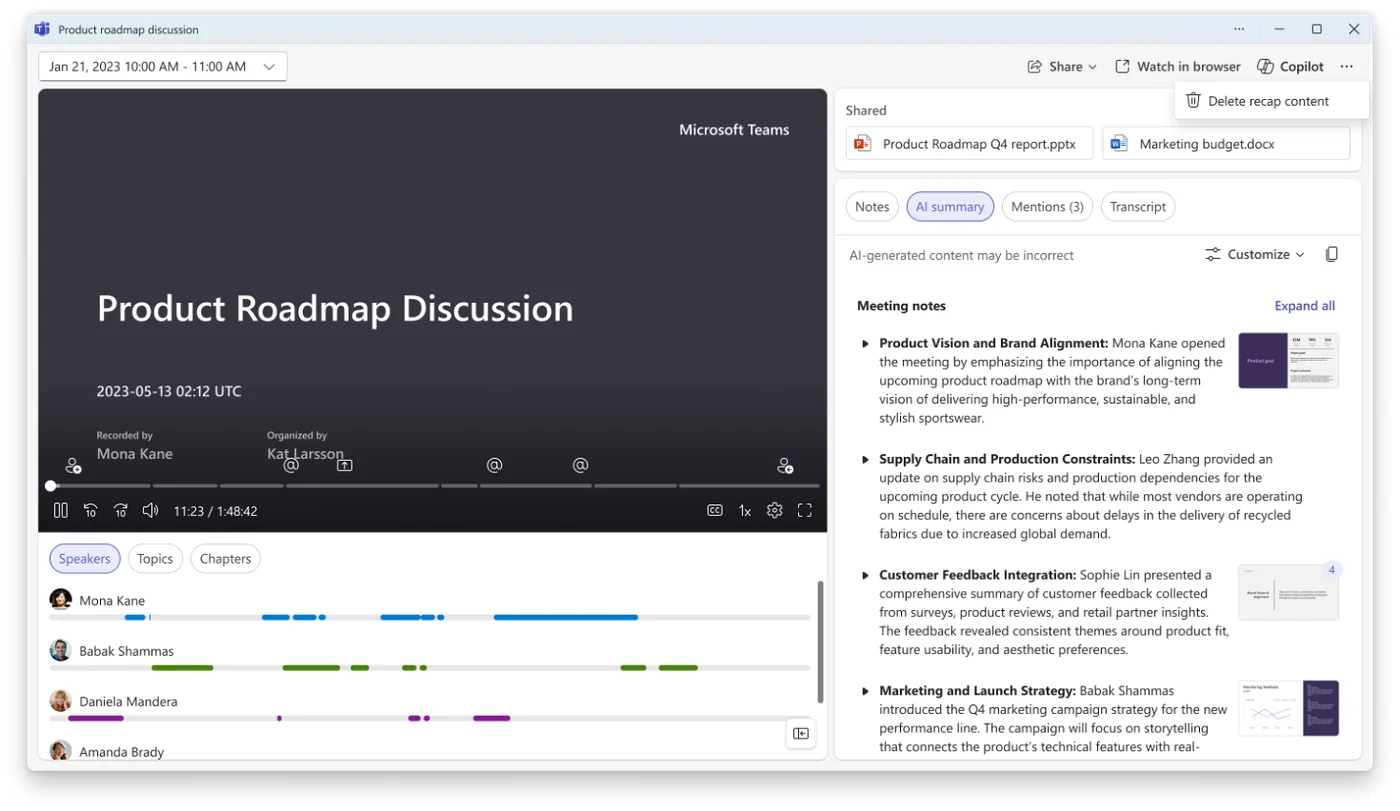
Meeting organisers can now share recap access — granting people who were not in the meeting access to the AI-generated recap (transcript, summary, action items).
💡 Why it matters: The most common request after any important meeting is "can you send me the notes?". Sharing recap access turns that one-off favour into a default capability — the right people get the right access without a manual copy-paste of the summary into an email.
26. Delete Meeting-Generated Content in Recap
For: Teams meeting organisers · Rolling out in May
Organisers can now delete meeting-generated content (recaps, transcripts, AI notes) from individual Teams meetings — useful for sensitive conversations or when content was generated inadvertently.
💡 Why it matters for admins: "Can we delete that recap?" used to be a service ticket. Giving organisers direct control over their own meeting-generated content reduces the admin burden and gives users the right level of agency over content created from their meetings — important for sensitive discussions like HR, M&A, or performance reviews.
27. Capture Voice Notes in the Microsoft 365 Copilot Mobile App
For: Microsoft 365 Copilot licensed mobile users · Rolling out in May
The Microsoft 365 Copilot mobile app now lets you capture voice notes directly — tap, talk, and Copilot transcribes and organises the note.
💡 Why it matters: Half of the best ideas happen while walking from one meeting to the next — and most of them die in transit because typing is too slow. Voice notes in the Copilot app turn that wasted minute into captured thinking, automatically transcribed and ready to act on.
How to find it: Open the M365 Copilot app on iOS or Android → tap the voice-capture entry point.
28. Microsoft Edge — Copilot New Tab Page
For: Edge users · Rolling out in May
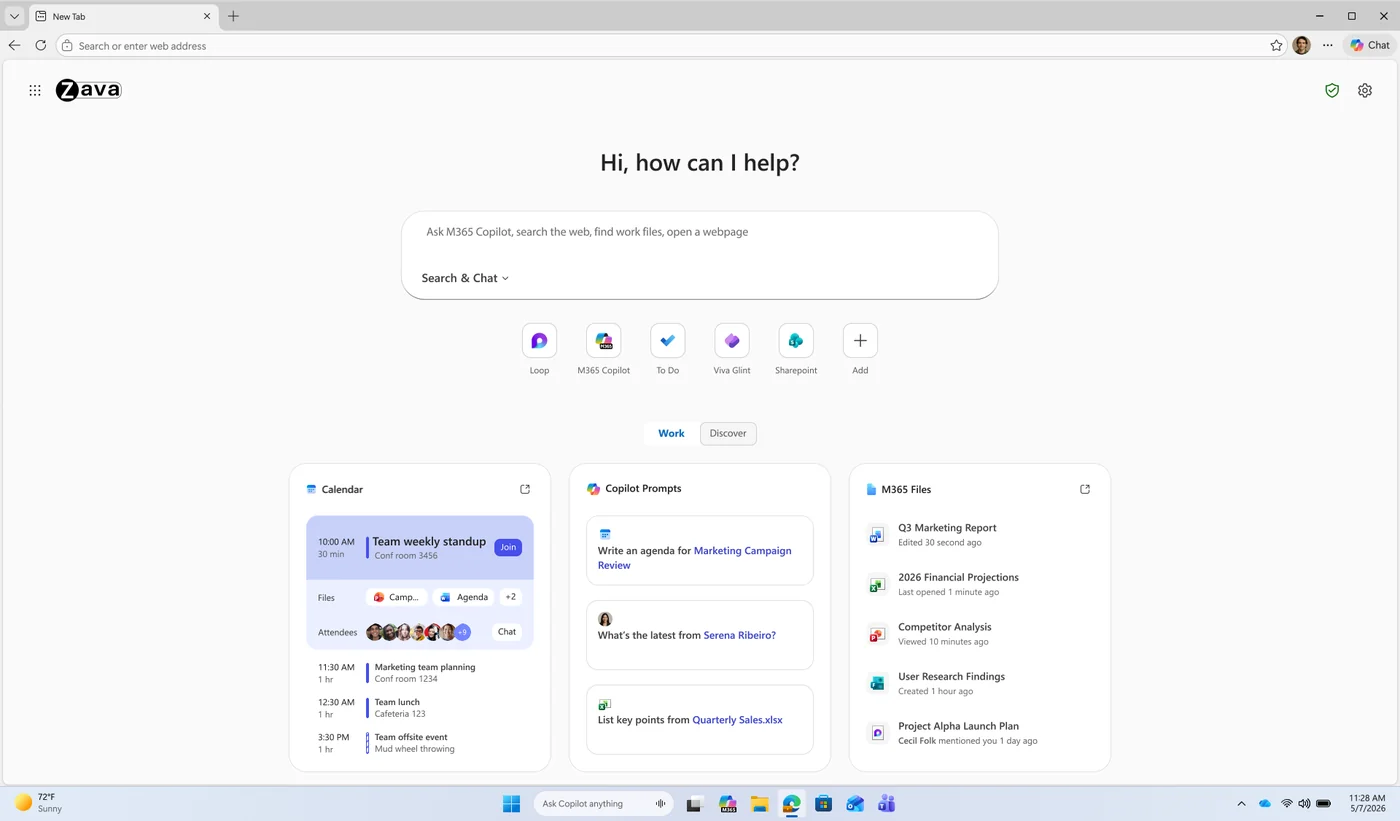
Microsoft Edge introduces a Copilot-centred new tab page with a single combined search/chat box, Copilot-suggested actions, curated work content, and personalised news and activities.
💡 Why it matters: The new tab is the most-used surface in any browser. Centring it around a Copilot-aware search/chat box (rather than a plain search bar) nudges users towards plain-language asks and brings work content to the front of the browser instead of buried in tabs.
29. Microsoft Edge v.148 — Redirect to M365 Copilot When DLP Blocks a Prompt
For: Organisations with Purview DLP for generative AI · Launched in May
In Microsoft Edge v.148, when Purview DLP blocks a user from sending a sensitive prompt to an external generative AI site, Edge now offers a UI option to redirect that same prompt to Microsoft 365 Copilot — keeping the user productive while keeping the sensitive data inside the tenant boundary.
💡 Why it matters for admins: "Just block it" is bad change management — users find a workaround. This pattern is much better: at the moment the DLP rule fires, the browser actively offers the safe alternative ("you can ask Copilot instead") with the same prompt pre-filled. Compliance held, user not blocked, support tickets reduced.
30. Microsoft Edge — Send Work Browsing History to Copilot
For: Edge enterprise users · Launched in May
Microsoft Edge can now send work-related browsing history to Copilot for more relevant work results when searching — with appropriate enterprise data protection.
💡 Why it matters: "What was that thing I read yesterday?" is one of the most common search-failure cases. Letting Copilot reason over your recent work browsing — within enterprise data protection — turns Copilot search from "what's on the web?" into "what have I been working on?". Big productivity win for research-heavy roles.
31. Submit Agents to Agent Store from Agent Builder
For: Agent makers and IT admins · Rolling out in May
Agent Builder now lets makers submit agents for administrator review and approval before they are published to the organisation’s Agent Store catalog. Once approved, agents appear under “Built by your org” in the Agent Store.
💡 Why it matters for admins: Internal agent distribution has been the missing piece — anyone could build, but getting an agent into real users' hands required manual sharing. A proper submit-and-review flow turns that into a managed pipeline: makers build, admins approve, users discover and install. Same model as an internal app store, applied to agents.
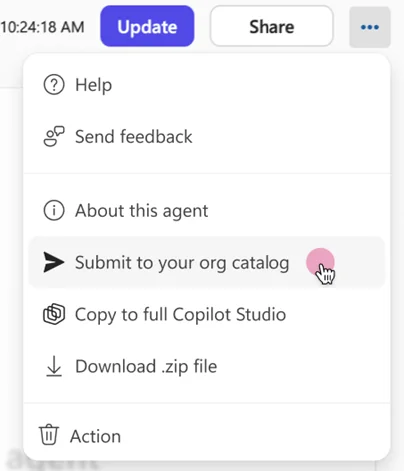
How to find it: In Agent Builder, submit your agent for review → admins approve via the Agent Store catalog in the M365 admin center.
32. Admin Rules for Agent Lifecycle Automation
For: IT admins · Launched in May
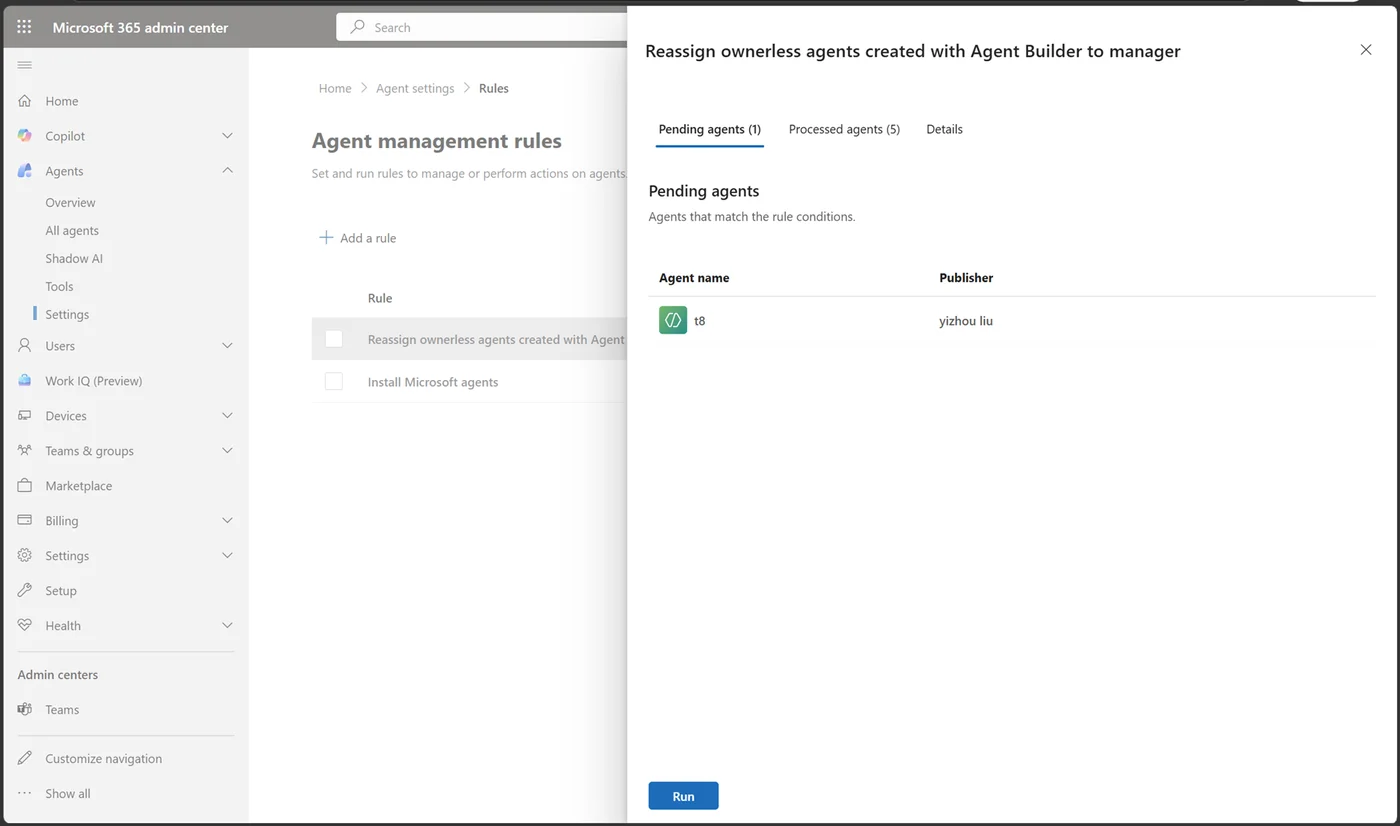
Admins can now bulk-manage the Copilot agent estate from the Microsoft 365 admin centre — bulk-install Microsoft-built (first-party) agents across users, bulk-reassign ownerless agents to managers for proper governance, and apply on-demand lifecycle cleanup actions without per-agent clicking. Rule-based automation (auto-block risky agents, auto-delete inactive agents, auto-reassign based on conditions) is on the roadmap as a phased follow-up — bulk on-demand is GA today.
💡 Why it matters for admins: Agent sprawl is real. Organisations that have been building agents for a year now have dozens of them, and a chunk of those are unused, risky, or have no clear owner. Lifecycle rules turn cleanup from "manual audit project" into "policy-driven housekeeping" — much easier to keep clean over time.
33. Scheduled Prompts for Agents
For: Agent users · Rolling out in May
You can now configure scheduled prompts for agents — a prompt that runs on a recurring schedule (daily, weekly, monthly) and delivers its output proactively.
💡 Why it matters: A lot of "agent" value is just consistency — the same useful prompt run every Monday morning would unlock 80% of what people want. Scheduled prompts make that possible without needing to remember to run them. Weekly inbox summary, Monday-morning pipeline check, end-of-month report digest — all on autopilot.
34. Chat One-on-One with SharePoint Agents in Teams
For: SharePoint and Teams users · Rolling out in May
SharePoint agents can now be chatted with one-on-one in Microsoft Teams — so a SharePoint site that has an agent for its content can be queried directly from your Teams chat list, like chatting with any other contact.
💡 Why it matters: Most users find SharePoint agents from inside SharePoint — but that is the wrong front door for daily use. Surfacing those agents inside Teams 1:1 chat means "ask the HR policies agent something" becomes as casual as messaging a colleague. Closer to where the question actually arises.
35. Ready-to-Use Prompts in OneDrive File Preview
For: All OneDrive users · Launched in April
The OneDrive file preview now shows discoverable Copilot actions — ready-to-use prompts next to the Copilot button (summarise, generate FAQs, extract action items) so users can act on a file the moment they open it. Also available in SharePoint.
💡 Why it matters: The biggest barrier to Copilot adoption is not capability — it is "what do I even ask?". Surfacing 3-4 useful, file-specific prompts at the point of preview removes that hesitation. Adoption goes up because users don't need to imagine what is possible; the prompts show them.
36. AI-Generated Video Drafts with Text Animations
For: Clipchamp + Copilot video users · Rolling out in May
AI-generated video drafts in Microsoft Clipchamp with Copilot now include text animations and new layout options — so video drafts feel more polished out of the box.
💡 Why it matters: Video creation in Copilot is most useful for short internal content — training, announcements, recaps. Adding text animations and varied layouts means the "first draft" is closer to publishable, with less post-edit work needed before it is shareable.
37. Power User Insights in Copilot Dashboard
For: IT admins and Copilot champions · Rolling out in May
The Copilot Dashboard Adoption tab now includes Power user insights — classifying users as power, habitual, novice, or non-Copilot based on usage frequency and consistency, so champions and enablement teams can target the right cohorts.
💡 Why it matters for admins: Generic adoption numbers don't tell you what to do next. Knowing who your power users are turns them into internal champions — their patterns become training material. Knowing who your novices are turns them into a targeted enablement cohort. The same total-licence count, but a much sharper picture of who needs what.
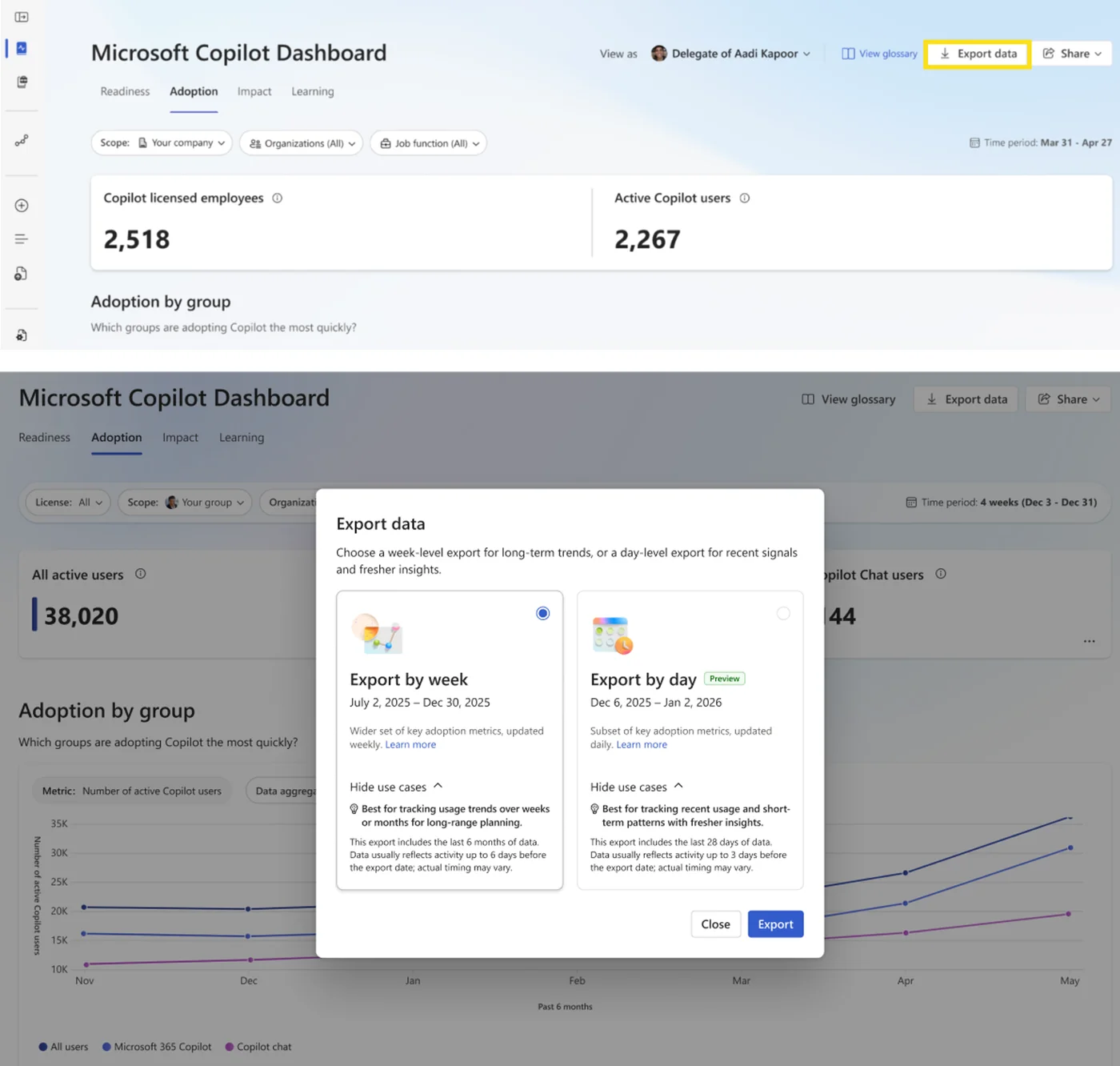
How to find it: Go to Viva Insights → Copilot Dashboard → Adoption tab.
38. Copilot Dashboard — Export by Day
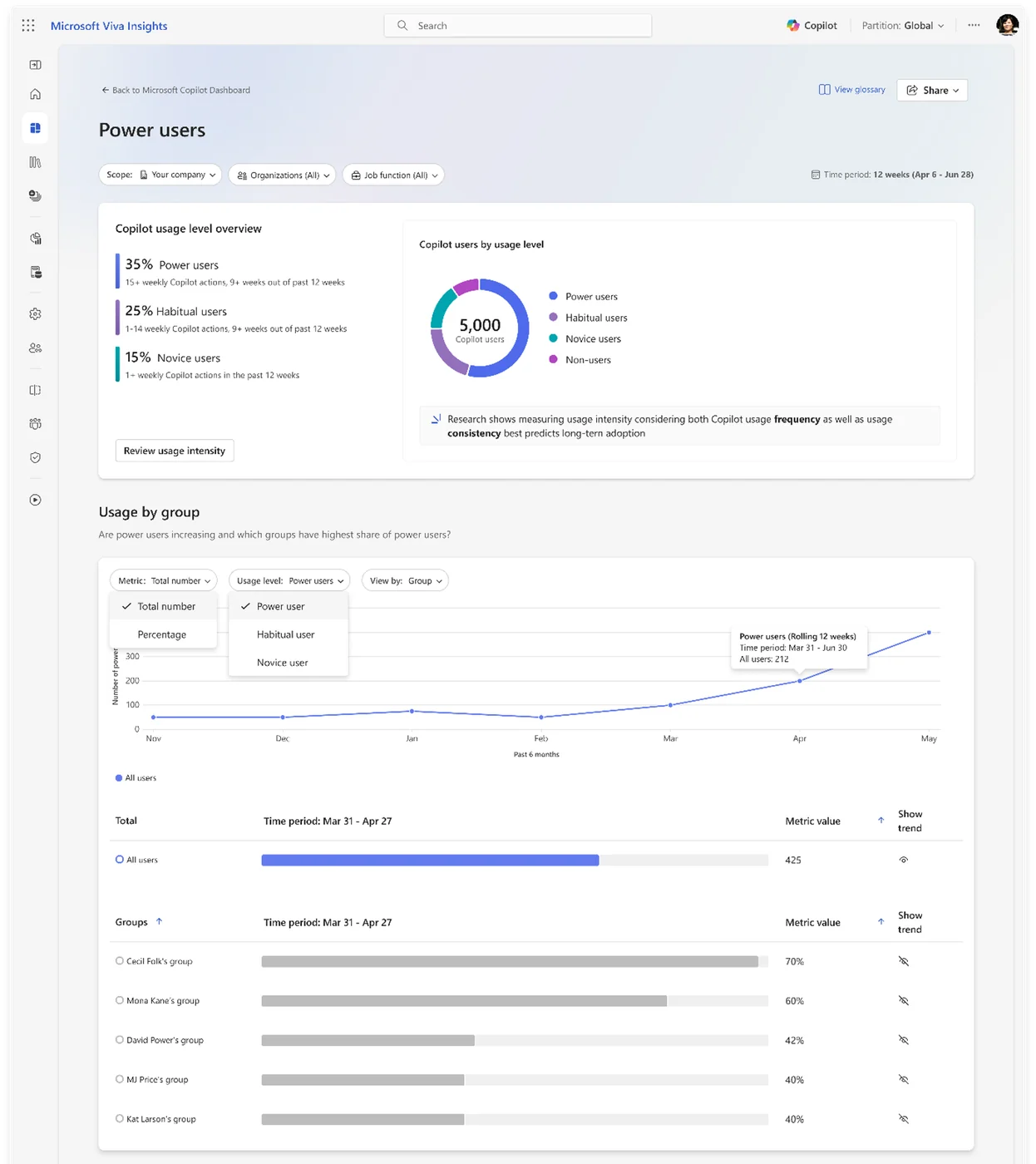
For: IT admins · Rolling out to Public Preview in May (worldwide GA in August)
Admins can now export by day in the Copilot Dashboard — download de-identified Copilot usage metrics aggregated by user and day for the most recent 28 days — for faster, more data-driven licence-assignment and intervention decisions.
💡 Why it matters for admins: Monthly aggregates hide trends. Day-level data lets you spot the start of a usage drop, the impact of a training campaign, or the difference between people who tried Copilot once and people who use it daily — which directly informs licence-allocation and intervention decisions.
39. Microsoft 365 Admin Center — Prepaid Capacity Pack Billing
For: IT admins · Available now
The Microsoft 365 admin center now supports using prepaid capacity pack credits as the only billing method for supported Copilot pay-as-you-go experiences. Create capacity pack policies that ensure users covered by the policy draw exclusively from available prepaid credits — keeping spend predictable.
💡 Why it matters for admins: Pay-as-you-go billing is great for flexibility, scary for finance teams that want fixed spend. Forcing covered users to draw only from prepaid credits gives finance a hard ceiling — no surprise invoices, no overages — while still letting consumption-based features work as intended.
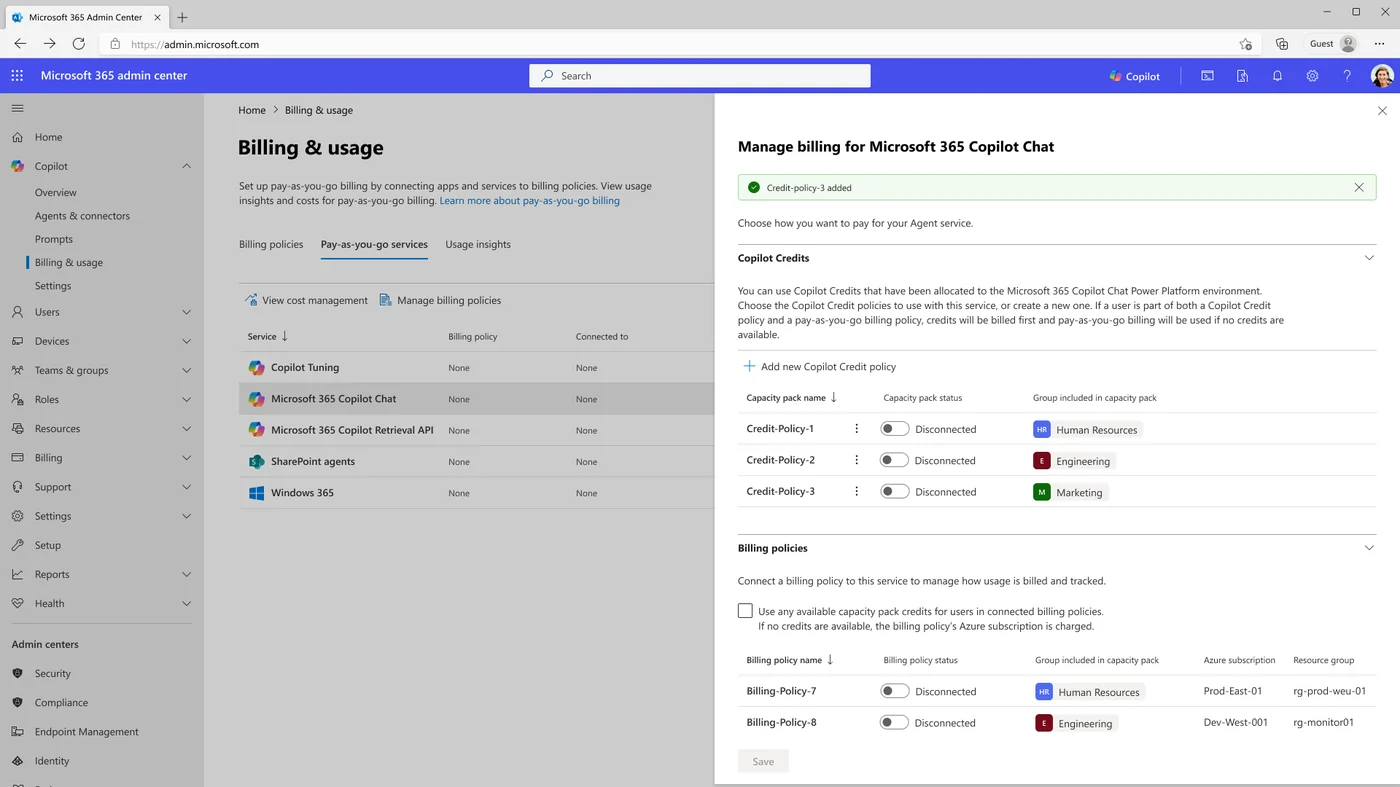
How to find it: In Microsoft 365 admin center → Billing, create a capacity pack policy.
40. New Microsoft Purview Data Security Posture Management Experience
For: Compliance and security admins · Rolling out in May
A new Microsoft Purview Data Security Posture Management (DSPM) experience — a redesigned view across data-security signals, recommendations, and risk surfaces — gives security teams a clearer picture of where their data is and where it is at risk.
💡 Why it matters for admins: Data security posture used to mean cross-referencing five separate Purview surfaces. The new DSPM experience pulls them into a single posture view — risky data, sensitive data, AI-related exposure — so security leaders can answer "what's the state of our data risk this week?" in one click. Critical for any organisation rolling out Copilot at scale.
41. Voice Chat in Microsoft 365 Copilot
For: All Copilot Chat users · Available now
Voice in Microsoft 365 Copilot brings a hands-free, conversational way to talk to Copilot — on desktop and mobile. Speak directly to Copilot to search for information, catch up between meetings, brainstorm out loud, and switch languages mid-sentence. Voice mode also works in Copilot in Word and PowerPoint.
💡 Why it matters: Typing-first AI assistants always have a friction floor — you have to stop, switch surface, type the prompt. Voice removes the floor. Brainstorming becomes "think out loud, Copilot follows along". The biggest win is the contexts where typing was never going to happen — walking between meetings, hands occupied, dictating notes from a whiteboard photo.
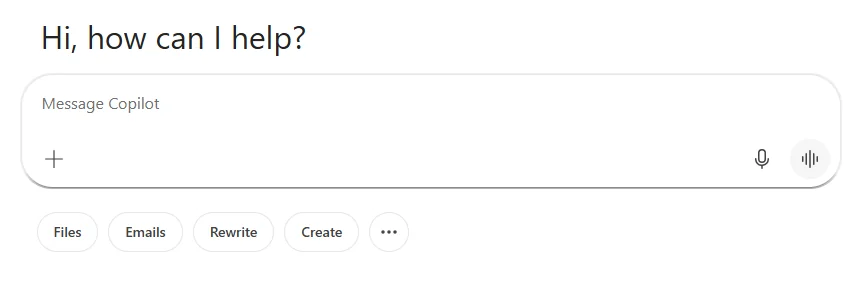
How to find it: Click the voice icon next to the microphone in the Copilot composer.
42. List Email Attachments in Copilot
For: All Copilot users · Available now
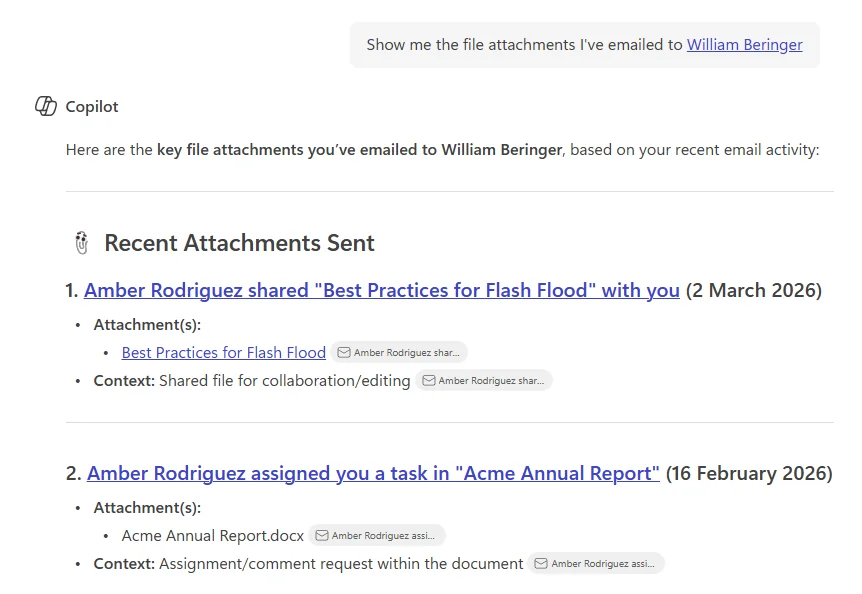
Copilot can now list the file attachments you’ve received or sent over email — ask “show me the file attachments I’ve sent to [person]” or “find attachments from this thread” and Copilot returns a structured list with sender, date, and one-click access.
💡 Why it matters: The most common search-failure case in Outlook is "I sent her that document last month, where did it go?". Most users don't remember whether they emailed it, shared it via OneDrive, or attached it in Teams. A focused "show me the attachments" view turns five-minute searches into ten-second answers.
43. Create with Copilot from the PowerPoint Web Home
For: PowerPoint web app users · Available now
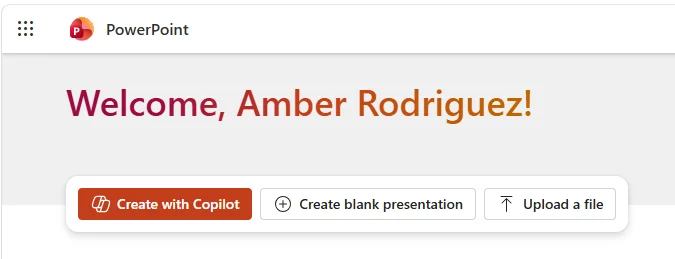
The Create with Copilot button now appears right on the PowerPoint web app home page — start a new deck from a prompt without opening a blank file first. Removes one click and a context-switch from the “I need a deck” flow.
💡 Why it matters: Adoption is friction-sensitive. Putting Copilot at the front door of PowerPoint instead of behind a "New blank presentation → click Copilot" path turns "I'll come back to that later" into "I'll try one prompt right now". Small UX move, big behavioural ripple.
44. Executive Summary Slide in PowerPoint
For: PowerPoint users · Available now
Generate an executive summary slide for your existing deck — Copilot reads the presentation and produces a single polished slide that highlights the key points in exec-ready language. Useful when a 60-slide quarterly deck needs to start with a one-slide TL;DR for leadership.
💡 Why it matters: The TL;DR slide is the most-read slide in any long deck and usually the last one written (or the one nobody writes). Auto-generating it from the rest of the deck means it stays in sync as the deck evolves — and removes the "we need a one-pager" anxiety from every pre-leadership review.
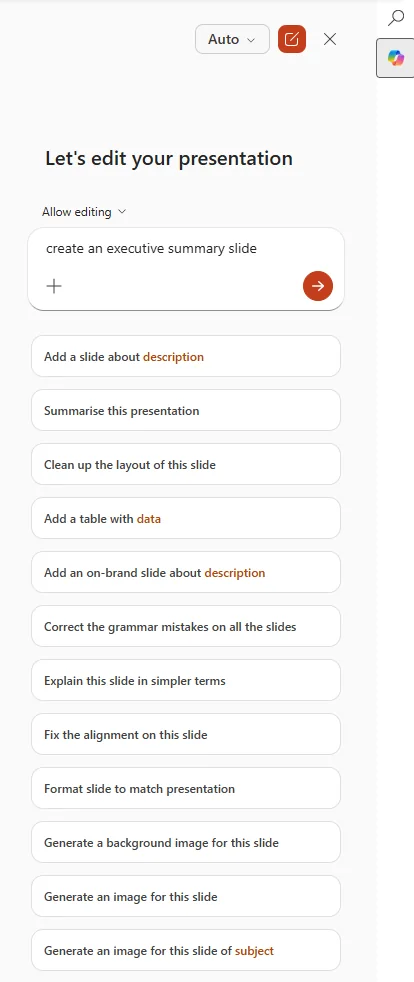
How to find it: In PowerPoint with editing enabled, open the Copilot side panel and ask Copilot to create an executive summary slide.
45. Video Recap in Teams
For: Teams meeting attendees with Copilot license · Available now
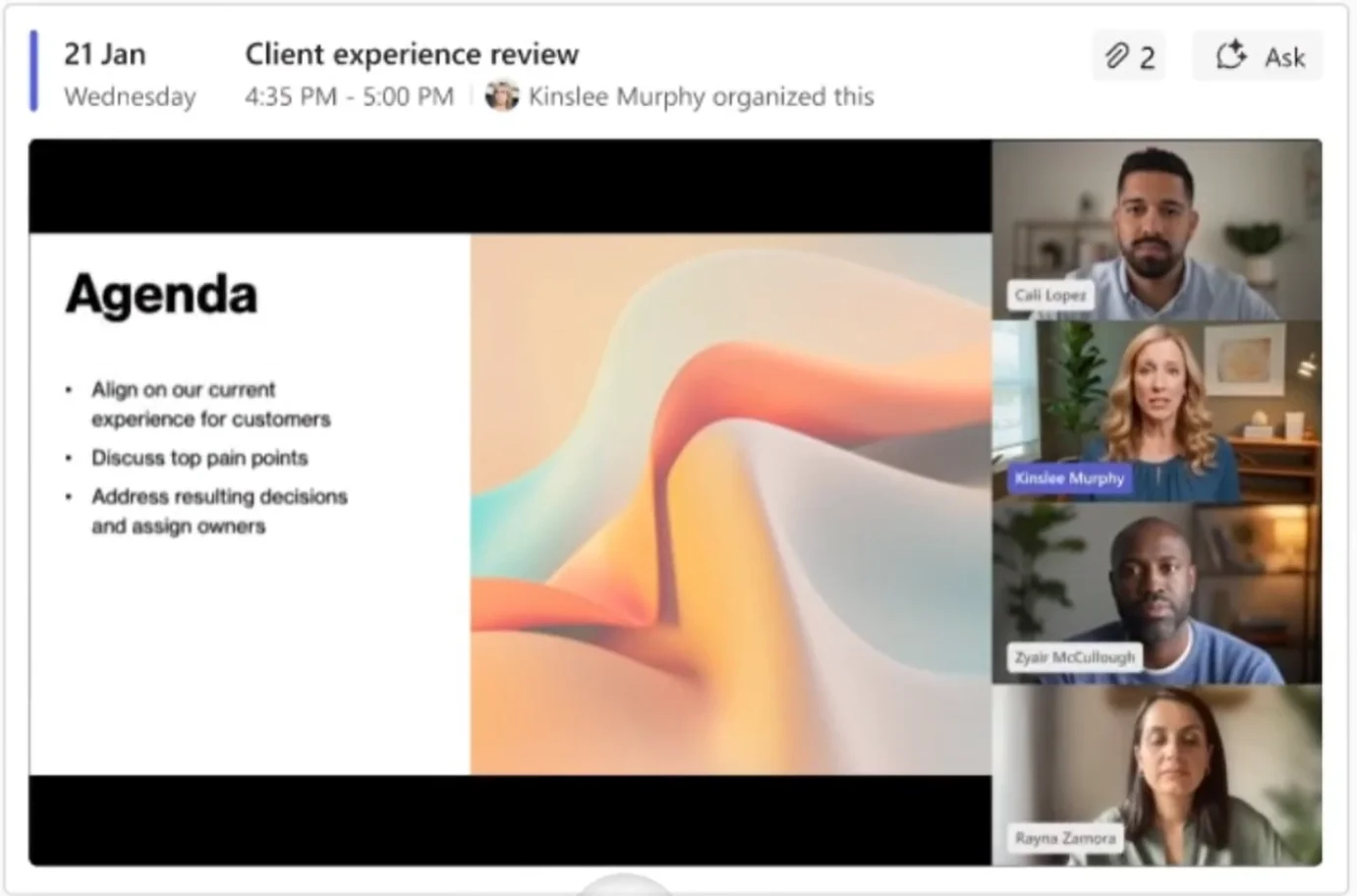
Intelligent recap now includes video recap — narrated highlight clips from your recorded Teams meetings, showing the key moments instead of the full hour. A “watchable” recap, not just a “readable” one.
💡 Why it matters: Reading a transcript is dense; watching a full meeting is a waste; reading bullet-point notes loses tone. Video recap is the missing middle — a short narrated clip that shows you who said what at the moments that mattered. For everyone who's ever clicked "Join recording" and immediately wished they could fast-forward to the bit they actually needed.
46. Create a Live FAQ in SharePoint
For: SharePoint content owners · Available now
A new AI-powered FAQ web part for SharePoint — content owners can curate a living FAQ with Copilot’s help, grounded in connected references. The “Human-in-the-Loop” approach means Copilot drafts, the owner reviews and approves — keeping quality high without manual upkeep.
💡 Why it matters: Every intranet has a FAQ page nobody trusts because it's three years stale. Living FAQs that draft themselves from current source documents — with human review before publish — solve the maintenance burden that killed the last decade of FAQ pages.
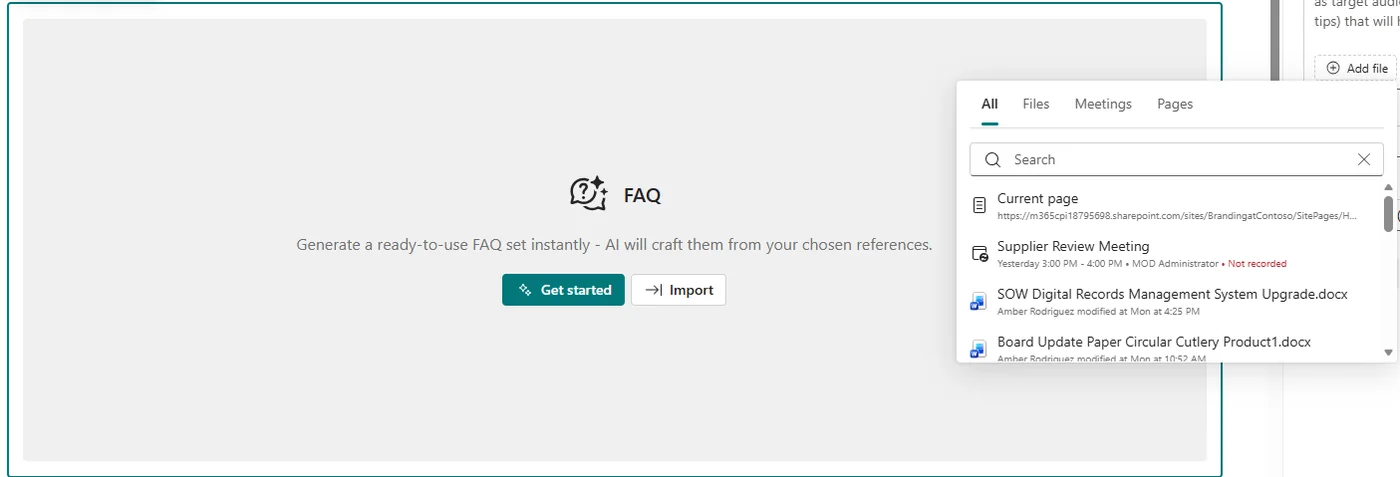
How to find it: Edit a SharePoint page → Add a web part → AI → FAQ.
47. Create Charts on SharePoint Pages with AI
For: SharePoint page authors · Rolling out in May
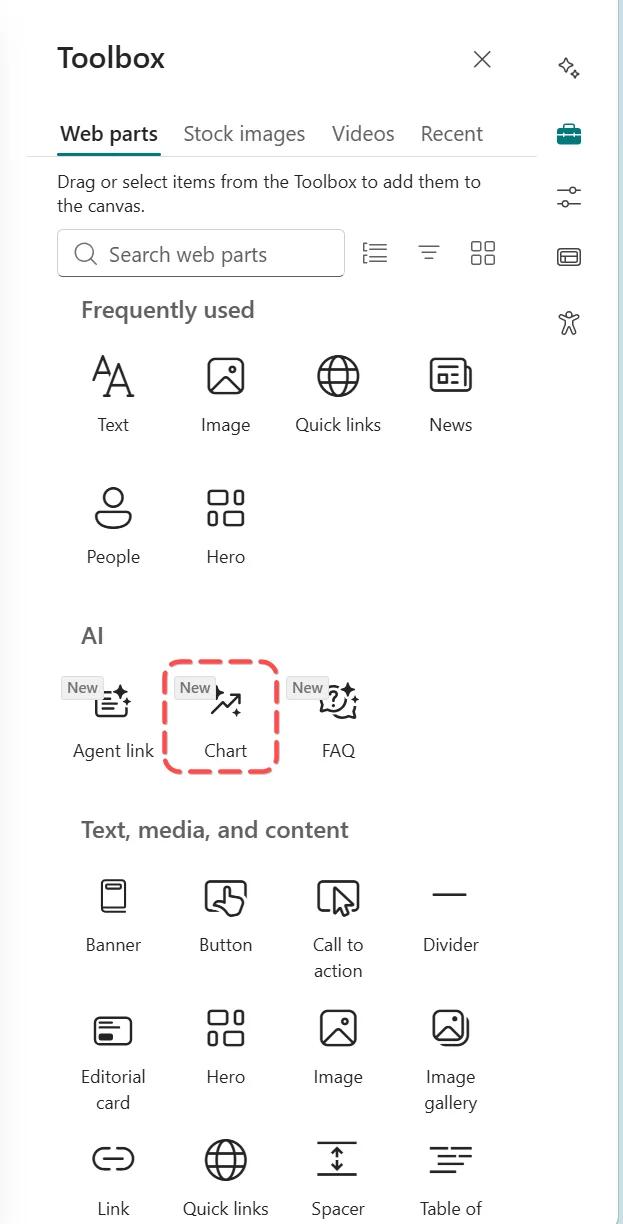
A new Chart web part for SharePoint powered by AI — describe the chart you want in plain English (“monthly support ticket volume by team”) and Copilot creates an interactive chart embedded in the page. No data wrangling, no chart-tool round-trip.
💡 Why it matters: SharePoint pages have always been text-heavy because charts required leaving the editor and importing from Excel or Power BI. A native AI chart web part means content authors can illustrate any point without breaking flow — and the chart updates live as the underlying data changes.
48. Surveys Agent in Microsoft Forms
For: Microsoft Forms users · Rolling out in May
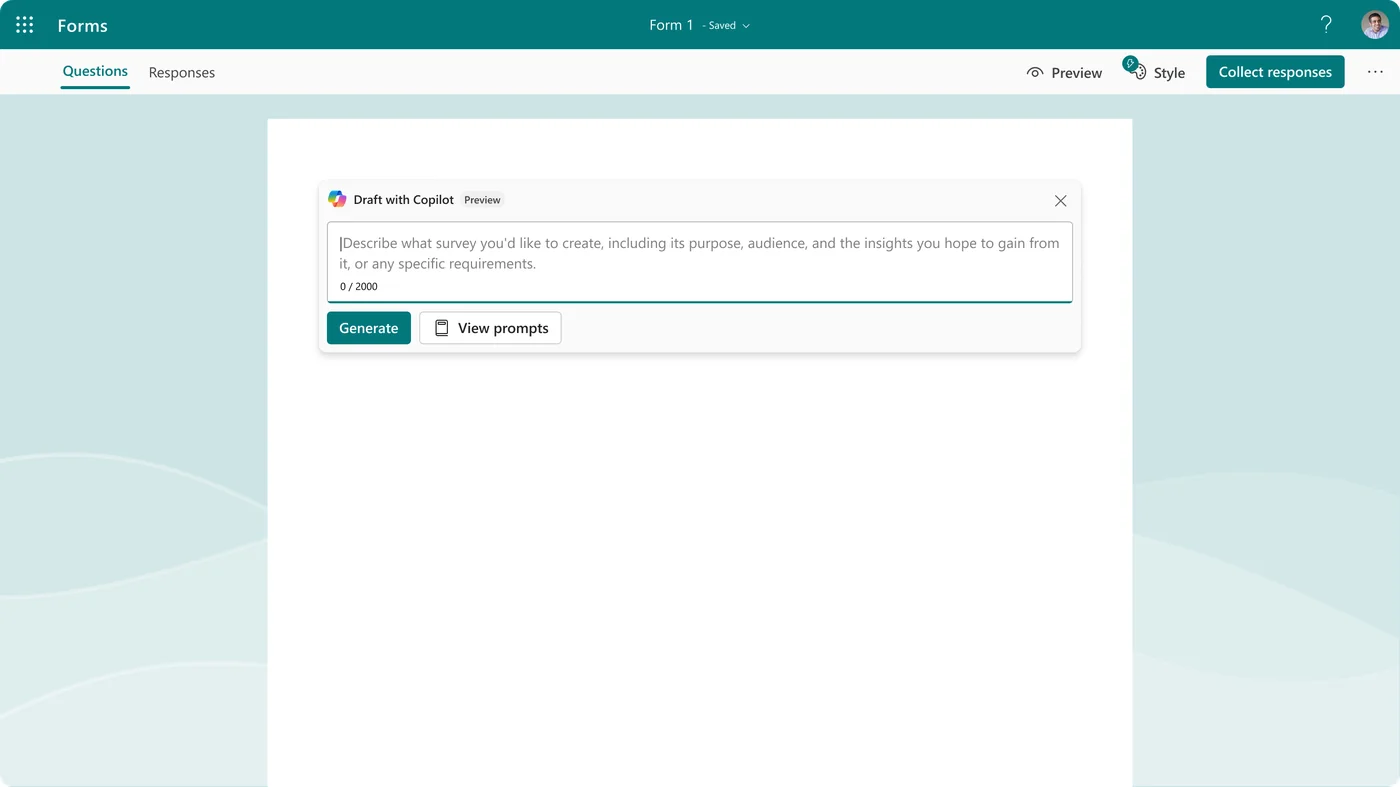
Copilot lands in Microsoft Forms — including the new Surveys Agent that helps you draft the survey, suggest improvements to question wording, draft and send invitations, and analyse the results when responses come in. End-to-end survey workflow inside Forms instead of three different tools.
💡 Why it matters: Survey design is harder than it looks — biased questions, leading wording, the wrong response scale. A Surveys Agent in the moment, plus invitation drafting and result analysis, turns survey-running from a multi-day project into an afternoon. Pretty meaningful for HR, customer feedback, internal pulse checks.
49. Copilot in Pages — Write, Code and Create
For: Copilot Chat users · Rolling out in May
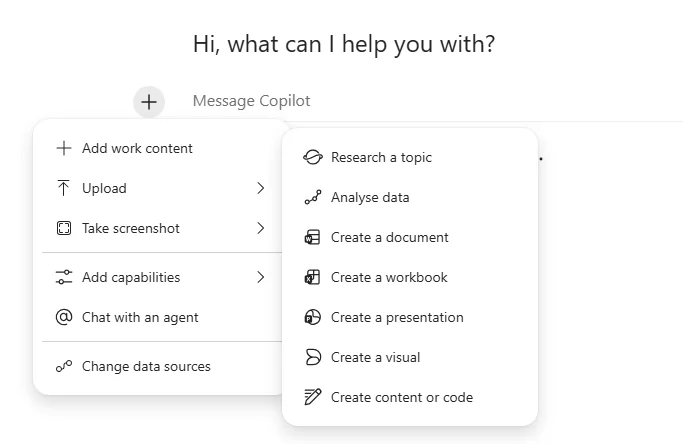
Copilot Chat’s tools menu now includes “Create content or code” — a one-click path to start co-creating in a Copilot Page (text, structured content, or code) alongside Copilot, then share it with others when ready. Pages becomes a first-class output, not a hidden surface.
💡 Why it matters: Most users find Copilot Pages through the side door (a previous chat needed a longer canvas). Surfacing it as a first-action option in the chat tools menu turns Pages from "where Copilot occasionally lands" into "where I deliberately go to co-create". Bigger shift than it sounds.
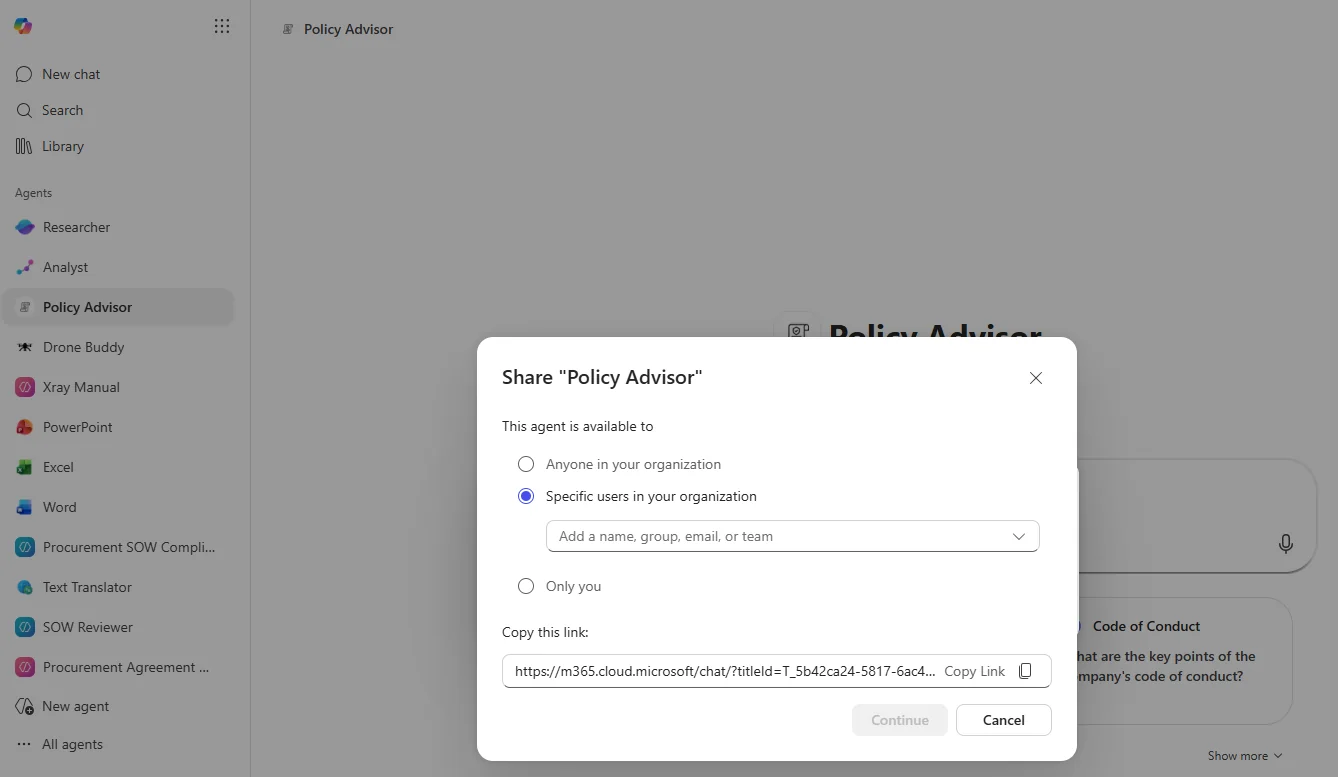
50. Share Agents to a Microsoft Teams Team
For: Agent makers · Available now
When sharing a custom agent, you can now share directly with a Microsoft Teams team — search for the team in the share dialog and send a notification to the main channel announcing the agent’s availability. Removes the friction of “I built a useful agent, now how do I tell everyone?”.
💡 Why it matters: Agent adoption inside teams has been bottlenecked at distribution. Building the agent is the easy part; getting the team to discover and install it is where momentum dies. Native Teams-team-as-share-target with channel notification closes that loop — agent maker hits Share, team gets a heads-up in their main channel, members install in one click.
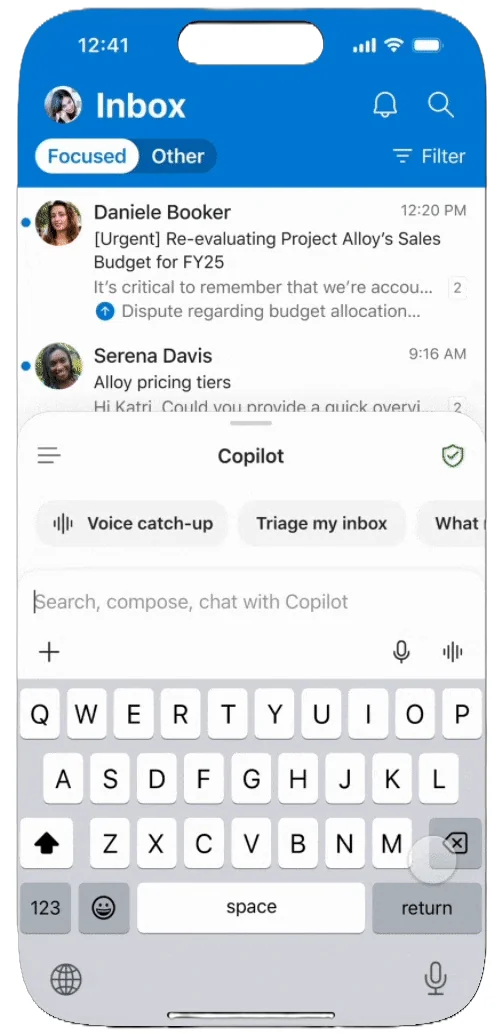
51. Triage Your Inbox by Voice in Outlook Mobile
For: Outlook mobile users · Rolling out in May
The Outlook mobile app gets a Copilot voice experience — say “summarise my recent unread” and Copilot reads it back, then take action (flag, pin, archive, mark as read) by voice. Interrupt or redirect Copilot mid-flow when something catches your attention.
💡 Why it matters: Mobile inbox use has always been "scroll, tap, scroll, archive". Voice-driven triage turns the same five minutes between meetings into a more productive catch-up — and unlocks inbox use for people who can't or don't want to keep typing on a phone. Big for execs, big for accessibility.
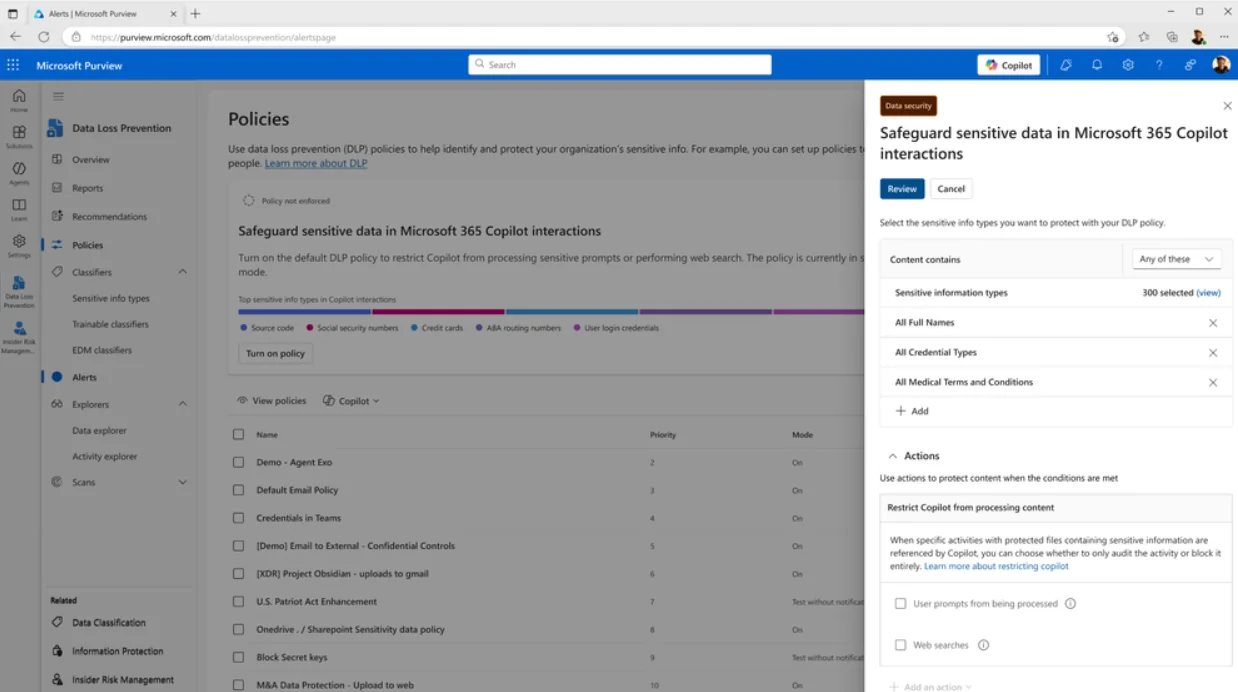
52. Purview DLP for M365 Copilot — Safeguard Prompts
For: Purview DLP admins · Available now
Purview DLP for Microsoft 365 Copilot can now safeguard prompts containing sensitive data — in real time, blocking Copilot (including pre-built agents) from responding when the prompt itself contains sensitive content, or from using that content for grounding. Closes the loop on the other side of #29 Edge DLP redirect — once a prompt lands inside Copilot, prompt-level DLP makes sure the sensitive content doesn’t leak via the response.
💡 Why it matters for admins: DLP for Copilot used to mean "controls on the output". This expansion is "controls on the input". For regulated industries (healthcare, finance, legal) where the question itself reveals confidential context, prompt-level DLP is the missing third leg of the Copilot governance stool — alongside output controls and Purview audit.
53. Watermarks for AI-Generated Content
For: M365 Copilot tenants · Available now
Watermarks for AI-generated content — admins can now enable a small Copilot icon watermark on AI-generated images, audio, and video produced inside M365 Copilot. Helps recipients (internal or external) recognise AI-generated content at a glance, supporting transparency policies.
💡 Why it matters for admins: Many organisations are starting to require disclosure when AI-generated content is shared — for IP reasons, for audit reasons, for downstream-trust reasons. A built-in watermark removes the "did they remember to label it?" risk by making the marker automatic and consistent. Particularly relevant for marketing, comms, and external-facing creative work.

Image credits
Screenshots embedded in this article are sourced from Microsoft’s own public publications, with thanks to Microsoft’s Tech Community blog team and the public Message Center archive:
- Most in-product UI screenshots — What’s New in Microsoft 365 Copilot · April 2026 recap (Microsoft 365 Copilot Blog, 30 April 2026)
- Federated MCP Connectors (#1) — Federated Copilot connectors – bringing real-time enterprise data within Microsoft 365 Copilot (Microsoft 365 Copilot Blog, 5 May 2026)
- GPT-5.5 Quick response in the model selector (#2) – Available today: GPT-5.5 Instant in Microsoft 365 Copilot (Microsoft 365 Copilot Blog, 7 May 2026)
- Microsoft Edge Copilot New Tab Page (#28) — New in Edge for Business: AI for work, safe from day one (Microsoft Edge Blog, 20 May 2026)
- Branded footer (#4), Excel from Notebooks (#7), Share recap access (#25), Delete recap content (#26), Bulk agent lifecycle (#32) — Microsoft 365 Message Center posts (MC1238432, MC1262567, MC1289724, MC1289725, MC1308854). Mirrored via merill/mc (open-source archive of public Microsoft Graph Service Announcements).
Features that shipped only in May (19 of the 53) do not have a public Microsoft screenshot yet – when Microsoft publishes the May recap, this article will be refreshed.
📚 Official Microsoft Resources
- What’s New in Microsoft 365 Copilot — Tech Community
- Federated Copilot connectors — announcement (May 5, 2026)
- GPT-5.5 Instant in M365 Copilot — announcement (May 7, 2026)
- Microsoft 365 Copilot overview
- Microsoft 365 roadmap
- Microsoft 365 Copilot adoption guide
- What’s new in Microsoft 365
🔗 Related Content on This Site
- January 2026 Copilot Updates
- February 2026 Copilot Updates
- March 2026 Copilot Updates
- April 2026 Copilot Updates
- M365 Copilot Full Tutorial
- Master All 6 Copilot Agents
- Browse all AI tutorials
- Daily AI News
- Live M365 Roadmap tracker
💡 Want More?
- 📺 Subscribe to A Guide to Cloud & AI on YouTube for new tutorials every week
- 📰 Check out the AI News page for the latest AI headlines
- ☕ Download free resources
- 📥 Monthly Copilot recaps as free PDF slide packs
This article accompanies a video tutorial on the A Guide to Cloud & AI YouTube channel.