M365 Copilot (Licensed) — Train-the-Trainer Guide
↗ for the change leads who got handed a Copilot rollout this quarter
On this page
This is the guide for people training users on the paid Microsoft 365 Copilot licence — the paid upgrade that turns Copilot from a chat tool into an AI assistant embedded in every app your users touch (for the free version first, see the Copilot Chat trainer guide).
If your users don’t have the paid licence yet, start with our Copilot Chat (Free) Trainer Guide — everything there still applies to licensed users too. This guide covers what the licence adds on top.
📖 Start here first: Our Copilot Chat (Free) Guide covers the foundations — security, EDP, chat features, Pages, memory, and custom instructions.
Table of Contents
- What Does the Copilot Licence Unlock?
- Security & Enterprise Data Protection
- Copilot Data Flow — How It Works
- Work Data Grounding — The Game Changer
- Copilot in Every App
- Researcher & Analyst Agents
- Notebooks — Deep Thinking Workspace
- Full Agent Capabilities
- Anthropic Claude — Model Choice
- AI-Powered Enterprise Search
- 🎯 Training Tomorrow? Start Here
- Positioning for Different Audiences
- Pricing & Licensing
- Who Should Get Licensed First?
- Official Microsoft Resources
- Tools to Help Your Journey
- FAQ
What Does the Microsoft 365 Copilot Licence Unlock?
The paid licence transforms Copilot from a web-grounded chat tool into an AI assistant that understands your work — your emails, files, meetings, chats, and organisational context (see the free-vs-paid decision guide if you need to explain the split).
flowchart TD
    A["M365 Copilot Licence"] --> B["Work Data
via Microsoft Graph"]
    A --> C["Deep App
Integration"]
    A --> D["Researcher
& Analyst"]
    A --> E["Notebooks"]
    A --> F["Full Agent
Capabilities"]
    A --> G["Anthropic
Model Choice"]
    A --> H["Enterprise
Search"]
    A --> I["Priority
Access"]
Everything from Copilot Chat — Plus These Exclusive Features
| Feature | 🆓 Copilot Chat | 💳 M365 Copilot Licence |
|---|---|---|
| AI Chat (web grounded) | ✅ Standard access | ✅ Priority access |
| AI Chat (work data grounded) | ❌ | ✅ Emails, files, meetings, chats |
| File Upload | ✅ Standard | ✅ Priority |
| Copilot Pages | ✅ | ✅ |
| Agents | ✅ Metered | ✅ Full access included |
| Create (Designer) | ✅ Templates | ✅ AI + templates + branding |
| Memory & Custom Instructions | ✅ | ✅ |
| Copilot in Word | ⚠️ Side pane only (if available) | ✅ Full: Draft, Rewrite, Summarise |
| Copilot in Excel | ⚠️ Side pane only (if available) | ✅ Full: Formulas, Charts, Agent Mode |
| Copilot in PowerPoint | ⚠️ Side pane only (if available) | ✅ Full: Create, Design, Translate |
| Copilot in Outlook | ✅ Chat + inbox grounding | ✅ Full: Draft, Summarise, Coach, Schedule |
| Copilot in Teams | ✅ Basic | ✅ Full: Meeting recaps, summaries, compose |
| Copilot in OneNote | ⚠️ If available | ✅ Full: Summarise, generate, organise |
| Researcher agent | ❌ | ✅ Deep web research with citations |
| Analyst agent | ❌ | ✅ Data analysis with Python |
| Notebooks | ❌ | ✅ Deep thinking workspace |
| Enterprise Search | ✅ Web search | ✅ AI-powered org + web search |
| Anthropic Claude choice | ⚠️ Limited (WXP agents) | ✅ Full model choice in apps |
| Copilot Analytics | ❌ | ✅ Usage & adoption dashboard |
🔧 Explore every feature in detail: Use our interactive Copilot Feature Matrix to compare across all tiers.
Security & Enterprise Data Protection
Same rule as with the free tier — before you teach a single feature, your users need to trust the tool. Here’s the good news: licensed Copilot inherits all the security guarantees of Copilot Chat, plus you get additional admin controls.
The #1 question every trainer gets is: “Is my data safe?” Here’s your confident answer.
The Five Promises
| # | Promise | What It Means | Why It Matters for Your Org |
|---|---|---|---|
| 1 | Your data is secured | Encrypted at rest and in transit. Physical security controls. Data isolation between tenants. | Your data never mingles with another organisation’s data |
| 2 | Your data is private | Microsoft won’t use your data except as you instruct. Supports GDPR, EU Data Boundary, ISO 27018. | Full regulatory compliance for government, healthcare, finance |
| 3 | Your policies apply | Copilot respects identity model, permissions, sensitivity labels, retention policies, and audit settings | Existing DLP, conditional access, and compliance rules work automatically |
| 4 | Protected against AI risks | Safeguards against harmful content, prompt injection, and copyright risks. Customer Copyright Commitment applies. | Legal protection for AI-generated content used in business |
| 5 | Never trains the model | Prompts and responses are never used to train foundation models | Your intellectual property stays yours |
Additional Security for Licensed Users
Licensed users benefit from these extra controls beyond what Copilot Chat provides:
| Control | What It Does |
|---|---|
| Microsoft Graph permissions | Copilot only accesses data the user already has permission to see |
| Sensitivity label inheritance | When Copilot creates new content from labelled sources in supported apps (Word, PowerPoint, Outlook), the output inherits the highest sensitivity label |
| Purview audit logging | All Copilot interactions can be audited, searched in eDiscovery, and retained |
| Retention policies | Copilot conversations can be covered by the same retention policies as Teams chats |
| Admin controls | IT can manage Copilot settings, disable features, and control agent access |
| Copilot Analytics | Dashboard showing adoption, usage patterns, and data access (licensed only) |
🗣️ Say this to your users:
“When you see the green shield 🛡️ in Copilot, it means your conversation is protected by the same enterprise terms that protect your emails and files. Your data isn’t used to train AI models, and your existing compliance controls apply automatically. When Copilot accesses your work data — emails, files, meetings — it only sees what you already have access to. If Anthropic/Claude is enabled, some processing occurs via Anthropic as a Microsoft subprocessor under the same enterprise terms.”
Common Security Questions
| Question | Answer |
|---|---|
| Does Copilot share data with OpenAI? | It depends which path. The core GPT experience runs on Azure OpenAI (Microsoft-operated) — Microsoft controls the infrastructure and nothing goes to OpenAI. Eligible commercial tenants may also have OpenAI-operated GPT enabled (OpenAI as a Microsoft subprocessor, on by default) — that path processes on OpenAI’s infrastructure under the Microsoft DPA, inside the EU Data Boundary. Admins can turn the subprocessor path off. Neither path trains OpenAI’s models on your data. |
| Does Copilot use my data to train AI? | ❌ No. Under EDP, prompts and responses are never used to train foundation models. |
| Can Copilot access files I can’t see? | ❌ No. Copilot respects all existing access controls and permissions. |
| What about Anthropic Claude data? | Data sent to Claude is processed outside the EU Data Boundary. Anthropic is a Microsoft subprocessor — your data isn’t used for Anthropic’s training. Microsoft DPA applies. |
| Is Copilot data discoverable in eDiscovery? | ✅ Yes. Copilot interactions are logged and available for audit, eDiscovery, and retention. |
| Does Copilot work with sensitivity labels? | ✅ Yes. When Copilot creates a new file from labelled content in supported apps (Word, PowerPoint, Outlook), the output inherits the highest sensitivity label from the referenced content. |
📖 Official references:
Copilot Data Flow — How It Works
This is the diagram I always show in training sessions. It helps people understand what happens between “I typed a prompt” and “I got a response” — and where their data is protected at each step.
flowchart TD
    A["User sends
a prompt"] --> B["EDP Layer
Identity + Permissions
+ Sensitivity Labels"]
    B --> C["Microsoft 365
Copilot Orchestrator"]
    C --> D["Microsoft Graph
(Emails, Files,
Meetings, Chats)"]
    C --> E["Web Search
(Bing, if enabled)"]
    C --> F["AI Model
GPT (Azure / OpenAI)
or Claude (Anthropic)"]
    F --> G["EDP Layer
Content filtering
+ Label inheritance"]
    G --> H["User receives
secure response"]
Step-by-Step Data Flow
| Step | What Happens | Security Applied |
|---|---|---|
| 1. User prompts | User types a question or request | User authenticated via Microsoft Entra ID |
| 2. Identity check | Copilot checks who the user is and what they can access | Conditional access, MFA, permissions all enforced |
| 3. Orchestration | Copilot determines what data sources to query | Only queries sources the user has access to |
| 4. Graph retrieval | Retrieves relevant emails, files, meetings, chats | Sensitivity labels and DLP policies respected |
| 5. Web search | Optionally searches the web for additional context | Only a short derived query goes to Bing — never your files or identity; the query can include terms drawn from the content you’re working with |
| 6. AI processing | AI model generates a response | Processed in Azure (GPT) or Anthropic infrastructure (Claude) |
| 7. Content filtering | Response checked for harmful content, copyright, prompt injection | Microsoft’s responsible AI safeguards applied |
| 8. Label inheritance | In supported creation scenarios (Word, PowerPoint, Outlook), if referenced data had sensitivity labels the new output inherits the highest | Ensures classified content stays classified |
| 9. Response delivered | User receives the response | Response protected under EDP, available for audit |
💡 Trainer tip: Use this data flow diagram in your training sessions. It’s the best way to answer the question “Where does my data go?” — walk them through each step, emphasising that EDP wraps the entire journey from prompt to response.
Work Data Grounding — The Game Changer
This is the single biggest difference between Copilot Chat and the paid licence. With work data grounding, Copilot doesn’t just search the web — it reads your organisational data through Microsoft Graph.
flowchart TD
    A["User Prompt"] --> B["Microsoft 365
Copilot"]
    B --> C["Web Data"]
    B --> D["Microsoft Graph"]
    D --> E["Emails"]
    D --> F["SharePoint
& OneDrive"]
    D --> G["Calendar"]
    D --> H["Teams Chats
& Meetings"]
    D --> I["People &
Org Chart"]
What Copilot Can Access Through Microsoft Graph
| Data Source | Examples |
|---|---|
| Outlook | Emails, attachments, calendar events, contacts |
| SharePoint | Documents, sites, lists, pages |
| OneDrive | Personal files, shared documents |
| Teams | Chat messages, meeting transcripts, channel posts |
| People | Org chart, colleagues, reporting lines |
| Planner | Tasks, project plans |
Security Is Preserved
💡 Critical for trainers to understand: Copilot only accesses data that the user already has permission to see. It respects all existing access controls, sensitivity labels, and compliance policies. If a user can’t see a document in SharePoint, Copilot can’t see it either. No data boundaries are broken.
🗣️ Say this to your users:
“Copilot can now help you with questions about your actual work — your emails, your files, your meetings. Ask it ‘What did Sarah say about the budget in last week’s email?’ or ‘Summarise the key decisions from Tuesday’s project meeting.’ It finds the answers from your Microsoft 365 data, so you don’t have to search manually.”
Copilot in Word
Copilot in Word transforms document creation from a blank page into an AI-assisted workflow. It can draft, rewrite, summarise, visualise, and reference other documents.
What Licensed Users Can Do
| Capability | What It Does | Try This Prompt |
|---|---|---|
| Draft from prompt | Generate a full document from a description | “Draft a project proposal for migrating our email to Microsoft 365. Include timeline, risks, and budget estimate.” |
| Draft from file | Create a document using another file as reference | “Draft an executive summary based on /Q4-Sales-Report.docx” |
| Rewrite | Select text and get alternative versions | Select a paragraph → “Rewrite this to be more concise and professional” |
| Summarise | Get key points from a long document | “Summarise this document in 5 bullet points” |
| Visualise as table | Convert text/lists into formatted tables | “Turn the project phases listed above into a table with columns for Phase, Duration, and Owner” |
| Generate images | Create AI images within the document | “Add an image that represents digital transformation in a corporate setting” |
| Add from other files | Reference multiple documents | “Using /Budget-2026.xlsx and /Strategy-Doc.docx, draft a funding request” |
| Voice prompts | Dictate instructions on mobile | Speak: “Add a conclusion paragraph that summarises the key recommendations” |
flowchart TD
    A["Copilot
in Word"] --> B["️ Draft"]
    A --> C["Rewrite"]
    A --> D["Summarise"]
    A --> E["Visualise
as Table"]
    A --> F["️ Generate
Images"]
    A --> G["Reference
Other Files"]
💡 Trainer tip: The / reference feature is a game-changer — users can type / and select files from SharePoint or OneDrive to use as context. Teach this early. It transforms Copilot from “generic AI writer” to “AI that knows our business.”
Copilot in Excel
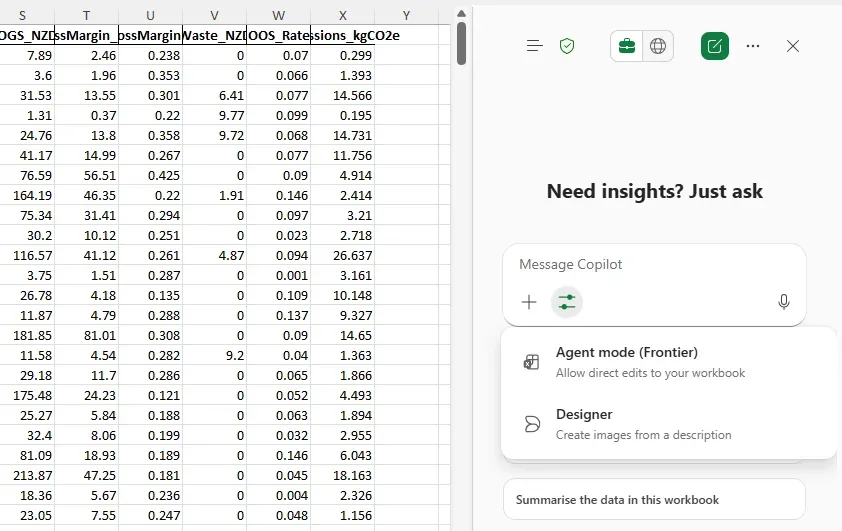
Copilot in Excel turns data analysis from a specialist skill into something every knowledge worker can do. The standout feature is Edit with Copilot (formerly Agent Mode) — where Copilot directly modifies your spreadsheet.
What Licensed Users Can Do
| Capability | What It Does | Try This Prompt |
|---|---|---|
| Formula suggestions | Get formulas explained and created | “Create a formula to calculate the percentage change between Q3 and Q4 revenue” |
| Chart creation | Generate visualisations from your data | “Create a bar chart comparing revenue by region” |
| Data insights | Discover trends and patterns | “What are the key trends in this sales data?” |
| Conditional formatting | Highlight important data points | “Highlight the top 3 values in the Revenue column” |
| Sort and filter | Organise data with natural language | “Sort this table by revenue, highest to lowest, and filter to only show the APAC region” |
| Edit with Copilot | Copilot directly modifies your data | “Add a column that calculates profit margin for each product” |
| Advanced analysis (Python) | Complex statistical analysis | “Run a correlation analysis between marketing spend and revenue using Python” |
| Advanced analysis | Deeper reasoning over your data | “Analyse this dataset for outliers and anomalies, explain what they might mean” |
💡 Trainer tip: Excel is where many users first see the “wow” moment with Copilot. Start your demo here — show how a natural language question like “What’s driving our highest costs?” generates instant insights from their actual data. It makes the value immediately tangible.
Copilot in PowerPoint
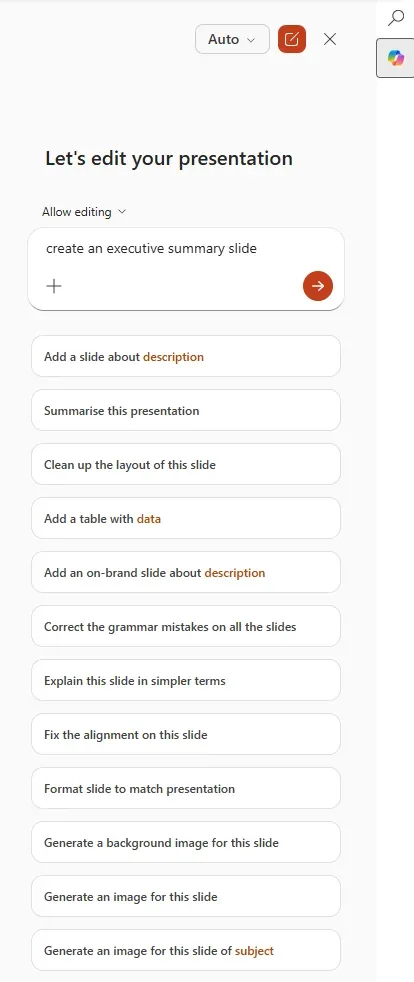
Copilot in PowerPoint turns ideas into presentations — from a prompt, a Word document, or even a PDF. It handles design, content, speaker notes, and translations.
What Licensed Users Can Do
| Capability | What It Does | Try This Prompt |
|---|---|---|
| Create from prompt | Generate a full presentation from a description | “Create a 10-slide presentation about our 2026 sustainability strategy for the board” |
| Create from Word/PDF | Transform documents into slides | “Create a presentation from /Q4-Strategy-Update.docx using our corporate template” |
| Add speaker notes | Auto-generate notes for all slides | “Add speaker notes to every slide in this presentation” |
| Add/edit slides | Insert new slides with content | “Add a slide comparing our pricing vs competitors” |
| Organise flow | Restructure and add sections | “Organise this presentation into three sections: Introduction, Analysis, and Recommendations” |
| Summarise | Get key points from a long deck | “Summarise the key findings from this presentation in 5 bullet points” |
| Design adjustments | Change formatting across the deck | “Make all headings consistent and add our brand colours” |
| Translate | Translate entire presentations | “Translate this presentation into Spanish” |
| Explain content | Right-click any element for explanation | Right-click a chart → “Explain” |
💡 Trainer tip: The ability to create presentations from Word documents is incredibly powerful for knowledge workers who write reports. Show them the workflow: Write the report in Word → Let Copilot turn it into a presentation → Add speaker notes → Present. That’s a 2-hour task reduced to 15 minutes.
Copilot in Outlook
Copilot in Outlook helps users stay on top of their inbox, craft better emails, and simplify scheduling. It works with both new Outlook and classic Outlook for Windows.
What Licensed Users Can Do
| Capability | What It Does | Try This Prompt |
|---|---|---|
| Summarise email threads | Get key points from long conversations | Click “Summary by Copilot” on any long thread |
| Draft emails | Generate replies or new emails | “Draft a reply thanking them for the proposal and suggesting a meeting next Tuesday” |
| Adjust tone & length | Refine drafts to match context | “Make this more formal” or “Shorten to 3 sentences” |
| Email coaching | Get feedback on your draft | “Coach me on this email — is the tone appropriate?” |
| Schedule meetings | Turn emails into meetings | “Schedule a 30-minute meeting with everyone on this thread for next week” |
| Prioritise inbox | Surface what matters | “What are my most important emails today?” |
| Custom instructions for drafts | Set default draft preferences | Settings → “Always use a friendly but professional tone, keep emails under 200 words” |
| Meeting recap in calendar | Review meeting summaries | Open a past calendar event → view AI-generated meeting summary |
🗣️ Say this to your users:
“Copilot in Outlook is like having a personal email assistant. It can summarise a 47-message thread in 10 seconds, draft a reply in your preferred tone, and even turn an email into a meeting invite with one click. The coaching feature is brilliant — it reviews your draft and tells you if the tone is right before you hit send.”
Copilot in Teams
Copilot in Teams is where many users experience the most immediate time savings. Based on Microsoft’s Work Trend Index research, users report significant time savings on meeting follow-ups and catch-ups.
What Licensed Users Can Do
| Capability | Where | Try This Prompt |
|---|---|---|
| Meeting recap | During or after meetings | “What were the key decisions made in this meeting?” |
| Action items | Meetings | “List all action items and who’s responsible” |
| Catch-up summary | Join a meeting late | “What have I missed so far?” |
| Chat summary | Group chats | “Summarise this chat from the last 7 days” |
| Channel summary | Channel posts | “What’s been discussed in this channel this week?” |
| Compose messages | Chat/channels | “Draft a message to the team announcing the new holiday policy. Keep it friendly.” |
| Q&A during meetings | Live meetings | “Did anyone mention the timeline for Phase 2?” |
| Follow-up questions | After meetings | Copilot suggests follow-up questions to ask |
flowchart TD
    A["Copilot
in Teams"] --> B["Meeting
Recaps"]
    A --> C["Action
Items"]
    A --> D["Chat
Summaries"]
    A --> E["Channel
Summaries"]
    A --> F["️ Compose
Messages"]
    A --> G["Live
Q&A"]
💡 Trainer tip: Meeting recaps are the #1 feature that sells Copilot to sceptics. Demo this live in your session — join a Teams call, have a 5-minute conversation, then show the instant recap with action items. The “aha” moment happens every time.
Copilot in OneNote
Copilot in OneNote transforms note-taking from passive recording to active AI-powered synthesis. It’s your thinking partner for organising ideas, extracting insights, and generating content from your notes.
What Licensed Users Can Do
| Capability | What It Does | Try This Prompt |
|---|---|---|
| Summarise notes | Get key points from lengthy notes | “Summarise my meeting notes from this page” |
| Draft plans | Generate structured content | “Create a project plan for the office relocation based on my notes” |
| Generate ideas | Brainstorm and expand | “Generate 10 creative ideas for our team building day” |
| Create task lists | Extract actionable items | “Create a to-do list from my notes about the product launch” |
| Rewrite text | Improve clarity and tone | Select text → “Rewrite this to be clearer and more structured” |
| Organise sections | Restructure notebooks | “Suggest a better structure for organising these notes” |
Copilot in OneDrive
Copilot in OneDrive lets you ask questions about your files directly from the OneDrive web interface — without opening each file individually.
Example prompts:
📄 Summarise: “Summarise the key findings from Q4-Report.pdf”
✅ Extract actions: “What are the action items mentioned in Meeting-Notes.docx?”
🔄 Compare: “Compare the budget figures in Budget-v1.xlsx and Budget-v2.xlsx”
Works with Word, PDF, PowerPoint, Excel, and text files.
Copilot in Loop
Copilot in Loop supports AI-assisted collaborative work. Your team co-authors Loop pages together in real time, and Copilot helps via a Copilot Chat panel you can ask questions and insert answers from, plus Recap to summarise page changes. One limit worth teaching: Copilot in Loop can’t directly edit the page you have open — you ask, then insert. For a Copilot that actively drafts and rewrites in the document, that’s Copilot Pages.
Key capabilities:
- Draft collaborative content with AI assistance
- Summarise and share changes with your team using the Recap feature
- See when teammates are actively writing Copilot prompts
- Generate content that can be collaboratively edited by the whole team
Researcher & Analyst — Advanced Reasoning Agents
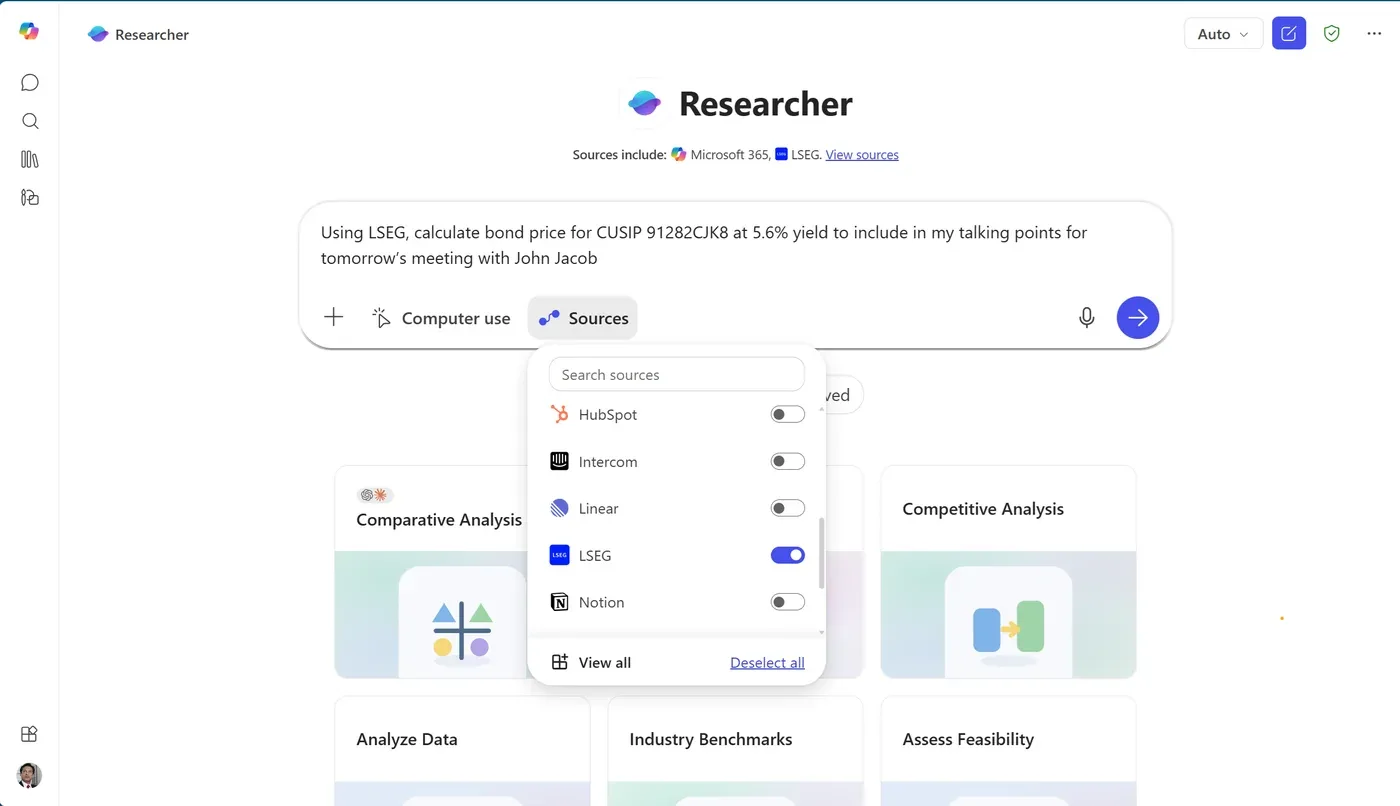
These are the premium agents exclusive to licensed users. They represent a significant step up from regular Copilot chat.
🔬 Researcher
Researcher performs deep, multi-step web research with citations — like having a junior analyst who can spend hours researching a topic and deliver a comprehensive brief.
| Aspect | Details |
|---|---|
| What it does | Deep web research with cited sources |
| How it’s different | Takes more time, does multiple searches, synthesises findings |
| Model | Can use Anthropic Claude for advanced reasoning |
| Best for | Market analysis, competitive intelligence, topic exploration, due diligence |
Example prompts to try:
🔬 AI Regulation Research: “Research the current state of AI regulation in New Zealand and Australia. Include recent legislation, proposed changes, and how they compare to the EU AI Act.”
🔬 Competitive Analysis: “Compile a competitive analysis of our top 5 competitors in the cloud consulting space in ANZ. Include strengths, weaknesses, and recent news.”
🔬 Adoption Best Practices: “Research best practices for Microsoft 365 Copilot adoption in organisations with 5,000+ employees.”
📊 Analyst
Analyst is a data analysis agent that uses Python under the hood to process, visualise, and interpret data. Think of it as a data scientist in your chat.
| Aspect | Details |
|---|---|
| What it does | Data analysis, visualisation, statistical modelling |
| How it’s different | Uses Python for computation — not just formulas |
| Model | Reasons over your data with visible workings (writes and runs Python) |
| Best for | Sales analysis, trend detection, forecasting, data cleaning, visual reports |
Example prompts to try:
📊 Sales Analysis: Upload a CSV → “Analyse this sales data. Show me monthly trends, identify the top-performing products, and flag any anomalies.”
📊 Dashboard Summary: “Create a dashboard-style summary with charts showing our Q1 performance vs targets.”
📊 Predictive Analysis: “Run a regression analysis to predict next quarter’s revenue based on the last 8 quarters.”
💡 Trainer tip: Position Researcher and Analyst as the features that justify the Copilot licence for knowledge workers, analysts, and managers. Researcher replaces hours of manual web research. Analyst replaces the need to export data to Python notebooks or hire a data analyst for ad-hoc queries.
Notebooks — Deep Thinking Workspace
Copilot Notebooks is a secure, AI-powered workspace for structured problem-solving. Unlike chat (which is transactional), Notebooks maintain context across interactions and let you build up a body of work over time.
How Notebooks Differ from Chat and Pages
| Feature | Chat | Pages | Notebooks |
|---|---|---|---|
| Purpose | Quick Q&A | Collaborative canvas | Deep thinking workspace |
| Context | Single conversation | Shared page | Persistent across sessions |
| References | File upload | AI-generated content | Files + communications |
| Collaboration | No | Yes, real-time | Yes, via Pages |
| Audio summaries | No | No | ✅ Yes |
| Available to | Everyone | Everyone | 💳 Licensed users only |
Use Cases for Notebooks
- Quarterly forecasting — Gather financial data, meeting notes, and market intel in one workspace
- Strategy documents — Build up research, analysis, and recommendations over multiple sessions
- Project planning — Synthesise inputs from multiple stakeholders and documents
- Support triage — Collect issue reports, analyse patterns, draft response plans
Full Agent Capabilities
With the paid licence, users get comprehensive agent access — the built-in agents and everyday employee-facing agent use are included (zero-rated) within fair-use limits, with nothing extra to buy. The exception to know: Cowork and Cowork-built apps run on usage-based Copilot Credits, so that autonomous work is metered separately even for licensed users.
What Licensed Users Can Do with Agents
| Capability | Free Users | Licensed Users |
|---|---|---|
| Use pre-built agents | ✅ | ✅ |
| Use pay-as-you-go agents | ✅ (metered) | ✅ (included) |
| Create agents (web grounded) | ⚠️ If admin allows | ✅ |
| Create agents (document grounded) | 💰 Requires billing | ✅ Included |
| Create agents (SharePoint grounded) | 💰 Requires billing | ✅ Included |
| Researcher | ❌ | ✅ |
| Analyst | ❌ | ✅ |
| Custom Copilot Studio agents | ❌ | ✅ |
🗣️ Say this to your users:
“With your Copilot licence, you can create custom AI assistants — called agents — that know about specific topics. For example, you could create an agent grounded in your HR policies document so anyone in the team can ask it questions about leave, benefits, or expenses. Or an agent grounded in your product knowledge base for the sales team.”
Anthropic Claude — Model Choice
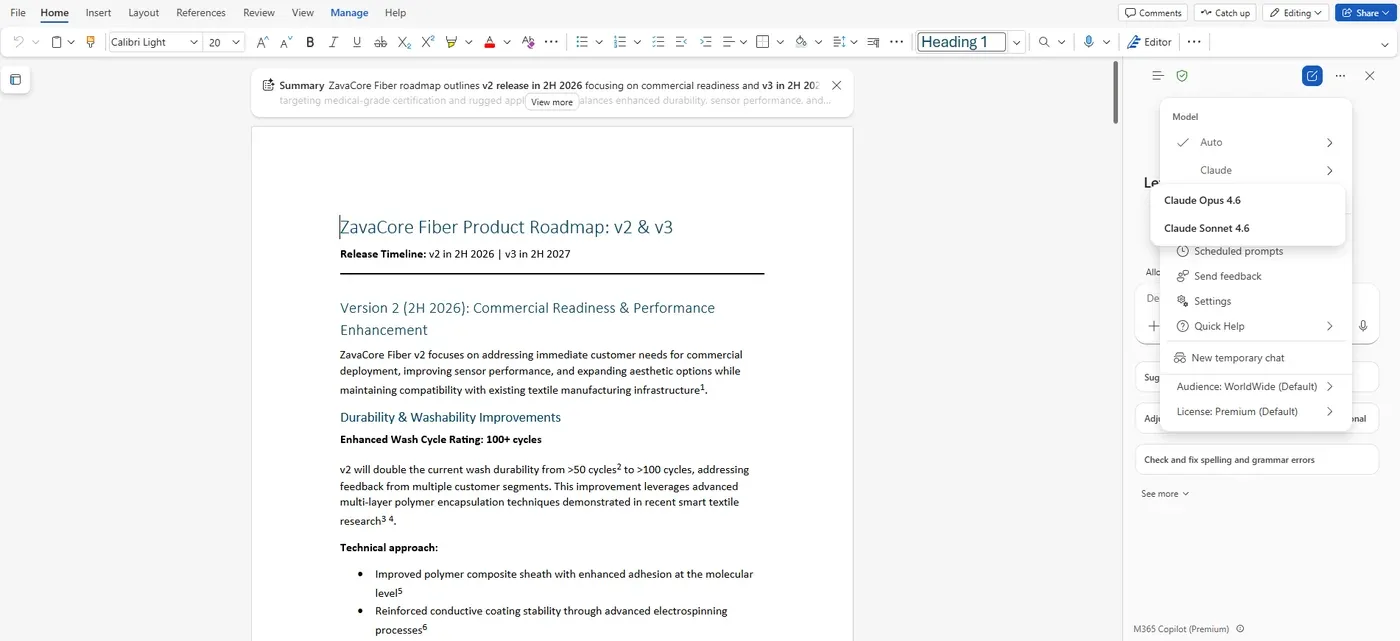
Microsoft 365 Copilot now offers model choice — users can select between OpenAI GPT and Anthropic Claude models in certain apps. This is a significant advantage for users who want to compare outputs or leverage Claude’s strengths in specific tasks.
Where Claude Is Available
| App / Feature | Claude Available? | Notes |
|---|---|---|
| Copilot Chat (Researcher) | ✅ | Select Claude from model picker |
| Word | ✅ | Admin-controlled; user may see model indicator |
| Excel (Agent Mode) | ✅ | Select Claude from model picker |
| PowerPoint | ✅ | Available for content generation |
| Copilot Studio | ✅ | Creators select model during agent creation |
| OneNote | ❌ | Not yet available |
| Teams | ❌ | Not yet available |
| Outlook | ❌ | Not yet available |
How to Enable Anthropic Claude (Admin Steps)
flowchart TD
    A["Admin Centre"] --> B["Copilot → Settings
→ View All"]
    B --> C["AI providers operating
as Microsoft subprocessors"]
    C --> D{"Anthropic
toggle"}
    D -->|"Enable"| E["Claude available
for users"]
    D -->|"Disable"| F["Claude hidden
from users"]
Step-by-step:
- Go to Microsoft 365 Admin Center → select Copilot → Settings → View All
- Select “AI providers operating as Microsoft subprocessors”
- Under Available subprocessors, find Anthropic and click Enable
- Changes take effect within minutes to a few hours
💡 Trainer note: That same “AI providers operating as Microsoft subprocessors” list also includes OpenAI-operated GPT (OpenAI acting as a Microsoft subprocessor — distinct from the Microsoft-operated Azure OpenAI that’s always on). Like Anthropic, it’s on by default for eligible commercial tenants (admins opt out), but unlike Anthropic it sits inside the EU Data Boundary. So if your compliance line is “nothing leaves the Microsoft-operated boundary”, both subprocessor toggles are the ones to check — not just Anthropic.
Regional Defaults
| Region | Default Status | Action Needed |
|---|---|---|
| Non-EU Commercial | ✅ Enabled by default | No action needed |
| EU / EFTA / UK | ❌ Disabled by default | Admin must opt in |
| Government (GCC, GCC-H, DoD) | 🚫 Not available | No toggle shown |
⚠️ Important: Data sent to Claude is processed outside the Microsoft EU Data Boundary. Anthropic acts as a Microsoft subprocessor and does not retain or use data for its own training. The Microsoft DPA applies.
How Users Select Models
In supported apps, users see a model selector in the UI — typically at the top right. They can switch between:
- Auto — Copilot chooses the best model (default)
- GPT — OpenAI’s GPT models (the model picker shows the current versions)
- Claude — Anthropic’s model (when available)
💡 Trainer tip: For most users, recommend Auto mode as the default. Only teach model switching to power users who want to compare outputs — for example, trying a complex analysis in both GPT and Claude to see which gives better results. Claude tends to excel at nuanced long-form writing and strategic analysis.
📖 Official reference: Anthropic as a subprocessor for Microsoft Online Services
AI-Powered Enterprise Search
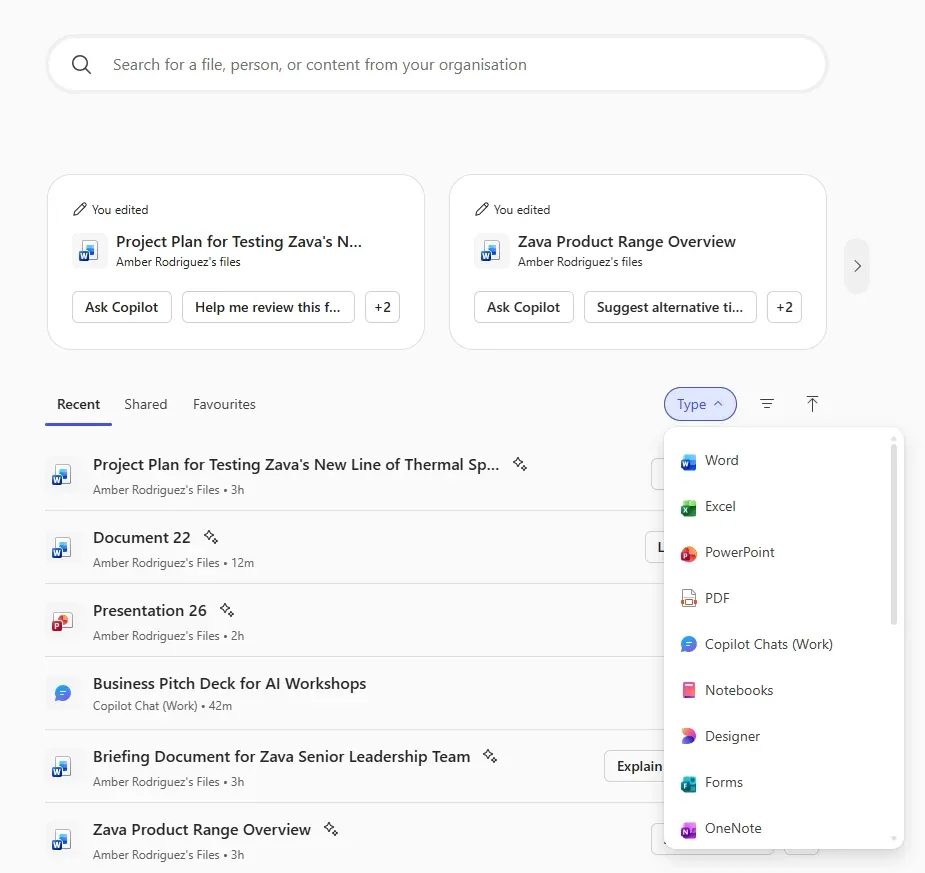
This is one of those features that sounds boring until you see it in action. For licensed users, search stops being “find a document” and becomes “find the answer” — across your entire organisation’s data.
What Enterprise Search Can Find
| Source | Examples |
|---|---|
| 📧 Outlook | Emails, attachments, calendar items |
| 📄 SharePoint | Documents, sites, pages, lists |
| 💾 OneDrive | Personal and shared files |
| 💬 Teams | Chat messages, channel posts, meeting content |
| 👥 People | Colleagues, org chart, expertise |
| 📅 Calendar | Events, meeting details |
| 📦 Archived mailboxes | Historic emails (append “from my archives”) |
Example prompts:
🔍 Find files: “Find the presentation Sarah shared about the Melbourne project last month”
📧 Search emails: “What emails have I received about the budget review this week?”
👥 Find expertise: “Who in our team has expertise in Azure networking?”
🗣️ Say this to your users:
“Stop digging through SharePoint folders and email threads. With Copilot Search, just ask in plain English — ‘Find the contract we signed with Contoso last quarter’ or ‘What did the marketing team share about the rebrand?’ Copilot searches across your emails, files, Teams messages, and more, and gives you the answer directly.”
🎯 Training Tomorrow? Start Here
Running your first M365 Copilot (licensed) training session? Here’s your quick-start playbook.
60-Minute Session Agenda
| Time | Activity | Notes |
|---|---|---|
| 0-5 min | What does the Copilot licence unlock? | Show the feature comparison table — free vs paid |
| 5-10 min | Security & EDP + Data Flow | Build trust — walk through the data flow diagram |
| 10-20 min | Live demo: Copilot in Outlook + Teams | Summarise an email thread, show a meeting recap |
| 20-30 min | Live demo: Copilot in Word + Excel | Draft a document, ask Copilot to analyse data |
| 30-35 min | Live demo: PowerPoint | Create a presentation from a Word doc |
| 35-45 min | Researcher + Analyst agents | Show deep research and data analysis |
| 45-50 min | Prompting tips + Custom Instructions | CRAFT framework, set up instructions together |
| 50-55 min | Agents, Pages, Notebooks | Quick overview of advanced capabilities |
| 55-60 min | Q&A + Resources | Share this blog, encourage bookmarking |
Top 5 Demos That Always Land
- Teams meeting recap — Join a call, talk for 5 minutes, show instant summary + action items
- Outlook email summarisation — Open a long thread, click Summarise — instant clarity
- Word: Draft from another file — Type
/to reference a doc, generate a new document from it - Excel: Ask a question about data — Upload a spreadsheet, ask “What are the key trends?”
- Researcher agent — Ask it to research a competitor — the depth of output is impressive
Pre-Session Checklist
- ✅ Confirm users have Microsoft 365 Copilot licences assigned
- ✅ Test Copilot in each app you plan to demo (Word, Excel, PPT, Outlook, Teams)
- ✅ Prepare sample files: a Word report, an Excel dataset, a long email thread
- ✅ Check if Teams meeting transcription is enabled (required for meeting recaps)
- ✅ Check if Anthropic is enabled if you plan to demo model choice
- ✅ Verify agents are visible in the Copilot app
What Might Not Show Up (and What to Say)
| Feature | Why It Might Be Missing | What to Tell Users |
|---|---|---|
| Meeting recaps | Transcription not enabled by IT | “Your IT team needs to enable meeting transcription. Let’s follow up with them.” |
| Model choice (Claude) | Anthropic not enabled in tenant | “Model choice depends on an admin setting. We’ll check with IT.” |
| Notebooks | Rolling out gradually | “Notebooks is a new feature — it may not be in your tenant yet.” |
| Agent creation | Admin controls who can create agents | “Agent creation is managed by IT. You can use existing agents today.” |
| Copilot in OneNote | Requires latest desktop version | “Make sure you’re on the latest version of OneNote for Windows.” |
Positioning Copilot — For AI Change Leads
For Leadership / Executives
🗣️ Say this to executives:
“Microsoft 365 Copilot is the AI layer across your entire productivity stack. It reads your organisation’s data — emails, files, meetings, chats — and turns it into instant insights, drafts, and actions. According to Forrester’s Total Economic Impact study, organisations are seeing meaningful productivity gains across roles. It’s not just a chat tool — it’s AI that handles routine work so your team can focus on strategy.”
For End Users
🗣️ Say this to end users:
“Copilot is like having a brilliant assistant who’s read every email you’ve sent, every document you’ve worked on, and every meeting you’ve attended. Ask it anything about your work and it finds the answer. Ask it to write something and it drafts it in your style. Ask it to analyse data and it creates charts in seconds. And everything it does stays private and secure.”
Pricing & Licensing
| Plan | Price (indicative, US) | Minimum | Commitment |
|---|---|---|---|
| Enterprise (E3/E5, 300+ users) | ~$30 USD/user/month | 1 user | Annual |
| Business (< 300 users) | ~$21 USD/user/month | 1 user | Annual |
| Education | Discounted | Varies | Annual |
🔧 Need help understanding licensing? Use our interactive Microsoft Licensing Simplifier to compare all M365 plans side-by-side.
💰 Want to calculate the ROI? Try our Copilot ROI Calculator — estimate time savings, cost recovery, and break-even timeline for your organisation.
Who Should Get Licensed First?
This is the question every AI Change Lead and IT decision-maker needs to answer. Not every user needs the full Copilot licence on day one. Here’s a decision framework.
Licence Priority Matrix
| Priority | Who | Why |
|---|---|---|
| 🥇 First wave | Executive assistants, senior leaders, project managers | Highest meeting load, most email, biggest time-savings impact |
| 🥇 First wave | Sales & customer-facing roles | Revenue-generating — ROI is easiest to measure |
| 🥈 Second wave | Marketing, HR, finance analysts | Strong use cases across Word, Excel, PowerPoint |
| 🥈 Second wave | IT helpdesk & support teams | Copilot in Teams + Outlook for ticket triage and knowledge lookup |
| 🥉 Third wave | General knowledge workers | After first/second wave proves value and builds internal champions |
| 🆓 Copilot Chat only | Frontline workers, light M365 users | Web chat + agents may be sufficient for their needs |
When Free Copilot Chat Is Enough
Not every user needs the paid licence. Copilot Chat (free) is sufficient when users:
- Primarily need AI for brainstorming, research, or writing assistance
- Don’t rely heavily on organisational data (emails, meetings, files) in their AI workflows
- Work in roles where in-app Copilot (Word/Excel/PPT) isn’t critical
- Are in early AI adoption — building AI fluency before upgrading
Pilot Plan Recommendations
| Phase | Duration | Focus |
|---|---|---|
| Pilot | 4-6 weeks | 50-100 users from first wave. Measure time savings, satisfaction, and adoption. |
| Expand | 6-8 weeks | Scale to second wave based on pilot learnings. Refine training materials. |
| Broad rollout | Ongoing | Third wave + new hires. Establish champions network. |
Success Metrics to Track
- Adoption rate — % of licensed users actively using Copilot weekly
- Time saved — Self-reported via surveys (Microsoft provides templates in the Copilot Success Kit)
- Meeting efficiency — Reduction in follow-up emails after meetings with Copilot recaps
- Content velocity — Time to produce first drafts of documents, presentations, emails
- User sentiment — NPS scores from Copilot users vs non-users
📖 Official adoption resources: Copilot Success Kit · Copilot Scenarios Library · Copilot Analytics dashboard
Official Microsoft Resources
| Resource | What It Covers | Link |
|---|---|---|
| M365 Copilot Overview | Full product overview for admins | learn.microsoft.com |
| Copilot App Overview | App features, licence comparison | learn.microsoft.com |
| Release Notes | Latest feature updates | learn.microsoft.com |
| Enterprise Data Protection | Security & compliance details | learn.microsoft.com |
| Anthropic Subprocessor | Claude model admin settings | learn.microsoft.com |
| Copilot in Word FAQ | Word features & tips | support.microsoft.com |
| Copilot in Excel FAQ | Excel features & tips | support.microsoft.com |
| Copilot in PowerPoint FAQ | PowerPoint features & tips | support.microsoft.com |
| Copilot in Outlook FAQ | Outlook features & tips | support.microsoft.com |
| Copilot in Teams FAQ | Teams features & tips | support.microsoft.com |
| Copilot Success Kit | Deployment & adoption resources | adoption.microsoft.com |
| Copilot Scenarios Library | Role-based use cases | adoption.microsoft.com |
| Copilot Academy | Training & skilling paths | learn.microsoft.com |
| Responsible AI | Microsoft’s AI principles | microsoft.com |
Tools I Built to Help Your Copilot Journey
I build free tools to make Copilot adoption easier for everyone. Here are the ones that go hand-in-hand with this guide:
| Tool | What It Helps With |
|---|---|
| 🔧 Copilot Feature Matrix | Compare every Copilot feature across Free, Chat, Pro, and M365 tiers |
| 📋 Copilot Readiness Checker | 30-question assessment across 7 pillars — is your org ready? |
| 💰 Copilot ROI Calculator | Calculate time savings, cost recovery, and break-even |
| 📜 Microsoft Licensing Simplifier | Understand M365 licensing plans side-by-side |
| 📝 AI Prompt Library | 84 ready-to-use prompts across 8 platforms |
| ✨ Prompt Polisher | Score and improve any prompt with the CRAFTS framework |
| 🎓 Prompt Engineering Guide | Learn 8 prompt engineering techniques with hands-on exercises |
Also Read: The Free Copilot Chat Guide
If your organisation has users who don’t have a paid Copilot licence, make sure they have this guide too:
👉 Microsoft 365 Copilot Chat (Free) — Complete Trainer Guide
It covers everything about the free Copilot Chat experience — security, EDP, chat, file upload, Pages, agents, memory, custom instructions, and the April 15, 2026 changes. All of those foundations apply to licensed users too.
Frequently Asked Questions
- What is the Microsoft 365 Copilot licence?
It’s a paid add-on (indicatively ~$30/user/month for enterprise, ~$21 for business) that unlocks the full AI experience across all M365 apps — work data grounding, deep in-app integration, Researcher & Analyst agents, Notebooks, Anthropic model choice, and priority access.
- What does work data grounding mean?
Copilot can read and reason over your organisation’s data through Microsoft Graph — emails, files, meetings, chats, calendar, and contacts. This means Copilot understands your work context, not just the web.
- Can Copilot access files I don’t have permission to see?
No. Copilot strictly respects all existing access controls, sensitivity labels, and compliance policies. If you can’t see a document in SharePoint, Copilot can’t either.
- Does Copilot use my data to train AI models?
No. Under Enterprise Data Protection, prompts and responses are never used to train foundation models. This applies to both OpenAI GPT and Anthropic Claude models.
- What about Anthropic Claude — is my data safe?
Anthropic acts as a Microsoft subprocessor. Your data isn’t used for Anthropic’s training. The Microsoft DPA applies. Note: Claude processing may occur outside the EU Data Boundary. Admins in EU/EFTA/UK must explicitly opt in.
- Which apps support Anthropic Claude model choice?
Claude is available in Copilot Chat (Researcher), Word, Excel (Agent Mode), PowerPoint, and Copilot Studio. Users see a model selector to switch between GPT and Claude. Availability varies by region and admin settings.
- What are the Researcher and Analyst agents?
Researcher performs deep, multi-step web research with citations — ideal for market analysis and due diligence. Analyst uses Python for data analysis, visualisation, and statistical modelling. Both are exclusive to licensed users.
8. What are Copilot Notebooks?
A secure AI workspace for deep thinking. Unlike chat (transactional), Notebooks maintain context across sessions, support file and communication references, generate audio summaries, and enable collaboration. Licensed users only.
- What features require admin enablement?
Teams meeting transcription (for recaps), Anthropic subprocessor toggle, agent creation policies, Enhanced Personalisation (for memory), and Copilot pinning in apps. Check with your IT team if features aren’t visible.
- How much does the Copilot licence cost?
Indicatively around $30 USD/user/month for Enterprise (300+ users) and $21 USD/user/month for Business (under 300 users), on an annual commitment; Education pricing is discounted. Figures are indicative US list prices — confirm the current number on Microsoft’s pricing page, as enterprise pricing varies by agreement and region.
- Can admins or compliance teams see my Copilot prompts and responses?
Copilot interactions are logged and can be subject to audit, eDiscovery, and retention policies depending on your Microsoft 365 subscription and compliance configuration. Metadata (who used Copilot, when, which app) is always logged. Prompt and response content may be discoverable through Microsoft Purview depending on your setup. Check with your IT/compliance team for your organisation’s specific policies.
- Who should get Microsoft 365 Copilot licences first?
Start with roles that have the highest meeting load, email volume, and content creation needs — executive assistants, senior leaders, sales teams, and project managers. Then expand to analysts, HR, marketing, and finance. Use free Copilot Chat for light M365 users and frontline workers. See the Who Should Get Licensed First? section for a detailed priority matrix.
Disclaimer: The views and opinions expressed in this article are my own and do not represent the official positions of Microsoft. I work at Microsoft as a Copilot Solution Engineer, but this guide is based on my own research, experience, and publicly available documentation. All pricing mentioned is in USD and was sourced from official Microsoft pricing pages at the time of writing — pricing, features, and availability are subject to change. Always refer to official Microsoft documentation for the most up-to-date and accurate information.