What's New in Microsoft 365 Copilot: June 2026
← what changed this month, in plain English
On this page
The short version — what’s new in Microsoft 365 Copilot for June 2026: this was a Build month. Microsoft Scout — Microsoft’s first “Autopilot” agent — was unveiled at Build 2026, and Copilot Cowork reached general availability. In Copilot Chat you can now pick Anthropic’s Claude as a model, and the Federated Connectors that arrived in preview last month are now generally available.
The rest — Copilot editing your Word document by default, a new FLUX.2 image model in PowerPoint, the Work IQ APIs reaching GA, and a wave of admin, governance and agent updates — is below, each in plain English with what it actually means for you.
📅 2026 monthly recaps: January · February · March · April · May · June (you are here)
If you only have 2 minutes — June’s picks
Three to start with:
- Microsoft Scout — Microsoft’s first always-on “Autopilot” agent, unveiled at Build. The clearest sign yet of where agents are heading.
- Copilot Cowork is GA — the Copilot that does the work, now generally available and running in the cloud while your laptop sleeps.
- Claude in Copilot Chat — pick Anthropic’s Claude as a model for deep, structured work.
Admin Checklist — June 2026
Five things worth doing this month, in priority order:
- Decide on Cowork before your users ask. Cowork is off by default. Before you switch it on, review usage-based billing and set spending limits at the tenant, group and user level (Microsoft 365 admin centre → Copilot). Decide who gets it, and start with a pilot group.
- Govern the new models per group. You can enable Anthropic (Claude) and other models for specific users or groups, not just tenant-wide. Decide your policy in the admin centre before broad rollout.
- Re-check Federated Connectors now they’re GA. They’re admin-governed in Microsoft 365 admin centre → Copilot → Connectors, with a 7-day review window before a connector reaches end users. Review which are enabled and stage rollout to groups.
- Plan Scout access if you want early hands-on. Microsoft Scout is Frontier-only and needs an Intune policy, admin attestation and GitHub Copilot licences. Read the deep dive before you enrol.
- Brief security on the new Purview controls. Three are worth a look: DLP that keeps external email out of Copilot, the Data Security Triage Agent, and the new DSPM with AI observability that now covers agents and Microsoft Agent 365.
1. Microsoft Scout — Microsoft’s first Autopilot agent
For: Frontier-program users (admin-gated) · Preview · Windows 11+ and macOS 12+
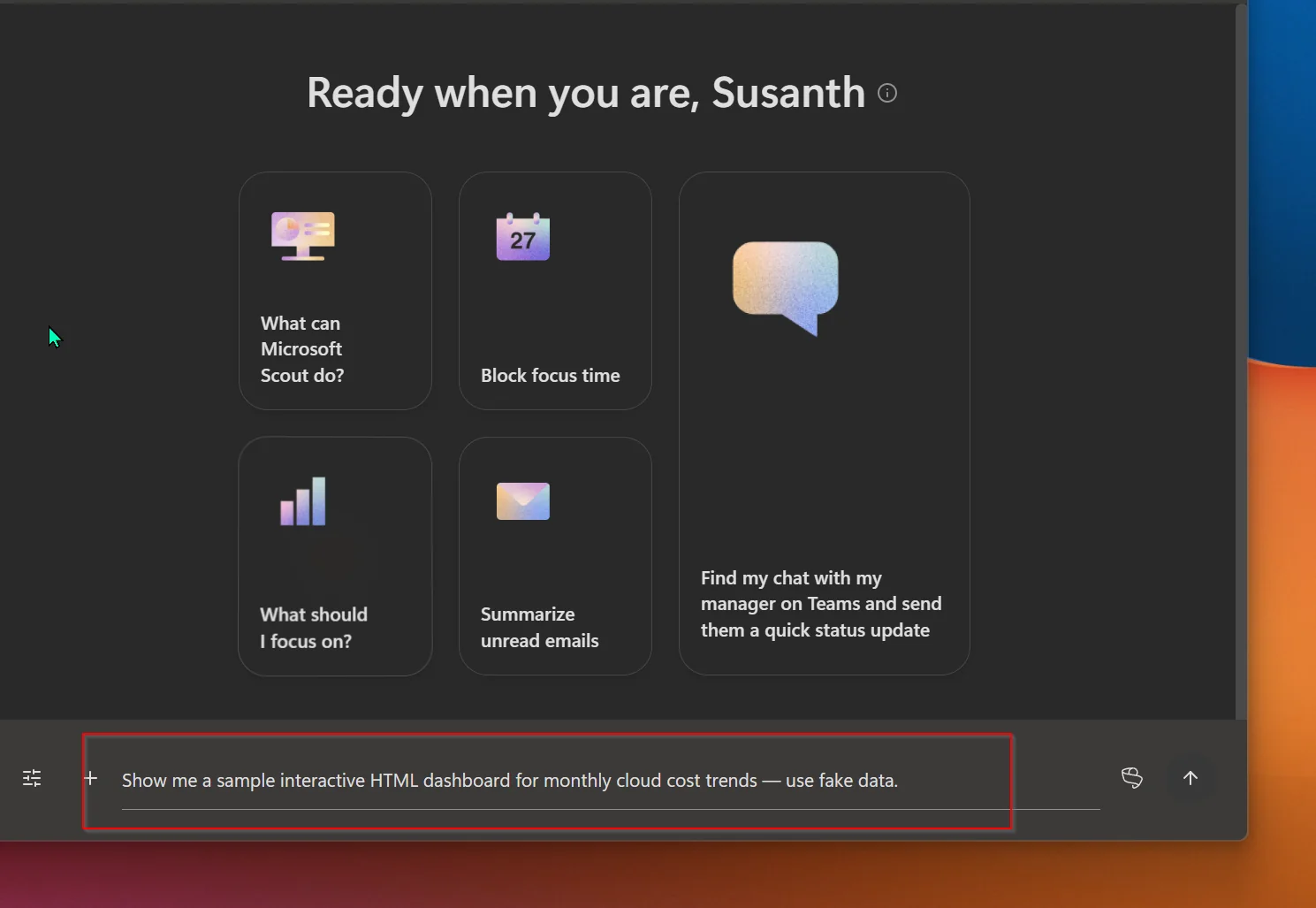
The biggest news of the month came out of Microsoft Build 2026: Microsoft Scout, which Microsoft calls its first “Autopilot” agent. If a Copilot waits for you to ask, an Autopilot is always on — it works in the background, on a schedule you set, under its own identity, and acts on your behalf.
Scout is a desktop app (Windows 11+ and macOS 12+) that can:
- work with your files — create, edit and search documents in your workspace;
- run commands in a terminal, with a tiered permission system so nothing risky runs without your approval;
- drive a browser — navigate pages and fill in forms;
- reach into Microsoft 365 — Teams, Outlook, OneDrive and SharePoint, plus your mail, calendar and contacts.
It remembers your preferences across conversations, can run on a heartbeat (checking in every 15–120 minutes while you’re away), and can hand work to specialised sub-agents. Under the hood it’s built on the OpenClaw open-source project and grounded by Work IQ — and every agent runs under its own Microsoft Entra identity, with Microsoft Purview data protections enforced in the moment.
💡 Why it matters: This is the clearest signal yet of where work agents are heading — from "answer my question" to "handle this for me." The guardrails are the story as much as the capability: a governed Entra identity (not a shared service account), tiered command permissions, and Purview enforced before anything is written or sent. That's what makes an always-on agent something an enterprise can actually adopt.
Scout is in the Frontier preview today, and needs a Microsoft 365 Copilot licence plus a GitHub Copilot Business or Enterprise licence, admin enrolment and an Intune-managed device.
📎 We’ve written the full deep dive: Microsoft Scout complete guide →
📖 Introducing Microsoft Scout (Microsoft 365 blog) · Microsoft Scout documentation
2. Copilot Cowork is now generally available
For: Microsoft 365 Copilot–licensed users (an admin enables it) · Generally available — 16 June
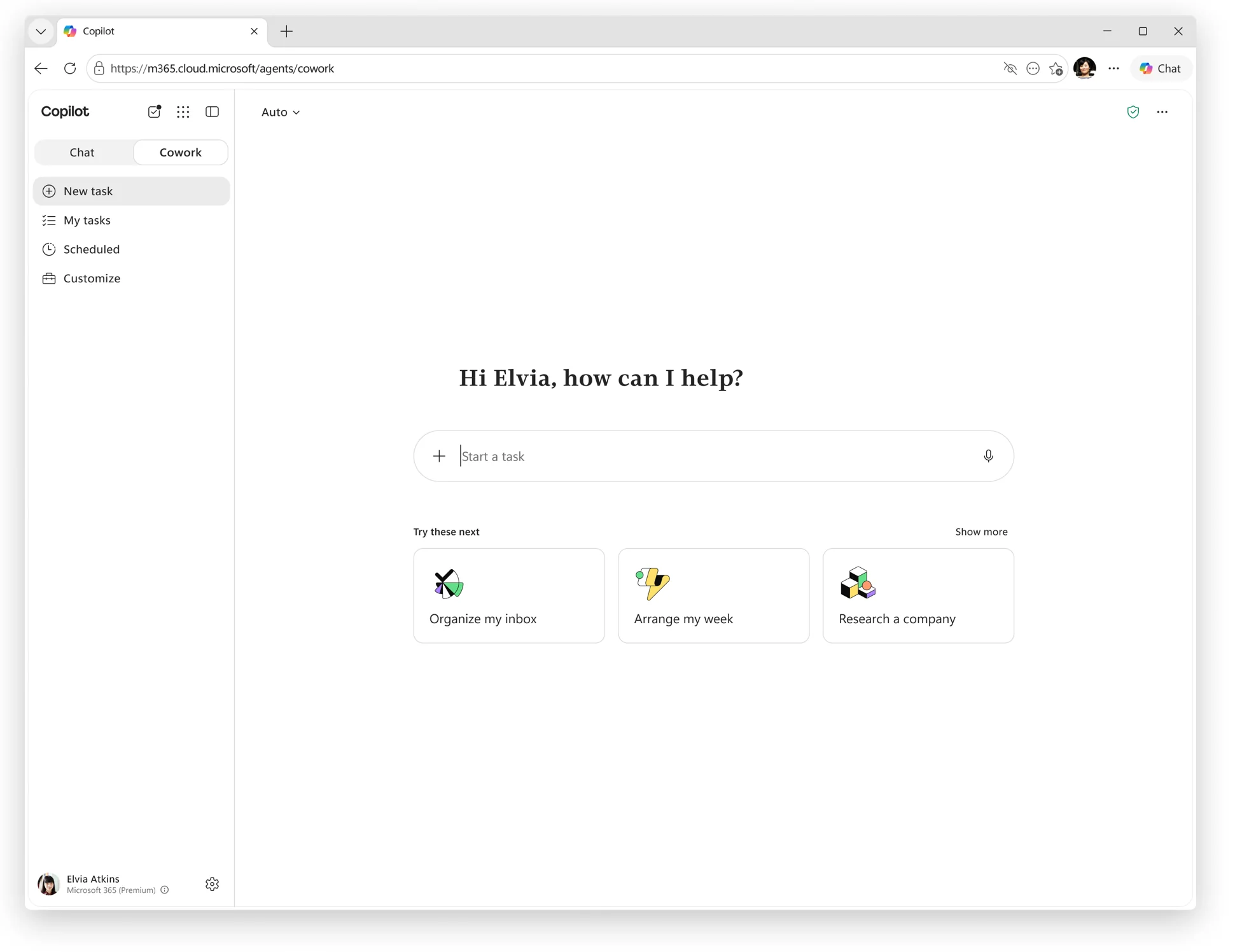
Copilot Cowork reached general availability on 16 June 2026. Where Copilot Chat answers questions, Cowork does the work — longer, multi-step tasks that span several apps. It runs in a secure cloud-hosted environment, which means your tasks keep going even when your laptop is off, and your files aren’t stored on the device.
A few things worth knowing:
- It’s off by default — an admin turns Cowork on for the tenant and decides who gets it, with spending limits at the tenant, group and user level.
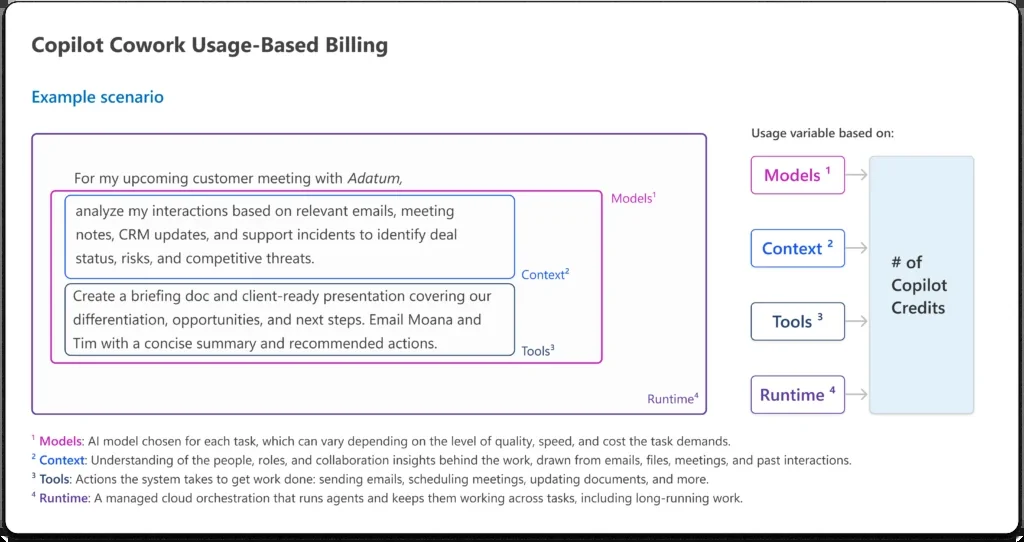
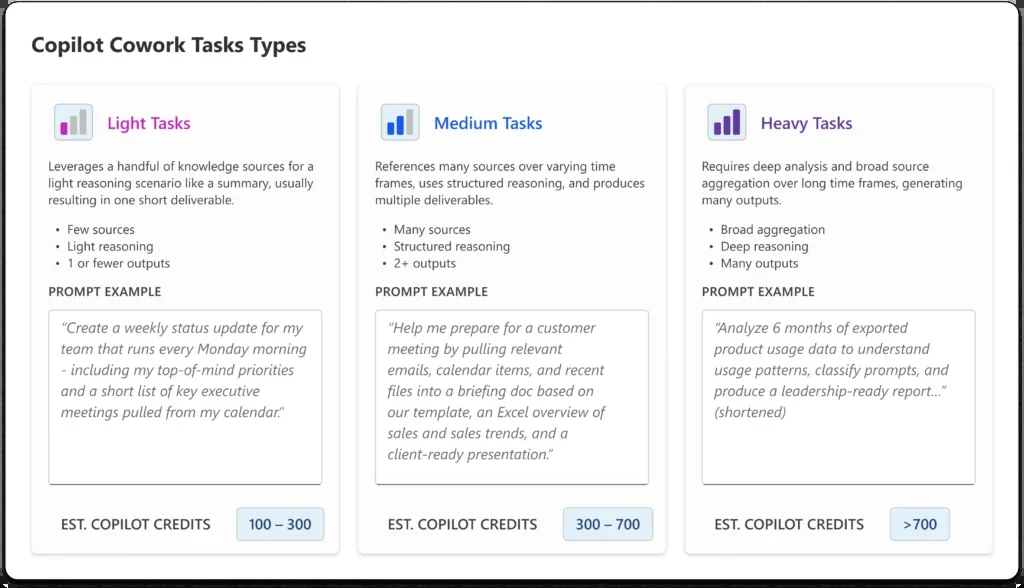
- Billing is consumption-based: pay-as-you-go at $0.01 per Copilot Credit, or a prepaid commitment plan for a discount. The cost of each task is worked out from four things — the model it uses, how much context it pulls in, the tools it calls, and how long it runs.
- It ships with 13 built-in skills (Word, Excel, PowerPoint, PDF, Email, Scheduling, Calendar Management, Meetings, Daily Briefing, Enterprise Search, Communications, Deep Research and Adaptive Cards), and you can build up to 50 of your own.
- You’ll find it in your browser, the Microsoft 365 Copilot desktop apps (Windows and Mac), the mobile app (iOS and Android), and in Outlook and Teams — you switch to it with a toggle next to Chat.
The base licence is the Microsoft 365 Copilot subscription.
💡 Why it matters: Cowork is the moment Copilot stops being a faster way to write and starts being a way to get something done — comparing versions of a file, triaging a pipeline, building a spreadsheet — without you babysitting each step. Because it's off by default, consumption-billed and capped by admin spending limits, finance and IT keep the controls while teams get the capability.
📎 Two of our resources go deeper: the Copilot Cowork complete guide → for how it works, and our Cowork cost calculator → to estimate what a task — or a month — might cost.
📖 Copilot Cowork is now generally available (Microsoft 365 blog) · Cowork documentation
3. Anthropic’s Claude in Microsoft 365 Copilot
For: Copilot Chat users (where your admin allows the model) · Generally available — Android, Windows, iOS, Mac and Web
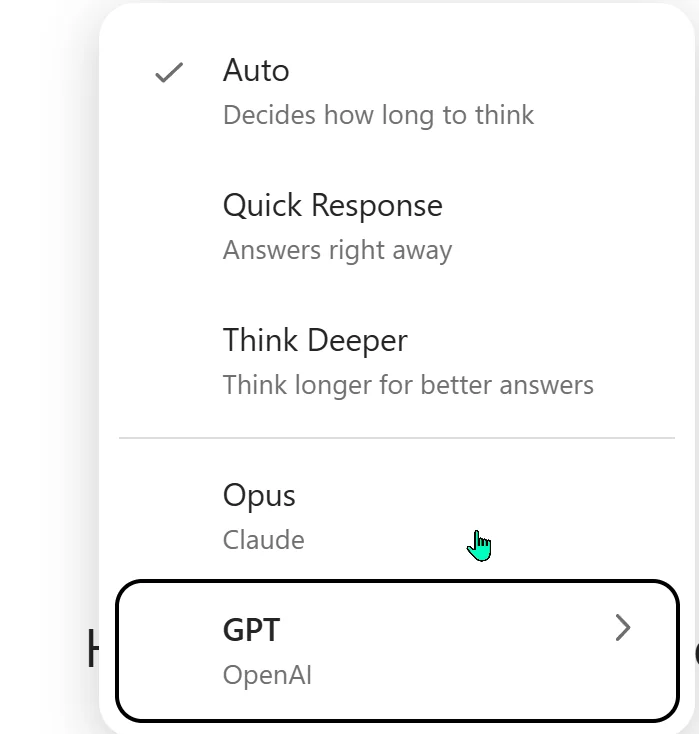
You can now choose Anthropic’s Claude as a model inside Copilot Chat — useful for deep analysis, understanding long documents, and producing well-structured, multi-step output.
In the chat composer — right next to Work IQ — open the model switcher (it’s labelled “Auto” by default). Alongside the response styles (Auto, Quick Response, Think Deeper) you’ll now see the model families: Opus — that’s Claude — and GPT (OpenAI). Pick whichever suits the task.
💡 Why it matters: Model choice inside Copilot means you don't have to leave your governed, work-data-aware chat to get a second style of thinking. Reach for Claude (Opus) when you want careful, structured reasoning over a long document; stay on the default when you want speed.
📖 Microsoft 365 Copilot release notes — June 16
4. Federated Copilot Connectors — now generally available
For: All users (admins manage the connectors) · Generally available
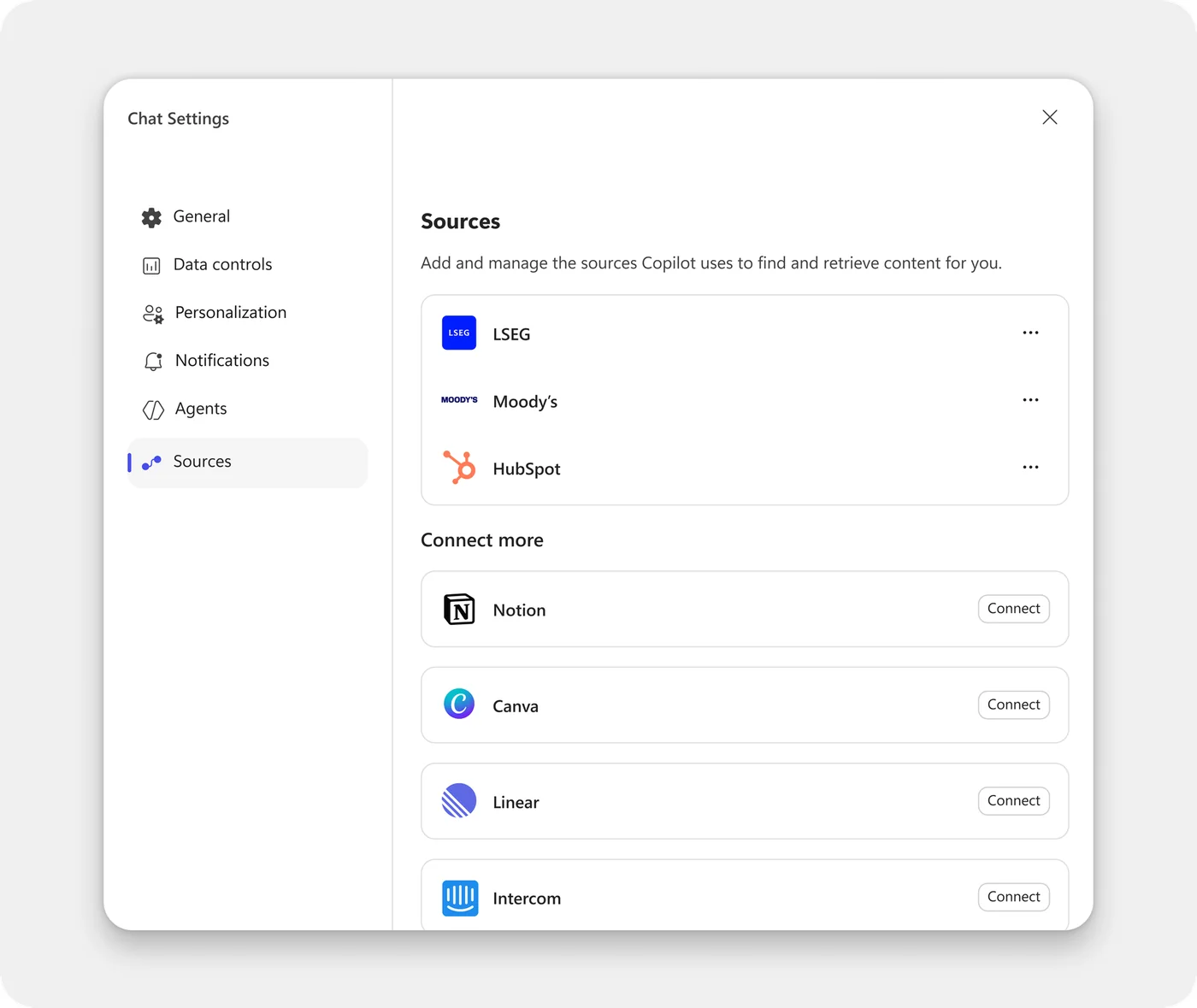
Last month’s headline is now official: the federated connectors built on the Model Context Protocol (MCP) are generally available. Instead of indexing data ahead of time, they query the source system live, at the moment you ask — so answers reflect what the system shows right now, every result carries a citation back to the record, and access uses your own identity and permissions.
They’re available across Copilot Chat, the Researcher agent, and Agent Mode in Excel. Admins discover, enable, disable and govern them in the Microsoft 365 admin centre → Copilot → Connectors, with a 7-day review window before a connector reaches end users.
💡 Why it matters: "Live at query time, with your own permissions" is the difference between an answer that's one crawl behind and one that's true right now — which is exactly what finance, legal and healthcare scenarios need. Going GA means it's no longer a preview to pilot; it's a governed capability to roll out.
We covered the first wave of connectors (Canva, HubSpot, Linear, LSEG, Moody’s, Notion and more) in last month’s recap →; June makes them generally available and admin-governed.
📖 Federated connectors overview (Microsoft Learn)
5. Copilot edits your Word document by default
For: Word on the web · Available now
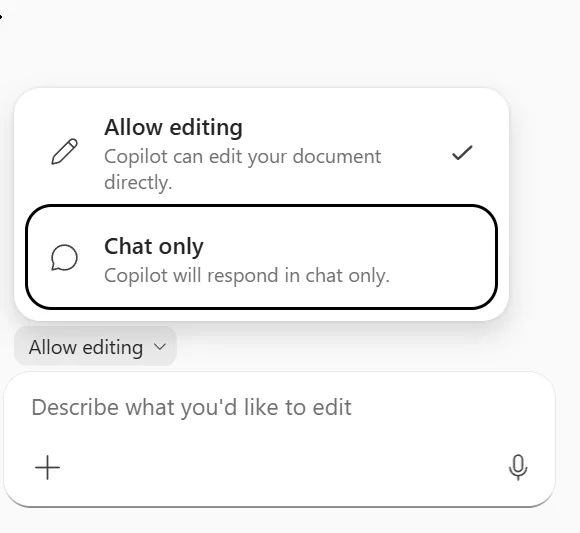
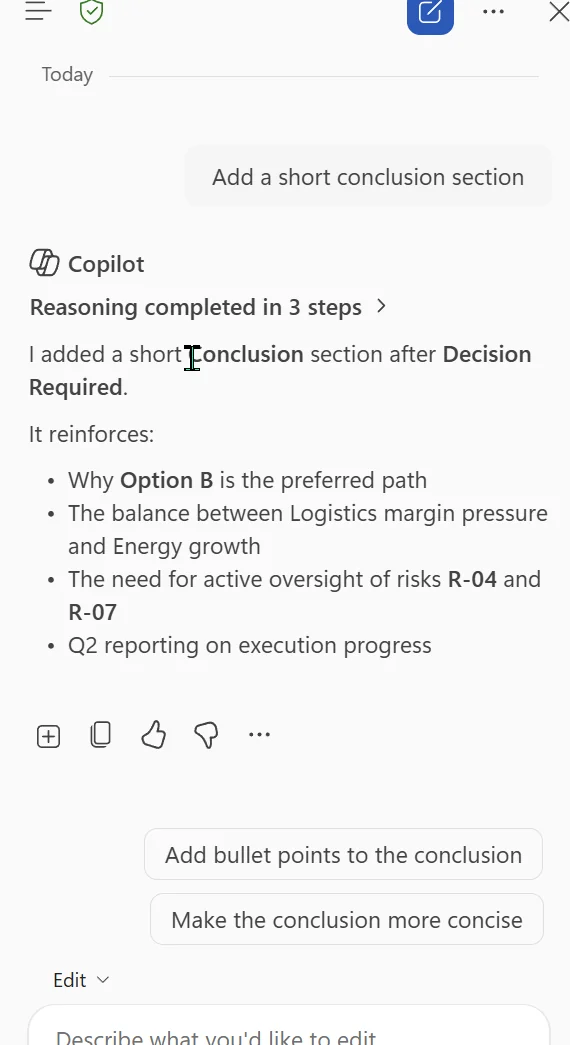
In Word on the web, Copilot’s default chat can now edit your document directly — no more switching “edit mode” on first. Ask it to rewrite a paragraph, add a section or fix formatting, and the change lands straight in the document. Every edit is reviewable and reversible, and you can switch the behaviour off if you’d rather Copilot only suggest.
In the Copilot pane you’ll see an “Allow editing” control above the prompt; after a change, Copilot shows “Reasoning completed in N steps,” with an Edit menu and an Add to doc button to fold content in.
💡 Why it matters: Removing the "turn editing on" step sounds tiny, but it's the difference between Copilot as a sidebar you copy from and Copilot as a co-author working in the document with you. Because changes are tracked and reversible, you keep the final say.
6. Copilot Vision — show Copilot your screen
For: Copilot Chat (voice) · Rolling out
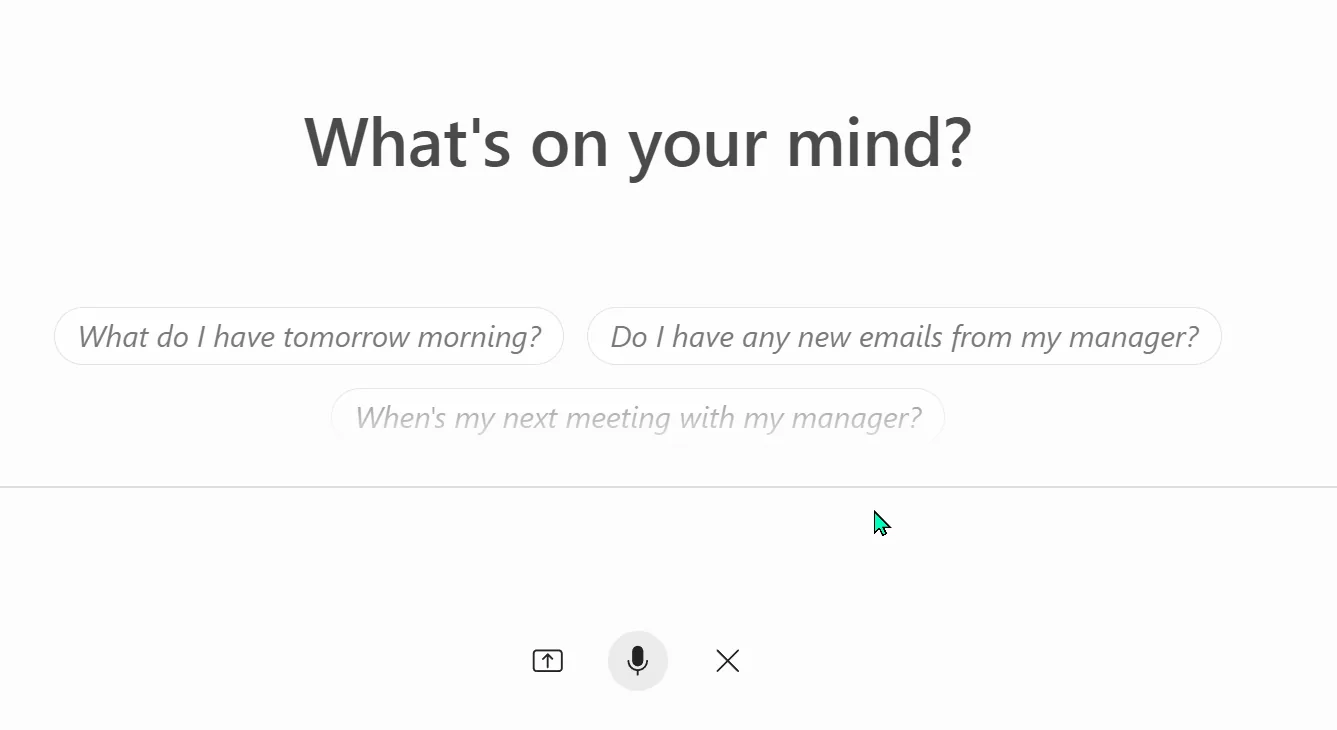
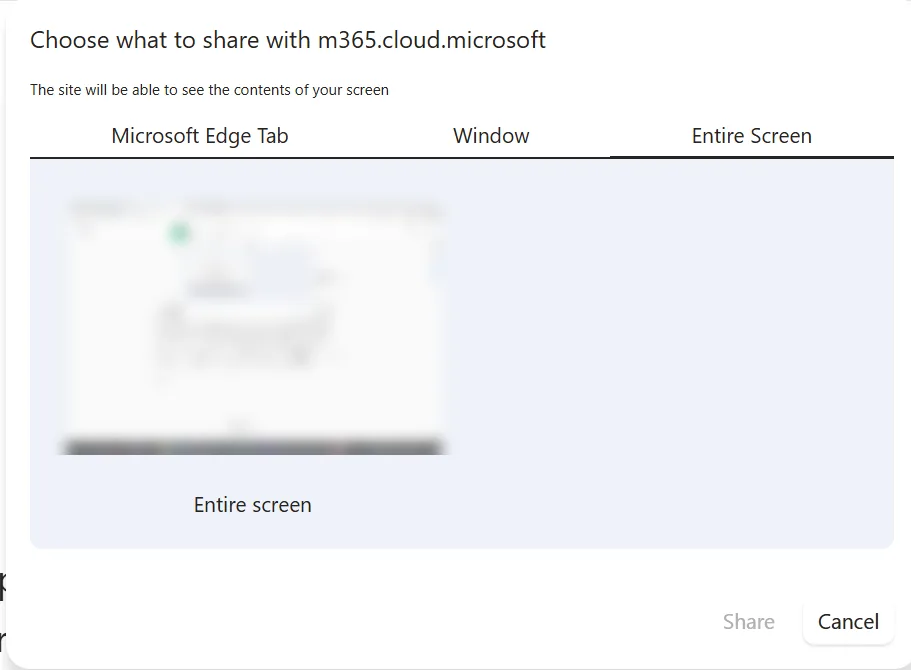
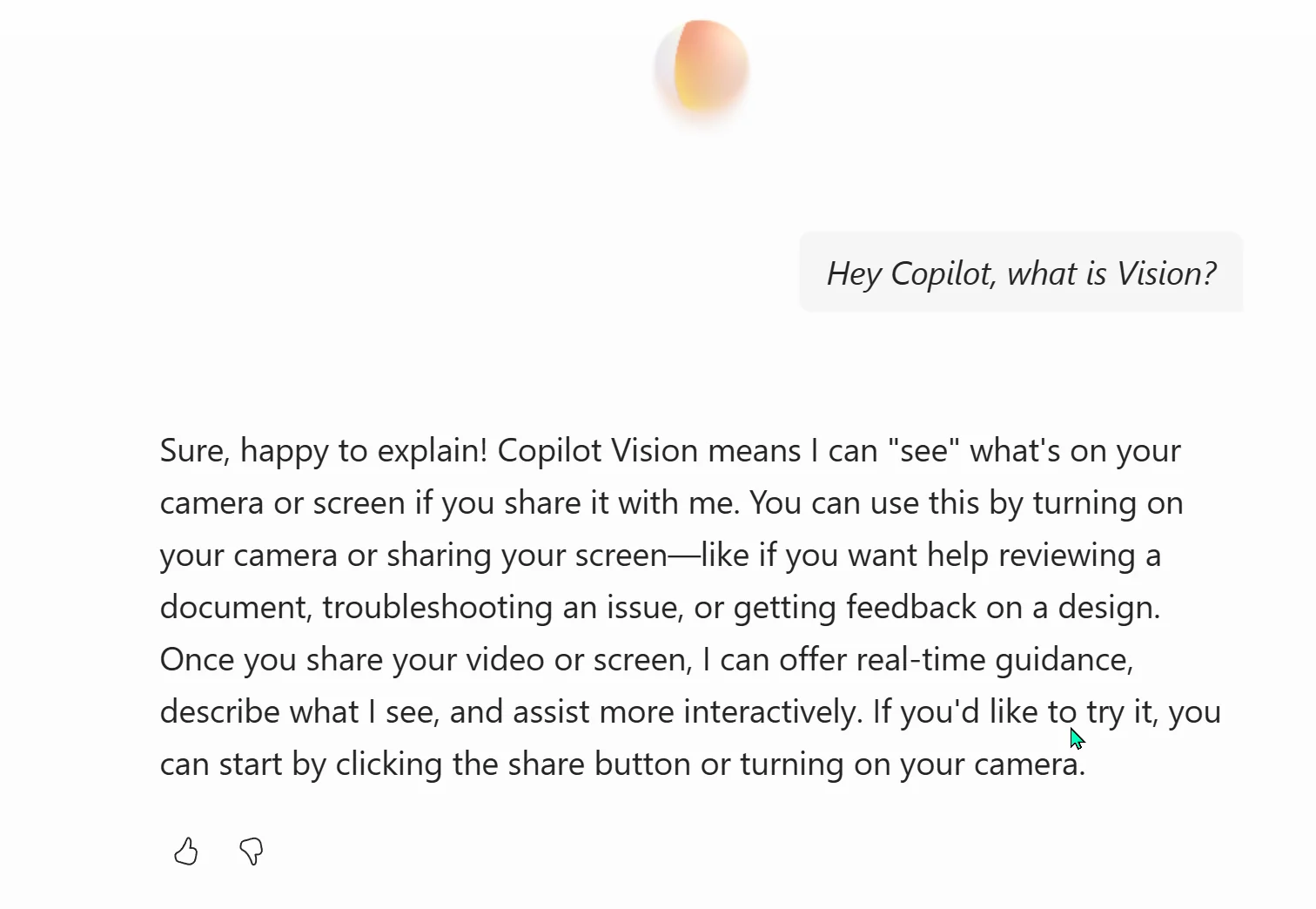
Copilot Vision lets you share your desktop screen — or your phone’s camera — during a Copilot voice session, so Copilot can see what you’re looking at and answer in context, grounded in your work and the web. Start a voice chat, share your screen, and ask something like “What am I looking at — what should I do next?”
💡 Why it matters: A lot of work is visual — a chart, a slide, a form, an error on screen. Letting Copilot see it removes the "how do I even describe this?" step and gets you a useful answer faster.
7. The Work IQ APIs reached general availability
For: Developers and admins · Generally available — 16 June
Work IQ — the intelligence layer that grounds Copilot (and Cowork, and Scout) in how you actually work — opened its APIs for general availability on 16 June. That means organisations can build the same work-aware intelligence into their own apps and automations. One early piece for developers is a Researcher agent endpoint (in preview) that lets your own apps tap Copilot’s multi-step research and synthesis across your enterprise content.
📎 We wrote a Day-1 guide: Microsoft Work IQ API →
💡 Why it matters: Work IQ is the quiet engine under Cowork and Scout — the part that learns how you actually work. Opening it as an API means your own apps and automations can be that context-aware too, not just Microsoft's.
📖 Announcing the new Work IQ APIs (Microsoft 365 blog)
8. A new image model — FLUX.2 Flex — in PowerPoint
For: Copilot in PowerPoint · Web
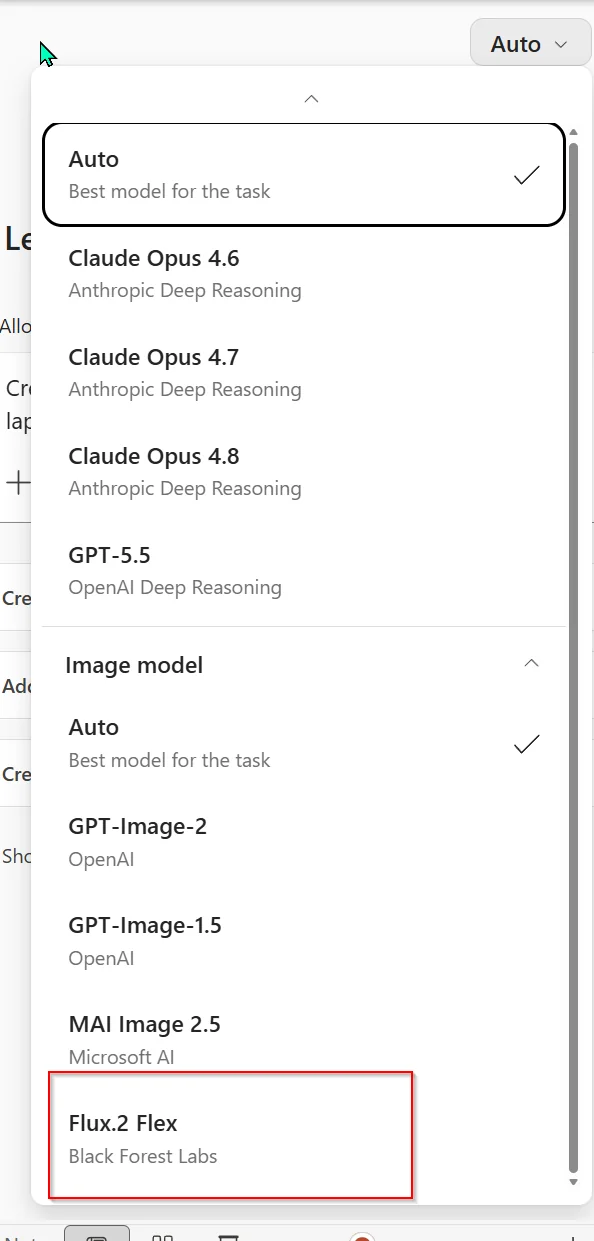
When Copilot generates images in PowerPoint, you now get a new model option — Black Forest Labs’ FLUX.2 Flex — which renders text-in-images and layouts more cleanly. Just like in chat, there’s an “Auto” model switcher; expand it and choose Flex.
💡 Why it matters: The thing that usually gives away an AI-made slide is mangled text inside the image. A model tuned for cleaner text and layout gets your generated visuals closer to presentation-ready, with less fixing afterwards.
📖 Microsoft 365 Copilot release notes — June 16
9. Outlook: highlight a passage and ask Copilot to rewrite it
For: Outlook on the web · Rolling out
Drafting an email, you can now select a section and ask Copilot to rewrite just that part — change the length, tone or structure — directly in the compose window, without rewriting the whole message.
💡 Why it matters: You rarely want to rewrite a whole email — just that one clunky paragraph. Selecting and rewriting a single passage keeps the parts you're happy with and fixes only what you're not.
How to find it: in Outlook on the web, start a draft → select the text you want to change → open Copilot and ask it to rewrite (shorter, friendlier, more formal — your call).
10. Planner: a redesigned My Tasks, with Copilot surfacing your priorities
For: Planner on the web · Rolling out
Planner’s redesigned My Tasks brings your tasks together from across your plans and lists — including flagged emails and Microsoft To Do — into a single view, and Copilot reads across them to surface what matters most, so you start the day on the right things instead of the loudest ones.
💡 Why it matters: When tasks pile up across plans, the hard part isn't seeing them — it's knowing what to do first. Letting Copilot surface your top priorities turns a long list into a starting point.
How to find it: open Planner on the web and go to My Tasks.
11. Copilot inside model-driven Power Apps
For: Power Apps users · Web
Model-driven apps are the form-and-table business apps makers build on Dataverse — think a case tracker, an asset register or a lightweight CRM. Copilot is now embedded directly inside them, so you can ask a question, summarise the record you’re looking at, or get the context you need without leaving the app.
💡 Why it matters: Most business-process work happens inside line-of-business apps, not a chat window. Putting Copilot where the work already is means fewer context switches and faster decisions.
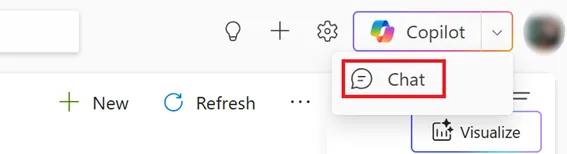
How to find it: open a model-driven app where your maker has turned Copilot on, and use the Copilot button in the app.
📖 Add Microsoft 365 Copilot in model-driven apps (Microsoft Learn)
12. OneDrive: Copilot suggests a better file name
For: OneDrive on the web · Rolling out
When you rename or upload a file in OneDrive, Copilot can suggest up to three descriptive names based on what’s actually inside — supported for Word, PowerPoint, Excel, PDF, Markdown and images. A small thing that quietly kills “Document1 (final) (v3).docx.”
💡 Why it matters: Good file names are future-you's best friend — they make things findable months later. Letting Copilot suggest a descriptive name removes the tiny friction that leads to "final-final-v2" everywhere.
13. “Explain” now works on shapes and images in PowerPoint
For: Copilot in PowerPoint · Windows, Web, Mac
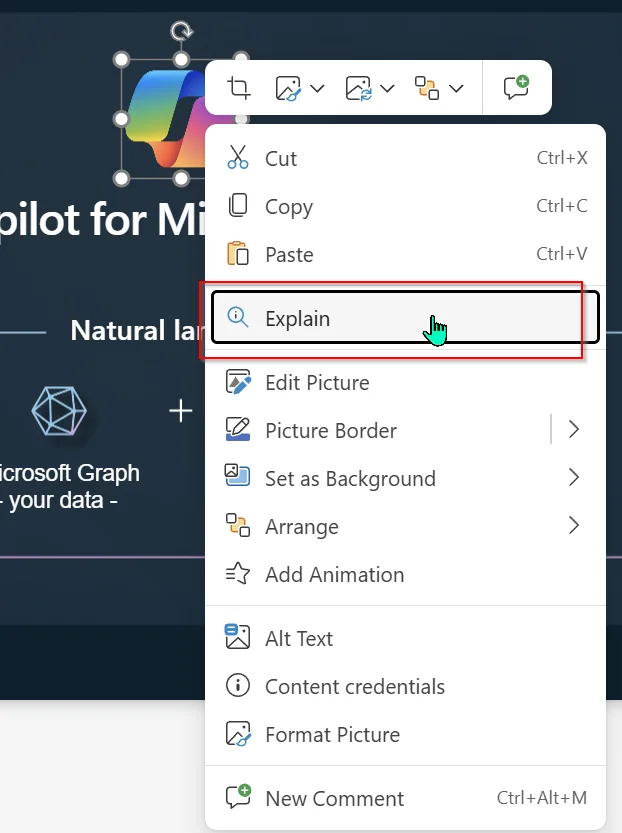
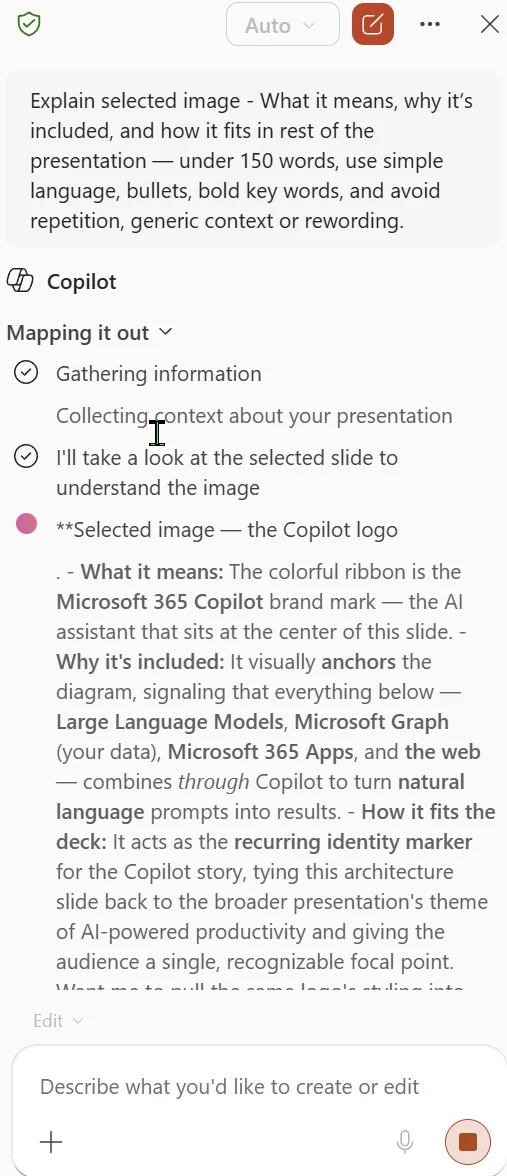
PowerPoint’s Explainer has grown beyond acronyms, text and tables: select a shape or an image, right-click, and Copilot opens the side pane and describes it in context. Handy for making sense of a busy diagram, or prepping speaker notes for a slide you didn’t build.
💡 Why it matters: So much of the meaning in a deck lives in pictures and shapes, not text. Letting Copilot read those gives you a faster way to review, hand over, or present a deck you're seeing for the first time.
📖 Get clarity with Explainer in PowerPoint (Microsoft 365 Insider blog)
14. Copilot can use brand images from multiple SharePoint libraries
For: Copilot in PowerPoint · Windows, Web, Mac
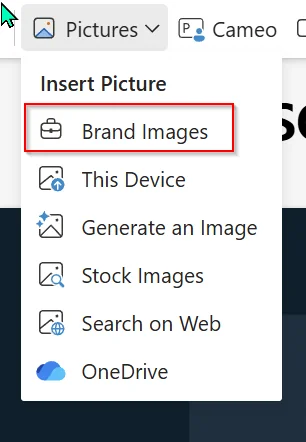
When Copilot builds slides, it can now pull approved images from multiple SharePoint Organizational Asset Libraries, not just one — so it has the full set of your brand-approved visuals to work with. You’ll find them under Insert › Picture › Brand Images. (You’ll only see this if your organisation has those libraries set up.)
💡 Why it matters: Brand governance works best when it's built into the moment of creation, not bolted on afterwards. Letting Copilot reach every approved library means people use on-brand visuals because they're the easy default — not because someone policed it later.
📖 Connect organizational asset libraries to PowerPoint (Microsoft Learn)
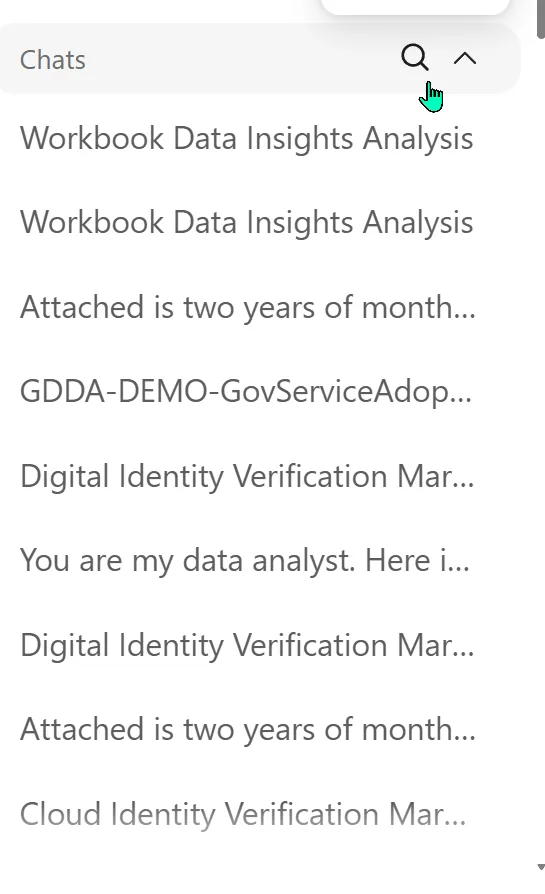
15. Infinite scroll in your Copilot chat history
For: Copilot Chat on the web
On the web, your older Copilot conversations now load automatically as you scroll your history — no more clicking “load more.” And if you’re hunting for a specific thread, the search icon opens a dedicated history pane where you can search by keyword and rename chats.
💡 Why it matters: When you live in Copilot, the friction of hunting for an old thread adds up fast. Auto-loading history plus keyword search means less time re-finding what you already worked out, and more time using it.
16. A new 15Five connector for Copilot
For: All users (an admin configures it) · Web
15Five is a performance-management tool teams use to track goals, run check-ins and give recognition. A new Copilot connector brings that data into Copilot, so a manager can ask things like “what are my team’s priorities this week?” or “who’s been recognised lately?” and get the answer in chat — grounded in 15Five, using your own access.
💡 Why it matters: Team priorities and recognition usually live in yet another tab. Pulling them into Copilot means a manager can check in on their team without breaking flow.
How to find it: an admin adds the 15Five connector in Microsoft 365 admin centre → Copilot → Connectors; then just ask in Copilot Chat.
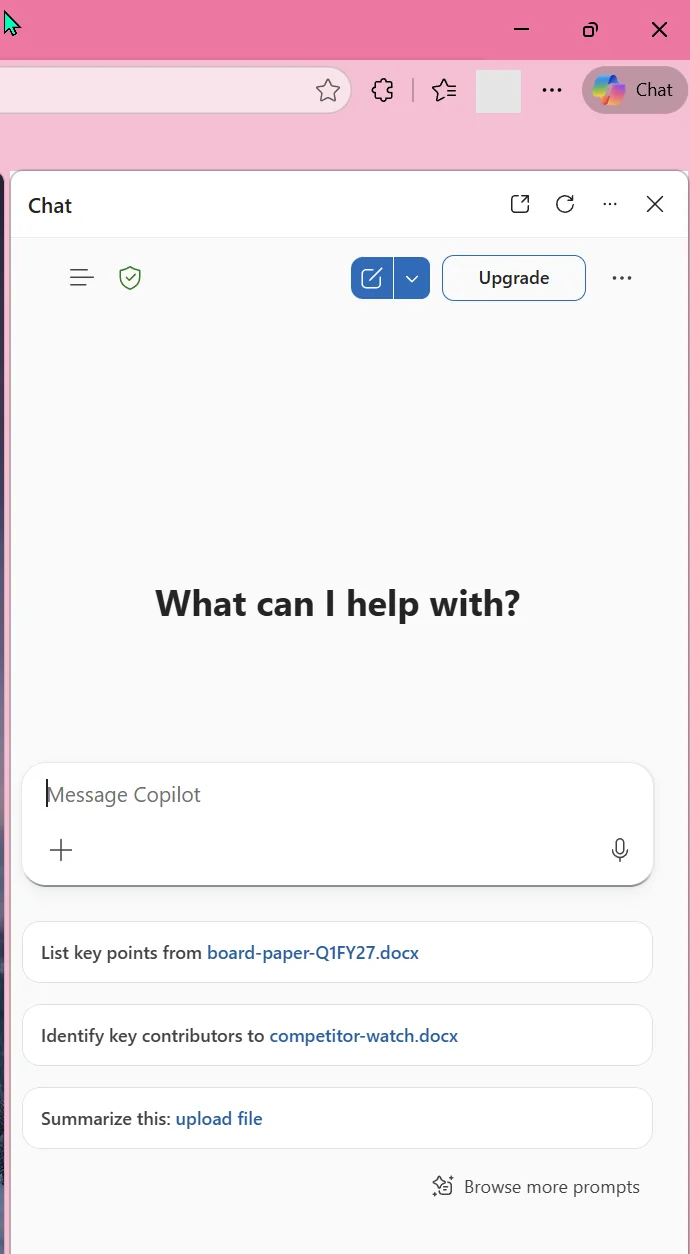
17. A refreshed look for Copilot in Microsoft Edge
For: Copilot in Microsoft Edge · Web
Copilot in Microsoft Edge picked up a visual refresh — updated spacing, corners, fonts and default colours — so it feels consistent with Microsoft’s other AI surfaces like Copilot and Bing. It’s a light touch: if you don’t remember the old look you may not notice, and nothing about how it works has changed.
💡 Why it matters: Honestly, this one's mostly cosmetic — but consistency across Copilot, Bing and Edge means one less thing to relearn when you're helping someone get started.
Also new in Copilot Chat
Two smaller but welcome changes:
- Multiple voice styles (Roadmap 564804) — choose from several voice options for Copilot’s voice chat, on desktop and mobile.
- Chat history scoped to where you are (Roadmap 559601) — your history now shows the chats from the Copilot surface you’re in (Teams vs the web), with an option to see everything in one place.
Neither is a headline, but both cut daily friction — a voice that suits you, and a chat history that matches where you’re actually working.
Agents & Copilot Studio — June at a glance
June was a big month for building agents — if you’re weighing your options, our Copilot vs Agents vs Copilot Studio guide breaks down what to use when. The highlights:
- Copilot Studio’s new agent experience is now in preview — a new orchestration runtime with better reasoning — and it brings three things with it: agents that can be grounded in your work data (mail, calendar, files, Teams messages and people, via Work IQ), reusable Skills (modular instruction sets you can share and export), and Memory (preferences that carry across sessions). (Copilot Studio — what’s new)
- Dynamic Tool Discovery (Roadmap 561855) — developers will be able to add, update or retire tools on an MCP server without republishing the agent, so users get the latest capabilities without waiting for a redeploy.
- SharePoint lists as a knowledge source in Agent Builder (Roadmap 561920) — ground an agent in up to 20,000 list items of structured data.
- Sharper agent testing in Copilot Studio — add expected responses to test cases and grade them (Exact, Partial, Similarity, Compare Meaning), with a flexible new Grader Framework. (Microsoft Learn — agent evaluation)
- Agent lifecycle automation (Roadmap 481518) — admins bulk-install first-party agents and auto-reassign ownerless agents with policy-based rules, so nothing is left without an owner.
💡 Why this matters: The pattern across all of these is the same — agents are growing up. They can be grounded in your real work, tested properly, reused, and governed at scale. That's the difference between a clever demo and something an enterprise can actually run.
Admin, governance & security — June at a glance
Plenty for IT and security teams this month:
- Organizational Messages — usage-based targeting (Roadmap 503563) and an email channel (Roadmap 503562) both went GA. Reach the right people with adoption nudges based on real Copilot usage, now over email as well as the Windows and Teams surfaces. (Microsoft Learn — organizational messages)
- Cowork & Work IQ spend in Viva Insights (Roadmap 566302) — you’ll be able to see Copilot credit usage for Cowork and Work IQ at a team level (where usage-based billing is enabled).
- A new Data Security Posture Management (DSPM) experience in Microsoft Purview adds AI observability — one view of every AI app and agent active in the last 30 days, including Microsoft Agent 365. (Microsoft Learn — data security posture management)
- Purview Data Security Triage Agent (Roadmap 564615, preview) — proactively finds files with sensitive data (national IDs, passwords, card numbers) that match your DLP alerts, and nudges the right person in Teams to fix them, with closed-loop tracking.
- AI-powered DLP Policy Optimizer (Roadmap 564616, preview) — analyses your DLP policies and flags overlapping rules, redundant conditions and noise, with prioritised fixes to cut false positives.
- Keep external email out of Copilot (preview, Roadmap 561552) — a new DLP control stops Copilot and Copilot Studio agents from grounding answers in emails received from external senders.
- eDiscovery now indexes Loop components and Copilot Pages (Roadmap 561492) — both can be searched by keyword in review sets and exported.
💡 Why this matters: As Copilot and agents touch more of your data, the controls have to keep pace. June's theme for IT and security is visibility and guardrails — seeing what AI is doing (DSPM), keeping sensitive data out of it (DLP), and spending only what you mean to (usage analytics).
On the horizon — announced in June, arriving soon
A few things Microsoft lined up in June that are rolling out shortly:
- Excel — summarise text columns into themes, tags and categories (handy for open-ended survey answers). (Roadmap 560531)
- Teams — a dedicated meeting recap app that gathers all your recaps in one place, with quick filters and an audio recap to skim several meetings. (Roadmap 564614)
- Dataverse business data in Copilot — search and ask about your Power Platform records (cases, accounts, custom tables) straight from Copilot Chat. (Roadmap 560539)
- Copilot Notebooks in more places — OneNote on Mac and Windows (including multimodal capture: audio, images and notes turned into structured notes), plus the Microsoft 365 Copilot app on web and iOS. (Roadmap 566322)
- Outlook emails as references in Copilot Notebooks — ground a notebook in the email threads where the decisions actually happened. (Roadmap 564910)
- Suggested edits in Copilot Pages — ask Copilot for clarity and quality fixes you can apply to a page in a click. (Roadmap 562351)
- SharePoint Agent Access Insights heatmap — a visual map for admins to spot unusual AI-agent access across sites. (Roadmap 565027)
Official Microsoft resources
- Microsoft 365 Copilot release notes — the source for the June 2 and June 16 updates above
- Copilot Cowork is now generally available — the GA announcement
- Introducing Microsoft Scout · Microsoft Scout documentation
- Announcing the new Work IQ APIs
- Microsoft 365 Roadmap — search any Roadmap ID cited above
Keep reading
- 📅 Past recaps: January · February · March · April · May
- 🤖 Go deeper: Microsoft Scout complete guide · Copilot Cowork complete guide · Work IQ API · Microsoft Build 2026 recap · Copilot vs Agents vs Copilot Studio
- 📥 Slide packs: every monthly recap as a free PDF