What's New in Microsoft 365 Copilot: July 2026
← what changed this month, in plain English
On this page
The short version — what’s new in Microsoft 365 Copilot for July 2026: this was a month where Copilot started doing more of the work. Copilot Notebooks can now turn your notes into a Word document, an Excel spreadsheet or a PowerPoint deck — and draw a mind map of what’s inside. PowerPoint gained an Agent Mode that builds a deck grounded in your own files, meetings and emails through Work IQ. And Copilot Chat in Outlook grew up from a single email thread to reasoning across your whole inbox and calendar.
The rest — watermarks for AI-generated video and audio, sensitivity labels that carry into Copilot-generated files, a new image model in PowerPoint, and a wave of agent, admin and governance updates — is below, each in plain English with what it actually means for you.
📅 2026 monthly recaps: January · February · March · April · May · June · July (you are here)
Screenshot note: images below come from my demo tenant or official Microsoft product imagery. Your tenant may look different because features roll out at different times and the interface changes often.
If you only have 2 minutes — July’s picks
Three to start with:
- Two new frontier models — GPT-5.6 and Claude Sonnet 5 both arrived in Copilot this month. The model behind Copilot just got an upgrade (twice).
- Notebooks that build your files — a Copilot Notebook can now turn your notes into a Word doc, Excel sheet or PowerPoint deck. The messy-thinking space becomes the first draft.
- Outlook Chat across your whole inbox — Copilot Chat in Outlook grew up from one email thread to your whole inbox and calendar — without the paid Copilot add-on.
Two more that punch above their weight this month: Microsoft Scout’s first big upgrade and Copilot in SharePoint that builds the report for you.
Admin Checklist — July 2026
Six things worth doing this month, in priority order:
- Know the new Business-with-Copilot SKUs. If you buy for a smaller org, two new bundles are GA (Business Standard with Copilot USD $23.50, Business Premium with Copilot USD $32; annual subscription, annual billing, 1–300 seats). Existing pricing holds until renewal; Microsoft says packaging changes receive at least 30 days’ notice in Message Center.
- Mind the Cowork meter. Cowork is consumption-billed. Tenants with at least one user in Frontier from 30 March–16 June who used Cowork during that period had a grace period; for those tenants, billing began on 1 July. Re-check your spending limits at tenant, group and user level, and your Copilot Credit budget.
- Review model access before training users. GPT-5.6 may be selected automatically where available, but OpenAI-operated models are tenant-controlled: eligible commercial tenants are enabled for all users from 24 July unless admins select No users under Copilot → Settings → AI providers operating as Microsoft subprocessors. Claude Sonnet 5 access is also admin-managed and varies by tenant and region.
- Set your AI-content and data policy. Decide whether to turn on watermarks for AI-generated video and audio (Cloud Policy), and confirm you’re happy with sensitivity labels now carrying into Copilot-generated files.
- Check your agent-security licensing. If you run Copilot Studio or Microsoft Foundry agents, their security (discovery, posture, threat detection) now needs a Microsoft Agent 365-eligible licence — without it, those protections switched off on 1 July.
- Drive adoption from the admin centre. Publish a company-wide prompt collection in the Copilot Prompt Gallery, and review your Federated Connectors (now managed under Copilot → Connectors).
1. Two new frontier models — GPT-5.6 and Claude Sonnet 5 — land in Copilot
For: GPT-5.6 in Word, Excel, PowerPoint, Chat and Cowork · Claude Sonnet 5 in PowerPoint and Cowork, and in Word from 11 August · Rolling out · availability varies by region and tenant
Two brand-new frontier models arrived in Microsoft 365 Copilot this month:
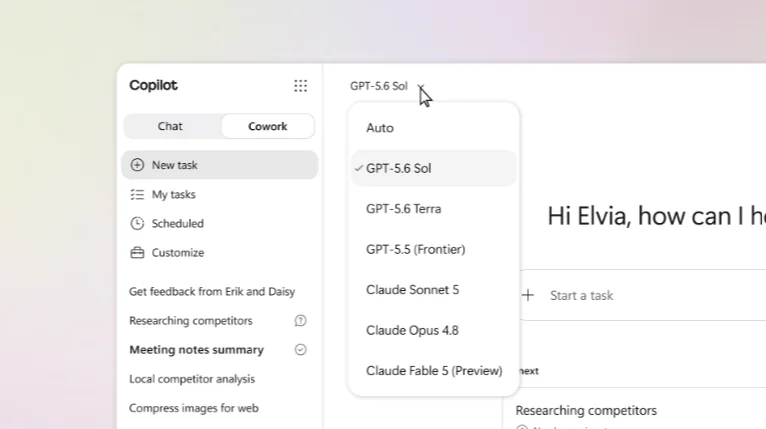
- OpenAI’s GPT-5.6 (from 9 July) — rolling out across Word, Excel, PowerPoint, Copilot Chat and Cowork. OpenAI and Microsoft tuned it together for knowledge work, and it’s now the preferred model for Copilot — so Copilot may pick it automatically where the model is available.
- Anthropic’s Claude Sonnet 5 (from 2 July) — a new frontier model rolling out in Copilot Cowork and Copilot in PowerPoint, built for multi-step work across documents, spreadsheets and slides. Copilot in Word followed on 11 August 2026.
Availability varies by region and tenant. OpenAI-operated models are tenant-controlled: eligible commercial tenants become enabled for all users from 24 July 2026 unless admins select No users under Copilot → Settings → AI providers operating as Microsoft subprocessors. Claude Sonnet 5 access is also admin-managed and varies by region. Users can choose GPT-5.6 directly where model selection is available.
💡 Why it matters: The model doing the thinking quietly sets the ceiling on quality, and July brought two new ones at once — each suited to different work. That's the real win of model choice: two new models in one month, each strong at the multi-step jobs that used to need babysitting — so you can pick the one that fits the task.
📖 GPT-5.6 in Microsoft 365 Copilot · Claude Sonnet 5 in Microsoft 365 Copilot
2. Copilot Notebooks can now build a Word doc, Excel sheet or PowerPoint deck
For: Copilot Notebooks · Windows, Web
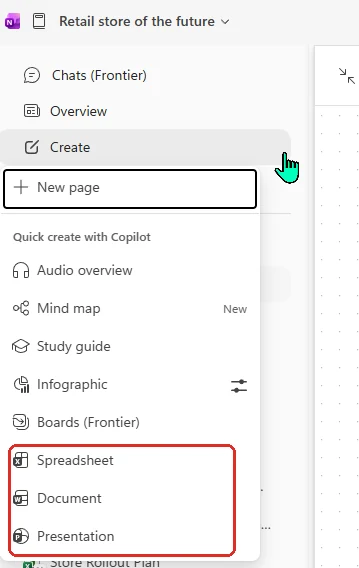
This is the one to watch. A Copilot Notebook gathers your notes, files and references in one place — and now it can turn that context straight into a finished, editable file:
- A PowerPoint deck — a structured slide deck grounded in the notebook’s content, ready to refine in PowerPoint (Roadmap 558938).
- A Word document — a drafted, structured document you open and finish in Word (Roadmap 558934).
- An Excel spreadsheet — a structured sheet built from the notebook’s content and references (Roadmap 559480).
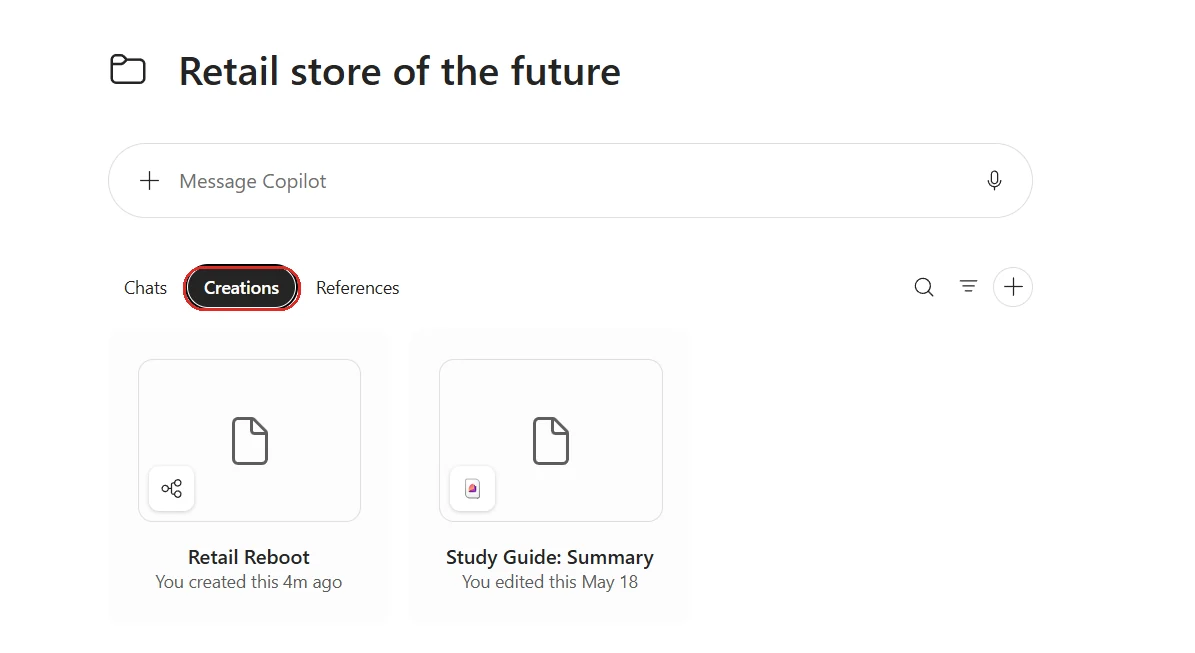
You’ll find these under Create → Quick create with Copilot when you open the notebook in OneNote. In the Microsoft 365 Copilot app, the same notebook keeps your chats, creations and references together — so you can add sources and see everything Copilot has built for you.
💡 Why it matters: A notebook is where the messy thinking happens — the research, the links, the half-formed notes. The gap has always been the manual slog of turning that into something you can send. Closing that gap, and keeping the source references intact, is what makes a notebook feel less like a scratchpad and more like the first draft of the actual deliverable.
📖 Roadmap 558938 · 558934 · 559480
3. Copilot Chat in Outlook now reads your whole inbox, not just one thread
For: Copilot Chat in Outlook (no Copilot licence needed) · Rolling out · Android, Windows, iOS, Mac, Web
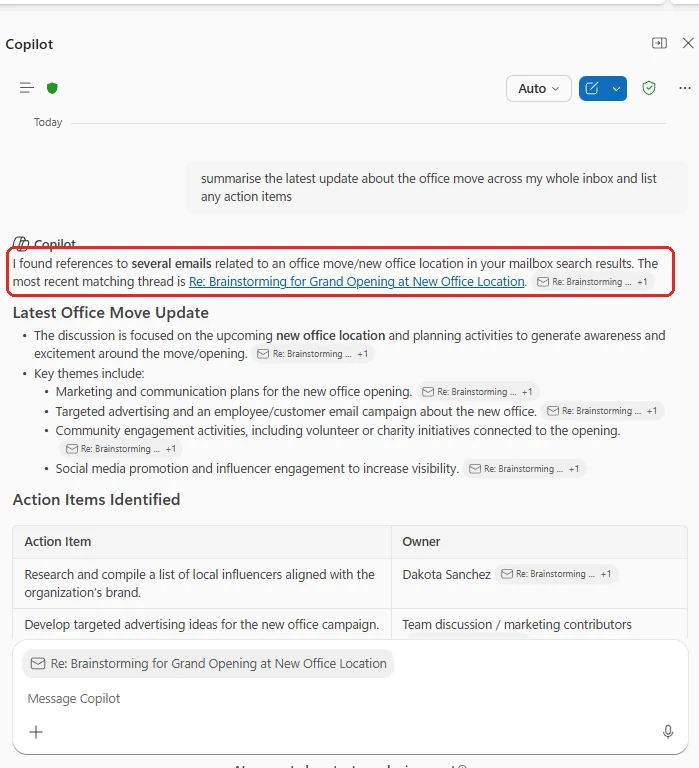
Until now, Copilot Chat in Outlook could only reason over the email thread in front of you. This month it expands to reason over your whole inbox, your calendar, your meetings and the other Microsoft 365 data you already have access to — and it does this without a Microsoft 365 Copilot licence.
That means you can ask things like:
- “What are the latest updates from my manager about Project X?” — and it looks across your mailbox, not just the open message.
- “What have I said I’d do this week?” — pulling action items and follow-ups from across email and meetings.
- “Where are the gaps in my calendar on Thursday?” — helping you manage your time, and take action right there in Outlook.
💡 Why it matters: This is the single biggest quality-of-life jump in July, and it lands in the free Copilot Chat. Most of what you need Copilot to reason over doesn't live in the message you happen to have open — it's scattered across last week's threads and your calendar. Letting it see your whole inbox is the difference between "summarise this email" and "catch me up on this project."
📖 M365 Roadmap 531910 · Microsoft 365 Copilot release notes
4. PowerPoint Agent Mode builds your deck from your own work (Work IQ)
For: Copilot in PowerPoint (Agent Mode) · Windows
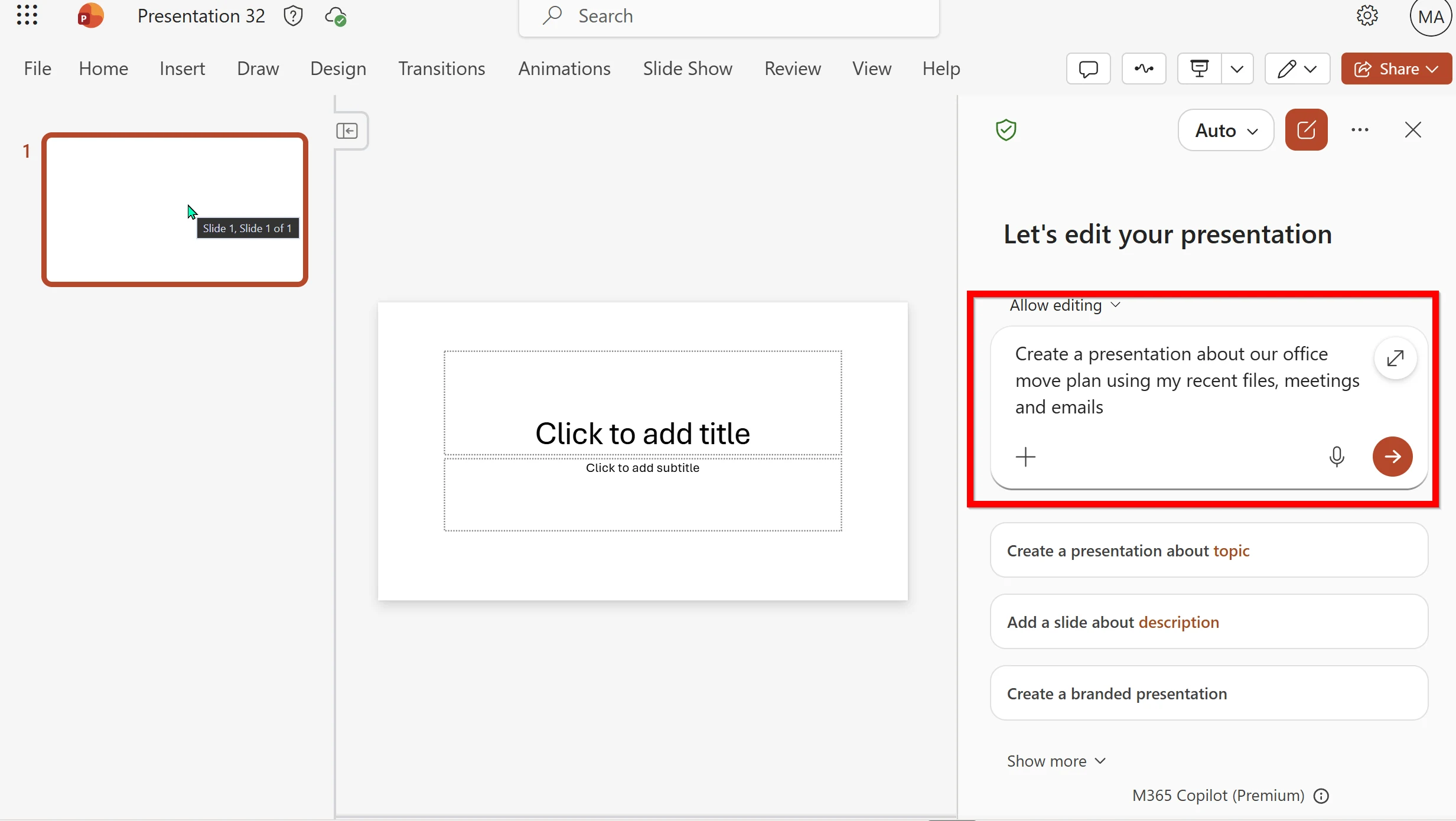
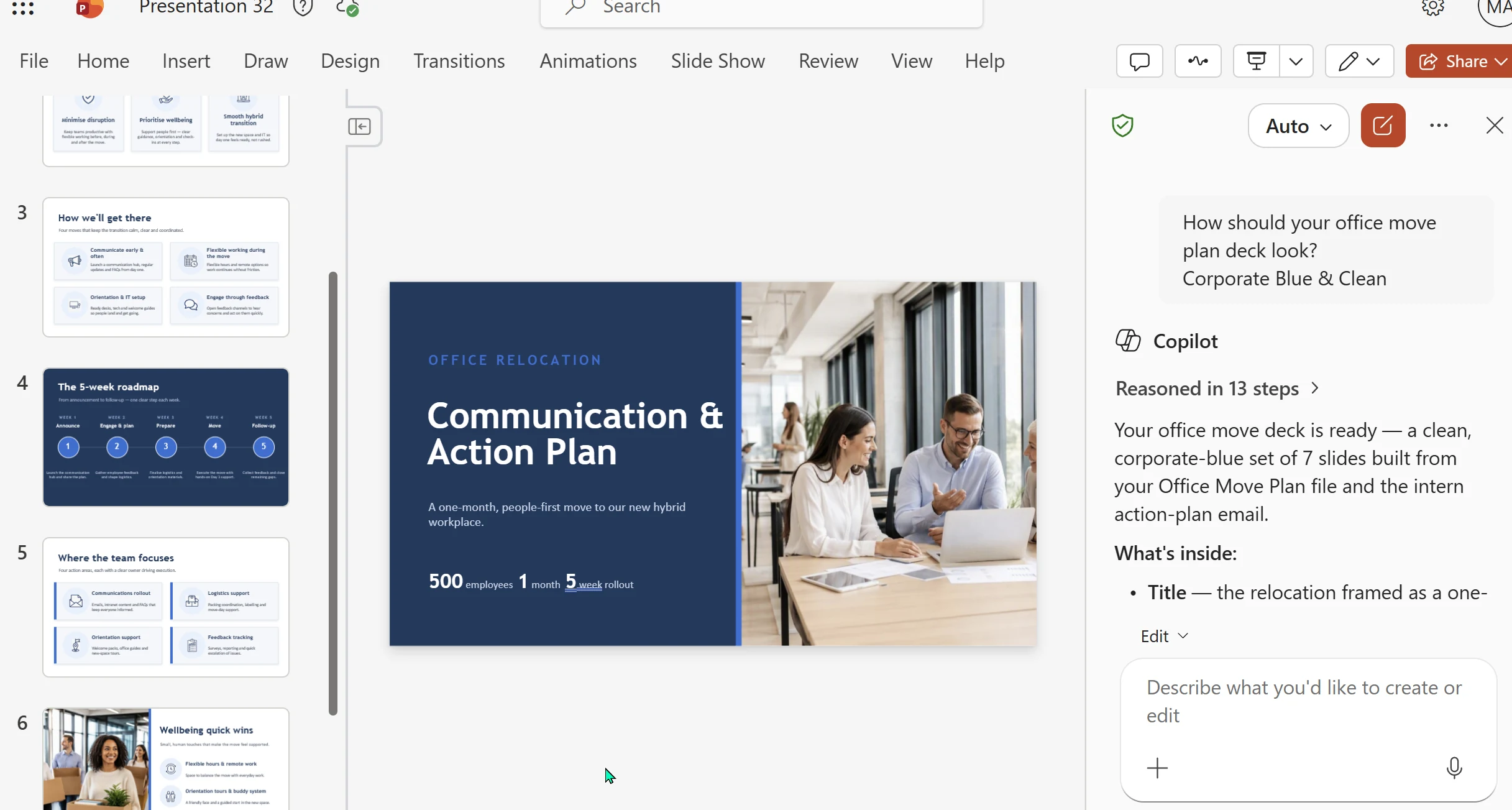
With Agent Mode in Copilot in PowerPoint, you can now build a presentation based on your Work IQ — so instead of you hunting down the right files, meetings and emails, Copilot goes and gathers the relevant material and composes the slides. It only touches content you’re already allowed to see. Open PowerPoint, choose Edit with Copilot, and create a presentation based on your Work IQ.
💡 Why it matters: The hardest part of a deck usually isn't the slides — it's assembling everything the slides are supposed to be about. Letting Copilot pull from your files, meetings and emails through Work IQ means the first draft already reflects your actual work, not a blank template. That's the difference between "help me format this" and "help me start."
5. Microsoft Scout grows up with model choice and approval-first controls
For: Microsoft Scout (Frontier preview) · Windows, Mac
June introduced Microsoft Scout — Microsoft’s first always-on personal agent. In the Frontier build I tested in July (v0.23.331), I saw its first substantial upgrade:
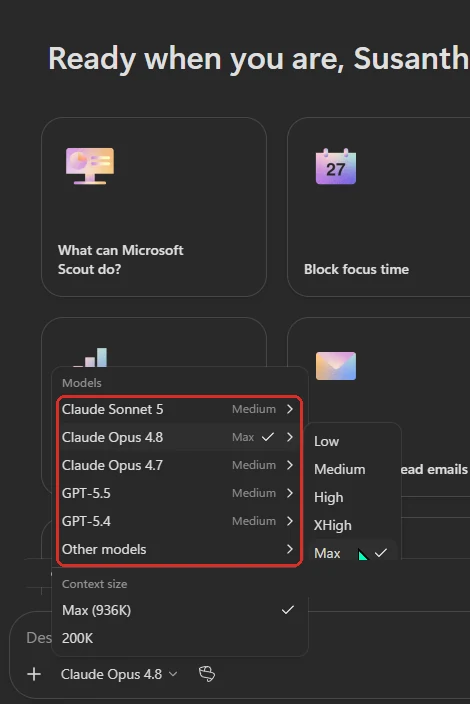
- Live model switching — change the model per message, so you trade speed for depth without restarting. You can also set the context-window size (up to Max) and a default reasoning effort.
- Deeper Microsoft 365 reach — new built-in tools for Microsoft To Do (tasks, lists, subtasks), presence, and Teams channels.
- Co-Create, expanded — the editor now handles CSV, TSV, Mermaid diagrams and Excalidraw sketches as well as prose, with inline Markdown comments — so Scout can build a flowchart or a structured dataset, not only a document.
- Better MCP handling — when a Model Context Protocol tool runs, Scout now shows the full command and its arguments, and asks you clearly when it needs your input.
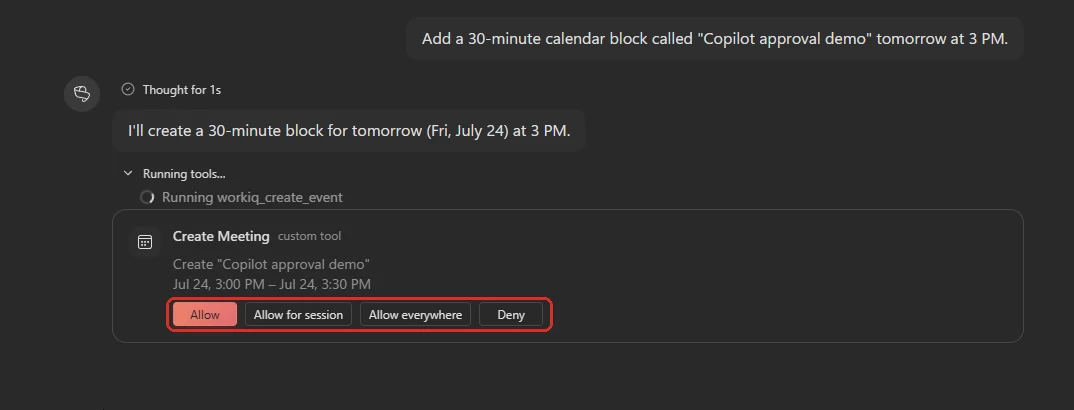
- Approval-first safety — by default, Scout asks you first before anything sensitive (sending an email, posting to Teams, changing your calendar, or a privileged action).
- Tidier day-to-day — filter chats by type, pin and reorder them, mark as unread, one searchable Settings modal, and a reset-to-defaults for permissions.
💡 Why it matters: June was Scout's "hello". July is where it becomes something you'd actually leave running — you choose the brain per task, it reaches more of your real work, and it can't do anything risky without a nod from you. That last part is the line between a helpful demo and an agent you trust.
The build number and detailed changes above are from my hands-on Frontier build. Microsoft's public Learn page covers Scout more broadly rather than publishing a build-by-build changelog.
📖 Microsoft Scout (Frontier) overview · Microsoft Scout complete guide
6. Copilot in SharePoint builds the report, not just finds it
For: Copilot in SharePoint · Web · Rolling out
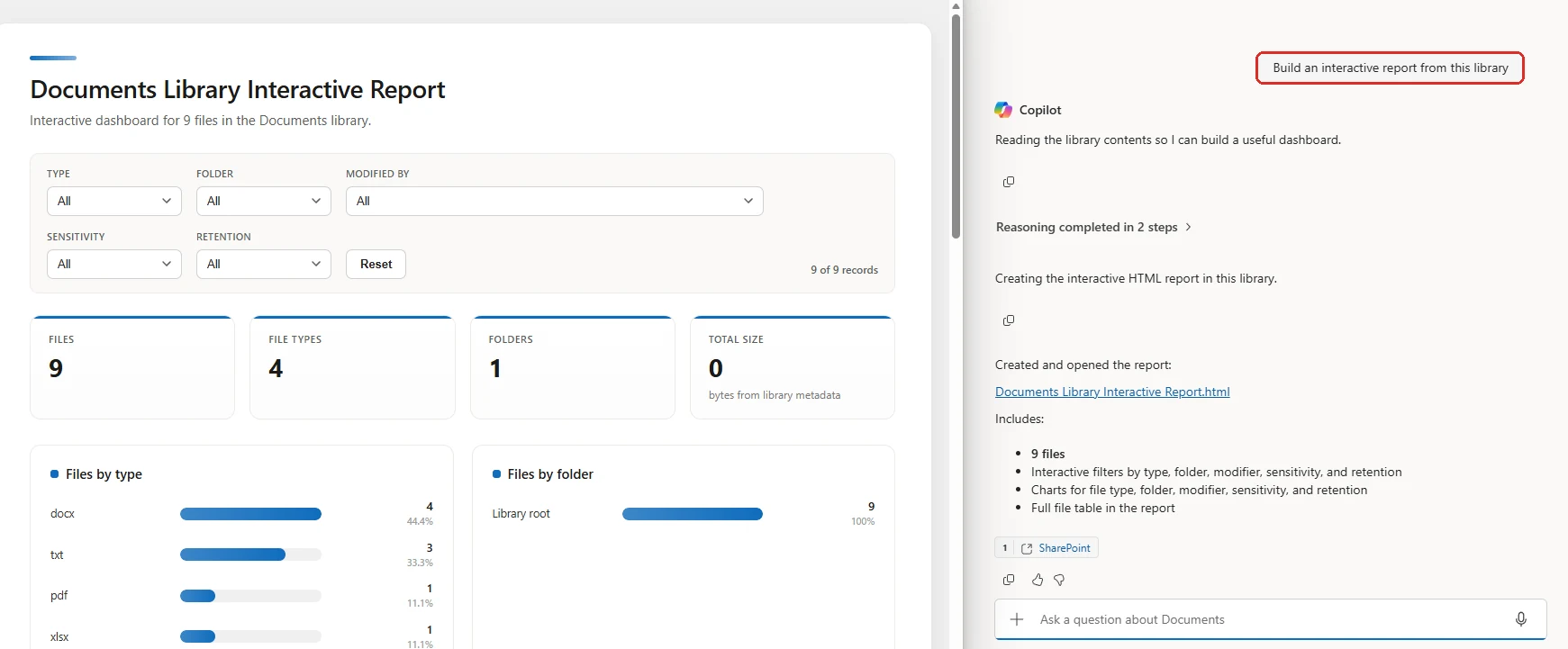
SharePoint’s Copilot got a big July update that turns your sites, libraries and lists into finished work, not just search results:
- Create Word, Excel and PowerPoint files straight from SharePoint content — “make a status report from this folder” and Copilot drafts the file.
- Build an interactive HTML report — a browser dashboard with charts, filters and KPIs, generated from your SharePoint data for a quick leadership read-out.
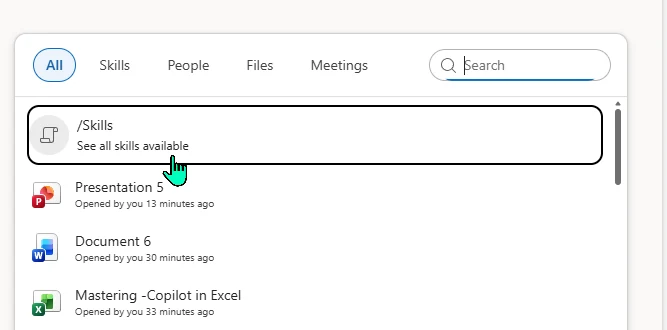
/Skills— type/Skillsto surface the reusable skills available on a site, with built-in skills to help you create your own.- Manage files by chatting — reorganise folders, move files, and set up sharing or approvals in plain language.
- Trust built in — compact citations, visible sensitivity labels in chat, model information, and a per-site control to show or hide the Copilot button on a site.
💡 Why it matters: SharePoint is where the content already lives. July is where Copilot starts turning that content into the deliverable — a report, a dashboard, a tidier library — from the same chat pane, with the citations and labels to keep it trustworthy.
📖 What’s new in Copilot in SharePoint (July 2026)
7. A new Microsoft image model in PowerPoint
For: Copilot in PowerPoint · Windows, Mac, Web
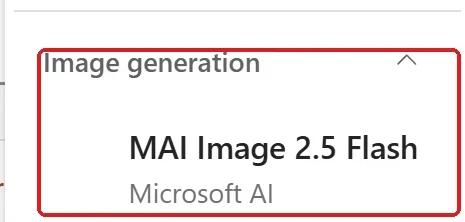
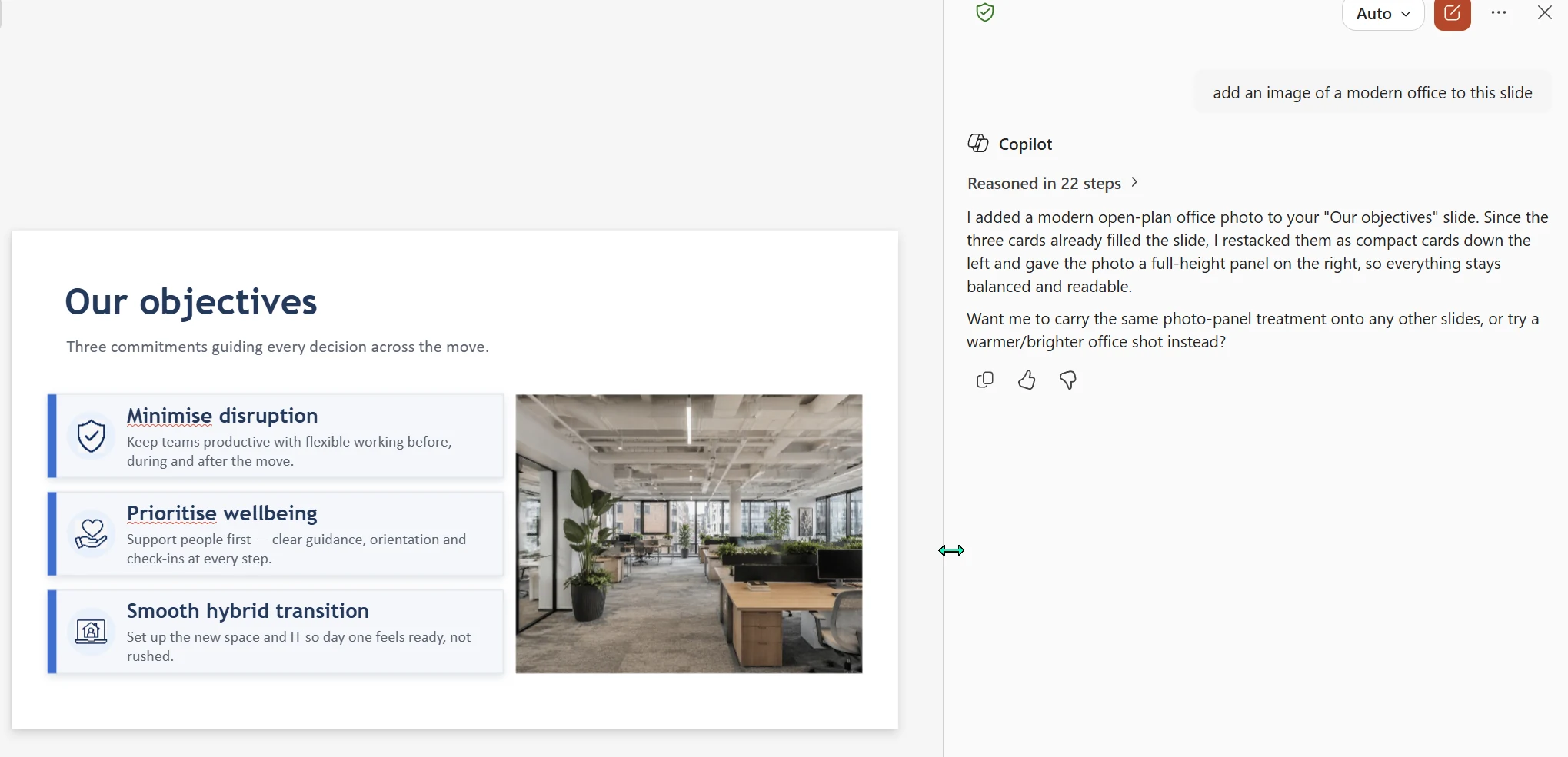
Copilot in PowerPoint picked up a new Microsoft image model in July for generating visuals right on your slide. Microsoft’s release notes name it MAI-Image-2-Efficient, optimized for speed and efficiency. In my tenant, the picker currently labels Microsoft’s option MAI Image 2.5 Flash, alongside Flux.2 Flex and GPT-Image. Microsoft hasn’t publicly mapped those two MAI names, so I’m treating MAI Image 2.5 Flash as the current UI label rather than claiming the names are identical. The useful part is the picker itself: choose the model before you generate, replace or iterate on a visual without leaving PowerPoint.
💡 Why it matters: Early in a deck you're not looking for the perfect image — you're looking for a fast one, so you can keep moving. A model built for quick iteration fits how slides actually get made: rough it in, see it on the slide, refine later.
📖 Microsoft 365 Copilot release notes
8. Turn a Teams meeting or chat into a PowerPoint deck
For: Copilot in PowerPoint (Agent Mode) · Windows, Web, Mac
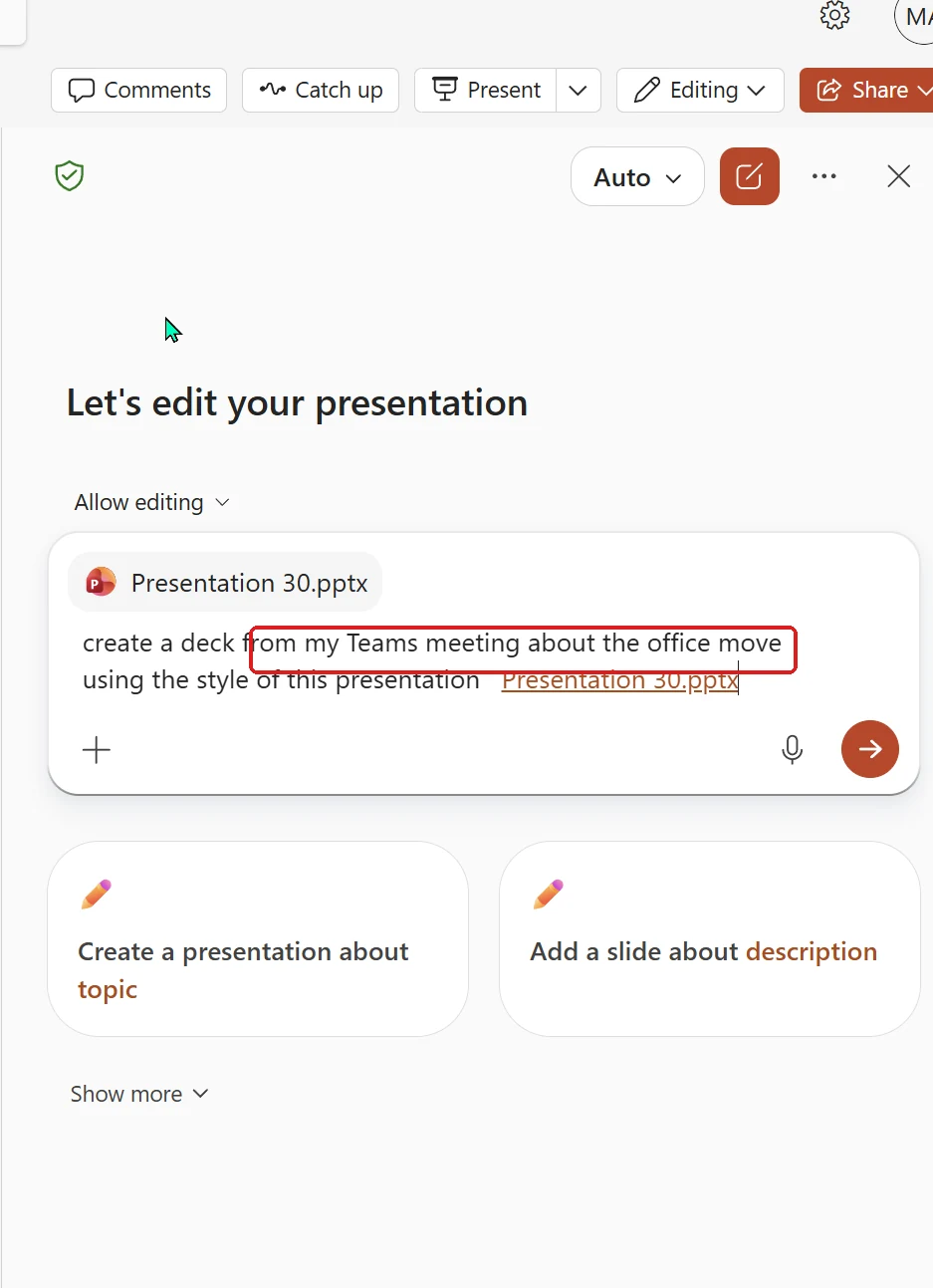
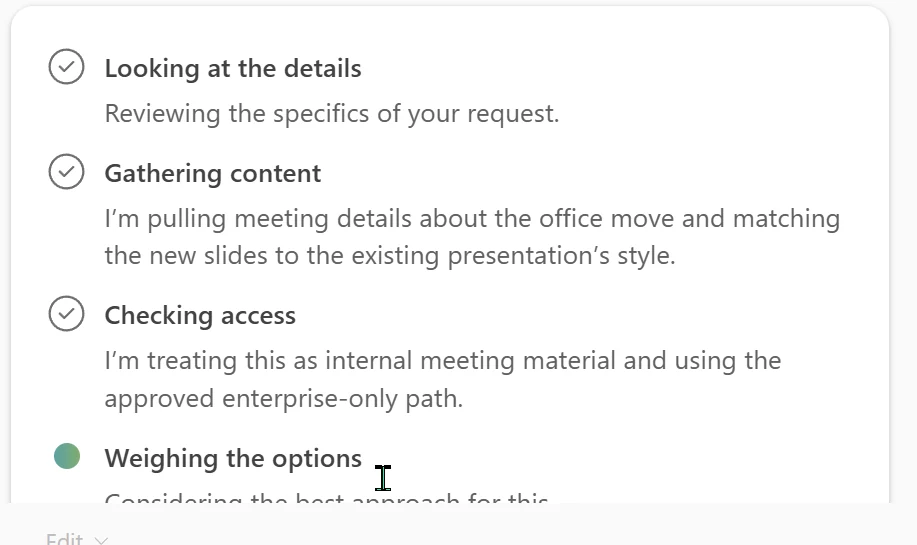
Building on Agent Mode, you can now reference a Teams meeting or chat when you create a presentation. Enter a prompt that mentions the relevant meeting or chat, and Copilot generates a deck from that content — no manual summarising or copying notes across.
💡 Why it matters: So many decisions and details live in a meeting recap or a chat thread and then never make it into the deck that's supposed to capture them. Pointing PowerPoint straight at a Teams conversation closes that loop, and it's a genuinely faster way to turn "what we agreed" into "here's the slides."
📖 Roadmap 555883 · 555884 · 555885
9. Reuse the content and style of an existing deck
For: Copilot in PowerPoint · Windows, Web, Mac
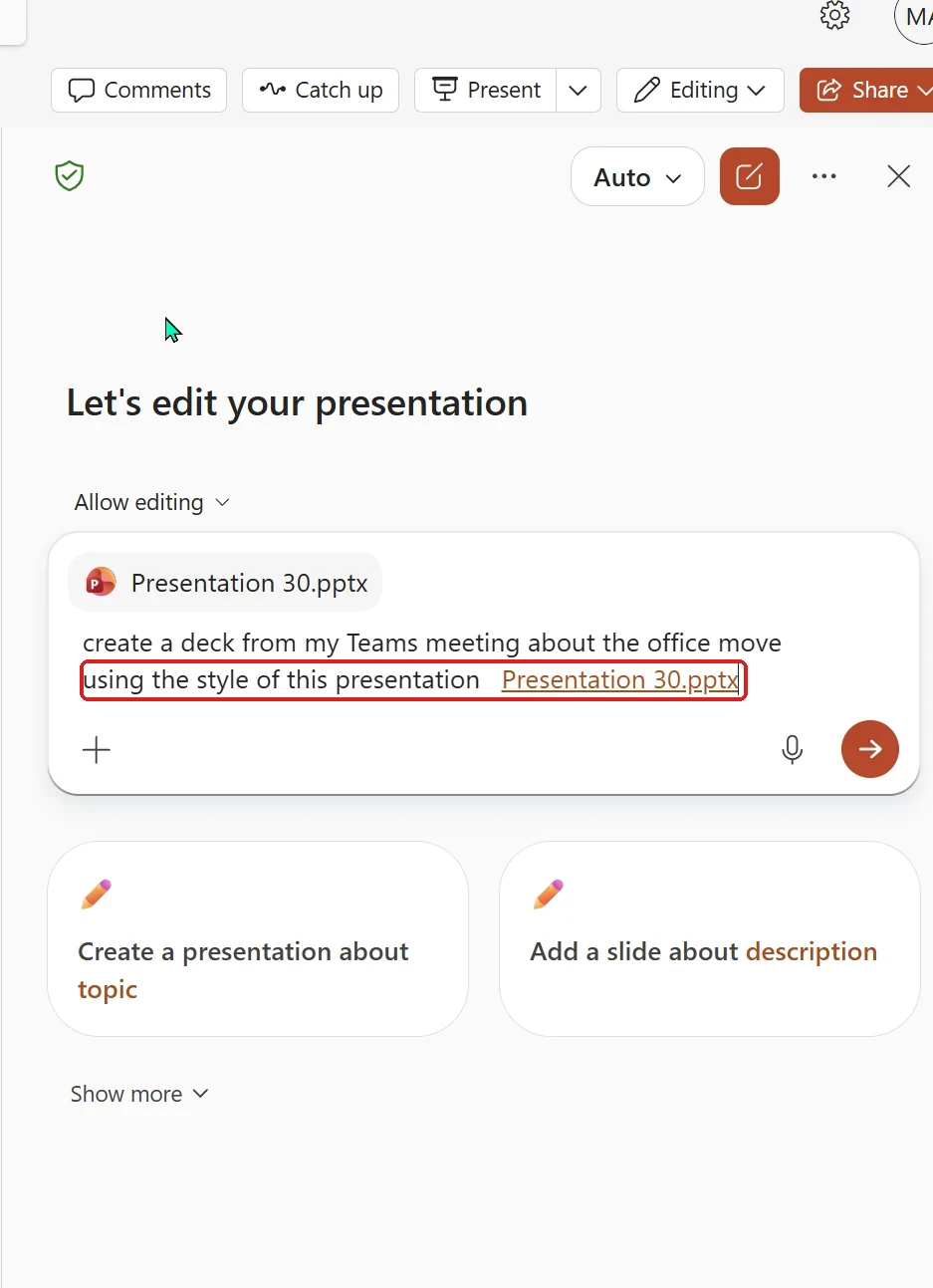
Copilot in PowerPoint can now reference an existing presentation when you’re creating or editing one. You can reuse the text and content from an old deck to build a new one, or apply the look, theme and formatting of one presentation to another — all while respecting the original file’s permissions. Choose Reference file in Copilot and pick the deck you want to draw from.
💡 Why it matters: Almost nobody starts a deck from nothing — they start from last quarter's version, or the team's "good" template. Letting Copilot reuse the content and style of a deck you already trust means less copy-paste, more consistency, and a much shorter path from "adapt this for a new audience" to done.
📖 Roadmap 555887 · 555889 · 555892
10. Apply your brand kit and style to visuals in Copilot Chat
For: Copilot Chat (with a Microsoft 365 Copilot licence) · Windows, Mac, Web
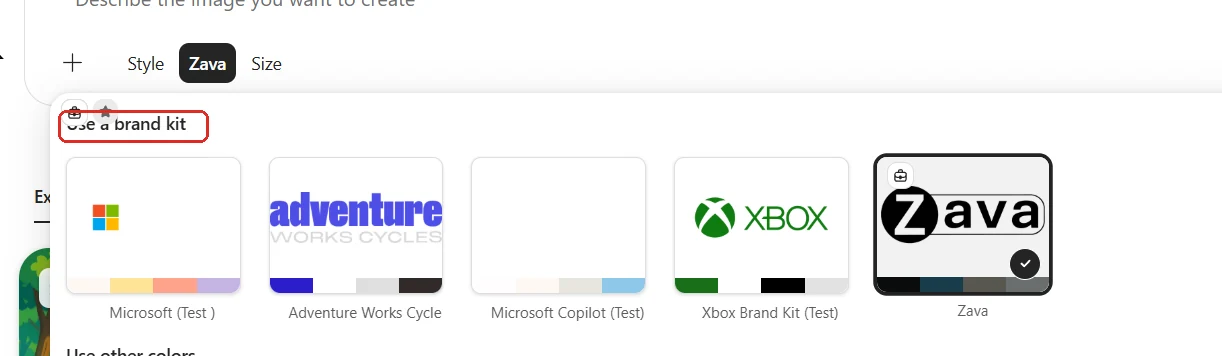
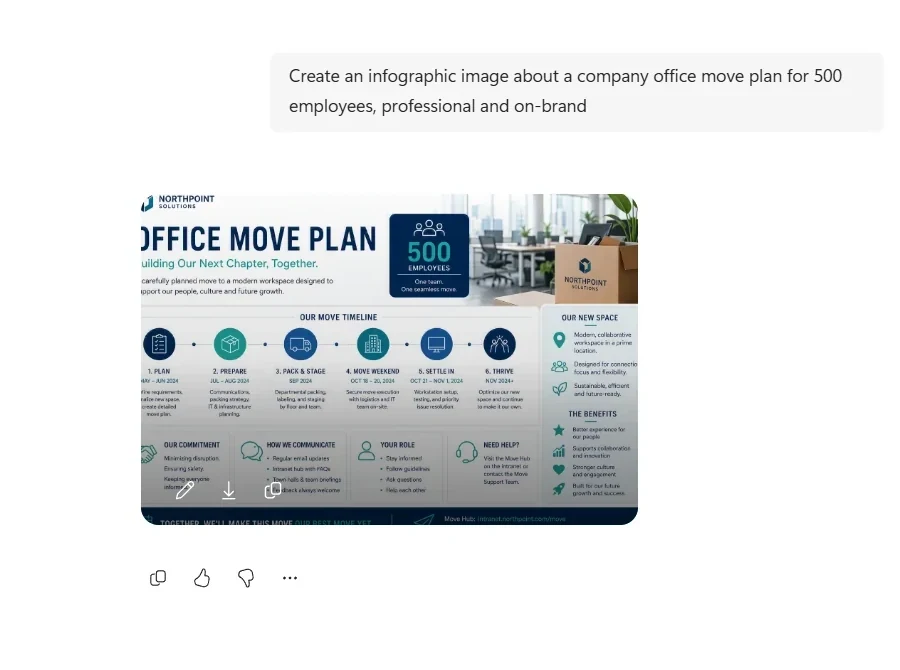
When you generate a visual in Copilot Chat — a poster, an infographic, an image — you can now pick the style and format and apply your organisation’s brand kit in a click, instead of uploading assets or describing the look by hand. Add the image capability from the + menu, choose a style, then apply your brand kit before you generate.
💡 Why it matters: On-brand visuals usually mean a round-trip to a designer or a folder of logo files. Building the brand kit into the moment you generate the image means people produce on-brand work because it's the easy path — not because someone checked it afterwards.
📖 Microsoft 365 Copilot release notes
11. Build a brand kit from your brand guidelines
For: Microsoft 365 Copilot app · Web
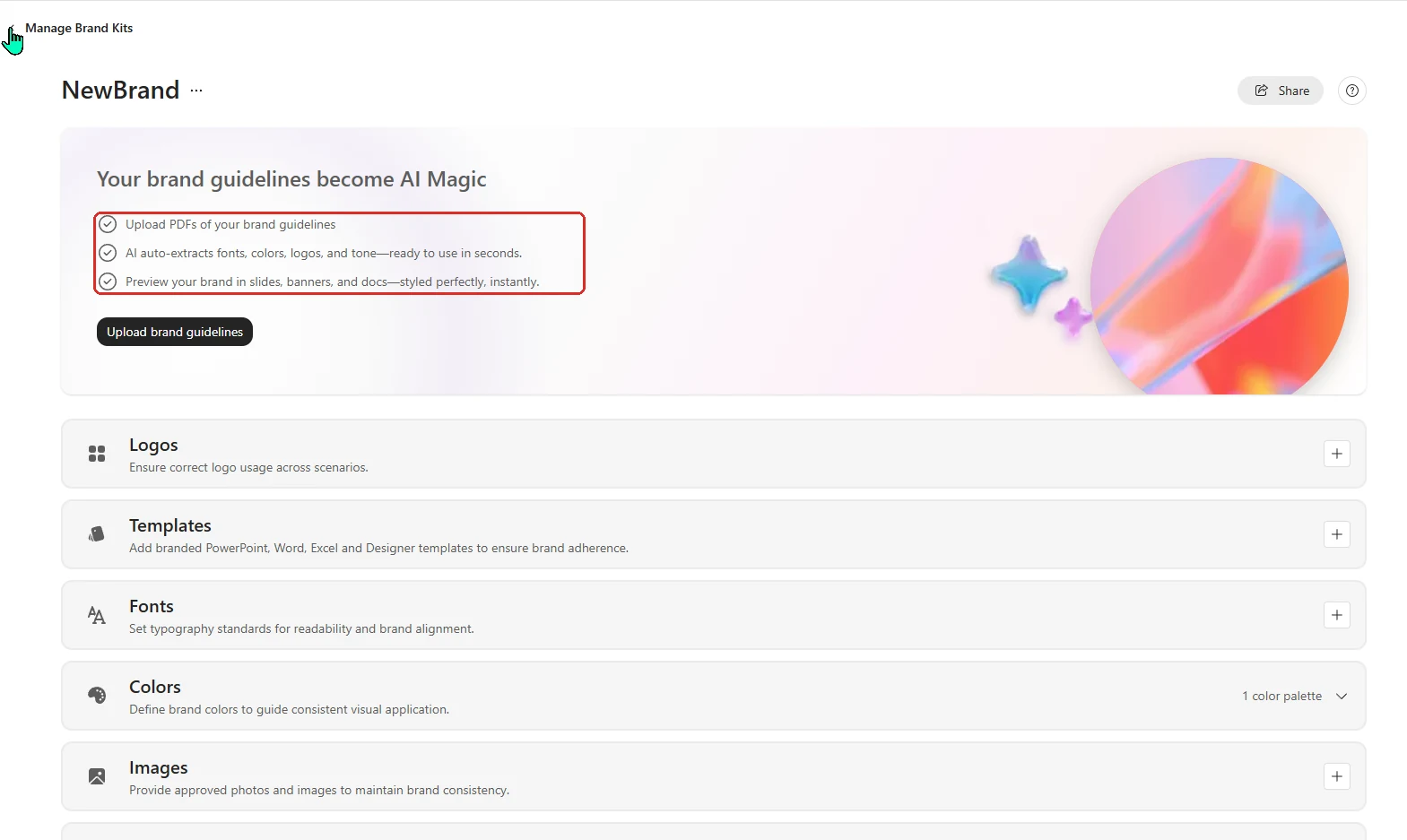
Setting up a brand kit used to be a manual job. Now you can upload your brand guidelines document and Copilot generates the brand kit for you — colours, styles and all — which you can then review and tweak.
💡 Why it matters: Most teams already have a brand guidelines PDF sitting somewhere. Turning that straight into a working brand kit removes the fiddly setup step that stops people bothering — which is exactly why on-brand output gets easier everywhere Copilot uses the kit (see the visual styling above).
📖 Microsoft 365 Copilot release notes
12. Mind maps in Copilot Notebooks
For: Copilot Notebooks (OneNote and the Copilot app) · Windows, Web
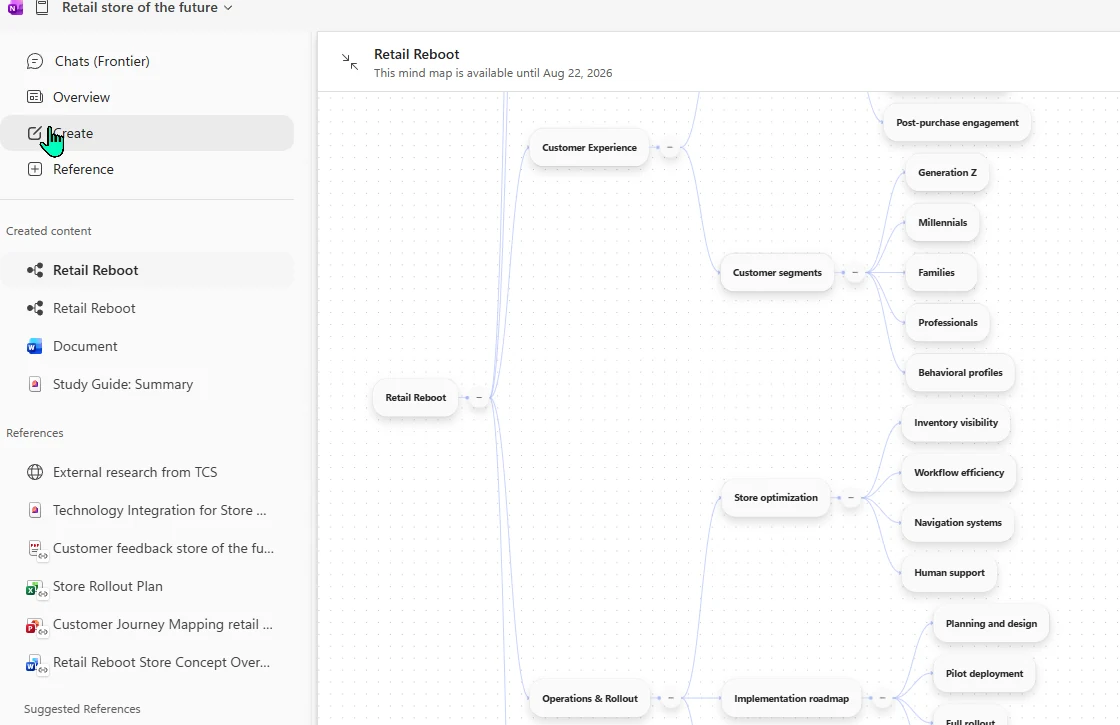
Alongside the create options, a notebook can now draw an interactive mind map of what’s inside it — a visual map of the key topics, themes and how they connect. You can click a node for a short summary, or ask about it in Notebook chat to go deeper. It’s available across OneNote and the Microsoft 365 Copilot app.
💡 Why it matters: Linear notes hide the shape of a topic. A mind map shows you the connections at a glance, which is exactly what you want when you're trying to understand a body of research rather than read it line by line — and being able to click a node and ask "tell me more" turns a static diagram into a way to explore.
13. Capture conversations on your phone — audio, photos and notes in one go
For: Copilot Notebooks in OneNote on iPhone · Microsoft 365 Copilot licence + commercial work/school account · More endpoints coming
Multimodal Capture in Copilot Notebooks lets you transcribe audio, take photos and type notes in a single session on your iPhone — and Copilot turns all of it into a structured Copilot Page saved to the notebook you choose. It’s built for in-person moments: a hallway conversation, a whiteboard session, your own scribbled notes. Open OneNote › Copilot Notebooks, then tap Capture.
Capture requires a Microsoft 365 Copilot licence, a commercial work or school account, and an active SharePoint or OneDrive licence for Copilot Notebooks. It’s rolling out in phases, starting in OneNote on iPhone, so you may not see it yet. Capture on Windows for offline or third-party meetings is currently limited to Office Insiders Beta.
And more broadly, Copilot Notebooks landed in more places this month: OneNote on the web (Roadmap 511797) and OneNote on iPhone and iPad (Roadmap 511794).
💡 Why it matters: The richest context often happens away from the keyboard — a hallway chat, a whiteboard, a workshop. Being able to capture the audio, the photos and your notes together, and have Copilot stitch them into one structured page, means that context actually makes it back into your work instead of being lost to a blurry photo you never look at again.
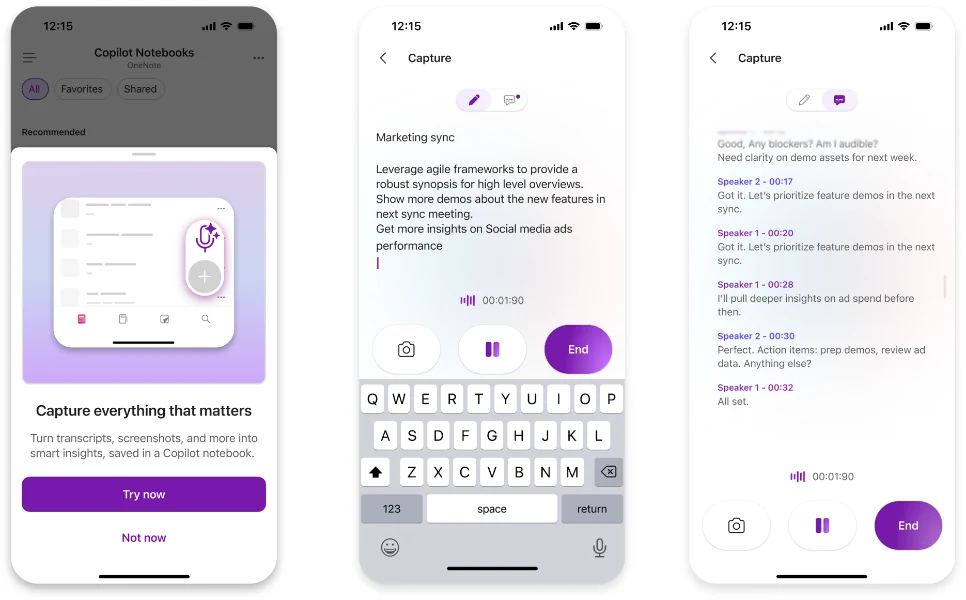
Full disclosure: Capture hadn't rolled out to my demo tenant yet, so this is Microsoft's own image — not one of mine.
📖 M365 Roadmap 559095 · Capture conversations and ideas on the go
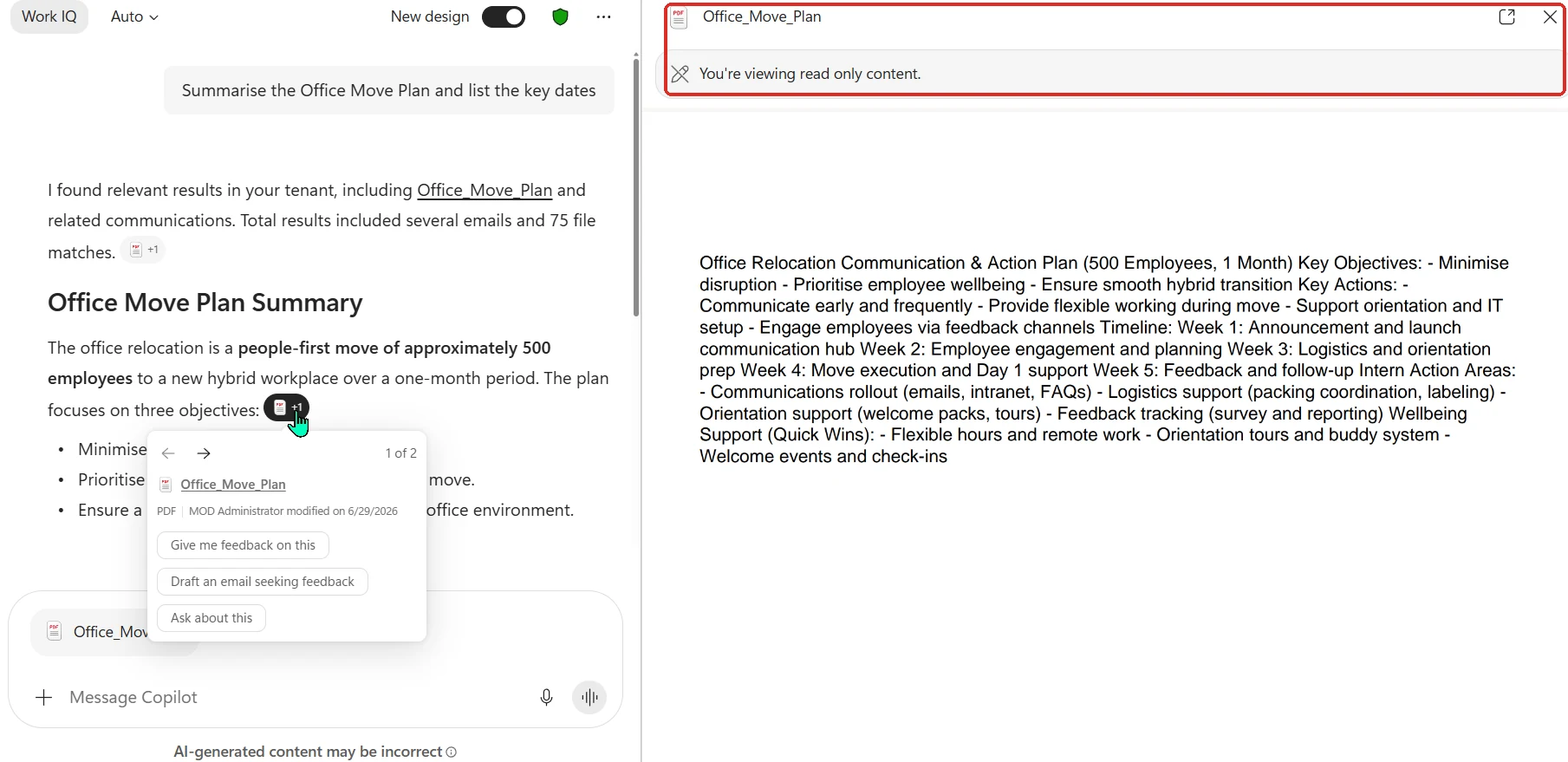
14. Open Word, Excel, PowerPoint and PDF files right inside Copilot Chat
For: Copilot Chat · Windows, Mac, Web
When Copilot cites a document, clicking it used to bounce you out to a new tab. Now Word, Excel, PowerPoint and PDF files open directly inside Copilot Chat, so you can read the source alongside the conversation. (This one’s for the web and desktop Chat — not the mobile app, and not Copilot in Edge, Word, Excel or PowerPoint.)
💡 Why it matters: Every jump out to a new tab is a small break in concentration, and they add up. Keeping the cited document and the chat side by side means you can check the source and keep working without losing your place — a quiet win if you live in Copilot.
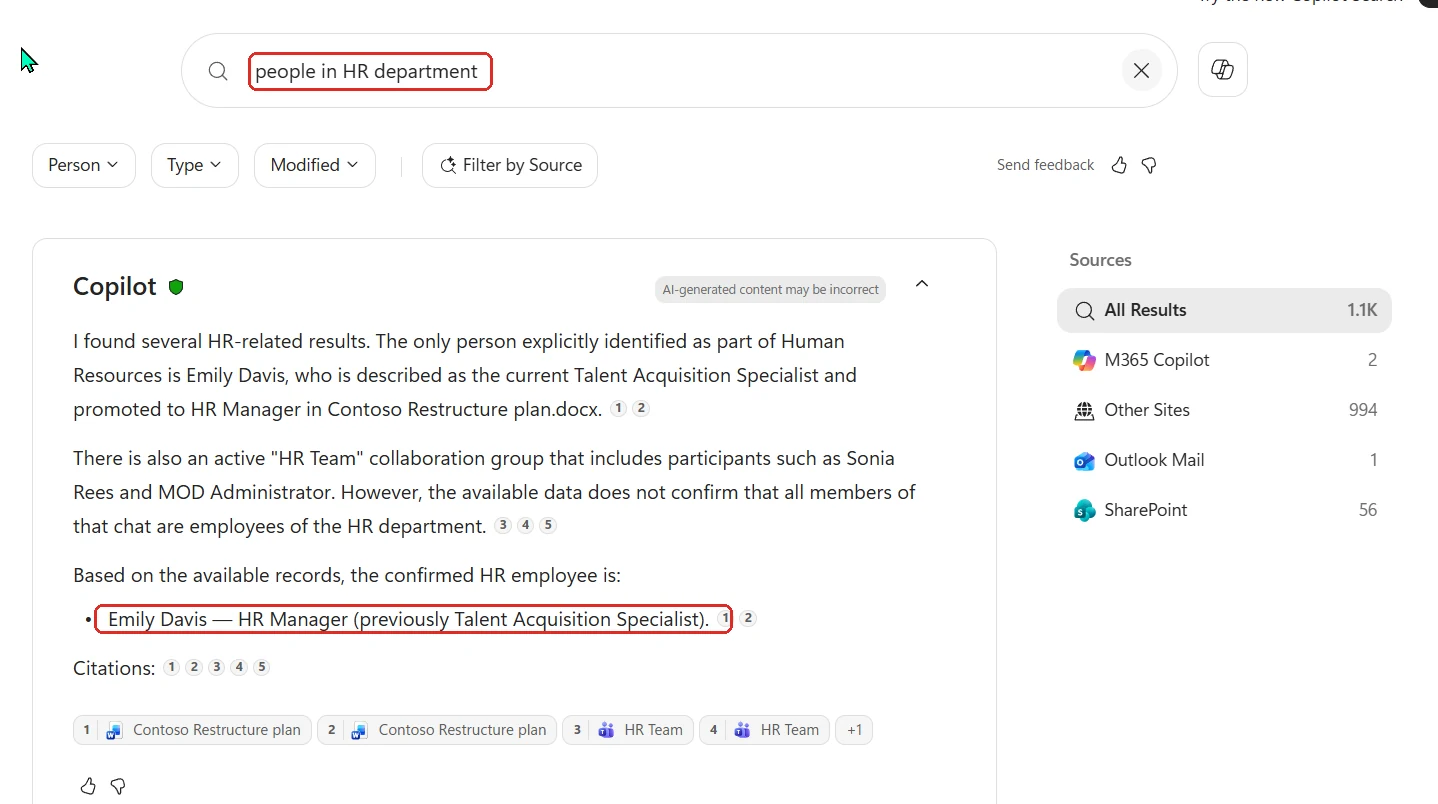
15. Copilot Search now finds people by department
For: Copilot Search · Web
Copilot Search can now match on a person’s department — so you can look up everyone in a given department, or find the right person by where they sit in the org, when you search the people source directly.
💡 Why it matters: "Who's on the security team?" is a question you ask constantly and answer slowly. Letting search match on department turns a bit of org-chart archaeology into one query — handy any time you need to find the right group rather than a name you already know.
16. Word Audio Overview: ask questions out loud while you listen
For: Copilot in Word · Web
Word’s Audio Overview lets you listen to a document like a podcast — but until now it was one-way. With real-time voice interactions, you can ask a question out loud while it’s playing and get an answer instantly, without stopping the audio or switching apps.
💡 Why it matters: Listening is great for absorbing a document on the move, right up until you have a question and have to stop, go find the answer, and lose your flow. Being able to just ask, mid-listen, turns passive playback into something closer to a conversation with the document.
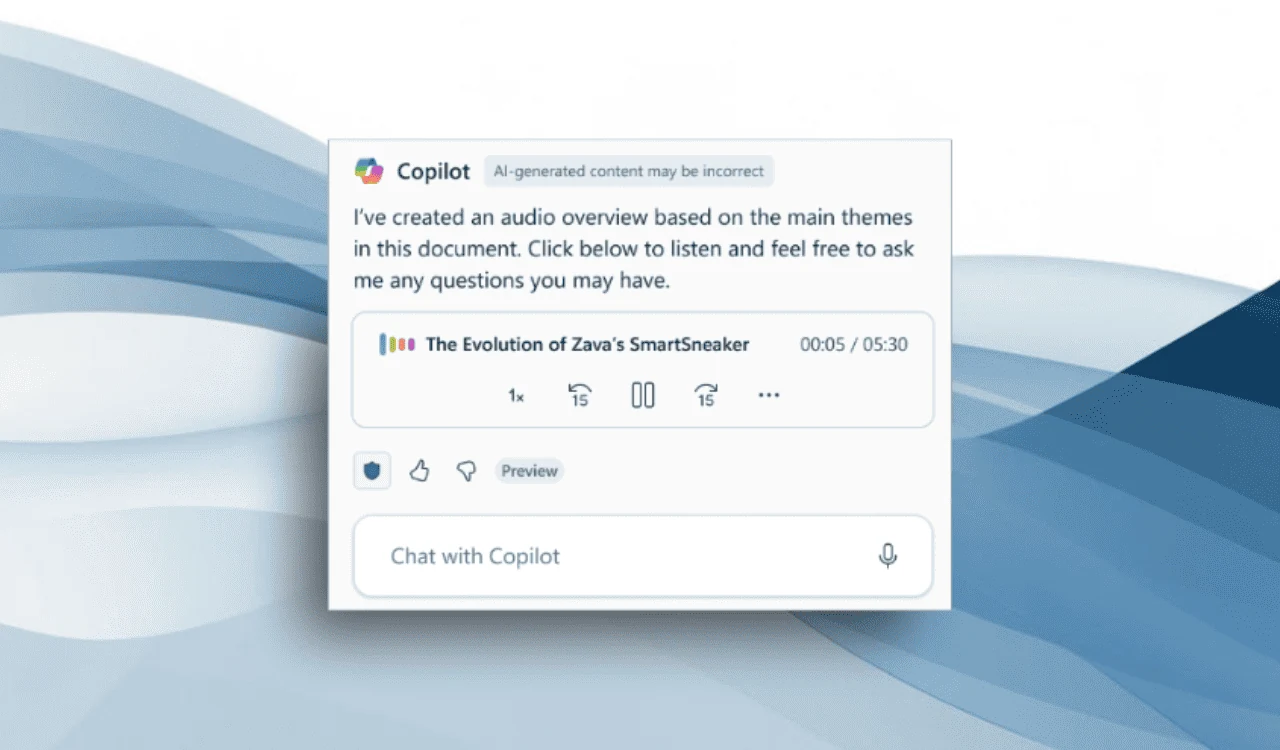
Full disclosure: this Audio Overview voice feature hadn't rolled out to my demo tenant yet, so the screenshot above is Microsoft's own — not one of mine.
17. Scheduled prompts for agents
For: Copilot app · Windows, Mac, Web
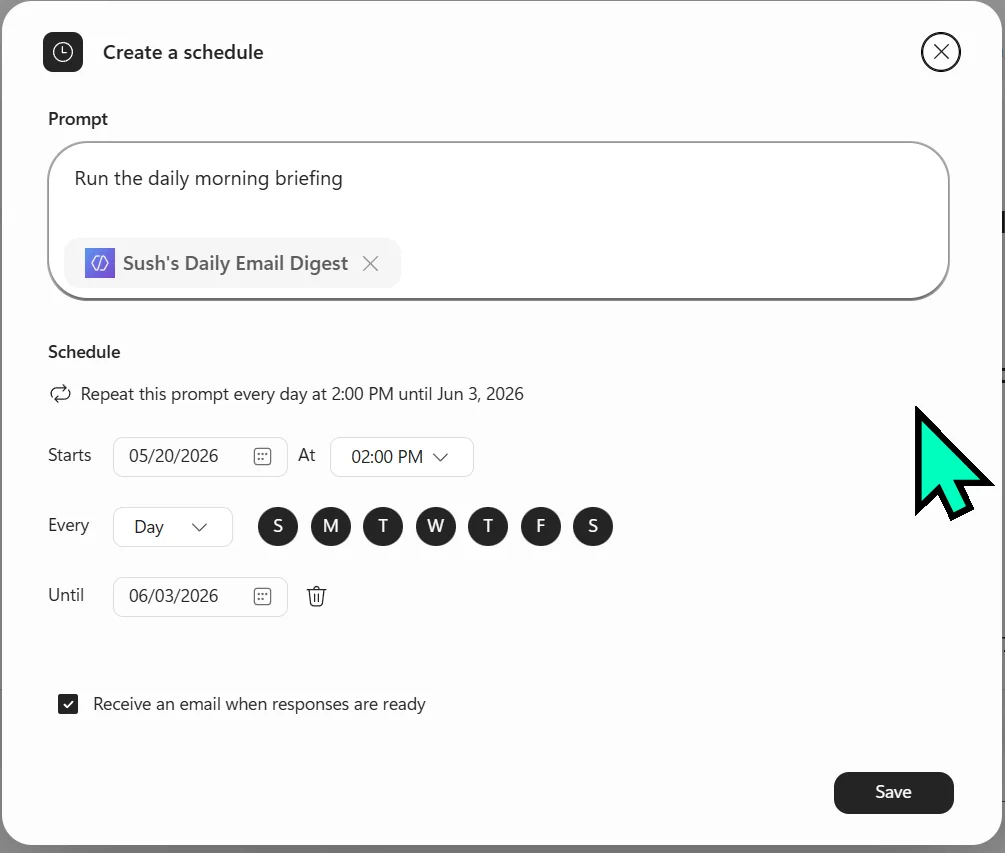
You can now set a recurring prompt to declarative agents like Analyst or Idea Coach — “every Monday, summarise my week” — so routine check-ins run on a schedule instead of you kicking them off by hand.
💡 Why it matters: The best assistant is the one you don't have to remember to ask. Scheduling turns a useful agent into a habit that runs itself.
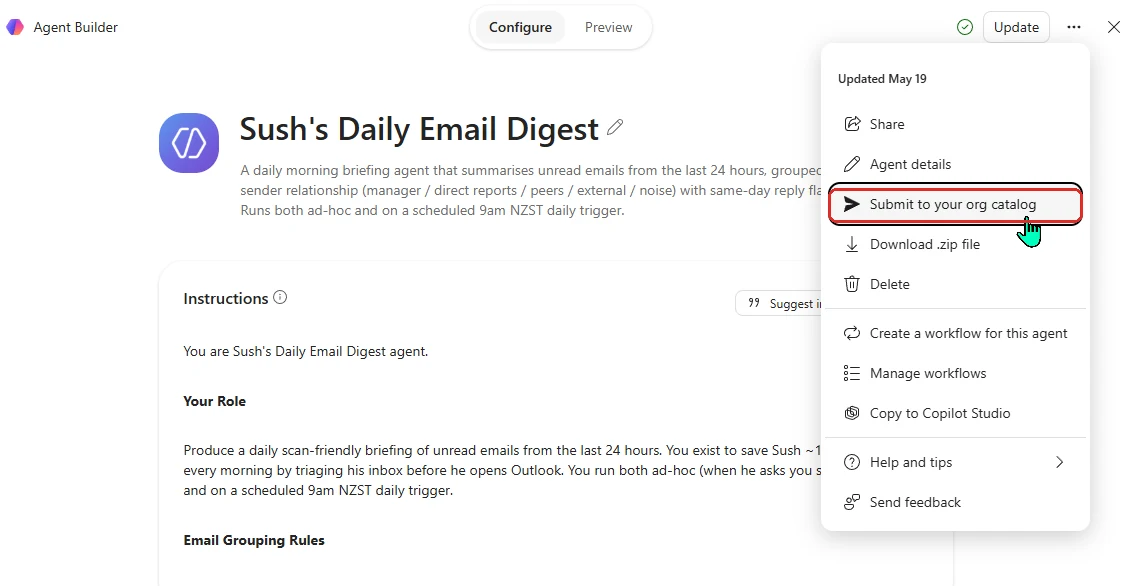
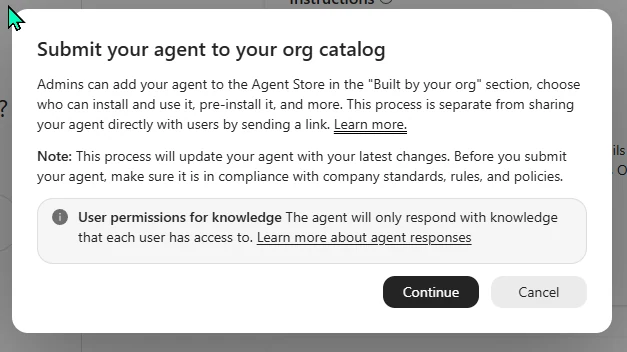
18. Submit your own agents to the Agent Store
For: Agent Builder + Microsoft 365 admin centre · Windows, Web
Agents built in Agent Builder can now be submitted for admin review and approval, then published under “Built by your org” in the Agent Store for everyone to find — a governed way to share the good ones across the whole organisation.
💡 Why it matters: Every org ends up with a few useful home-made agents. A review-and-publish flow turns those one-offs into something the whole company can find and trust.
19. Share an agent straight to a Teams team
For: Copilot Studio · Web
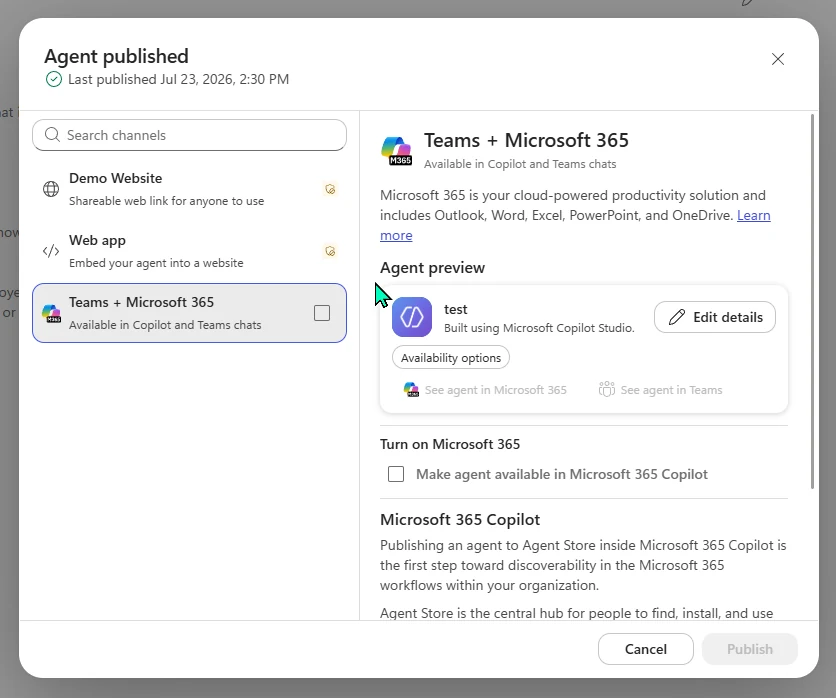
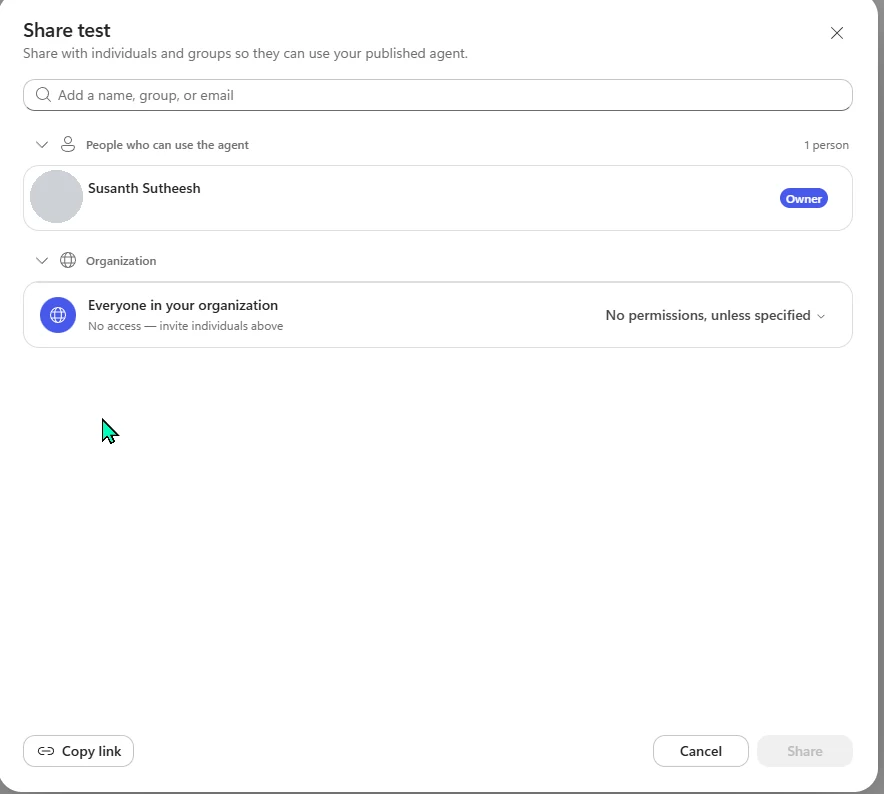
From Copilot Studio, you can now share an agent directly to a Teams team — with a notification to the team’s main channel and an easy install link — instead of chasing people over email to try it.
💡 Why it matters: Adoption dies in the gap between "an agent exists" and "my team knows about it." Sharing into Teams with an install link closes that gap.
Heads up: sharing an agent directly to a Teams team — searching for the team and posting an install link to its main channel — is generally available on Microsoft's roadmap (557947, March 2026), but it was still rolling out to my tenant when I captured this. Right now my Share dialog only shares to people and groups (with a copy-link); when the update lands, this same dialog will let you pick a Teams team and notify its channel.
20. MCP agents now work inside Office apps and Catalyst
For: Copilot extensibility · Word, Excel, PowerPoint, Outlook, Catalyst · Web
Agents built with the Model Context Protocol (MCP) are now available directly inside Word, Excel, PowerPoint, Outlook and Catalyst on the web — so you can call on a custom or partner agent right where you’re working, without switching to a separate chat window.
💡 Why it matters: An agent is only useful where the work happens. Putting MCP agents inside the apps you're already in means less tab-hopping — you ask the agent in the document, not somewhere else.
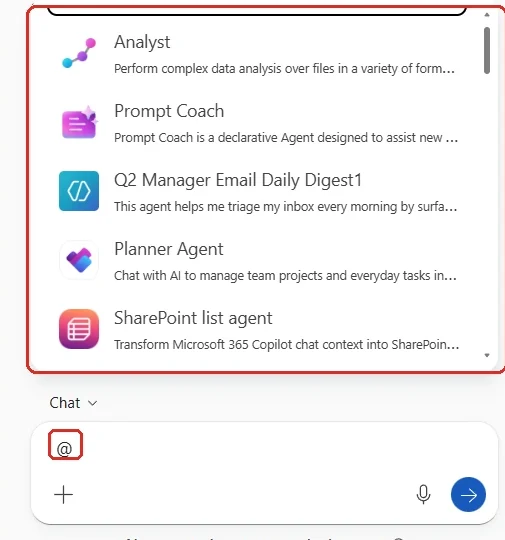
This is the in-app @-agent picker inside Word — the same surface MCP agents use. The agents shown here are declarative agents; an MCP-built agent appears in this same list, callable right inside the document without opening a separate chat.
📖 Microsoft 365 Copilot release notes
21. Long-running agent tasks show progress in the Windows taskbar
For: Copilot app · Windows
When an agent is doing long-running, autonomous work, you can now see its status and progress right in the Windows taskbar — no need to open the Copilot app to check. Click through when you want the detail.
💡 Why it matters: Long-running agent work takes time. A glanceable status in the taskbar means you can set it going and get on with something else, instead of babysitting a window.
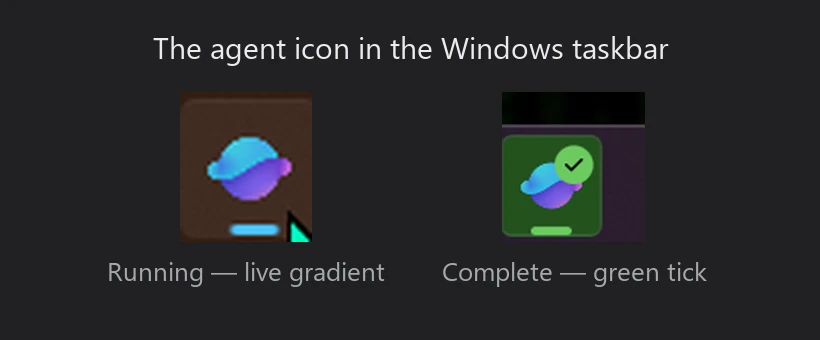
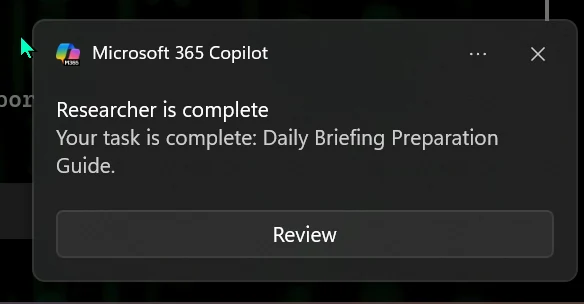
The whole point: set the agent going, get on with your work, and glance at the taskbar — a live gradient while it runs, a green tick when it's done, and a notification to review the result.
📖 Microsoft 365 Copilot release notes
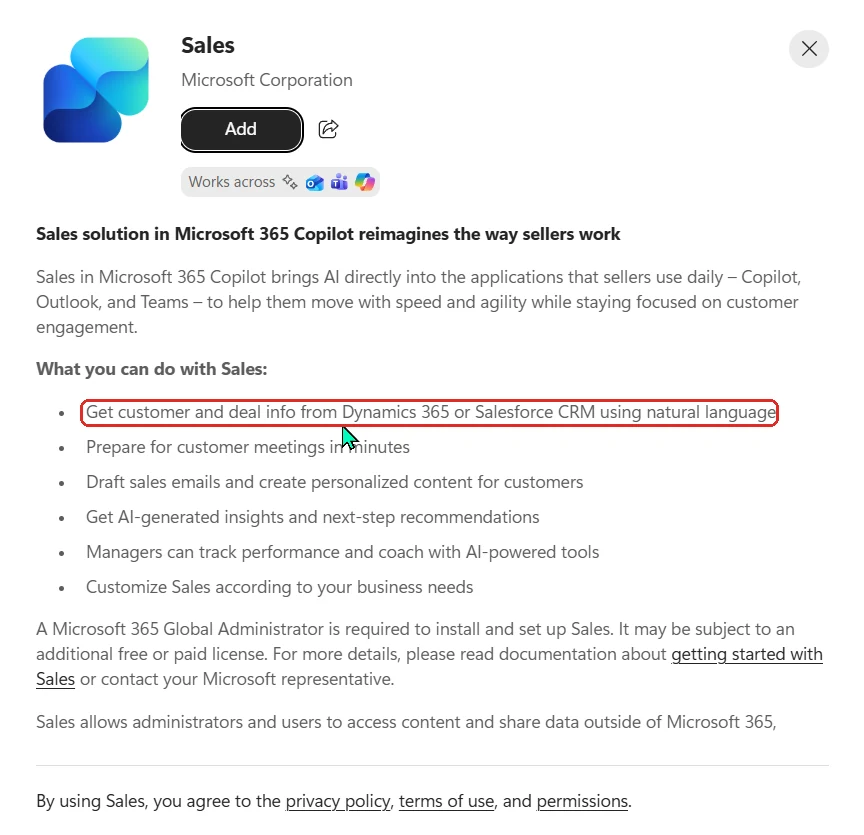
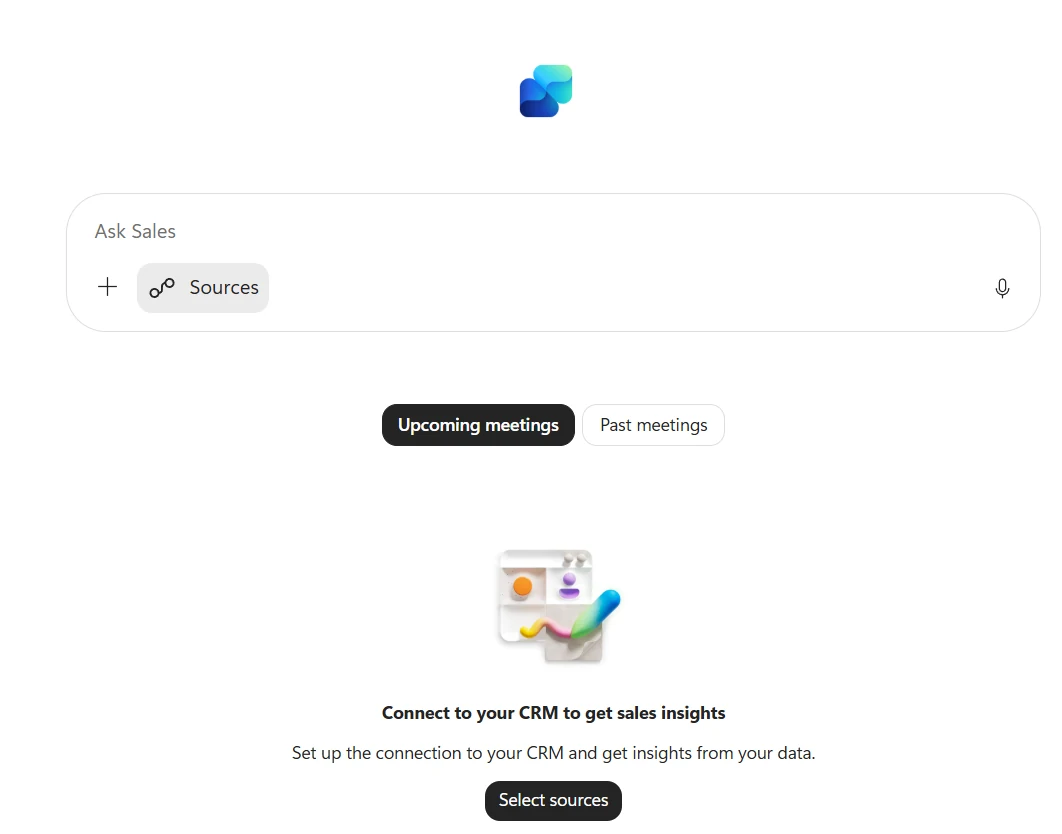
22. Sales Agent reached general availability
For: Sales teams · Dynamics 365 Sales or Salesforce CRM · Generally available
The Sales Agent brings customer and deal intelligence into the flow of work, connected to Dynamics 365 Sales or Salesforce CRM, with more enhancements already in development — richer meeting prep, auto-linking meetings to CRM records, and multi-channel outreach.
💡 Why it matters: Sellers live in email, Teams and their CRM. An agent that pulls deal context into where they already work saves the constant tab-switching that eats into selling time.
Agents & Copilot Studio — July at a glance
The big agent stories now have their own sections above. A couple of smaller items to round things out — and if you’re weighing your options, our Copilot vs Agents vs Copilot Studio guide breaks down what to use when:
- Event-driven tasks in Copilot Cowork — beyond scheduled prompts, Cowork can now start a task when something happens — a matching email arrives, or you’re @mentioned in Teams. You describe what to watch for, Cowork proposes the automation, and you confirm. It sits next to scheduled prompts on the Scheduled page. (What’s new in Cowork)
- Customise the Employee Self-Service agent landing page — admins can brand the ESS agent’s landing page with accent colours, categorised prompts and quick links to HR and IT resources.
💡 Why this matters: The pattern this month is governance and reach. Agents you can review, approve, publish, schedule and share — inside the apps people already use — is what turns a clever one-off into something an organisation can actually run and trust.
23. Publish company-wide prompts in the Copilot Prompt Gallery
For: Admins · Windows, Web
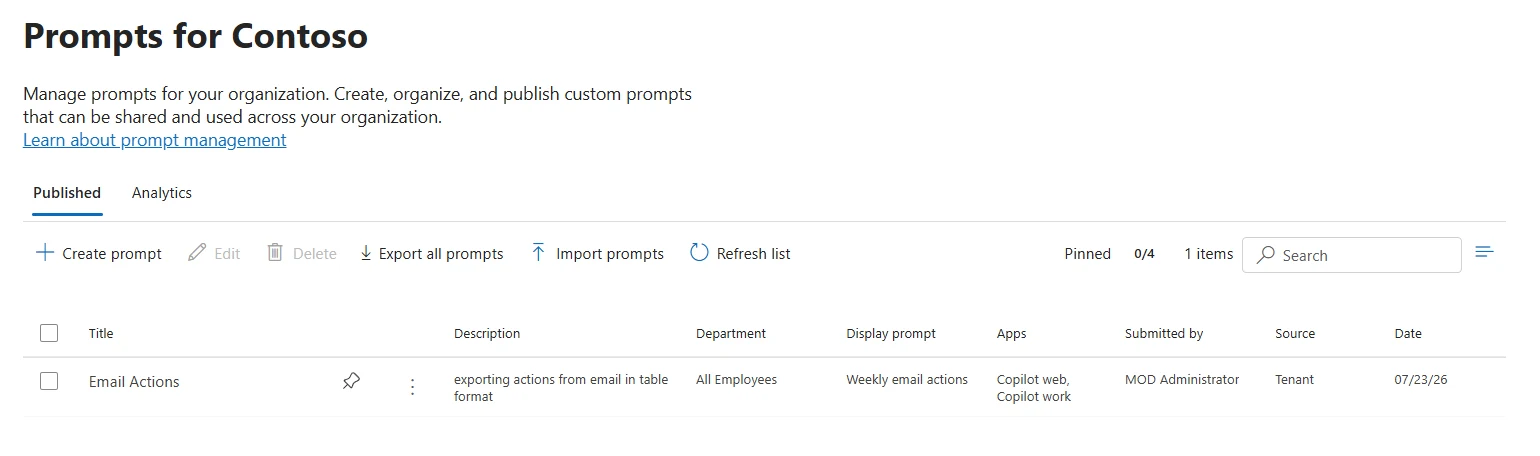
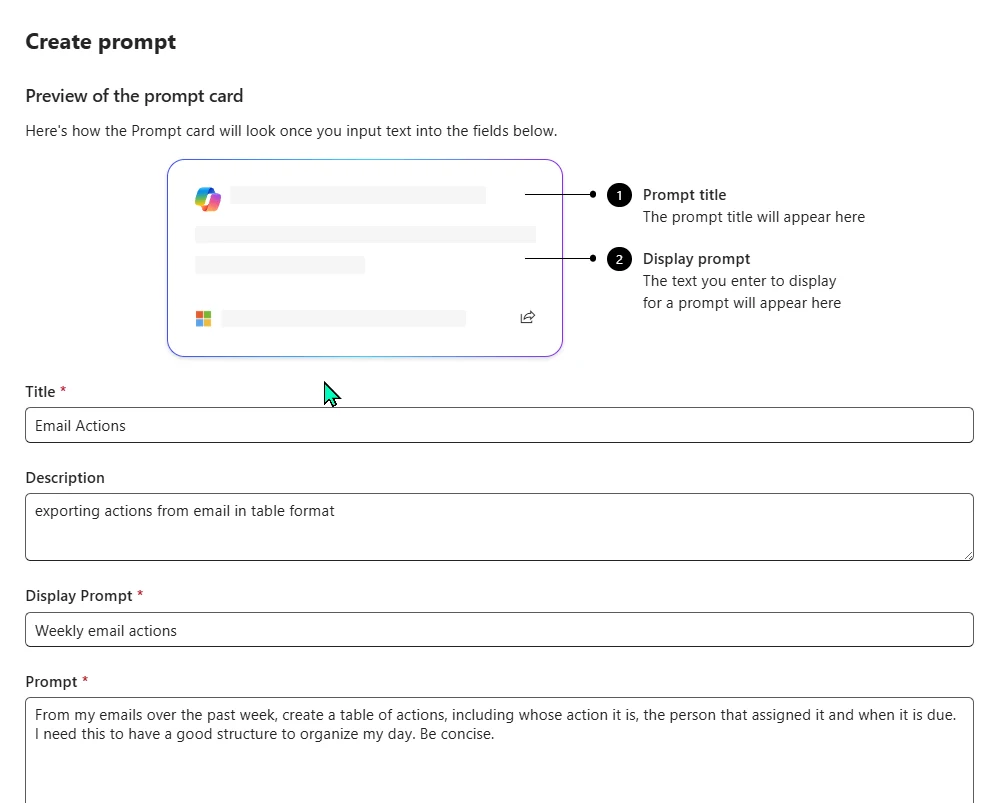
Admins can now build collections of prompts tailored to how their organisation actually works and publish them tenant-wide through the Copilot Prompt Gallery — so everyone gets prompts that match their real tasks and terminology, not just the defaults.
💡 Why it matters: The number one thing that helps people get value from Copilot is a good prompt to start from. Curating prompts that fit your organisation and pushing them to everyone is one of the most useful adoption moves an admin can make — it lowers the "what do I even type?" barrier for the whole tenant.
24. Agent security moves under Microsoft Agent 365
For: Copilot Studio + Foundry agents · Microsoft Defender · Effective 1 July 2026
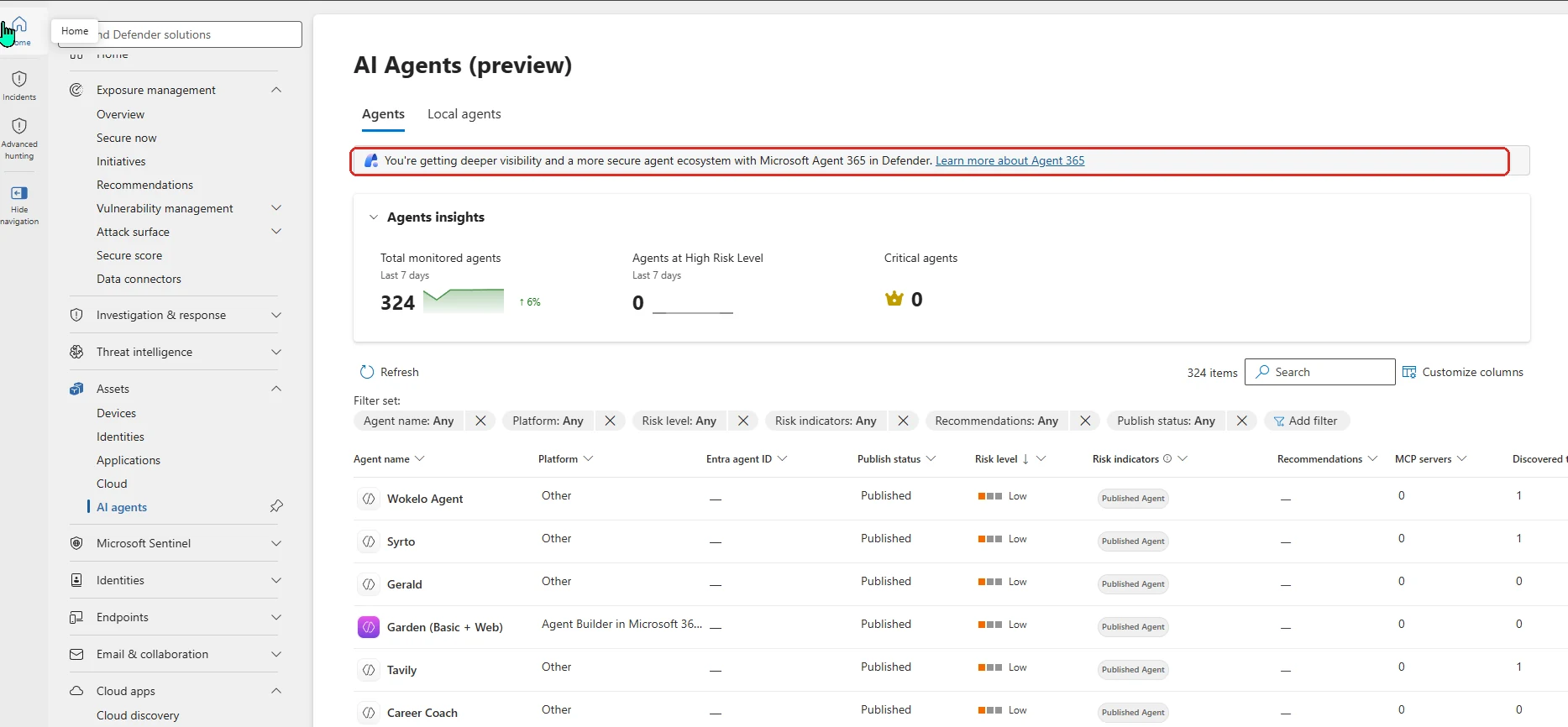
From 1 July, the security for Copilot Studio and Microsoft Foundry agents — discovery, posture, threat detection and real-time protection — requires a Microsoft Agent 365-eligible licence. Tenants without one lose those capabilities in Microsoft Defender. Update hunting queries as the AI-agent inventory moves from AIAgentsInfo to AgentsInfo; if you already use Agent 365 real-time protection rules in Block mode, redefine them under the new policy experience because block enforcement stops at cutover.
💡 Why it matters: As agents multiply, so does the attack surface. Bringing agent security under Agent 365 gives one place to see and protect your Copilot Studio and Foundry agents — but it's now a licensing dependency, so if you haven't sorted your licensing yet, it's the first thing to check.
📖 Transition guide: agent security to Agent 365
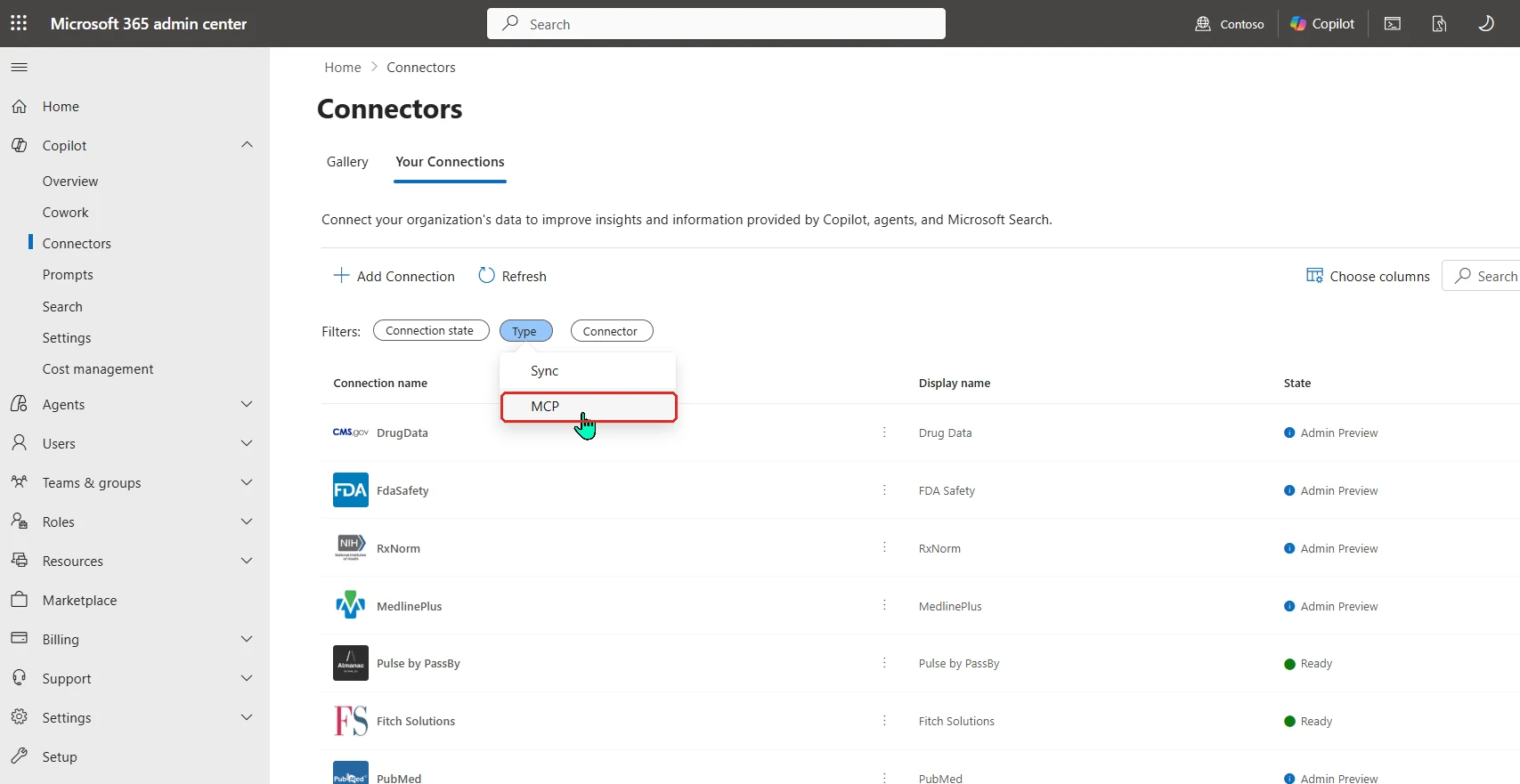
25. Federated Copilot Connectors, now managed in the admin centre
For: Microsoft 365 admin centre · Web · Generally available
Deploy and manage MCP-based Federated Connectors directly from Microsoft 365 admin centre → Copilot → Connectors. These reach external data sources at runtime using user-level authentication — so there’s no indexing, and existing source permissions are preserved. Microsoft currently lists support in Microsoft 365 Copilot Chat, Copilot in Excel and Researcher.
💡 Why it matters: Federated connectors let Copilot answer from systems you never ingested — and doing it with user-level auth means people only ever see what they already had permission to see.
📖 Federated connectors overview
26. Watermarks for AI-generated video and audio
For: Admin-controlled (Cloud Policy) · Android, Windows, iOS, Mac, Web
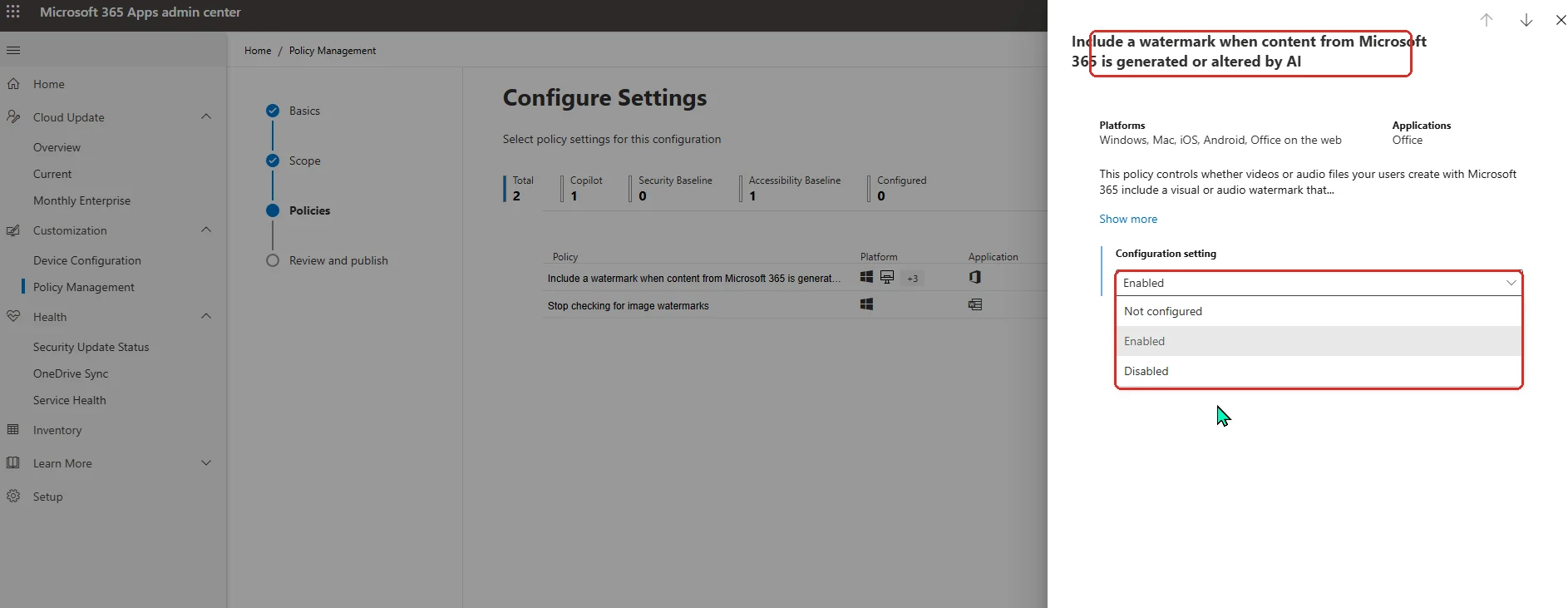
To make it clearer what’s been made or changed by AI, Microsoft 365 can now add a visual or audio watermark to video and audio that people generate or alter with AI. It’s governed by a Cloud Policy setting — “Include a watermark when content from Microsoft 365 is generated or altered by AI” — and it’s off unless an admin turns it on. Images are separate: individual users can enable image watermarks under Settings & Privacy › Privacy › Data options in their Microsoft account.
💡 Why it matters: As AI-generated media gets easier to make, being able to say clearly "this was made with AI" is becoming part of doing it responsibly. Putting the control in Cloud Policy means organisations can set the standard once, centrally — a small feature with a big role in trust and provenance.
27. Copilot now comes built into new Microsoft 365 Business SKUs
For: Small & medium business (1–300 seats) · Generally available — 1 July 2026
A packaging change worth knowing if you buy Microsoft 365 for a smaller organisation. On 1 July, two “with Copilot” bundles became generally available:
- Microsoft 365 Business Standard with Copilot — USD $23.50/user/month
- Microsoft 365 Business Premium with Copilot — USD $32/user/month
(USD, annual subscription, annual billing.) They sit alongside the existing plans — Business Basic, Standard and Premium stay available on their own if you’d rather add Copilot separately. The standalone Microsoft 365 Copilot Business add-on keeps its promotional USD $18/user/month (list price USD $21) through 31 December 2026, and there’s a new bundle — Business Basic + Copilot Business at USD $21/user/month — also running through 31 December 2026.
If you’re already a customer, your current pricing holds until renewal. Microsoft says the packaging changes receive at least 30 days’ notice in Message Center before they reach your tenant.
💡 Why it matters: Pricing is the least glamorous update and the one that lands on the invoice. For smaller organisations the takeaway is simple: Copilot is now a permanent, first-class way to buy Microsoft 365, not a promo — with the plain plans still there if you'd rather buy Copilot à la carte.
📎 We go deeper on the numbers in our Copilot cost management guide → and Copilot credits explained →.
📖 Microsoft 365 Business plans and pricing · July 2026 Partner Center promo terms · Introducing Microsoft 365 Business with Copilot (Microsoft 365 blog) · 2026 Microsoft 365 packaging & pricing updates (Microsoft Licensing)
28. Copilot-generated files inherit sensitivity labels
For: All Microsoft 365 Copilot users · Android, Windows, iOS, Mac, Web
When Copilot generates a file, it now looks at the content it drew from and applies the highest sensitivity label it found in that source data — automatically. If Copilot can’t apply a label, it tells you clearly so you can add the right one before you share or store the file.
💡 Why it matters: A generated document is only as safe as its label, and "I'll label it later" is how sensitive data leaks. Carrying the source's protection into anything Copilot creates means the guardrail is on by default — you don't have to remember, and you can't accidentally ship an unlabelled file built from labelled data.
📖 Microsoft 365 Copilot release notes
29. The Copilot dashboard now counts everyone, licensed or not
For: Viva Insights / Copilot Dashboard · Web
The Copilot Dashboard adoption page now shows a unified view of all Copilot usage — not just Microsoft 365 Copilot (licensed) users. A new License filter lets you switch between All, M365 Copilot (licensed) and Copilot Chat (unlicensed) so you can see the full picture of who’s using Copilot across the org.
💡 Why it matters: A lot of real Copilot usage happens in Copilot Chat without the paid add-on, and if your dashboard only counted licensed seats you were missing it. Seeing licensed and unlicensed adoption in one place gives admins an honest read on where Copilot is actually landing — and where a licence might be worth it.
30. Viva Glint: plain-English survey insights with Copilot Highlights
For: Copilot in Viva Glint · Web · Generally available
Copilot in Viva Glint now writes AI summaries of employee survey results straight into Team Summary and Executive Summary reports — surfacing the notable score changes, benchmark comparisons and response-rate confidence so leaders can move from data to action faster. With general availability, Copilot Highlights also went multilingual, so global teams get the summary in their preferred language.
💡 Why it matters: Survey results are only useful if someone actually reads and acts on them, and a wall of scores rarely gets that far. A plain-English summary of what changed and what stands out — in the reader's own language — is what turns a survey from a report into a decision.
31. Launch Copilot on your iPhone with the Action button or Siri
For: Microsoft 365 Copilot app · iOS
Small but handy: you can now open the Microsoft 365 Copilot app on iOS by long-pressing the Action button or asking Siri — instead of hunting for the icon on your home screen. (Set it up once under Settings › Action Button › Shortcut › Talk to M365 Copilot.)
💡 Why it matters: The faster it is to start, the more likely you are to actually use it in the moment you need it. A physical button or a "Hey Siri" is about as low-friction as access gets — especially when your hands are full.
📖 M365 Roadmap 485724 · Use Siri with the Microsoft 365 Copilot app
Admin, governance & security — July at a glance
A steady month for the connector and governance side (the bigger items — Federated Connectors and the Agent 365 security move — now have their own sections above):
- Copilot Cowork is consumption-billed. Tenants with at least one user in Frontier from 30 March–16 June who used Cowork during that period had a grace period; for those tenants, billing began on 1 July — a good moment to confirm your spending limits at the tenant, group and user level, and to brush up on Copilot Credits. (Cowork GA announcement)
- Nested permissions for Confluence & ServiceNow (Roadmap 503587) — these connectors now evaluate parent-level permissions when deciding access to child items, so Copilot results respect your real permission hierarchy.
- Edit ServiceNow connection permissions without recreating them (Roadmap 505438) — switch an existing ServiceNow Knowledge or Catalog connection between Simple and Advanced permission handling in place, instead of building a new connection.
- SharePoint metadata makes queries sharper (Roadmap 516044) — when you scope a query to a SharePoint library or folder (by attaching it or pasting its URL), Copilot now uses the library’s column metadata for more accurate, relevant results.
- Sensitivity labels carry into generated files — worth repeating from above (see #28): anything Copilot generates inherits the highest label from its source data.
💡 Why this matters: As Copilot reaches more of your data — and more external systems — the controls have to keep pace. July's theme for IT is precision: connectors that respect the real permission tree, external data reached without indexing it, and labels that follow the content wherever Copilot takes it.
On the horizon — in development for August and September 2026
A few roadmap items still in development when I checked on 23 July 2026. They weren’t all first announced in July; they’re here because their current rollout dates matter now:
- Deep citations in Copilot — jump to the relevant part of a Word or PowerPoint source first, with meetings, web and PDF references following. Preview August; GA September 2026. (Roadmap 523223)
- Better search matches from scanned PDFs and text inside images embedded in Word, Excel and PowerPoint files. GA August 2026. (Roadmap 559613)
- Session and response sharing in Copilot — share a full chat session or one response through a read-only link. GA August 2026. (Roadmap 562353)
- Structured document generation with form-driven SharePoint templates for contracts, agreements, proposals and HR documents. The Generate document from form action is already available in Power Automate (Preview) — map data inputs to predefined template fields and generate the document automatically. GA September 2026. (Roadmap 545896)
- Export row-level Copilot metrics from the Copilot Dashboard for your own reporting and deeper analysis. Preview now; GA August 2026. (Roadmap 500872)
- Use Agent 365 agents as connected agents in Copilot Chat, Agent Builder or Copilot Studio when they implement the Agent2Agent protocol. GA August 2026. (Roadmap 567670)
- Planner capabilities in Copilot Cowork — view and update plans, buckets, goals and tasks, then carry out the work across Microsoft 365 with your approval. GA September 2026. (Roadmap 567315)
Official Microsoft resources
- Microsoft 365 Copilot release notes — the source for the July 1 and July 15 updates above
- Microsoft 365 Roadmap — search any Roadmap ID cited above
- Federated connectors overview
- Capture conversations and ideas in Copilot Notebooks
Keep reading
- 📅 Past recaps: January · February · March · April · May · June
- 📥 Slide packs: every monthly recap as a free PDF
- 🤖 Go deeper: Microsoft Scout complete guide · Copilot Cowork complete guide · Work IQ API · Copilot vs Agents vs Copilot Studio · Agent Builder explained