M365 Copilot Deployment — IT Admin Checklist
↗ wrote this after the third 'we just turned it on and panicked' phone call
On this page
Deploying Copilot is like moving house. You wouldn’t throw everything in a truck and hope for the best — you’d sort through your stuff first, label the boxes, and unpack room by room (the how-it-works explainer is a good pre-read for admins). The organisations that rush past the “sorting” phase are the ones that end up with Copilot surfacing confidential HR documents to people who shouldn’t see them.
This guide gives you the complete, phased checklist — from planning through optimisation — so your deployment succeeds the first time.
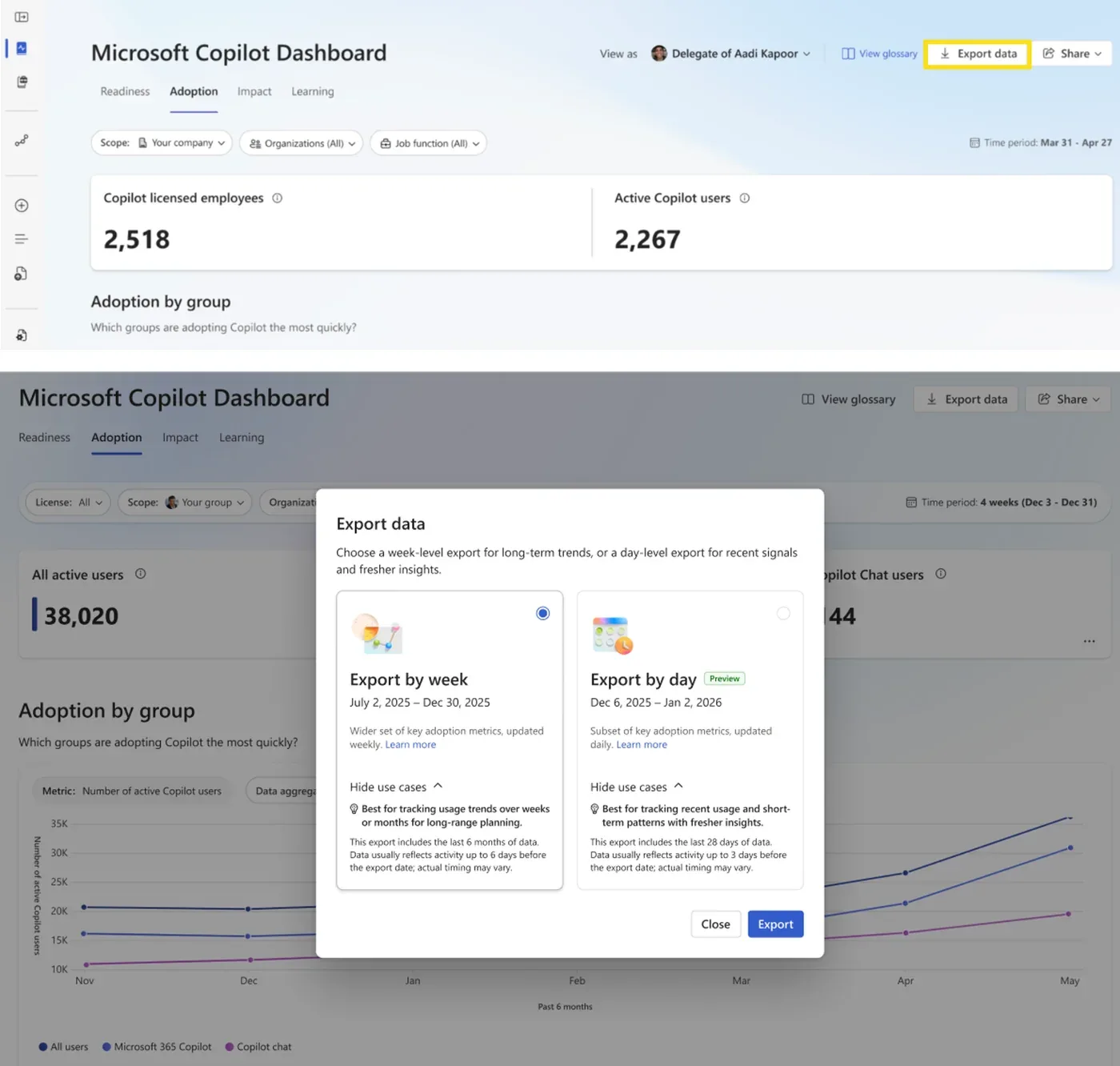
Source: my Microsoft 365 Copilot — May 2026 updates — the Microsoft Copilot Dashboard, your post-deployment scoreboard: who’s licensed, who’s actually using Copilot, and how adoption is trending. (Microsoft demo data.)
Quick links:
- The 5-phase framework
- What licence do you need?
- Phase 1: Plan & assess
- Phase 2: Secure & govern (the critical one)
- Phase 3: Configure & deploy
- Phase 4: Adopt & train
- Phase 5: Monitor & optimise
- The complete checklist
- Common mistakes
- FAQ
⚠️ Government cloud note: This guide covers commercial tenants. GCC, GCC High, and DoD may differ — check with your Microsoft account team.
TL;DR — The 5-Phase Deployment Framework
Back to the moving house analogy. Here are your five phases — and what goes wrong if you skip any of them:
flowchart TD
    A["Phase 1
Plan & Assess"] --> B["Phase 2
Secure & Govern"]
    B --> C["️ Phase 3
Configure & Deploy"]
    C --> D["Phase 4
Adopt & Train"]
    D --> E["Phase 5
Monitor & Optimise"]
| Phase | Key Action | If You Skip This… |
|---|---|---|
| 1. Plan & Assess | Run the Optimization Assessment, define pilot group | You deploy blind without understanding your readiness gaps |
| 2. Secure & Govern | Audit permissions, deploy sensitivity labels, configure DLP | Copilot surfaces confidential data to the wrong people |
| 3. Configure & Deploy | Assign licences, set Cloud Policy, pilot first | Users hit errors, features don’t work, IT gets blamed |
| 4. Adopt & Train | Champions program, scenario-based training | Users get Copilot but don’t know what to do with it — low adoption, wasted licences |
| 5. Monitor & Optimise | Usage dashboards, feedback loops, iterate | You can’t prove ROI and can’t justify the licence spend |
The #1 rule: Phase 2 (Secure & Govern) should take more time than Phase 3 (Configure & Deploy) (if you need the SharePoint side, see the oversharing controls guide). . Most failed deployments rushed past governance.
Quick Admin Answers
| Question | Answer |
|---|---|
| What if I do nothing? | Existing permissions still govern access. Copilot won’t create new permissions — but it WILL surface everything a user already has access to, including content they’ve never seen. Oversharing risk remains if permissions are broad. |
| What doesn’t change? | SharePoint/OneDrive permissions, sensitivity labels, DLP policies, retention policies, and Conditional Access all work exactly the same with Copilot. Copilot respects your existing security posture. |
| How do I turn Copilot off for a user? | Unassign the Copilot licence. For granular control: manage Copilot Chat pinning in Teams admin, disable web search via Cloud Policy per group, or remove agent access. |
| How do I target specific users? | Assign Copilot licences to an Entra ID security group. Use Cloud Policy at config.office.com to apply feature-specific policies (web search, content safety) to different groups. |
What Licence Do You Need?
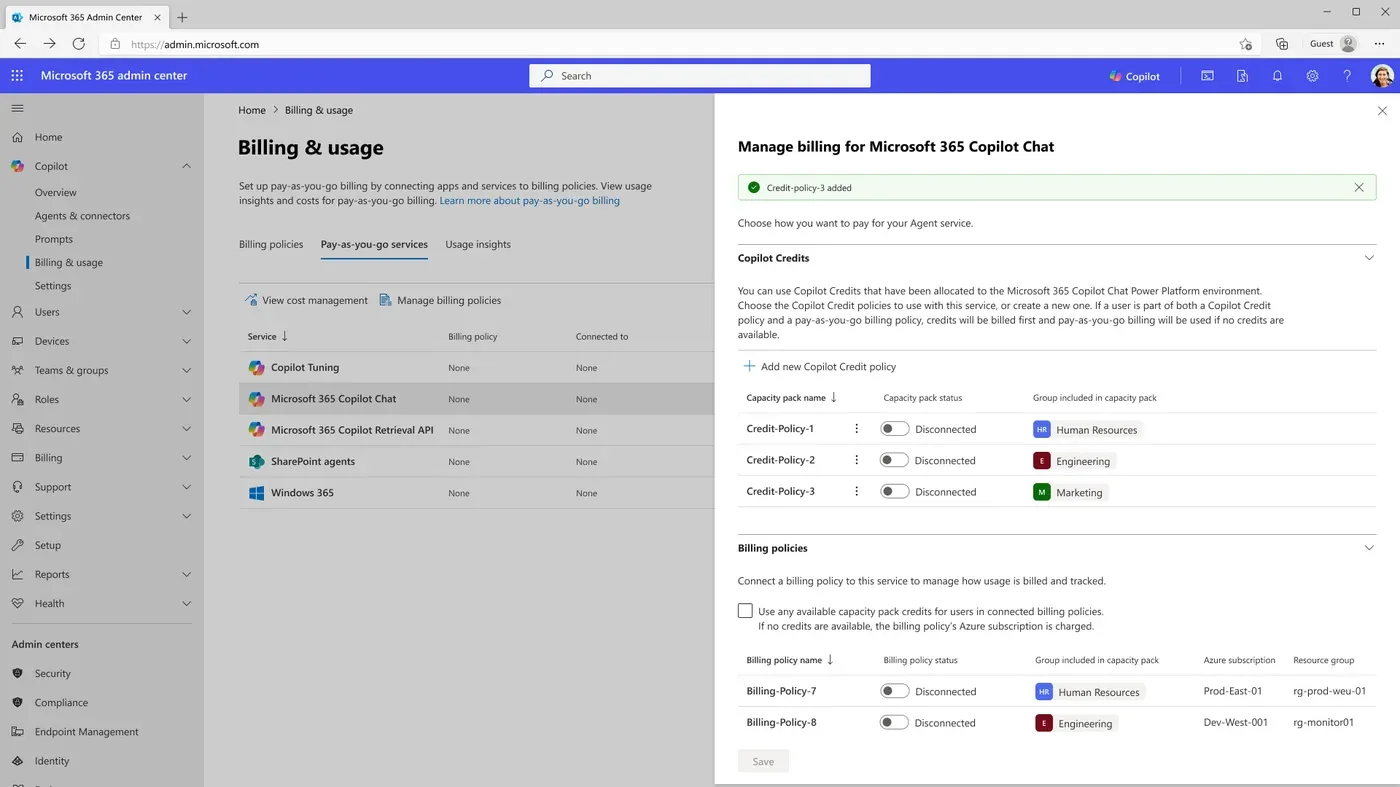
Source: my Microsoft 365 Copilot — May 2026 updates — beyond the base licence and Copilot add-on, the admin center is also where you manage pay-as-you-go billing and Copilot Credits. (Microsoft demo data.)
| What You Need | Details |
|---|---|
| Eligible base licence | Includes Microsoft 365 Business Basic/Standard/Premium, E3, E5, F1, F3, Office 365 E1/E3/E5, and other qualifying plans (see full list) |
| Copilot add-on | Microsoft 365 Copilot — pricing varies by plan (check official pricing) |
| Annual commitment | Required for most plans — check your specific agreement |
| Apps version | Microsoft 365 Apps on Current Channel or Monthly Enterprise Channel (version 2308+) |
| Outlook | Copilot works with both classic Outlook and new Outlook; primary mailbox must be in Exchange Online |
| Exchange Online | Mailbox must be provisioned |
| OneDrive | Account required for file-based Copilot features |
What About Free Copilot Chat?
| Feature | Free Copilot Chat (Basic) | Paid M365 Copilot |
|---|---|---|
| Copilot Chat (web) | ✅ | ✅ |
| Copilot in Word, Excel, PowerPoint | ❌ | ✅ |
| Copilot in Teams (meetings, chat) | ❌ | ✅ |
| Work Graph grounding (org data) | ❌ | ✅ |
| Agents (Agent Builder, Studio) | ❌ | ✅ |
| Admin controls (harmful content, web search) | Limited | ✅ Full |
📚 Official reference: Microsoft 365 Copilot licensing plans · Confused by Microsoft licensing? Try our Licensing Simplifier to compare 59 plans side by side.
🔍 Want to see exactly which Copilot features are available in each app and licence tier? Check our Copilot Feature Matrix — interactive comparison across 15 apps and 4 tiers.
Phase 1: Plan & Assess
This is the “house inspection before you buy” phase. You’re figuring out what you’ve got, who’s responsible for what, and where the gaps are.
Who Owns What
| Role | Responsible For |
|---|---|
| M365 Admin | Licensing, Copilot settings, service readiness |
| SharePoint Admin | Permissions audit, SAM policies, site remediation |
| Purview / Compliance Admin | Sensitivity labels, DLP, audit logging, retention |
| Entra ID / Intune Admin | Conditional Access, MFA, device compliance |
| Copilot / Power Platform Admin | Agent governance, Copilot Studio policies |
| Adoption Lead | Champions program, training, communications, feedback |
| Executive Sponsor | Visibility, budget, behaviour change authority |
Run the Optimization Assessment
Before anything else, run Microsoft’s free Copilot Optimization Assessment. It evaluates:
- Data governance maturity
- Security posture
- Identity configuration
- SharePoint/OneDrive readiness
This gives you a baseline and highlights gaps before you start. You can also try our free Copilot Readiness Checker for an instant scored assessment across 7 pillars.
Define Your Pilot Group
Don’t deploy to everyone at once. Start with a pilot group of 20-50 users across different departments:
Include a mix of:
- Power users who will push Copilot’s limits
- Sceptics who will find the gaps
- Executives who will champion it
- IT staff who will support it
Good pilot departments:
- Marketing/Communications (content creation)
- HR (document drafting, policy review)
- Finance (data analysis, reporting)
- Project Management (meeting summaries, planning)
- IT (admin tasks, troubleshooting)
Set Success Criteria
Define what “success” means before deployment:
- Adoption: What % of licensed users are active weekly?
- Productivity: How many hours saved per user per week?
- Satisfaction: What NPS score from pilot users?
- Security: Zero oversharing incidents during pilot?
📚 Official reference: Microsoft 365 Copilot adoption guide · Microsoft Adoption site
Phase 2: Secure & Govern
This is the “sorting through your stuff before packing” phase — and it’s the one most organisations rush past. Don’t.
⚠️ This is the most critical phase. Most Copilot issues trace back to governance gaps that existed before Copilot arrived. Fix them now or fix them in a crisis later.
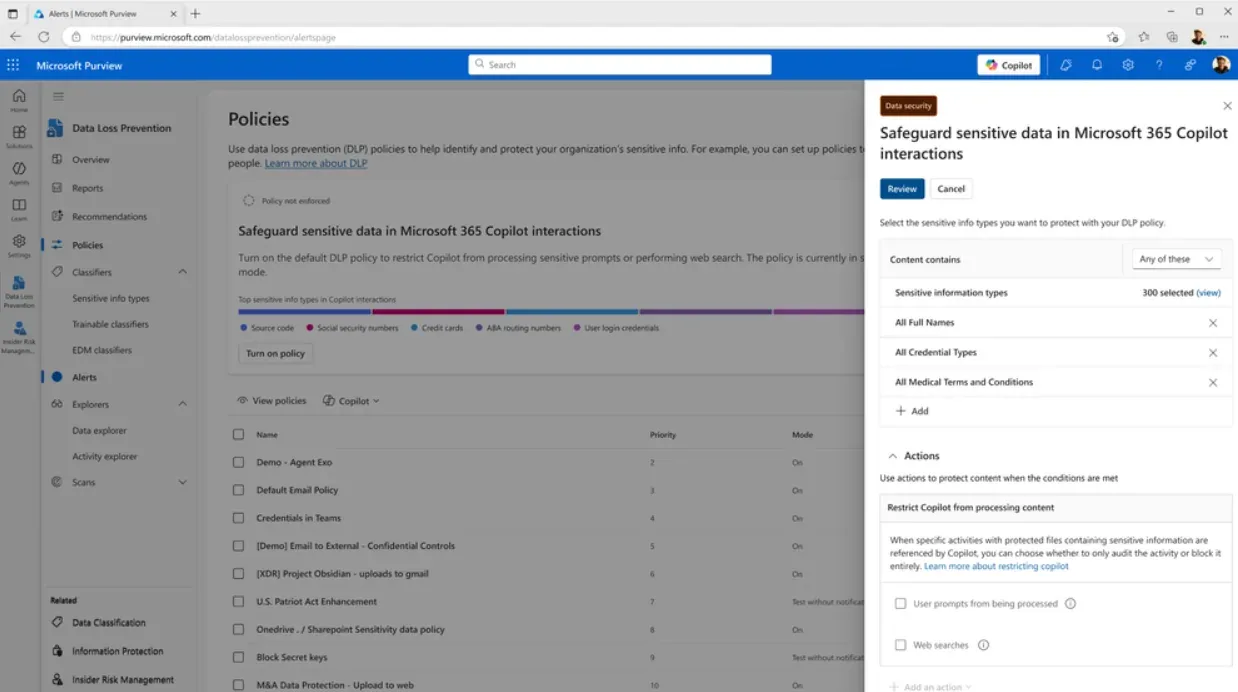
Source: my Microsoft 365 Copilot — May 2026 updates — Phase 2 in action: a Purview DLP policy that stops Copilot processing sensitive content. Set governance controls like this before you roll out. (Microsoft demo data.)
2.1 Audit SharePoint & OneDrive Permissions
Here’s the thing most people miss: Copilot doesn’t create new permissions. It surfaces anything a user already has access to — even files they’ve never opened. Every organisation has that one SharePoint site where permissions got weird years ago and nobody fixed it. Copilot will find it.
What to audit:
- Sites shared with “Everyone” or “Everyone except external users”
- Broadly shared document libraries
- Teams with open membership
- OneDrive folders shared with wide groups
- Legacy sites with inherited permissions that are too broad
- Stale or inactive sites with outdated permissions
Tools to use:
| Tool | What It Does |
|---|---|
| SharePoint Admin Centre | Review site permissions, sharing settings |
| SharePoint Advanced Management (SAM) | Site-level access policies, inactive site management, data access governance reports |
| Microsoft Graph API | Deep permission audits at scale |
| Microsoft Purview Data Access Governance | Identify overshared content across your tenant |
💡 The oversharing test: Before deploying Copilot, ask a pilot user: “Search for ‘salary’ or ‘confidential’ in Copilot Chat.” If they find documents they shouldn’t see — fix permissions first.
2.1b Use SharePoint Advanced Management (SAM) to Reduce Oversharing
SAM is your most powerful tool for Copilot governance. Use these controls in order:
- Find ownerless and inactive sites — Sites without active owners accumulate stale permissions. Use SAM’s inactive site policy to identify and remediate
- Run site access reviews — Require site owners to review and confirm who should have access. Schedule recurring reviews for high-risk sites
- Enable Restricted Content Discovery — Immediately prevent Copilot from surfacing content from specific sites while you remediate permissions (containment control)
- Apply Restricted Access Control — For business-critical sites, enforce strict access control policies that override broad sharing
- Review data access governance reports — Use SAM’s reporting to find sites with excessive external sharing or broad internal access
- Re-test with Copilot — After remediation, run the oversharing test again before expanding rollout
📚 Official reference: Get ready for Copilot with SharePoint Advanced Management · Site access review · Restricted content discovery · Restricted access control
2.2 Deploy Sensitivity Labels
Sensitivity labels classify and protect data. Copilot honours these labels — if a document is labelled “Confidential” with encryption, Copilot respects those restrictions.
Minimum label taxonomy for Copilot:
- Public — No restrictions
- Internal — Org-only access
- Confidential — Restricted to specific groups
- Highly Confidential — Encrypted with restricted rights (configure EXTRACT/VIEW permissions to control whether Copilot can process this content)
Where to configure: Microsoft Purview → Information Protection → Labels
📚 Official reference: Sensitivity labels in Microsoft Purview · Configure secure data foundation for Copilot
2.3 Configure DLP Policies
Data Loss Prevention policies prevent sensitive data from being included in Copilot prompts and responses.
Priority DLP policies for Copilot:
- Block sharing of financial data (credit card numbers, bank accounts)
- Block sharing of personal data (national IDs, passport numbers)
- Block sharing of health information (if applicable)
- Alert on sensitive data in Copilot interactions
Where to configure: Microsoft Purview → Data Loss Prevention → Policies
2.4 Enable Audit Logging
Copilot interactions (prompts and responses) can be audited, searched, and retained through Microsoft Purview — subject to your Purview configuration and licensing.
What to enable:
- Copilot activity audit logging (Purview → Audit)
- Retention policies for Copilot data (Purview → Data lifecycle management)
- eDiscovery capability for Copilot interactions
- DSPM for AI monitoring (if licensed)
📚 Official reference: Audit log activities for Copilot · Retention for Copilot
2.5 Set Conditional Access Policies
Ensure Copilot is only accessed from trusted devices and locations:
- Require managed devices for Copilot access
- Require MFA for all Copilot users
- Block access from untrusted locations (if applicable)
- Require compliant devices via Intune
Where to configure: Microsoft Entra ID → Conditional Access → Policies
💡 Need help designing your CA policies? Try our CA Policy Builder — it has 20 pre-built Zero Trust templates with deploy-ready PowerShell and Graph API exports.
2.6 Review Content Safety Controls
Configure how Copilot handles sensitive topics and web content:
- Decide your web search policy (on/off, or Work mode only)
- Decide if any roles need the harmful content protection toggle
- Review optional connected experiences policy
📚 Official reference: Manage harmful content protection in Copilot Chat · Manage web search in Copilot · Also see our detailed content safety guide
Phase 3: Configure & Deploy
Now you’re actually “moving in.” The boxes are sorted (Phase 2), and it’s time to start unpacking — room by room, not all at once.
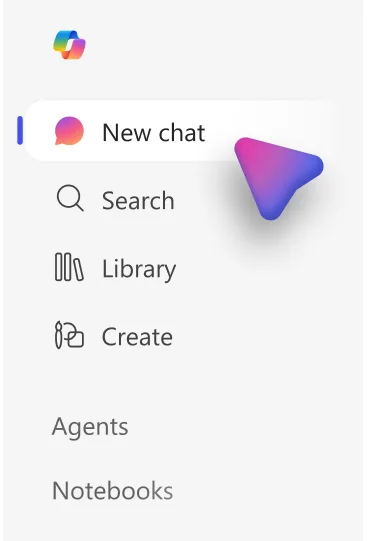
Source: Microsoft Learn — Copilot app settings for IT admins — part of configuring the experience: the Copilot app nav features you show or hide via Cloud Policy. (Microsoft demo data.)
3.1 Technical Prerequisites
Before assigning a single licence, verify:
- Microsoft 365 Apps on Current Channel or Monthly Enterprise Channel
- Outlook updated — Copilot works with classic and new Outlook; primary mailbox must be in Exchange Online
- Exchange Online mailboxes provisioned for all Copilot users
- OneDrive accounts provisioned
- Teams updated to latest version
- SharePoint Online and OneDrive services operational
- WebSocket connectivity available from user devices to Microsoft services
- Required network endpoints allowed through firewall (see official endpoint list)
- Modern authentication enabled (Entra ID)
- Restricted SharePoint Search disabled (if previously enabled)
3.2 Assign Licences
- Go to Microsoft 365 Admin Centre → Users → Active Users
- Select your pilot group users
- Assign the Microsoft 365 Copilot licence
- Verify assignment via PowerShell:
Get-MgUser -Filter "assignedLicenses/any(x:x/skuId eq 'COPILOT_SKU_ID')" | Select DisplayName, UserPrincipalName
💡 New to PowerShell for M365 admin? Our PowerShell Command Builder has 68 ready-made recipes for Exchange, Teams, Graph, and more — with copy-paste scripts and beginner-friendly “How to Run This” guides.
3.3 Configure Copilot Settings
In the Microsoft 365 Admin Centre → Copilot:
- Review and configure Copilot settings (web search, plugins, agents)
- Set Cloud Policy configurations at config.office.com:
- Web search policy (Allow/Deny per group)
- Harmful content protection policy (if needed)
- Optional connected experiences
- Configure agent policies (who can create/share agents)
3.4 Agent Governance — Decide Before You Deploy
Agents are one of Copilot’s most powerful features — and one of the easiest to lose control of. Set these policies before your pilot:
- Who can create agents? Decide if agent creation is open to all Copilot users or restricted to specific groups (IT, power users, approved builders)
- Who can share agents org-wide? Restrict org-wide sharing to approved users — prevent untested agents from reaching the entire organisation
- What approval process exists? Define whether shared agents need admin review before deployment (available in the Copilot Control System in M365 Admin Centre)
- Agent Builder vs Copilot Studio — Agent Builder agents are simpler (M365 Copilot licence). Copilot Studio agents are more powerful (separate licence). Govern them separately
- Review existing agents — Before broad rollout, audit any agents already created during pilot. Remove or restrict any that access sensitive data inappropriately
📚 Official reference: Manage agents in M365 Admin Centre · Microsoft 365 agents deployment checklist · Share and manage agents
3.5 Pilot Validation
Before scaling beyond the pilot:
- Verify Copilot appears in all target apps (Word, Excel, Teams, Outlook, Chat)
- Test DLP policies are triggering correctly
- Test sensitivity labels are being honoured
- Run the oversharing test (search for sensitive terms)
- Collect pilot user feedback after 2 weeks
- Review Copilot audit logs for unexpected data access
📚 Official reference: Set up Microsoft 365 Copilot · Admin setup guide in M365 Admin Centre
Phase 4: Adopt & Train
This is the “getting to know the neighbourhood” phase. You’ve moved in, but if nobody knows where anything is, what’s the point?
Deploying Copilot without adoption planning is like buying a gym membership and never going. The licence cost is wasted if users don’t know how to use it.
4.1 Build a Champions Network
Champions are your force multiplier. Identify 5-10 enthusiastic users per 100 Copilot users who will:
- Test new features early
- Share tips and tricks with colleagues
- Collect feedback and report issues
- Lead department-level training sessions
4.2 Scenario-Based Training
Don’t train on “how to use Copilot.” Train on “how to do YOUR job faster with Copilot.”
| Role | Top Copilot Scenarios |
|---|---|
| Executives | Meeting prep from emails + calendar, executive summaries, board paper drafting |
| Marketing | Blog drafts, social media content, campaign analysis |
| HR | Job descriptions, policy summaries, interview question generation |
| Finance | Data analysis in Excel, financial report drafting, budget comparisons |
| Project Managers | Meeting summaries, status report generation, risk analysis |
| Sales | Customer prep from CRM data, proposal drafting, competitive analysis |
| IT | Troubleshooting guides, documentation, PowerShell script generation |
| Legal | Contract review summaries, policy comparison, compliance research |
4.3 Communication Plan
Before launch:
- Announcement email from executive sponsor
- “What is Copilot?” one-pager (link to training resources)
- FAQ document addressing privacy and data concerns
At launch:
- Welcome email with quick-start guide
- First-week challenge (e.g., “Try Copilot in 3 different apps this week”)
- Champions available for drop-in help sessions
Ongoing:
- Monthly “Copilot tips” newsletter or Teams post
- User community channel (Teams or Viva Engage)
- Quarterly usage review with department leads
4.4 Prompt Engineering Training
Most users underperform with Copilot because they write bad prompts. Invest in prompt training:
- Teach the CRAFT formula: Context, Role, Action, Format, Tone — our Prompt Engineering Guide teaches 8 techniques with hands-on exercises
- Provide a prompt library with tested, role-specific prompts — see our AI Prompt Library with 84 prompts across 8 platforms
- Show before/after examples — try the Prompt Polisher to instantly improve any prompt with a CRAFTS score
📚 Official reference: Welcome end users to Copilot · Microsoft Adoption Success Kit
Phase 5: Monitor & Optimise
You’ve moved in, unpacked, and everyone knows where the kitchen is. Now you track what’s working and what isn’t.
5.1 Usage Dashboards
| Dashboard | What It Shows | Where |
|---|---|---|
| Copilot usage reports | Active users, feature usage per app, trend over time | M365 Admin Centre → Reports → Usage |
| Viva Insights Copilot dashboard | Time savings, meeting efficiency, collaboration patterns | Viva Insights app |
| Purview audit logs | Copilot interactions, prompt/response content (subject to configuration and licensing) | Microsoft Purview → Audit |
| DSPM for AI | AI data security posture, sensitive data in AI interactions | Microsoft Purview → DSPM for AI |
5.2 Key Metrics to Track
| Metric | Target | How to Measure |
|---|---|---|
| Weekly active users | >70% of licensed users | M365 Admin Centre usage reports |
| Feature breadth | Users try 3+ apps | Usage reports by app |
| User satisfaction | NPS >30 | Survey (monthly) |
| Time savings | >2 hours/user/week | Viva Insights + self-report |
| Oversharing incidents | Zero | Purview alerts + user reports |
| Support tickets | Declining trend | IT ticketing system |
💡 Need to build a business case? Our Copilot ROI Calculator estimates savings by role with realistic adoption curves — includes a printable executive summary.
5.3 Continuous Improvement Loop
flowchart TD
    A["Measure usage
& satisfaction"] --> B["Identify gaps
& low-adoption areas"]
    B --> C["Targeted training
& new scenarios"]
    C --> D["Adjust config
& governance"]
    D --> A
The Complete Checklist — Print This
Phase 1: Plan & Assess
- Run the Copilot Optimization Assessment
- Define pilot group (20-50 users across departments)
- Set success criteria (adoption %, time savings, satisfaction)
- Identify executive sponsor
- Establish budget (licences + training + change management)
Phase 2: Secure & Govern
- Audit SharePoint/OneDrive permissions for oversharing
- Remove “Everyone” and “Everyone except external” from sensitive sites
- Deploy sensitivity labels (minimum 4-tier taxonomy)
- Configure DLP policies for Copilot interactions
- Enable Copilot audit logging in Purview
- Set retention policies for Copilot data
- Configure Conditional Access (MFA, managed devices)
- Review and set content safety policies (web search, harmful content toggle)
- Clean up stale/inactive SharePoint sites
- Archive redundant, obsolete, or trivial content (ROT)
- Run SAM inactive site policy and remediate ownerless sites
- Enable SAM Restricted Content Discovery for high-risk sites
- Run SAM site access reviews on sensitive sites
Phase 3: Configure & Deploy
- Verify Microsoft 365 Apps version (Current or Monthly Enterprise Channel)
- Ensure Outlook is updated (classic or new Outlook; primary mailbox in Exchange Online)
- Provision Exchange Online mailboxes
- Provision OneDrive accounts
- Verify network endpoints and WebSocket connectivity
- Disable Restricted SharePoint Search (if enabled)
- Assign Copilot licences to pilot group
- Configure Copilot settings in M365 Admin Centre
- Set Cloud Policy configurations at config.office.com
- Validate: Copilot appears in all target apps
- Validate: DLP and sensitivity labels working correctly
- Validate: Run oversharing test with pilot users
- Collect pilot feedback after 2 weeks
- Define agent creation and sharing policies
- Restrict org-wide agent sharing to approved groups
- Audit any agents created during pilot
Pilot Exit Criteria — Go/No-Go Before Scaling
Before expanding beyond the pilot, all of these must be true:
- No unresolved oversharing findings from the oversharing test
- DLP policies and sensitivity labels validated and working
- Helpdesk volume is manageable (not trending up)
- Weekly active usage is above your target threshold
- Agent governance policy is documented and in place
- Executive sponsor approves the next wave of deployment
Phase 4: Adopt & Train
- Recruit champions (5-10 per 100 users)
- Create scenario-based training by department/role
- Send executive announcement email
- Distribute quick-start guide and FAQ
- Launch first-week challenge
- Set up user community (Teams channel or Viva Engage)
- Schedule drop-in help sessions
- Provide prompt engineering training
- Share prompt library with tested, role-specific prompts
Phase 5: Monitor & Optimise
- Set up Copilot usage reports in M365 Admin Centre
- Configure Viva Insights Copilot dashboard
- Schedule monthly usage reviews
- Collect quarterly user satisfaction surveys
- Review and tighten governance based on audit findings
- Scale deployment to next wave of users
- Iterate training based on low-adoption areas
Common Mistakes We See in Every Deployment
| Mistake | What Happens | How to Avoid |
|---|---|---|
| Skipping the permissions audit | Copilot surfaces confidential docs to the wrong people | Audit before deploying — use SAM + Purview |
| Deploying to everyone at once | IT overwhelmed with support requests, low-quality first impression | Phased rollout: pilot → department → org |
| No training plan | Users try once, get bad results, give up | Scenario-based training with role-specific prompts |
| No executive sponsor | Copilot seen as “another IT project” | Get a visible executive to champion adoption |
| Not cleaning up legacy data | Copilot surfaces old, outdated, or embarrassing content | Archive ROT content before deployment |
| Ignoring the free tier | Unlicensed users confused about what they can/can’t do | Communicate clearly what free vs. paid Copilot includes |
| No feedback loop | Problems go unreported, adoption stalls | Champions + community channel + regular surveys |
| Over-relying on FastTrack | FastTrack provides guidance, not hands-on configuration | Combine FastTrack guidance with your own admin execution |
Essential Microsoft Resources
| Resource | What It Is | Link |
|---|---|---|
| Copilot Adoption Guide | Microsoft’s official step-by-step for IT admins | Learn Docs |
| Copilot Optimization Assessment | Free readiness evaluation tool | Microsoft Solution Assessments |
| Microsoft Adoption Site | Success kits, training materials, scenario library | adoption.microsoft.com/copilot |
| Copilot Setup Guide | In-product admin setup wizard | M365 Admin Centre |
| Data Foundation for Copilot | Security and governance configuration guide | Learn Docs |
| Copilot Privacy & Security | How Copilot handles your data | Learn Docs |
| Network Requirements | Endpoints and connectivity requirements | Learn Docs |
| Copilot Licensing | Licence plans and pricing | Learn Docs |
| Implement Copilot (Training Module) | Free Learn module for admins and architects | Microsoft Learn Training |
| Content Safety Controls | Our companion guide on content safety | aguidetocloud.com |
| Copilot Readiness Checker | Free interactive assessment tool | aguidetocloud.com |
Frequently Asked Questions
- What is the minimum licence needed to deploy Microsoft 365 Copilot?
You need an eligible base Microsoft 365 licence (E3, E5, Business Premium, F1/F3, or other qualifying plans) plus the Microsoft 365 Copilot add-on. Copilot cannot run as a standalone licence. See the full licensing list.
- What is the biggest risk when deploying Copilot?
Oversharing. Copilot surfaces any data a user has access to — including documents they technically can reach but have never seen. Audit and fix SharePoint and OneDrive permissions before deploying.
- Should I deploy Copilot to all users at once?
No. Start with a pilot group of 20-50 users across different departments. Validate security controls, measure adoption, then scale in waves.
- Do I need sensitivity labels before deploying Copilot?
Strongly recommended. Sensitivity labels add classification and protection that Copilot honours. Without them, Copilot relies only on existing permissions, which may be too broad.
- What happens if I deploy Copilot without changing any permissions?
Copilot will respect your existing permissions — but it may surface documents that users technically have access to but have never actively sought out. This is the oversharing problem. Fix permissions first.
- What security controls does Copilot inherit from my environment?
All of them. SharePoint/OneDrive permissions, sensitivity labels, DLP policies, Conditional Access, retention policies, and audit logging all apply to Copilot interactions. Copilot does not bypass your existing security posture.
- How do I measure Copilot ROI?
Use Copilot usage reports in the M365 Admin Centre, Viva Insights Copilot dashboard, and user surveys. Track active users, feature usage per app, time savings, and satisfaction scores.
- What changes in GCC, GCC High, and DoD environments?
Feature availability, rollout timelines, and compliance boundaries may differ from commercial tenants. Web search is off by default in GCC/DoD. Verify with your Microsoft account team and check the Microsoft 365 service descriptions for your cloud.
- Can I audit all Copilot interactions?
Copilot interactions (prompts and responses) can be audited, searched, and retained via Microsoft Purview — subject to your Purview configuration and licensing. Enable Copilot audit logging before deployment.
- What if users report Copilot is surfacing data they shouldn’t see?
This is an oversharing issue, not a Copilot bug. Copilot respects existing permissions. Fix the root cause: review and tighten SharePoint/OneDrive permissions, use sensitivity labels, and consider SharePoint Advanced Management for site-level access policies.
Disclaimer: The views and opinions expressed in this article are my own and do not represent the official positions of Microsoft. This article is not legal, compliance, or product-commitment advice. All information was sourced from official Microsoft documentation at the time of writing — features, settings, and availability are subject to change and may vary by cloud environment, tenant, and licensing. Always refer to official Microsoft documentation for the most up-to-date information.