Microsoft 365 Copilot April 2026 Recap: 41 Updates
← what changed this month, in plain English
On this page
April 2026 is a massive month for Microsoft 365 Copilot with 41 updates — including three brand-new productivity agents, a wake word for hands-free access, MCP connector support for admins, and a wave of new third-party Copilot Connectors. Some features first appeared in earlier months and are now broadly available or expanded.
📅 2026 monthly recaps: January · February · March · April (you are here) · May
If you only have 2 minutes — April’s 3 picks
If 41 changes feels like too much, these are the three I’d start with:
- “Hey Copilot” Wake Word on Windows — the “Hey Siri” moment for Microsoft 365. Voice activation that respects enterprise compliance and only listens when called. Quietly changes how people may start using Copilot day to day.
- PowerPoint Agent (plus Excel Agent and Word Agent) — three new productivity agents that build entire decks, spreadsheets, and documents from conversation. Available to anyone with M365 (with or without a paid Copilot licence), where your admin has enabled them.
- Custom MCP Connectors in M365 Admin Center — admins can now bring almost any internal system into Copilot with real-time, federated MCP queries. The foundation for May’s federated Copilot connectors wave.
Admin Checklist — April 2026
Five admin checks worth doing this month, in priority order:
Publish your wake-word guidance before broad adoption. Wake-word activation raises legitimate privacy and compliance questions even though it only listens when called. Action: Check the available Microsoft 365 Copilot and Windows controls in your tenant before promising any tenant-wide allow/restrict policy — your control plane depends on your licensing and current tenant configuration. Then update your AI usage policy and brief users on the wake-word setting in the Copilot app (Settings → Quick View).
Enable Purview DLP for Copilot prompts if you have not already. The new real-time DLP control (feature #39) blocks Copilot from returning answers when prompts contain sensitive data — critical for regulated industries. Action: Microsoft Purview → DLP → create a policy targeted at the new “Microsoft 365 Copilot prompts” surface.
Decide which productivity agents to enable. PowerPoint, Excel, and Word agents are all gated by tenant-level admin toggles. Decide whether to enable for all, for licensed users only, or for a pilot group. My note: start with a pilot if you need usage or governance evidence before broad rollout.
Pilot Custom MCP connectors with one internal system — only where you already have a suitable read-only MCP endpoint and authentication path. Pick a low-risk line-of-business system (HR knowledge base, finance docs, project tracker) and stand up an MCP connector for it. This puts your team ahead of the May federated-connectors wave and builds the muscle for MCP-based extensibility. Note: you will also need Microsoft Entra ID setup and the appropriate admin roles (Global or AI admin) for the registration step.
Review the eight new third-party connectors (GitLab Issues · Asana · Monday.com · Guru · Coda · Zendesk Help Center · Egnyte · Amazon S3). Decide which to deploy based on what your teams actually use. Action: Microsoft 365 admin center → Copilot → Connectors → Gallery.
1. Voice Chat in Microsoft 365 Copilot
Voice in Microsoft 365 Copilot brings a natural, hands-free conversational experience to your desktop and mobile devices. Speak directly to Copilot to search for information, catch up between meetings, brainstorm out loud, and do it all in multiple languages — like talking to a colleague who never forgets anything.
💡 Why it matters: Not everyone works best by typing. Whether you're multitasking, have accessibility needs, or just think better out loud, voice chat removes the friction between you and Copilot. It's especially powerful for catching up on your day while commuting or moving between meetings.
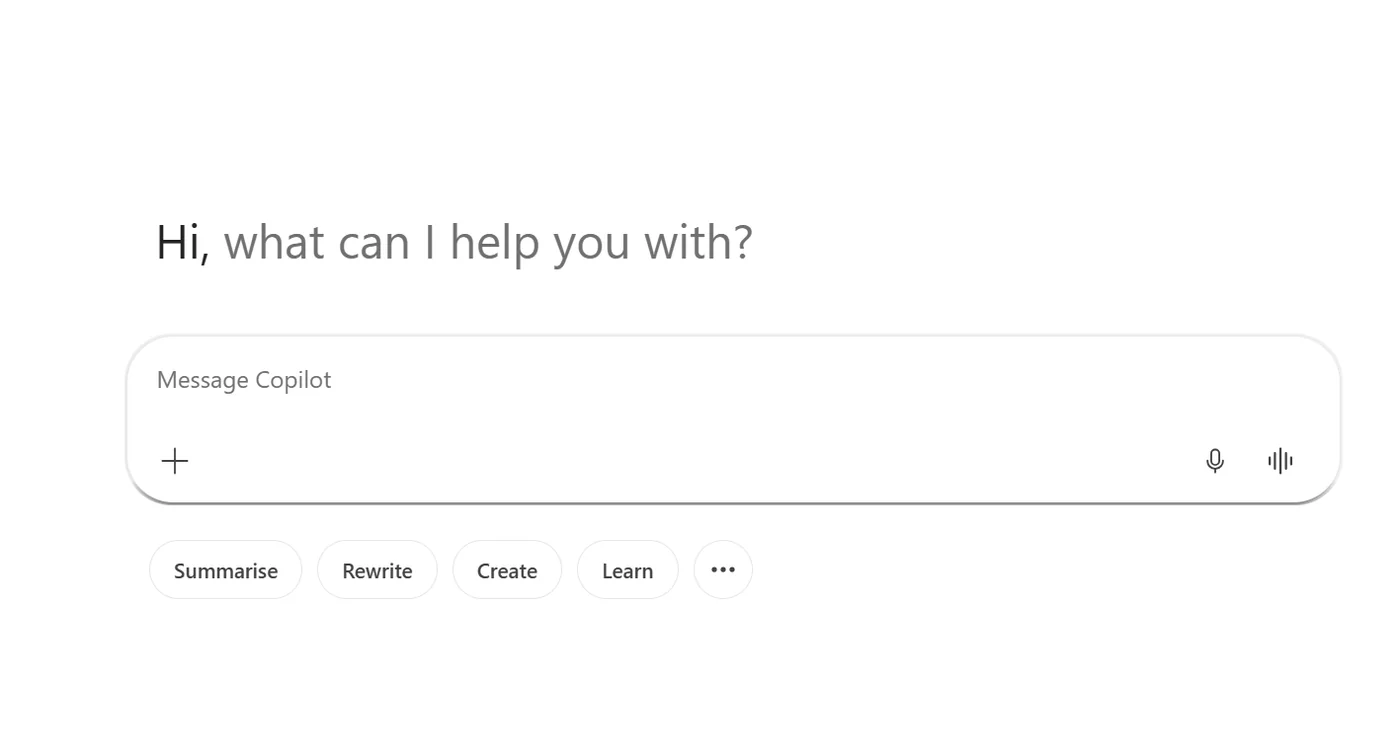
How to find it: Click the microphone icon in your compose box.
2. Audio Overviews in Word Documents
Copilot can now generate an audio overview of your Word document directly from the Summary tab. Instead of reading through a lengthy report, click the headphones icon in the AI Summary area at the top of your document and listen to a spoken recap.
💡 Why it matters: We all receive documents we need to review but don't have time to sit down and read. Audio overviews let you absorb the key points of a 30-page report while walking to your next meeting, driving, or grabbing coffee. It turns passive documents into on-the-go content.
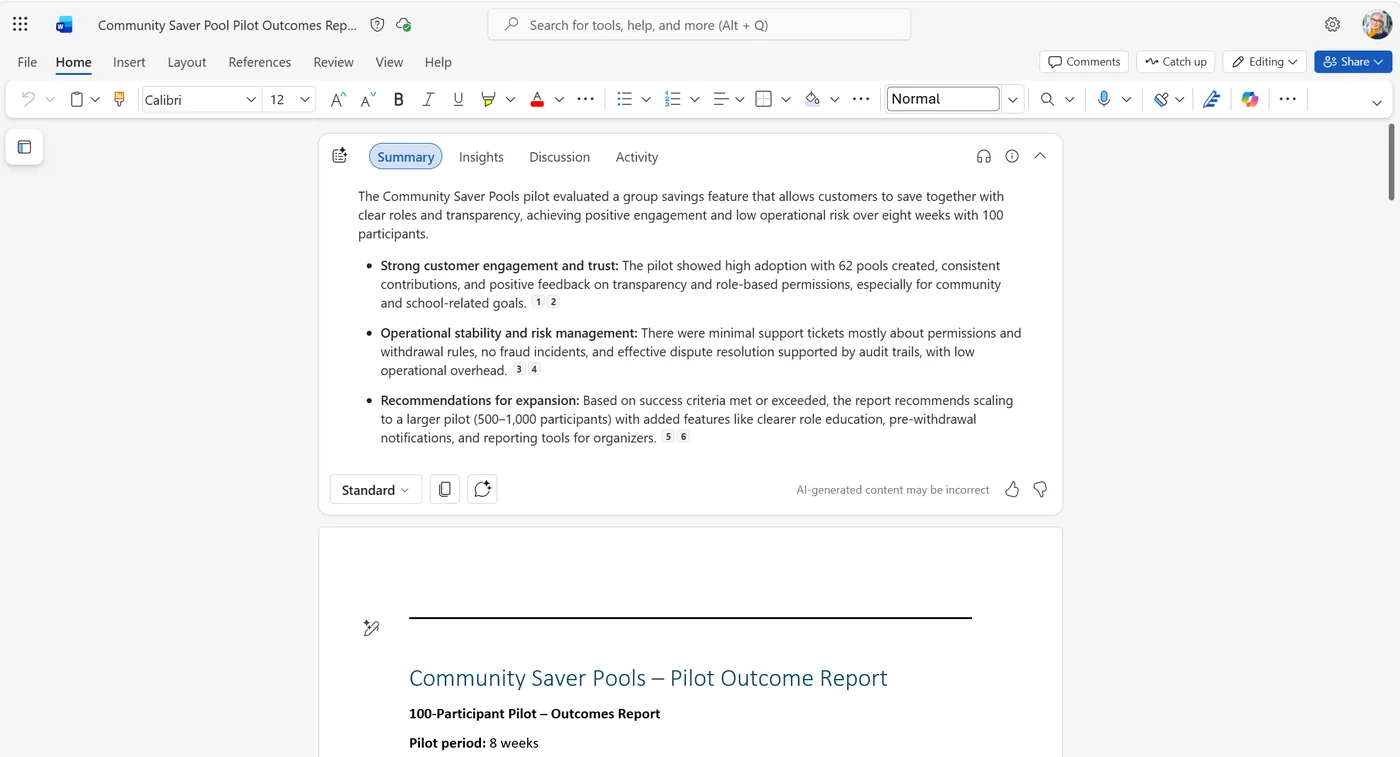
How to find it: Open a Word document → look for the headphones icon in the AI Summary area at the top.
3. PowerPoint Agent
For: All users · Currently rolling out
The new PowerPoint Agent helps you build polished presentations with strong storytelling and visual structure. It handles research, formatting, and layout so you can focus on your message. (Brand-aware presentation guide →) Use multi-turn chat to refine content or open the deck in PowerPoint for full editing and collaboration.
Not to be confused with Feature #6 (Copilot editing inside PowerPoint) — PowerPoint Agent lives in Copilot Chat and creates entire decks from scratch, while #6 is about editing an existing presentation from within PowerPoint itself.
💡 Why it matters: Building a good presentation takes hours — finding the right structure, making it look professional, sourcing content. PowerPoint Agent compresses that into a conversation. You describe what you need, refine it iteratively, and get a presentation-ready deck. Ideal for executive presentations, strategic updates, and market overviews.
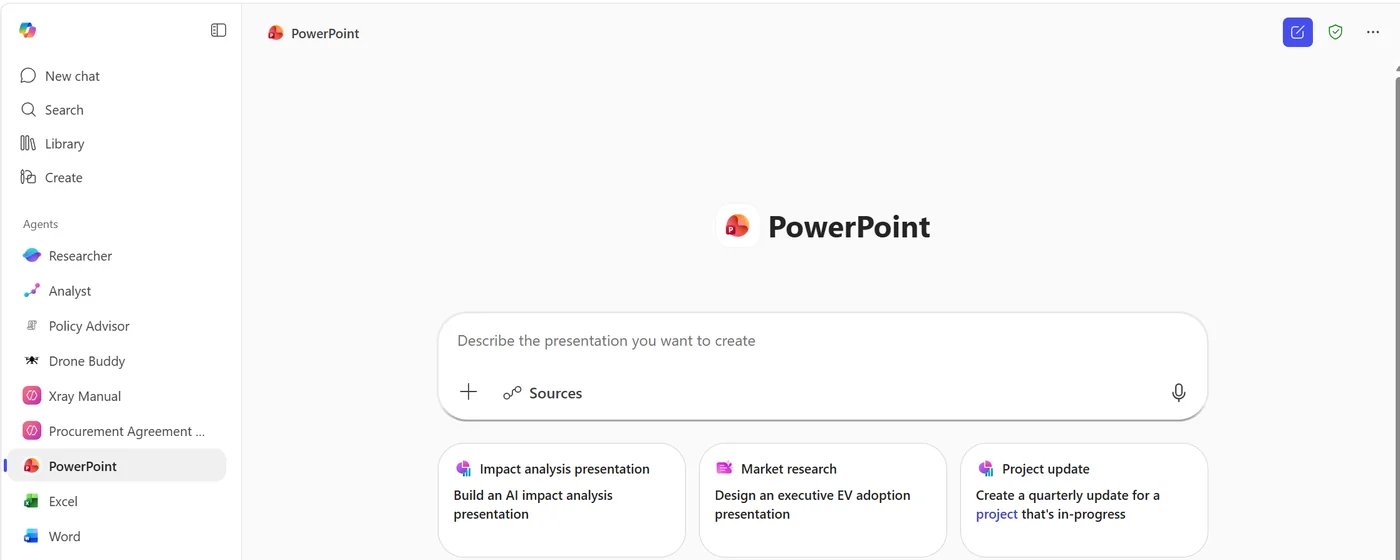
How to find it: Open Copilot Chat → look for PowerPoint Agent under ‘All Agents’ in the left-hand menu.
Who gets it: Available to Microsoft 365 users with or without a Microsoft 365 Copilot licence (your admin must enable it for your tenant).
4. Excel Agent
For: All users · Currently rolling out
The Excel Agent turns data into clear charts, summaries, and insights using built-in formulas and logic. It streamlines data preparation, formulas, and visualisation so you can focus on the story behind the numbers. Use multi-turn chat to refine your output or open it in Excel for full editing.
Not to be confused with Edit with Copilot (Agent Mode) in Excel — that feature works inside an existing workbook. Excel Agent lives in Copilot Chat and creates entirely new spreadsheets from conversation.
💡 Why it matters: Excel is powerful but intimidating for many users. The Excel Agent removes the formula-knowledge barrier — describe what you need in plain English and it builds the spreadsheet for you. Financial forecasts, project trackers, budgets, pivot tables — all through conversation. This is one of the most practical agents for everyday business users.
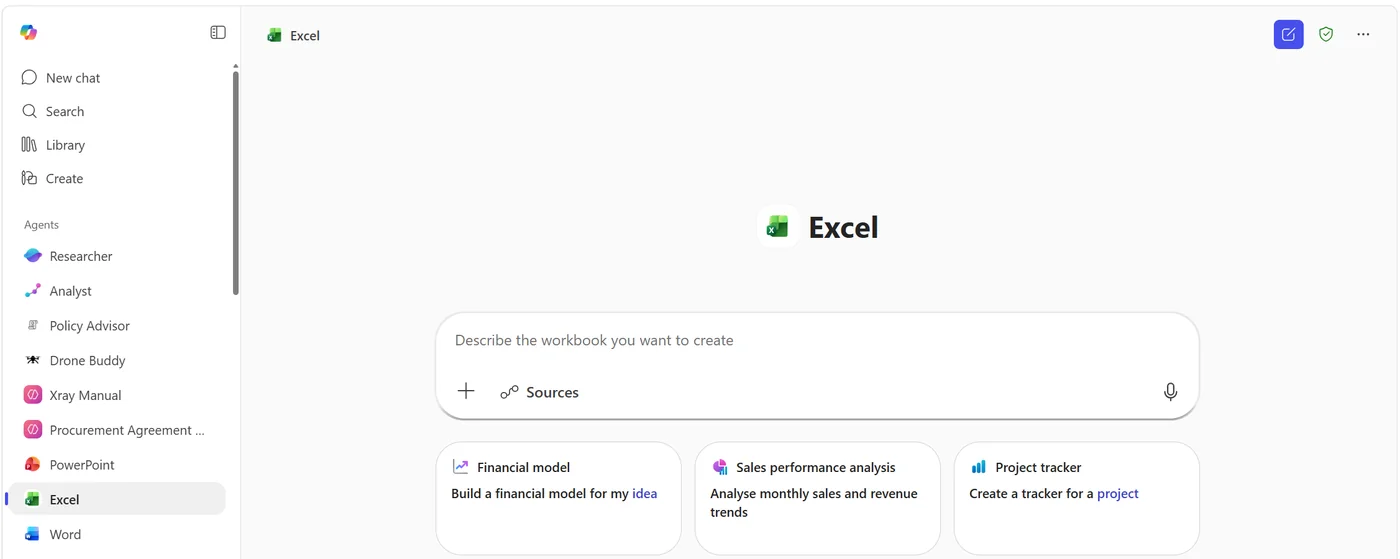
How to find it: Open Copilot Chat → look for Excel Agent under ‘All Agents’ in the left-hand menu.
Who gets it: Available with or without a paid Copilot licence (your admin must enable it for your tenant).
5. Word Agent
🔄 First introduced in March 2026 — now rolling out more broadly.
For: All users · Currently rolling out
Word Agent handles research, structure, and formatting so you can stay focused on your ideas. It’s designed for long-form, information-dense work — like strategic plans, policy documents, and technical papers. (Prompting guide for Word Agent →) Use multi-turn chat to refine your draft or open it in Word for full editing.
💡 Why it matters: Writing a 20-page policy document or technical paper from scratch is daunting. Word Agent gives you a co-author that understands structure and formatting — it handles the scaffolding while you focus on the substance. The multi-turn conversation means you can iterate on sections without starting over.
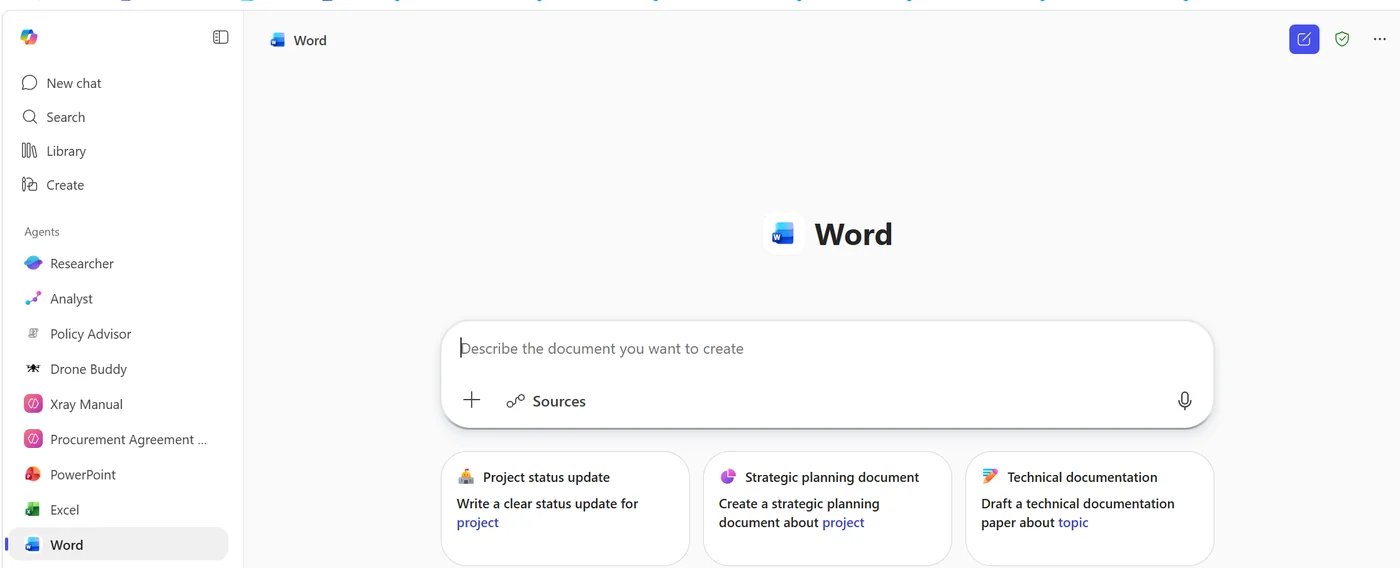
How to find it: Open Copilot Chat → look for Word Agent under ‘All Agents’ in the left-hand menu.
Who gets it: Available to Microsoft 365 users with or without a Copilot licence (your admin must enable it for your tenant).
6. Copilot Can Edit Your PowerPoint
🔄 First introduced in March 2026 — now generally available.
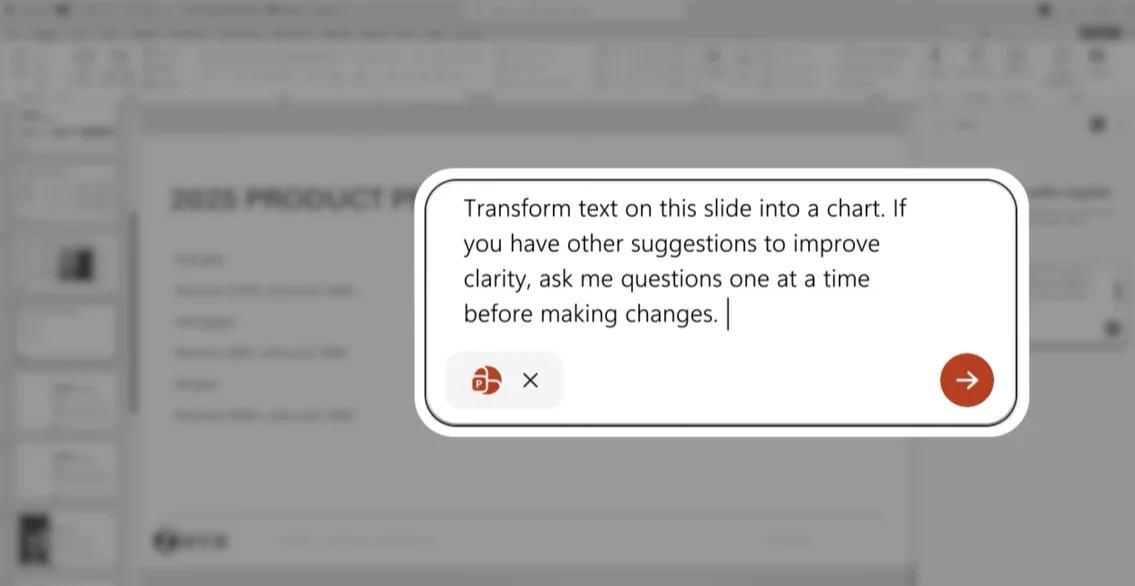
Copilot in PowerPoint now lets you create, edit, and refine presentations through natural conversation — directly in your presentation, not just the side panel. You can generate slides, update content, improve layouts, and polish design while preserving formatting, structure, and branding.
💡 Why it matters: Previously, Copilot in PowerPoint could help you create decks but editing was limited to the side panel. Now the full editing experience is conversational — ask Copilot to swap a layout, add a slide, or restructure content and it happens right where you're working. The **brand kit integration** means your decks stay on-brand without you having to manually check templates and images.
Who gets it: Available to Copilot-licensed users.
7. Overview Page in Copilot Notebooks
🔄 First introduced in March 2026 — now generally available.
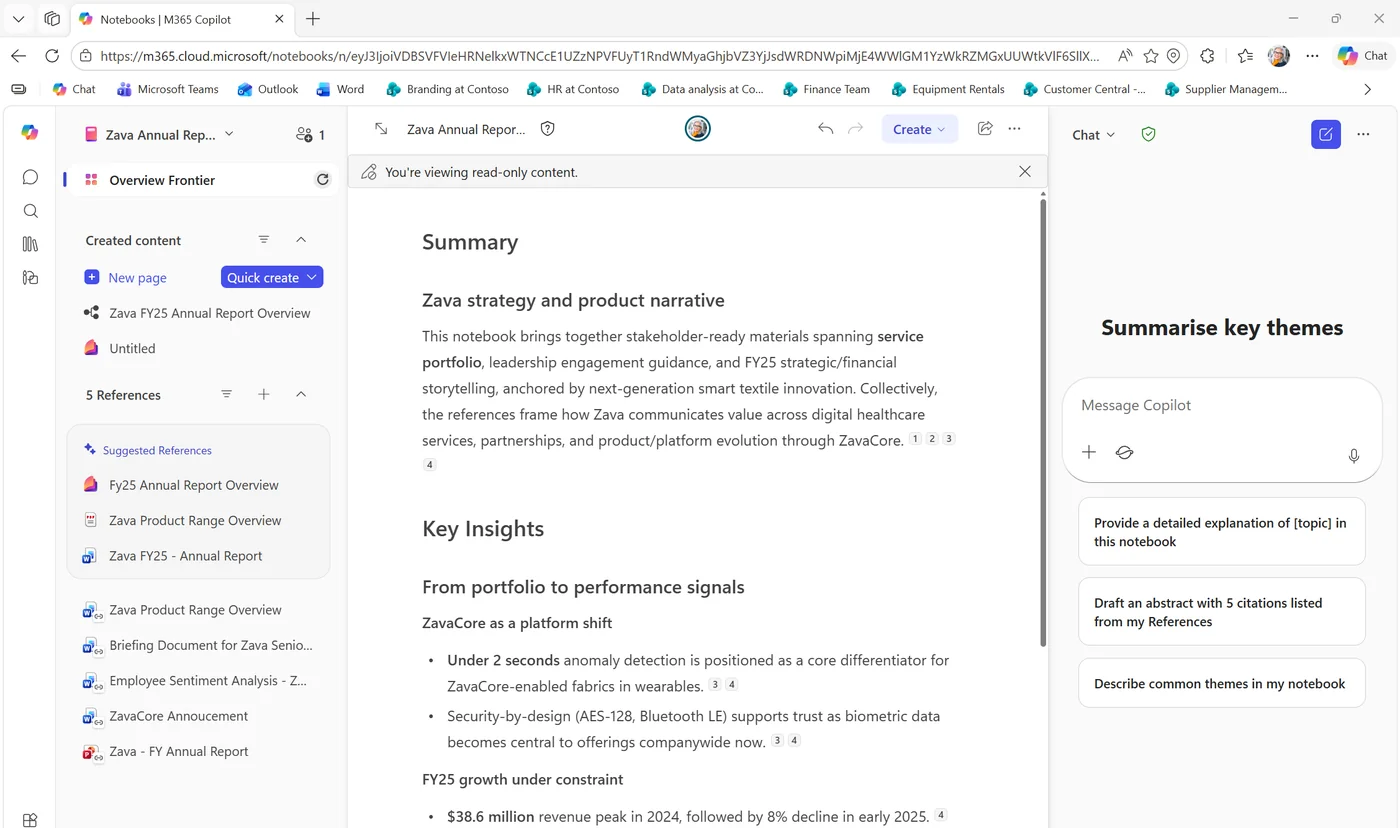
Copilot Notebooks now features a landing page with AI-powered summaries and insights. When you open a Notebook, you’ll see an overview that helps you quickly understand the key themes and content without scrolling through everything. (Notebook overview brief →)
💡 Why it matters: Notebooks can grow long and messy. The overview page acts like an executive summary — the moment you open a Notebook, you see the key takeaways without having to scroll through pages of notes. It's particularly useful when you're returning to a Notebook days or weeks later and need to quickly remember where you left off.
8. Planner Agent
For: All Copilot-licensed users
The new Planner Agent (formerly ‘Project Manager Agent’) helps you plan, organise, and manage work more efficiently. Starting with core task and plan management features, it simplifies project tracking with additional advanced capabilities coming over time.
💡 Why it matters: Project management shouldn't require switching to a separate app and clicking through forms. The Planner Agent lets you create tasks, assign them, and track progress through natural conversation in Copilot Chat. Think of it as having a project coordinator that listens to your instructions and updates Planner for you.
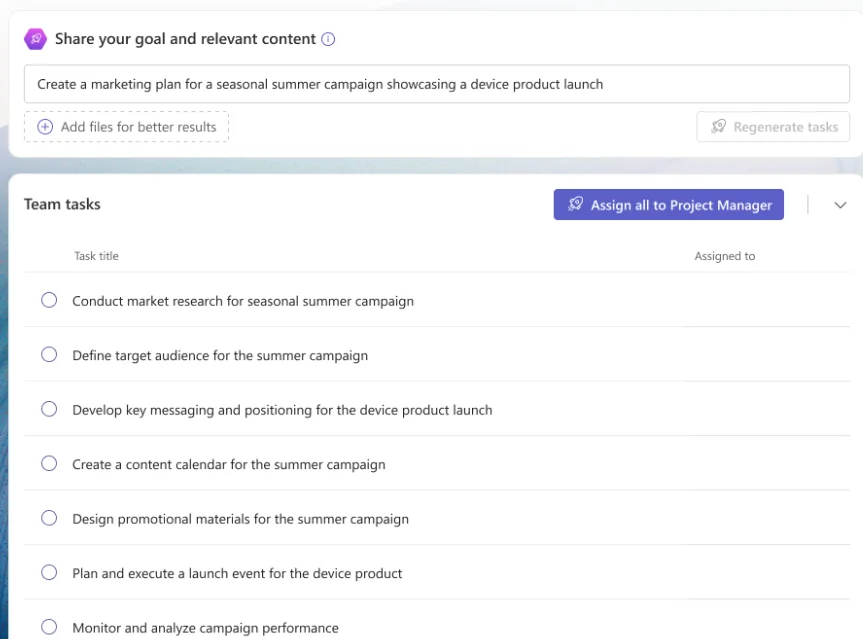
How to find it: Open Copilot Chat → look for Planner under ‘All Agents’ in the left-hand menu.
Bonus: Planner Agent is now available for Copilot-licensed users in all group-based Planner plans, including basic plans — not just premium plans.
📖 M365 Roadmap 516576 · Roadmap 511820
9. SharePoint List Agent
🔄 First introduced in March 2026 — now generally available.
The SharePoint List Agent enables effortless list creation through prompts with intelligent schema generation. It helps teams quickly transform structured information and Copilot responses into Microsoft Lists.
Not to be confused with Feature #20 (AI in SharePoint) — the List Agent creates new lists from conversation, while AI in SharePoint focuses on managing and enriching existing SharePoint content.
💡 Why it matters: Creating a well-structured SharePoint list usually means deciding on column types, validation rules, and views — which can be overwhelming for non-technical users. Now you can describe what you need ("I need a list to track vendor contracts with expiry dates, renewal status, and assigned owners") and the agent builds the schema for you.
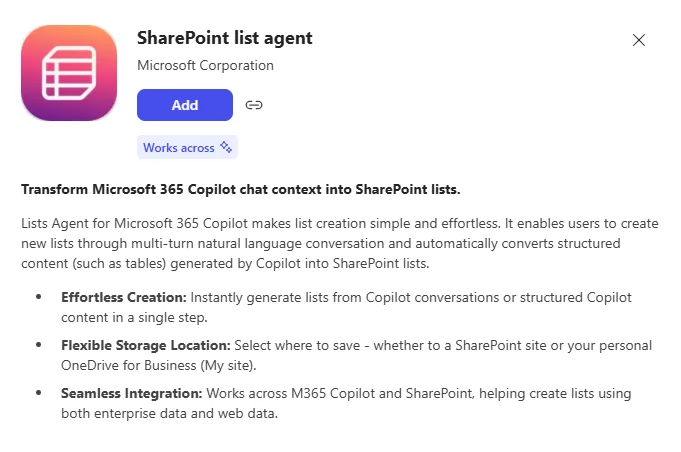
How to find it: Add it from the Agent Store (‘All Agents’ on your left-hand menu in Microsoft Teams). Your admin may need to enable this for your organisation.
10. Quickly Edit Images in PowerPoint
Edit your images directly in PowerPoint with Copilot — no need to switch apps or interrupt your flow. Whether you’re refining visuals for a pitch deck or enhancing marketing assets, the image editor makes it fast and seamless. Improve resolution, remove backgrounds, and more.
💡 Why it matters: We've all been there — you're building a deck and an image needs a quick fix, so you open a separate image editor, make the change, export, re-import. That workflow is gone. Now it's all inline. This is especially valuable for non-designers who don't have Photoshop skills but still need professional-looking visuals.
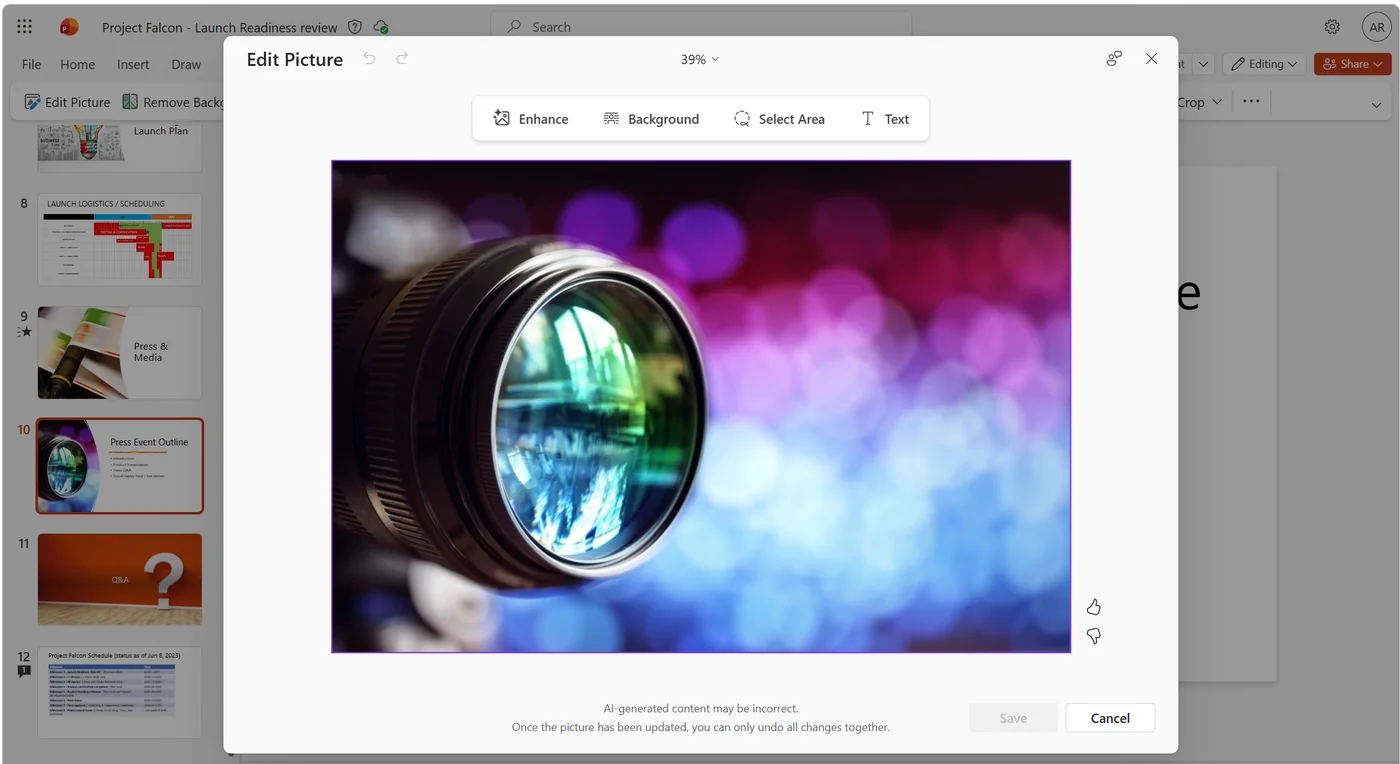
How to find it: Right-click on an image and choose ‘Edit Picture’.
11. Contextual Explanations in PowerPoint
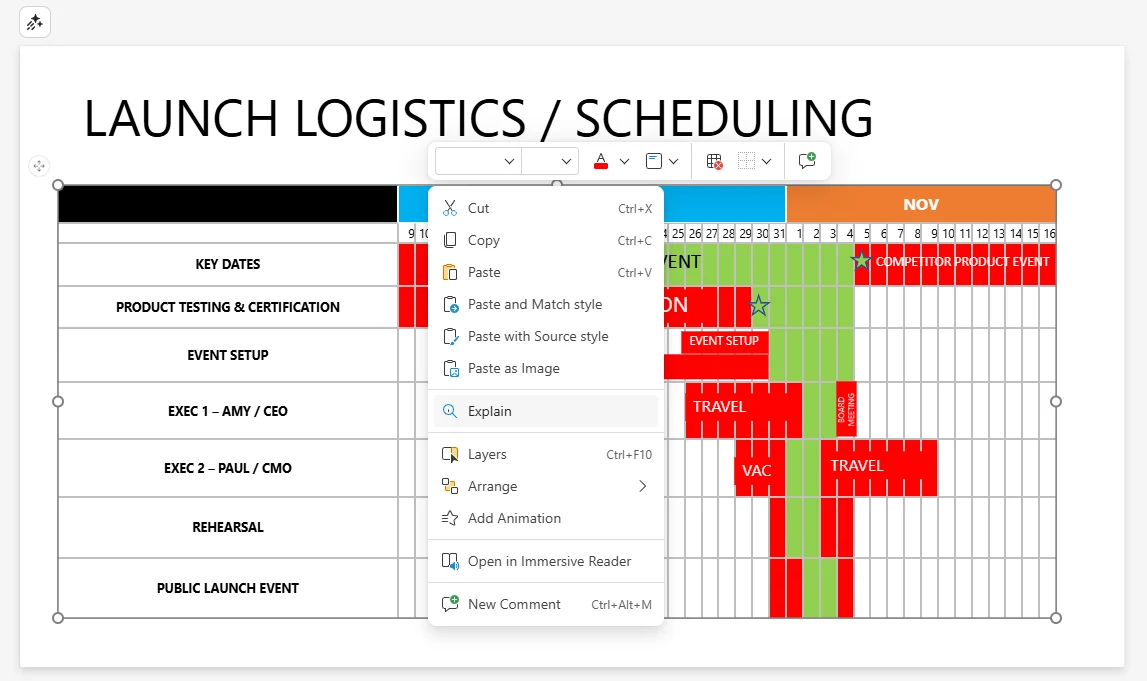
Right-click on an acronym, text box, image, or an entire slide in PowerPoint and choose ‘Explain’ to get a Copilot-generated detailed contextual explanation. No more guessing what that abbreviation means in someone else’s deck.
💡 Why it matters: We've all opened a presentation from another team and found it full of acronyms and jargon we don't recognise. Instead of Googling or asking the author, you can now right-click and get an instant explanation that understands the context of the presentation. This saves time and reduces misunderstandings.
12. Declarative Agents Understand Embedded Images
For: Developers and agent builders
Declarative Agents can now interpret and ground responses using images embedded in Word documents, PowerPoint presentations, and PDFs. This means your agents can extract insights from charts, diagrams, and screenshots — delivering answers that are informed by both text and visual context.
💡 Why it matters: Until now, Declarative Agents could only read text. If your document had a chart showing quarterly revenue or a diagram explaining a process, the agent couldn't "see" it. Now it can. This is a game-changer for organisations whose knowledge base is full of visual content — engineering diagrams, financial charts, process flows, architecture diagrams — all of which are now accessible to your agents.
13. Calendar Search for Email Delegates
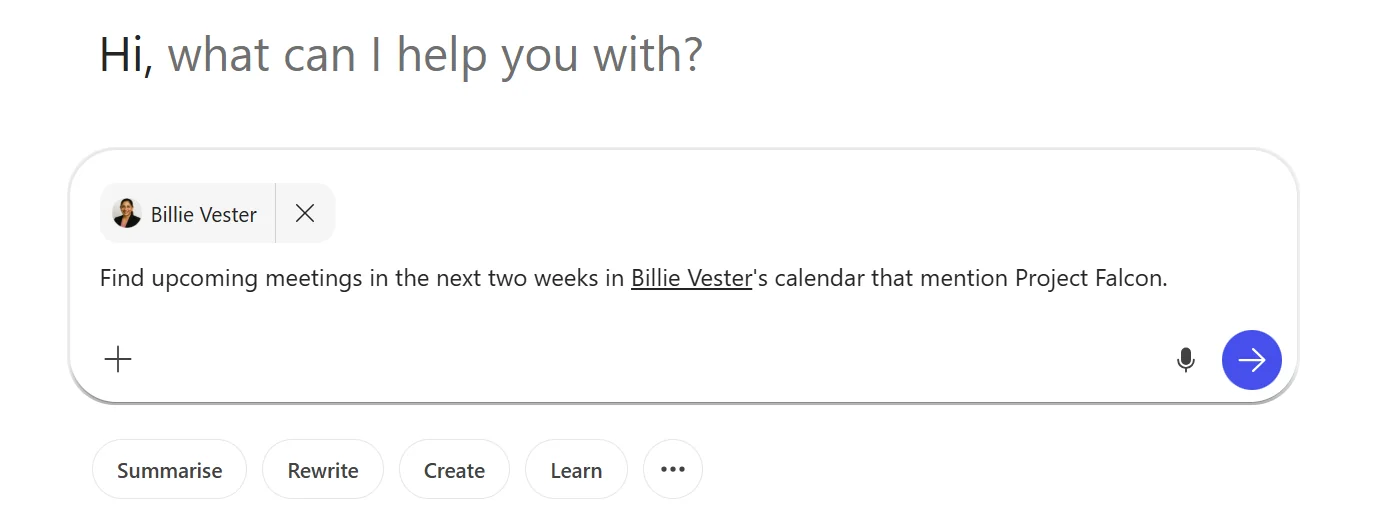
Delegates with existing calendar access can now search for meetings using Copilot Chat. If you manage someone else’s calendar, this saves significant time by letting Copilot find and surface meeting details on your behalf.
💡 Why it matters: Executive assistants and admins who manage calendars for others have been asking for this. Instead of manually scrolling through someone's calendar to find a specific meeting, you can now ask Copilot "When was Sarah's last meeting with the finance team?" and get an instant answer. It respects existing delegate permissions, so there's no additional setup needed.
14. Interpreter Agent in Teams Rooms on Windows
The Interpreter Agent acts as a real-time translator in Microsoft Teams meetings, allowing participants to listen in their chosen language. Speaking different languages is no longer a barrier to effective collaboration.
💡 Why it matters: For multinational organisations, language barriers in meetings mean some people can't fully participate. The Interpreter Agent solves this at scale — meeting rooms equipped with Teams Rooms on Windows now offer real-time translation without needing a separate service. It's like having a UN-style interpreter built into every conference room.
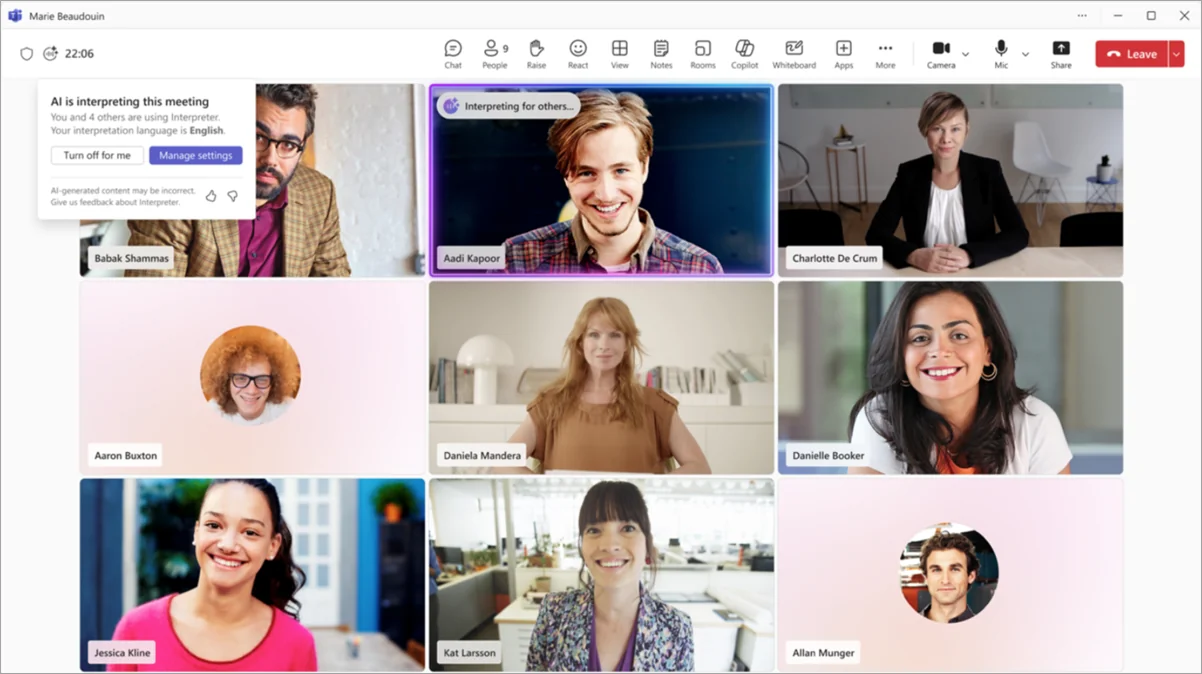
Who gets it: Now available in Teams Rooms on Windows licensed for Teams Rooms Pro.
15. AI Workflows in the Workflows App
For: All users (admin must enable)
The Workflows app in Teams now includes AI-powered templates to automate complex tasks and streamline daily operations. These intelligent automation tools simplify task execution and help users stay organised throughout the day.
💡 Why it matters: Automation shouldn't require a developer. AI Workflows gives everyday users access to pre-built, AI-powered automation templates right inside Teams. Think of it as Power Automate's simpler, AI-native cousin — designed for people who want to automate repetitive tasks without building flows from scratch.
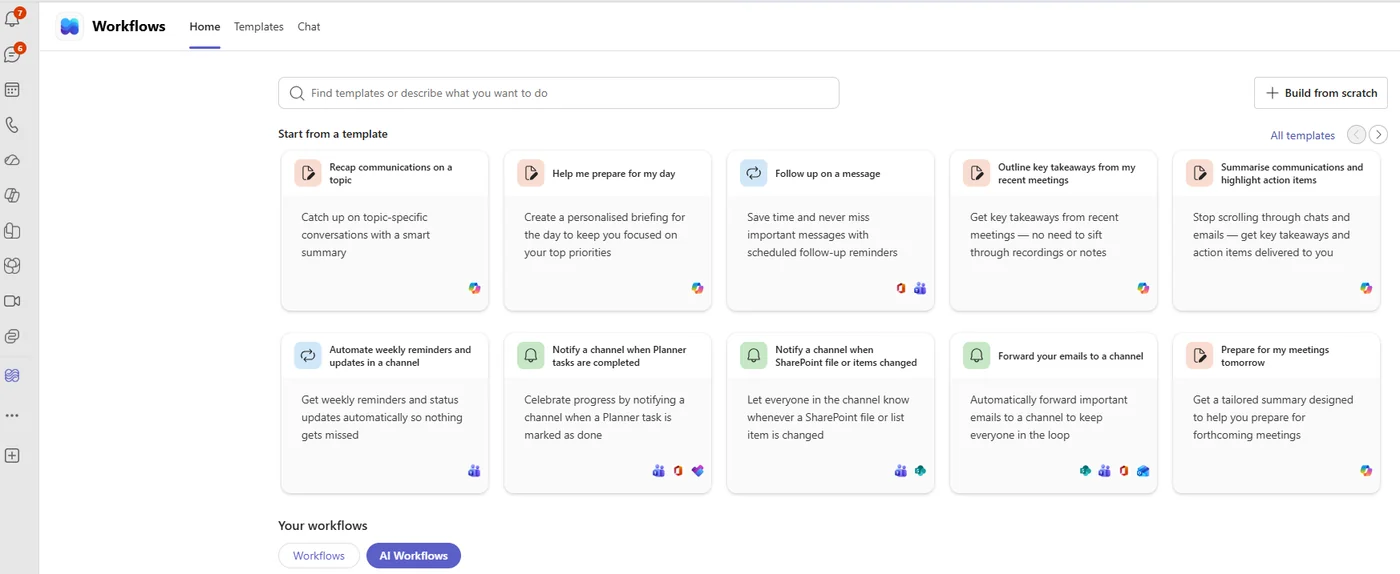
How to find it: Open Teams → Apps → Workflows. Note: This is a Frontier feature — your admin must enable it first.
16. Code Interpreter Analyses Chat Search Files
For: Copilot-licensed users
Previously, Code Interpreter only worked on files you explicitly uploaded or attached. Now, files that Copilot Chat finds via enterprise search can be analysed by Code Interpreter without the need to manually link or upload them.
💡 Why it matters: This removes a clunky step from the workflow. Before, you had to search for a file, download it, then upload it to Copilot for analysis. Now the entire pipeline is seamless — ask Copilot about a file, it finds it in your organisation's data, and Code Interpreter can immediately run analysis on it. One question, one answer, no manual steps in between.
17. Prepare for Meetings in Outlook Mobile
🔄 First introduced in March 2026 — now generally available.
Outlook mobile users can now prepare for their meetings using Copilot Chat in a single tap. Get meeting context, relevant documents, and key discussion points before you walk into the room.
💡 Why it matters: How many times have you walked into a meeting unprepared because you were running between calls? One tap in Outlook mobile and Copilot pulls together everything you need — who's attending, what was discussed last time, relevant files, and suggested talking points. It turns your commute into prep time.
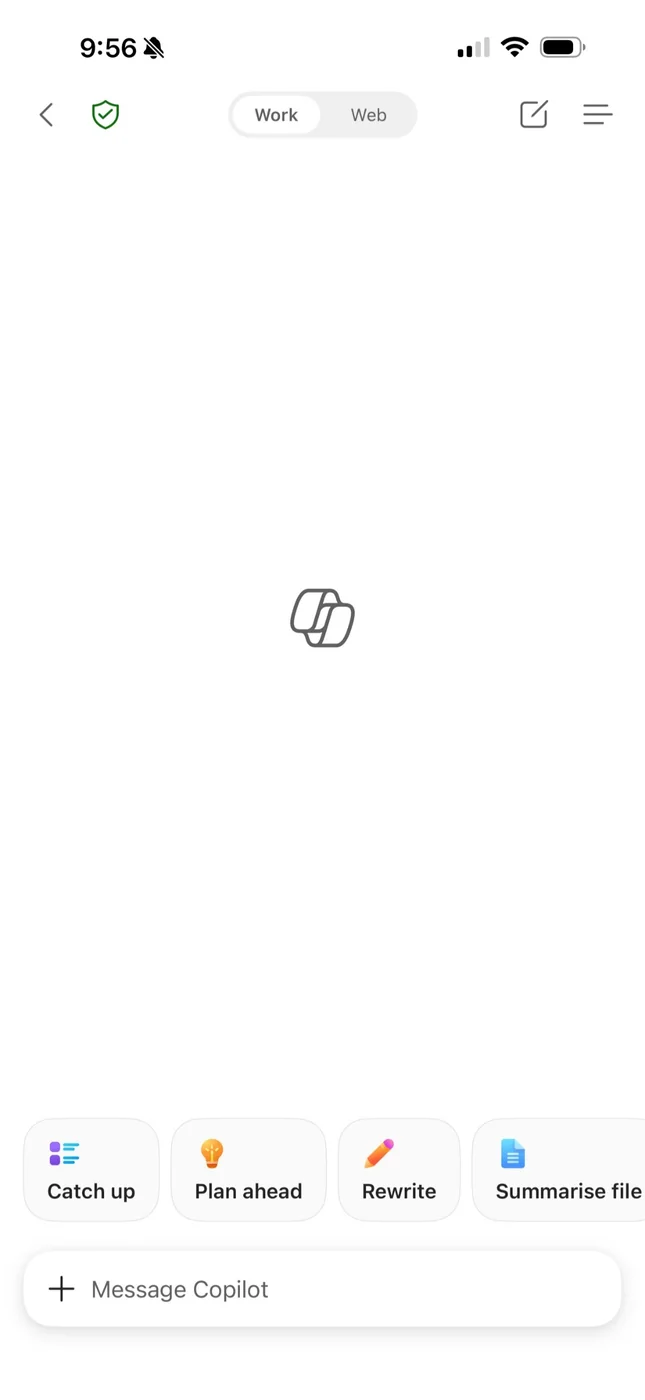
Who gets it: Requires a Microsoft 365 Copilot licence.
18. Copilot Pages in Outlook Mobile
Continue working with Copilot and colleagues while on the go — you can now view, edit, and share Copilot Pages on mobile through Outlook.
💡 Why it matters: Copilot Pages are becoming the go-to format for collaborative AI-generated content. Being able to access, edit, and share them from your phone means you're never out of the loop — whether you're reviewing a colleague's draft on the train or sharing insights from your phone during a quick break.
19. News AI Audio Briefing in Viva Connections Mobile
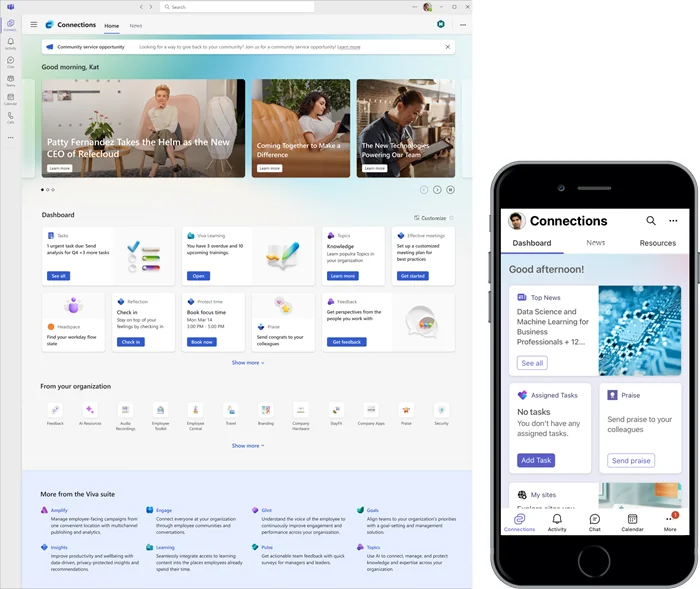
An AI-generated audio overview of the top 10 news items is now available in the Viva Connections news reader on Teams mobile (iOS and Android). It plays clips sequentially so you can catch up on company news in a hands-free manner.
💡 Why it matters: Keeping up with company news is important but rarely urgent enough to sit down and read. This feature turns your organisation's news into a podcast-like experience — listen to the top 10 items while walking, driving, or during downtime. It's a simple but powerful way to keep employees informed and engaged.
20. AI in SharePoint (formerly ‘Knowledge Agent’)
For: SharePoint admins and content owners · Rolling out in preview
This feature simplifies SharePoint content management and ensures content is Copilot-ready by automating metadata, fixing stale content, enabling fast page creation, improving compliance, and enriching content so Copilot can deliver more accurate, grounded answers. Your admin may need to enable this feature and availability may vary by tenant.
Not to be confused with Feature #9 (SharePoint List Agent) — that agent creates new lists from conversation. AI in SharePoint focuses on managing and enriching your existing SharePoint content to improve Copilot’s answers across the board.
💡 Why it matters: Copilot is only as good as the data it has access to. If your SharePoint sites are full of outdated documents with missing metadata, Copilot's answers will be unreliable. AI in SharePoint acts as a content quality manager — it cleans up your knowledge base automatically so Copilot can give better answers. Think of it as preparing your house before the guests arrive.
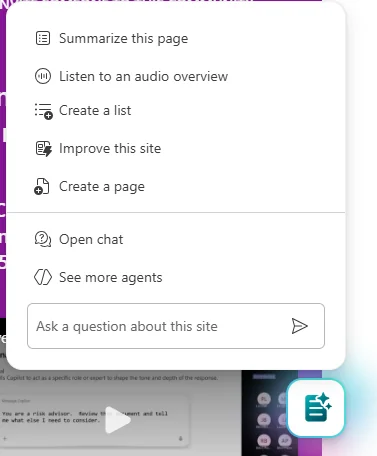
21. Teams Channel Agent Updates
Channel Agents get several improvements including dynamic, channel-aware welcome messages, greater flexibility in channel creation (with or without an agent), expanded agent permissions for member management, and scheduling enhancements.
💡 Why it matters: Channel Agents are becoming the backbone of how teams interact in channels. These updates make them smarter and more flexible — welcome messages that adapt to the channel's purpose, better member management, and scheduling capabilities mean your channel agents can do more of the heavy lifting for team coordination.
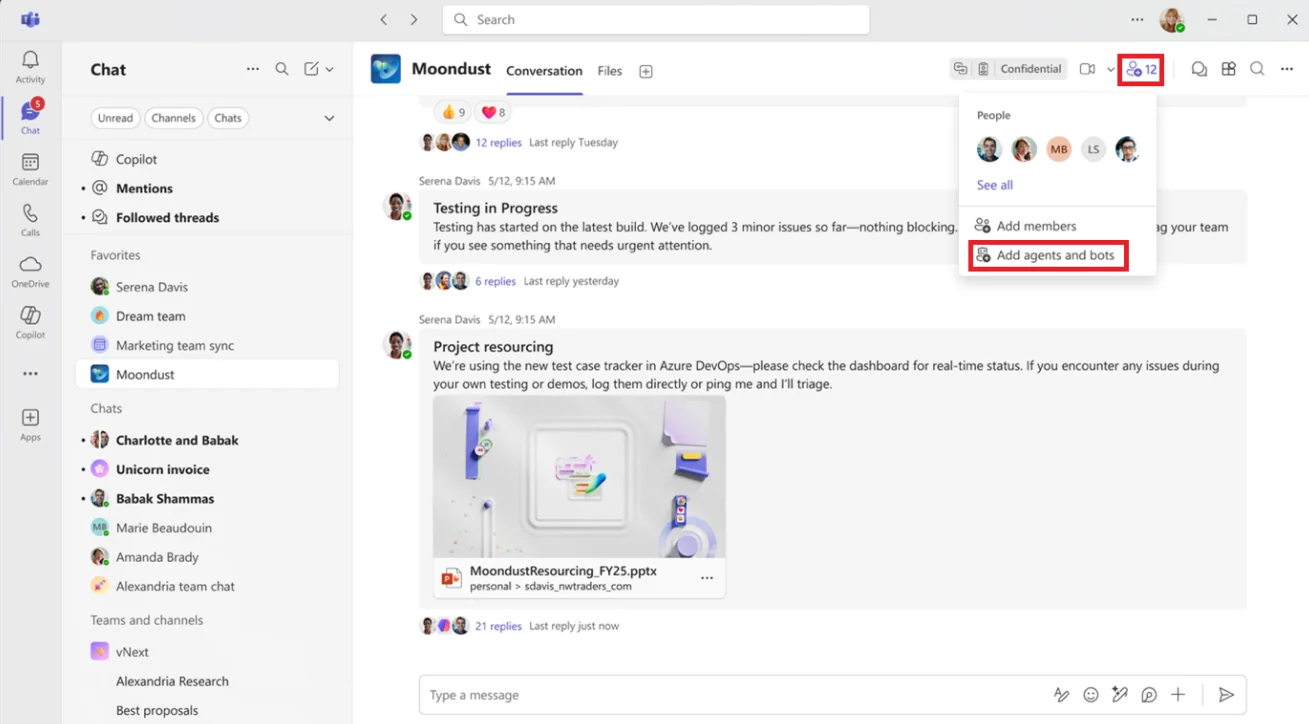
Note: Channel Agents are currently rolling out — availability may vary by tenant.
22. “Hey Copilot” Wake Word on Windows
For: All users · Currently rolling out
Say “Hey Copilot” to activate real-time voice conversations with the M365 Copilot app on Windows. The wake word keeps you in flow — draft content, analyse data, and get critical insights without navigating to a separate app or window.
💡 Why it matters: This is the "Hey Siri" or "OK Google" moment for Microsoft 365. You're working on a spreadsheet, need a quick answer, and instead of switching windows and typing, you just say "Hey Copilot" and ask. It's built for enterprise — it respects your organisation's compliance and privacy settings, and only activates when called. No always-listening concerns.
How to enable: In the Microsoft 365 Copilot app on Windows, go to Settings → Quick View and toggle it on.
23. Copilot Settings — Optimize View in Admin Center
For: IT admins
The new Copilot settings landing experience in the Microsoft 365 admin center centralises visibility into key configuration status. It helps admins optimise settings for Copilot success using Microsoft-recommended policies, actions, and guidance — enabling secure and confident deployment.
💡 Why it matters for admins: Managing Copilot settings has been scattered across multiple admin center pages. This new view brings everything into one place with clear recommendations from Microsoft. Instead of wondering "have I configured everything correctly?", the Optimize view tells you what's set up, what's missing, and what Microsoft recommends — like a health check for your Copilot deployment.
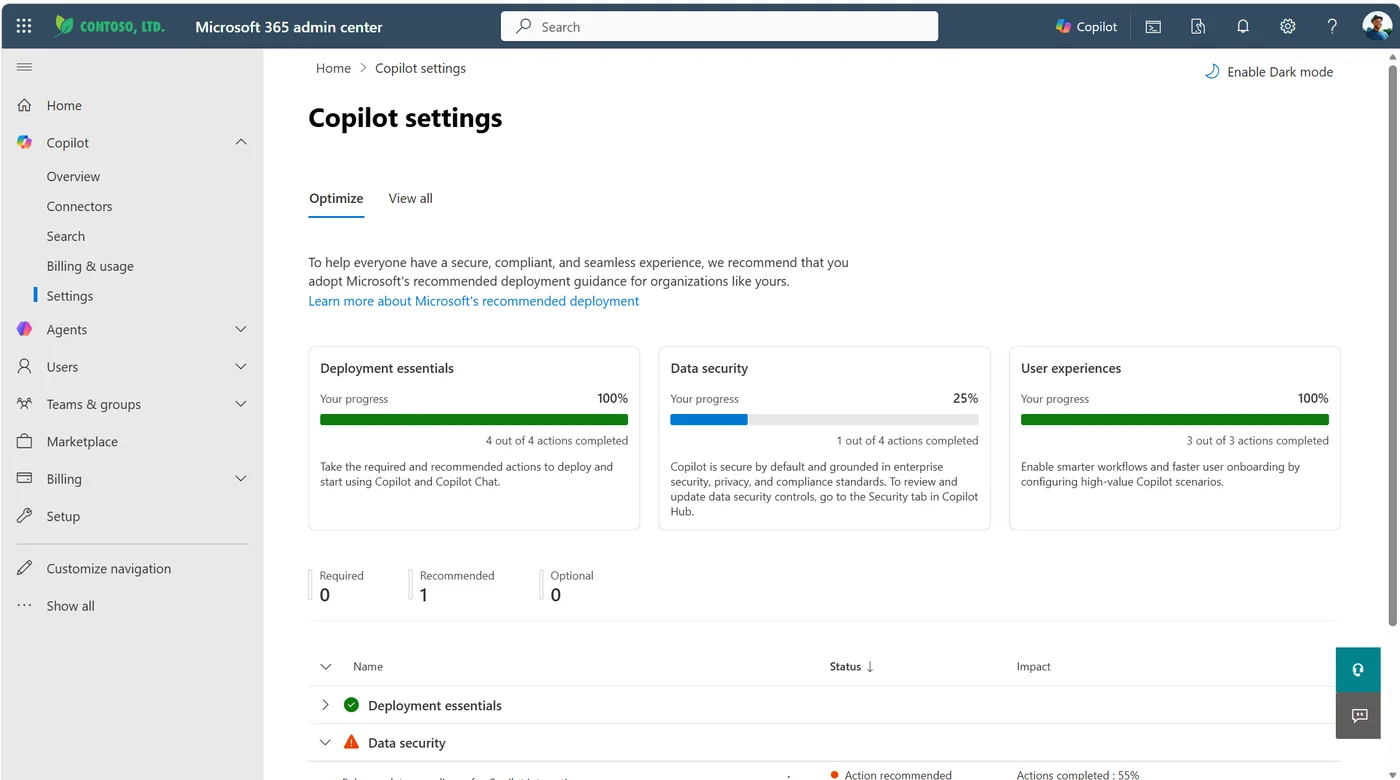
How to find it: Go to Microsoft 365 admin center → Copilot → Settings.
24. Agent Metadata in Inventory Export
For: IT admins
The agent metadata export in the Microsoft 365 admin center now includes expanded fields covering Capabilities, Data Sources, Actions, Created In, and Created By. This enables enhanced visibility for auditing, governance, and lifecycle tracking.
💡 Why it matters for admins: As organisations build more agents, governance becomes critical. Who created this agent? What data can it access? What actions can it take? This expanded metadata export gives admins the visibility they need to audit and manage their agent ecosystem — essential for compliance and security reviews.
25. Purview Insider Risk Management — Pay-as-You-Go Usage Report
For: Compliance and security admins
A new pay-as-you-go feature usage report provides granular breakdowns of billed processing unit usage across different data source categories and activity indicators. It empowers IRM admins to identify cost-saving opportunities and tune their policies for better budget planning.
💡 Why it matters for admins: Pay-as-you-go billing can be unpredictable without visibility. This report tells you exactly where your money is going — which data sources are consuming the most processing units, which indicators are triggering, and where you can optimise. Budget transparency leads to better policy tuning and cost control.
New Copilot Connectors
For: All users (admin must deploy connectors)
This month brings eight new Copilot Connectors, letting you search and interact with third-party tools directly from Copilot Chat. Your admin deploys the connector; you just ask Copilot a question and it pulls data from the connected system.
| # | Connector | What you can do | Roadmap |
|---|---|---|---|
| 26 | GitLab Issues | Track engineering tasks and bugs (Cloud + Server) | 515158 |
| 27 | Asana | Manage projects and tasks | 515175 |
| 28 | Monday.com | Track work and team progress | 515177 |
| 29 | Guru | Retrieve internal knowledge and team insights | 513281 |
| 30 | Coda | Query collaborative documents and wikis | 515165 |
| 31 | Zendesk Help Center | Retrieve support articles and FAQs | 513279 |
| 32 | Egnyte | Collaborate on secure file storage | 513283 |
| 33 | Amazon S3 | Access structured document repositories | 513285 |
💡 Why it matters: Every connector that lands means one fewer tab you need to keep open. If your team uses GitLab for code issues and Asana for project tracking, you can now ask Copilot about both without leaving Microsoft 365. The Amazon S3 connector is especially significant for multi-cloud organisations — Copilot now reaches across cloud boundaries.
How to find it: Your admin deploys connectors from the Microsoft 365 admin center → Settings → Copilot → Connectors. Once deployed, simply ask Copilot a question and it searches the connected system.
29. No-Code Publishing for Azure AI Foundry Agents
For: Developers and IT admins
Developers can now publish Azure AI Foundry Agents directly to the Microsoft 365 Copilot Agent Store with a simplified, no-code experience. This removes the friction of getting your custom AI agents into the hands of your users.
💡 Why it matters: Previously, publishing custom agents to the M365 ecosystem required packaging, manifest configurations, and deployment steps. Now it's streamlined — build your agent in Azure AI Foundry and publish it to the Copilot Agent Store with a few clicks. This dramatically lowers the barrier for organisations building custom AI solutions.
35. Custom MCP Connectors in M365 Admin Center
For: IT admins and developers
Admins can now configure custom Model Context Protocol (MCP) connectors in the Microsoft 365 admin center and deploy them across the organisation. (MCP governance guide →) Unlike traditional Graph connectors that index data, MCP connectors are designed for real-time, federated access — allowing Copilot to query external systems on the fly, with users authenticating directly to those systems.
💡 Why it matters: MCP is the emerging open standard for connecting AI models to external data and tools. Microsoft supporting custom MCP connectors means your organisation can bring virtually any data source into Copilot — internal databases, custom APIs, proprietary systems — without waiting for Microsoft to build a pre-built connector. Because it's real-time and user-authenticated, there's no stale data and permissions are always respected.
36. Embedded Knowledge for Declarative Agents (Teams Toolkit)
For: Developers and agent builders
Developers and makers can now embed knowledge (PDF, DOC/DOCX, PPT) directly into their declarative agents built with Teams Toolkit for additional grounding capabilities.
💡 Why it matters: Previously, declarative agents relied on external data sources for grounding. Now you can bundle documents directly into the agent itself — perfect for agents that need to be experts on a specific set of documents (product manuals, company policies, onboarding guides) without requiring a Graph connector or SharePoint site.
37. Copilot Studio Agent Report in Viva Insights
For: IT admins and Copilot champions
The Copilot Studio agents report in Viva Insights now includes agents with ‘generative’ orchestration and tracks autonomous agent adoption and impact — including maker-led time and cost savings.
💡 Why it matters: As more teams build agents, leadership needs to measure ROI. This enhanced report doesn't just show usage — it quantifies the time and cost savings from autonomous agents. It's the data you need to justify continued investment in agent development and prove business value to stakeholders.
38. Satisfaction Rate Metric in Copilot Dashboard
For: IT admins and Copilot champions
Track user sentiment of Microsoft 365 Copilot with a new satisfaction rate metric. Understand how users perceive Copilot value by analysing thumbs up/down ratings after interactions, with trends over time and breakdowns by group.
💡 Why it matters: Usage numbers alone don't tell you if Copilot is actually helping. A user might use Copilot 50 times a day but only find it useful half the time. The satisfaction rate metric gives admins and leaders a direct signal of perceived value — and lets you spot which groups are struggling (so you can provide targeted training) versus which groups are thriving.
How to find it: Go to Viva Insights → Copilot Dashboard → Satisfaction tab.
39. Purview DLP for Microsoft 365 Copilot Prompts
For: Compliance admins · Currently rolling out
Microsoft Purview Data Loss Prevention now safeguards prompts containing sensitive data. This real-time control prevents Copilot from returning responses when prompts contain sensitive data or using that data for grounding — helping mitigate data leakage and oversharing risks. (Copilot DLP guide →)
💡 Why it matters: One of the biggest concerns with AI adoption is users accidentally sharing sensitive data through prompts — credit card numbers, employee IDs, classified project names. Purview DLP now catches these in real time, blocking the response before any sensitive data leaks. This is a critical security control for regulated industries like finance, healthcare, and government.
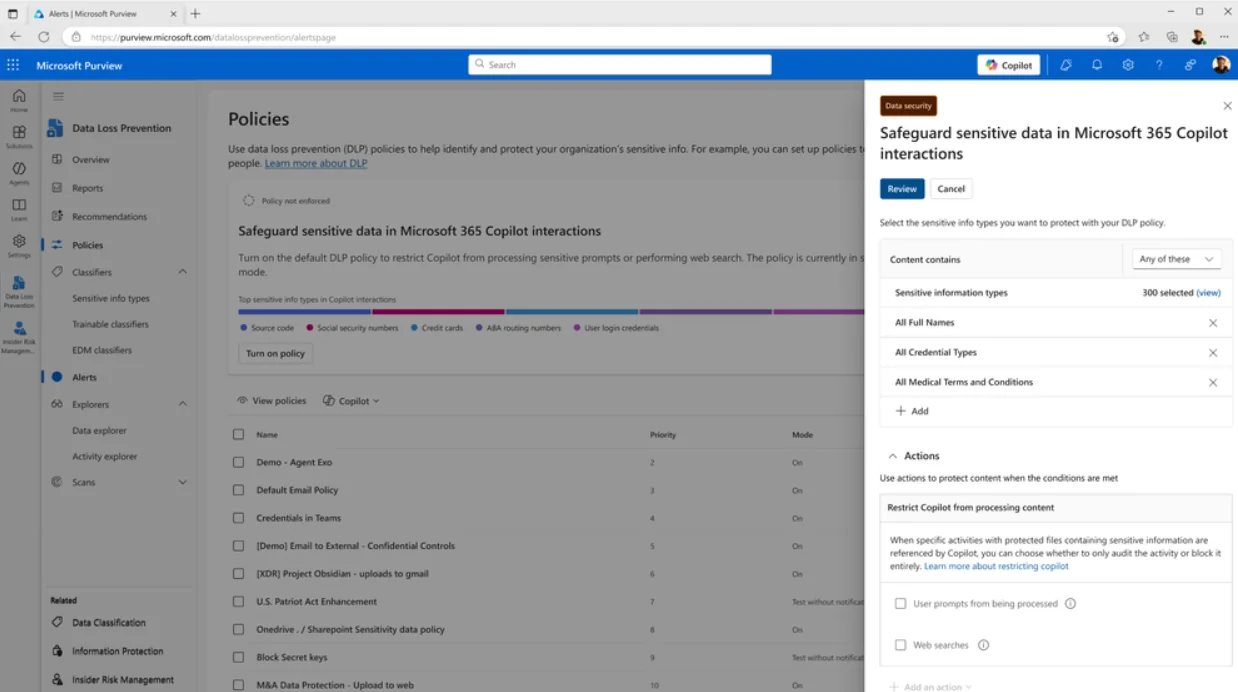
40. Copilot Analytics Power BI Update with Power User Insights
For: IT admins and Copilot champions · Currently rolling out
The updated Copilot adoption Power BI report comes with a streamlined UX and new Power User insights, helping you understand who your most active Copilot users are and how they’re driving value.
💡 Why it matters: Knowing your power users is essential for two reasons: they're your best internal champions for driving adoption, and their usage patterns reveal the most effective ways to use Copilot in your organisation. This report surfaces those insights so you can leverage them for training, change management, and executive storytelling.
41. Copilot Dashboard — Broader Access to Copilot Chat Insights
For: IT admins (tenants with 1–49 licences) · Currently rolling out
Microsoft is expanding access to M365 Copilot Chat Insights in the Copilot Dashboard by enabling tenants with 1–49 Copilot licences — so even smaller organisations can track adoption trends, app-level breakdowns, retention, and more.
💡 Why it matters: Previously, the Copilot Dashboard insights were only available to larger tenants. Smaller organisations — who arguably need these insights the most to prove ROI and justify their investment — were left out. This update levels the playing field, giving every organisation visibility into how Copilot is being used and where it's delivering value.
📚 Official Microsoft Resources
- Microsoft 365 Copilot overview
- Microsoft 365 roadmap
- Microsoft 365 Copilot adoption guide
- What’s new in Microsoft 365
🔗 Related Content on This Site
- January 2026 Copilot Updates
- February 2026 Copilot Updates
- March 2026 Copilot Updates
- May 2026 Copilot Updates
- M365 Copilot Full Tutorial
- Master All 6 Copilot Agents
- Browse all AI tutorials
- Daily AI News
💡 Want More?
- 📺 Subscribe to A Guide to Cloud & AI on YouTube for new tutorials every week
- 📰 Check out the AI News page for the latest AI headlines
- ☕ Download free resources
- 📥 Monthly Copilot recaps as free PDF slide packs
This article accompanies a video tutorial on the A Guide to Cloud & AI YouTube channel.