Microsoft 365's Built-in Agents: The Complete Guide
↗ the agents Microsoft ships inside Microsoft 365 — what each one does, which app it lives in, and how to switch it on, in plain English
On this page
The short version: Microsoft 365 now comes with a growing set of built-in agents — small, focused AI helpers that Microsoft builds and drops straight into the apps you already use. Facilitator runs your Teams meetings. The Planner Agent builds and works task plans. Agents in SharePoint answer questions about your files. There’s one in Teams channels, one in Viva Engage, and more in Copilot Chat. This is the guide to all of them: what each does, where it lives, how to switch it on, and what it needs.
🧭 Jump to: What’s a “built-in” agent? · The full lineup · In Teams · In Planner · In SharePoint · In Viva Engage · In Copilot Chat · How to turn them on · What they cost · Which agent for which job · What trips people up · Sources · The rest of this guide
TL;DR
- A built-in agent is one Microsoft makes and ships inside Microsoft 365 — you don’t build it. It just turns up in Teams, Planner, SharePoint, Viva or Copilot Chat.
- The headline ones: Facilitator (Teams meetings), the Planner Agent (Microsoft Planner, formerly “Project Manager agent”), agents in SharePoint and the Knowledge Agent, the Channel Agent (Teams channels), the Community Agent (Viva Engage), plus Interpreter, Researcher and Analyst.
- For most of them, a Microsoft 365 Copilot licence is the on-switch. SharePoint agents can also run on a pay-as-you-go path for unlicensed users.
- You govern them from the Microsoft 365 admin center → Agents (Registry and Agent settings), with Teams and SharePoint admin centers for their own agents, and Microsoft Agent 365 as the single observe-govern-secure layer.
- Generally available: SharePoint agents, Interpreter, Researcher, Analyst, Planner Agent. Preview / partial: Facilitator (core GA, Planner task tracking in preview), Channel Agent, Knowledge Agent. Thin docs: Community Agent — confirm before relying on it.
- Government-cloud availability varies by agent and cloud — the Teams meeting agents and SharePoint agents are in GCC and DoD but not GCC High; Researcher is in GCC and GCC High but not DoD; Analyst is in all three. Check the Planner service description for the Planner Agent.
⚡ In a hurry? Skim the full lineup table, then jump to the surface you care about — Teams, Planner or SharePoint.
What’s a “built-in” agent — and how is it different from one you build?
There are two kinds of agent in the Microsoft 365 world, and it’s worth being clear which one you’re looking at.
- Agents Microsoft ships (built-in / first-party). Microsoft builds them, names them, and turns them on inside the apps. You don’t design them — you allow them, licence them, and use them. That’s everything on this page.
- Agents you build. You create these for your own scenarios with Agent Builder (no-code, inside the Copilot app) or Copilot Studio (for richer, connected, autonomous agents). Microsoft’s own words: “Microsoft and its partners offer a variety of prebuilt agents. You can also build your own using both low-code and pro-code tools.”
📎 If you’re here to build your own agent, start with Microsoft 365 Agent Builder, explained and Agent Builder vs Copilot Studio vs Foundry. And if you’re not even sure whether to build one or just use one, Copilot vs Agents vs Copilot Studio: what to use when is the plain-English decision guide. This guide stays on the agents Microsoft gives you.
The Microsoft 365 admin center sorts every agent in your tenant into four buckets — Microsoft agents, partner-built, published by your org, and shared by a creator. The built-in agents in this guide are the first bucket: “agents built and maintained by Microsoft.”
The full lineup
Here’s the built-in agents worth knowing — what each does in one line, where it lives, what unlocks it, and where it sits on the road to general availability (as of September 2026). The well-established ones link to a deeper section below; the newest few (Community Agent, Employee Self-Service, Skills agent) are in for completeness, with the honest note that Microsoft’s public documentation on them is still thin — so confirm before you plan around them.
| Agent | What it does | Lives in | Unlocked by | Status |
|---|---|---|---|---|
| Facilitator | Takes shared notes, runs the agenda, answers questions in a meeting | Teams meetings | M365 Copilot | Core GA; task tracking (Planner) in preview |
| Planner Agent (was Project Manager) | Builds task plans, works tasks assigned to it, writes status reports | Microsoft Planner | M365 Copilot (premium Planner adds goal→plan) | GA |
| Channel Agent | A per-channel expert that answers from the channel’s messages and files | Teams channels | M365 Copilot | Preview |
| Interpreter | Real-time voice interpretation across 9 languages in meetings | Teams meetings | M365 Copilot | GA |
| Knowledge Agent | Tidies a SharePoint library — auto-tags, sets rules, builds views | SharePoint | M365 Copilot | Preview |
| SharePoint agents | Answer questions grounded in a site’s files, per your permissions | SharePoint sites | M365 Copilot or pay-as-you-go | GA |
| Researcher | Deep, source-cited research across your work data and the web | Copilot Chat | M365 Copilot / Premium | GA |
| Analyst | Advanced data analysis — turns your spreadsheets into insights | Copilot Chat | M365 Copilot | GA |
| Community Agent | A community expert that answers and posts verified answers | Viva Engage | M365 Copilot* | Newer — docs thin |
| Employee Self-Service | Answers HR and IT policy questions | Copilot Chat | M365 Copilot | Preview |
| Skills agent | Finds people by skills across the organisation | Copilot app | M365 Copilot | Rolling out |
Community Agent licensing is not fully documented publicly yet — treat the licence column as “appears to need M365 Copilot” and confirm.
The next sections walk the ones with the most to show, grouped by the app they live in. The three with their own deep guides — Facilitator, Planner and the SharePoint Knowledge Agent — get a short summary here and a link to the full walkthrough. In a hurry to pick one? Skip to which agent for which job.
In Microsoft Teams
Teams is where the most agents live, because so much work happens in meetings and channels.
Facilitator — your meeting’s note-taker and timekeeper
Facilitator joins a scheduled Teams meeting as a visible teammate. Unlike Copilot in Teams — which is private to whoever asks it — Facilitator’s prompts and answers are visible to everyone in the meeting. It writes shared, real-time notes, pulls the agenda out of the invite, runs a timer for each topic, answers questions in the meeting chat, and posts a tidy recap at the end.
A couple of things worth knowing up front: it works in scheduled meetings only (not 1:1 chats, group chats, channel meetings, “Meet now”, or calls), it needs Loop experiences turned on, and prompting it needs a Microsoft 365 Copilot licence — though unlicensed people can read everything it writes.
📎 Full walkthrough: The Microsoft 365 Facilitator Agent in Teams — turning it on, the agenda timer, in-meeting Q&A, task tracking and recaps, with screenshots of each.
Channel Agent — a standing expert for a Teams channel (preview)
The Channel Agent is a dedicated agent that lives inside one Teams channel and takes on its name and icon. It draws on the channel’s messages, its SharePoint files, and meeting transcripts to answer questions, so a new joiner can @mention it and ask “what did we decide about the launch date?” instead of scrolling for an hour.
You add and find agents from the channel’s Agents and bots panel. Each channel can have one Channel Agent.
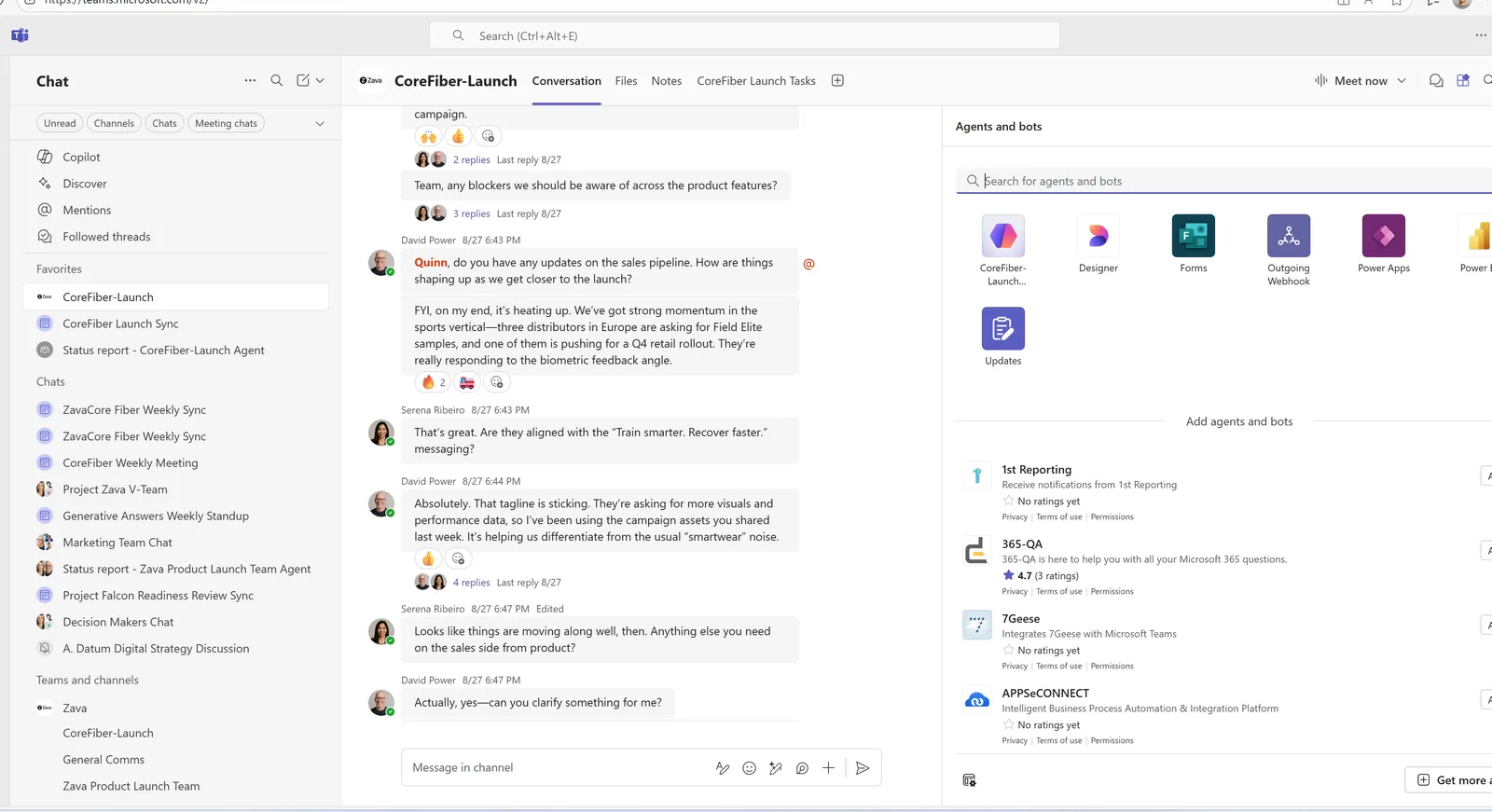
The Agents and bots panel inside a Teams channel. The channel’s own agent (here, “CoreFiber-Launch”) sits alongside other apps you can add.
Once it’s there, you talk to it in the channel like any teammate. Ask it to compare notes, summarise a thread, or pull the open action items, and it answers from the channel’s own content.
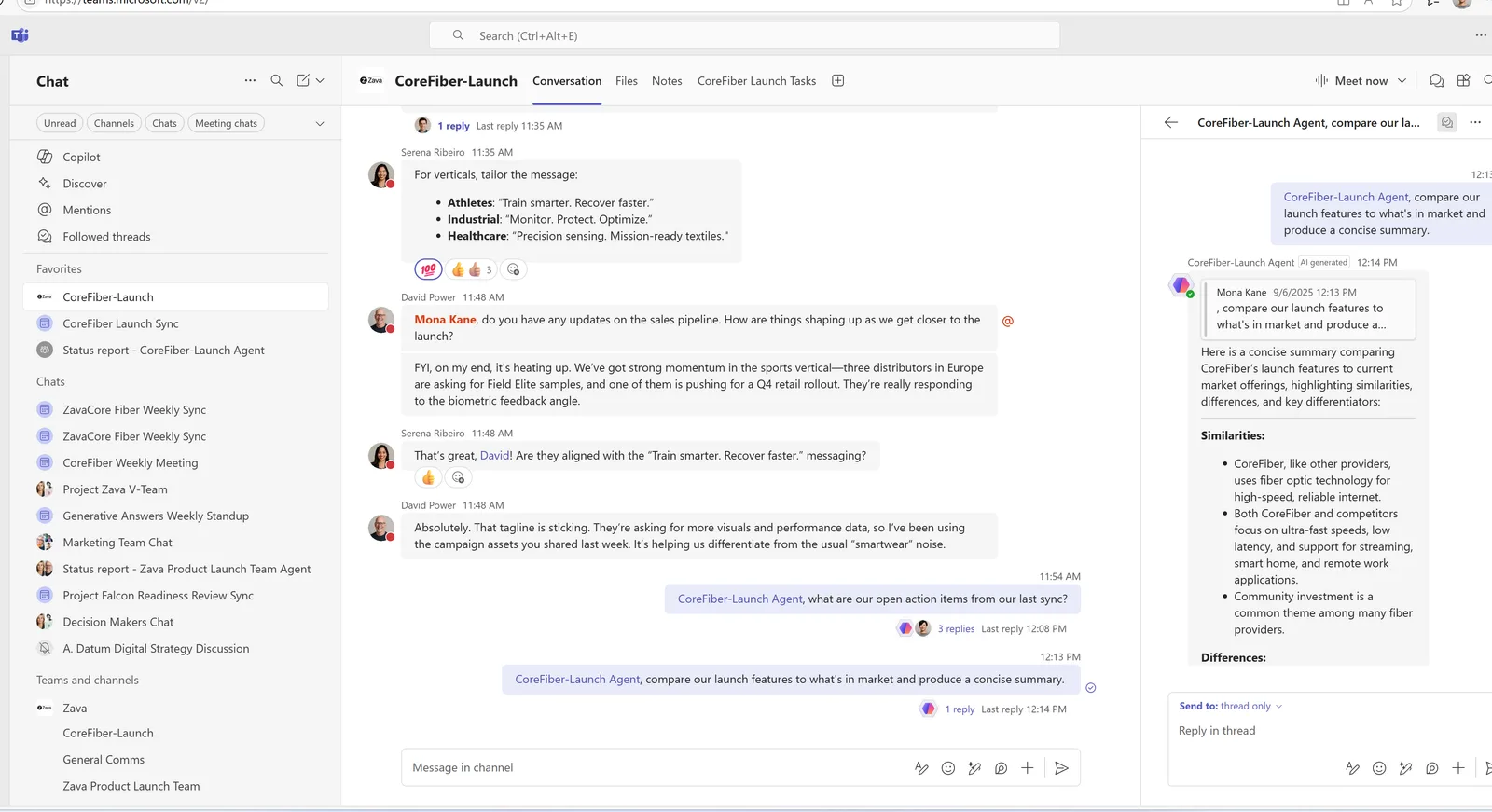
Asking the Channel Agent for a concise market comparison. It answers from the channel’s messages and files, with the response in a side panel.
The Channel Agent is in public preview. It’s allowed by default, and new channels get one automatically unless an admin turns that off (Teams admin center → Teams apps → Agent settings). It needs a Microsoft 365 Copilot licence to interact with — people without one can read its answers but can’t ask it questions — and it supports around two dozen languages, with English the strongest.
Interpreter — real-time voice interpretation
Worth a mention while we’re in Teams: Interpreter is a generally available agent that does real-time spoken interpretation in meetings across nine languages (Chinese, English, French, German, Italian, Japanese, Korean, Portuguese and Spanish), included up to 20 hours per user per month with a Copilot licence. It can even match your own voice — and Microsoft says no voice samples are stored.
In Microsoft Planner
The Planner Agent (formerly “Project Manager agent”)
If you’ve seen this called the Project Manager agent, that’s the same thing — Microsoft has renamed it the Planner Agent, and it’s now generally available in both basic and premium Planner plans.
It does three useful jobs. It builds a task list from a goal (premium plans), it works tasks you assign to it and hands back the result in the task, and it writes status reports you can share. You can also just chat with it about a plan.
📎 Full walkthrough: The Planner Agent (Project Manager agent), explained — generating a plan from a goal, grounding it in your files, assigning it work, and producing a status report, step by step.
The neat part is how this links back to Teams: Facilitator can create a task during a meeting, and it lands in Planner where the Planner Agent can pick it up — two built-in agents handing work to each other.
In SharePoint
SharePoint actually has two agent stories, and it’s easy to mix them up, so let’s keep them separate.
Agents in SharePoint — ask your files a question (GA)
Every SharePoint site ships with a ready-made agent that answers questions grounded in that site’s pages and documents — and it only ever answers based on what you personally have permission to see. People with edit rights can also build custom agents scoped to specific files or libraries, and share them into Teams. These SharePoint agents are generally available and can run either on a Microsoft 365 Copilot licence or a pay-as-you-go billing path an admin sets up for unlicensed users.
The Knowledge Agent — tidy the library itself (preview)
Newer, and different: the Knowledge Agent (preview) doesn’t answer questions about your files — it organises the library. It reads your documents, suggests metadata columns and fills them in, sets up rules (“when a ZavaCore Fiber file is added, email me”), and builds grouped, curated views. Think of it as a librarian for the document library rather than a search box.
📎 Full walkthrough: The SharePoint Knowledge Agent, explained — auto-tagging metadata, setting up rules, and building curated views, with screenshots — plus how it differs from the question-answering SharePoint agents.
In Viva Engage
The Community Agent
Viva Engage communities can have a Community Agent — an agent that acts like a knowledgeable community member, answering questions from the community’s own discussions, files and SharePoint library, and (with the right setting) posting verified answers that an admin or expert has approved first.
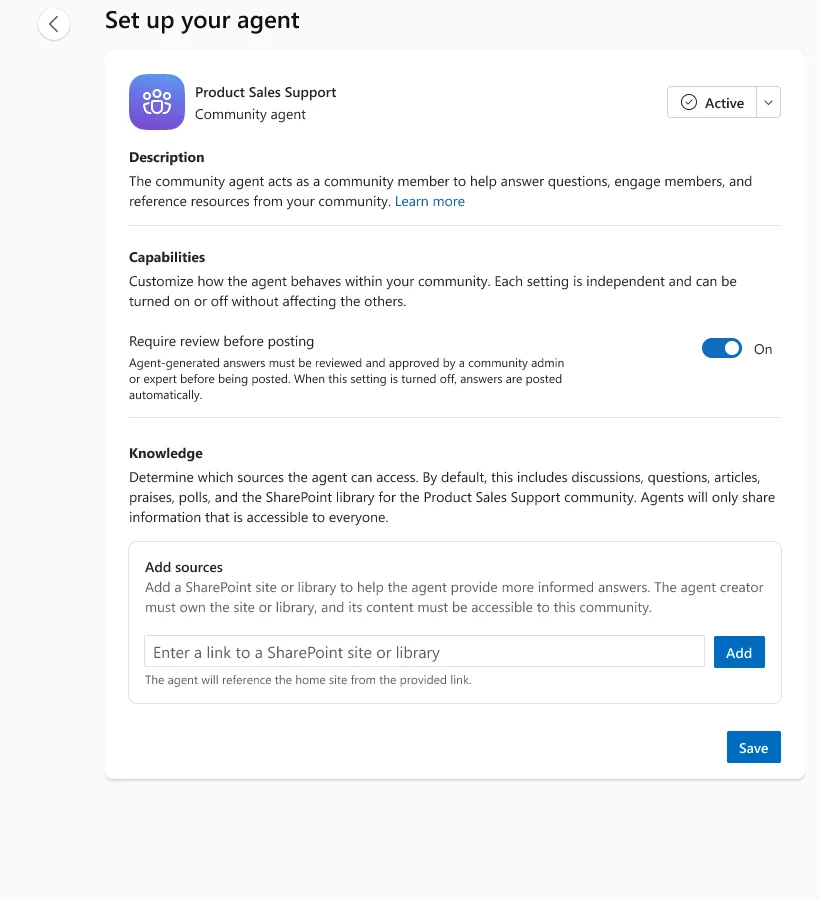
Setting up a Community Agent in Viva Engage. Note the Require review before posting control and the option to add SharePoint sources as knowledge.
When someone asks a question in the community, the agent can draft an answer grounded in those sources; once an expert verifies it, it’s marked as a verified answer for everyone who finds the thread later.
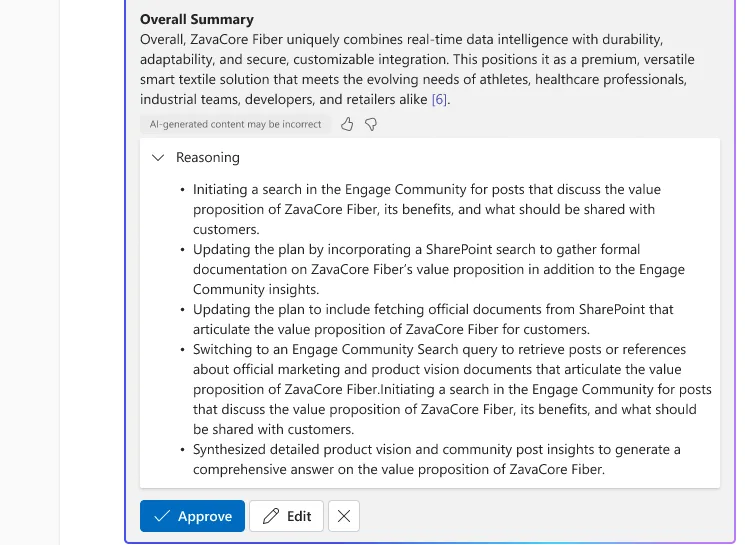
The human-in-the-loop step: the agent drafts an answer (in this preview it even shows an expandable Reasoning trace), then a community expert approves or edits it before it posts.
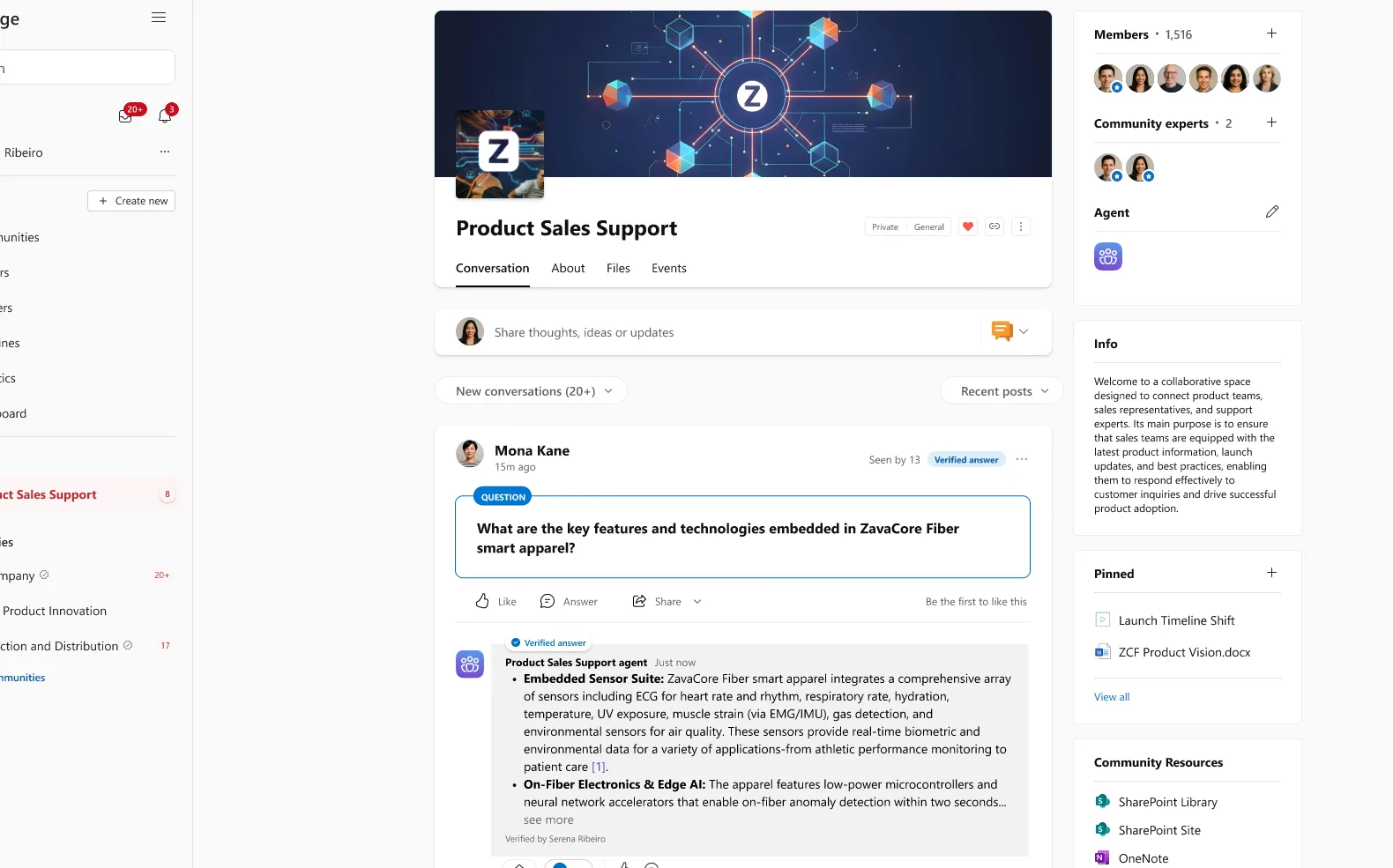
A question in a Viva Engage community answered by the Community Agent and marked as a verified answer by a named expert.
⚠️ Honest caveat: Microsoft’s public documentation for the Community Agent is still thin — the broader Copilot in Viva Engage experience is well documented, but this specific community agent isn’t yet. Treat its exact status and licensing as “appears to need a Microsoft 365 Copilot licence” and confirm with Microsoft before you plan around it.
In Copilot Chat
Three more built-in agents live in the Microsoft 365 Copilot app and Copilot Chat rather than in a single app:
- Researcher — runs deep, multi-step research across your work data and the web, and hands back a source-cited report. Generally available. → full walkthrough
- Analyst — does serious data analysis, turning your spreadsheets and files into insights with charts (it can write and run code to get there). Generally available. → full walkthrough
- Employee Self-Service and the Skills agent — answer HR/IT policy questions and help find people by skill, respectively; newer and still rolling out.
Researcher and Analyst come with a monthly query allowance on a qualifying licence (a Microsoft 365 Copilot licence, or Microsoft 365 Premium for Researcher) — the exact figure has shifted during rollout, so check the current Microsoft 365 Copilot docs before quoting it. One admin nuance worth flagging: these two sit in the core Copilot chat experience and are managed separately from the standard agent settings.
How to turn them on — governance in one place
For most of these agents, the on-switch is the licence: assign a Microsoft 365 Copilot licence and the agent becomes available. Beyond that, here’s where you actually control them.
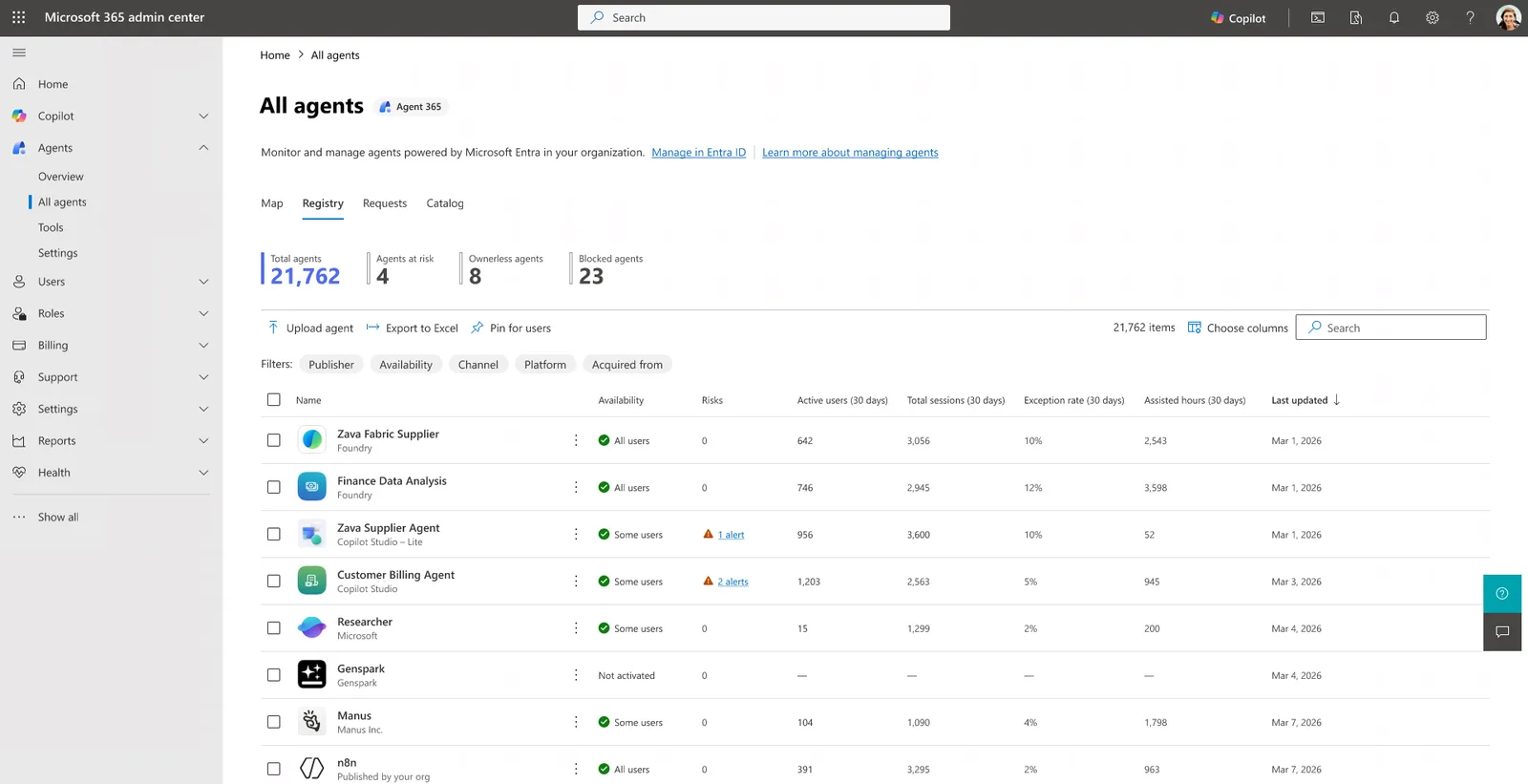
The Microsoft 365 admin center → Agents → Registry — where every agent in the tenant shows up: Microsoft’s built-in ones (like Researcher) alongside the rest, with risk and usage at a glance.
| Control plane | What you do there |
|---|---|
| Microsoft 365 admin center → Agents | The main one. The Registry lists every agent in the tenant; Agent settings controls allowed types, sharing, and user access. You can bulk-install Microsoft’s first-party agents here. |
| Teams admin center | Teams agents — Facilitator, Channel Agent, Interpreter. Allow/block under Manage apps; auto-creation and meeting policy settings live here too. |
| SharePoint admin center | SharePoint agents — access controls and the pay-as-you-go billing setup. |
| Microsoft Agent 365 | The newer single layer (GA May 2026) to observe, govern and secure every agent in one place, whoever built it. Needs its own per-user licence — it isn’t bundled with M365 Copilot. |
✅ Two quick prerequisites people miss: the Teams meeting agents (Facilitator, Channel Agent) need Loop experiences in Teams turned on; and government-cloud availability varies by agent and cloud. Per the service description, the Teams meeting agents and SharePoint agents are in GCC and DoD but not GCC High, Researcher is in GCC and GCC High but not DoD, and Analyst is in all three. Check the service-description row for the specific agent if that’s you.
For the full governance picture — registry, policies, security templates and Agent 365 — see Agent 365: the security & governance guide.
What they cost
The honest answer: for the built-in agents, the Microsoft 365 Copilot licence is the cost, as far as Microsoft’s public documentation shows. They’re included with the seat rather than metered per message. Two things to keep in your head:
- SharePoint agents have a separate pay-as-you-go path (for unlicensed users) that is billed per query — roughly 2 “messages” for a generative answer and 10 for a wider tenant-graph-grounded one, so a single complex prompt that does both can total around 12. Copilot-licensed users aren’t charged.
- Premium Planner features (turning a goal into a full plan) need a Planner Plan 1 / Project Plan 3 or 5 on top of the Copilot licence.
- Separately, usage-based work like Copilot Cowork is metered in Copilot Credits — that’s a different billing model with its own cost-management guide.
Where the public docs don’t spell out metering for a specific agent, we’ve said so rather than guessed. Confirm anything billing-critical with your Microsoft licensing contact.
Which agent for which job
| If you want to… | Reach for… |
|---|---|
| Keep a meeting on time with shared notes | Facilitator |
| Turn a project goal into a worked task plan | Planner Agent |
| Let a new teammate “ask the channel” | Channel Agent |
| Answer questions from a site’s documents | SharePoint agents |
| Tidy and tag a messy document library | Knowledge Agent |
| Run a verified Q&A space for a big community | Community Agent |
| Get a cited research report | Researcher |
| Crunch numbers and run Python on your data | Analyst |
| Interpret a meeting across languages live | Interpreter |
The 5 things that trip people up
Across every built-in agent, the same five confusions come up again and again. Learn them once and most “it’s not working” moments solve themselves:
- “Why can’t I see it?” — it’s almost always the licence or the surface. Most of these need a Microsoft 365 Copilot licence, and each only appears in its place — Facilitator in a scheduled Teams meeting, the Planner Agent inside a shared plan, the Channel Agent in a standard channel. Wrong surface, no agent.
- Each agent has a dependency people forget. Facilitator needs Loop experiences on and a real meeting with enough discussion; the Planner Agent needs a premium plan to turn a goal into a plan; SharePoint agents need their knowledge sources scoped. Miss the dependency and the agent looks “broken” when it’s just unfed.
- Permissions and sharing bite — especially Loop and SharePoint. Facilitator’s notes are a Loop file, so empty or invisible notes are usually a sharing/permission issue. SharePoint agents only ever answer from what you can already see — which is a safeguard, not a bug.
- Expectation vs reality — they won’t magically do everything. Each agent has a bounded scope — it uses the sources Microsoft documents for that surface, doesn’t auto-assign owners for you, and doesn’t quietly reach across your whole tenant. When one “gives instructions instead of doing the work,” that’s by design for a task it can’t safely complete itself.
- Knowing where each one actually lives. Teams vs Planner vs SharePoint vs Viva vs Copilot Chat — the single biggest time-waster is looking for an agent in the wrong app. The lineup table is your map.
📎 The pattern: nearly every problem is one of these five — licence, dependency, permissions, expectations, or location. Check them in that order.
Official Microsoft sources
The public, primary references behind this page:
- AI tools and agents in Microsoft Teams (overview)
- Facilitator in Microsoft Teams
- Set up the Channel Agent for Teams
- FAQ about agents in Microsoft Teams (Facilitator & Channel Agent — limits, languages, performance)
- Interpreter agent in Teams
- Access the Planner Agent
- Get started with agents in SharePoint
- Get started with Researcher in Microsoft 365 Copilot
- Get started with Analyst in Microsoft 365 Copilot
- Microsoft 365 Copilot in Viva Engage
- Agent registry in the Microsoft 365 admin center
- Microsoft Agent 365 overview
- Microsoft 365 Copilot service description — feature and government-cloud availability
The rest of this guide
This overview is the hub. The deep walkthroughs:
- The Microsoft 365 Facilitator Agent in Teams — meetings: notes, agenda, Q&A, tasks, recaps
- The Planner Agent (Project Manager agent) — plans from goals, status reports, grounding in your files
- The SharePoint Knowledge Agent — auto-tagging, rules and curated views
- The Researcher Agent — deep, multi-step research with a cited report
- The Analyst Agent — turns your spreadsheets and files into data insights
And if you’d rather build an agent than use a built-in one:
- Microsoft 365 Agent Builder, explained — the no-code way to make your own
- Agent Builder vs Copilot Studio vs Foundry — which tool for which job
- Agent 365: security & governance — observe, govern and secure every agent
- What’s new at Microsoft Build 2026 — where all this is heading