22 M365 Copilot Features You're Probably Not Using
← the list I wish someone had handed me when I started using Copilot
On this page
Let me paint the picture I see most weeks.
Your company has bought M365 Copilot for you. It’s sitting right there — in Teams, Outlook, Word, Excel, PowerPoint. You’ve tried it a few times. Typed “summarise this”. Maybe “draft an email”. And honestly? It was… fine. Not life-changing. Just fine.
I get it. I was there too.
Then one afternoon I asked Copilot to pull together everything from my last three customer meetings — emails, action items, what was agreed, what was still open. It did it in about 30 seconds. That’s when something clicked. My company had handed me a powerful tool and I was barely using it.
This blog is the guide I wish someone had handed me on day one. Not a feature dump. Not a Microsoft slide deck. Just 22 things that actually change how you work — organised as a journey you can take at your own pace.
📊 The proof this isn’t hype: Microsoft Research ran a controlled study across 56 firms and 6,000+ workers. People with Copilot finished documents 12% faster and reclaimed about 30 minutes a week from email. Modest claims, properly measured, by Microsoft’s own research arm — not Microsoft marketing. (Read the study)
💡 Quick tip before you go any further: Bookmark Microsoft’s official Copilot Prompt Gallery. It’s the single fastest way to get better prompts — filtered by your role and your app. We come back to it properly at the end (feature #21), but it’s the resource I wish I’d known about on day one.
Here’s the deal. I’ve organised these from easiest to most powerful. Start at the top. Try one or two this week. Come back next week for the next level. By the time you reach the end, you’ll wonder how you ever worked without them.
Almost everything in this guide is generally available today with the M365 Copilot licence your organisation has already provisioned — including Cowork (#22), which reached GA in June 2026 and is now moving into Copilot Home. A few features just need your admin to switch them on, and those are called out where they come up.
Ready? Let’s start small.
TL;DR
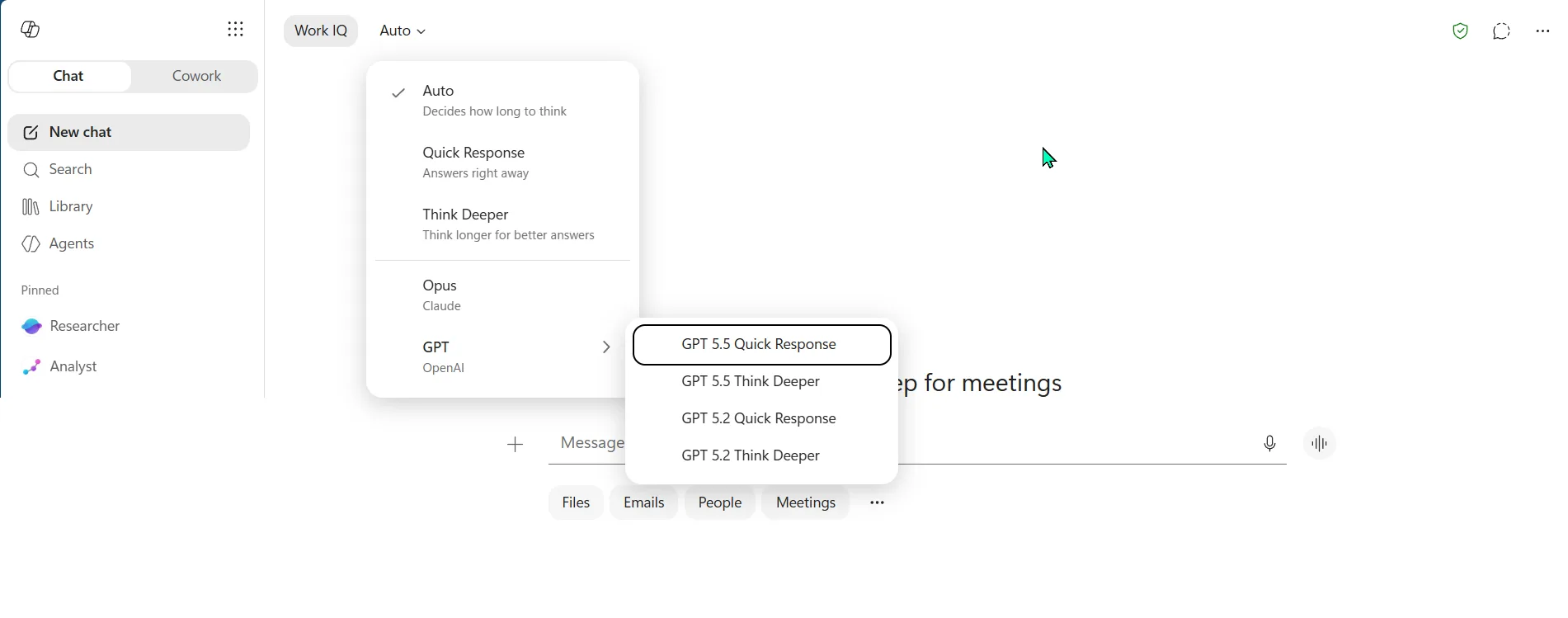
Who this is for: Anyone whose company has handed them M365 Copilot — sales, account management, strategy, HR, project management, marketing, anywhere in between. People like us. Not power users. Not developers.
Where to start: Feature #1 (Meeting Recap), Feature #5 (Personalisation) and Feature #21 (Prompt Gallery). Personalisation makes every other feature smarter. Recap gives you the first “wow”. The Gallery gives you better prompts to keep going.
The bottom line: Most people stick to “summarise this email” and never go further. This guide covers the rest.
Quick Reference (start here, jump anywhere)
| # | Feature | Level | Time |
|---|---|---|---|
| 1 | Teams Meeting Recap (with Custom Templates) | 🟢 Quick Win | 5 min |
| 2 | Copilot in Outlook + Custom Email Instructions | 🟢 Quick Win | 5 min |
| 3 | Enterprise Search | 🟢 Quick Win | 2 min |
| 4 | Past Meeting Mining | 🟢 Quick Win | 2 min |
| 5 | Personalisation — Instructions, Memory + Voice | 🟢 Quick Win | 10 min |
| 6 | Agentic Copilot in Word | 🔵 Superpower | 10 min |
| 7 | Agentic Copilot in Excel | 🔵 Superpower | 10 min |
| 8 | Agentic Copilot in PowerPoint | 🔵 Superpower | 10 min |
| 9 | Copilot in OneNote | 🔵 Superpower | 5 min |
| 10 | Copilot in Loop | 🔵 Superpower | 10 min |
| 11 | Planner Agent | 🔵 Superpower | 10 min |
| 12 | Image Generation in Copilot | 🔵 Superpower | 5 min |
| 13 | Copilot Pages | 🔵 Superpower | 10 min |
| 14 | Researcher Agent (with Model Choice) | 🟣 Power Move | 15 min |
| 15 | Analyst Agent | 🟣 Power Move | 15 min |
| 16 | Copilot Notebooks (+ Audio Overviews) | 🟣 Power Move | 10 min |
| 17 | Scheduled Prompts | 🟣 Power Move | 10 min |
| 18 | Agent Builder (+ SharePoint agents) | 🟣 Power Move | 30 min |
| 19 | Image Input in Copilot Chat | 🟣 Power Move | 5 min |
| 20 | Connectors (Salesforce, ServiceNow, Jira…) | 🟣 Power Move | varies |
| 21 | Prompt Gallery | 🟡 Secret Weapon | 5 min |
| 22 | Copilot Cowork (now in Home) | 🟡 Secret Weapon | GA |
Your Journey Map
Think of this like a video game. Easy levels first to build confidence, then progressively more powerful abilities. Each level builds on the last.
| Level | What You’ll Learn | Time to Try | Vibe |
|---|---|---|---|
| 🟢 Level 1 | 5 quick wins | 2-10 min each | “Wait, it can do THAT?” |
| 🔵 Level 2 | 8 app upgrades | 10 min each | “Why didn’t I know this sooner?” |
| 🟣 Level 3 | 7 power moves | 15 min each | “OK, this is seriously impressive.” |
| 🟡 Level 4 | 2 features for the brave | varies | “I need to tell my team about this.” |
The challenge: Try one feature from Level 1 today. Just one. If it saves you even five minutes, come back tomorrow for the next one. That’s how this works — small wins that compound into something big.
🟢 Level 1 — The Two-Minute Wins
You know that feeling when someone shows you a keyboard shortcut you didn’t know existed? That “how did I not know this?!” moment? That’s this entire level.
These features take literally two minutes to try. Zero learning curve. You’ll use them every day.
1. Teams Meeting Recap (with Custom Summary Templates)
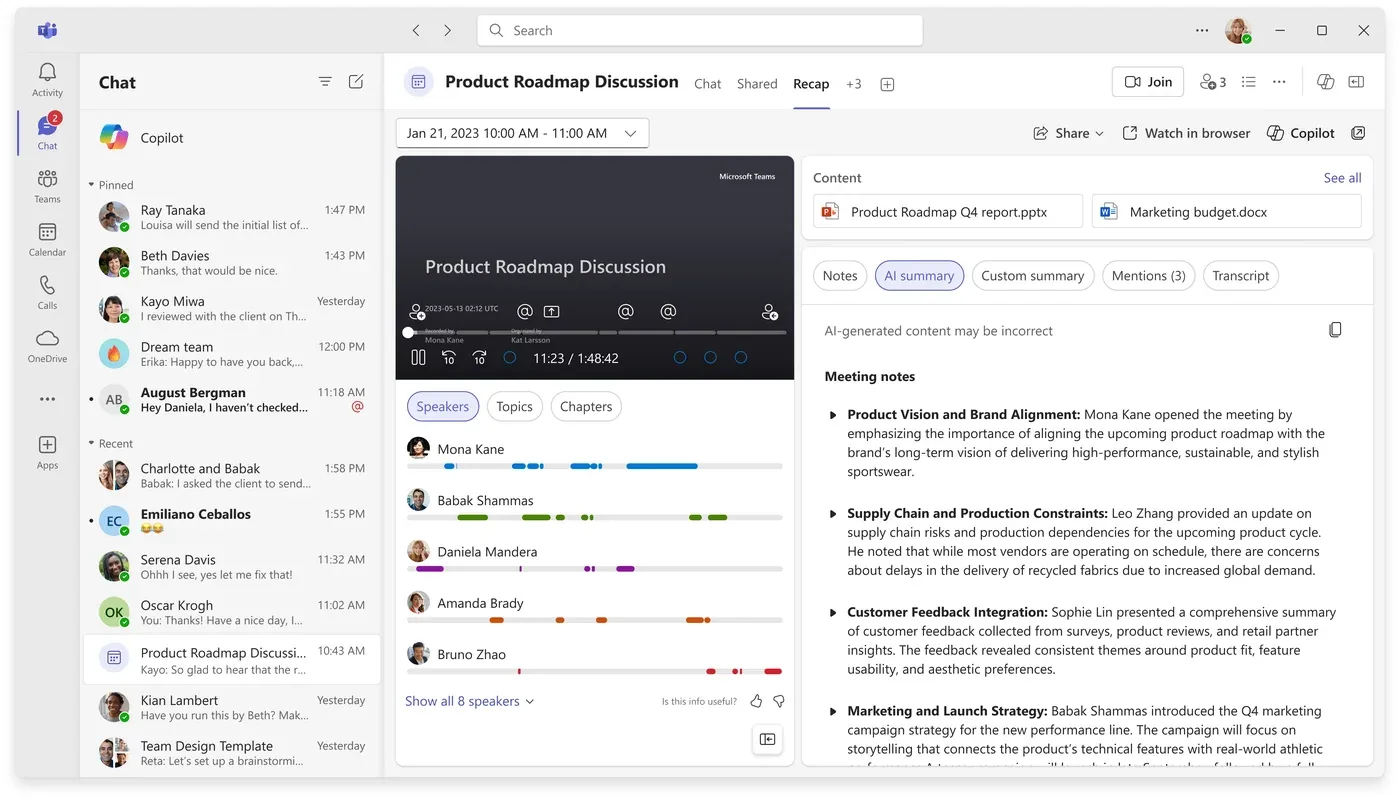
Most people think Meeting Recap is for meetings they missed. Honest take? It’s better for the ones you actually sat through.
I had to be told this twice before it clicked. You’ve been in the room for 60 minutes. You remember the first 10 minutes, the bit where someone said your name, and one decision that might’ve been a decision or might’ve been a passing comment. The transcript is sitting there. Recap reads it for you.
For any Teams meeting with recording and transcription enabled, Copilot creates a full recap — AI-generated summary, discussion points, decisions, action items with owners, and a scrubbable timeline.
📊 Real-world: World Wide Technology rolled Copilot out to 941 staff. Across the team they reported 446 hours saved every week — Meeting Recap and email drafting were the biggest contributors, alongside the wider Copilot suite. (WWT case study)
🎯 The one prompt to start with:
“What decisions were made in this meeting and who owns each action item?”
That’s it. One prompt. Try it after your next call.
👥 Your role's twist — click to open
For AEs: “What customer concerns or objections were raised, and how were they addressed?”
For AMs: “List all action items assigned to our team with deadlines.”
For Project Managers: “What dependencies or blockers were mentioned? Who needs to follow up?”
For HR Leaders: “Summarise any people-related decisions — hiring, resourcing, or team changes discussed.”
For Tech Strategists: “Summarise the technical requirements discussed and any open questions.”
For Marketing/Comms: “What messaging or positioning feedback was given? Any brand-related decisions?”
🪄 Level up — Custom Summary Templates
Once you’re hooked on Recap, here’s the move that makes it stick.
Inside the Recap tab there’s an option to write your own summary template. Copilot follows it every single recap. For recurring meetings, Teams remembers your template.
The default recap is the full newspaper. A custom template is your personalised news brief.
🎯 How to set it up:
- Open a meeting recap in Teams
- Open the Recap tab → look for the summary options (UI labels may vary slightly across versions — look for “Custom summary” or similar)
- Pick a built-in style or create your own template
- Write your own instructions — Copilot follows them every time
📋 Templates by role — copy, paste, save
For AEs: “Summarise this meeting focusing on: (1) customer pain points and objections raised, (2) buying signals or positive sentiment, (3) competitor mentions, (4) agreed next steps with owners and dates, (5) any pricing or deal-related discussions.”
For AMs: “Create a summary focused on: (1) service delivery issues or risks mentioned, (2) customer satisfaction signals, (3) renewal or expansion opportunities discussed, (4) all action items by owner with deadlines, (5) escalations needed.”
For Project Managers: “Summarise as: (1) decisions made and who approved them, (2) risks, blockers, and dependencies raised, (3) timeline changes or milestone updates, (4) resource requests, (5) action items organised by workstream.”
For HR Leaders: “Focus the summary on: (1) headcount or resourcing decisions, (2) team wellbeing or culture topics, (3) hiring and onboarding discussions, (4) policy questions raised, (5) people-related action items with owners.”
For Tech Strategists: “Summarise around: (1) technical decisions and trade-offs discussed, (2) architecture or platform changes proposed, (3) security or compliance concerns, (4) integration requirements, (5) technical debt or risks flagged.”
For Marketing/Comms: “Create a summary covering: (1) brand or messaging decisions, (2) campaign feedback or results discussed, (3) content requests or deadlines, (4) audience insights shared, (5) creative direction agreed.”
2. Copilot in Outlook + Custom Email Instructions
What percentage of your workday do you spend on email?
For most knowledge workers it’s around 28%. More than a quarter of your life at work, reading and replying. Microsoft Research found Copilot users reclaim about 30 minutes a week from email alone. That’s a solid coffee break, every week, back in your pocket.
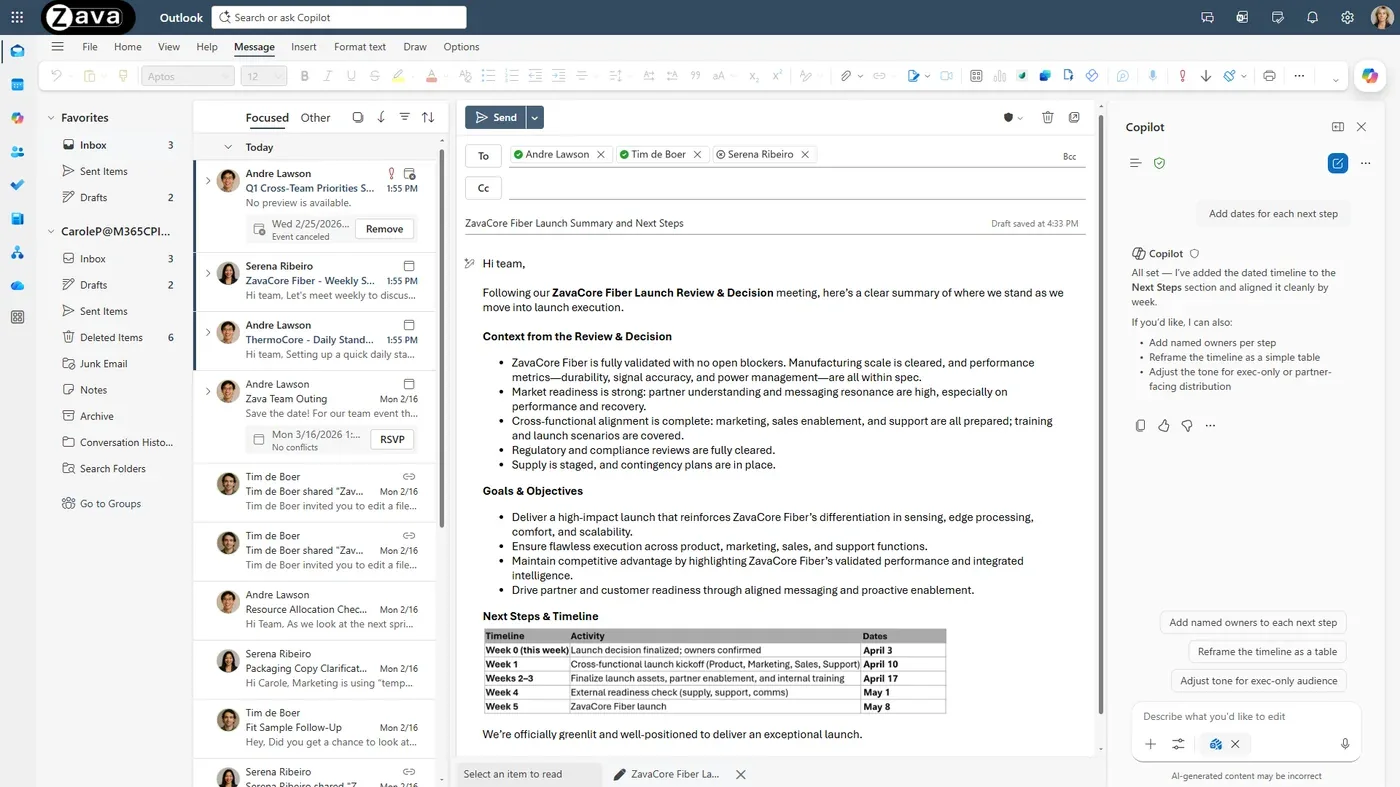
Copilot in Outlook does four useful things:
- Summarises long threads so you don’t read 47 messages to figure out what happened.
- Drafts replies in your tone.
- Coaches you on tone before you hit send — the underrated gem.
- Finds things in your inbox in plain English (“show me emails I haven’t replied to” / “purple-category mail” / “external emails from last week”).
🎯 Start with the simplest wins:
“Summarise this email thread and highlight any unresolved questions.”
“Draft a reply that’s professional but firm — decline this meeting and suggest we handle it async instead.”
“Rewrite this email to be more concise. Keep it under 5 sentences.”
“What’s the tone of this email? Anything I should watch out for before replying?”
“Show me emails I need to reply to — hide threads I’ve already closed.”
💡 The tone-coaching gem: Got a sensitive email to send? Paste your draft and ask Copilot to review the tone first. It’s like having a diplomat proofread your message.
🔧 Hidden power: Custom Email Draft Instructions
You can set persistent Copilot instructions for email drafting that apply every time Copilot helps you write or reply. Find them via the dropdown arrow next to the Copilot icon → Settings → Draft Instructions. Copilot follows them across every email draft from then on.
(Outlook also has separate Calendar Instructions under Outlook Settings → Copilot for scheduling preferences.)
Email draft instructions by role — paste one into Draft Instructions:
👥 Pick yours and customise — click to open
For AEs: “When drafting emails, always maintain a consultative and professional tone. Lead with value and customer outcomes. Keep emails under 200 words. End with a clear call to action or next step. Never use pushy sales language.”
For AMs: “When writing emails, be warm but efficient. Always reference specific account context when available. Flag any SLA or deadline implications. Include clear action items with owners. Keep the tone relationship-focused.”
For Project Managers: “Draft emails in a structured, action-oriented style. Use bullet points for clarity. Always include: status summary, key decisions needed, blockers, and next steps with dates. Keep language direct and unambiguous.”
For HR Leaders: “Write with empathy and clarity. Use inclusive language. When discussing sensitive topics, err on the side of caution and suggest scheduling a call. Always consider privacy implications before sharing details.”
For Tech Strategists: “Be precise and evidence-based. Reference specific systems, data, or documentation where possible. Avoid jargon when emailing non-technical stakeholders. Structure technical recommendations as options with trade-offs.”
For Marketing/Comms: “Write in our brand voice — conversational, confident, and clear. Use active voice. Lead with the headline, then context. For internal emails, keep them scannable with headers and bullets. For external, match the audience’s level of formality.”
✅ You’ve unlocked: An inbox that works for you, not against you.
3. Enterprise Search — Find Anything
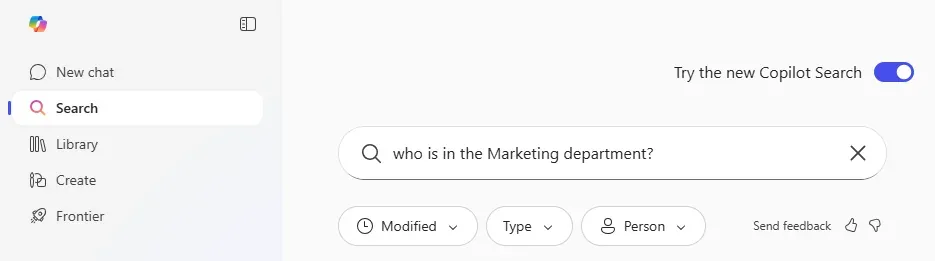
We’ve all been there. “I know that document exists. Someone shared it. In Teams. Or was it email? Maybe SharePoint?”
Copilot can search across the files, emails, chats and meetings you have access to — using plain English. No more opening five different apps and searching each one.
📊 Real-world: The Australian Government trialled the full Copilot suite across 7,500 staff in 50+ agencies. Across all uses (search, drafting, summarising, meetings) they reported about an hour saved per person per day and 60% felt their work quality went up. Search and document discovery were among the biggest day-to-day wins.
🎯 Try this instead of manual searching:
“Find the latest version of the [Project] proposal that [Person] shared last month.”
👥 Your role's twist — click to open
For AEs: “Find all documents and emails related to [prospect company] from the last 3 months.”
For AMs: “What files have been shared in the [Team] channel about customer onboarding this quarter?”
For Project Managers: “Find the most recent project status update for [Project] across Teams, email, and SharePoint.”
For HR Leaders: “Find the latest version of our parental leave policy across SharePoint and shared drives.”
For Marketing/Comms: “Find all campaign briefs shared in the last month across Teams and email.”
4. Mining Gold from Past Meetings
This one quietly blew my mind.
You know all those past Teams recordings sitting there collecting digital dust? The strategy session from three weeks ago. The customer call from last month. The quarterly review from January.
You can go back and ask Copilot questions about any recorded meeting you have access to. Every meeting with a transcript becomes a searchable knowledge base.
🎯 Try this — pick a recent customer or project:
“Across my last 3 calls with [Person/Customer], what objections came up and what did I say in response? What’s still unresolved?”
👥 Your role's twist — click to open
For AEs: “Across my last 3 calls with [Prospect], what objections came up and what’s still unresolved?”
For AMs: “In our last 3 meetings with [Client], what concerns were raised and have we addressed them?”
For Project Managers: “Summarise how the [Project] discussion has evolved across the last 4 weekly standups. Are we on track?”
For HR Leaders: “What was discussed about the new performance review process across leadership meetings this month?”
For Tech Strategists: “What technical risks or dependencies were mentioned across our architecture meetings this quarter?”
For Marketing/Comms: “What feedback was given on our latest campaign across the last 3 review meetings?”
💡 The pro move: Before any customer call, ask Copilot to summarise your last 3 conversations with them. You walk in with the kind of context you could only get if you had time to actually re-read everything — the kind that makes the conversation easier for them, too.
🎬 While we’re here — Copilot in Stream/Clipchamp: If your video is in Stream or Clipchamp (not just Teams meetings), Copilot does the same thing — full transcript-based summaries, jump-to-topic, identify action items. Useful for recorded training, customer demos, or anything not in your Teams calendar.
✅ You’ve unlocked: Organisational memory. The past doesn’t disappear anymore.
5. Personalisation — Instructions, Memory + Voice
This is the set-it-once, benefit-forever feature most people completely miss.
Copilot can learn about you. In the M365 Copilot app you can set personal instructions — your role, your preferences, how you like to work. Once set, Copilot uses them across every interaction. Every response gets a bit more you.
On top of that, Copilot Memory remembers key facts from your conversations — ongoing projects, preferences, working patterns. Memory is on by default if your admin has enabled Enhanced Personalisation. You’re in control: view, edit or delete what Copilot remembers any time.
⚠️ Note: Personalisation may still be rolling out in some organisations. If you don’t see these options, check with your IT admin. UI paths can vary across Outlook / web / Windows — if a menu doesn’t match exactly, look for a Personalisation or Settings option around your Copilot profile.
🎯 How to set it up:
- Open M365 Copilot (microsoft365.com/chat)
- Click … (menu) → Settings → Personalization
- You’ll see three controls: Custom instructions, Saved memories, Chat history
- Write your custom instructions — Copilot uses them going forward
Sample instructions by role — pick yours and customise:
For AEs: “I’m an Account Executive focused on enterprise sales. I manage a pipeline of 20+ opportunities across [industry]. I prefer concise, action-oriented responses. When I ask about accounts, always highlight buying signals, risks, and suggested next steps. I communicate with C-suite stakeholders, so help me keep language strategic and value-focused.”
For AMs: “I’m an Account Manager responsible for [X] enterprise accounts. My priority is customer retention and expansion. When I ask for help, focus on relationship health, renewal risks, and growth opportunities. I need responses that are client-ready — warm, professional, and solution-oriented.”
For Project Managers: “I’m a Project Manager leading [X] initiatives. I work with cross-functional teams across [departments]. Structure responses with clear action items, owners, and timelines. I think in terms of milestones, dependencies, and risks. Use bullet points and tables when possible.”
For HR Leaders: “I lead HR for [team/org]. I deal with sensitive people topics daily. Always use inclusive, empathetic language. When discussing policy, reference our internal guidelines. Flag privacy considerations proactively. Help me communicate with clarity and compassion.”
For Tech Strategists: “I’m a Technology Strategist focused on [domain]. I evaluate platforms, architectures, and technical decisions. Give me balanced analysis with trade-offs, not just recommendations. Be specific — reference actual technologies, standards, and best practices. I present to both technical and business audiences.”
For Marketing/Comms: “I work in Marketing and Communications. Our brand voice is [describe]. When helping me draft content, match our tone — conversational but professional. I need responses that are creative, on-brand, and audience-appropriate. Always consider our target personas: [describe audiences].”
💡 The Memory bonus: As you use Copilot, it saves key facts about your work — projects, preferences, context. View and manage them under Settings → Personalization → Saved memories. You’re always in control of what stays and what gets deleted.
🎙️ Bonus — Voice chat: Open the M365 Copilot app, hit the mic, talk. Long-form, free-flowing — great for thinking out loud on a walk between meetings. Try: “I just got out of a meeting and want to process what I heard. Let me talk through it and you help me identify what needs action.” (Hands-free “Hey Copilot” wake-word is currently a Windows consumer-Copilot feature, not part of M365 work Copilot — for work Copilot, use the mic button.)
✅ You’ve unlocked: A Copilot that knows you. Every other feature gets smarter from this point.
🎉 You’ve completed Level 1!
If you’ve tried even two or three of these, you’re ahead of most Copilot users. Bookmark this page and come back when you’re ready for Level 2 — where things get seriously powerful.
🔵 Level 2 — Your Apps Just Got Superpowers
Welcome back. Level 1 was about quick wins in Copilot chat and meetings. Level 2 is about the apps you already use every day — Word, Excel, PowerPoint, OneNote, Loop, Planner — and the AI upgrade they’ve quietly received.
If Level 1 was “wait, it can do that?” — Level 2 is “why didn’t I know this sooner?”
6. Agentic Copilot in Word
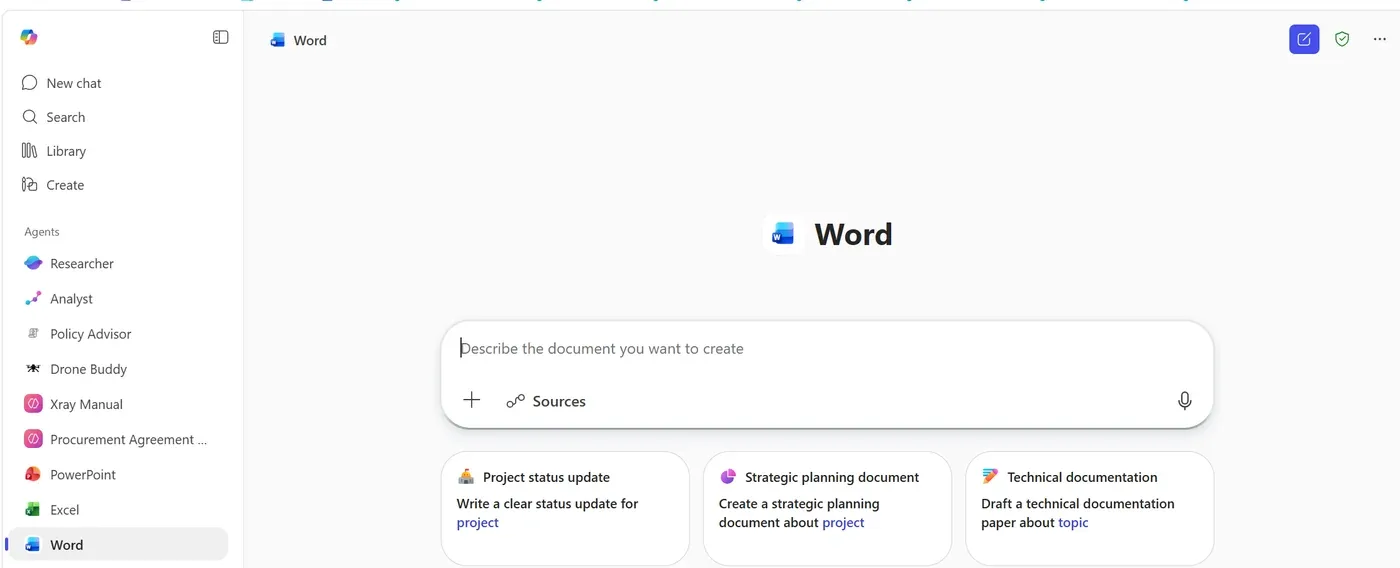
Forget what you know about “Copilot drafts a document”.
Agentic capabilities in Word went GA in April 2026. Instead of generating text and walking away, Copilot now works alongside you — like an editor sitting next to you. It rewrites sections, restructures paragraphs, checks consistency, takes multi-step actions in the doc, and explains every change. You review, give feedback, it iterates.
Old Copilot was like handing work to an intern. Agentic Copilot is collaborating with a senior editor.
📊 Real-world: TAL Insurance, one of Australia’s largest insurers, has been cited as reporting around 6 hours saved per employee per week across their Copilot rollout. Take that as one signal among others — the underlying pattern (drafting work shifts from solo grind to AI-assisted iteration) is widely observed across organisations using these capabilities.
🎯 Open a document and try this:
“Review this document for consistency, clarity and tone. Suggest improvements section by section.”
👥 Your role's twist — click to open
For AEs: “Turn these meeting notes into a customer-ready proposal. Highlight the value proposition and ROI.”
For AMs: “Rewrite this QBR report to be more concise and impactful for a C-suite audience.”
For Project Managers: “Convert this status update into a project brief with risks, milestones, and resource needs.”
For HR Leaders: “Review this policy document for inclusive language and clarity. Suggest improvements.”
For Tech Strategists: “Create a one-page executive brief from this 20-page technical assessment. Focus on decisions needed and risks.”
For Marketing/Comms: “Rewrite this internal announcement for an external audience. Match our brand voice and add a compelling headline.”
7. Agentic Copilot in Excel
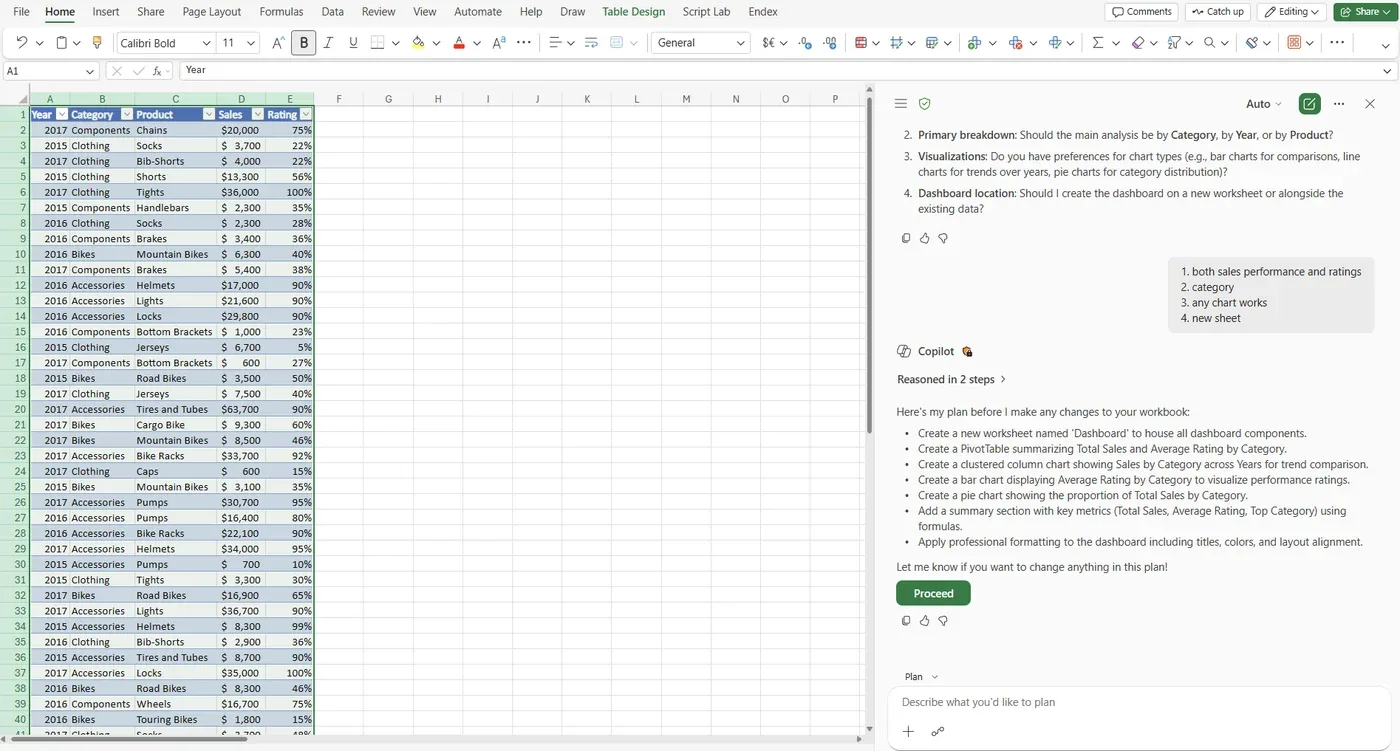
If Excel formulas make your eyes glaze over, this one’s for you.
You describe what you want in plain English — and Copilot builds it. Analysis, charts, pivot tables, data cleaning, all through conversation, not formulas.
The trick most people miss: you can ask Copilot to explain complex formulas someone else built. The ones with nested VLOOKUPs that nobody dares touch. Copilot breaks them down in plain English and suggests simpler alternatives.
🎯 Open a spreadsheet and try:
“This spreadsheet is messy — clean it up, remove duplicates, standardise the dates, and flag anomalies.”
“Explain what this formula does in plain English and suggest a simpler version.”
👥 Your role's twist — click to open
For AEs: “Analyse my pipeline. Which deals have been stalled the longest and what’s the common pattern?”
For AMs: “Show customer renewal dates for the next 90 days, sorted by revenue at risk.”
For Project Managers: “Create a resource allocation summary — who’s overallocated and where are the gaps?”
For HR Leaders: “Analyse this headcount data by department and tenure. Flag any attrition trends.”
For Tech Strategists: “Compare vendor pricing across these 3 quotes. Normalise to per-user-per-month and highlight the best value.”
For Marketing/Comms: “Analyse campaign performance data by channel. Which ones are delivering the best ROI?”
8. Agentic Copilot in PowerPoint
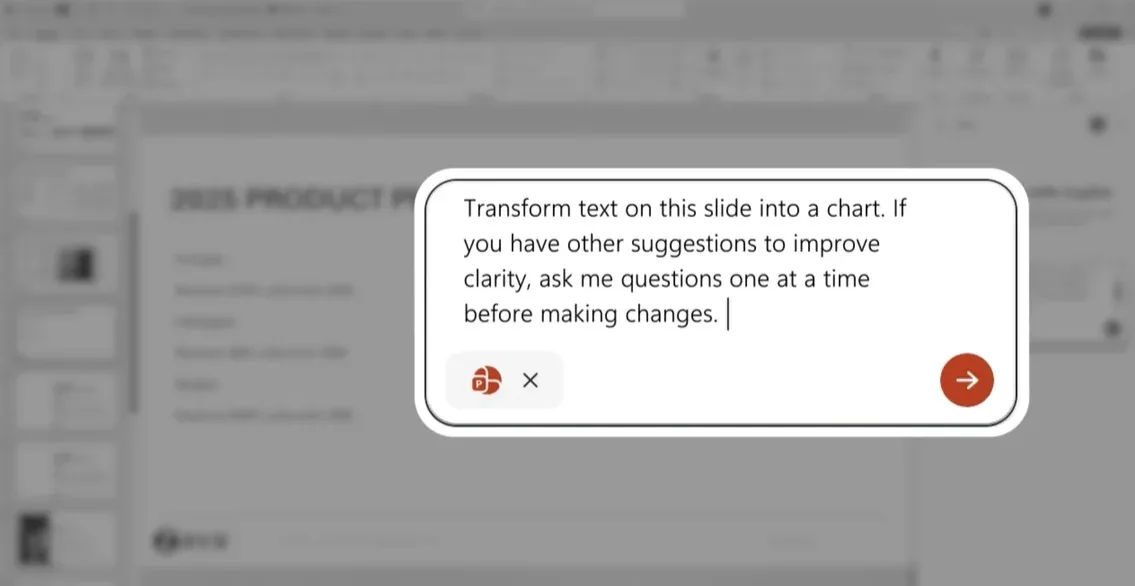
Every slide deck you’ve ever sent had one slide you spent 80% of the time on. You know the one.
Agentic Copilot in PowerPoint doesn’t just dump text on slides. It designs layouts, suggests visuals, adapts content for your audience, and refines iteratively with your feedback. Give it a Word document, a brief, or a meeting transcript — get a presentation back.
🎯 Try this for your next presentation:
“Create a 10-slide presentation on [topic]. Make it executive-friendly with key insights on each slide.”
“Add speaker notes to every slide that I can use during the presentation.”
👥 Your role's twist — click to open
For AEs: “Turn this proposal document into a customer-facing pitch deck. Focus on their pain points, our solution, and ROI.”
For Project Managers: “Build a project status deck with timeline, milestones, risks, and budget summary.”
For Tech Strategists: “Adapt this technical architecture presentation for a non-technical board audience. Simplify the language.”
For Marketing/Comms: “Create a campaign results presentation. Lead with the headline metrics, then drill into channel performance.”
✅ You’ve unlocked: Presentations in minutes, not hours. Spend your time on the story, not formatting.
9. Copilot in OneNote
A truth nobody talks about: most of us have a graveyard of unorganised notes in OneNote. Meeting notes, brainstorms, random ideas, half-finished plans — all dumped in there and never looked at again.
Copilot in OneNote changes that. It summarises, extracts action items, organises chaos into structure, and even searches across old notebooks to surface forgotten gold.
🎯 Open your messiest OneNote section and try:
“Summarise this section’s meeting notes and list all action items with owners and deadlines.”
“Search my notebooks for anything related to [Project] from the last 3 months. Summarise key decisions.”
“Turn these brainstorming notes into a structured project plan with phases and deliverables.”
“What themes or recurring topics show up across my notes from this quarter?”
10. Copilot in Loop — Co-create Live with Your Team
Skip if your team doesn’t use Loop. If you do — read on.
Loop is Microsoft’s collaborative canvas — components that sync everywhere. The star here is live human co-authoring: instead of one person drafting and emailing around for feedback, your whole team works in the same Loop page at the same time, edits appearing as everyone types.
Where does Copilot fit? Honestly, more narrowly than it used to. Microsoft pared back the Copilot integration in Loop in late 2025 to line it up with the Copilot Pages experience, so today Copilot in Loop is mainly two things: a Copilot Chat panel (top-right) you can ask questions and then insert answers onto the page from, and Recap, which summarises the changes made on a page so latecomers can catch up. One honest limit worth knowing: Copilot Chat in Loop can’t directly edit the page you have open — you ask, then insert. For a Copilot that actively drafts and rewrites in the document, that’s Copilot Pages (#13), and Microsoft is working to bring more of that experience back into Loop.
🎯 Open a Loop workspace and try:
(In the Copilot Chat panel) “Draft a kick-off agenda, a stakeholder map, and a risks/mitigations table for [project]” — then use Insert to drop the result onto the page for the team to build on.
(Recap) “Summarise the changes made on this page so people joining late can get up to speed in 30 seconds.”
(In the Copilot Chat panel) “Turn this messy brainstorm into three clean themes with bullet points” — review it, then insert.
🪄 Bonus — Copilot in Whiteboard: When the team needs to ideate visually instead of in text, jump to Whiteboard. Copilot generates ideas as sticky notes, organises them into themes, and summarises the session. Same idea, different surface.
11. Planner Agent — Turn Meetings into Tasks
Skip if your team doesn’t use Planner. If you do — this saves your post-meeting hour.
How often do you leave a meeting with a Word doc full of action items, and then spend the next hour copying them into Planner / DevOps / Jira / wherever?
The Planner Agent (in Copilot) can build the plan for you. Describe the goal or paste in your meeting notes and it generates tasks, sets rough due dates and groups them into buckets — you tweak, you publish. A couple of honest notes: the agent’s richer moves (generating a whole plan from a goal inside a plan) sit in the premium Planner experience, and while it drafts task details for you, treat owner assignments and dates as suggestions to confirm rather than something it decides for you.
🎯 Try this after your next planning meeting:
“Here are my meeting notes. Generate a Planner plan with tasks grouped by workstream and rough due dates.”
“Look at the action items in this meeting recap and add them to my [Plan] as new tasks.”
“Draft a status summary for this plan — which tasks are open, which are due soon, and where are the gaps?”
12. Image Generation Inside Copilot
This is the one I forgot existed for the first six months.
You don’t need any extra tools — right inside M365 Copilot, you can ask for an image and it generates one. Concept art, infographics, slide visuals, social tiles, banner backgrounds — all from a prompt, ready to drop straight into your Word doc, slide or Loop page.
⚠️ Note: Image generation may need admin enablement in some tenants — if you don’t see the option, it may be turned off at the tenant level. Always check your organisation’s policy on AI-generated images — some industries (financial services, healthcare, government) have rules about how generated content can be used externally.
🎯 Try one of these:
“Create a clean, modern banner image showing a team collaborating around a digital whiteboard. Wide aspect ratio, professional style.”
“Generate a simple infographic-style image showing ‘before and after’ for a process improvement story.”
“Make a friendly, abstract background for a Teams channel about employee wellbeing — soft colours, no faces.”
💡 The pro move: Pair this with PowerPoint. Generate an image, drop it on the slide, ask Copilot to “design this slide around the image”. Faster than searching stock libraries.
13. Copilot Pages — Your Collaborative AI Canvas
This is one of the most underrated features in the whole Copilot lineup.
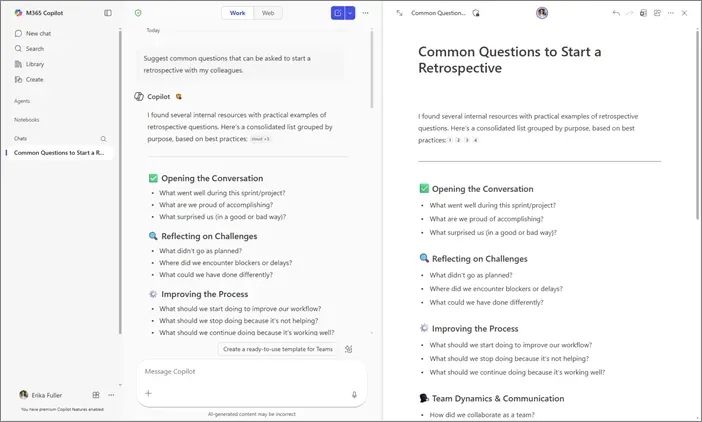
What is a Page? When Copilot gives you a great response in chat, click Edit in Pages and it becomes a living, collaborative document. Not a saved chat — a proper editable, shareable workspace where you and Copilot (and your colleagues) keep refining together.
Think of it as the bridge between chat response and real deliverable.
🎯 How to use Pages:
- Ask Copilot anything in chat — research, a draft, an analysis
- Like the output? Click Edit in Pages on the response
- The response opens as a full Page — editable and expandable
- Keep chatting with Copilot inside the Page to refine, expand or go deeper
- Share the Page — colleagues edit live alongside you
- Export to Word or PDF when it’s ready to go out
The workflow that changed how I work:
- Ask Researcher (Level 3) for deep research on a topic
- Click Edit in Pages on the output
- Share with the team — they add their context and expertise
- Ask Copilot to polish and expand specific sections
- Export to Word or PDF for the customer
🎯 Try one of these (then click Edit in Pages):
“Research the top 5 market trends in [industry] for 2026. Create a comprehensive briefing.”
“Draft a project charter for [initiative] including objectives, scope, stakeholders, and success criteria.”
“Create a competitive analysis of [Product A] vs [Product B].”
✅ You’ve completed Level 2! 🎉
You’re now using Copilot across meetings, email, documents, spreadsheets, presentations, notes, real-time team docs, plans and visuals. Not just chatting with AI. Working with it.
Ready to go deeper? Level 3 is where Copilot becomes a genuine team member.
🟣 Level 3 — The Power Moves
Level 1 was quick wins. Level 2 was app upgrades. Level 3 is where Copilot researches for you, analyses your data, automates your routine, talks to your screenshots, and pulls in data from outside Microsoft 365.
These take a bit more effort to learn. The payoff is worth it.
14. Researcher Agent — Your Personal Research Team
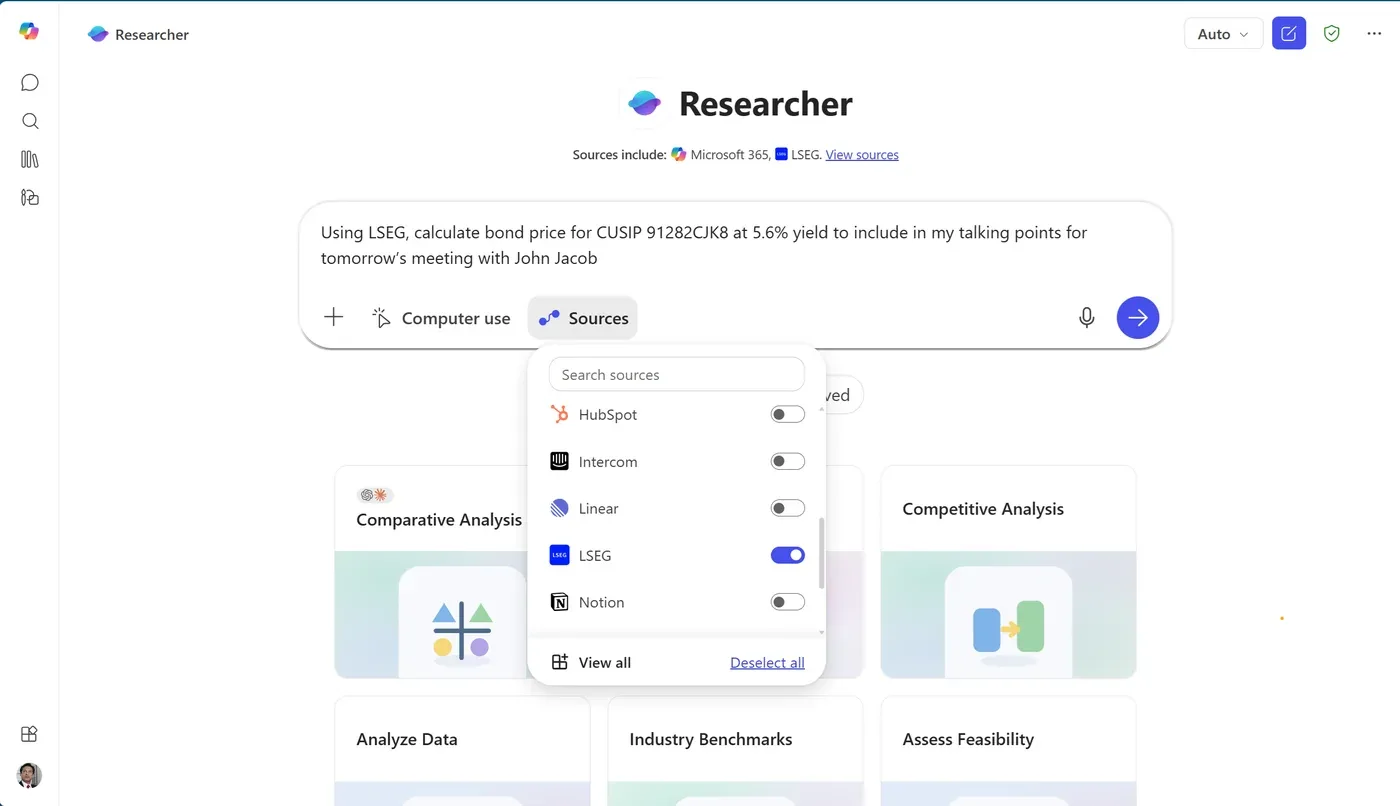
This is the feature that made me rethink what Copilot actually is.
Researcher isn’t a better Copilot chat. It’s a specialised reasoning agent that does multi-step research combining the web AND your M365 data — emails, files, meetings, messages — all at once. It explores multiple angles, cross-checks itself, and shows you the sources so you can verify everything.
It thinks harder. It’s more thorough. It tells you where it got the information.
📊 Real-world: Microsoft’s own HR team built Copilot into their Dynamics 365 Customer Service case management. Result: 20% faster case throughput. The pattern is the same one Researcher unlocks for the rest of us — pulling context together so people stop spending time on boilerplate summaries and focus on the actual problem in front of them. (Microsoft customer story)
🎯 Pick a big task you’ve been putting off:
“Prepare an executive briefing for my meeting with [Customer/Stakeholder]. Pull from our recent emails, past meetings, and any relevant public news. Suggest 3 talking points and likely objections.”
👥 Your role's twist — click to open
For AEs: “Prepare an executive briefing for my meeting with [Prospect]. Pull from emails, past meetings, and public news. Suggest 3 talking points and likely objections.”
For AMs: “Build a QBR briefing for [Client] — summarise our engagement over the past quarter, highlight wins, flag risks, and suggest expansion opportunities.”
For Project Managers: “Research best practices for [methodology/framework]. Compare 3 approaches with pros, cons, and recommendations for our context.”
For HR Leaders: “Research the latest trends in employee retention for [industry]. Include data, practical strategies, and examples from similar-sized organisations.”
For Tech Strategists: “Compare [Platform A] vs [Platform B] for our cloud migration. Include total cost of ownership, migration complexity, and risk factors.”
For Marketing/Comms: “Research competitor positioning in [space]. Analyse their messaging, content strategy, and social presence. Identify gaps we can use.”
⚠️ Two things to know: (1) Microsoft documents a limit of 25 Researcher queries per user per month — save them for your highest-value work, not quick questions that regular Copilot chat handles fine. (2) Researcher lets you pick the AI model (Anthropic Claude or OpenAI GPT) from a model selector — different models have different strengths. For deep analysis, Claude often does well; for creative phrasing, GPT models. Let it auto-choose if you’re not sure. (Model choice has expanded into the agentic capabilities in Word, Excel and PowerPoint as well — admin needs to enable Anthropic models for your tenant.)
✅ You’ve unlocked: Work that used to take 2-3 hours now takes minutes.
🔗 Go deeper: The full 2026 deep dive on Researcher — model choice, planning, citations, what makes it different from regular Copilot chat — is in the 2026 prompting upgrade brief.
15. Analyst Agent — Your Personal Data Scientist
If Researcher is your research team, Analyst is your data scientist.
Analyst doesn’t just make charts. It cleans messy spreadsheets, runs advanced analysis behind the scenes, spots trends, does segmentation, builds forecasts and — the crucial part — explains its working step by step so you can verify and trust the results.
If you’ve ever stared at a spreadsheet thinking “I know there’s an insight hiding in here somewhere” — Analyst is your answer.
📊 Real-world: Lumen Technologies has been widely cited as estimating $50M in annual savings after rolling Copilot out across their sales and operations teams — faster pipeline reviews, less admin, better data work. Worth taking as one signal alongside others, not the only number that matters. (C5 Insight summary)
🎯 How to actually use it — and a starter prompt:
In M365 Copilot Chat, click the attachment icon, upload your spreadsheet (Excel or CSV), then try:
“Analyse this data. Show me the top 3 trends, which areas are underperforming, and what’s driving the change. Visualise the key findings.”
👥 Your role's twist — click to open
For AEs: “Analyse my sales pipeline. Which deals are at risk? What’s the common pattern among stalled opportunities? Suggest recovery actions.”
For AMs: “Show me customer usage trends for the past 12 months. Segment by engagement level and flag churn risks with revenue impact.”
For Project Managers: “Analyse this project timeline data. Where are we behind schedule? What’s the impact on the critical path?”
For HR Leaders: “Analyse this employee survey data. Identify the top 3 themes, segment by department, and flag areas needing urgent attention.”
For Tech Strategists: “Build a forecast from this adoption data — show best-case, worst-case, and most-likely scenarios for the next 6 months.”
For Marketing/Comms: “Analyse website traffic and campaign data. Which content pieces are driving the most qualified leads? Visualise the funnel.”
💡 The perception shift: If someone in your organisation still thinks “Copilot isn’t that smart” — sit them down and show them Analyst. It changes the conversation every time.
16. Copilot Notebooks — Your AI Project Workspace
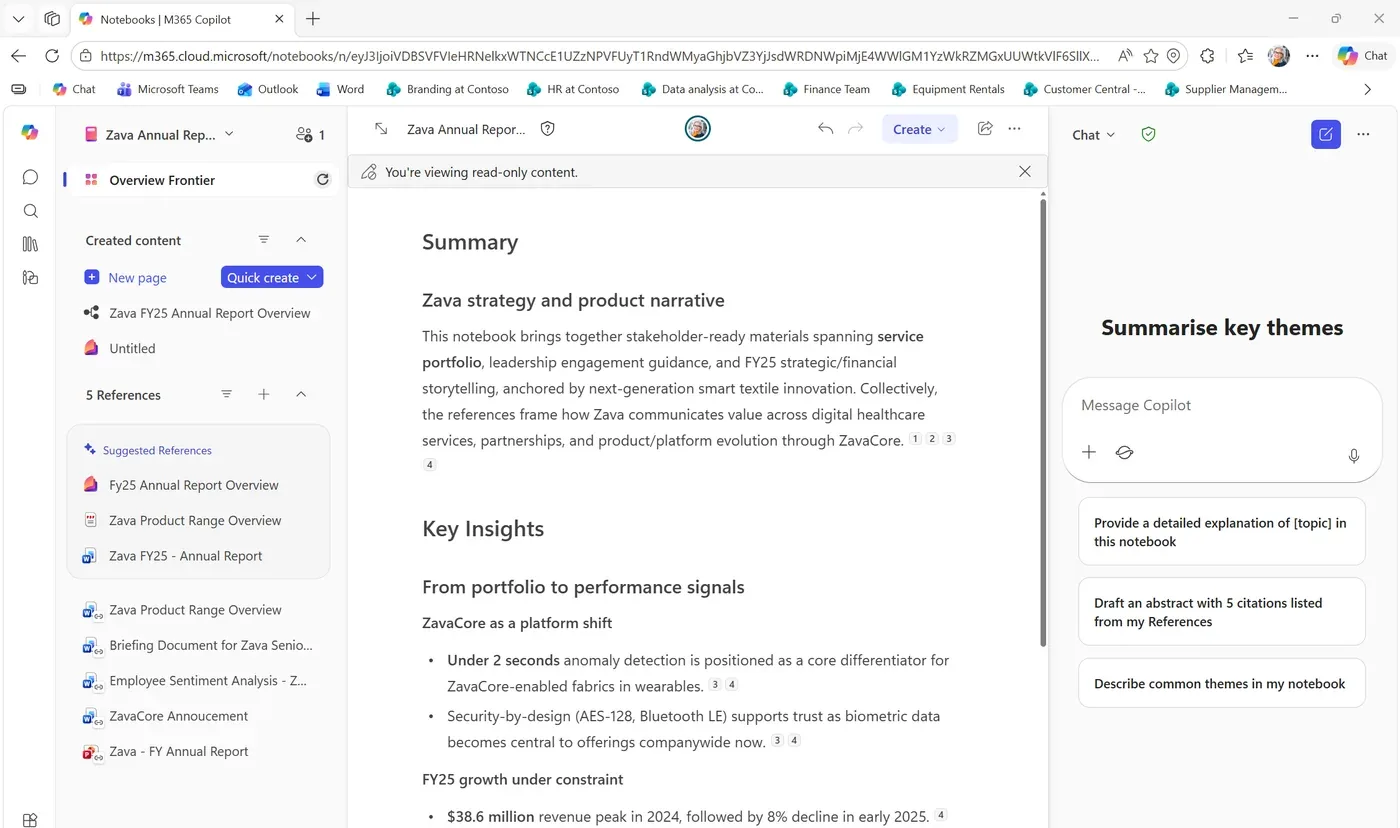
Regular Copilot chat is like a text conversation — great in the moment, scattered and hard to find later. Copilot Pages (#13) are great when you want one polished output to share. Notebooks are different again.
Notebooks are designed for ongoing projects — multi-day, multi-week, evolving. They keep your prompts, context, references and outputs together in a three-column workspace. Add files — Word, Excel, PowerPoint, PDFs — as references, and Copilot reasons across all of them together.
The magic? Copilot remembers the project context, so every response gets smarter as you add more material.
The simple rule: Pages are for one output you polish and share. Notebooks are for projects that span days or weeks, where you keep feeding Copilot more material over time.
🎯 Pick an ongoing project. Create a Notebook:
“I’m working on a [project/proposal/strategy] for [customer/initiative]. Over the next few weeks I’ll add meeting notes, requirements and research. Let’s start with an outline based on what I know so far.”
Chat vs Notebooks — when to use which:
| Use Chat when… | Use Notebooks when… |
|---|---|
| Quick one-off question | Multi-day or multi-week project |
| Simple draft or summary | Research that builds over time |
| Finding a file or email | Proposals, strategies, plans |
🎧 Bonus — Audio Overviews: Notebooks can generate a conversational audio summary of your content. Like a personalised podcast of your own work. Great for the commute or catching up on the go. The same Audio Overview feature is starting to appear in OneDrive too — summarise up to five files at once without opening them.
💡 Who this is gold for: Consultants juggling multiple customers. Strategists building proposals. Account managers doing quarterly reviews. Project managers across workstreams. Anyone whose work evolves over days, not minutes.
✅ You’ve unlocked: Copilot with long-term memory. Projects that get smarter over time.
🔗 Go deeper: Sample prompts, the cross-source table pattern, and the full Notebooks workflow are in the 2026 prompting upgrade brief.
17. Scheduled Prompts — Copilot Works While You Sleep
This is the one that turns Copilot from a chatbot into something closer to an automation engine.
You can schedule prompts to run automatically — daily, weekly, one-off. Copilot runs the work on your cadence and delivers the results. Set it. Forget it.
No more remembering to check something every Monday. No more manually pulling together a weekly summary. Copilot just… does it.
⚠️ Note: Scheduled Prompts are generally available in Microsoft Copilot Chat (Teams, Outlook and the Copilot chat app). Microsoft documents a limit of 10 scheduled prompts per user. Your admin can disable the feature via the Connected Experiences policy (Microsoft moved it under that policy in August 2026) — if you don’t see the Schedule option, that’s the place to ask.
🎯 Set up your first scheduled prompt today:
Every Monday at 8am: “Summarise the key emails, meetings and action items from last week. Highlight anything urgent for this week.”
Every Friday at 4pm: “Create my week-in-review — key decisions, outstanding items, and priorities for next week.”
Every morning at 9am: “What’s on my calendar today? Which meetings need preparation? What should I review beforehand?”
First Monday of the month: “Summarise this month’s key achievements, outstanding items, and upcoming deadlines across my projects.”
💡 The honest insight: This is the moment Copilot stops being something you use and starts being something that works for you.
🔗 Go deeper: Worked examples, the bookmarked-prompt pattern, and where scheduled prompts stop and scheduled agents begin — all in the Prompt Engineering Field Guide.
18. Agent Builder — Build Your Own AI Experts
Now we’re cooking.
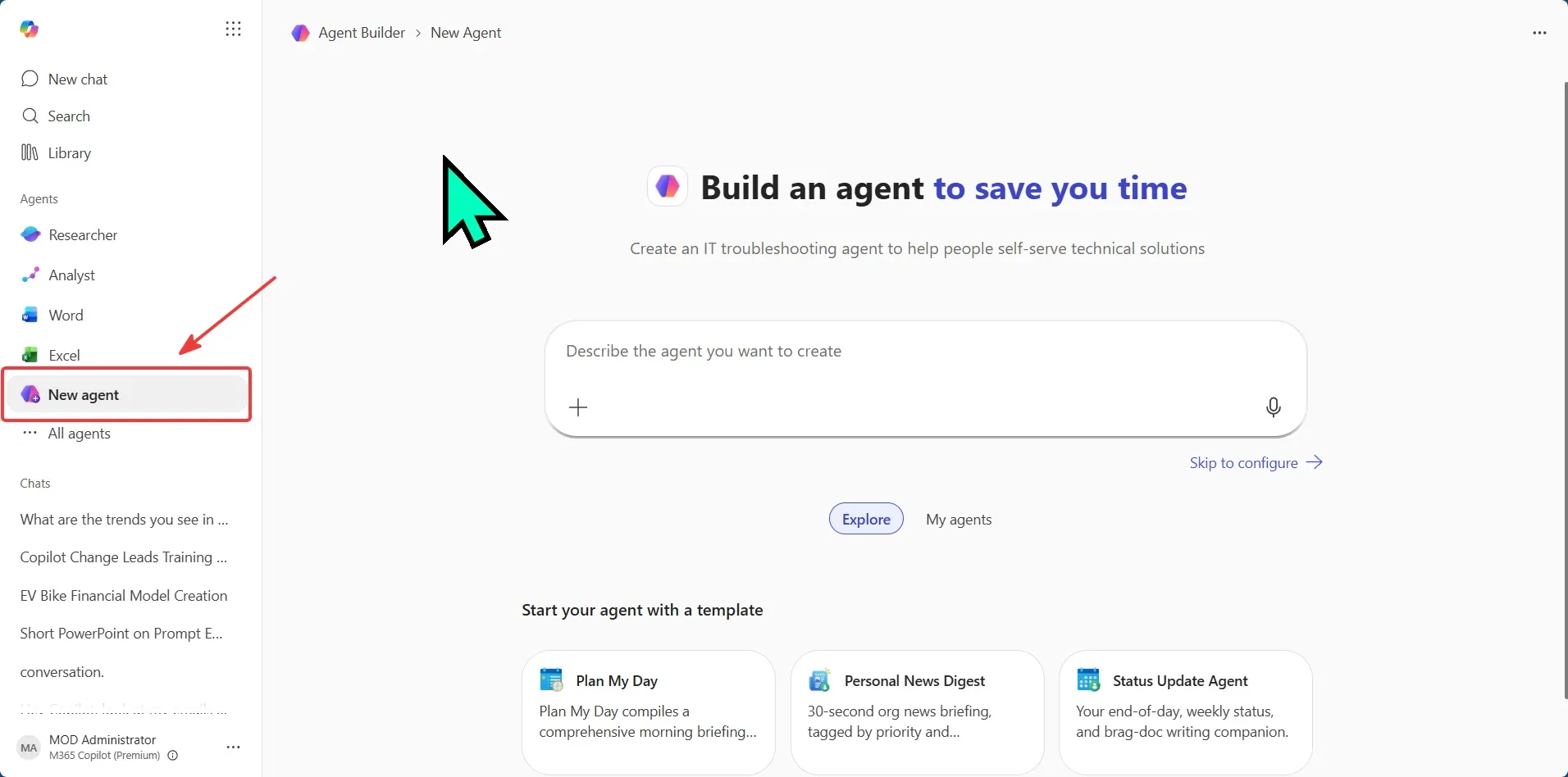
Right inside the M365 Copilot app there’s a no-code Agent Builder. Not Copilot Studio — a simpler experience built into Copilot Chat for personal and small-team productivity. Describe what your agent should do in plain English. Point it at your knowledge sources (a SharePoint site, a folder, FAQs). Test it. Publish it. Done.
Your team @mentions the agent in Copilot chat, and it answers based on YOUR data. It’s like building a custom expert for your team in 30 minutes.
🎯 Think about the questions your team asks over and over:
“What’s our leave policy?” / “Where’s the latest pricing?” / “How do I submit an expense?” / “What’s the process for…?”
Build an agent for it.
Quick steps:
- Open M365 Copilot (microsoft365.com/chat)
- Find the Agent Builder option
- Describe what the agent should know and do
- Add knowledge sources (SharePoint URLs, documents, FAQs)
- Test, refine, publish
Quick-win agent ideas:
- Team FAQ bot — pointed at your SharePoint team site
- Customer knowledge agent — pointed at a customer folder
- Process guide — pointed at your standard operating procedures
- New starter buddy — pointed at your onboarding docs
🪄 Bonus — SharePoint agents: Every SharePoint site now comes with a ready-made agent that answers questions over the content of that site. No build needed. Customise it if you want, or just use it as-is. Easiest 5-minute win in this whole guide.
💡 The impact: One 30-minute build can save your team hours of “who do I ask about this?” every single week.
🔗 Go deeper: Full step-by-step Agent Builder field guide — knowledge sources, sharing, scheduling, troubleshooting — is at M365 Agent Builder explained. For when to graduate to Copilot Studio or Foundry, see the 3-tier decision guide.
19. Image Input in Copilot Chat — Talk to a Screenshot
Most people still treat Copilot as text in, text out. Image input changes that.
⚠️ Note up-front: Image input in M365 Copilot Chat is rolling out and may need admin enablement in some tenants. (Don’t confuse this with “Copilot Vision” — that’s a Windows-Copilot feature where the AI can see your open screen, which is separate.) If you don’t see the image-attach button, check with IT.
You can paste a screenshot, photo of a whiteboard, chart, or diagram into Copilot Chat and ask it questions about the image. It reads what’s there visually — no need to retype, no need to copy data out manually.
Things I use this for almost weekly:
- A messy dashboard screenshot → “What’s the headline trend? What’s missing?”
- A photo of a whiteboard from a workshop → “Type these up as bullet points and group them into themes.”
- A complicated PowerPoint slide someone sent → “Explain this in plain English.”
- A receipt → “Pull the line items into a table.”
🎯 Try one of these — paste in an image:
“What’s in this chart? Summarise the trend in one paragraph and highlight anything that looks unusual.”
“Type up this photo of our whiteboard as a structured list with headings.”
“Explain what this dashboard is showing as if I was new to the company.”
⚠️ Privacy reminder: Don’t paste customer-sensitive screenshots if your organisation hasn’t enabled the appropriate data protection controls. Vision respects your existing M365 boundary, but image-based content can be easy to over-share by accident.
✅ You’ve unlocked: Copilot finally understands the half of your work that isn’t text.
20. Connectors — Bring Outside Data In
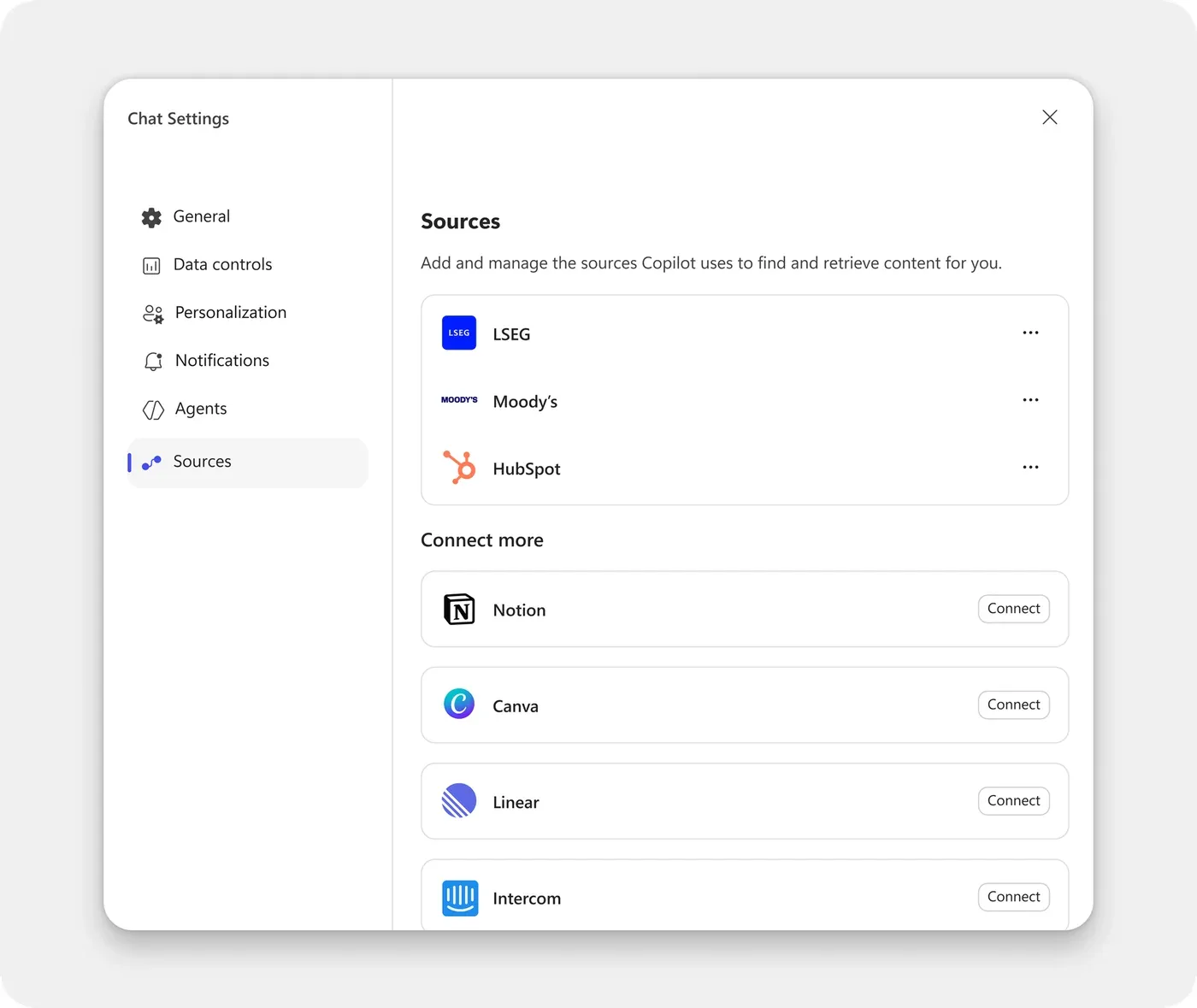
⚠️ Heads-up: Connectors need your IT admin to enable them. Once they’re on, here’s what becomes possible.
Most knowledge work doesn’t live entirely in Microsoft 365. You’ve got tasks in Asana or Jira. Tickets in ServiceNow. Customer data in Salesforce or Dynamics. Files in Box or S3.
Connectors let Copilot reason across that data too — without you copy-pasting between tabs. Once your admin enables a connector, Copilot can pull context from those external sources and combine it with your M365 data in one answer.
A note on what’s first-party vs partner: Microsoft ships first-party connectors for the big ones — Salesforce, ServiceNow, Jira Cloud, Confluence Cloud, and more. Other tools (Asana, GitLab, Box, Amazon S3 etc.) are typically available as partner-built connectors in the connector gallery — same idea, different support and SLA. Either way, your admin enables them.
🎯 Once a connector is enabled, try:
“Across our Salesforce account [Customer] and our last 3 Teams meetings, where are we right now and what’s next?”
“Summarise all my open Jira tickets assigned to me, grouped by priority. Tell me which one to do first based on what’s blocking the team.”
“Pull this week’s high-priority ServiceNow tickets and draft a Monday-morning status update for the team channel.”
⚠️ Note: If you don’t see your tool listed, it’s an admin question, not a feature question.
✅ You’ve unlocked: One Copilot, all your data — not just the Microsoft bits.
🎉 You’ve completed Level 3!
If you’re here, you’re well ahead of most Copilot users. You’ve got Copilot as a researcher, data scientist, automation engine, custom-agent builder, image-reader and multi-source connector. That’s not just using AI — that’s working with it.
One more level to go.
🟡 Level 4 — The Secret Weapon + What’s Next
Two final features — your secret weapon for better prompting, and a peek at where Copilot is heading next.
21. The Prompt Gallery — Your Secret Weapon
I’ve put this near the end on purpose. Honestly? It might be the feature with the highest long-term impact.
The number-one reason people don’t get value from Copilot isn’t the technology. It’s the prompts. Vague questions get vague answers. Then they blame the tool.
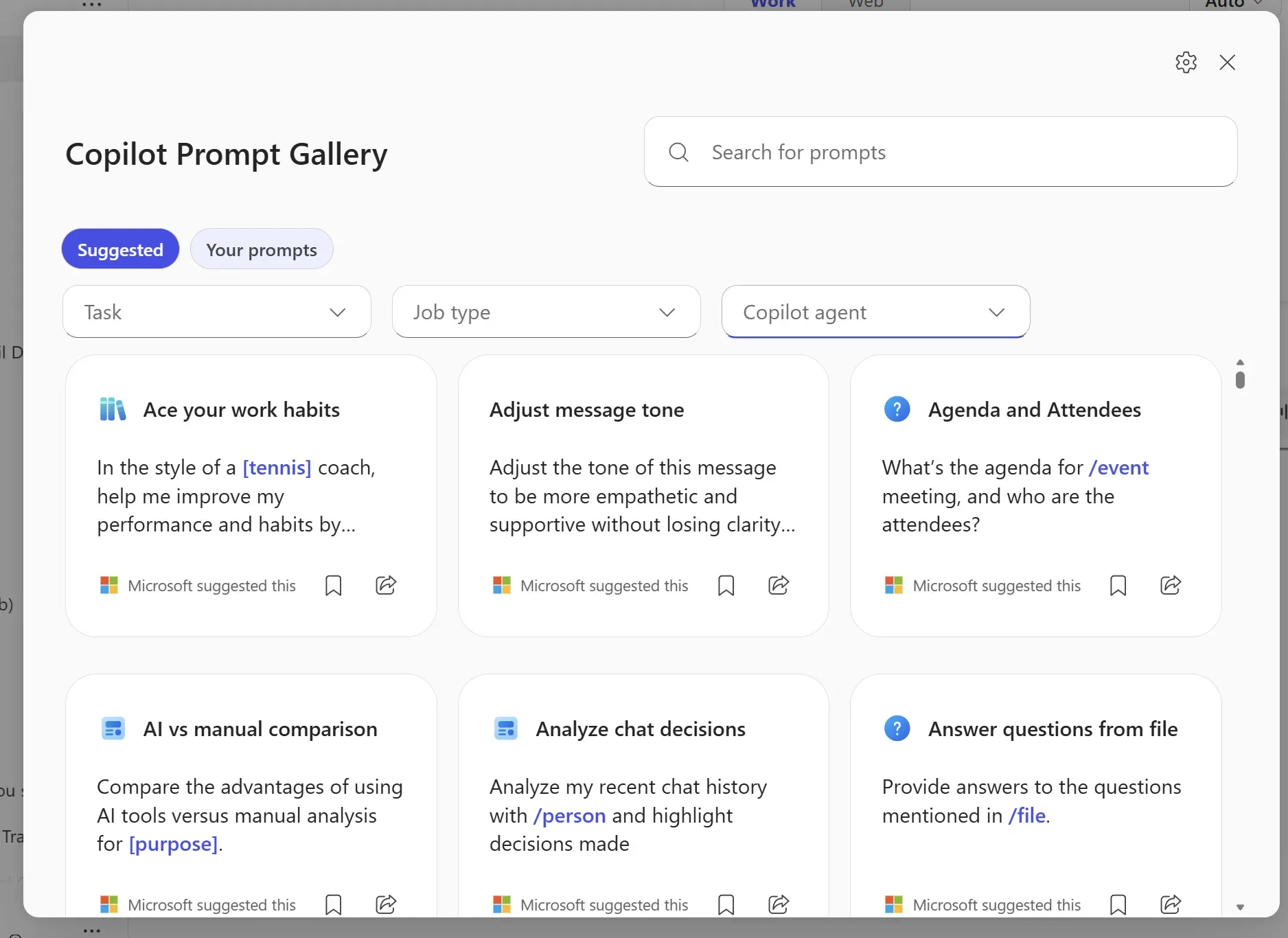
Microsoft maintains an official Copilot Prompt Gallery with hundreds of ready-to-use prompts, organised by role (Sales, HR, Marketing, IT, Finance, Leadership) and by app. Not generic suggestions — proven, refined prompts you can copy-paste and customise in seconds.
🎯 Your move:
- Visit the Prompt Gallery
- Filter by your role and the app you use most
- Copy 3 prompts that look useful
- Try them this week
- Save the ones that work
💡 The team multiplier: Have someone curate a “Top 10 Copilot prompts for our team” list from the Gallery and share it. This single move accelerates adoption across your team faster than any training session I’ve seen. Takes the guesswork out of “what do I even ask?”
22. Copilot Cowork — Hand Over a Whole Project
Cowork is the next step from where Researcher (#14) gets you today. Researcher finds and synthesises — pulls everything together so you can decide what to do. Cowork goes further: it actually takes the actions. You describe a goal, and it plans the steps, works across your apps (Outlook, Teams, SharePoint, Word, Excel), executes the work, and checks in with you at key milestones.
It’s the difference between asking someone a question and handing them a whole project to run.
Example scenarios:
- “Prepare a complete briefing for my meeting with [Customer] tomorrow” — finds emails, gathers files, checks past discussions, creates talking points.
- “Clean up my calendar for next week — find conflicts, suggest what to decline, block focus time.”
- “Track down the status of [Project] across emails, Teams, and shared files — give me a one-page update.”
✅ Availability: Cowork reached general availability on 16 June 2026. In the September 2026 “new Copilot” update, Cowork moves into Copilot Home — the new starting point where Chat and Cowork come together — so you’ll increasingly reach it there rather than as a separate surface.
🔗 Go deeper: Full Cowork field guide — what it is, how it differs from regular Copilot, the agentic harness, skills, access, licensing — is at Microsoft Copilot Cowork complete guide.
That’s the end of the list. 🎉
Your 4-Week Challenge
Don’t try all 22 at once. That’s a recipe for overwhelm. Each week below has one specific outcome to land, not a category to explore.
📊 The pattern: A small apparel manufacturer’s Copilot pilot has been written up showing that within about a month Copilot had become one of the most-used apps after Outlook — driven by drafting and meeting work (Citrin Cooperman case study). The interesting part isn’t the number — it’s the pattern. Try a few features, find the two or three that fit your work, build the habit.
🗓️ Week 1 — One template that runs forever Set up your Personalisation instructions (#5) AND a Custom Summary template for your most common meeting type (inside #1). By Friday, every recap from your weekly customer call is automatically structured the way you want it — once, forever.
🗓️ Week 2 — One app where Copilot saves you an hour Pick the app you use most — Word, Excel, or PowerPoint (#6, #7 or #8). Use it on real work, not a test doc. The outcome by Friday: one document/sheet/deck you finish faster than usual and you’d be happy to send.
🗓️ Week 3 — One automation, one research deep-dive Set up one Scheduled Prompt (#17) — the Monday morning briefing is a great starter. Then use Researcher (#14) to prep for your single highest-stakes meeting that week. By Friday: an automation that runs on its own, and one meeting you walked into more prepared than usual.
🗓️ Week 4 — Share what worked Visit the Prompt Gallery (#21), find 3 prompts for your role, and share your favourite feature with a colleague. Teaching cements your own learning. By Friday: someone else on your team is using something you taught them.
By the end, you’ll have more than the AI features in your toolkit. You’ll have a few small habits that don’t go away.
FAQ
Do I need a special licence for these M365 Copilot features? Most features here work with the standard Microsoft 365 Copilot licence your organisation has likely already provisioned. Some — model choice, third-party connectors, image input, image generation — may need your admin to switch them on. Cowork (#22) is generally available (since June 2026): it runs on a Microsoft 365 Copilot licence plus usage-based Copilot Credits for the work it does, with admin enablement. If a feature isn’t appearing for you, check with IT first.
How many Researcher queries do I get per month? Microsoft documents 25 Researcher queries per user per month. Analyst usage is metered too (check Microsoft Learn for the latest limits). Save them for high-value work — regular Copilot chat handles quick questions just fine.
Can I use Agent Builder without Copilot Studio? Yes. Agent Builder inside M365 Copilot is a simpler, no-code experience for personal and small-team agents. For complex workflows with custom integrations, you’d move to Copilot Studio.
Which AI model should I pick? For most tasks, let Copilot auto-choose. For deep reasoning, try Claude. For creative work, try GPT models. Model choice is available in Researcher and across the agentic capabilities in Word, Excel and PowerPoint (admin enablement required). Experiment a couple of times and you’ll develop a feel.
Does Copilot access other people’s data? No. Copilot respects your existing M365 permissions. It only sees data you already have access to. It does not bypass your organisation’s security policies.
Can Copilot make mistakes? Yes. Like any AI, it can get things wrong. Always double-check important facts, figures and recommendations before acting on them. Treat Copilot as a strong first draft, not a final answer.
Can I paste a screenshot into M365 Copilot Chat? Yes — image input is supported in M365 Copilot Chat (paste a screenshot, photo of a whiteboard or a chart and ask questions about it). This is different from Copilot Vision on Windows, which is a separate consumer feature where the AI sees your open screen. Some tenants may need admin enablement for image input.
Are Connectors the same as plugins? Same broad idea — they let Copilot reach data outside Microsoft 365. Some connectors are first-party Microsoft (Salesforce, ServiceNow, Jira Cloud, Confluence Cloud). Others are partner-built (Asana, GitLab, Box, S3, etc.) — both kinds need admin enablement. Think of connectors as the data connections specifically; the broader Copilot extensibility catalogue (plugins, skills, connectors and more) is increasingly organised under a single plugin registry.
Can I set custom instructions for the whole team? Personal Copilot instructions are personal. For team-wide customisation, your admin can configure organisational settings, and you can build shared Agents (#18) that encode team knowledge.
Where should a complete beginner start? Feature #1 (Meeting Recap), #5 (Personalisation), #21 (Prompt Gallery). Set up Personalisation first, then use the Gallery to find great prompts for your role. Everything else follows naturally.
Is what I type into Copilot private? Your Copilot conversations aren’t shared with colleagues by default, and they’re not used to train AI models. They’re not fully “invisible”, though: your organisation’s retention, audit and eDiscovery policies apply, so authorised compliance staff can review Copilot interactions through Microsoft Purview where policy requires it.
What’s the difference between Copilot in Teams/Outlook vs the main Copilot chat? Copilot in Teams and Outlook works within those apps — it knows the meeting context or the email thread you’re looking at. The main Copilot chat (at microsoft365.com/chat) can search across everything and is where you’ll find Researcher, Analyst, Notebooks, Agent Builder and Pages.
Where to learn more
Each feature on this list has a deep-dive somewhere on this site. Pick where you want to go next:
📝 Prompting
- Prompt Engineering Field Guide — the four-block framework, per-app prompts, the mistakes everyone makes
- 2026 Prompting Upgrade Brief — Notebooks · Researcher · Analyst · Memory · model choice
🤖 Agents
- M365 Agent Builder Field Guide — no-code agent building, end-to-end
- Agent Builder vs Copilot Studio vs Foundry — pick the right tool
- Microsoft Copilot Cowork Complete Guide — what’s next after agents
👥 By role
- Microsoft 365 Copilot — Persona Playbook — Recruiter · Ops · Finance · IT · Sales
🎓 For trainers
🔐 For admins
- How Microsoft 365 Copilot Works, Layer by Layer — the architecture primer
- Deployment Best Practices Checklist
- Content Safety Controls for Admins
🗓️ Monthly updates
One Last Thing
Here’s what I’ve learned watching hundreds of people adopt Copilot.
The people who get the most value aren’t the most technical. They’re not writing the most complex prompts. They’re the ones who built a habit. They try one new thing, find it useful, add it to their routine. Then the next thing. And the next.
That’s why this guide is a journey, not a list. Start where you are. Try one feature. If it helps, come back for the next one. Small wins compound into something bigger than the sum of the parts.
When you find a feature that makes you go “how did I ever work without this?” — share it with a colleague. Honestly, the best way to keep getting value from Copilot is to have the people around you getting value from it too.
The tool is already there. The only thing left is the first try.
Feature #1. Right after your next meeting.
Go. 🚀
This is a living document. I’ll keep updating as new features ship and as I find better prompts. Got a Copilot tip I missed? Send me feedback — I’d love to add it.
Disclaimer: Feature availability depends on your Microsoft 365 licence and your organisation’s admin settings. Some features may still be rolling out regionally. Product claims re-checked against Microsoft Learn as of September 2026. If something isn’t appearing for you, check with IT — it might just need enabling.